📑 本页内容
WiFi or Bluetooth suddenly stopped working on your laptop? Before you pay anyone, try fixing it yourself — most of the time it's a small software or connection hiccup, not a broken part. At Esmond Service Centre in Singapore, plenty of laptops come to our bench for "dead WiFi" or "Bluetooth not connecting" and walk out fixed in minutes with no parts changed at all.
This is the step-by-step we use ourselves, written in plain English for both Windows (10 and 11) and Mac, and for both WiFi and Bluetooth. Follow the steps for your setup in order, test after each one, and stop as soon as it reconnects. If you reach the end and it's still dead, we'll show you the honest signs that it's a hardware fault — and what to do next.
Before you start
- Have your WiFi password handy — several fixes ask you to forget the network and type it in again.
- Check if it's only this laptop or everything: try the internet on your phone over the same WiFi. If your phone and other devices are also offline, the fault is your router or internet provider (Singtel, StarHub, M1, MyRepublic), not your laptop.
- Plug your laptop into the charger so it doesn't sleep or run low halfway through.
- If your only mouse and keyboard are Bluetooth, keep a wired one or your trackpad ready before you switch Bluetooth off.
- Work through the steps for YOUR setup in order, top to bottom, and stop the moment it reconnects — you don't need to do all of them.
- Know which system you're on, because a few steps differ. On Windows, go to Settings > System > About and read the Edition (Windows 10 or 11); a quick tell is that Windows 11 centres the Start button and icons on the taskbar while Windows 10 keeps them on the left. On a Mac, click Apple menu > About This Mac to see whether you have an Apple M-series or Intel chip.
How to Fix WiFi on a Windows Laptop (Windows 10 & 11)
Start at the top and work down — the first few steps fix the vast majority of WiFi problems. The click-paths are the same on Windows 10 and Windows 11 unless we point out a difference.
Check WiFi is switched on and Airplane mode is off

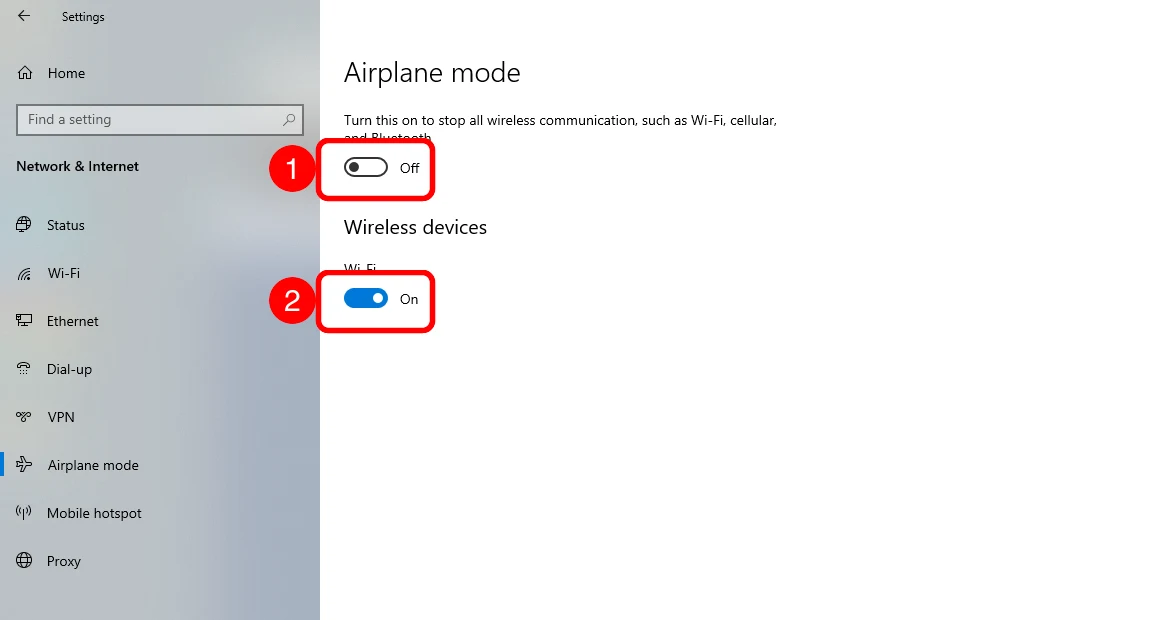
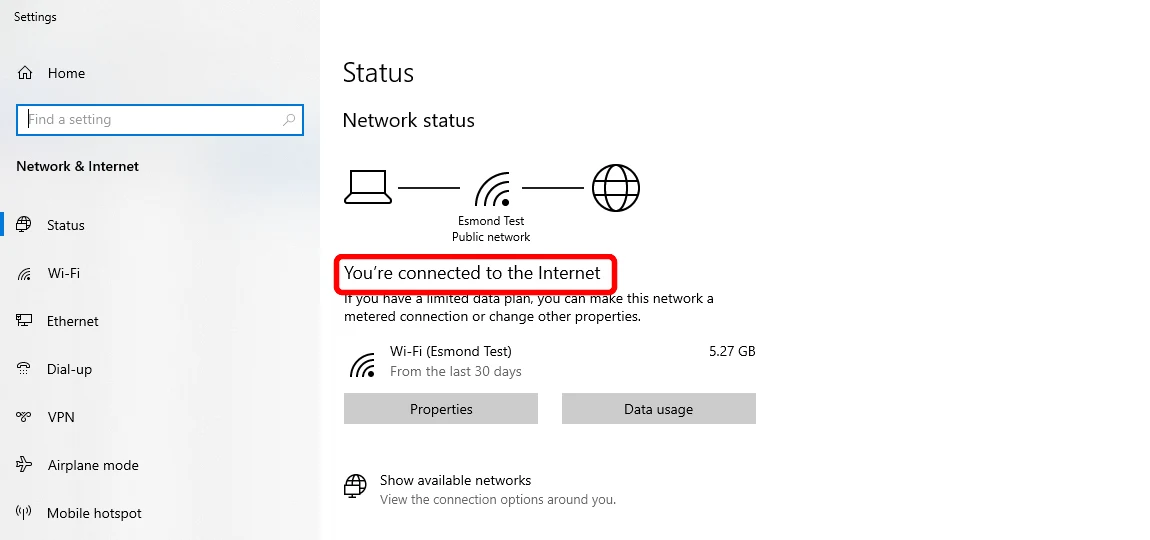
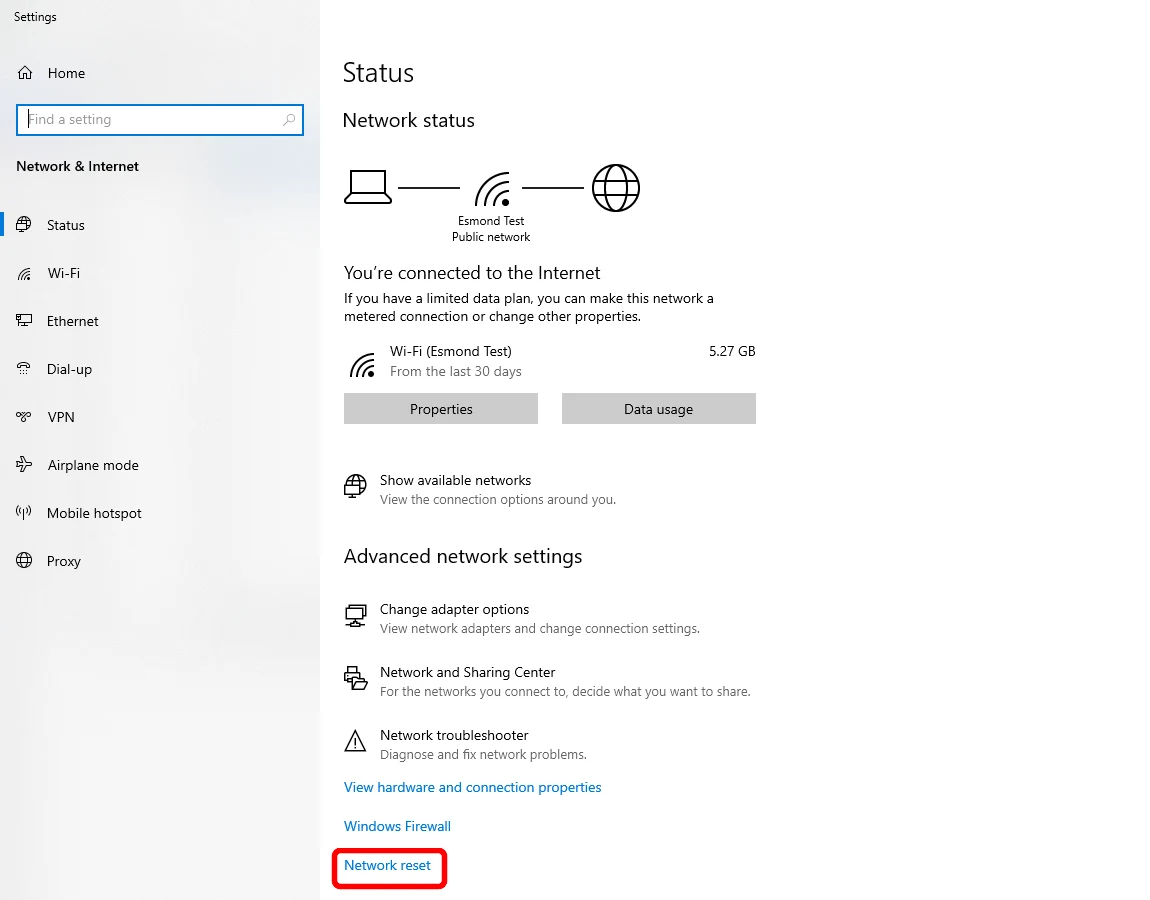
Open Settings > Network & Internet > Airplane mode: make sure ① Airplane mode is Off and ② Wi-Fi is On. 
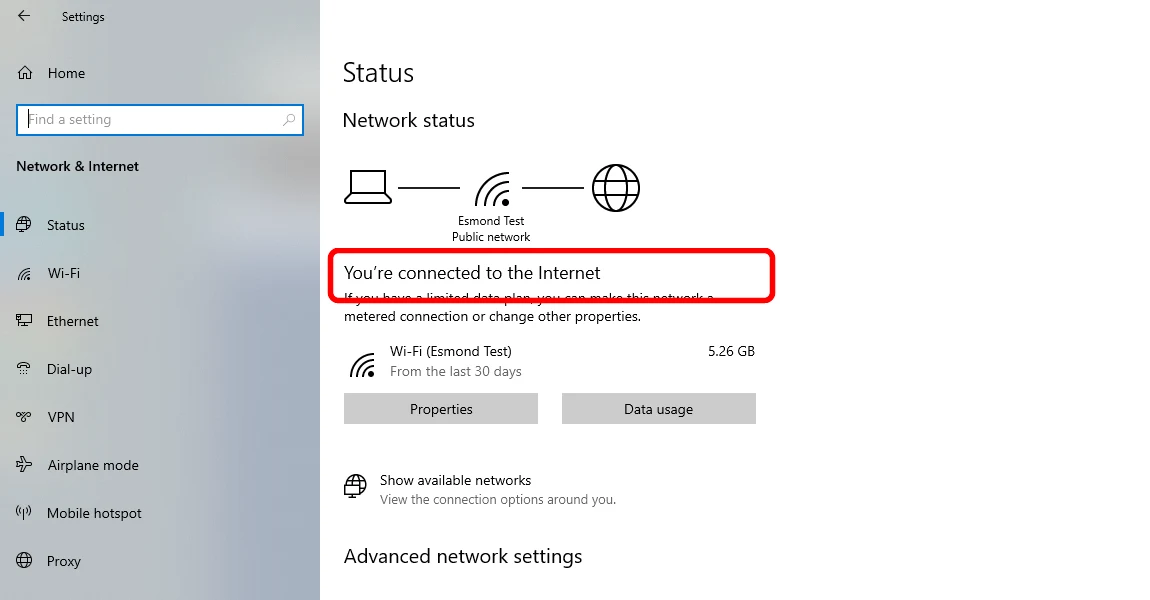
Under Status it should say “You’re connected to the Internet.” Windows 11: click the network, sound and battery icons at the bottom-right of your taskbar to open Quick Settings, and make sure the Wi-Fi button is highlighted (on) and Airplane mode is off (greyed out). Windows 10: click the network icon (or the Action Center speech-bubble) at the bottom-right and check the same Wi-Fi and Airplane mode tiles. Many laptops also have a keyboard shortcut like Fn + F2 with a little aeroplane or antenna symbol — press it once and watch if WiFi comes back. To double-check on either version: Settings > Network & internet > Airplane mode and confirm it's Off.
Why this helps: A stray key press or a laptop's physical WiFi switch flips WiFi off — this is the most common "broken WiFi" that isn't actually broken.
Confirm you're on the right network — and that your home internet isn't the problem

Open Settings > Network & Internet > Status — it should say “You’re connected to the Internet.” Click the network icon in the taskbar and check your WiFi name says Connected underneath. Now do a quick reality check: try the internet on your phone over the same WiFi. If your phone and other devices also can't get online, the fault is your modem, router or internet provider — not your laptop — so go to the restart-router step. If only this laptop fails while everything else works, keep going with the laptop steps. (Works fine on mobile data or at the office but only fails at home? See when WiFi works everywhere except at home.)
Why this helps: It tells you in 30 seconds whether to fix the laptop or the router, so you don't waste time on the wrong thing.
Restart your laptop

Do a full restart: Start > Power > Restart — not just closing the lid. Use Restart rather than Shut down and power on, because Restart fully reloads Windows.
Why this helps: A restart clears temporary network glitches and is genuinely the fix more often than people expect.
Restart your modem and router

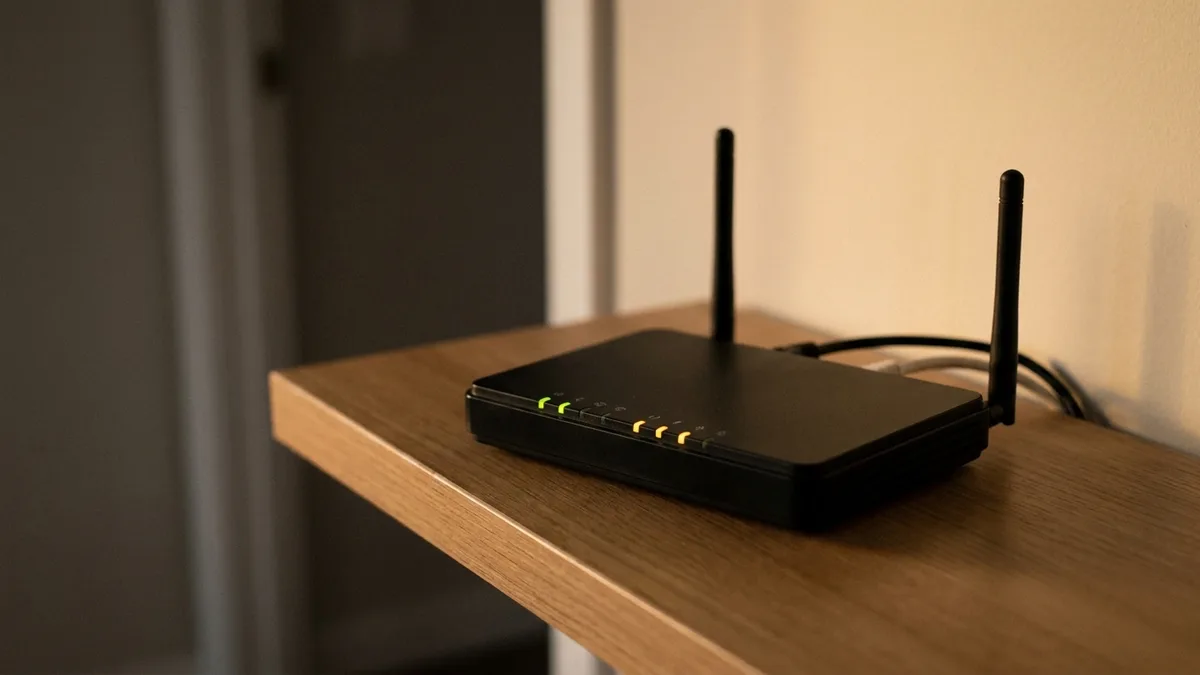
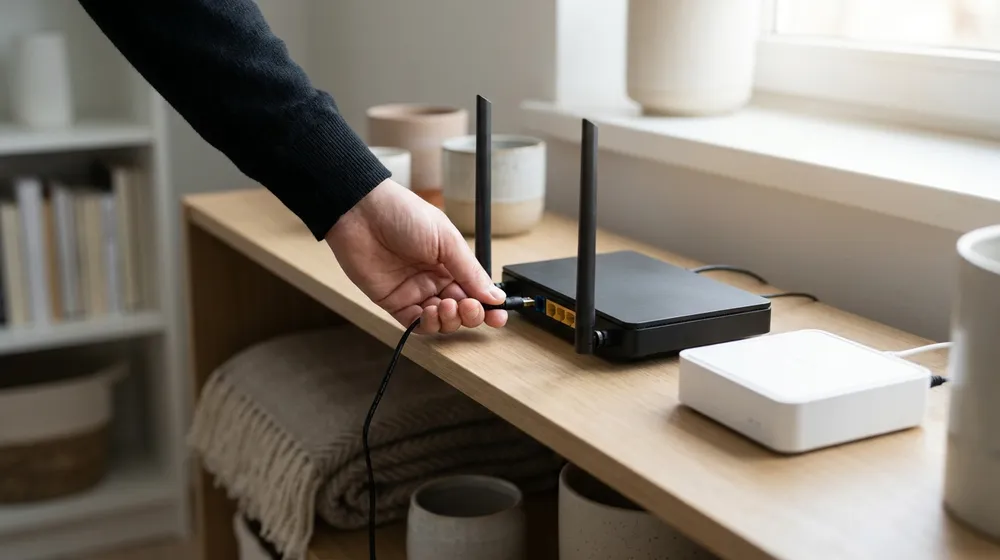
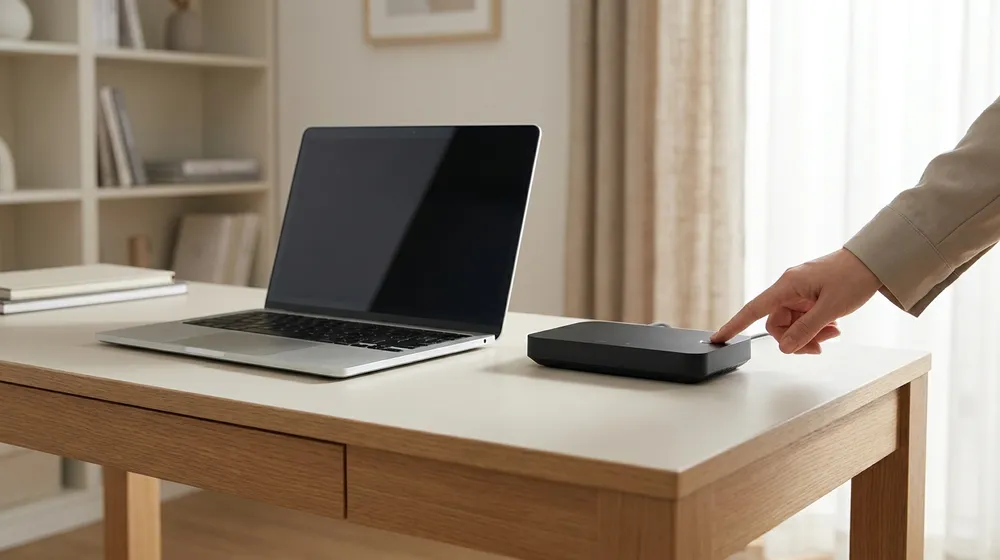
Unplug the power cable from both your modem and your WiFi router. Wait at least 30 seconds. Plug the modem back in first and wait 1–2 minutes for its lights to settle, then plug the router back in and wait another couple of minutes for its lights to go solid. Then try connecting again. If your provider gave you one combined modem-router box, just power-cycle that one box.
Why this helps: If your home internet itself is the problem, a power-cycle fixes it more than any laptop setting can.
Test the laptop against a phone hotspot

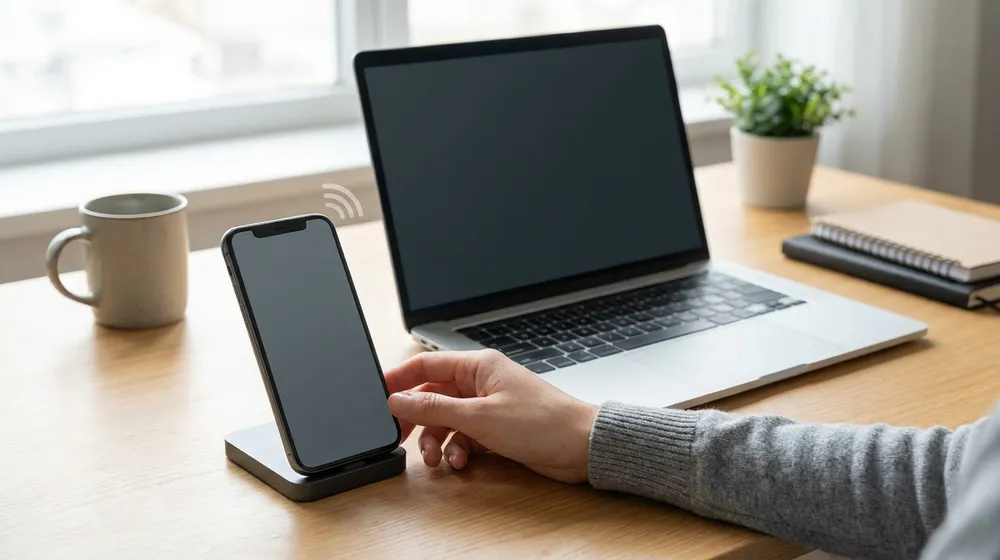
Turn on your phone's personal hotspot (Mobile/Personal Hotspot in your phone's settings) and connect the laptop to it like any other WiFi network. If the laptop joins the hotspot and gets online fine, the laptop's WiFi hardware works and the problem is your home network or a saved profile. If the laptop can't see or join any network — not even the hotspot — that points more towards the laptop's WiFi card or driver. While you're testing internet problems, also try this: if you run a VPN or a third-party security/antivirus suite, turn it off temporarily and re-test, because a stuck VPN tunnel or firewall can block the internet while WiFi still shows connected.
Why this helps: A different network is the cleanest way to tell a network/profile fault apart from a genuinely dead radio — and it steers you to the right fix below.
Run the built-in Windows Network troubleshooter

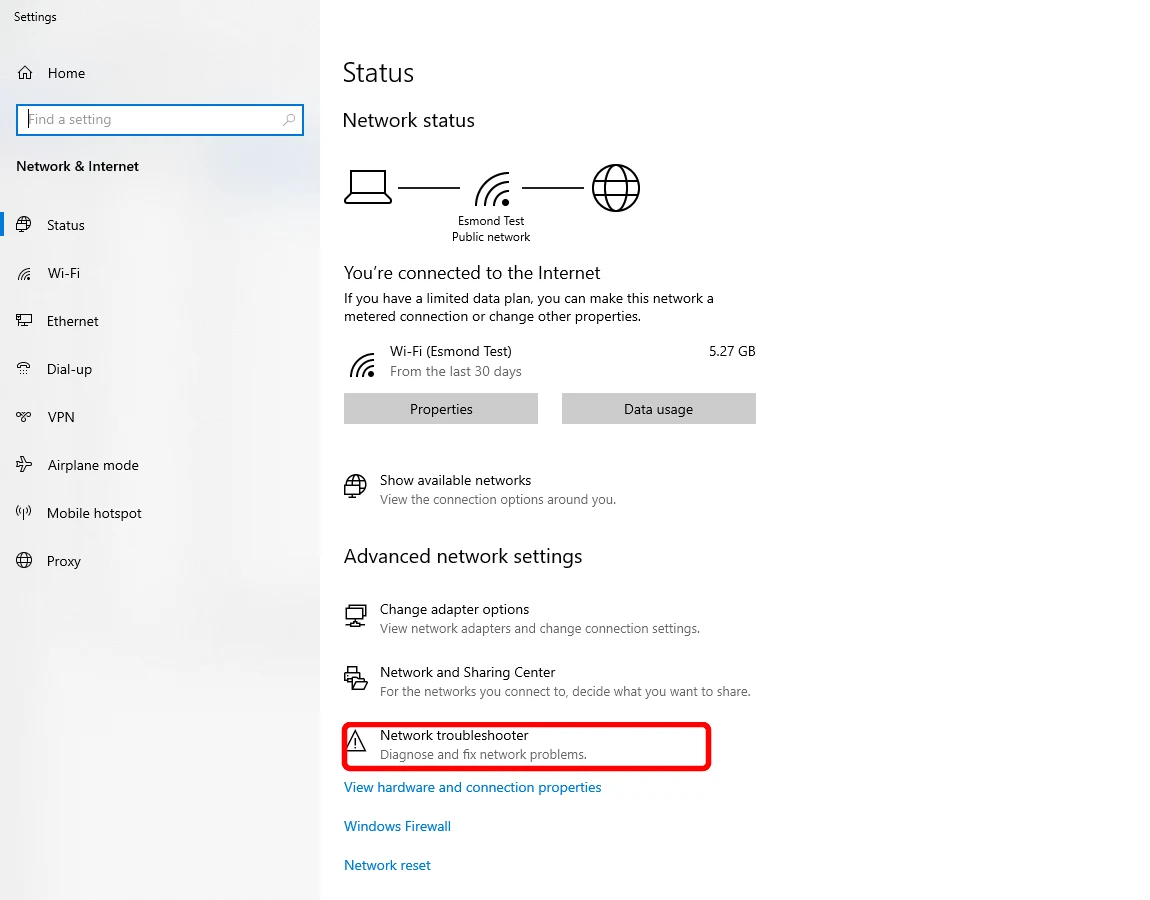
On the Status page, click Network troubleshooter and follow the prompts. Windows 11: Settings > System > Troubleshoot > Other troubleshooters, find Network Adapter and click Run (Windows 11 then opens its automated Get Help network troubleshooter). Windows 10: Settings > Network & Internet > Status > Network troubleshooter. Follow the prompts and let it apply any fix it suggests.
Why this helps: Windows can detect and auto-fix many common WiFi misconfigurations for you.
Forget the WiFi network and rejoin it

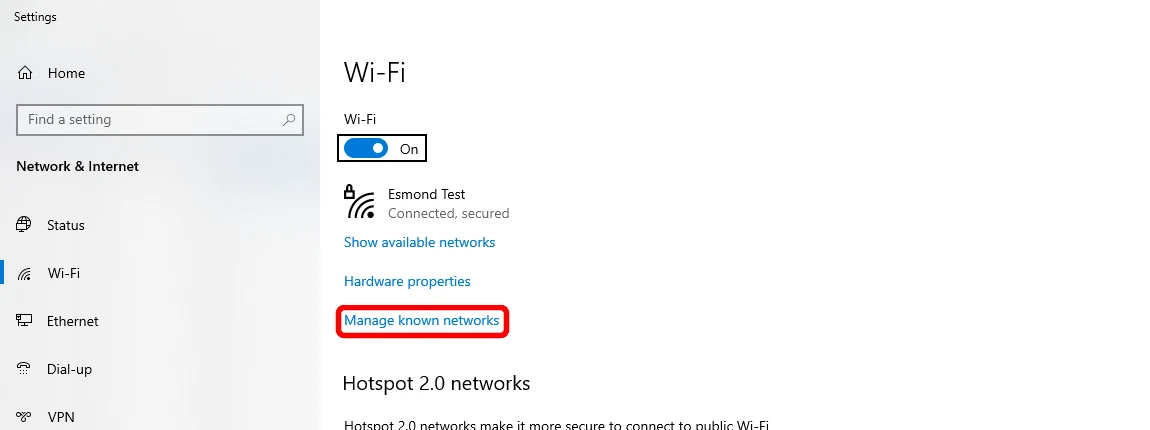
Go to Settings > Network & Internet > Wi-Fi > Manage known networks, pick your network → Forget, then reconnect. Go to Settings > Network & internet > Wi-Fi > Manage known networks, click your network name, then Forget. Now click the network icon in the taskbar, pick your network again, and re-enter the WiFi password. Same path on Windows 10 and 11. (Have your password ready first.)
Why this helps: If your laptop is holding a bad or outdated record of the network — an old password or a corrupted profile — joining fresh clears it.
Check for Windows Updates

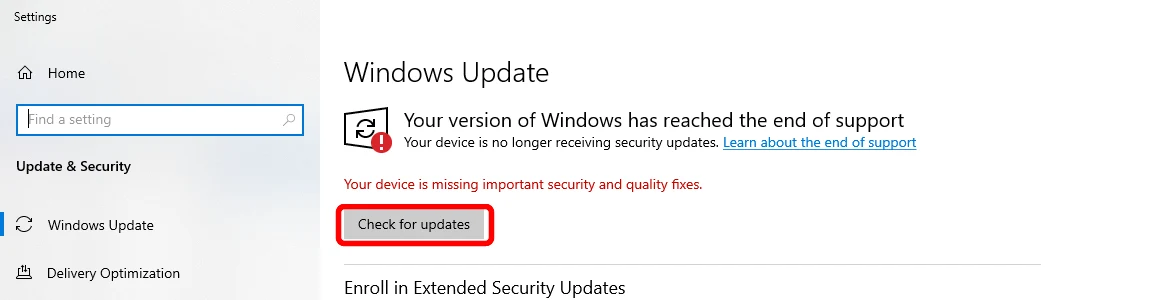
Open Settings > Update & Security > Windows Update and click Check for updates. Go to Settings > Windows Update > Check for updates, install anything offered, and restart if asked. On older Windows 10 builds it may show as Settings > Update & Security > Windows Update. If the laptop has no internet at all, do this step later from a phone hotspot or after another step gets you partly online.
Why this helps: Updates fix known WiFi bugs and ship improved WiFi drivers.
Disable and re-enable the WiFi adapter

Right-click the Start button > Device Manager > expand Network adapters > right-click your wireless adapter (its name usually contains "Wi-Fi", "Wireless", "WLAN", "Intel", "Realtek" or "Qualcomm") > Disable device. Wait about 10 seconds, then right-click it again > Enable device.
Why this helps: It's like switching the laptop's WiFi chip off and on again at the system level.
Flush the network settings with simple commands

Click Start, type cmd, right-click Command Prompt and choose Run as administrator. Type each line and press Enter after each, then restart the laptop at the end:
netsh winsock resetnetsh int ip resetipconfig /releaseipconfig /renewipconfig /flushdnsType the lines exactly as shown — they're safe and don't delete personal files. If typing commands feels uncomfortable, you can skip this step and move on to the driver steps below.
Why this helps: These reset the network stack, get a fresh address from your router, and clear the address cache — without deleting anything personal. Identical on Windows 10 and 11.
Update the WiFi driver — or roll it back if WiFi broke after an update

Update: Right-click Start > Device Manager > Network adapters, right-click your wireless adapter > Update driver > Search automatically for drivers. Roll back (use this if WiFi started failing right after a Windows or driver update): right-click the same adapter > Properties > Driver tab > Roll Back Driver (greyed out means there's no previous version). If the laptop can't get online, download the right driver from the laptop maker's support site on your phone or another PC, copy it over on a USB stick, and install it.
Why this helps: The driver is the software that lets Windows talk to the WiFi chip — a buggy or wrong version breaks the connection.
Reinstall the WiFi driver

If updating didn't help, force Windows to rebuild the driver. Right-click Start > Device Manager > Network adapters, right-click your wireless adapter > Uninstall device (tick "Attempt to remove the driver for this device" if it appears) > Uninstall. Then restart the laptop — Windows automatically reinstalls a fresh copy on startup.
Why this helps: A clean reinstall clears a corrupted driver that updating alone can't fix.
Stop Windows from powering down the WiFi adapter

Right-click Start > Device Manager > Network adapters, right-click your wireless adapter > Properties > Power Management tab > untick "Allow the computer to turn off this device to save power" > OK.
Why this helps: A power-saving setting can switch the WiFi chip off and cause random drops, especially when the laptop is on battery or sitting idle. If your WiFi mainly drops out at random rather than never connecting, our focused guide on what to do when a laptop keeps disconnecting from WiFi goes deeper.
Do a full Network reset (last resort)

On the Status page, scroll to the bottom and click Network reset (you’ll re-enter Wi-Fi passwords after). This removes and reinstalls all your network adapters and returns every network setting to default — you'll need to re-enter WiFi passwords and re-setup any VPN afterwards, so use it only if nothing above worked. Windows 11: Settings > Network & internet > Advanced network settings > Network reset > Reset now > Yes. Windows 10: Settings > Network & internet > Status > Network reset > Reset now > Yes. The laptop restarts itself.
Why this helps: It clears deep, stubborn network problems — and often fixes lingering issues after upgrading from Windows 10 to Windows 11. If Windows still misbehaves in other ways afterwards, the operating system itself may need attention — see Windows OS repair.
How to Fix WiFi on a Mac (MacBook, iMac)
macOS Ventura, Sonoma, Sequoia and later use System Settings; macOS Monterey and earlier call it System Preferences — we note both. Work from easiest to hardest and stop when it reconnects.
Toggle WiFi off and back on

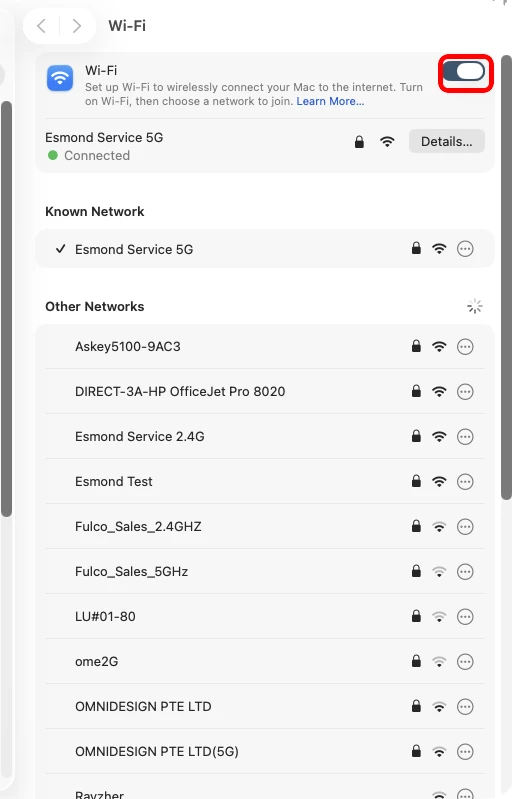
System Settings → Wi-Fi: turn the Wi-Fi switch off, wait a moment, then on. Click the Wi-Fi icon in the menu bar (top-right of the screen), switch Wi-Fi off, wait about 10–15 seconds, then switch it back on and let the Mac rejoin. No Wi-Fi icon up there? Go to Apple menu > System Settings > Wi-Fi (on Monterey or earlier: Apple menu > System Preferences > Network).
Why this helps: It forces the Mac to drop a stale connection and re-handshake with your router — the 10-second fix that works surprisingly often.
Look for a Wi-Fi Recommendations alert

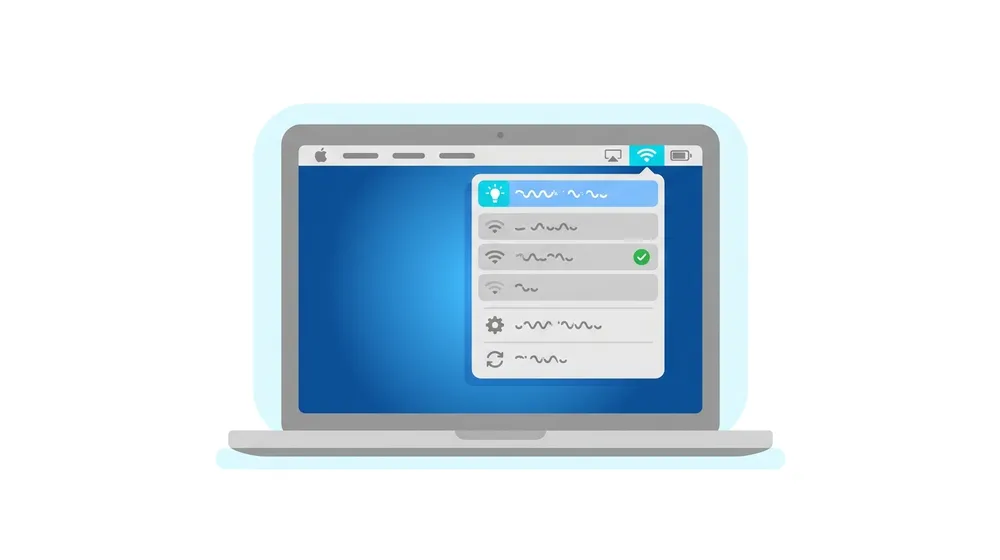
Click the Wi-Fi icon in the menu bar — a normal click, no key held. If macOS has actually detected a problem with your connection, a Wi-Fi Recommendations line appears near the top of that menu; click it to see Apple's own suggested fixes. It only shows up when the Mac has spotted an issue, so don't worry if it isn't there — just move on to the next step.
Why this helps: When it does appear, it's the quickest way to let the Mac tell you what it thinks is wrong before you change anything. (To see deeper technical details instead, hold Option (Alt) and click the Wi-Fi icon — we use that in the Wireless Diagnostics step further down.)
Restart the Mac, then restart your router

Choose Apple menu > Restart. If WiFi still fails, power-cycle your home network: unplug the modem and router (or the all-in-one box from your ISP) from the wall, leave them off for about 2 minutes, then plug them back in and wait for all the lights to return to normal before testing.
Why this helps: A restart clears temporary software glitches; if other devices are also offline, the router or your provider is the real culprit — not the Mac.
Test the Mac against a phone hotspot

Turn on your phone's personal hotspot and connect the Mac to it from the Wi-Fi menu. If the Mac joins the hotspot and gets online, the Mac's WiFi hardware is fine and the problem is your home network or a saved profile; if it can't join any network, the issue is more likely the Mac itself. Also, if you run a VPN or third-party security software, switch it off temporarily and re-test — a stuck VPN or firewall can block the internet while Wi-Fi still shows connected.
Why this helps: A second network separates a network/profile fault from a dead radio, so you know which steps below are worth your time.
Forget the WiFi network and rejoin it

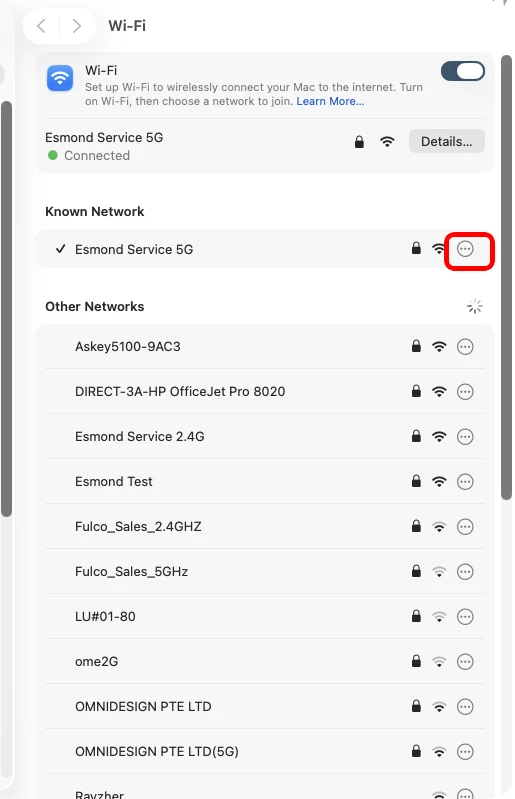
System Settings → Wi-Fi: click the ⋯ next to your network → Forget This Network, then reconnect. Go to Apple menu > System Settings > Wi-Fi, click Details… next to your network, click Forget This Network, then Remove to confirm. Reselect the network from the Wi-Fi list and re-type the password. (On Monterey or earlier: System Preferences > Network > Wi-Fi > Advanced, select the network and click the minus – button.)
Why this helps: It wipes a corrupted saved profile — a wrong stored password or bad settings — and rebuilds it fresh.
Renew the DHCP lease (get a fresh IP address)

If the Mac shows connected but has no internet, or shows a self-assigned 169.254.x.x address: Apple menu > System Settings > Network, click Wi-Fi, click Details…, open the TCP/IP tab, then click Renew DHCP Lease and wait a few seconds for a new address. You can see the address on that same TCP/IP tab — if the IPv4 Address starts with 169.254, the Mac never got a real address from the router. (Older macOS: System Preferences > Network > Wi-Fi > Advanced > TCP/IP.)
Why this helps: It forces the Mac to request a proper new address from the router instead of a dead one.
Change your DNS servers

If pages won't load even though Wi-Fi shows connected: Apple menu > System Settings > Network > Wi-Fi > Details… > DNS tab. Under DNS Servers, click the + button and type a public DNS — common reliable ones are Cloudflare's 1.1.1.1 or Google's 8.8.8.8 — then click OK. You can add a second as backup. To undo later, remove them with the – button.
Why this helps: Your provider's DNS can be the bottleneck; switching to a fast public one often gets pages loading again.
Run Wireless Diagnostics

Quit your open apps and make sure you're trying to connect to the problem network. Hold the Option (Alt) key, click the Wi-Fi icon, and choose Open Wireless Diagnostics…, then follow the on-screen steps. When it finishes it lists detected problems with suggested fixes (click the info buttons in the Summary).
Why this helps: It's Apple's deeper built-in analyzer and it won't change your settings on its own, so it's safe to run.
Advanced: rebuild the Wi-Fi network service

Most people are fixed before this point — the next steps are more advanced, so only continue if WiFi is still down. Apple menu > System Settings > Network. Control-click (right-click) Wi-Fi in the list and choose Delete Service…, then confirm. Click the More (…) button near the bottom, choose Add Service…, set Interface to Wi-Fi, give it a name, and click Create. Reconnect afterwards. (Older macOS: System Preferences > Network, select Wi-Fi, minus – to remove, plus + to add back.)
Why this helps: It rebuilds the WiFi network interface from scratch — a stronger reset than just forgetting a network.
Advanced: delete the network configuration files (with caution)

This last-resort cleanup wipes all saved network settings so macOS rebuilds them on restart — back up first, and note this is not in Apple's official guide. In Finder, choose Go > Go to Folder, paste
/Library/Preferences/SystemConfiguration/and press Return. Move these to Trash (you'll enter your password):com.apple.airport.preferences.plist,com.apple.wifi.message-tracer.plist,NetworkInterfaces.plist,preferences.plist. Restart and reconnect (you'll re-enter passwords).Why this helps: It forces a totally fresh set of network settings — but because it's unofficial and removes everything, this is the point where most people are better off letting us take a look.
Reset NVRAM (Intel) or power-cycle (Apple Silicon)

Check Apple menu > About This Mac: "Chip Apple M1/M2/M3…" is Apple Silicon; "Processor Intel…" is Intel. Apple Silicon: there's no NVRAM key combo — just shut down fully, wait about 30 seconds, then power on (the Mac repairs NVRAM itself if needed). Intel: shut down, then press the power button and immediately hold Command (⌘) + Option + P + R for about 20 seconds, then release and let it start.
Why this helps: Stored low-level settings can occasionally affect networking; this clears them.
Update macOS

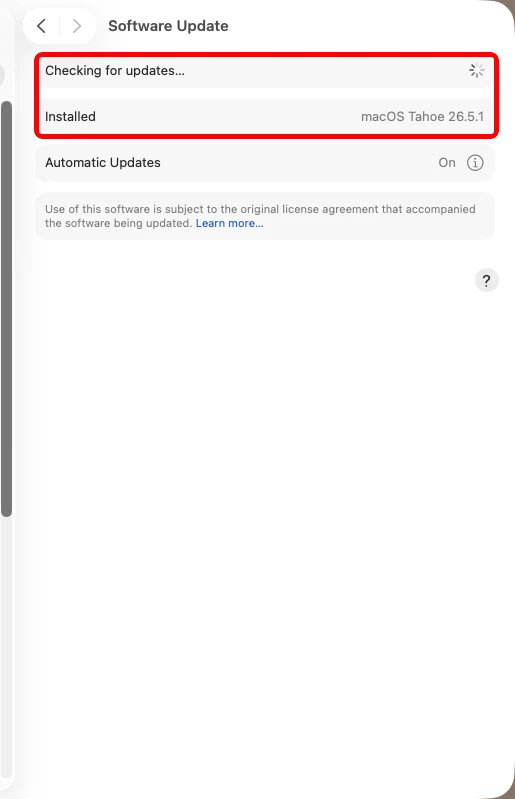
System Settings → General → Software Update and install any update. Go to Apple menu > System Settings > General > Software Update, let it check, and install anything offered (you'll enter your admin password and the Mac will restart). Older macOS: Apple menu > System Preferences > Software Update.
Why this helps: If trouble started after an update or won't go away, Apple often ships the fix and newer WiFi drivers in a point update.
How to Fix Bluetooth on a Windows Laptop (Windows 10 & 11)
Use this when a Bluetooth mouse, keyboard, headphones, earbuds or speaker won't pair, keeps dropping, or isn't detected. Start with the accessory itself, then work into Windows. Test after each step.
Check the accessory first — power, charge, pairing mode, range

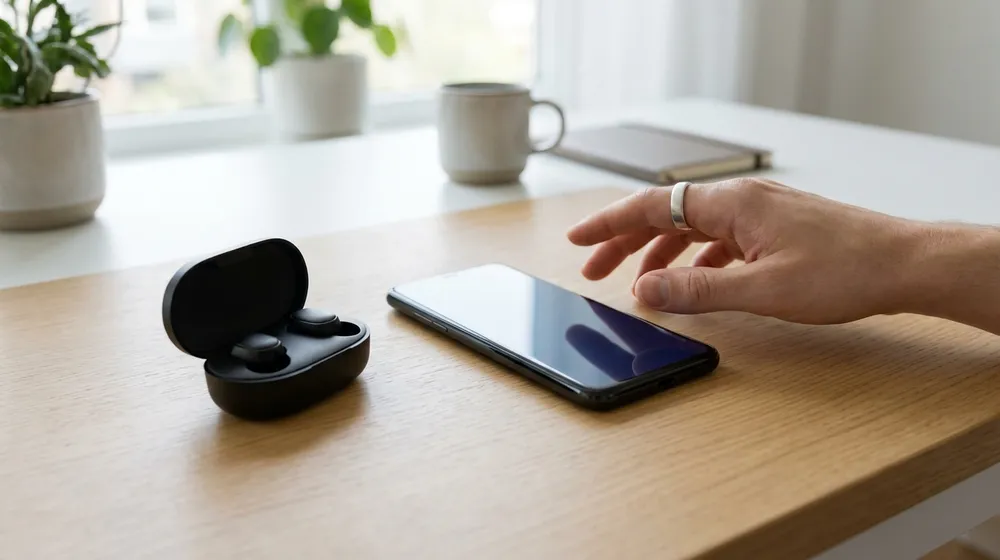
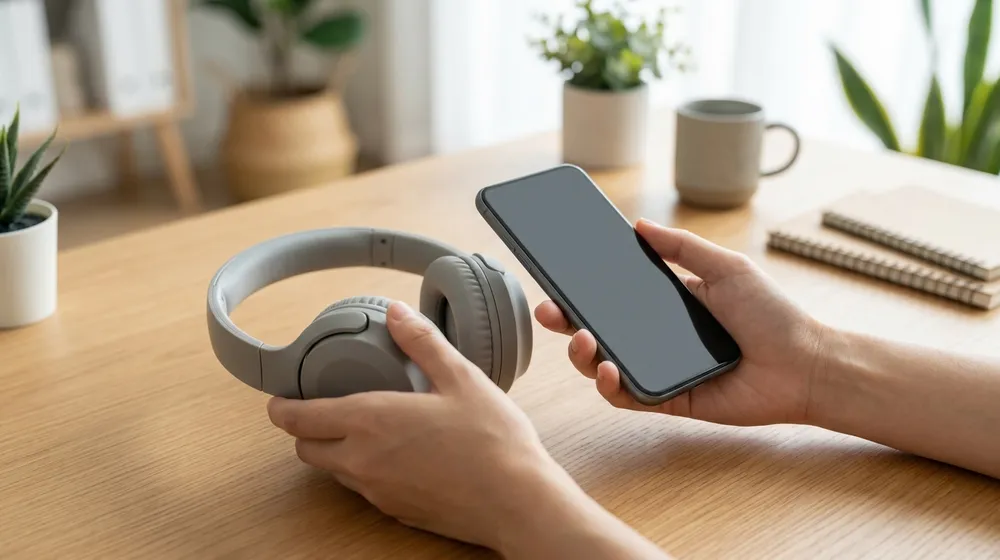
Before blaming the laptop, make sure the device is turned on, is charged (or has fresh batteries), and is within about 1 metre of the laptop with no wall in between. For a new or un-paired device, put it into pairing mode — usually a button you press and hold until a light flashes (check the device's instructions).
Why this helps: A flat battery, an out-of-range device, or one that's merely "on" but not in pairing mode looks exactly like a broken laptop — and it's the single most common Bluetooth "fault" we see that turns out to be nothing.
Make sure it isn't already connected to your phone

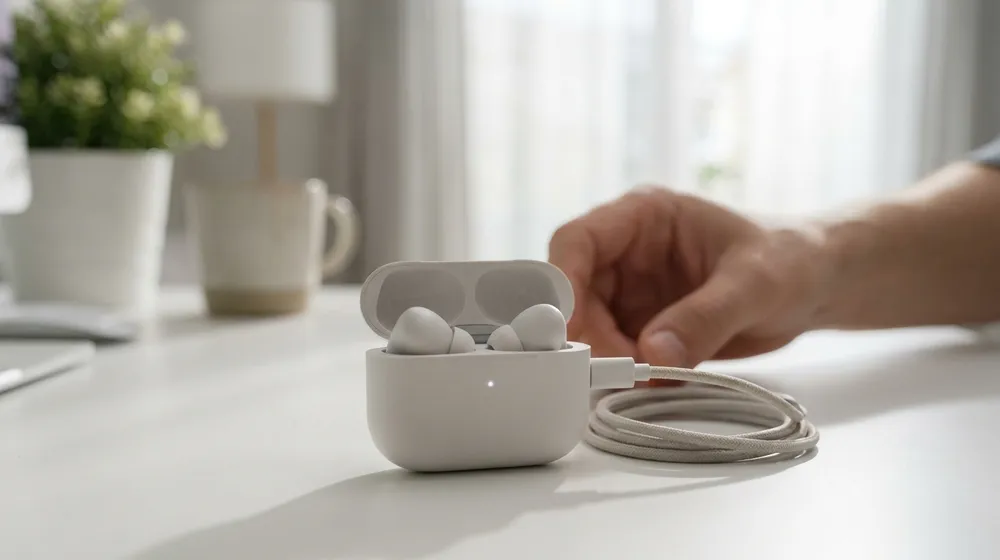
This catches more people than anything else: most Bluetooth audio devices (AirPods, earbuds, headphones, speakers) only talk to one device at a time, and they auto-connect to the last phone or tablet they paired with. So your earbuds can be sitting "connected" to your phone in your pocket and simply refuse to appear on the laptop. On your phone, turn Bluetooth off (or disconnect/"forget" that device), then try connecting on the laptop again.
Why this helps: A device that's busy with your phone looks identical to a laptop that "can't find" it — freeing it up is often the whole fix.
Move away from interference — USB 3.0 ports and 2.4GHz gadgets

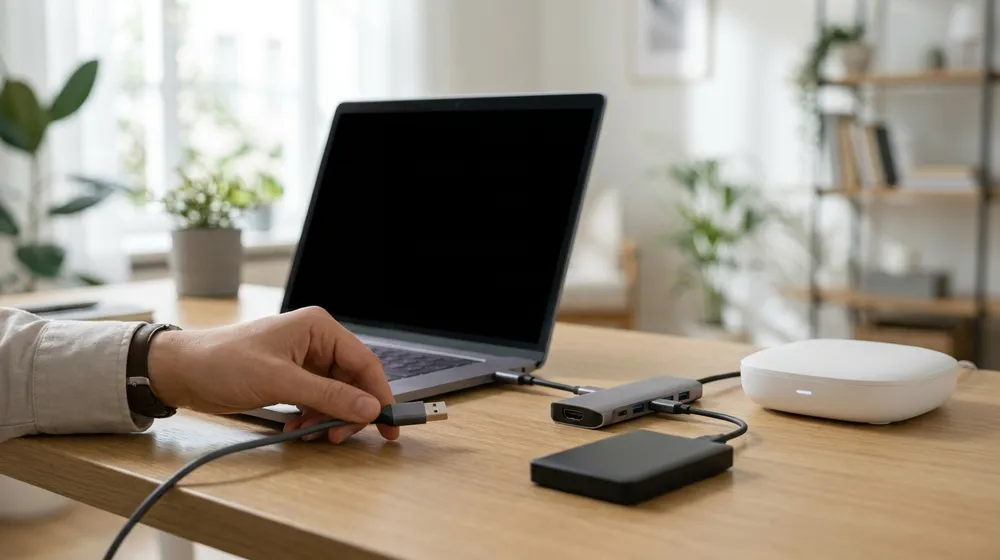
If Bluetooth is sluggish, stuttering or keeps dropping, unplug or move any device connected to a USB 3.0 port (especially USB hard drives and unshielded USB-C dongles) away from your laptop. Also move away from a running microwave, a busy WiFi router, and other wireless mice or keyboards.
Why this helps: Bluetooth shares the crowded 2.4GHz band, and USB 3.0 ports are a known source of interference that chokes it — we see this constantly with laptops docked next to a cluster of USB drives.
Toggle Bluetooth off and back on

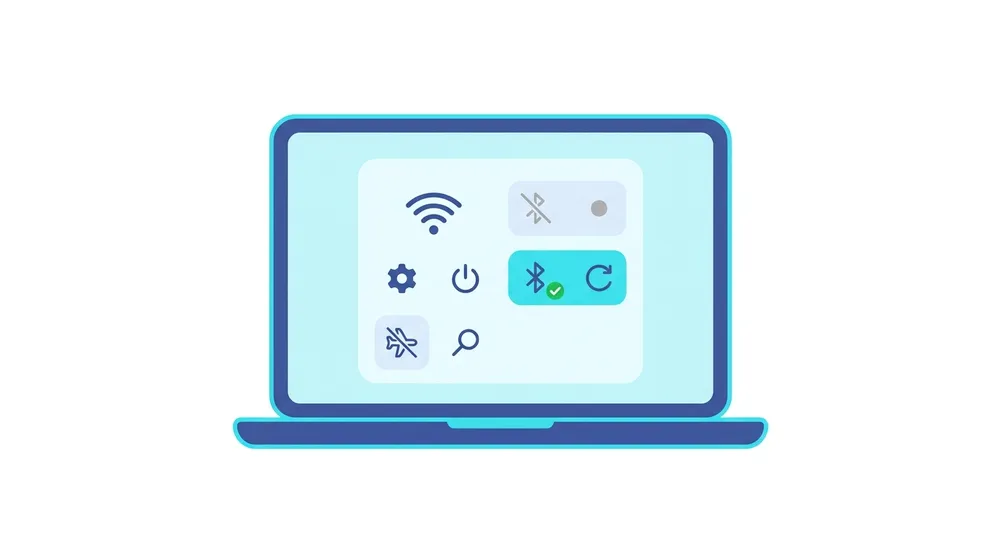
Windows 11: click the network/sound/battery cluster on the right of the taskbar to open Quick Settings, click the Bluetooth tile off, wait about 10 seconds, then click it on again (or Start > Settings > Bluetooth & devices). Windows 10: click the Action Center icon at the bottom-right and click the Bluetooth tile off, wait, then on (or Start > Settings > Devices > Bluetooth & other devices). Make sure Airplane mode is off.
Why this helps: It forces the radio to re-initialise and clears a lot of "won't connect" glitches.
Forget the device and pair it fresh

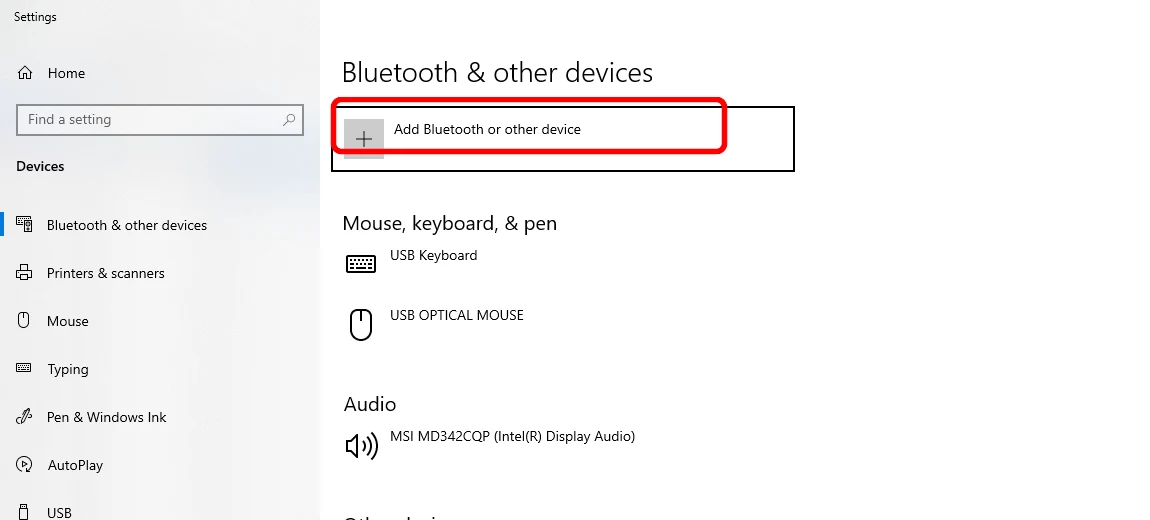
Open Settings > Bluetooth & other devices, remove the old device, then click Add Bluetooth or other device. Windows 11: Start > Settings > Bluetooth & devices > Devices, find the device, click its three-dot More options menu > Remove device > Yes. Put the accessory in pairing mode, then Add device > Bluetooth and select it. Windows 10: Start > Settings > Devices > Bluetooth & other devices, click the device > Remove device > Yes, then Add Bluetooth or other device > Bluetooth and select it.
Why this helps: Removing a half-corrupted pairing and re-pairing cleanly fixes a huge share of "paired but won't connect" cases.
Run the built-in Bluetooth troubleshooter

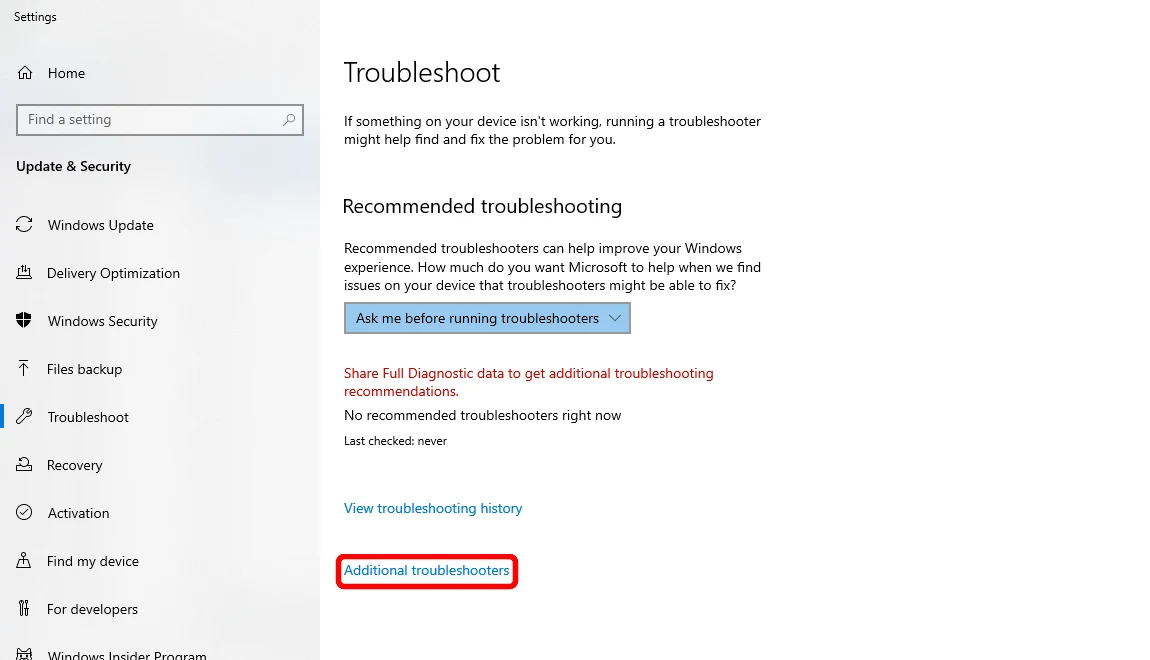
Open Settings > Update & Security > Troubleshoot > Additional troubleshooters, then run the Bluetooth troubleshooter. Windows 11: Start > Settings > System > Troubleshoot > Other troubleshooters, click Run next to Bluetooth (or search Start for Get Help and run its automated Bluetooth troubleshooter). Windows 10: Start > Settings > Update & Security > Troubleshoot (click Additional troubleshooters if shown), select Bluetooth > Run the troubleshooter. Apply any fixes it offers.
Why this helps: It can reset the adapter and repair common driver and service problems automatically.
Restart the Bluetooth Support Service

If Bluetooth seems dead or the toggle won't turn on, the background service may have stalled. Press Windows key + R, type services.msc and press Enter. Scroll to Bluetooth Support Service, right-click it > Restart (or Start if it's stopped). For reliability, double-click it and set Startup type to Automatic, then Apply. Same on Windows 10 and 11.
Why this helps: This standard Windows service runs Bluetooth in the background — restarting it revives Bluetooth without a full reboot, and from our bench it rescues many "Bluetooth disappeared" cases.
Update the Bluetooth driver in Device Manager

Right-click Start > Device Manager, expand Bluetooth, right-click your Bluetooth adapter (e.g. Intel/Realtek/Qualcomm Wireless Bluetooth) > Update driver > Search automatically for drivers. Install anything found and restart if prompted. For the newest driver you can also download it from your laptop maker's support page.
Why this helps: An outdated or mismatched driver is a leading cause of pairing and detection failures, especially after a big Windows update.
Uninstall and reinstall the Bluetooth driver

If updating didn't help, in Device Manager expand Bluetooth, right-click your Bluetooth adapter > Uninstall device (tick "Attempt to remove the driver" if offered), confirm, then restart the PC. Windows reinstalls a fresh copy on boot. If the adapter doesn't come back, reinstall the driver from your laptop manufacturer's website.
Why this helps: A clean reinstall clears a corrupted driver — we use this often when Bluetooth shows errors or vanishes from the menu.
Install all Windows Updates

Windows 11: Start > Settings > Windows Update. Windows 10: Start > Settings > Update & Security > Windows Update. Click Check for updates, install everything (including optional driver updates if listed), and restart.
Why this helps: Microsoft regularly ships Bluetooth fixes through Windows Update, so a fully-updated system resolves many lingering issues.
How to Fix Bluetooth on a Mac (MacBook, iMac)
For a mouse, keyboard, AirPods, headphones or speaker that won't pair or keeps dropping on your Mac. Start with the accessory, then work into macOS.
Check the accessory first — power, charge, pairing mode, range

Make sure the device is turned on, charged (or has fresh batteries), within about 1 metre of the Mac, and — for a new device — in pairing mode (usually press and hold a button until a light flashes). Also move away from USB 3.0 drives, a microwave or a busy router, since they share Bluetooth's 2.4GHz band.
Why this helps: A flat or out-of-range device looks identical to a broken Mac; ruling it out first saves a lot of time.
Make sure it isn't already connected to your phone

AirPods, earbuds, headphones and speakers only connect to one device at a time and will quietly re-link to the last phone they paired with — so they may be "connected" to your iPhone or Android in your pocket and never appear on the Mac. On your phone, turn Bluetooth off (or disconnect/forget that device), then try connecting on the Mac. With AirPods, you can also pop them back in the case, close the lid, then open it next to the Mac.
Why this helps: A device busy with your phone looks exactly like a Mac that "can't find" it — releasing it is frequently the entire fix.
Turn Bluetooth off and back on

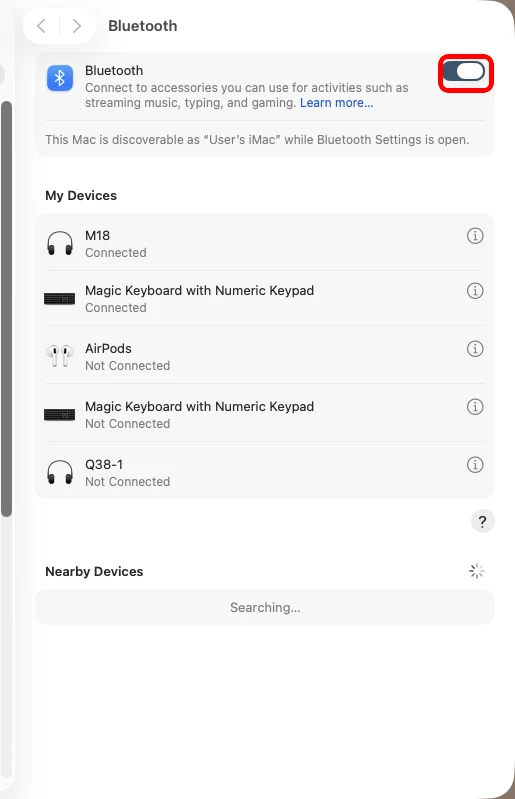
System Settings → Bluetooth: turn the Bluetooth switch off, wait, then on. Click the Bluetooth icon in Control Center (top-right menu bar), switch it off, wait about 10 seconds, then on. No icon? Go to Apple menu > System Settings > Bluetooth and use the toggle. On a Mac desktop, don't switch it off if your only mouse and keyboard are Bluetooth — use a wired one or the trackpad instead.
Why this helps: It restarts the radio and clears common connection hiccups.
Forget the device and pair it again

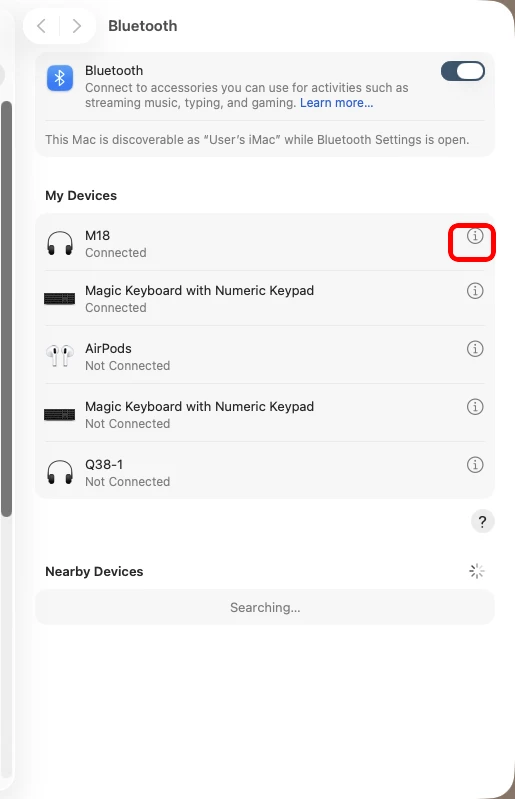
System Settings → Bluetooth: click the ⓘ next to the device → Forget This Device, then pair again. Open Apple menu > System Settings > Bluetooth. Hover over the problem device, click its info option and choose Forget This Device, then confirm. Put the accessory into pairing mode, wait for it to reappear under Nearby Devices, and click Connect. If asked, click Accept or type the code shown.
Why this helps: Re-pairing from scratch clears a stale or corrupt link — a frequent fix for mice, keyboards and AirPods that connect on other devices but not this Mac.
Restart the Mac and the accessory

Save your work, choose Apple menu > Restart, and let the Mac boot fully. Also power the accessory fully off and on. For a Magic Keyboard, Magic Mouse or Magic Trackpad that won't connect, plug it into the Mac with its charging cable for a moment to wake it, then disconnect and try again.
Why this helps: A full restart reloads the Mac's Bluetooth software and is Apple's go-to when Bluetooth won't turn on or behaves oddly.
Set the device as Sound input/output (a common false alarm)

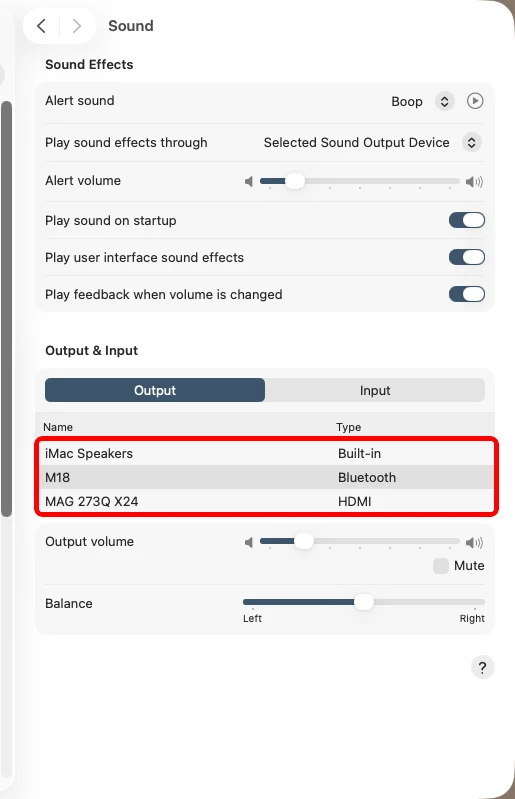
System Settings → Sound → Output: choose your Bluetooth device as the output. If a paired headset has no sound, go to Apple menu > System Settings > Sound and pick it under Output (and Input for the mic).
Why this helps: A device can be connected but not selected for audio — it sounds "not connected" when it's really just not chosen.
Advanced: remove the Bluetooth preference file (older macOS, caution)

On older macOS only, some users delete the Bluetooth preference file: in Finder, Go > Go to Folder, type
/Library/Preferences/, movecom.apple.Bluetooth.plistto Trash, and restart so macOS rebuilds it. This forgets all paired devices, so re-pair everything afterwards — and skip it unless you're comfortable.Why this helps: It forces macOS to rebuild Bluetooth from scratch. But on current macOS the supported fix is forget-device plus a restart (earlier steps), so when in doubt, don't — this is where it's safer to let us look at it.
Update macOS

System Settings → General → Software Update and install any update. Go to Apple menu > System Settings > General > Software Update (older macOS: System Preferences > Software Update), install any available update, then restart.
Why this helps: Apple bundles Bluetooth and wireless reliability fixes into macOS updates, so getting current often cures stubborn pairing and drop-out problems.
When to let a professional take over
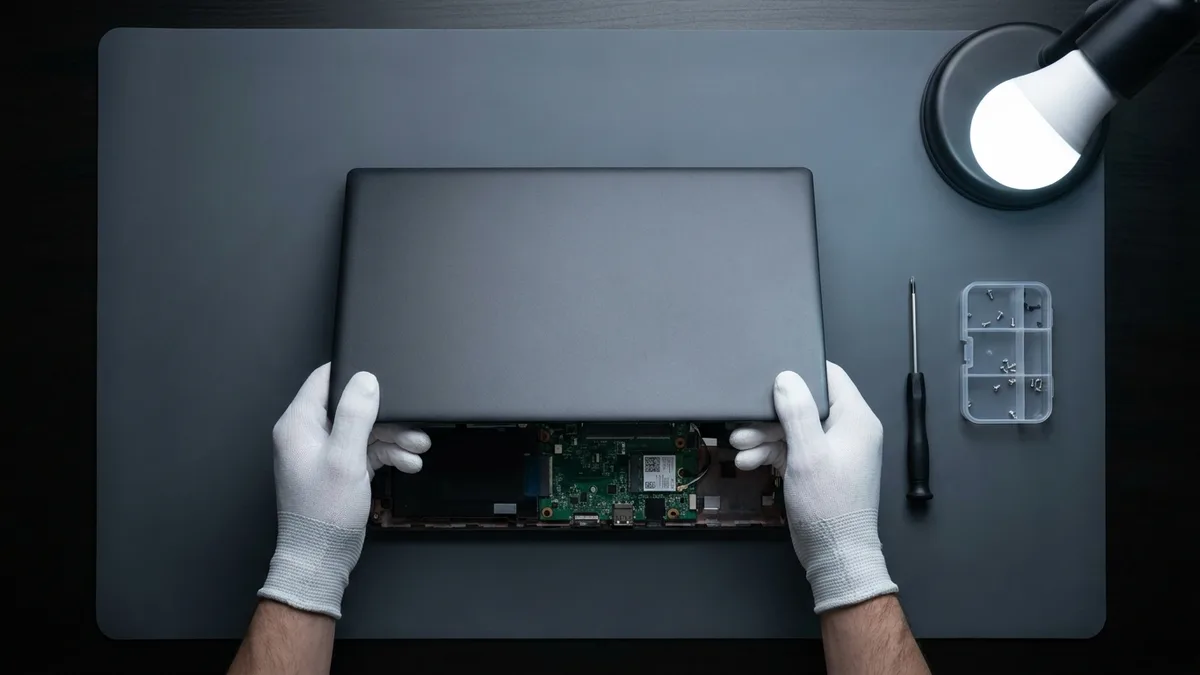
If you've worked through every step for your laptop and WiFi or Bluetooth still won't connect — while other devices work fine on the same network — the cause is likely hardware rather than software. The usual suspects are a faulty WiFi/Bluetooth card, a loose or damaged antenna cable inside the lid, or a deeper fault on the motherboard. A few honest tells:
- The wireless adapter shows a warning icon in Device Manager (or disappears completely) even after a clean driver reinstall.
- Signal is extremely weak right next to the router, or drops the moment you move the screen.
- WiFi or Bluetooth vanished after a knock, a drop, or a liquid spill.
- The laptop can't even join a phone hotspot, and nothing above brought it back — not even a full Network reset (Windows) or NVRAM reset and config-file cleanup (Mac).
That's the point where guessing gets expensive. Bring it to Esmond Service Centre for a free in-store diagnosis — our technicians will confirm exactly what's wrong and give you a clear quote before any work or charge. No surprise bill, no parts swapped on a hunch. If it turns out to be a simple software fix, we'll tell you that too.
Esmond 服务中心的认证技术人员可快速诊断并修复 — 免费检测,维修 $65 起。