
📑 Pada halaman ini
WiFi atau Bluetooth tiba-tiba berhenti berfungsi pada komputer riba anda? Sebelum anda membayar sesiapa, cuba betulkannya sendiri — selalunya ia adalah masalah perisian atau sambungan kecil, bukan bahagian yang rosak. Di Esmond Service Centre di Singapura, banyak komputer riba datang ke meja kami untuk "WiFi mati" atau "Bluetooth tidak bersambung" dan akan dibaiki dalam beberapa minit tanpa sebarang bahagian diubah langsung.
Ini adalah langkah demi langkah yang kami gunakan sendiri, ditulis dalam bahasa yang mudah difahami untuk Windows (10 dan 11) dan Mac, dan untuk WiFi dan Bluetooth. Ikuti langkah-langkah untuk persediaan anda mengikut urutan, uji selepas setiap satu dan hentikan sebaik sahaja ia disambungkan semula. Jika anda sampai ke penghujung dan ia masih mati, kami akan menunjukkan kepada anda tanda-tanda sebenar bahawa ia adalah kerosakan perkakasan — dan apa yang perlu dilakukan seterusnya.
Sebelum anda mula
- Sediakan kata laluan WiFi anda — beberapa pembetulan meminta anda melupakan rangkaian dan menaipnya semula.
- Periksa sama ada hanya komputer riba ini atau semuanya: cuba sambungkan internet pada telefon anda melalui WiFi yang sama. Jika telefon dan peranti lain anda juga berada di luar talian, kesalahannya terletak pada penghala atau penyedia internet anda (Singtel, StarHub, M1, MyRepublic), bukan komputer riba anda.
- Pasangkan komputer riba anda ke pengecas supaya ia tidak tidur atau kehabisan kuasa pada separuh masa.
- Jika satu-satunya tetikus dan papan kekunci anda menggunakan Bluetooth, sediakan tetikus berwayar atau pad jejak anda sebelum anda mematikan Bluetooth.
- Ikuti langkah-langkah untuk persediaan ANDA mengikut susunan, dari atas ke bawah dan hentikan sebaik sahaja ia disambungkan semula — anda tidak perlu melakukan semuanya.
- Ketahui sistem yang anda gunakan, kerana beberapa langkah berbeza. Pada Windows, pergi ke Tetapan > Sistem > Perihal dan baca Edisi (Windows 10 atau 11); petanda ringkasnya ialah Windows 11 meletakkan butang Mula dan ikon pada bar tugas di tengah-tengah manakala Windows 10 meletakkannya di sebelah kiri. Pada Mac, klik menu Apple > Perihal Mac Ini untuk melihat sama ada anda mempunyai siri-M Apple atau cip Intel.
Cara Membaiki WiFi pada Komputer Riba Windows (Windows 10 & 11)
Mulakan dari atas dan ke bawah — beberapa langkah pertama menyelesaikan sebahagian besar masalah WiFi. Laluan klik adalah sama pada Windows 10 dan Windows 11 melainkan kami menunjukkan perbezaannya.
Pastikan WiFi dihidupkan dan Mod pesawat dimatikan
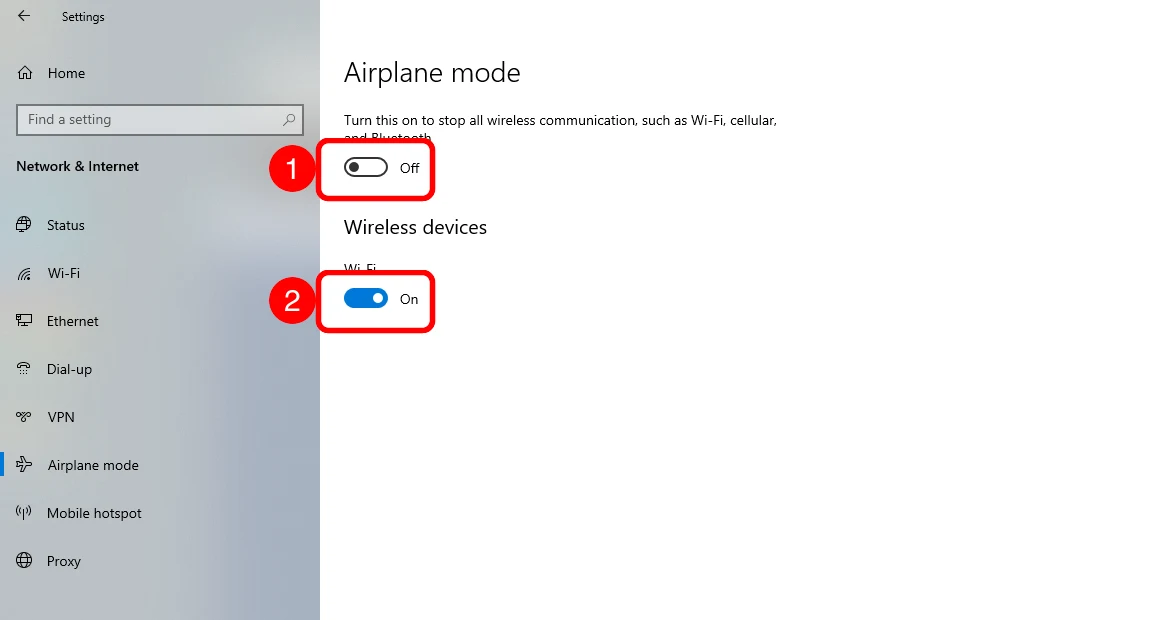
Buka Tetapan > Rangkaian & Internet > Mod pesawat: pastikan ① Mod pesawat Mati dan ② Wi-Fi Hidup. 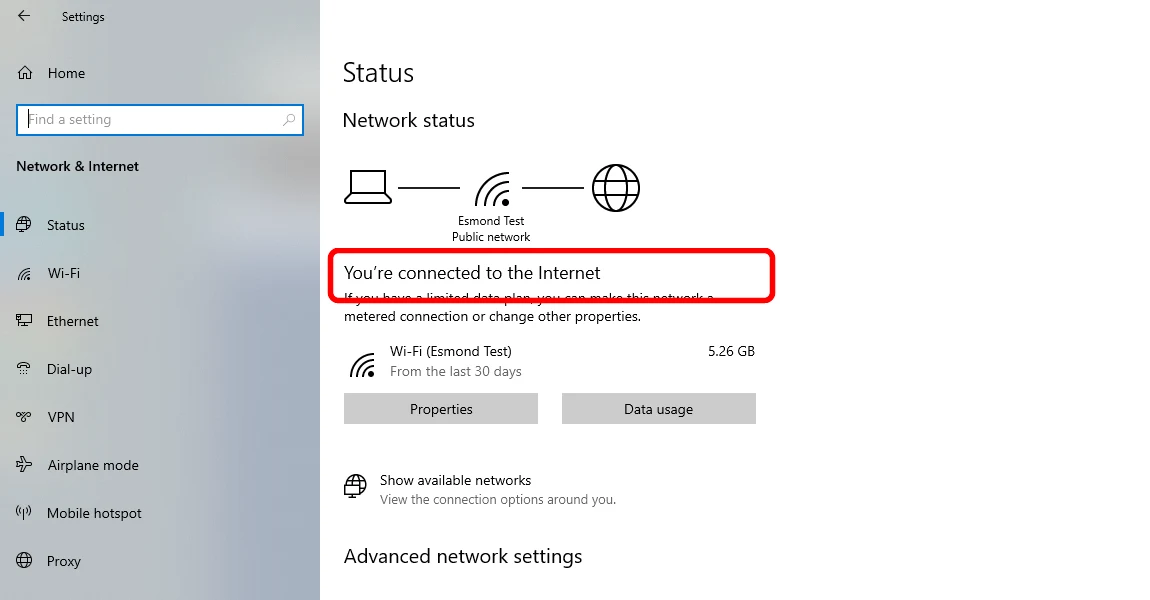
Di bawah Status, ia sepatutnya tertulis “Anda bersambung ke Internet.” Windows 11: klik ikon rangkaian, bunyi dan bateri di bahagian bawah kanan bar tugas anda untuk membuka Tetapan Pantas dan pastikan butang Wi-Fi diserlahkan (hidup) dan Mod pesawat dimatikan (kelabuan). Windows 10: klik ikon rangkaian (atau gelembung pertuturan Pusat Tindakan) di bahagian bawah kanan dan tandakan jubin Wi-Fi dan Mod pesawat yang sama. Kebanyakan komputer riba juga mempunyai pintasan papan kekunci seperti Fn + F2 dengan simbol kapal terbang atau antena kecil — tekan sekali dan lihat jika WiFi kembali. Untuk menyemak semula mana-mana versi: Tetapan > Rangkaian & internet > Mod pesawat dan sahkan ia Mati.
Mengapa ini membantu: Tekan kekunci secara sesat atau suis WiFi fizikal komputer riba akan mematikan WiFi — ini adalah "WiFi rosak" yang paling biasa yang sebenarnya tidak rosak.
Sahkan anda berada di rangkaian yang betul — dan internet rumah anda bukanlah masalahnya
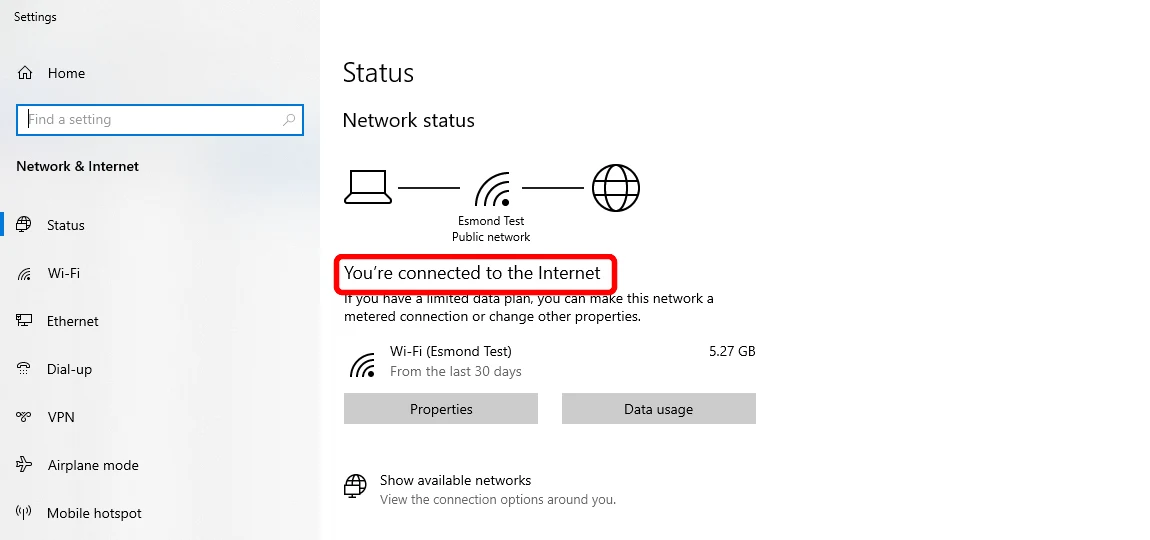
Buka Tetapan > Rangkaian & Internet > Status — ia sepatutnya tertulis “Anda disambungkan ke Internet.” Klik ikon rangkaian dalam bar tugas dan semak nama WiFi anda yang tertera Tersambung di bawah. Sekarang lakukan semakan realiti pantas: cuba sambungkan internet pada telefon anda melalui WiFi yang sama. Jika telefon dan peranti lain anda juga tidak dapat disambungkan ke dalam talian, kesalahannya ialah modem, penghala atau pembekal internet anda — bukan komputer riba anda — jadi pergi ke langkah mulakan semula penghala. Jika hanya komputer riba ini yang gagal semasa semua yang lain berfungsi, teruskan dengan langkah komputer riba. (Berfungsi dengan baik pada data mudah alih atau di pejabat tetapi hanya gagal di rumah? Lihat bila WiFi berfungsi di mana-mana kecuali di rumah .)
Mengapa ini membantu: Ia memberitahu anda dalam 30 saat sama ada perlu membaiki komputer riba atau penghala, jadi anda tidak membuang masa untuk perkara yang salah.
Mulakan semula komputer riba anda
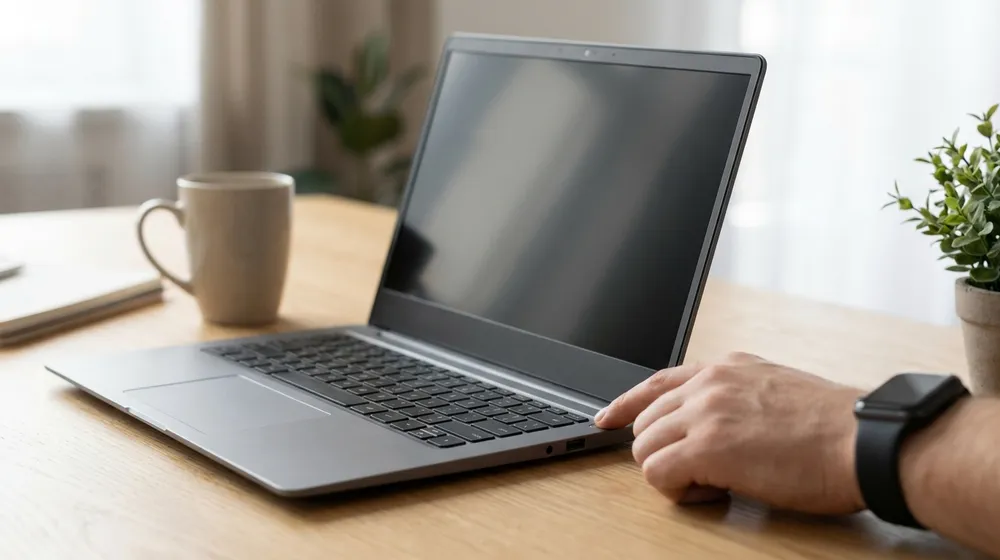
Mulakan semula sepenuhnya: Mula > Kuasa > Mulakan semula — bukan sekadar menutup penutup. Gunakan Mulakan Semula dan bukannya Tutup dan hidupkan, kerana Mulakan Semula akan memuatkan semula Windows sepenuhnya.
Mengapa ini membantu: Mula semula akan membersihkan gangguan rangkaian sementara dan benar-benar merupakan penyelesaiannya lebih kerap daripada yang dijangkakan oleh orang ramai.
Mulakan semula modem dan penghala anda
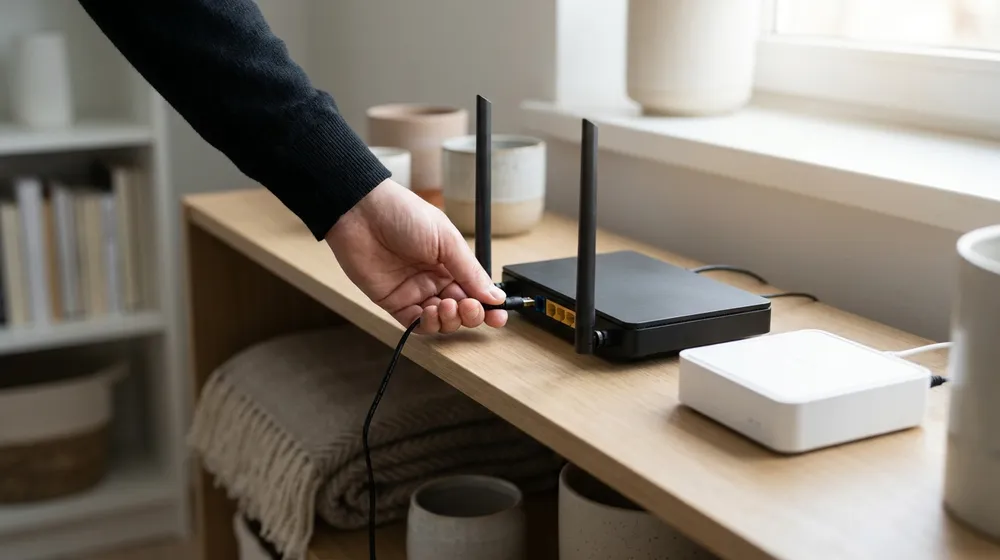
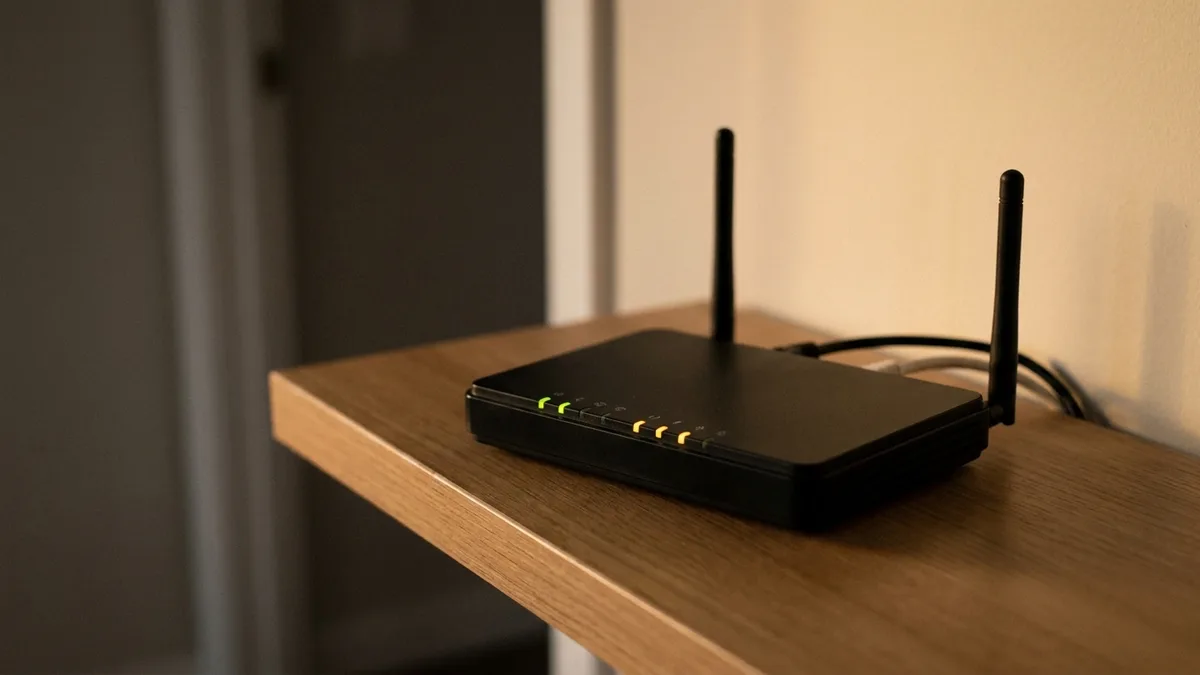
Cabut kabel kuasa daripada modem dan penghala WiFi anda. Tunggu sekurang-kurangnya 30 saat. Pasangkan semula modem terlebih dahulu dan tunggu 1–2 minit sehingga lampunya reda, kemudian pasangkan semula penghala dan tunggu beberapa minit lagi sehingga lampunya menyala. Kemudian cuba sambungkan semula. Jika pembekal anda memberi anda satu kotak gabungan modem-penghala, hidupkan sahaja kotak itu.
Mengapa ini membantu: Jika internet rumah anda sendiri yang menjadi masalah, kitaran kuasa menyelesaikannya lebih daripada apa-apa tetapan komputer riba yang boleh dilakukan.
Uji komputer riba pada hotspot telefon
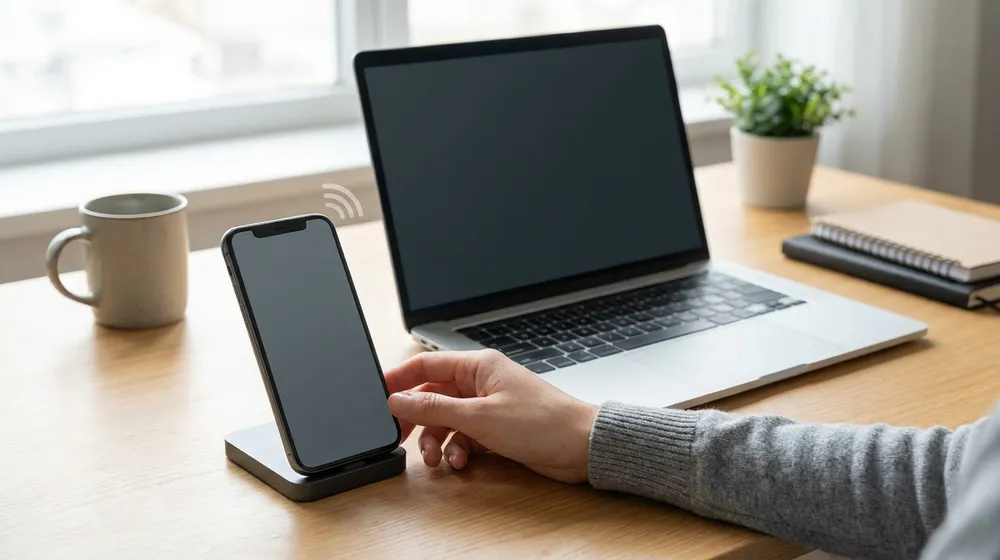
Hidupkan hotspot peribadi telefon anda (Hotspot Mudah Alih/Peribadi dalam tetapan telefon anda) dan sambungkan komputer riba kepadanya seperti mana-mana rangkaian WiFi yang lain. Jika komputer riba menyertai hotspot dan dapat dalam talian dengan baik, perkakasan WiFi komputer riba berfungsi dan masalahnya ialah rangkaian rumah anda atau profil yang disimpan. Jika komputer riba tidak dapat melihat atau menyertai mana-mana rangkaian — walaupun hotspot — itu lebih mengarah ke kad atau pemacu WiFi komputer riba. Semasa anda menguji masalah internet, cuba juga ini: jika anda menjalankan VPN atau suit keselamatan/antivirus pihak ketiga, matikan ia buat sementara waktu dan uji semula, kerana terowong VPN atau tembok api yang tersekat boleh menyekat internet semasa WiFi masih menunjukkan tersambung.
Mengapa ini membantu: Rangkaian yang berbeza ialah cara paling bersih untuk membezakan kerosakan rangkaian/profil daripada radio yang benar-benar mati — dan ia membimbing anda ke penyelesaian yang betul di bawah.
Jalankan penyelesai masalah Rangkaian Windows terbina dalam
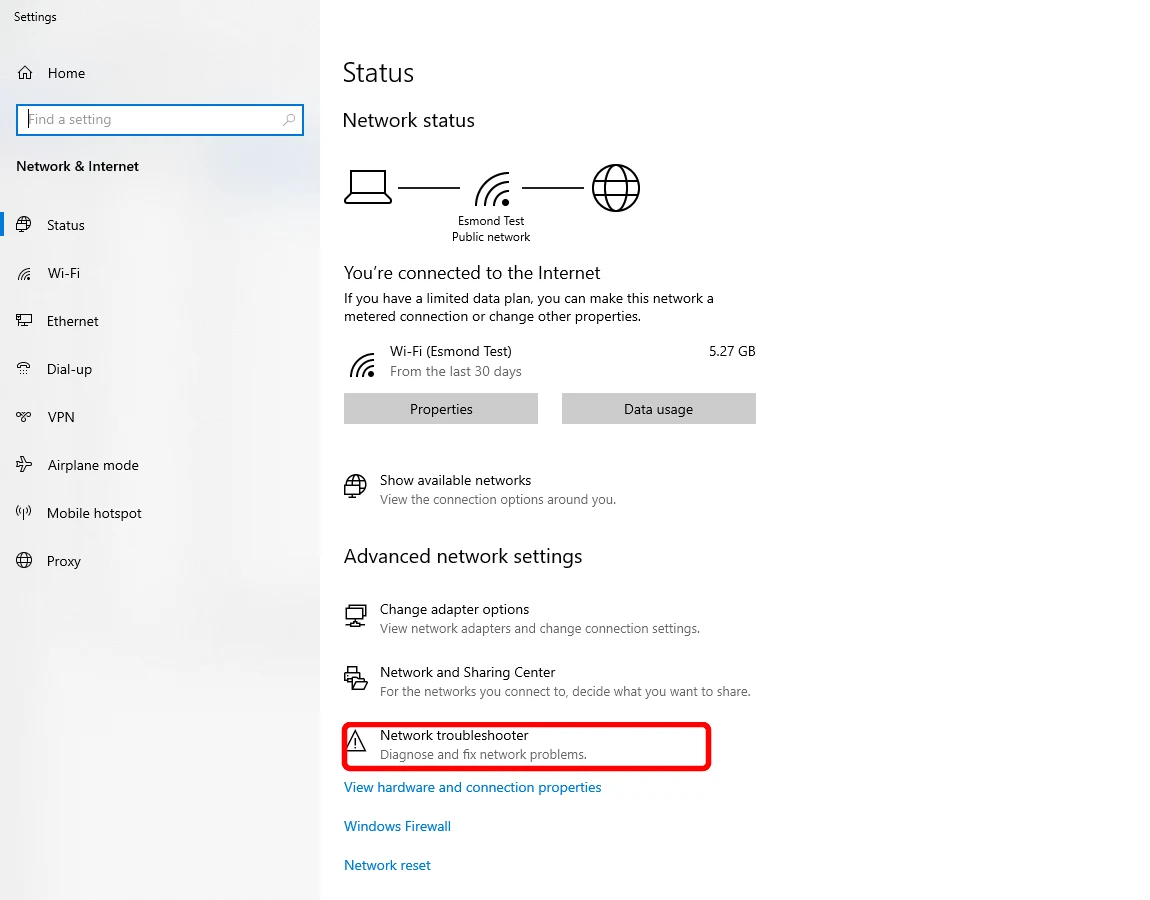
Pada halaman Status, klik Penyelesai masalah rangkaian dan ikuti gesaan. Windows 11: Tetapan > Sistem > Penyelesaian masalah > Penyelesai masalah lain, cari Penyesuai Rangkaian dan klik Jalankan (Windows 11 kemudian membuka penyelesai masalah rangkaian Dapatkan Bantuan automatiknya). Windows 10: Tetapan > Rangkaian & Internet > Status > Penyelesai masalah rangkaian. Ikuti gesaan dan biarkan ia menggunakan sebarang pembetulan yang dicadangkan.
Mengapa ini membantu: Windows boleh mengesan dan membetulkan secara automatik banyak salah konfigurasi WiFi biasa untuk anda.
Lupakan rangkaian WiFi dan sertai semula
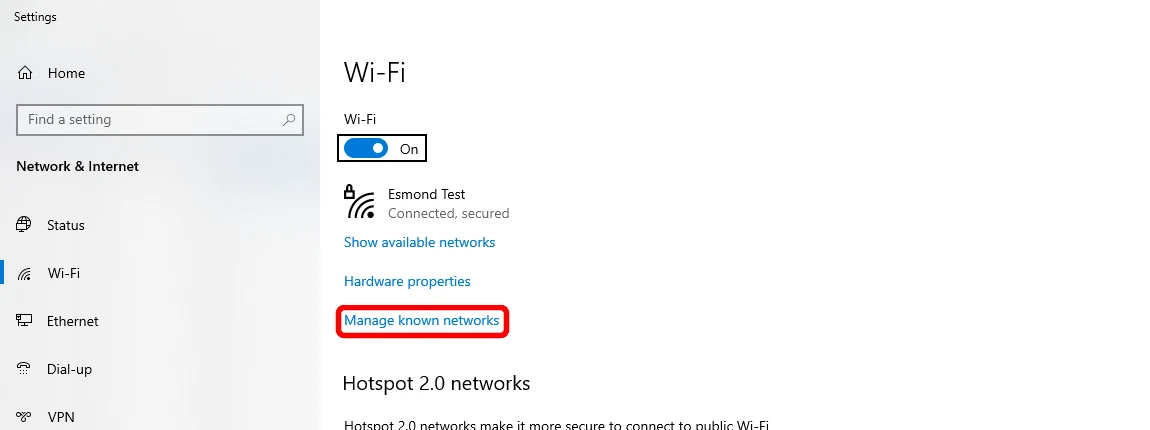
Pergi ke Tetapan > Rangkaian & Internet > Wi-Fi > Urus rangkaian yang diketahui, pilih rangkaian anda → Lupakan, kemudian sambung semula. Pergi ke Tetapan > Rangkaian & internet > Wi-Fi > Urus rangkaian yang diketahui, klik nama rangkaian anda, kemudian Lupakan. Sekarang klik ikon rangkaian dalam bar tugas, pilih rangkaian anda sekali lagi dan masukkan semula kata laluan WiFi. Laluan yang sama pada Windows 10 dan 11. (Sediakan kata laluan anda terlebih dahulu.)
Mengapa ini membantu: Jika komputer riba anda menyimpan rekod rangkaian yang buruk atau ketinggalan zaman — kata laluan lama atau profil yang rosak — penyertaan baharu akan membersihkannya.
Semak Kemas Kini Windows
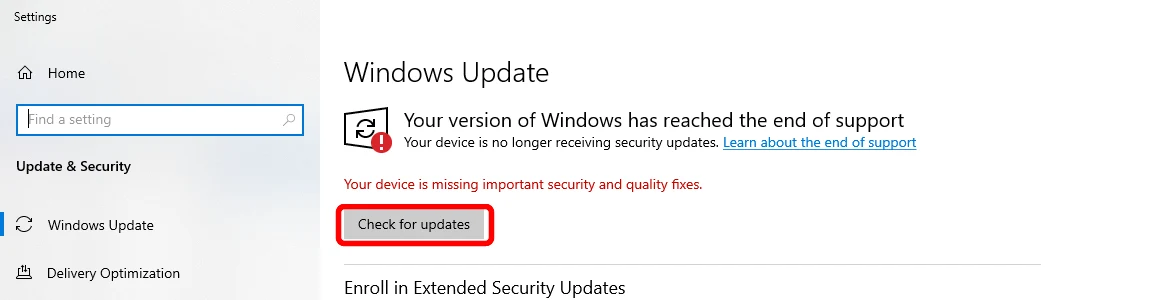
Buka Tetapan > Kemas Kini & Keselamatan > Kemas Kini Windows dan klik Semak kemas kini. Pergi ke Tetapan > Kemas Kini Windows > Semak kemas kini, pasang apa sahaja yang ditawarkan dan mulakan semula jika diminta. Pada binaan Windows 10 yang lebih lama, ia mungkin dipaparkan sebagai Tetapan > Kemas Kini & Keselamatan > Kemas Kini Windows. Jika komputer riba langsung tiada internet, lakukan langkah ini kemudian daripada hotspot telefon atau selepas langkah lain membolehkan anda sebahagiannya dalam talian.
Mengapa ini membantu: Kemas kini membetulkan pepijat WiFi yang diketahui dan menghantar pemacu WiFi yang dipertingkatkan.
Lumpuhkan dan aktifkan semula penyesuai WiFi
Klik kanan butang Mula > Pengurus Peranti > kembangkan Penyesuai Rangkaian > klik kanan penyesuai wayarles anda (namanya biasanya mengandungi "Wi-Fi", "Wayarles", "WLAN", "Intel", "Realtek" atau "Qualcomm") > Lumpuhkan peranti. Tunggu kira-kira 10 saat, kemudian klik kanan sekali lagi > Dayakan peranti.
Mengapa ini membantu: Ia seperti mematikan dan menghidupkan semula cip WiFi komputer riba pada peringkat sistem.
Bersihkan tetapan rangkaian dengan arahan mudah
Klik Mula, taip cmd, klik kanan Command Prompt dan pilih Run as administrator. Taip setiap baris dan tekan Enter selepas setiap satu, kemudian mulakan semula komputer riba pada penghujungnya:
netsh winsock reset
netsh int ip reset
ipconfig /release
ipconfig /renew
ipconfig /flushdnsTaip baris-baris tersebut tepat seperti yang ditunjukkan — baris-baris tersebut selamat dan tidak memadam fail peribadi. Jika menaip arahan terasa tidak selesa, anda boleh melangkau langkah ini dan beralih ke langkah pemacu di bawah.
Mengapa ini membantu: Ini menetapkan semula susunan rangkaian, mendapatkan alamat baharu daripada penghala anda dan mengosongkan cache alamat — tanpa memadamkan apa-apa yang peribadi. Sama pada Windows 10 dan 11.
Kemas kini pemacu WiFi — atau gulungkannya semula jika WiFi rosak selepas kemas kini
Kemas kini: Klik kanan Mula > Pengurus Peranti > Penyesuai rangkaian, klik kanan penyesuai wayarles anda > Kemas kini pemacu > Cari pemacu secara automatik. Undur (gunakan ini jika WiFi mula gagal sejurus selepas kemas kini Windows atau pemacu): klik kanan penyesuai yang sama > Sifat > Tab Pemacu > Undur Pemacu (berwarna kelabu bermaksud tiada versi sebelumnya). Jika komputer riba tidak dapat disambungkan ke dalam talian, muat turun pemacu yang betul daripada tapak sokongan pengeluar komputer riba pada telefon anda atau PC lain, salinnya pada pemacu USB dan pasangkannya.
Mengapa ini membantu: Pemacu ialah perisian yang membolehkan Windows bercakap dengan cip WiFi — versi yang rosak atau salah akan memutuskan sambungan.
Pasang semula pemacu WiFi
Jika pengemaskinian tidak membantu, paksa Windows untuk membina semula pemacu. Klik kanan Mula > Pengurus Peranti > Penyesuai rangkaian, klik kanan penyesuai wayarles anda > Nyahpasang peranti (tandakan "Cuba alih keluar pemacu untuk peranti ini" jika ia muncul) > Nyahpasang. Kemudian mulakan semula komputer riba — Windows memasang semula salinan baharu secara automatik semasa permulaan.
Mengapa ini membantu: Pemasangan semula yang bersih akan membersihkan pemacu yang rosak yang tidak dapat diperbaiki dengan pengemaskinian sahaja.
Hentikan Windows daripada mematikan penyesuai WiFi
Klik kanan Mula > Pengurus Peranti > Penyesuai rangkaian, klik kanan penyesuai wayarles anda > Ciri > tab Pengurusan Kuasa > nyahtanda "Benarkan komputer mematikan peranti ini untuk menjimatkan kuasa" > OK.
Mengapa ini membantu: Tetapan penjimatan kuasa boleh mematikan cip WiFi dan menyebabkan penurunan mendadak, terutamanya apabila komputer riba menggunakan bateri atau terbiar. Jika WiFi anda terputus secara rawak dan bukannya tidak pernah bersambung, panduan tertumpu kami tentang apa yang perlu dilakukan apabila komputer riba asyik terputus sambungan daripada WiFi akan dibincangkan dengan lebih mendalam.
Lakukan tetapan semula Rangkaian sepenuhnya (pilihan terakhir)
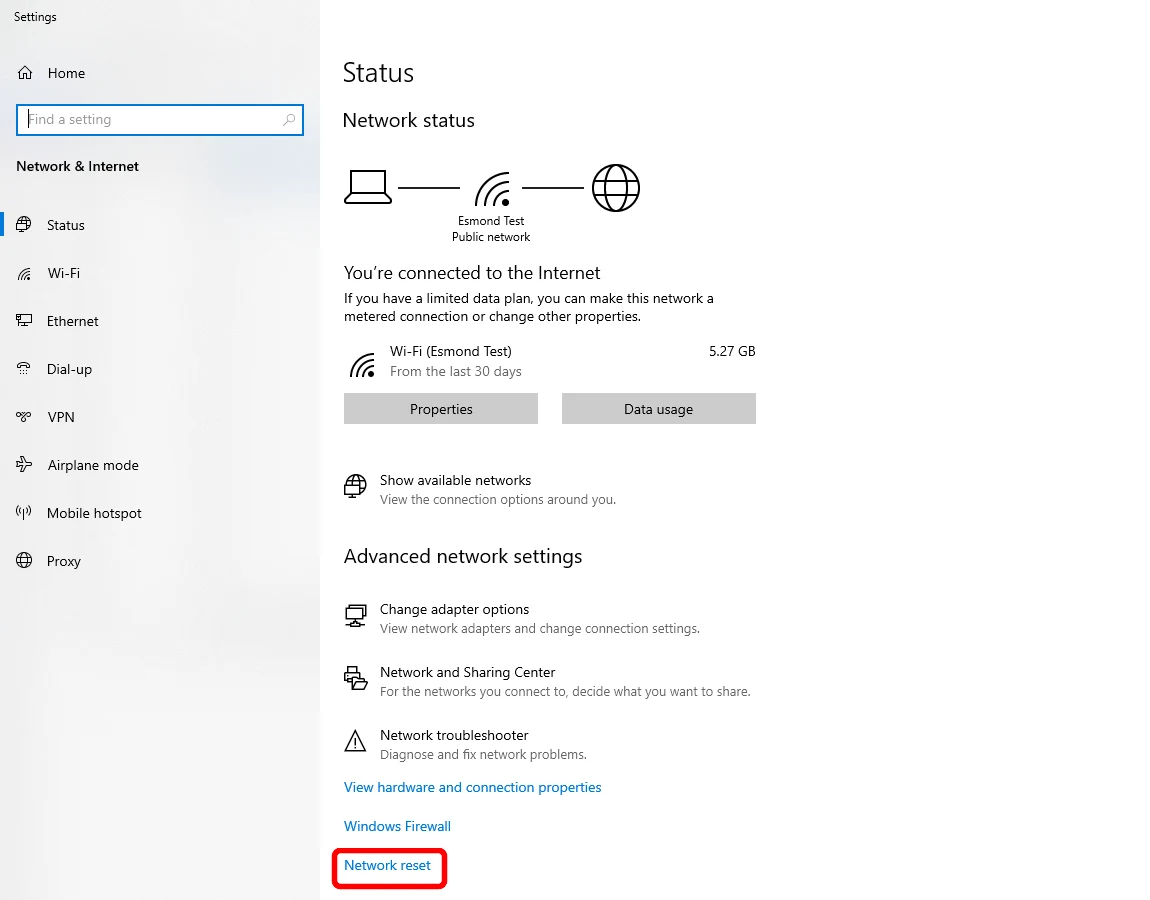
Pada halaman Status, tatal ke bawah dan klik Tetapkan semula rangkaian (anda akan memasukkan semula kata laluan Wi-Fi selepas itu). Ini mengalih keluar dan memasang semula semua penyesuai rangkaian anda dan mengembalikan setiap tetapan rangkaian kepada tetapan lalai — anda perlu memasukkan semula kata laluan WiFi dan menyediakan semula sebarang VPN selepas itu, jadi gunakannya hanya jika tiada perkara di atas berfungsi. Windows 11: Tetapan > Rangkaian & internet > Tetapan rangkaian lanjutan > Tetapan semula rangkaian > Tetapkan semula sekarang > Ya. Windows 10: Tetapan > Rangkaian & internet > Status > Tetapan semula rangkaian > Tetapkan semula sekarang > Ya. Komputer riba akan dimulakan semula dengan sendirinya.
Mengapa ini membantu: Ia menyelesaikan masalah rangkaian yang mendalam dan degil — dan selalunya menyelesaikan masalah yang berlarutan selepas menaik taraf daripada Windows 10 kepada Windows 11. Jika Windows masih tidak berfungsi dengan cara lain selepas itu, sistem pengendalian itu sendiri mungkin memerlukan perhatian — lihat pembaikan OS Windows.
Cara Membaiki WiFi pada Mac (MacBook, iMac)
macOS Ventura, Sonoma, Sequoia dan yang lebih baharu menggunakan Tetapan Sistem; macOS Monterey dan yang lebih terdahulu memanggilnya Keutamaan Sistem — kami perhatikan kedua-duanya. Bekerja dari yang paling mudah hingga yang paling sukar dan berhenti apabila ia disambungkan semula.
Matikan dan hidupkan semula WiFi
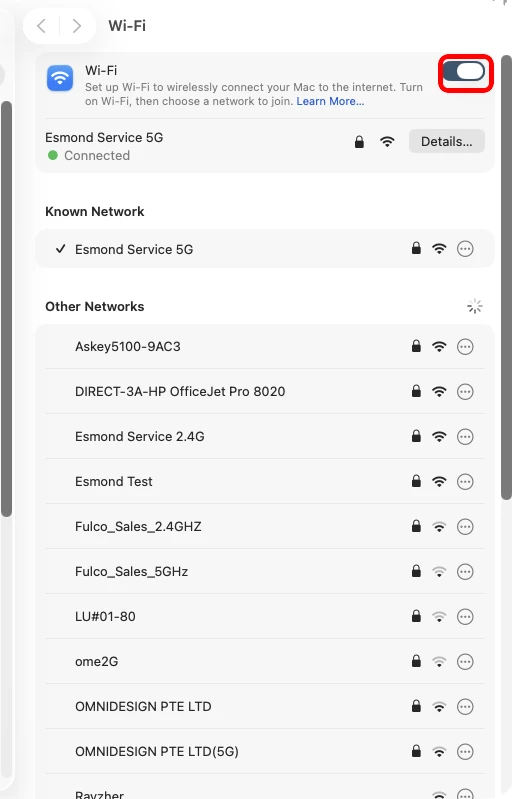
Tetapan Sistem → Wi-Fi: matikan suis Wi-Fi, tunggu sebentar, kemudian hidupkan. Klik ikon Wi-Fi dalam bar menu (bahagian atas sebelah kanan skrin), matikan Wi-Fi, tunggu kira-kira 10–15 saat, kemudian hidupkannya semula dan biarkan Mac disambungkan semula. Tiada ikon Wi-Fi di atas sana? Pergi ke menu Apple > Tetapan Sistem > Wi-Fi (di Monterey atau lebih awal: menu Apple > Keutamaan Sistem > Rangkaian).
Mengapa ini membantu: Ia memaksa Mac untuk memutuskan sambungan lapuk dan berjabat tangan semula dengan penghala anda — pembaikan 10 saat yang kerap berkesan secara mengejutkan.
Cari makluman Cadangan Wi-Fi
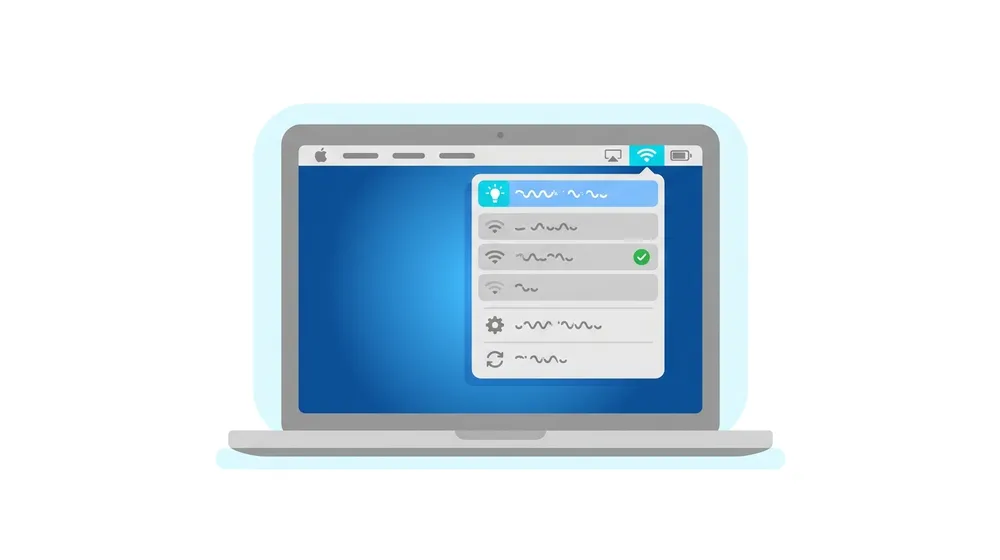
Klik ikon Wi-Fi dalam bar menu — klik biasa, tanpa kekunci dipegang. Jika macOS benar-benar mengesan masalah dengan sambungan anda, baris Cadangan Wi-Fi akan muncul berhampiran bahagian atas menu tersebut; klik padanya untuk melihat cadangan pembetulan Apple sendiri. Ia hanya muncul apabila Mac telah mengesan masalah, jadi jangan risau jika ia tiada — teruskan ke langkah seterusnya.
Mengapa ini membantu: Apabila ia muncul, ia adalah cara terpantas untuk membiarkan Mac memberitahu anda apa yang difikirkannya salah sebelum anda mengubah apa-apa. (Untuk melihat butiran teknikal yang lebih mendalam, tahan Option (Alt) dan klik ikon Wi-Fi — kita menggunakannya dalam langkah Diagnostik Tanpa Wayar di bahagian bawah.)
Mulakan semula Mac, kemudian mulakan semula penghala anda
Pilih menu Apple > Mulakan Semula. Jika WiFi masih gagal, kitar semula rangkaian rumah anda: cabut palam modem dan penghala (atau kotak semua-dalam-satu daripada ISP anda) dari dinding, biarkan ia dimatikan selama kira-kira 2 minit, kemudian pasangkannya semula dan tunggu sehingga semua lampu kembali normal sebelum menguji.
Mengapa ini membantu: Mula semula akan membersihkan gangguan perisian sementara; jika peranti lain juga berada di luar talian, penghala atau pembekal anda adalah punca sebenar — bukan Mac.
Uji Mac terhadap hotspot telefon
Hidupkan hotspot peribadi telefon anda dan sambungkan Mac kepadanya daripada menu Wi-Fi. Jika Mac menyertai hotspot dan berada dalam talian, perkakasan WiFi Mac adalah baik dan masalahnya ialah rangkaian rumah anda atau profil yang disimpan; jika ia tidak dapat menyertai mana-mana rangkaian, masalahnya lebih berkemungkinan terletak pada Mac itu sendiri. Selain itu, jika anda menjalankan VPN atau perisian keselamatan pihak ketiga, matikan sementara dan uji semula — VPN atau tembok api yang tersekat boleh menyekat internet semasa Wi-Fi masih menunjukkan sambungan.
Mengapa ini membantu: Rangkaian kedua memisahkan kerosakan rangkaian/profil daripada radio yang mati, jadi anda tahu langkah-langkah di bawah yang berbaloi dengan masa anda.
Lupakan rangkaian WiFi dan sertai semula
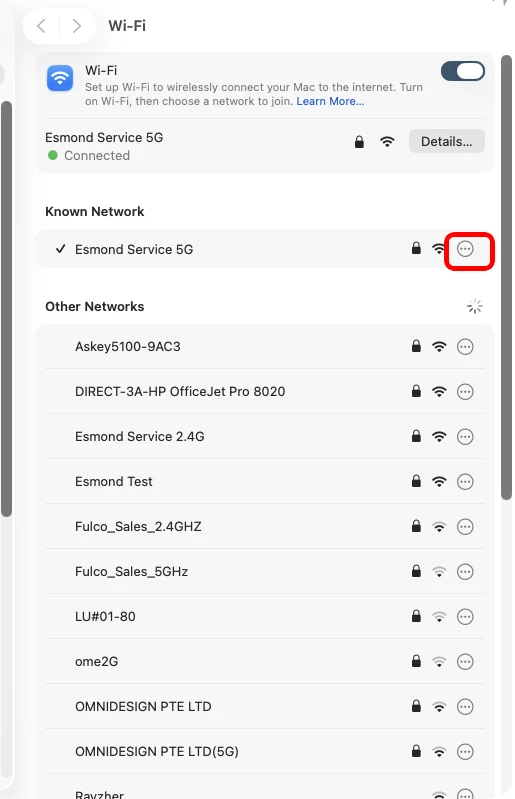
Tetapan Sistem → Wi-Fi: klik ⋯ di sebelah rangkaian anda → Lupakan Rangkaian Ini, kemudian sambung semula. Pergi ke menu Apple > Tetapan Sistem > Wi-Fi, klik Butiran… di sebelah rangkaian anda, klik Lupakan Rangkaian Ini, kemudian Alih Keluar untuk mengesahkan. Pilih semula rangkaian daripada senarai Wi-Fi dan taip semula kata laluan. (Pada Monterey atau yang lebih awal: Keutamaan Sistem > Rangkaian > Wi-Fi > Lanjutan, pilih rangkaian dan klik butang tolak – .)
Mengapa ini membantu: Ia memadam profil yang disimpan yang rosak — kata laluan yang disimpan salah atau tetapan yang buruk — dan membinanya semula.
Perbaharui pajakan DHCP (dapatkan alamat IP baharu)
Jika Mac menunjukkan bersambung tetapi tiada internet, atau menunjukkan alamat 169.254.xx yang diberikan sendiri: Menu Apple > Tetapan Sistem > Rangkaian, klik Wi-Fi, klik Butiran…, buka tab TCP/IP, kemudian klik Perbaharui Pajakan DHCP dan tunggu beberapa saat untuk alamat baharu. Anda boleh melihat alamat pada tab TCP/IP yang sama — jika Alamat IPv4 bermula dengan 169.254, Mac tidak pernah mendapat alamat sebenar daripada penghala. (MacOS lama: Keutamaan Sistem > Rangkaian > Wi-Fi > Lanjutan > TCP/IP .)
Mengapa ini membantu: Ia memaksa Mac untuk meminta alamat baharu yang betul daripada penghala dan bukannya alamat yang mati.
Tukar pelayan DNS anda
Jika halaman tidak dapat dimuatkan walaupun Wi-Fi menunjukkan sambungan: Menu Apple > Tetapan Sistem > Rangkaian > Wi-Fi > Butiran… > Tab DNS. Di bawah Pelayan DNS, klik butang + dan taip DNS awam — DNS awam yang biasa dipercayai ialah Cloudflare 1.1.1.1 atau Google 8.8.8.8 — kemudian klik OK. Anda boleh menambah sandaran kedua sebagai sandaran. Untuk membuat asal kemudian, alih keluarnya dengan butang –.
Mengapa ini membantu: DNS pembekal anda boleh menjadi penghalang; bertukar kepada DNS awam yang pantas selalunya menyebabkan halaman dimuatkan semula.
Jalankan Diagnostik Tanpa Wayar
Tutup aplikasi yang sedang dibuka dan pastikan anda cuba menyambung ke rangkaian yang bermasalah. Tekan kekunci Option (Alt), klik ikon Wi-Fi dan pilih Buka Diagnostik Tanpa Wayar…, kemudian ikuti langkah pada skrin. Apabila selesai, ia akan menyenaraikan masalah yang dikesan dengan cadangan pembetulan (klik butang maklumat dalam Ringkasan).
Mengapa ini membantu: Ia merupakan penganalisis terbina dalam Apple yang lebih dalam dan ia tidak akan mengubah tetapan anda dengan sendirinya, jadi ia selamat untuk dijalankan.
Lanjutan: bina semula perkhidmatan rangkaian Wi-Fi
Kebanyakan orang telah dibaiki sebelum titik ini — langkah seterusnya adalah lebih lanjut, jadi hanya teruskan jika WiFi masih tergendala. Menu Apple > Tetapan Sistem > Rangkaian. Klik-Control (klik kanan) Wi-Fi dalam senarai dan pilih Padam Perkhidmatan…, kemudian sahkan. Klik butang Lagi (…) berhampiran bahagian bawah, pilih Tambah Perkhidmatan…, tetapkan Antara Muka kepada Wi-Fi, berikan nama dan klik Cipta. Sambung semula selepas itu. (MacOS lama: Keutamaan Sistem > Rangkaian, pilih Wi-Fi, tolak – untuk mengalih keluar, tambah + untuk menambah semula.)
Mengapa ini membantu: Ia membina semula antara muka rangkaian WiFi dari awal — tetapan semula yang lebih kuat daripada sekadar melupakan rangkaian.
Lanjutan: padam fail konfigurasi rangkaian (dengan berhati-hati)
Pembersihan langkah terakhir ini akan memadam semua tetapan rangkaian yang disimpan supaya macOS membinanya semula semasa dimulakan semula — buat sandaran dahulu, dan ambil perhatian bahawa ini tiada dalam panduan rasmi Apple. Dalam Finder, pilih Go > Go to Folder, tampal
/Library/Preferences/SystemConfiguration/dan tekan Return. Alihkan ini ke Trash (anda perlu memasukkan kata laluan anda):com.apple.airport.preferences.plist,com.apple.wifi.message-tracer.plist,NetworkInterfaces.plist,preferences.plist. Mulakan semula dan sambung semula (anda perlu memasukkan semula kata laluan).Mengapa ini membantu: Ia memaksa set tetapan rangkaian yang baharu sepenuhnya — tetapi kerana ia tidak rasmi dan mengalih keluar semuanya, inilah ketika kebanyakan orang lebih baik membiarkan kami melihatnya.
Tetapkan semula NVRAM (Intel) atau kitaran kuasa (Apple Silicon)

Semak menu Apple > Perihal Mac Ini: "Cip Apple M1/M2/M3…" ialah Apple Silicon; "Pemproses Intel …" ialah Intel. Apple Silicon: tiada kombinasi kekunci NVRAM — cuma tutup sepenuhnya, tunggu kira-kira 30 saat, kemudian hidupkan (Mac membaiki NVRAM itu sendiri jika perlu). Intel: tutup, kemudian tekan butang kuasa dan segera tahan Command (⌘) + Option + P + R selama kira-kira 20 saat, kemudian lepaskan dan biarkan ia bermula.
Mengapa ini membantu: Tetapan aras rendah yang disimpan kadangkala boleh menjejaskan rangkaian; ini akan mengosongkannya.
Kemas kini macOS
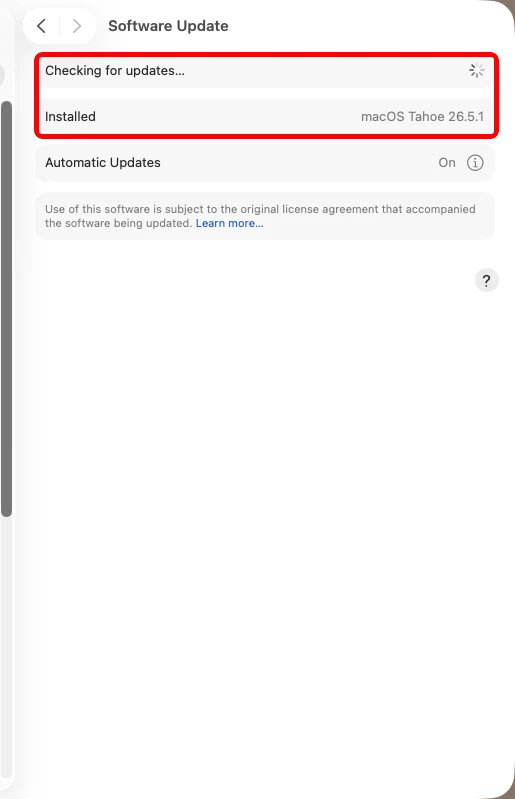
Tetapan Sistem → Umum → Kemas Kini Perisian dan pasang sebarang kemas kini. Pergi ke menu Apple > Tetapan Sistem > Umum > Kemas Kini Perisian, biarkan ia menyemak dan pasang apa sahaja yang ditawarkan (anda perlu memasukkan kata laluan pentadbir anda dan Mac akan dimulakan semula). macOS lama: Menu Apple > Keutamaan Sistem > Kemas Kini Perisian.
Mengapa ini membantu: Jika masalah bermula selepas kemas kini atau tidak hilang, Apple sering menghantar pembaikan dan pemacu WiFi yang lebih baharu dalam kemas kini titik.
Cara Membaiki Bluetooth pada Komputer Riba Windows (Windows 10 & 11)
Gunakan ini apabila tetikus, papan kekunci, fon kepala, fon telinga atau pembesar suara Bluetooth tidak dapat dipasangkan, asyik terputus atau tidak dikesan. Mulakan dengan aksesori itu sendiri, kemudian gunakan Windows. Uji selepas setiap langkah.
Periksa aksesori terlebih dahulu — kuasa, cas, mod gandingan, julat
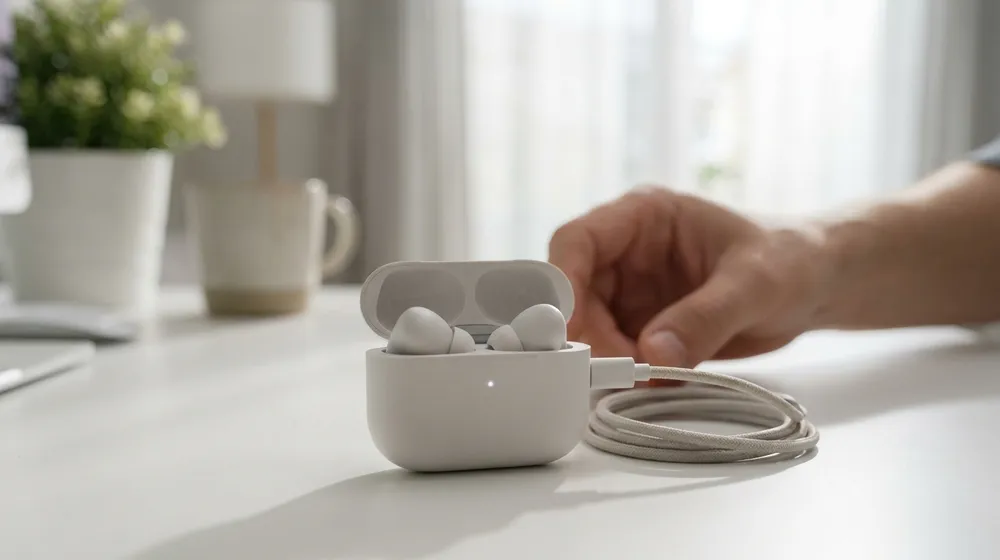
Sebelum menyalahkan komputer riba, pastikan peranti telah dihidupkan, dicas (atau mempunyai bateri baharu), dan berada dalam jarak kira-kira 1 meter dari komputer riba tanpa dinding di antaranya. Untuk peranti baharu atau yang tidak berpasangan, masukkannya ke dalam mod berpasangan — biasanya butang yang anda tekan dan tahan sehingga lampu berkelip (semak arahan peranti).
Mengapa ini membantu: Bateri yang kehabisan kuasa, peranti di luar julat, atau peranti yang hanya "hidup" tetapi tidak dalam mod berpasangan kelihatan seperti komputer riba yang rosak — dan ia merupakan "kerosakan" Bluetooth paling biasa yang kita lihat yang ternyata bukan kerosakan langsung.
Pastikan ia belum disambungkan ke telefon anda
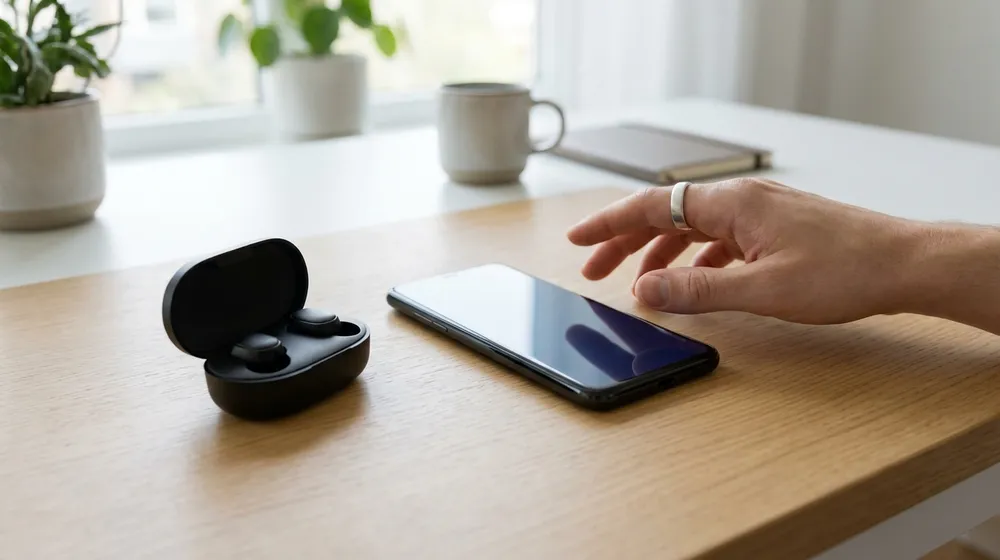
Inilah yang paling kerap mengelirukan orang: kebanyakan peranti audio Bluetooth (AirPods, fon telinga, fon kepala, pembesar suara) hanya bercakap dengan satu peranti pada satu masa, dan ia bersambung secara automatik ke telefon atau tablet terakhir yang dipasangkannya. Jadi, fon telinga anda mungkin "bersambung" ke telefon anda di dalam poket anda dan enggan muncul pada komputer riba. Pada telefon anda, matikan Bluetooth (atau putuskan sambungan/"lupakan" peranti itu), kemudian cuba sambungkan pada komputer riba sekali lagi.
Mengapa ini membantu: Peranti yang sibuk dengan telefon anda kelihatan sama seperti komputer riba yang "tidak dapat menemuinya" — mengosongkannya selalunya merupakan penyelesaian utama.
Jauhi gangguan — port USB 3.0 dan peranti 2.4GHz
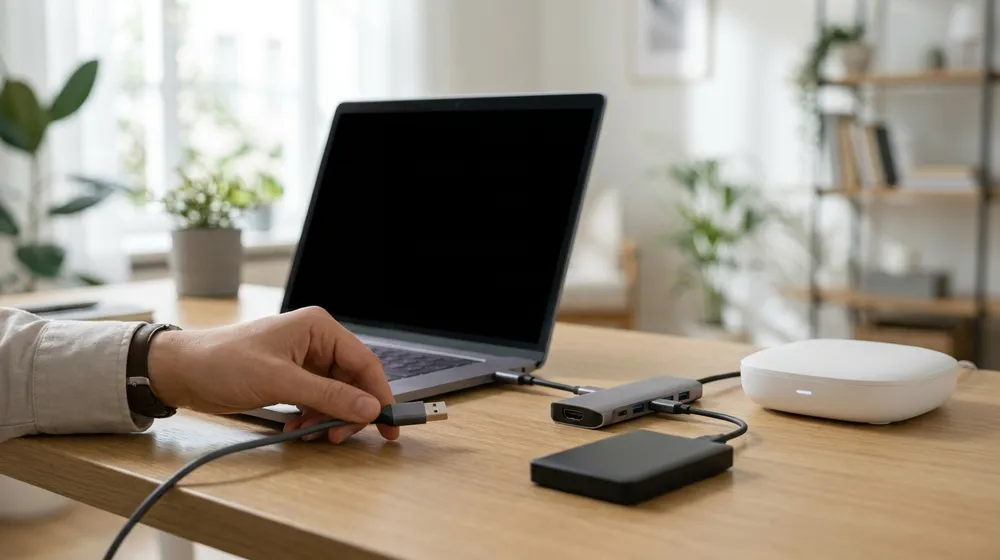
Jika Bluetooth lembap, tergagap-gagap atau asyik terputus sambungan, cabut plag atau alihkan sebarang peranti yang disambungkan ke port USB 3.0 (terutamanya pemacu keras USB dan dongle USB-C tanpa pelindung) dari komputer riba anda. Jauhi juga daripada ketuhar gelombang mikro yang sedang berjalan, penghala WiFi yang sibuk dan tetikus atau papan kekunci tanpa wayar yang lain.
Mengapa ini membantu: Bluetooth berkongsi jalur 2.4GHz yang sesak, dan port USB 3.0 merupakan sumber gangguan yang diketahui yang mencekiknya — kita sentiasa melihatnya dengan komputer riba yang didok di sebelah sekumpulan pemacu USB.
Matikan dan hidupkan semula Bluetooth
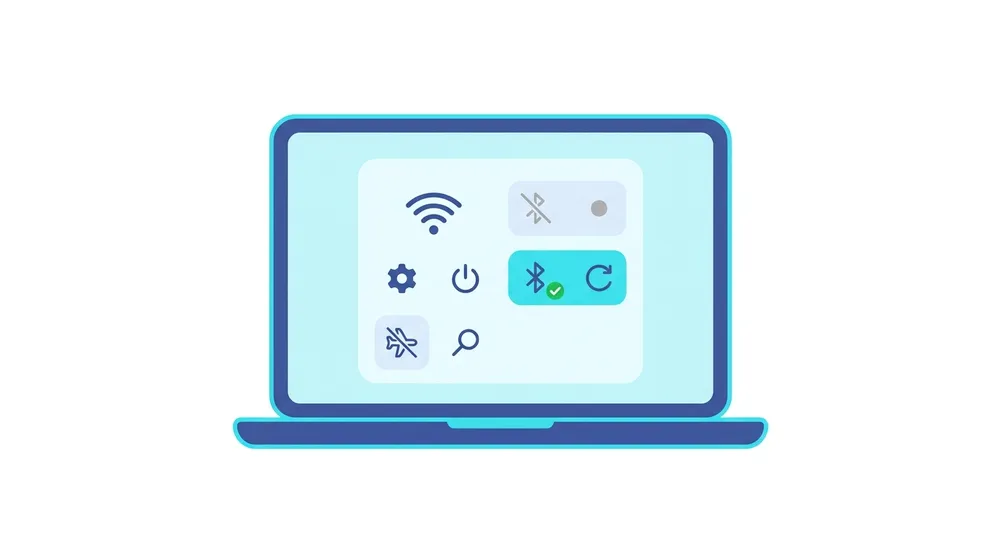
Windows 11: klik gugusan rangkaian/bunyi/bateri di sebelah kanan bar tugas untuk membuka Tetapan Pantas, klik jubin Bluetooth matikan, tunggu kira-kira 10 saat, kemudian klik semula (atau Mula > Tetapan > Bluetooth & peranti). Windows 10: klik ikon Pusat Tindakan di bahagian bawah kanan dan klik jubin Bluetooth matikan, tunggu, kemudian hidupkan (atau Mula > Tetapan > Peranti > Bluetooth & peranti lain). Pastikan mod Pesawat dimatikan.
Mengapa ini membantu: Ia memaksa radio untuk memulakan semula dan membersihkan banyak gangguan "tidak dapat bersambung".
Lupakan peranti itu dan pasangkannya semula
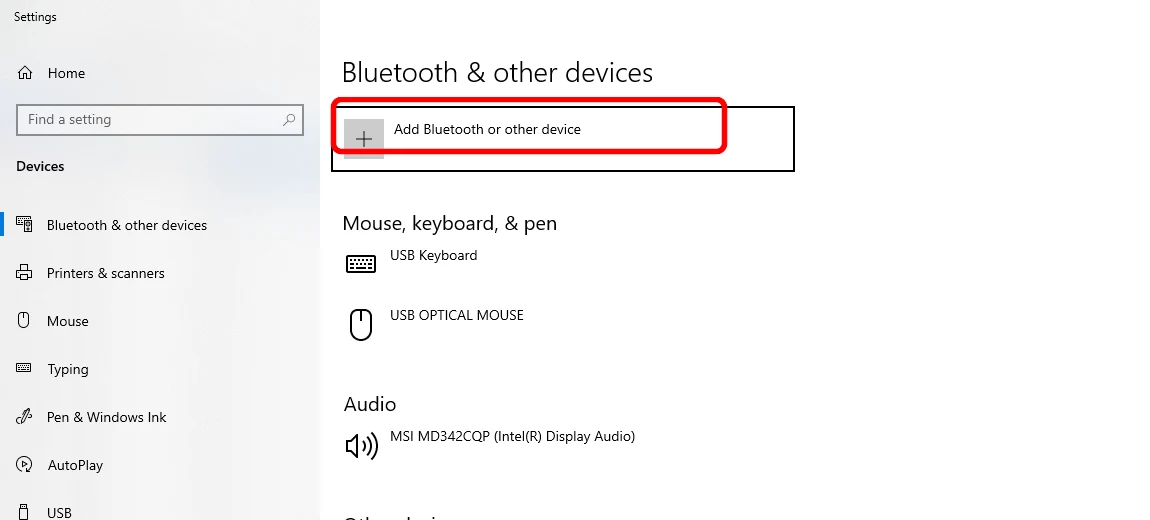
Buka Tetapan > Bluetooth & peranti lain, tanggalkan peranti lama, kemudian klik Tambah Bluetooth atau peranti lain. Windows 11: Mula > Tetapan > Bluetooth & peranti > Peranti, cari peranti tersebut, klik menu tiga titiknya Pilihan lanjut > Alih keluar peranti > Ya. Letakkan aksesori dalam mod berpasangan, kemudian Tambah peranti > Bluetooth dan pilihnya. Windows 10: Mula > Tetapan > Peranti > Bluetooth & peranti lain, klik peranti > Alih keluar peranti > Ya, kemudian Tambah Bluetooth atau peranti lain > Bluetooth dan pilihnya.
Mengapa ini membantu: Mengalih keluar gandingan yang separuh rosak dan gandingan semula membetulkan sebahagian besar kes "bergandingan tetapi tidak dapat bersambung".
Jalankan penyelesai masalah Bluetooth terbina dalam
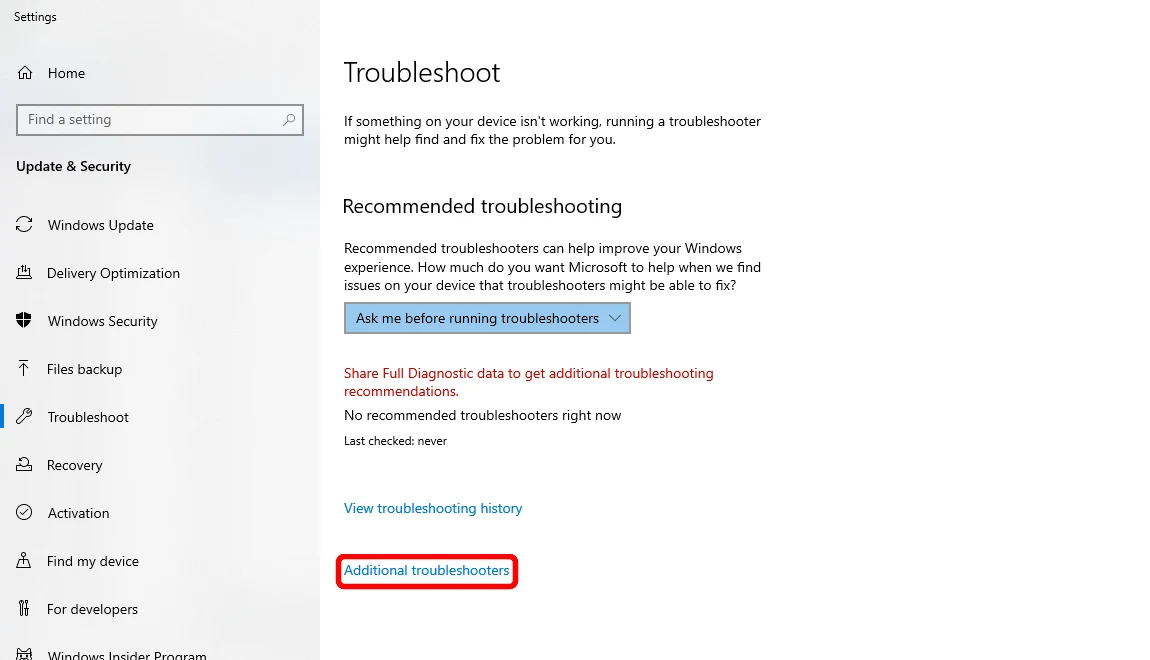
Buka Tetapan > Kemas Kini & Keselamatan > Selesaikan Masalah > Penyelesai Masalah Tambahan, kemudian jalankan penyelesai masalah Bluetooth. Windows 11: Mula > Tetapan > Sistem > Selesaikan Masalah > Penyelesai Masalah lain, klik Jalankan di sebelah Bluetooth (atau cari Mula untuk Dapatkan Bantuan dan jalankan penyelesai masalah Bluetooth automatiknya). Windows 10: Mula > Tetapan > Kemas Kini & Keselamatan > Selesaikan Masalah (klik Penyelesai Masalah tambahan jika ditunjukkan), pilih Bluetooth > Jalankan penyelesai masalah. Gunakan sebarang pembetulan yang ditawarkannya.
Mengapa ini membantu: Ia boleh menetapkan semula penyesuai dan membaiki masalah pemacu dan servis biasa secara automatik.
Mulakan Semula Perkhidmatan Sokongan Bluetooth
Jika Bluetooth kelihatan mati atau togol tidak dapat dihidupkan, perkhidmatan latar belakang mungkin telah terhenti. Tekan kekunci Windows + R, taip services.msc dan tekan Enter. Tatal ke Perkhidmatan Sokongan Bluetooth, klik kanan padanya > Mulakan Semula (atau Mula jika ia dihentikan). Untuk kebolehpercayaan, klik dua kali dan tetapkan Jenis Permulaan kepada Automatik, kemudian Guna. Sama pada Windows 10 dan 11.
Mengapa ini membantu: Perkhidmatan Windows standard ini menjalankan Bluetooth di latar belakang — memulakan semula ia akan menghidupkan semula Bluetooth tanpa but semula sepenuhnya dan dari meja kerja kami, ia menyelamatkan banyak kes "Bluetooth hilang".
Kemas kini pemacu Bluetooth dalam Pengurus Peranti

Klik kanan Mula > Pengurus Peranti, kembangkan Bluetooth, klik kanan penyesuai Bluetooth anda (cth. Intel /Realtek/Qualcomm Wireless Bluetooth) > Kemas kini pemacu > Cari pemacu secara automatik. Pasang apa sahaja yang ditemui dan mulakan semula jika digesa. Untuk pemacu terbaharu, anda juga boleh memuat turunnya daripada halaman sokongan pembuat komputer riba anda.
Mengapa ini membantu: Pemacu yang ketinggalan zaman atau tidak sepadan merupakan punca utama kegagalan pemasangan dan pengesanan, terutamanya selepas kemas kini Windows yang besar.
Nyahpasang dan pasang semula pemacu Bluetooth
Jika pengemaskinian tidak membantu, dalam Pengurus Peranti kembangkan Bluetooth, klik kanan penyesuai Bluetooth anda > Nyahpasang peranti (tandakan "Cuba alih keluar pemacu" jika ditawarkan), sahkan, kemudian mulakan semula PC. Windows memasang semula salinan baharu semasa but. Jika penyesuai tidak kembali, pasang semula pemacu daripada laman web pengeluar komputer riba anda.
Mengapa ini membantu: Pemasangan semula yang bersih akan membersihkan pemacu yang rosak — kami sering menggunakannya apabila Bluetooth menunjukkan ralat atau hilang daripada menu.
Pasang semua Kemas Kini Windows
Windows 11: Mula > Tetapan > Kemas Kini Windows. Windows 10: Mula > Tetapan > Kemas Kini & Keselamatan > Kemas Kini Windows. Klik Semak kemas kini, pasang semuanya (termasuk kemas kini pemacu pilihan jika disenaraikan) dan mulakan semula.
Mengapa ini membantu: Microsoft kerap menghantar pembaikan Bluetooth melalui Kemas Kini Windows, jadi sistem yang dikemas kini sepenuhnya menyelesaikan banyak isu yang berlarutan.
Cara Membaiki Bluetooth pada Mac (MacBook, iMac)
Untuk tetikus, papan kekunci, AirPods, fon kepala atau pembesar suara yang tidak dapat dipasangkan atau asyik terjatuh pada Mac anda. Mulakan dengan aksesori, kemudian gunakan macOS.
Periksa aksesori terlebih dahulu — kuasa, cas, mod gandingan, julat
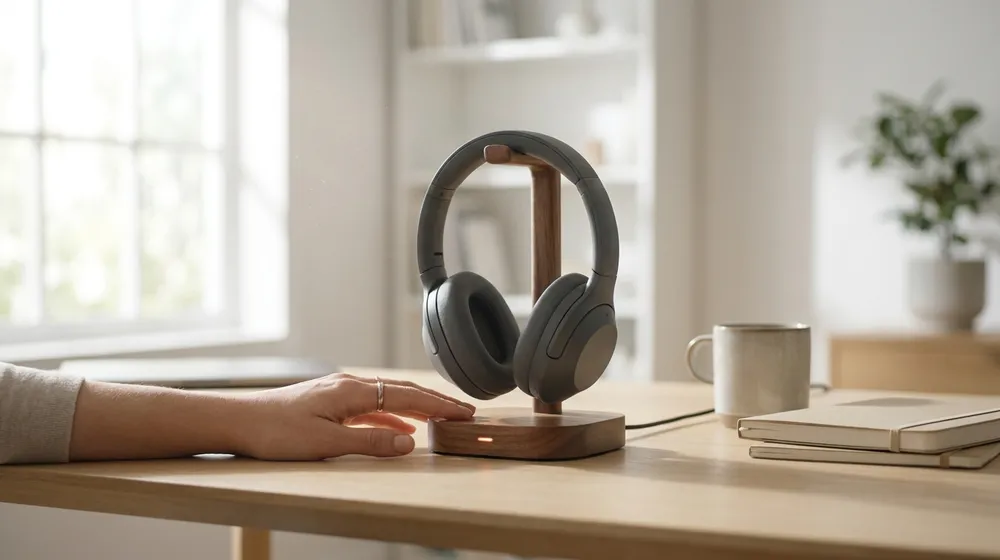
Pastikan peranti dihidupkan, dicas (atau mempunyai bateri baharu), dalam jarak kira-kira 1 meter dari Mac dan — untuk peranti baharu — dalam mod berpasangan (biasanya tekan dan tahan butang sehingga lampu berkelip). Jauhi juga pemacu USB 3.0, ketuhar gelombang mikro atau penghala yang sibuk, kerana ia berkongsi jalur 2.4GHz Bluetooth.
Mengapa ini membantu: Peranti yang kehabisan kuasa atau di luar julat kelihatan sama dengan Mac yang rosak; menyingkirkan kemungkinan itu terlebih dahulu menjimatkan banyak masa.
Pastikan ia belum disambungkan ke telefon anda
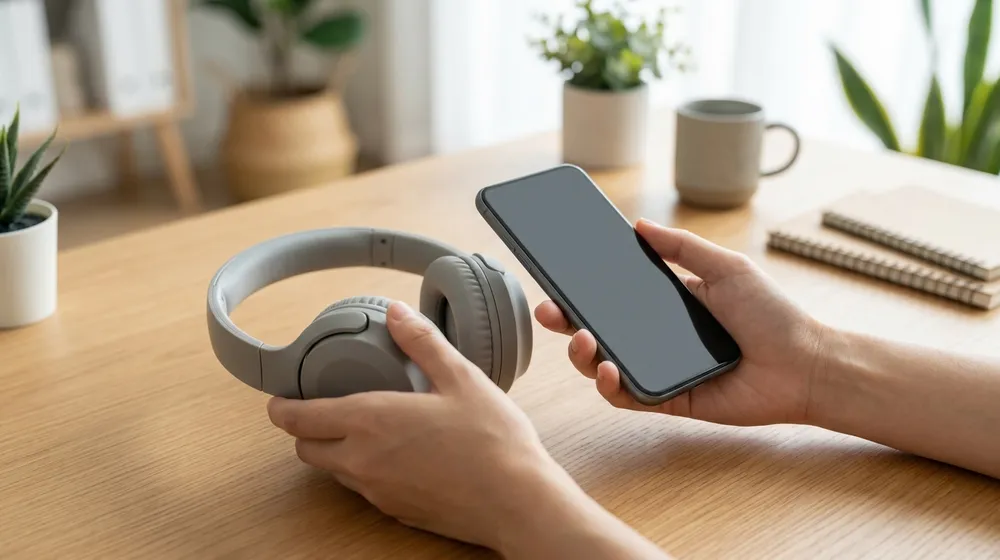
AirPods, fon telinga, fon kepala dan pembesar suara hanya bersambung ke satu peranti pada satu masa dan akan dipautkan semula secara senyap ke telefon terakhir yang dipasangkannya — jadi ia mungkin "disambungkan" ke iPhone atau Android anda di dalam poket anda dan tidak akan muncul pada Mac. Pada telefon anda, matikan Bluetooth (atau putuskan sambungan/lupakan peranti itu), kemudian cuba sambungkan pada Mac. Dengan AirPods, anda juga boleh memasukkannya kembali ke dalam bekas, tutup penutupnya, kemudian bukanya di sebelah Mac.
Mengapa ini membantu: Peranti yang sibuk dengan telefon anda kelihatan seperti Mac yang "tidak dapat menemuinya" — melepaskannya selalunya merupakan penyelesaian sepenuhnya.
Matikan dan hidupkan semula Bluetooth
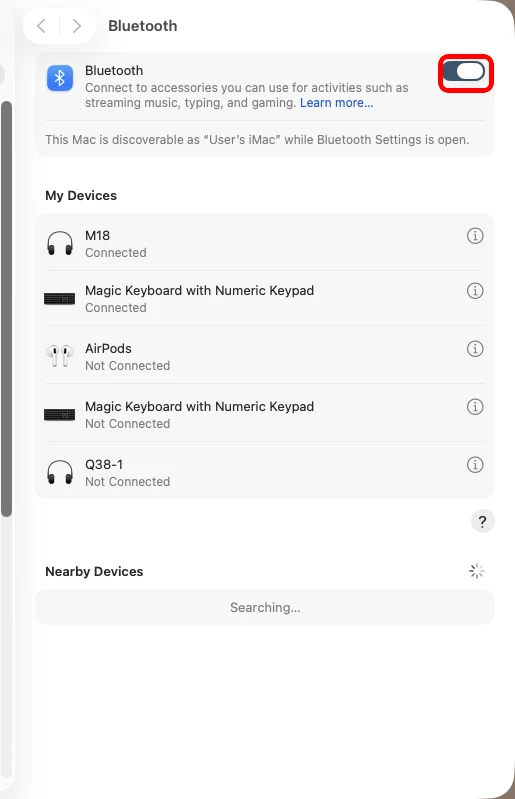
Tetapan Sistem → Bluetooth: matikan suis Bluetooth, tunggu, kemudian hidupkan. Klik ikon Bluetooth dalam Pusat Kawalan (bar menu bahagian atas sebelah kanan), matikan ia, tunggu kira-kira 10 saat, kemudian hidupkan. Tiada ikon? Pergi ke menu Apple > Tetapan Sistem > Bluetooth dan gunakan togol. Pada desktop Mac, jangan matikan ia jika satu-satunya tetikus dan papan kekunci anda ialah Bluetooth — gunakan tetikus dan papan kekunci berwayar atau pad jejak sebaliknya.
Mengapa ini membantu: Ia memulakan semula radio dan menyelesaikan masalah sambungan yang biasa.
Lupakan peranti itu dan pasangkannya semula
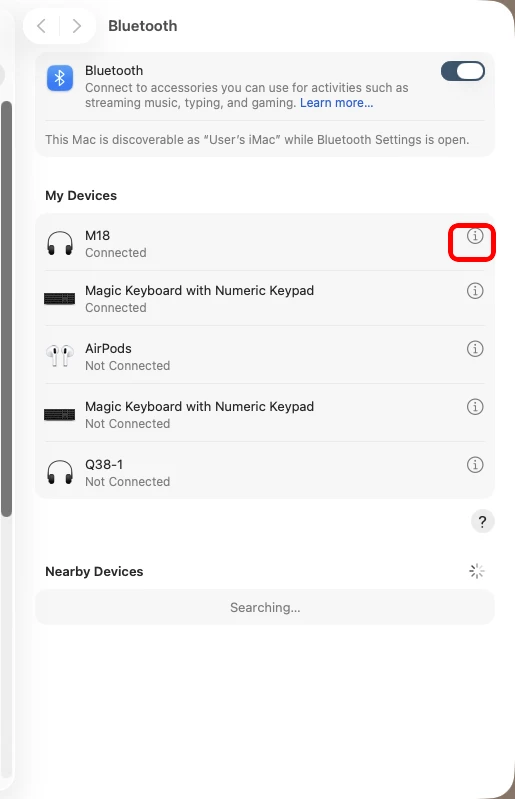
Tetapan Sistem → Bluetooth: klik ⓘ di sebelah peranti → Lupakan Peranti Ini, kemudian pasangkan semula. Buka menu Apple > Tetapan Sistem > Bluetooth. Tuding tetikus ke atas peranti yang bermasalah, klik pilihan maklumatnya dan pilih Lupakan Peranti Ini, kemudian sahkan. Letakkan aksesori dalam mod berpasangan, tunggu sehingga ia muncul semula di bawah Peranti Berdekatan, dan klik Sambung. Jika diminta, klik Terima atau taip kod yang ditunjukkan.
Mengapa ini membantu: Melakukan pemasangan semula dari awal akan menghapuskan pautan yang lapuk atau rosak — penyelesaian yang kerap untuk tetikus, papan kekunci dan AirPods yang bersambung pada peranti lain tetapi bukan Mac ini.
Mulakan semula Mac dan aksesori
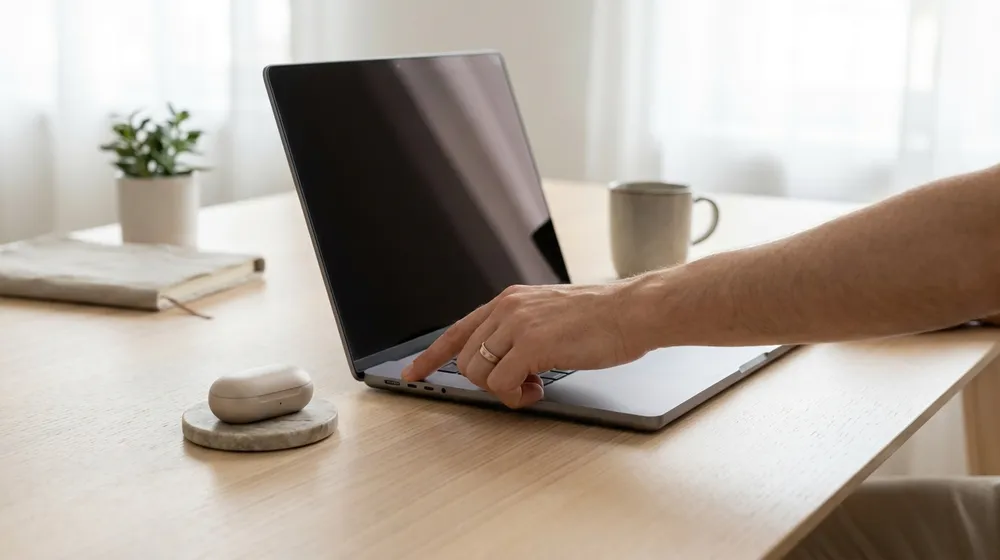
Simpan kerja anda, pilih menu Apple > Mulakan semula dan biarkan Mac but sepenuhnya. Juga matikan dan hidupkan aksesori sepenuhnya. Untuk Magic Keyboard, Magic Mouse atau Magic Trackpad yang tidak dapat disambungkan, pasangkannya ke Mac dengan kabel pengecasnya seketika untuk membangunkannya, kemudian putuskan sambungan dan cuba lagi.
Mengapa ini membantu: Mula semula sepenuhnya akan memuat semula perisian Bluetooth Mac dan merupakan pilihan Apple apabila Bluetooth tidak dapat dihidupkan atau berkelakuan pelik.
Tetapkan peranti sebagai Input/output Bunyi (penggera palsu biasa)
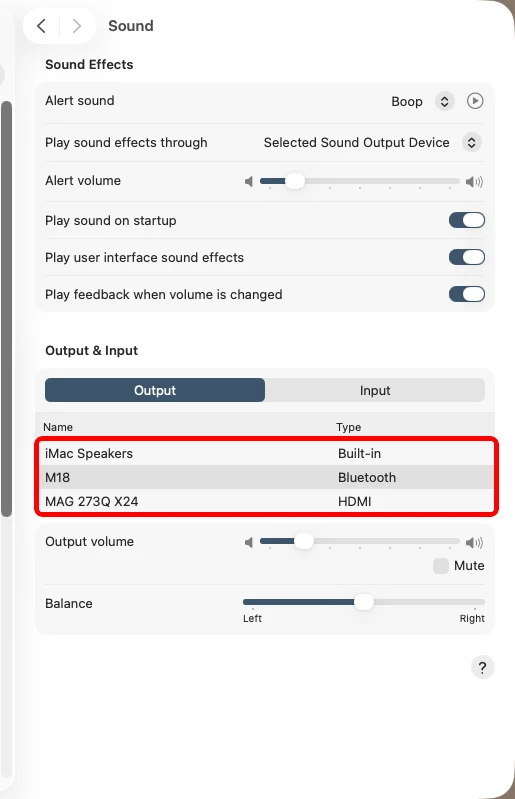
Tetapan Sistem → Bunyi → Output: pilih peranti Bluetooth anda sebagai output. Jika alat dengar yang dipasangkan tiada bunyi, pergi ke menu Apple > Tetapan Sistem > Bunyi dan pilihnya di bawah Output (dan Input untuk mikrofon).
Mengapa ini membantu: Peranti boleh disambungkan tetapi tidak dipilih untuk audio — ia kedengaran "tidak disambungkan" sedangkan ia sebenarnya tidak dipilih.
Lanjutan: alih keluar fail keutamaan Bluetooth (macOS lama, berhati-hati)

Hanya pada macOS yang lebih lama, sesetengah pengguna memadam fail keutamaan Bluetooth: dalam Finder, Pergi > Pergi ke Folder, taip
/Library/Preferences/, alihkancom.apple.Bluetooth.plistke Sampah dan mulakan semula supaya macOS membinanya semula. Ini akan melupakan semua peranti yang dipasangkan, jadi pasangkan semula semuanya selepas itu — dan langkaukannya melainkan anda selesa.Mengapa ini membantu: Ia memaksa macOS untuk membina semula Bluetooth dari awal. Tetapi pada macOS semasa, penyelesaian yang disokong ialah lupakan-peranti dan mulakan semula (langkah terdahulu), jadi jika ragu-ragu, jangan — di sinilah lebih selamat untuk membiarkan kami melihatnya.
Kemas kini macOS
Tetapan Sistem → Umum → Kemas Kini Perisian dan pasang sebarang kemas kini. Pergi ke menu Apple > Tetapan Sistem > Umum > Kemas Kini Perisian (macOS lama: Keutamaan Sistem > Kemas Kini Perisian), pasang sebarang kemas kini yang tersedia, kemudian mulakan semula.
Mengapa ini membantu: Apple menggabungkan pembetulan kebolehpercayaan Bluetooth dan wayarles ke dalam kemas kini macOS, jadi mendapatkan maklumat terkini selalunya dapat menyelesaikan masalah pasangan yang degil dan masalah putus sambungan.
Bila hendak membiarkan profesional mengambil alih
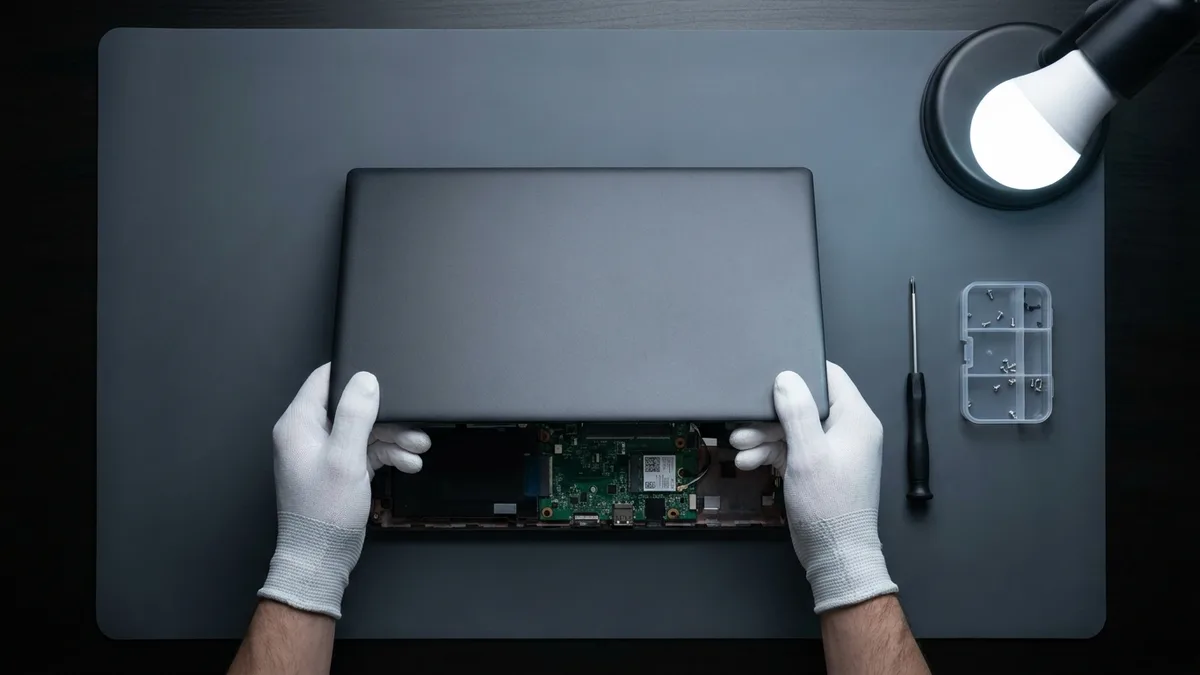
Jika anda telah melalui setiap langkah untuk komputer riba anda dan WiFi atau Bluetooth masih tidak dapat disambungkan — sementara peranti lain berfungsi dengan baik pada rangkaian yang sama — puncanya mungkin perkakasan dan bukannya perisian. Suspek biasa ialah kad WiFi/Bluetooth yang rosak, kabel antena yang longgar atau rosak di dalam penutup, atau kerosakan yang lebih dalam pada papan induk. Beberapa petunjuk jujur:
- Penyesuai wayarles menunjukkan ikon amaran dalam Pengurus Peranti (atau hilang sepenuhnya) walaupun selepas pemasangan semula pemacu yang bersih.
- Isyarat sangat lemah betul-betul di sebelah penghala, atau terputus sebaik sahaja anda menggerakkan skrin.
- WiFi atau Bluetooth hilang selepas ketukan, jatuh atau tumpahan cecair.
- Komputer riba itu tidak boleh menyertai hotspot telefon, dan tiada apa-apa di atas yang dapat mengembalikannya — walaupun tetapan semula Rangkaian penuh (Windows) atau tetapan semula NVRAM dan pembersihan fail konfigurasi (Mac) tidak.
Di situlah tekaan menjadi mahal. Bawa ke Esmond Service Centre untuk diagnosis percuma di kedai — juruteknik kami akan mengesahkan dengan tepat apa yang salah dan memberikan sebut harga yang jelas sebelum sebarang kerja atau caj. Tiada bil yang mengejutkan, tiada alat ganti ditukar atas firasat. Jika ia ternyata hanya pembaikan perisian yang mudah, kami juga akan memberitahu anda.

Juruteknik berpengalaman Esmond Service Centre boleh mendiagnosis dan membaikinya dengan pantas — diagnostik percuma, pembaikan dari $65.