

📑 On this page
Facing battery issues on your iPad can be frustrating, especially when you depend on it for daily tasks or entertainment. Whether you're experiencing rapid battery drain, charging issues, or unexpected shutdowns, understanding how to address these problems promptly can save you time, money, and stress. As experts at Esmond Service Centre, we bring 16 years and counting of hands-on repair experience to iPad repairs and battery replacements in Singapore, earning trust through transparent, efficient, and reliable service. This guide focuses on providing practical, user-friendly solutions for common battery-related issues, ensuring you know exactly when your device requires professional attention or when a simple fix might suffice.
Before you try anything below: look at your iPad edge-on. If the screen is lifting away from the frame at any edge, the back is bowing, or the iPad rocks instead of sitting flat, the battery is swelling. Stop there — do not charge it, do not press the screen back down, and go straight to Issue #5. None of the other steps on this page are safe on a swollen battery.
Issue #1: iPad Battery Drains Rapidly
A rapidly draining battery is among the most common iPad issues users face. Your battery may noticeably lose charge faster, even with minimal use.
Step-by-step Solutions:
- Check Battery Usage: Navigate to Settings > Battery to identify apps consuming excessive battery power.
- Adjust Screen Brightness: Lower brightness or activate Auto-Brightness in Settings > Accessibility > Display & Text Size.
- Disable Background App Refresh: Go to Settings > General > Background App Refresh and disable unnecessary apps.
Why These Solutions Work: Reducing screen brightness and background activity directly lowers power consumption, prolonging battery life between charges.

Issue #2: iPad Not Charging or Stuck at a Certain Percentage
Another common issue is the iPad refusing to charge or becoming stuck at a certain battery percentage.
Step-by-step Solutions:
- Inspect Charging Accessories: Check cables and adapters for damage; use Apple-certified accessories.
- Look Into the Charging Port: Power the iPad off, then shine a light into the port. Pocket lint packs down into the bottom of it and stops the connector seating fully, which looks exactly like a dead battery. Apple's own handling instructions say "Don't use cleaning products or compressed air", and a metal pin or paperclip can bend the contacts inside. A dry, soft-bristled brush is the most you should use — if the lint will not lift out, bring it in rather than digging. The diagnosis is free.
- Force Restart — and There Are Two Sequences: Apple publishes a different one for each kind of iPad, and the wrong one simply does nothing. If your iPad has no Home button: press and quickly release the volume button nearest the top button, press and quickly release the volume button farthest from it, then press and hold the top button until the Apple logo appears. If your iPad has a Home button: press and hold the top button and the Home button together until the Apple logo appears.
Why These Solutions Work: A damaged or uncertified cable is the commonest cause of "it will not charge", and it costs nothing to rule out. Lint in the port stops the connector seating fully, which produces exactly the same symptom as a dead battery — which is why looking is worth more than guessing, and why Apple's own limits on how you clean it matter. A force restart clears a software state that is holding the charging circuit down, and it changes nothing on the iPad if that was not the problem.
Issue #3: iPad Shuts Down Unexpectedly
An unexpected shutdown despite showing sufficient battery percentage can indicate deeper battery problems.
One thing not to do. You will find advice telling you to run an iPad flat to 0% and then charge it uninterrupted to 100% to "recalibrate" the battery. Apple's own battery guidance does not ask for that anywhere, and it says the opposite about deep discharges — "If you store a device when its battery is fully discharged, the battery could fall into a deep discharge state, which renders it incapable of holding a charge." On an iPad that is already shutting down early, a deliberate full discharge is the worst thing you can ask of it.
Step-by-step Solutions:
- Read the Battery Health Screen Apple Built In: Go to Settings > Battery, then tap Battery Health. On supported iPads this shows the battery's capacity, its health, its cycle count, and the dates it was made and first used. You do not need a third-party app for this, and most of them cannot reach those figures anyway.
- Update iPadOS: Settings > General > Software Update. Battery-management bugs are fixed in software more often than people expect, and an out-of-date iPad can shut down early for a reason that has nothing to do with the cell.
- Note the Percentage It Cuts Out At: Charge to 100%, use the iPad normally, and write down what the battery showed when it next switched itself off. A shutdown at 30% or 40% means the cell can no longer hold its voltage under load — that is a worn battery, not a setting.
Why These Solutions Work: The Battery Health screen is the iPad's own measurement, taken by the device that has been charging that cell since the day it was made — no outside app can see what it sees. Software updates genuinely do carry battery-management fixes. And the percentage at which the iPad cuts out is the single most useful number you can hand a technician: it separates a worn cell from a software fault before anything is opened.
Issue #4: Battery Health Warning Messages on iPad
If your iPad displays battery warnings or notifications about battery health, immediate attention is required.
Step-by-step Solutions:
- Take Notifications Seriously: Immediately backup important data to avoid potential loss.
- Check It Yourself First, Then Have It Confirmed: Settings > Battery > Battery Health gives you the capacity and the cycle count on supported iPads — bring those numbers with you. Esmond Service Centre is an Apple Independent Repair Provider and tests the battery under load as part of a free diagnosis, because a healthy-looking figure on screen and a cell that collapses the moment it is asked to work are two different findings.
- Consider Battery Replacement: Persistent warnings usually indicate significant battery deterioration; replacing the battery restores full functionality. At Esmond Service Centre, a professional iPad battery replacement starts from S$98, with a free diagnosis first.
Why These Solutions Work: Battery warnings are generated by built-in monitoring systems detecting reduced battery capacity. Professional diagnostics ensure accurate assessment, and replacement resolves underlying hardware deterioration.
Issue #5: Physical Damage: Swollen Battery or Bulging Screen
Stop here if this is your iPad. On an iPad a swelling battery shows itself before anything else does: the screen starts lifting away from the frame at one edge, the back panel bows, or the iPad rocks on a flat table. Do not press the screen back down, do not try to flatten the bulge, and do not pry the glass off. The pouch inside is already under pressure and the gas in it is flammable — ESC's own guides say the same thing about a swollen laptop battery, and an iPad is the tighter case of the two.
Step-by-step Solutions:
- Power It Down and Take It Off the Charger: The route that works on every iPad and needs no buttons is Settings > General > Shut Down, then drag the slider. By button it depends on the model: an iPad with a Home button powers off by holding the top button alone, and an iPad without one by holding the top button and either volume button together. Then unplug it and leave it somewhere cool and open — not in a drawer, not in a bag, and not on top of anything that burns.
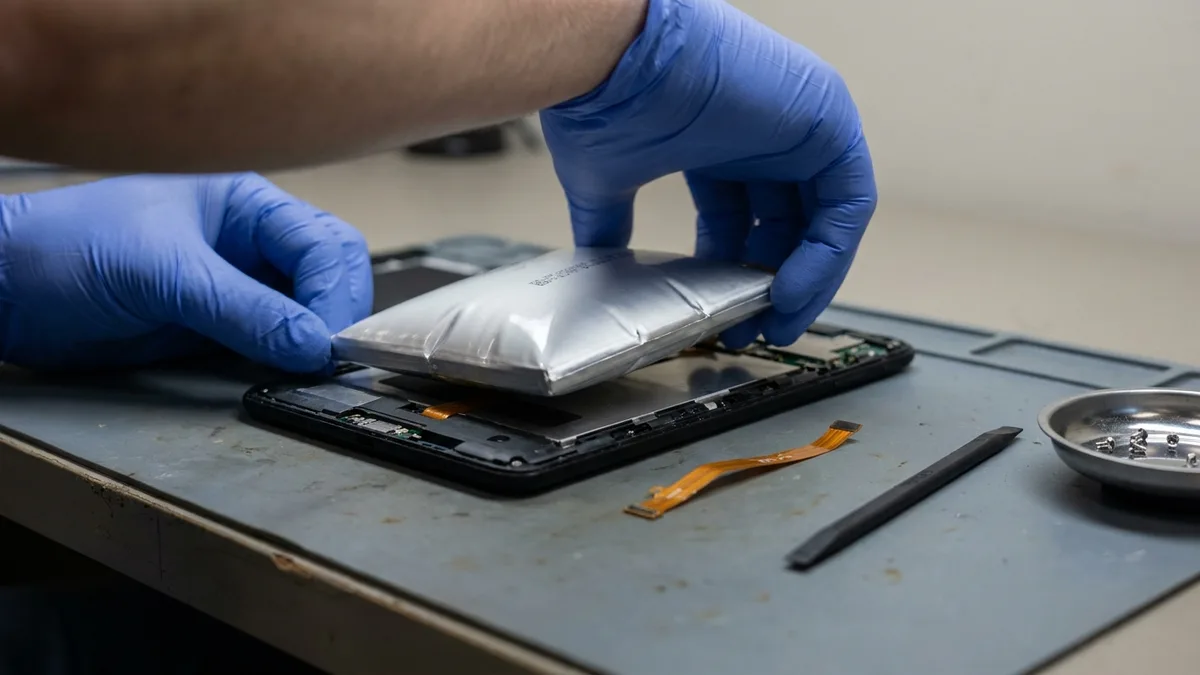
- Bring It In — Do Not Open It Yourself: An iPad battery is glued down beneath a screen that is bonded to the frame, so removing it is a heat-and-adhesive job with a pressurised pouch in the middle of it. Esmond Service Centre takes it out and disposes of it safely and fits a replacement from S$98, with a 90-day warranty and a free diagnosis first.
Why These Solutions Work: Swollen batteries indicate internal chemical failure, posing safety risks. Professional removal ensures safe disposal and replacement prevents further damage.
Effective iPad Battery Fix Solutions to Restore Your Device Performance
Recognising the early signs of battery trouble — rapid drain, charging problems, unexpected shutdowns, warning notifications, and any physical change in the shape of the iPad — is what keeps an inconvenience from becoming permanent damage. Most of the five issues above are worth ten minutes of your own time first; the fifth is not, and the difference matters. If you are not sure which one your iPad is showing, send us the symptom on WhatsApp and we will tell you what it usually turns out to be before you make the trip.
Need an Expert iPad Battery Fix? Contact Our Singapore Specialists Today!
If it comes to a replacement, here is what actually happens, so there are no surprises. Bring the iPad and, if you have them, the two numbers off the Battery Health screen. We test the battery under load before quoting, and the diagnosis is free — if we cannot fix it, you pay nothing. iPad battery replacement starts from S$98 and rises with the model, most are done the same day, and every replacement carries a 90-day warranty. We are at Alexandra and Sin Ming. Not sure it is the battery at all? Send us the symptom on WhatsApp first. You can also follow us on Facebook, LinkedIn or Instagram.

Esmond Service Centre's experienced technicians can diagnose and fix it fast — free diagnostics, repairs from $65.