
📑 On this page
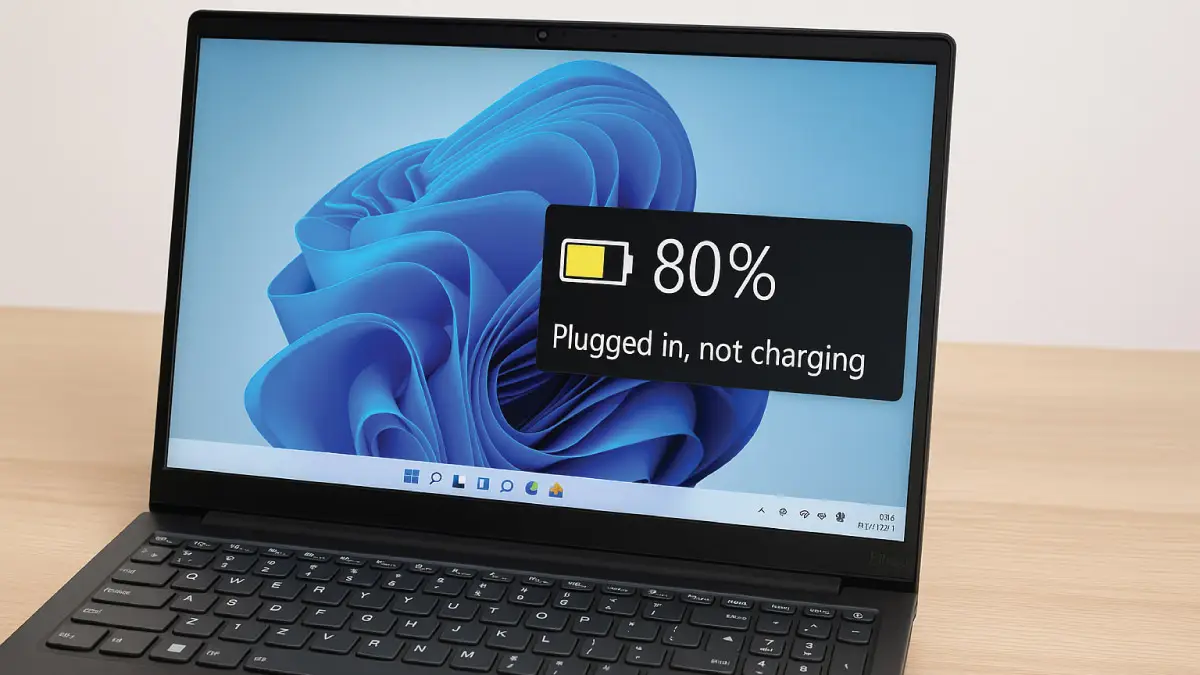
Have you noticed your Lenovo laptop battery stuck at 80% and refusing to charge further? You’re not alone. Many Lenovo laptop owners encounter this “80% cap” and assume something is wrong with their battery. In reality, it’s usually a deliberate feature – not a hardware flaw – designed to prolong the battery’s lifespan. Lenovo builds this limit into its energy management system (via settings like Conservation Mode in the Lenovo Vantage software) to reduce battery wear over time.
In this article, we explain why your Lenovo laptop battery is capped at 80%, how to check if this limit is intentional, and how to turn it off so you can charge to 100% if you prefer. We’ll walk through disabling the 80% charge limit in Lenovo Vantage, adjusting Windows power options, and even tweaking BIOS settings if needed. These fixes are straightforward enough for even non-tech-savvy users. And if all else fails, we’ll advise when it might be a battery hardware issue and what to do about it.
At Esmond Service Centre (Singapore), we often help customers troubleshoot and resolve Lenovo battery issues like this. Sometimes the fix is as simple as a settings change; other times the battery itself needs replacement. Knowing where to start is key. So let’s dive into how to fix this common Lenovo laptop battery stuck at 80% problem once and for all.
Lenovo Conservation Mode Explained
What is Conservation Mode?
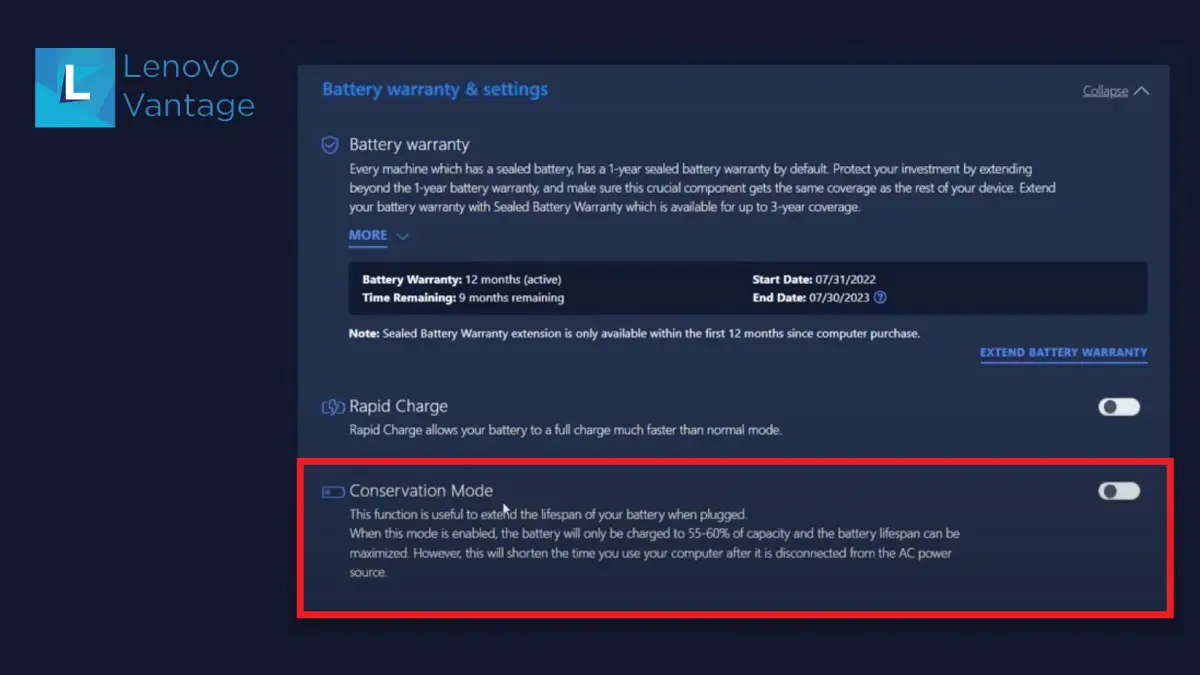
Lenovo's Conservation Mode is a battery-health setting that stops charging before the battery is full, even while the laptop is plugged in, to reduce strain on the lithium cells and extend their life. The cap is not the same on every Lenovo. Lenovo's own user guides for the IdeaPad Slim and Legion Slim families say the charge "will be kept within 75%–80%", while the Lenovo Vantage panel on other machines states the battery "will only be charged to 55-60% of capacity" — and Lenovo publishes a separate support note titled "Battery not charging, stops at 60%". So read the number your own copy of Vantage shows first. If it says 55–60% and your battery is sitting at exactly 80%, Conservation Mode is not what is holding it there, and the sections further down are where your answer is.
How to check if it’s enabled:
- Open Lenovo Vantage. On some machines the same charging setting lives in Lenovo PC Manager or, on Legion models, Lenovo Legion Zone — Lenovo's own guide names all three, so open whichever app your laptop shipped with rather than installing a second one.
- In Vantage, click Device ➜ Power (or Power Management) in the side menu.
- Scroll down to Battery Settings and look for Battery Conservation Mode.
- If Conservation Mode is turned On, this is likely why your battery will not charge to full — the system is intentionally capping it. Read the band the panel states next to the toggle; that is the figure your machine uses, and it is not 80% on every model.
How to disable it:
- Toggle Battery Conservation Mode to Off.
- Close Lenovo Vantage and let your laptop stay plugged in – the battery should now charge up to 100% again.
Why this works:
Turning off Conservation Mode removes the intentional charging cap. Lenovo enabled this setting to help frequent AC-power users preserve battery health, but it can be safely turned off if you prefer your battery to charge to full capacity. Once disabled, your Lenovo laptop battery stuck at 80% should start climbing toward 100% again as usual.
(In Lenovo Vantage's Battery Settings, the Conservation Mode toggle sits in the battery section. When it is on, the panel states the band it will hold the charge within — read that number, because it is the one your machine actually uses. Turning it off removes the note.)
Adjust Other Battery Settings in Lenovo Vantage
Disabling Conservation Mode usually fixes the 80% charging cap, but some Lenovo models have additional battery settings that might also limit charging. It’s worth double-checking these to ensure nothing else is capping your battery charge.
How to adjust all battery settings:
- Open Lenovo Vantage and go to Device ➜ Power ➜ Battery (battery settings section).
- Review any options related to battery optimization or health. For example, some systems have “Battery Health Mode” or “Custom Charge Threshold” features.
- Disable any setting that might limit charging. This includes toggles like Battery Health, Conservation Mode (if not already off), or any custom charge thresholds.
- If your Vantage offers a Custom Charge Threshold (common on ThinkPad models), check the values. Set the upper charge limit to 100% (if it was set to 80% or some other value). Also ensure the start charging threshold is reasonable (often 95% or lower is fine).
- Save any changes (if prompted) and restart your laptop to ensure the new settings take effect.
Why this works:
Some Lenovo laptops provide granular control over charging behavior. For instance, ThinkPads allow you to specify that the battery should stop charging at a certain percentage (often to prolong battery life). If any of those features were active (say, a threshold set at 80%), your battery would appear “stuck.” By turning them off or setting the max charge to 100%, you remove any software-imposed limits and your battery can charge to its full design capacity again.
Double-Check Windows Power Settings
Even with Lenovo Vantage configured correctly, Windows’ own power management settings could potentially interfere with charging. It’s rare for Windows to enforce an 80% limit on its own, but it’s wise to ensure nothing in the operating system is misinterpreting your battery status.
What to check in Windows:
- Open Windows Settings ➜ System ➜ Power & Battery.
- Click on Battery Saver settings. Make sure Battery Saver is not set to activate at a high threshold like 80%. (By default, Battery Saver turns on at 20% to conserve power; it shouldn’t be anywhere near 80%, but verify it hasn’t been manually changed.)
- In the same menu, click Additional power settings to open the old Control Panel Power Options.
- Next to your active power plan, click Change plan settings, then Change advanced power settings.
- In the Advanced Power Settings dialog, expand the Battery section. Check the values for Low battery level and Critical battery level. Ensure none of these are set to an unusually high percentage. (Typically, Low battery might be 10–15% and Critical around 5%. There should be nothing set around 80% here – if there is, adjust it to a lower, appropriate value.)
- Also check that “Plugged in” actions for low or critical battery are not causing strange behavior. Usually, when plugged in, the low/critical battery actions should be “Do nothing.”
Why this works:
Windows battery settings like Battery Saver won’t normally stop charging at 80%, but if misconfigured, they could affect how your system reports battery status. By resetting these to default or sane values, you ensure the OS isn’t mistakenly trying to “optimize” your battery life in a way that keeps it below full charge. In short, eliminating any weird Windows power plan quirks guarantees that only Lenovo’s tools control the charging behavior.
(The Advanced Power Settings dialog in Windows lets you set percentages for low/critical battery alerts – these should be low values. Battery Saver settings in Windows 11 have a slider for what percentage it turns on – make sure it’s not 80%.)

Check BIOS/UEFI Settings (Advanced Users)
Some Lenovo models can enforce battery charge limits at the firmware level, independent of Windows or Vantage. Especially on business-class laptops, the BIOS/UEFI may have a setting for battery charge threshold or “battery life extender.”
Before you change anything in BIOS, check whether your drive is encrypted.
If Windows is protecting your drive with BitLocker, a firmware change can send the machine into BitLocker recovery on the next start, and you cannot get back in without the 48-character recovery key. Microsoft lists "Upgrading critical early startup components, such as a BIOS or UEFI firmware upgrade" among the events that cause it, and on TPM 1.2 devices "changing the BIOS or firmware boot device order" as well. You risk being locked out of your own files over a battery setting. Microsoft's own advice for a planned change is to suspend protection first: "initiating recovery can be avoided by temporarily suspending BitLocker protection", which "leaves the drive fully encrypted" and can be resumed as soon as you are done. Type Manage BitLocker into the Start menu to see whether it is on, and if it is, save your recovery key before you go any further — our BitLocker guide explains where that key is kept.
How to check BIOS for charge limits:
- Enter BIOS/UEFI: Restart your laptop and press the BIOS setup key during boot. (Common keys are F1 or F2 for many Lenovo models, or sometimes Del or Enter – the boot screen usually briefly indicates which key to press.)
- Once in the BIOS setup menu, look for a tab or section related to Power or Battery. Navigate using your keyboard (BIOS interfaces vary by model).
- See if there’s an option for Battery Charge Threshold, Conservation Mode, Battery Health Charging, or similar. For example, some ThinkPads have a setting where you can set the max charge percentage.
- If you find such an option and it is set around 80%, change it. You can either Disable that feature or set the maximum charge to 100%. (Different BIOS labels: it might say Custom Battery Charge with a "Start/Stop" charging percentage — set stop to 100%. Or a simple toggle for Conservation Mode — turn it Off.) If BitLocker is on, suspend it in Manage BitLocker before you save this change, or the next restart may ask for your recovery key.
- Save your BIOS changes (usually by pressing F10) and reboot the laptop.
Why this works:
If your laptop’s firmware was imposing its own 80% charge cap, it would override any Windows or Lenovo Vantage settings. By disabling the BIOS-level limit, you ensure there are no lower-level restrictions preventing a full charge. (Note: Not all Lenovo laptops have this in BIOS. Many IdeaPad and Legion models rely solely on Vantage for battery settings. But it doesn’t hurt to check if you’re comfortable entering BIOS.)
(BIOS for a ThinkPad might show a “Battery Charge Threshold” option where you can set, say, Start at 75% and Stop at 80%. Setting that to 100% or disabling it completely will remove the cap.)
Update Lenovo Software, Drivers, and BIOS
If you’ve tried all the setting changes above and your Lenovo battery is still stuck at 80%, it might be due to outdated software or a glitch that an update can fix. Keeping your system up to date can resolve known issues related to battery management.
What to do:
- Update Lenovo Vantage app: Open the Microsoft Store, search for Lenovo Vantage, and see if an Update is available. Installing the latest Vantage ensures you have any recent fixes or improvements to battery settings.
- Update Lenovo System Interface Foundation: This is a background service that Vantage uses to communicate with your laptop’s hardware. Check the Microsoft Store for updates to Lenovo System Interface Foundation as well. If this component is missing or outdated, Vantage’s settings (like Conservation Mode toggle) might not work properly.
- Update battery drivers: Open Device Manager (right-click Start > Device Manager). Expand the Batteries category. You should see entries like “Microsoft AC Adapter” and “Microsoft ACPI-Compliant Control Method Battery.” Right-click each and choose Update driver > “Search automatically for drivers.” (Windows will find and install any new driver if available, though often these are already standard drivers.)
- Update your BIOS (firmware): Visit Lenovo's official Support website for your laptop model and check the Downloads/Drivers section for any BIOS updates. If a newer BIOS version is available, follow the instructions to download and install it. Suspend BitLocker first if your drive is encrypted — a firmware upgrade is on Microsoft's own list of events that trigger BitLocker recovery — and do not interrupt the update once it starts.
- Also use Lenovo Vantage or Lenovo System Update to check for any other system updates (chipset, power management driver, etc.) that could influence battery behavior.
Why this works:
There have been cases where a laptop’s battery would not charge past a certain percentage due to a software bug – for example, an outdated firmware misreporting the battery capacity or a Lenovo driver that didn’t play nice with Windows 10/11 power settings. Updating everything eliminates these known bugs. In short, by bringing your software up to date, you ensure the 80% charging issue isn’t due to a resolved bug in an older version of software.
(Lenovo Vantage can update itself and certain drivers. It also might notify you of a BIOS update. Keeping System Interface Foundation up to date is crucial for Vantage features to work correctly.)
When Should You Replace the Battery or Get It Serviced?
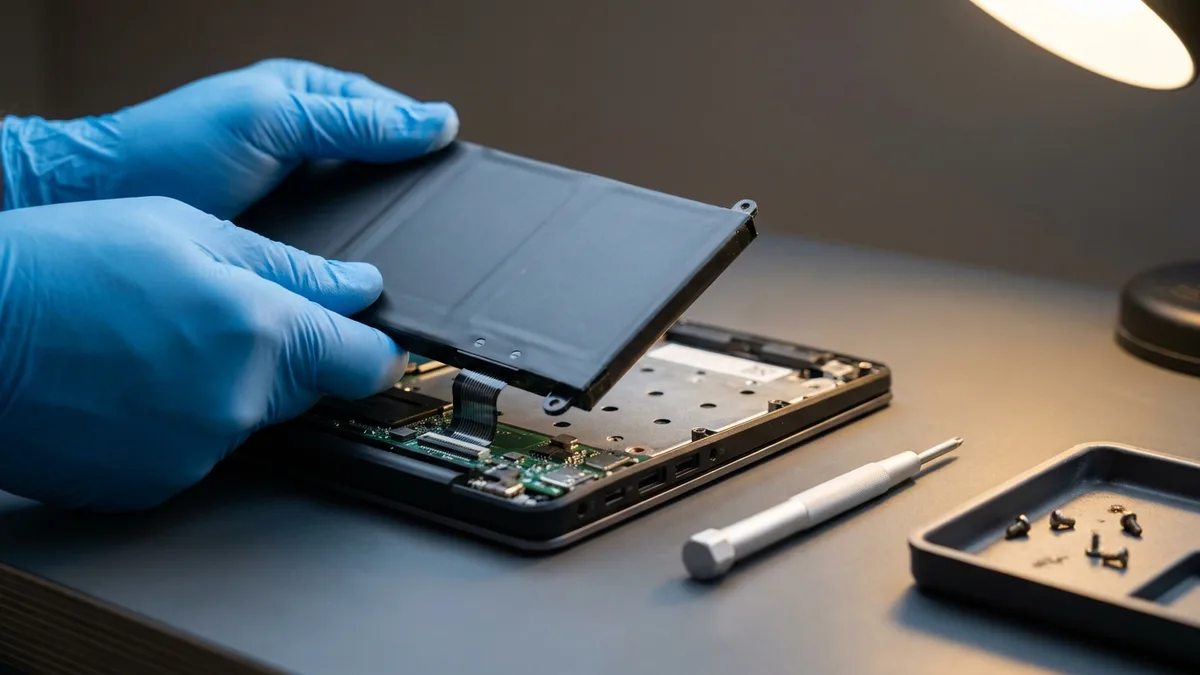
If none of the settings above have freed your Lenovo from the 80% cap, the problem may not be software at all — it could be a failing battery. Turning Conservation Mode off will not fix a battery that has physically worn out: no software setting can restore capacity a lithium cell has already lost. Over time lithium-ion batteries wear out and lose capacity, and a deteriorated pack can struggle to charge beyond a certain point because its actual full capacity has fallen.
Here’s what to do if you suspect a battery issue:
- Check battery health: In Lenovo Vantage, go to the Battery section and look for a Battery Health or Condition indicator. Some Lenovo models will report the health as Good, Fair, or Poor. If the battery health status is Poor or the full charge capacity is significantly lower than the design capacity, that’s a red flag. It means the battery is degraded and might need replacement.
- Even without Vantage, signs of a bad battery include the charge percentage jumping around, the laptop dying as soon as it hits ~80%, or Windows reporting “consider replacing your battery.”
- ⚠️ One sign is not just a dead battery — it is a hazard. If the keyboard or trackpad has started to sit raised, the base has begun to flex, or the case is bulging, the pack is swelling. Unplug the charger and shut the laptop down — a swollen cell that is still charging is the state most likely to overheat — and do not press, puncture or try to flatten the bulge, and do not open the laptop to pull the battery out yourself. Bring it in as it is. Our guide to bloated laptop batteries sets out what to do, in order.
- Warranty considerations: Lenovo's base battery cover is one year — Lenovo states that "a one-year base battery warranty is the standard norm regardless of the system's warranty", so a three-year machine does not mean a three-year battery. Cover beyond that is a separate product called Sealed Battery Warranty Extension, which extends the base warranty up to three years and gives one replacement if the battery fails to meet Lenovo's performance standard. Two limits decide whether it is any use to you: Lenovo Vantage notes the extension "is only available within the first 12 months since computer purchase", so it cannot be bought once the battery starts failing; and if Vantage reports battery health as Poor (red), Lenovo treats that as "eligible for warranty replacement if in the warranty period". If you are still covered, Singapore's Lenovo-authorised centre is operated by ServLink — our Lenovo service centre guide has the address.
- Out-of-warranty service: If your device is out of warranty, or the battery is not covered, Esmond Service Centre can test the pack under load and replace it. We are not a Lenovo-authorised service centre and we do not fit genuine Lenovo-branded batteries — we use high-quality brand-compatible cells, from S$148 for an internal battery and S$86 for an external one, with a 90-day warranty. That is the choice, stated plainly: a Lenovo-branded pack from the authorised centre, or a tested brand-compatible pack from us. A diagnostic first tells you whether the battery is really the cause or whether the charging circuit is at fault, so you are not paying for the wrong part. Bring it to Alexandra or Sin Ming, or WhatsApp your Lenovo model name for a quote.
(Remember: Laptop batteries are consumable parts. After a few years of use, it’s not unusual to see decreased capacity. If your machine is a few years old and heavily used, an 80% charge cap might just mean the battery has aged. No software tweak can fix physical cell degradation – the fix in that case is a new battery.)
Still Stuck at 80%? Get Expert Help for Your Lenovo Battery Today
Did you find this guide helpful for resolving your Lenovo laptop battery stuck at 80% issue? Follow our Facebook page, LinkedIn profile or Instagram account for more tech tips and troubleshooting guides on all things tech. We regularly share practical advice to help you get the most out of your gadgets.
And if you are in Singapore and your Lenovo is still capped after all of the above, Esmond Service Centre can take it from here. The diagnosis is free and carries no obligation: we test the pack under load to separate a worn battery from a charging-circuit fault, so you are not paying to replace the wrong part. If it is the battery, a replacement is S$148 for an internal pack, fitted in about 30–45 minutes, with a 90-day warranty — high-quality brand-compatible cells, not Lenovo-branded ones. Walk in at Alexandra or Sin Ming, or WhatsApp us your Lenovo model name and serial number for an exact quote. ⛔ And if the cap turns out to be Conservation Mode doing its job, we will tell you that and charge you nothing for it.

Esmond Service Centre's experienced technicians can diagnose and fix it fast — free diagnostics, repairs from $65.