
.jpg)
📑 On this page
What corporate IT support actually covers
'Corporate IT support' is a broad label. In a large enterprise it means a managed service desk, servers and a full security stack. For the small and mid-sized businesses we see in Singapore — offices, clinics, agencies, schools and retail — it usually comes down to a shorter list: keep the staff's devices running, protect the data on them, and have a dependable place to send hardware that breaks. The sections below work through each of those, in the order they matter when something actually goes wrong.
- Device support and repair: fixing and maintaining the laptops, desktops, tablets and phones your staff actually work on.
- Data protection: backups, and secure handling or erasure of the data on a device whenever it is serviced, reassigned or retired.
- Lifecycle planning: deciding when a machine is repaired, upgraded or replaced, and migrating ageing or out-of-support devices before they become a liability.
- Networks and infrastructure: the switches, Wi-Fi, servers and cloud services that the office depends on day to day.
- Security and continuity: keeping systems patched and recoverable so a single failure does not stop the business.
When a business device fails: what to do first
When a work device fails, the first few minutes matter more than most people think. The goal is to protect the data and the warranty before anyone starts pulling it apart. These are the steps we ask business customers to take before a device reaches us — they lose nothing and often save the data.
- Write down exactly what happened. The last action, any error message, whether it was dropped, charged overnight or exposed to liquid — this detail shortens the diagnosis.
- Find the warranty and asset record. Note the model, serial number, purchase date and whether it is still under manufacturer or on-site warranty before anyone opens it.
- Confirm a backup if it still powers on. If the device boots, make sure its data is backed up to your company drive or cloud before it goes anywhere.
- Isolate it if security is in doubt. If you suspect malware or theft, disconnect it from the network and keep the account locked rather than logging back in.
- Hand it over with the details — do not keep rebooting. Repeated force-restarts or DIY part swaps on a failing device can make a recoverable fault worse; pass it to IT or a repair technician with the notes above.
These steps triage the situation and protect your data; they will not repair failed hardware. This will not fix a drive that is physically failing, a swollen battery, liquid damage or a dead logic board — and if this does not work, or the device holds client data you cannot lose, stop. When to stop and bring it in: the moment a device is business-critical, out of warranty guidance, or showing signs of physical failure, hand it to a professional rather than reopening it. Pushing on yourself carries real risk — a wrong move can turn a recoverable fault into permanent damage or data loss, and opening a machine yourself can void the warranty you are still entitled to. When in doubt, seek professional help before the data is gone.

Protecting the data on business devices
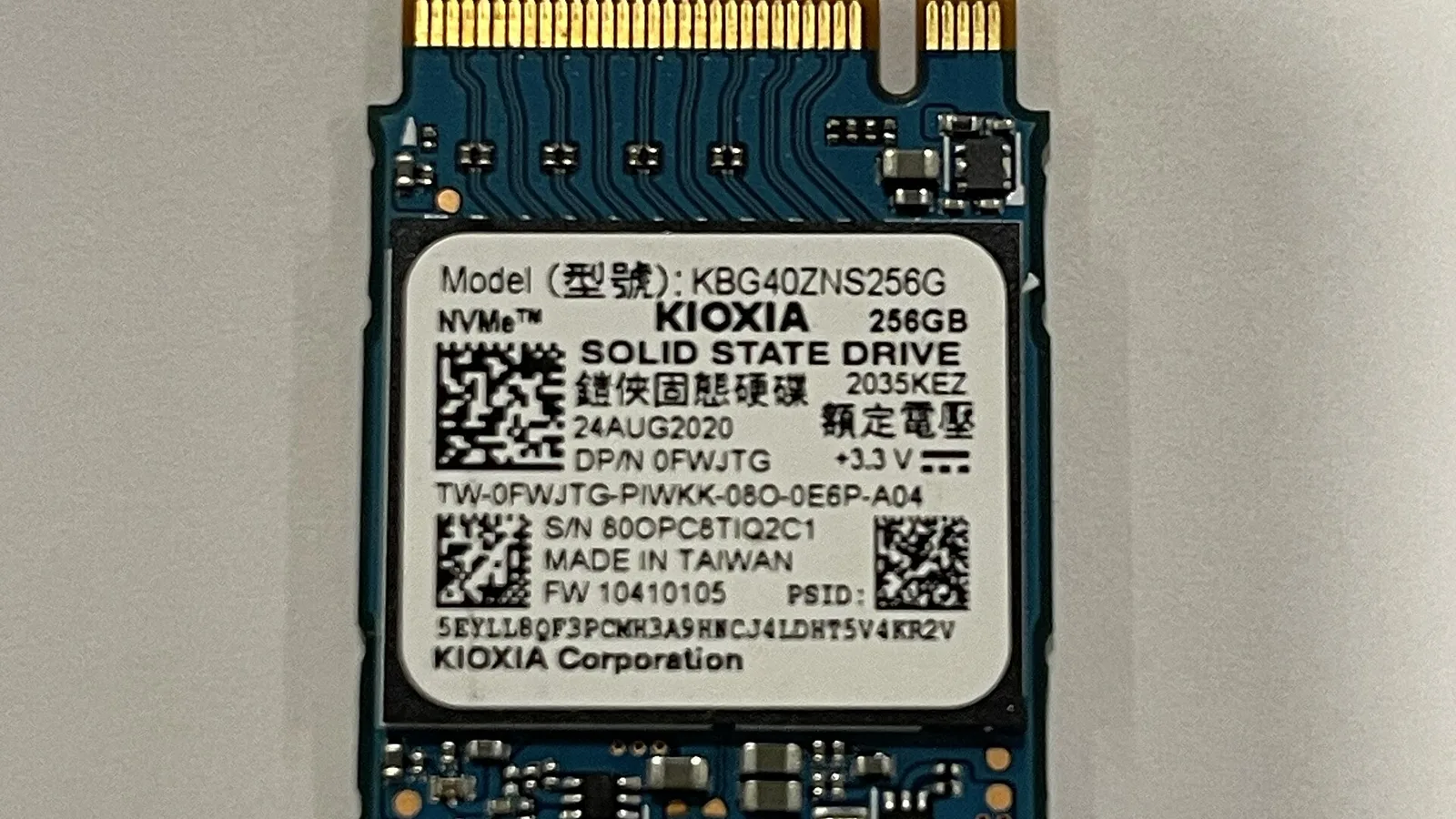
A business laptop or phone is, above all, a container for data — client records, email, files that may fall under your contractual and legal duties. That matters most at two moments: when the device is handed to someone for repair, and when it is retired. The storage drive above is where that data lives; before a device changes hands, you need to know the data is either safely protected or properly removed. For erasing it, there is a recognised standard to point to: the US NIST guidelines for media sanitization define media sanitization as a process that renders access to the data 'infeasible for a given level of effort', and describe three methods.
- Clear: overwrite the data using the device's normal commands so it cannot be recovered with ordinary tools — fine for a drive staying inside the company.
- Purge: a stronger method (a dedicated sanitise command or cryptographic erase) that resists even laboratory recovery, while the drive stays reusable.
- Destroy: physically shred or pulverise the media so it can never be read again — for the most sensitive data or a dead drive.
- The practical rule: encrypt business devices from day one, keep a current backup, and sanitise or destroy any drive before the hardware leaves your control.

Repair, upgrade or replace business hardware
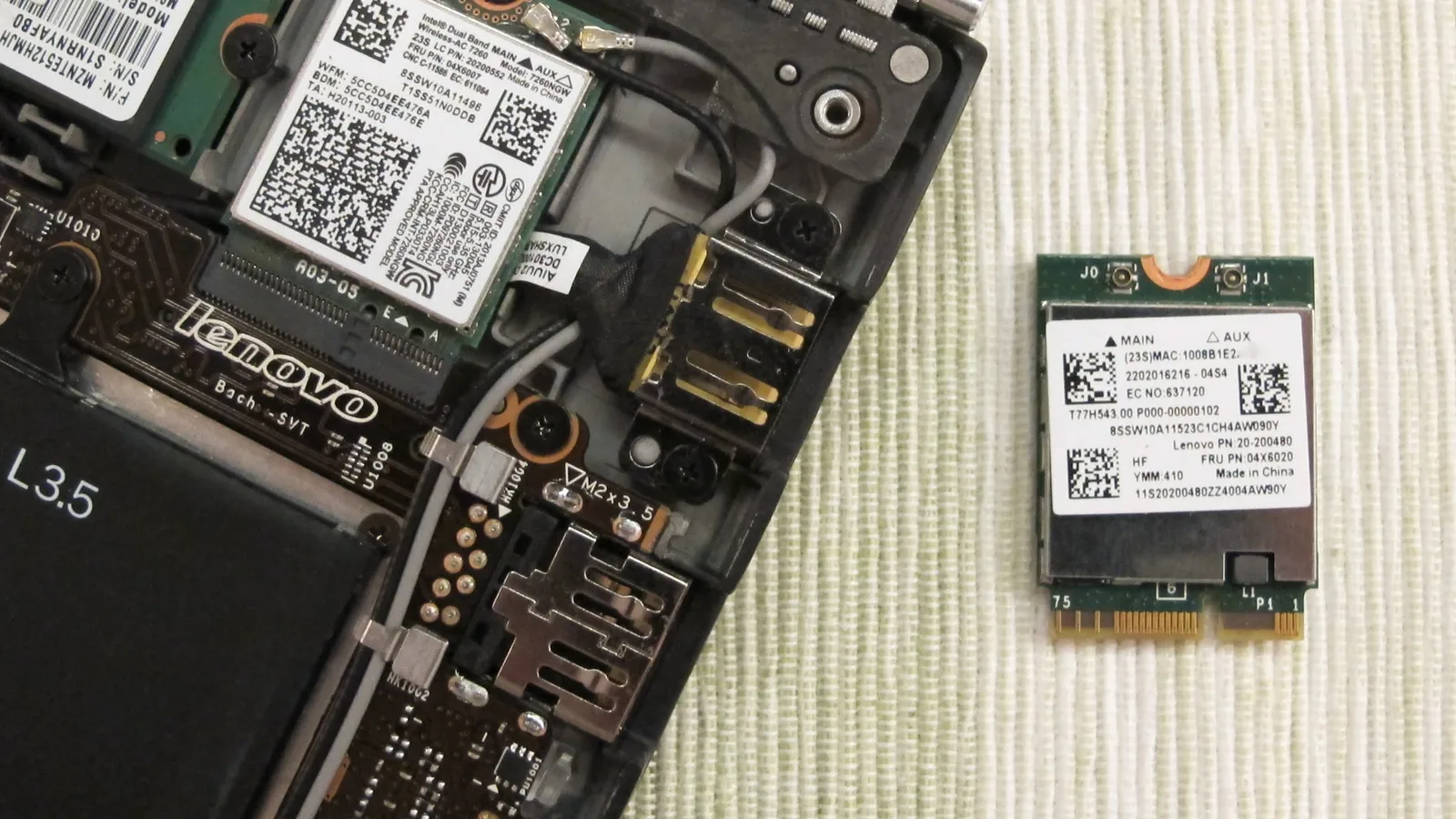
Not every fault needs a new machine, and not every old machine is worth saving. The photo above shows the inside of a laptop with its base removed — the parts we most often repair or upgrade: the battery, the storage, the memory and the wireless card. A clear repair-upgrade-replace policy is one of the most cost-effective things a business can set, because it stops two expensive habits: throwing away a machine that only needed a small part, and pouring money into one that is already finished.
| Option | Best when | Cost & downtime | Data & security |
|---|---|---|---|
| Repair | A single component failed (screen, battery, keyboard, port) on an otherwise capable machine still useful to the user. | Usually the lowest cost and fastest return; we diagnose before quoting rather than name a fixed price. | Data stays on the original device; no migration needed, so less exposure. |
| Upgrade | The machine is slow but sound — adding memory or an SSD, or replacing a worn battery, buys it another two to three years. | Low cost, short downtime; often cheaper than a new fleet device once software is reconfigured. | Data can be cloned to the new SSD; the old drive must be wiped or destroyed if it leaves. |
| Replace | The device is out of support, uneconomical to repair, or cannot run required software — for example, not eligible for Windows 11. | Highest upfront cost and the most setup time; plan it rather than do it in an emergency. | Migrate data deliberately, then sanitise the retired device to a recognised standard before disposal. |
The hidden risk: out-of-support devices in your fleet
The clearest example of lifecycle risk is Windows 10. Microsoft set its end of support at 14 October 2025: version 22H2 is the final release, and after that date these editions stop receiving the monthly security updates. A business laptop still on Windows 10 today is not broken, but it is no longer getting security fixes — a growing risk for any machine that touches company data or the internet. Microsoft's own guidance is to plan the move to Windows 11 rather than scramble: check which devices meet the Windows 11 hardware requirements, upgrade the eligible ones, and schedule a hardware refresh for the machines that do not qualify.
- Inventory first: list every device, its OS version and whether it meets Windows 11's requirements.
- Upgrade what qualifies: eligible machines can move to Windows 11 with your existing tools; Microsoft reports over 99.7% app compatibility for enterprises.
- Plan the rest: machines that cannot run Windows 11 need replacing or repurposing — budget for it instead of waiting for a breach.
- Dispose securely: every retired device must be wiped or destroyed to a standard before it leaves, and we can handle that step.
Servers, networks and business continuity
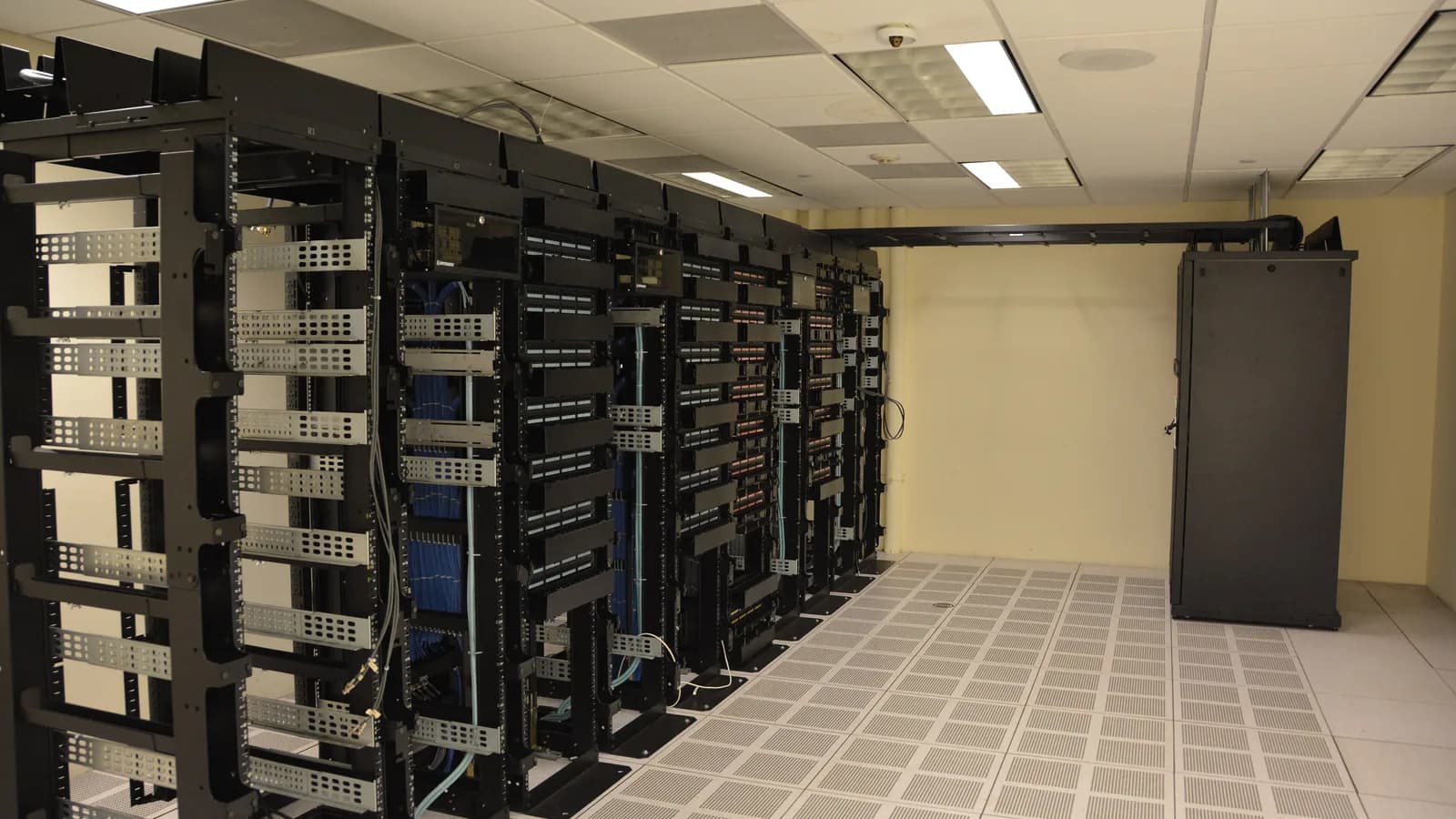
Behind the laptops sit the servers, switches and network that the office depends on. The kind of infrastructure shown at the top of this guide — racks of equipment, on-premises or in a data centre — holds a company's shared files, email and line-of-business systems. For most SMEs the key question is not how powerful it is, but how recoverable it is: if a server or a switch fails on a Monday morning, how quickly does the business get back to work?
- Backups you have tested: a backup you have never restored is a hope, not a plan — test a restore regularly.
- Redundancy where it counts: a spare switch, a second internet line or a failover for the systems the business cannot run without.
- Monitoring and patching: catching a failing drive or a missing update before it becomes an outage.
- A clear recovery plan: who to call, in what order, and how long each step takes — written down before you need it.
Choosing a corporate IT support partner in Singapore
Singapore has no shortage of managed IT providers, and many are good at remote support, monitoring and cloud setup. Where businesses most often get stuck is the hands-on, physical side: a provider that manages your fleet remotely may not actually repair a broken laptop, erase a drive to a standard, or help you migrate ageing hardware. It is worth asking a few direct questions before you commit.
- Can you physically repair our devices, or only manage them remotely and send them elsewhere?
- How do you protect our data during a repair — and can you erase a drive to a recognised standard when we retire it?
- What is your turnaround, and do you diagnose before quoting rather than charging for parts we may not need?
- Can you support our staff in their own language — many Singapore teams work across English, Chinese and Malay?
- Will you help us plan the Windows 11 move and the rest of our hardware lifecycle, not just react to failures?
What we do when your business device reaches our bench
When a business device reaches our bench in Singapore, we treat it as both a repair and a data responsibility. We diagnose the real fault before ordering any part, protect and — where you ask us to — securely erase the data, and tell you honestly when a machine is better replaced than repaired. We deliberately do not quote a fixed price here, because the right number depends on what the diagnosis finds.
- Diagnose first: we confirm the actual fault before quoting, so you never pay for a part the machine did not need.
- Data handled with care: we protect the data on the device and can sanitise a drive to a recognised standard when it is retired.
- Repair, upgrade or honest replace advice: if a machine is not worth saving, we say so rather than bill for it.
- Support in English, Chinese and Malay, for teams and individual staff across Singapore.

Esmond Service Centre's experienced technicians can diagnose and fix it fast — free diagnostics, repairs from $65.