
📑 On this page
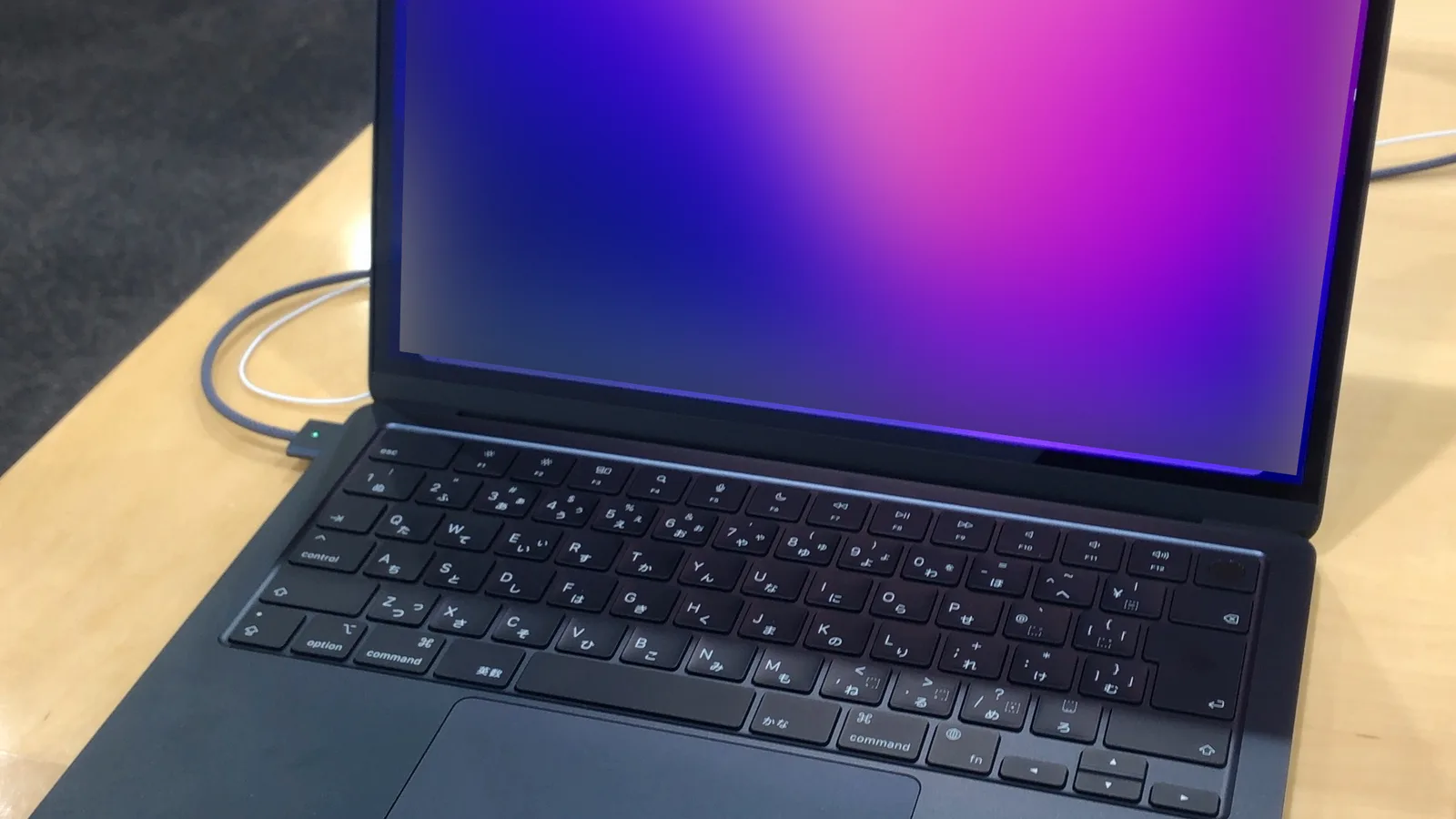
If your MacBook Air screen has gone dark but the computer is clearly still running — the keyboard lights up, you hear the startup sound, the fans spin — you are almost certainly looking at a backlight problem, not a dead laptop. The good news is that the display panel itself is often perfectly fine. This guide walks you through the one ten-second test that tells you what is really wrong, how to rule out a simple software glitch before you spend a cent, what actually fails inside the machine, and when it is time to hand it to a technician. Everything here is drawn from real repair experience and from owners who have hit exactly this fault.
Dark screen but still working? Start with the flashlight test
Take a bright torch — your phone's flashlight is perfect — and shine it at a sharp angle across the dark screen, close to the surface. Look carefully. If you can make out a faint desktop, the Apple logo, or your login screen hiding in the gloom, your diagnosis is almost settled: the panel and the graphics are alive, and only the backlight that lights them up has failed. One owner on the Tom's Guide forums put it plainly: "if you shine a flash light up the dark screen and you can see the image, then the LED ... or the circuitry driving the LED needs to be fixed." A MacBook Air owner on Apple's own community described the same thing — "I can barely make out the objects on the screen ... the backlight is not coming on for the LCD panel."
Run the test in order. First, darken the room so a faint image is easier to catch. Then, hold a bright torch two to three centimetres from the screen at a low angle. Finally, scan the whole screen slowly for any faint picture, because the image is easiest to miss near the edges.
- Darken the room so a faint image is easier to see.
- Hold a bright torch 2–3 cm from the screen at a low angle.
- Scan the whole screen slowly for any faint picture.
- A visible faint image means a backlight fault; a truly black, dead screen means a different, more serious failure.
Rule out a software glitch before you spend anything
Not every dark screen is broken hardware. Apple-silicon MacBooks (M1 and later) have a well-documented quirk where the backlight refuses to come on after waking from sleep — the display is actually on, just unlit. Owners on Apple's community forum found it comes back the moment you close and reopen the lid, tap the Escape key twice, or nudge the brightness keys, and that it survived macOS reinstalls — a sure sign it is software, not a failed part. Crucially, in this case you will not see a faint image under a torch, because the panel is being driven normally; it simply blanks. Try these free steps first:
- Press the brightness-up key (F2) a few times — the backlight may simply be at zero.
- Close the lid, wait ten seconds, and reopen it.
- Tap the Escape key twice, or log out and back in.
- Restart the Mac fully, and install any pending macOS updates.
- Connect an external monitor: if that display works perfectly, the Mac's logic and graphics are fine and the fault is isolated to the built-in screen's backlight.
Be clear about the limits here. If a faint image is there under a torch, software will not fix it: no amount of restarting, resetting or updating can repair a blown backlight fuse or a damaged display cable, because those are hardware faults, not settings. The software steps above only help when the panel is being driven normally and the screen merely blanks.
What actually fails inside a MacBook Air backlight
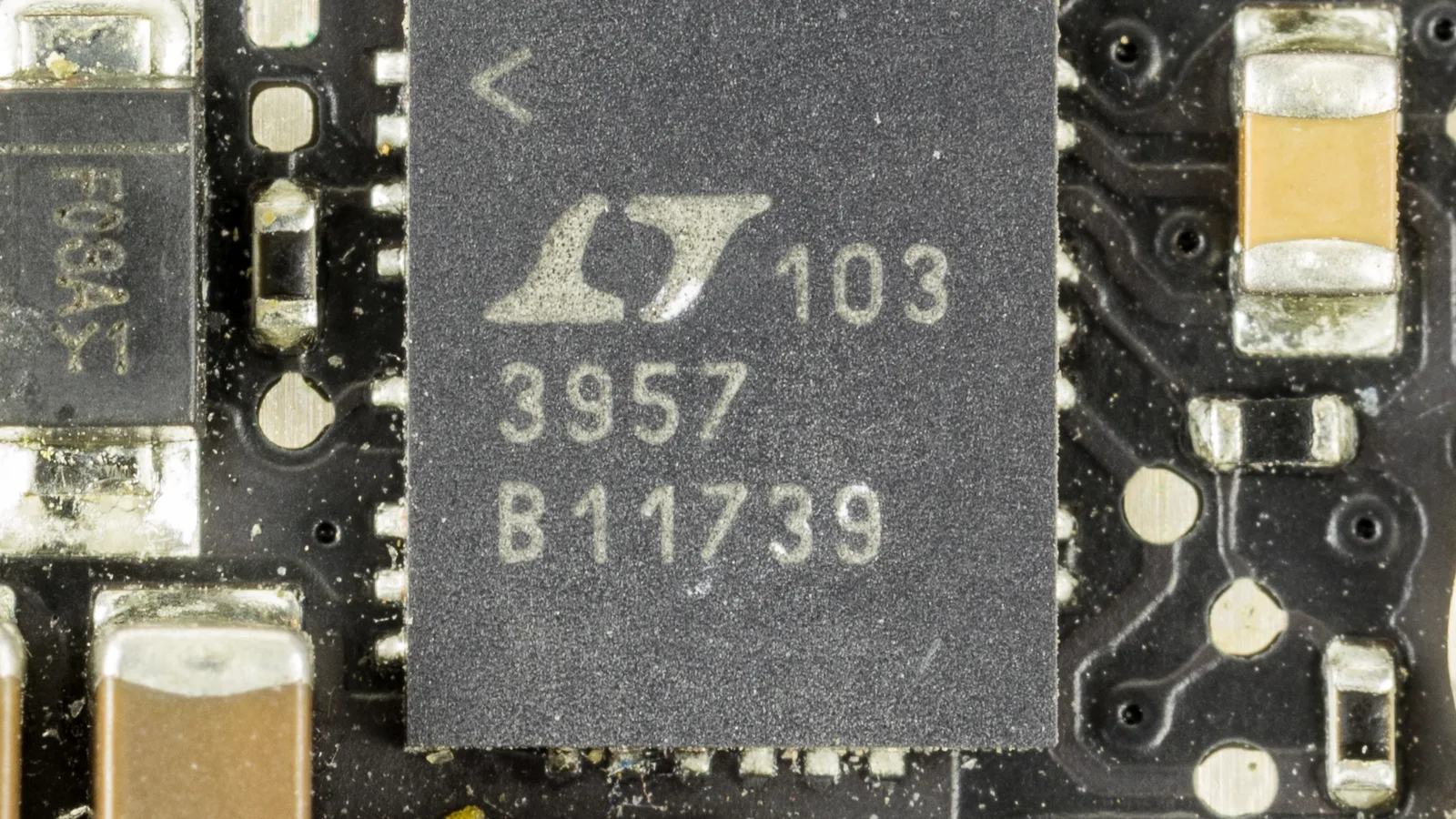
When the flashlight test confirms a hardware backlight failure, the cause is almost always one of a short list of parts in the backlight's power path. The LED strip behind the panel is driven by a small boost circuit on the logic board, fed through a tiny protective fuse and carried by the display (LVDS) cable. Break any link in that chain and the LEDs go dark while the panel keeps showing its image. Owners who have opened these machines consistently point to the same culprits:
- The backlight fuse — a tiny surface-mount fuse (owners call it a 'fusistor') that blows to protect the board. It is the single most common and most repairable cause.
- The display / LVDS cable — a cracked or worn flex cable between the panel and the board can cut backlight power.
- The backlight driver / boost circuit on the logic board — the components that step the voltage up to light the LEDs.
- Liquid damage — a spill corrodes the fuse, connector, or driver components; this is a frequent trigger, as one water-damaged MacBook Air owner found when a capacitor fell loose near the backlight fuse.
- The LED backlight strip itself inside the display assembly — less common, but it does wear out.
Backlight, panel, or logic board? Read the symptoms
| Symptom | Most likely cause | Typical fix |
|---|---|---|
| Faint image visible under a torch, no backlight | Backlight fuse, driver or cable | Board-level repair or cable |
| Totally black, nothing under a torch, Mac still runs | Display panel or display output | Panel replacement or board repair |
| Backlight off only after sleep, returns on lid toggle | macOS software quirk | Software steps, no parts |
| Dark after a spill or splash | Liquid corrosion on the backlight circuit | Board cleaning and component repair |
| Flickering or stage-light bands at the bottom | Display flex cable (flexgate) | Flex cable repair |
Can you fix it yourself?
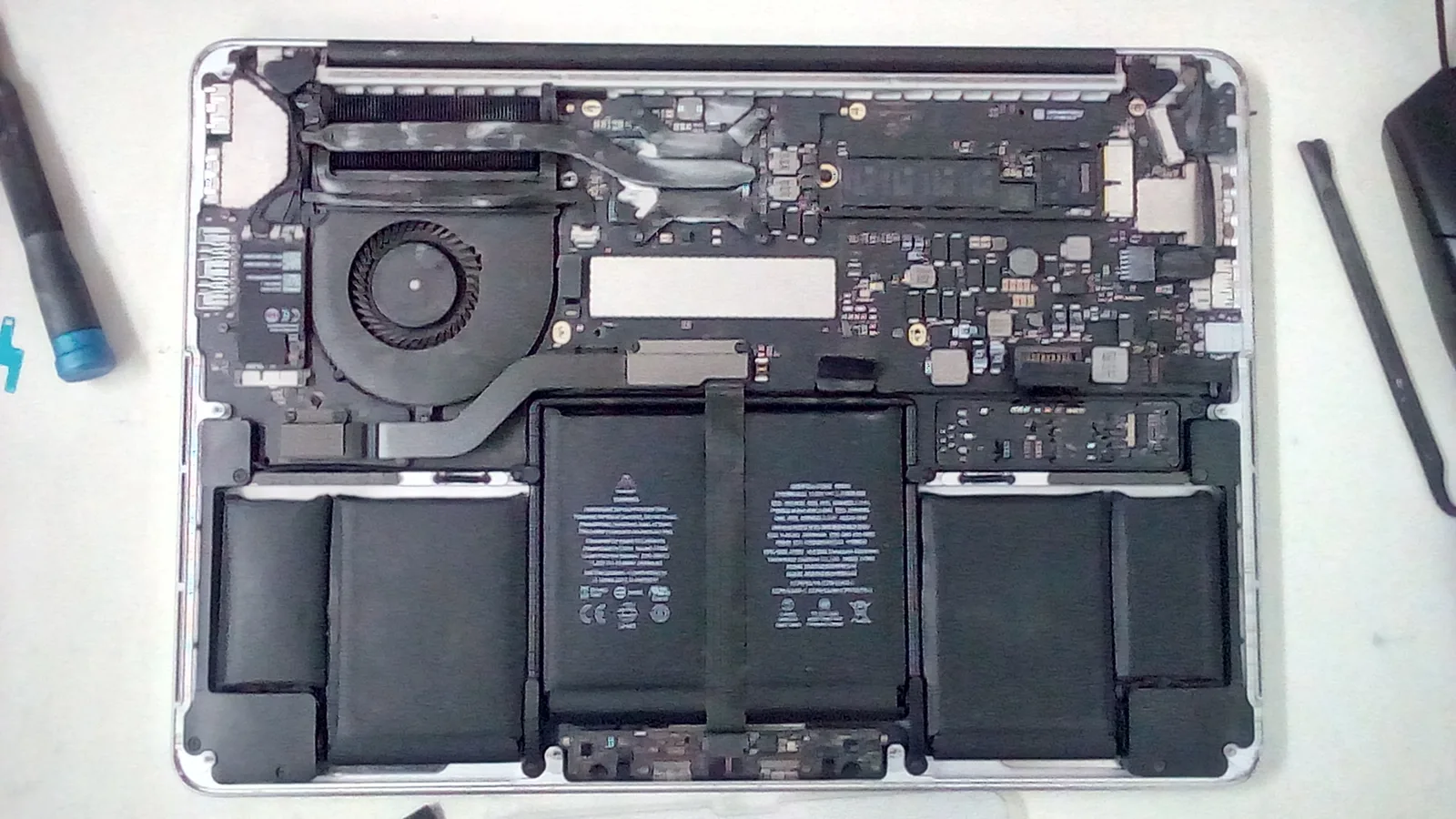
Some of this is genuinely DIY. The flashlight test, the software steps, and the external-monitor check are all safe to do at home and will often save you a trip. Replacing the backlight fuse or repairing the driver circuit, however, is micro-soldering on a live logic board — fiddly, easy to make worse, and not something to attempt without the right tools and experience. Owners who tried cable swaps alone often found the real fault was a board component they could not reach without soldering skills. If the fault is in the fuse, driver, or from liquid damage, board-level repair by a technician is the sensible route — and it is usually far cheaper than replacing the whole display.
Know when to stop and bring it in. If the flashlight test points to the fuse, the driver or liquid damage, stop and seek professional help rather than risk the board — bring it in to a technician who can do a proper board-level diagnosis.
Getting it repaired in Singapore
At Esmond Service Centre we diagnose the backlight path properly — fuse, driver, cable and panel — rather than defaulting to a full screen swap. Where the panel is intact and only the backlight circuit has failed, a board-level repair keeps the cost down. Our published MacBook screen service starts from S$358 and varies by model, screen size and Retina resolution; most repairs are completed within 1–2 hours, subject to stock and service queue; and every job carries a 90-day parts and labour warranty, with an optional Esmond Care 1-Year Protection Plan for longer cover. Because a board-level backlight repair depends on exactly which component failed, we confirm that price after diagnosis.
Frequently asked questions
Is a dark MacBook Air screen expensive to fix?
It depends on the cause. A software glitch costs nothing. A blown backlight fuse or driver repair is a board-level job that is usually much cheaper than a full screen replacement, because the panel is reused. The exact price is confirmed after diagnosis.
Will replacing the whole screen fix a backlight problem?
Often it is unnecessary. If a torch reveals a faint image, the panel works and only the backlight power circuit has failed — replacing the entire display is the expensive way to fix a cheap fault. A good technician repairs the circuit instead.
My backlight only dies after sleep — is that the same problem?
No. If the backlight returns when you close and reopen the lid or tap Escape, and you cannot see a faint image under a torch, that is a macOS software quirk, not hardware. Update macOS and use the lid-toggle workaround.

Esmond Service Centre's experienced technicians can diagnose and fix it fast — free diagnostics, repairs from $65.