

📑 On this page
The first 60 seconds decide whether it survives
The one thing that matters most is cutting the power before electricity and water can meet on a live circuit board. Speed beats technique here. A laptop shut down within ten seconds of a spill often lives; one left running “just to save a document” very often doesn't. Do these steps in order, right now.
- First, force it off. Press and hold the power button for five to ten seconds until it is completely dead — don't use the on-screen Shut Down, it is far too slow.
- Then, kill the power supply. Unplug the charger and every cable. If you, the desk or the floor are wet, switch the wall socket off first so you are not gripping a live plug.
- Next, remove the battery if you can. If it slides out, take it out. If your laptop is sealed, stop here — don't force the base open unless you are trained and have the right tools.
- After that, drain it, don't dab it deeper. Tip the laptop open and upside down into an inverted “V”, like a tent, over a towel, so liquid runs away from the keyboard and board instead of deeper inside.
- Finally, blot and air it. Gently blot the keyboard, vents and ports with a lint-free cloth, then leave it open and upside down somewhere dry and airy.
On the bench we can almost always tell who cut the power quickly and who tried to keep working — the difference shows up as clean contacts versus a green-white corrosion crust. Apple's own guidance is blunt about the electrical risk: charge or run a device while it is wet and the contacts can corrode and suffer permanent damage. That is exactly why “just checking if it turns on” is the single most expensive mistake people make.

Why a spill turns the screen black
A black screen rarely means the display glass is broken. Far more often the liquid has bridged contacts on the motherboard, tripping a short that stops the board from powering the screen or its backlight — which is why the keyboard light or fan can still run while the display stays dead.
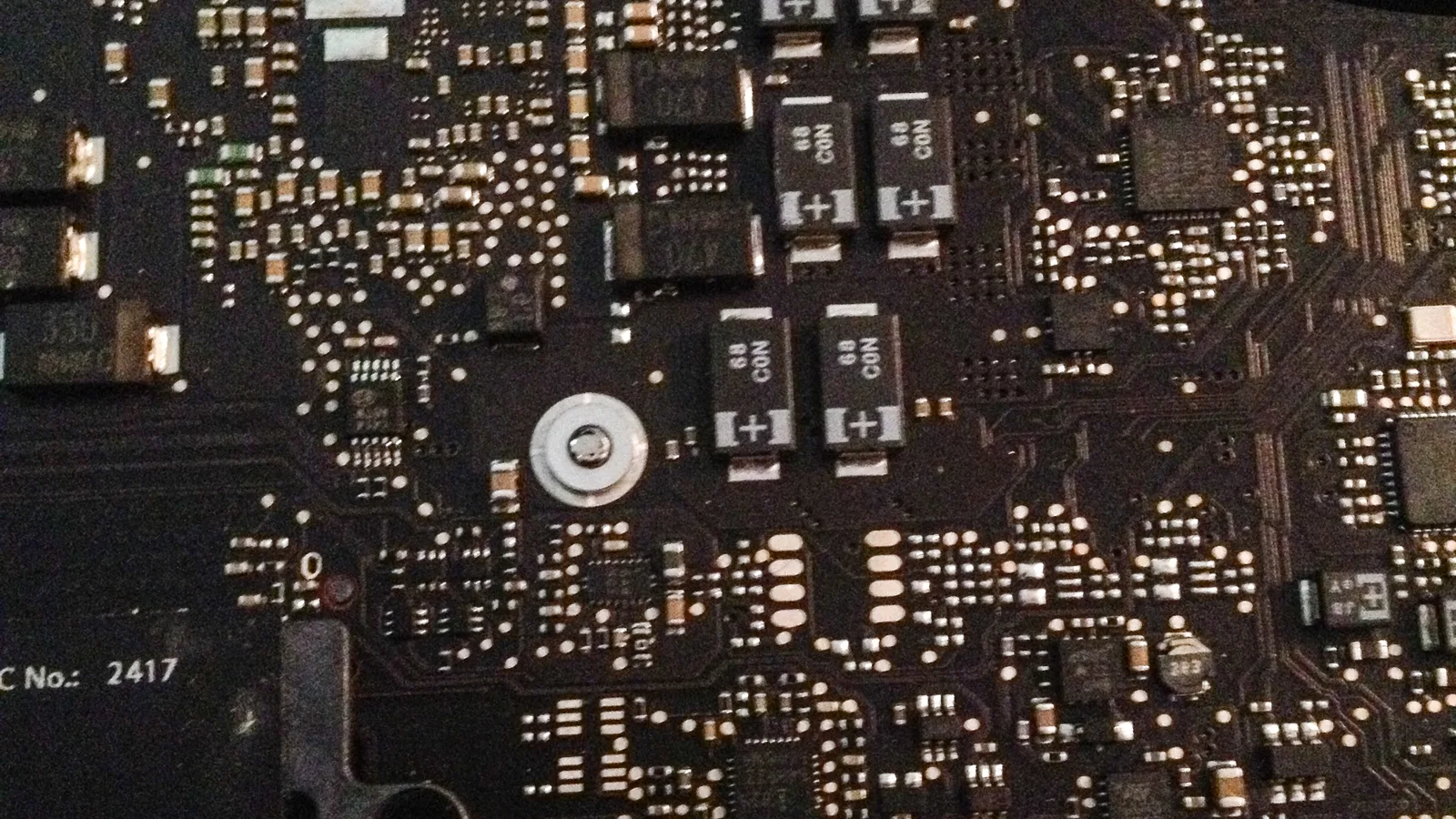
When liquid seeps under the keyboard it reaches the logic board (the main board — Apple's name for the motherboard), where hundreds of tiny contacts sit microns apart. Water — especially tap water, which carries minerals — conducts electricity across paths that were never meant to connect. That short can knock out the exact power rail that feeds the screen or the backlight, so the machine “runs” but shows nothing. In a real case we see constantly, a user wrote that after a spill on their Lenovo the keyboard light came on but the screen turned black; the honest answer from experienced repairers was that liquid damage like that usually means corrosion on the motherboard and needs a proper inspection.
There is a second, slower killer: corrosion. The moment water and a powered board meet, metal contacts begin to oxidise. Apple warns that charging through a wet port lets the pins corrode and cause permanent damage. Left alone, that green-white residue keeps eating traces for days — which is why a laptop that seemed “fine” right after a spill can go black a week later, exactly as that Lenovo did.
The “fixes” that quietly finish the job
Most laptops we cannot save were harmed after the spill, not by it. Four popular home remedies do more damage than the water did. If you skip everything else on this page, do not skip these four.
- Rice. It doesn't pull water out of a sealed laptop, and the grains and starch dust get into ports and fans. Apple explicitly says not to put your device in a bag of rice.
- Hairdryers, ovens and direct sun. Heat warps plastic, melts adhesive and pushes moisture deeper into the board. Apple's guidance is to avoid an external heat source or compressed air entirely.
- Powering it on to “check”. Every boot attempt drives current across wet, corroding traces and can turn a cleanable board into a dead one.
- Jamming cotton buds or tissue into the ports. Apple warns against pushing a foreign object like a cotton swab or paper towel into a port — you leave fibres behind and shove liquid further in.
Clean water is the good news — coffee and juice are not
What you spilled matters as much as how fast you reacted. Pure water is the mildest thing that can land on a board; anything with sugar, salt or minerals leaves a conductive residue that keeps shorting and corroding long after the surface feels dry. Here is how the common culprits compare.
| Liquid | Severity | What it does inside the laptop |
|---|---|---|
| Distilled or pure water | Best case | Conducts poorly and can dry with little residue — if the board was never powered while wet. |
| Tap or bottled water | Moderate | Minerals are left behind as conductive deposits that seed corrosion over the following days. |
| Coffee, tea, soft drinks, juice | Serious | Sugar and acids leave a sticky, conductive film that keeps bridging contacts long after it looks dry. |
| Salt water, seawater or soup | Worst | Salt is highly conductive and aggressively corrosive — damage is fast and often reaches many components. |
_with_empty_RAM_slots.jpg)
What a proper liquid-damage repair actually involves
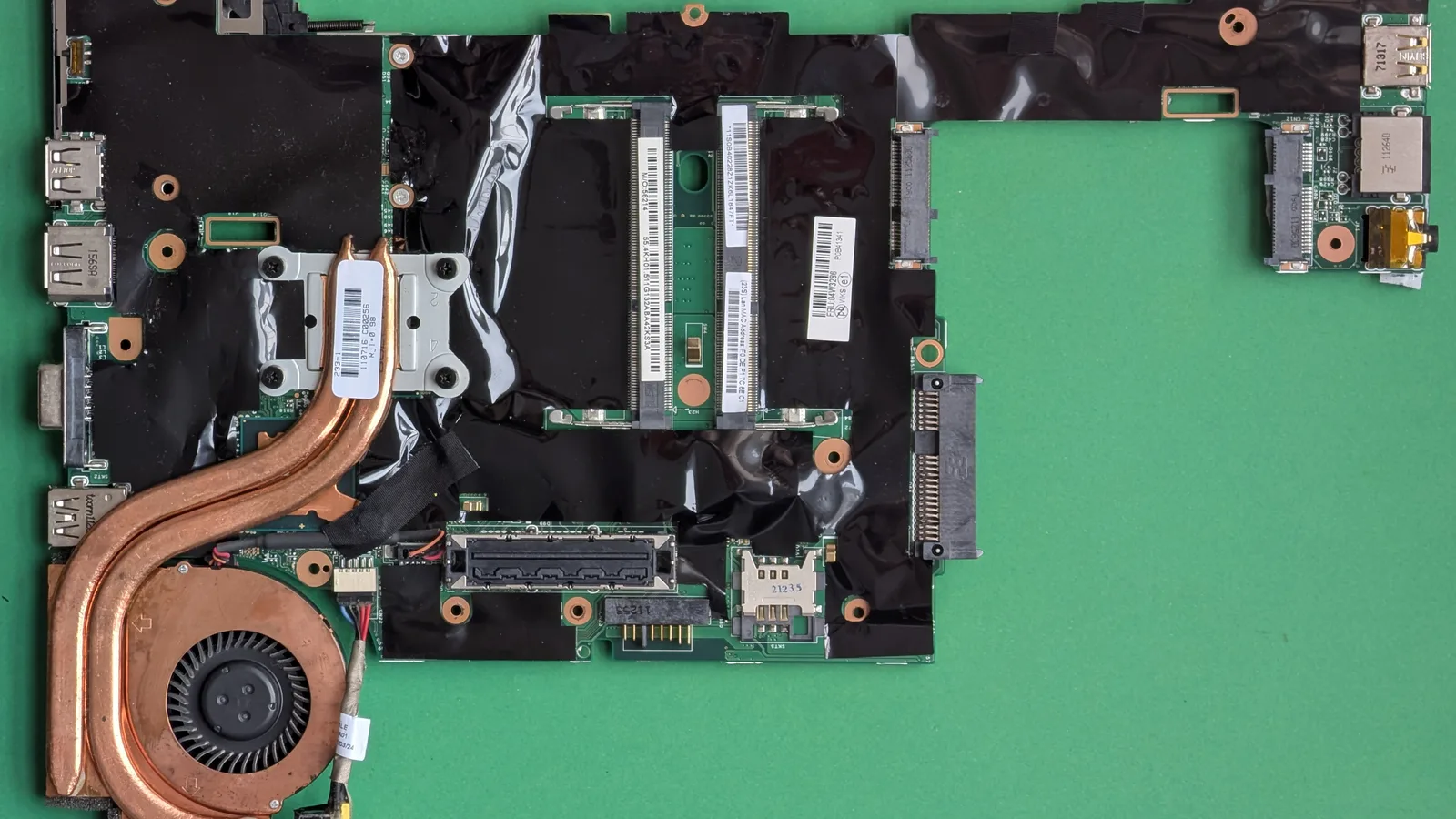
Drying a laptop out only removes the water — it leaves the corrosive residue behind, and that corrosion cannot be fixed by drying alone. A real repair means opening the machine, cleaning the board down to bare metal, replacing what the liquid has already eaten, and testing before it goes back to you. This is exactly why an air-dried laptop can work for a week and then fail.
At Esmond Service Centre a liquid-damage job starts with a full teardown: battery out, board out, and every shield lifted so we can see under them. We inspect the logic board under magnification for the tell-tale green-white corrosion, then clean it — an ultrasonic (vibrating) bath and isopropyl alcohol lift residue that a cloth never can, from under chips and connectors where tap-water minerals and sugars hide. Corroded parts are replaced individually rather than swapping the whole board where possible, and we retest power, display, keyboard and ports through a full cycle before it leaves. You can read why cleaning matters in our guide on why laptop water damage needs cleaning, and about the service itself on our laptop water damage repair and laptop motherboard repair pages.
We can't quote a price for your machine sight-unseen — liquid damage ranges from a simple clean to a board-level repair, and the honest number only comes after a diagnosis. Bring it in and we'll tell you what is actually wrong before any work starts.
If the screen is still black after it's fully dry
Give a dried laptop time — at least 48 to 72 hours, fully open and airy — before any power-on attempt. If it is properly dry and still shows nothing, stop pressing the button and get it checked; repeated boot attempts on a corroding board only widen the damage.
A quick way to narrow it down: if the keyboard backlight, fans or charging light come on but the built-in screen stays black, the fault is far more likely on the motherboard or a power rail than the display panel. Plugging in an external monitor can confirm it — if the external screen also stays black, the problem is deeper than the panel. Our guides on what causes a laptop that cannot power on and resolving laptop screen problems walk through the symptoms in more detail.
One last thing worth knowing: liquid damage is almost never covered by a standard manufacturer warranty — Apple, for example, states plainly that liquid damage is not covered by its limited warranty. That makes an independent repair that saves your board, and your data, the sensible route. The sooner a wet board is cleaned, the more of it we can save.

Esmond Service Centre's experienced technicians can diagnose and fix it fast — free diagnostics, repairs from $65.