
📑 On this page
Introduction: The Windows Command Prompt might look intimidating at first, but it’s a powerful ally in boosting your productivity. Using text commands can often accomplish tasks faster than clicking through graphical menus — though it is worth being precise about why, because that tells you when this guide will actually help you. Timed comparisons of keyboard against mouse come out mixed and depend entirely on the task, so the saving here is not the folk claim that typing beats clicking. It is that one typed line replaces a whole sequence of steps: a single command reaches a folder six levels down, finds a file anywhere on the drive, or prints your entire network configuration, where the same result takes a string of clicks and windows. That is the saving the five tips below are built on, and you can check every one of them yourself. It is why Esmond Service Centre — an IT service centre in Singapore with over 16 years of experience — encourages even beginners to learn some Command Prompt basics. By leveraging the Command Prompt, you can automate routine tasks, quickly fetch system information, and streamline your workflow. Below, we’ll introduce five beginner-friendly tips to supercharge your command prompt productivity and make everyday Windows tasks quicker and easier.
Navigate and Manage Files Lightning-Fast with cd and dir
The dir command lists the files and folders in the current directory. Navigating your files via Command Prompt can be much faster than clicking through endless folders. Two fundamental commands help you here: cd (change directory) and dir (directory listing). With these, you can jump between folders and view their contents instantly using your keyboard.
Open Command Prompt
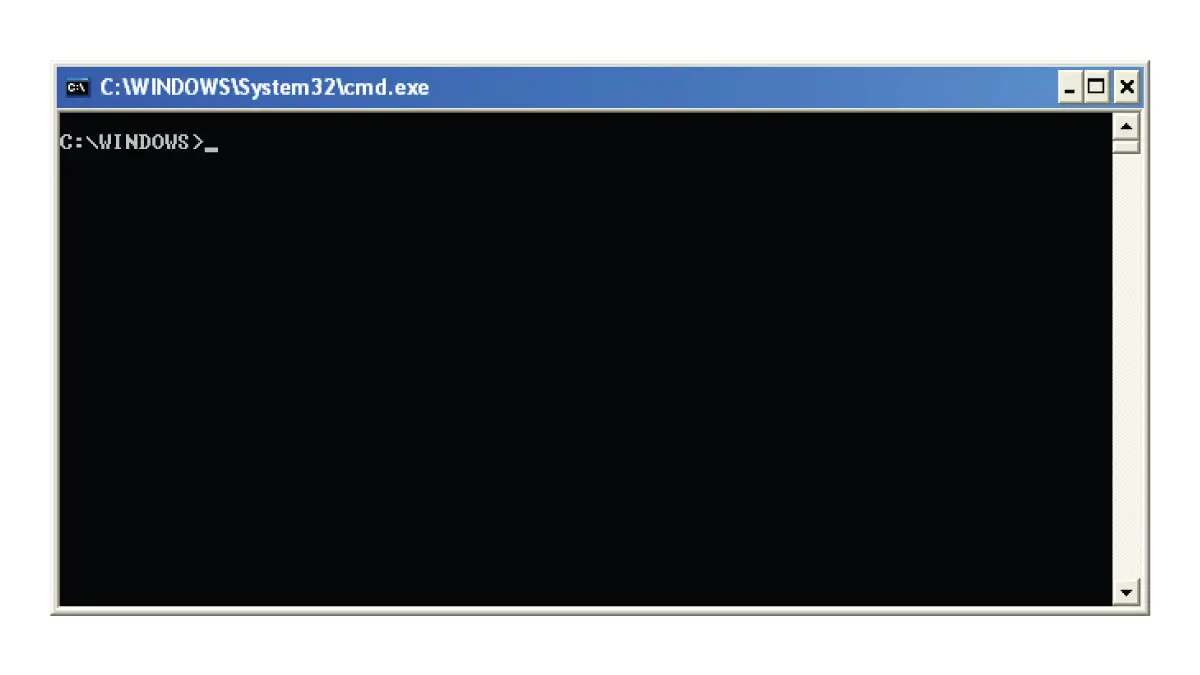
Press Win + R, type cmd, and hit Enter to launch the Command Prompt.Change Directory (cd)
Type cd <folder-path> to navigate. For example, cd C:\Users\YourName\Documents takes you to the Documents folder. Use cd.. to go up one level to the parent directory.List Directory Contents (dir)
Once in a folder, type dir and press Enter. You'll see a list of all files and subfolders in that directory, along with details like size and last modified date.Find a Specific File
Use dir <filename> /s to search within the current directory and all subfolders for a file. For example, dir report.docx /s will search the whole directory tree for report.docx. (Press Ctrl + C to stop if the search is taking too long.)
Why this boosts productivity: Instead of clicking through Windows Explorer, these commands let you jump directly to the folder you need and see its contents in seconds. This is especially handy for deep folders or when you’re not sure where a file is – the dir /s search can locate files without opening a separate search window. By reducing reliance on the mouse and using quick text commands, you save time and keep your hands on the keyboard for a faster workflow.

Leverage Command History and Autocomplete
One big advantage of the Command Prompt is that it remembers what you type. You don’t have to re-type long commands or paths repeatedly – the history and autocomplete features have you covered. This tip will help you reuse commands and type less.
Use Arrow Keys and F7 for History: The Command Prompt keeps a history of commands you’ve entered in the current session. Simply press the ↑ Up Arrow to scroll through your previous commands and press Enter to run one again. You can do this repeatedly to cycle through recent commands. For a menu of your history, press F7 – a box will pop up listing all the commands you’ve used, and you can select one to run (use the arrow keys to move and hit Enter). This is extremely useful if you need to run a complex command again or tweak it without typing it from scratch.
Use Tab for Autocomplete: Save keystrokes by letting the Command Prompt auto-complete file and folder names for you. When you start typing a file path or name, press the Tab key – the Command Prompt will fill in the rest of the name if it finds a match. For example, type cd C:\Us and press Tab, and it will complete to C:\Users\ automatically. If there are multiple matches (say several files starting with the same letters), keep pressing Tab to cycle through them. Autocomplete works for folder names, filenames, and even commands you’ve used before. You can also press Tab after typing part of a command you ran earlier to autocomplete it from history.
Why this boosts productivity: Command history and autocomplete eliminate repetitive typing. Instead of retyping long paths or remembering complex commands, you can recall them in an instant. This reduces errors (since you’re not likely to mistype something when autocompleting) and saves time. By quickly cycling through previous commands or completing names with a tap of Tab, you maintain momentum in your work. Over time, using these shortcuts can make working in the Command Prompt feel much faster than clicking around in menus, once you get the hang of it
Run Multiple Commands in One Line
Do you often have to run several commands one after the other? Maybe you need to perform a series of tasks, like navigating to a directory and then launching a program, or running two diagnostic commands back-to-back. The Command Prompt allows command chaining, meaning you can execute several commands in sequence automatically.
How to Chain Commands with &&:
- Use && between commands: Type two (or more) commands on one line, separated by &&. For example:
cd C:\MyProjects && dirThis will first change directory to C:\MyProjects, and only after that succeeds, it will list the directory contents with dir. The second command runs after the first finishes successfully. - Chain more commands if needed: You can string multiple commands. For instance:
ipconfig && ping www.google.comFirst it will display your IP configuration, and once that’s done, it will immediately start pinging Google. Each command executes in order, waiting for the previous one to finish. - Use a single & for regardless of success: (Optional advanced tip) Using a single & (one ampersand) instead of && will run the next command regardless of whether the previous one succeeded. This is less common for beginners, but useful if you have non-critical commands to run in sequence.
Why this boosts productivity: Command chaining is like creating a mini-script on the fly. It saves you from babysitting the prompt, waiting to type the next command. For example, if you need to run a build process and then open a folder, or run several maintenance commands in a row, you can fire them off as one command line. This not only saves time but also ensures you don’t forget to run a step. By letting the Command Prompt handle the sequence, you can focus on other tasks while your chained commands execute one after another. It’s a simple way to automate routine sequences and get more done with a single press of Enter.
Redirect and Filter Command Output for Clarity
Many Command Prompt commands produce a lot of text output. Scrolling through pages of information or trying to copy results by hand can be cumbersome. Thankfully, the Command Prompt has features to make handling output much more efficient. You can pause long outputs page by page, search within outputs, or save the output to a file or clipboard for later use. Here are a few tricks:
- Pause Output with | more: When a command’s output is very long (say, dir in a huge folder), add | more to the end of your command. For example:
dir C:\Windows\System32 | moreThis pipes the output into the more utility, which fills one screen at a time. You’ll see one page of results and then “— More —” at the bottom; press Space to show the next page or Enter to advance line by line. This way, you can actually read the information without it flying past. - Search Within Output with | find: To filter output for specific text, use | find "keyword". For instance, if you only want to see lines in the ipconfig output that contain “IPv4”, run:
ipconfig | find "IPv4"This will display only the lines that include the word "IPv4", effectively extracting your IPv4 address info. The find command scans each line of the output and shows those that match your query, which is a huge time-saver when dealing with verbose outputs or log files. - Save Output to a File or Clipboard: Sometimes you might want to save the results of a command (like a directory listing or system info) for later reference or to share with someone. You can redirect output to a file by using > like so:
dir C:\Users > MyFolderList.txtThis runs dir and saves all the output into MyFolderList.txt (created in the current directory). If the file exists, it will be overwritten. To append to an existing file instead (add to the end), use >> with the same syntax. Another handy trick: use | clip to copy output directly to the Windows clipboard. For example, ipconfig | clip runs the command and puts the entire output in your clipboard (as if you manually copied the text), so you can paste it into an email or document with Ctrl+V.
Why this boosts productivity: These output management tricks let you consume and use information more effectively. Instead of visually searching through walls of text, you can instantly zero in on what you need (find), page through data at your own pace (more), or save outputs without manual copy-paste steps (> or | clip). It’s about working smarter: by quickly filtering and capturing command output, you avoid information overload and eliminate extra steps. For example, piping ipconfig to a file or clipboard can speed up troubleshooting by making it easy to share your network configuration – the command displays the full configuration, speeding up the process of spotting issues or IP conflicts. Overall, these techniques help turn the Command Prompt into a flexible tool for gathering and handling data in a way that suits your needs.
How Do I Check System Info and Connectivity in Command Prompt?
Another area where the Command Prompt shines is quickly retrieving system and network information. With a single command, you can get details that would normally require clicking through multiple settings windows. Here are two key commands every beginner should know for quick insights:
- IP Configuration with ipconfig: Typing ipconfig and pressing Enter will immediately display your computer’s network IP addresses, subnet mask, gateway, and more. This is your network configuration at a glance. For example, under “Wireless LAN adapter Wi-Fi” you’ll see your device’s IPv4 address and default gateway, which are essential for troubleshooting internet issues. Using the command line for such info gives quick and efficient access to details without hunting through GUI menus. If you need more detail, ipconfig /all will provide extensive information (DNS servers, MAC addresses, DHCP status, etc.).
- Connectivity Test with ping: The ping command checks if you can reach another computer or website. It’s great for a fast connectivity test. For instance, to see if you have Internet access, type ping 8.8.8.8 (which pings Google’s DNS server) or ping www.google.com. If you get replies with time in milliseconds, your connection is working. If not, you’ll know there’s a network problem. You can also ping devices on your local network (like ping 192.168.1.1 to check your router). This beats opening network diagnostics – it gives you an immediate yes/no on connectivity.
(Bonus tip): For a quick system overview, try the systeminfo command. It prints your Windows version, hardware info, boot time, and more. It’s a lot of info, so you might pair it with | more or redirect it to a file, as shown above.
Why this boosts productivity: Commands like ipconfig and ping let you troubleshoot and gather system info in seconds. Suppose your Wi-Fi is acting up – instead of digging through Control Panel, you can run ipconfig to see if you have an IP address, and ping to see if you can reach the internet. This one-two step can pinpoint network issues much faster than clicking through settings. In a professional setting or even at home, being able to quickly confirm “Do I have an IP? Is the server reachable?” can save a lot of time. These tools are built into Windows, meaning you don’t need any extra software. Over time, you’ll find that using the Command Prompt for such checks becomes second nature and significantly improves your efficiency in diagnosing problems and obtaining system details.
Mastering Command Prompt Productivity for a Faster Workflow
Incorporating these Command Prompt tips into your daily routine can transform how you work with your Windows PC. We started with simple navigation (cd and dir) to replace tedious clicking, then moved on to history shortcuts, command chaining, output redirection, and quick system info checks – each designed to streamline tasks that you do frequently. The key takeaway is that command prompt productivity is about doing more with less effort: a few keystrokes can accomplish what might take dozens of clicks in the graphical interface. By keeping your hands on the keyboard and leveraging these commands, you minimize interruptions and context-switching, allowing you to maintain focus on the task at hand.
Remember, every expert was once a beginner. If you’re new to the Command Prompt, start with one or two tips and practice them. Before long, you’ll execute common tasks almost reflexively and wonder how you managed without these tricks. And when a command turns up something these tips cannot fix, the section above tells you what that actually costs to put right and where to bring it. We hope these beginner-friendly pointers encourage you to open the Command Prompt more often and take control of your system like a pro.
What the Command Prompt Will Not Fix, and When to Stop
It is worth being clear about the limits, because a guide like this can leave the impression that a command line fixes things. It does not. Every command in the five tips above either moves you around (cd, dir) or shows you something (ipconfig, ping, systeminfo, find, more) — the only one that writes anything is the > redirect, and all it writes is a new text file. None of them repairs a fault. If Windows is crashing to a blue screen, refusing to boot, freezing, failing its updates or running slowly, ipconfig will still print an address and dir will still list your files while the underlying fault sits there untouched. The honest cost of getting this wrong is small but real: > overwrites an existing file without asking, so pointing dir > notes.txt at a filename you already use loses the old contents, and a machine that is genuinely failing — a dying drive especially — can lose more data every hour it is kept running while you experiment. So the stopping point is simple: when the commands return errors you cannot explain, or the fault is with Windows itself rather than with finding your way around it, stop typing and get it looked at. That is a repair job, not a shortcut. Esmond Service Centre handles Windows OS repair in Singapore at two branches, Alexandra and Sin Ming: a Windows reinstallation with all drivers is S$65 and takes about 3–4 hours, malware and virus removal is S$65–S$90, prices are before GST, and the diagnostic is free — so it costs nothing to find out whether you are dealing with a fault or just an unfamiliar command.
Stay Connected for More Tech Insights and Tips
Found this command prompt walkthrough useful? Follow our Facebook page, LinkedIn profile or Instagram account for more practical tips on cutting-edge technology. For personalised support, or just a free diagnostic if something on your PC is not behaving, contact the team at Esmond Service Centre — Alexandra or Sin Ming.

Esmond Service Centre's experienced technicians can diagnose and fix it fast — free diagnostics, repairs from $65.