

📑 On this page
How to tell your Dell Inspiron's charging port is the problem
The tell-tale pattern is a laptop that powers on from the wall but charges only sometimes. One Dell owner described it exactly on Dell's own community forum: the laptop "powers laptop, but usually does not charge... occasionally it will randomly offer charge again", and unplugging and reinserting the charger makes it stop again. That intermittent, position-dependent behaviour is the signature of a failing port rather than a flat battery — the metal contacts inside the jack, or the solder holding it to the board, have worked loose after months of the cable being nudged and flexed.
- The laptop runs on mains power, but the battery percentage doesn't climb or shows "plugged in, not charging".
- Charging only starts when you wiggle the plug, push it in, or hold it at a certain angle.
- The charge light flickers, or the battery icon flips between charging and not charging.
- The plug feels loose or wobbly in the socket, or wobbles when you nudge the cable.
- You see scorching or smell burning at the port, or the centre pin inside looks bent or pushed in.
- A second, known-good Dell adapter behaves in exactly the same way.
Rule out the charger, cable and battery first
A dying adapter looks identical to a dying port from the outside, so isolate the fault before anyone opens the laptop. Dell laptops read a small ID chip inside the adapter; when the machine can't read it, the BIOS and Dell Power Manager show an "adapter not recognised" warning and the battery stops charging. If that warning follows the adapter but not the laptop, the adapter is at fault; if a known-good adapter still won't hold a charge unless it's seated just so, the port is.
- Try a second, known-good Dell adapter of the correct wattage — a failing adapter mimics a failing port.
- Inspect the adapter's cable for kinks, fraying or heat near both ends, where the wires break first.
- Watch for a BIOS or Dell Power Manager "adapter not recognised" message — it points at the adapter or port, not the battery.
- Shine a torch into the port and look for lint, debris, corrosion, or a bent centre pin.
- If a good adapter charges only when seated firmly and drops out when nudged, the port is the fault — not the battery.

What the charging port actually is
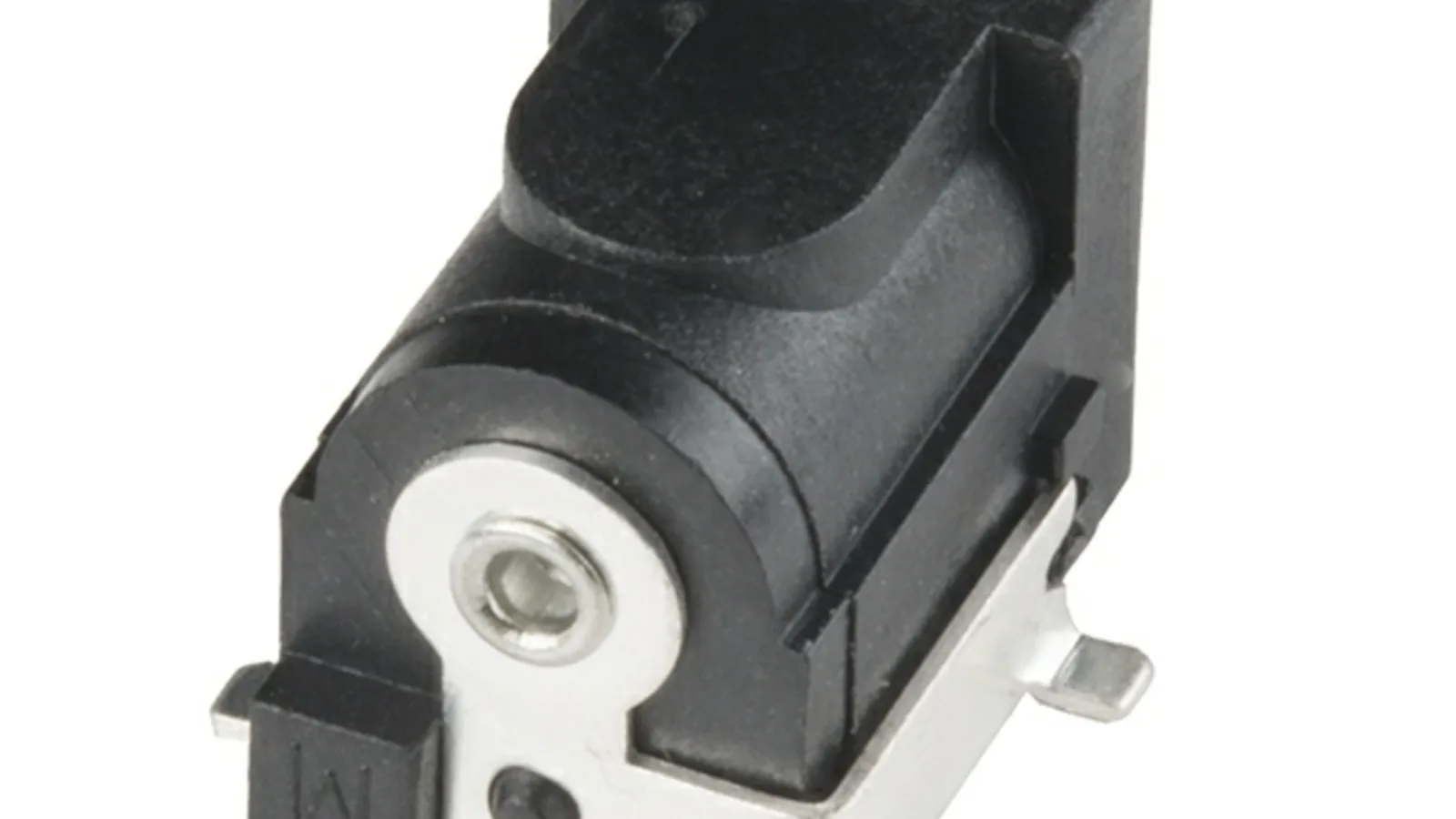
Most Dell Inspiron laptops charge through a barrel connector — a round, coaxial power socket. The centre hole takes a pin that carries the positive voltage, while the outer metal barrel is the ground; on newer Dell models a third, very fine centre pin carries an ID signal the laptop uses to check the adapter's wattage. Dell has used two common barrel sizes over the years: an older 7.4 mm outer barrel and a newer, slimmer 4.5 mm one. Getting the size and the ID pin right is why a generic charger sometimes powers a Dell but won't charge it — and why the correct replacement part matters.
Soldered to the board, or a plug-in cable?
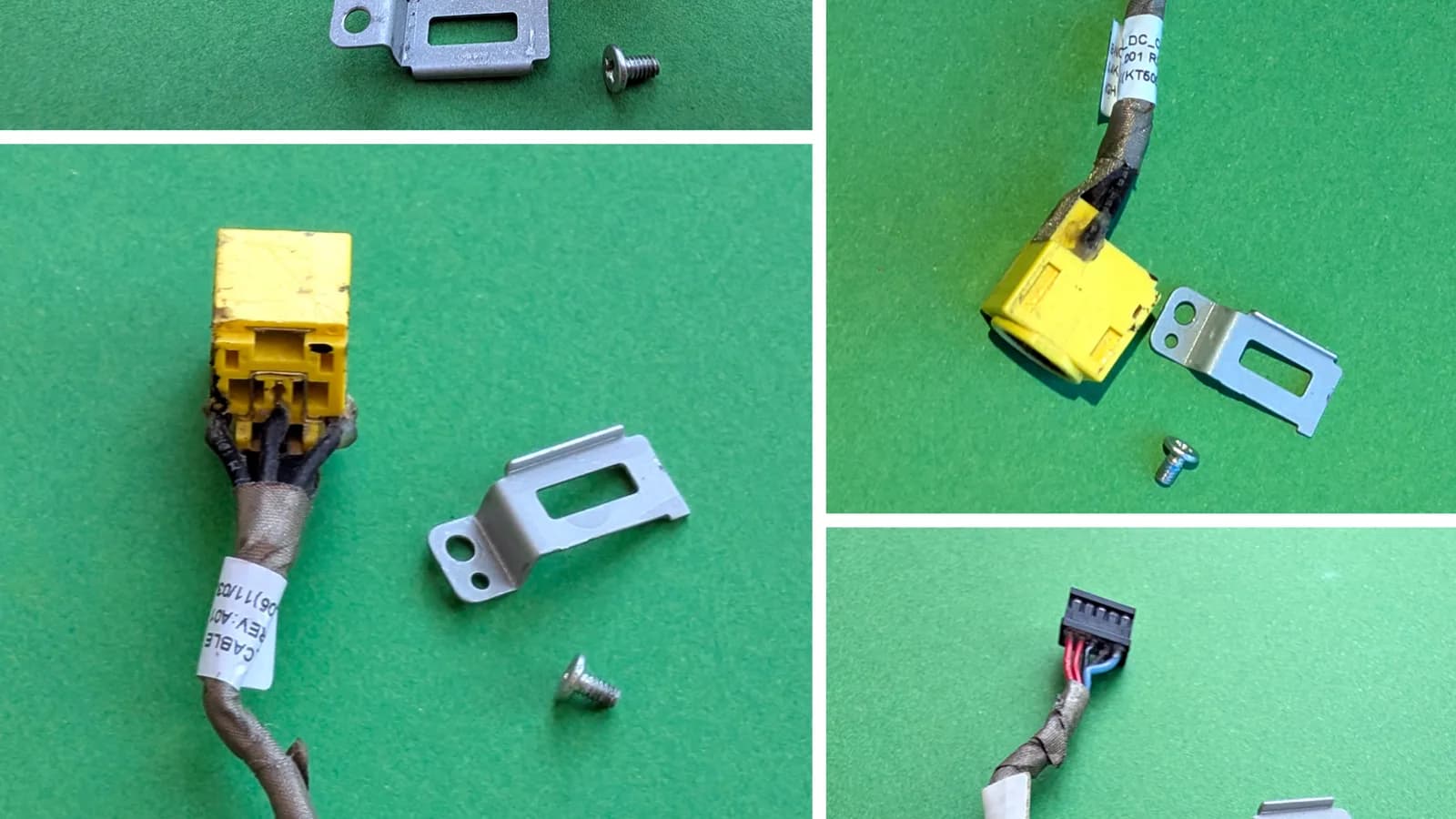
There are two ways the port attaches inside the laptop, and it changes everything about the repair. On many Inspiron models the DC-in jack is a pre-made cable — a short lead ending in a small plug that clips into a socket on the mainboard. Replacing it means unplugging the old cable and routing in a new one, with no soldering. On other models the jack is soldered straight onto the mainboard; repair technicians note the mechanical cause of failure is the port flexing until the solder joint breaks away from the board, and fixing that means desoldering (melting a part off the board) the old jack and soldering in a new one. The table below sums up the difference.
| Feature | Plug-in cable (DC-in harness) | Soldered to the mainboard |
|---|---|---|
| How it attaches | A ready-made cable that clips into a connector on the board | The jack is soldered directly onto the mainboard |
| Repair method | Unplug the old cable, route in the new one | Desolder the old jack, solder in a new one |
| Soldering needed | None | Yes — fine board-level soldering |
| Typical difficulty | Moderate — mostly careful disassembly | Higher — heat and skill at the board |
| Risk to the mainboard | Low | Higher if overheated or a pad lifts |

How Esmond Service Centre replaces the port
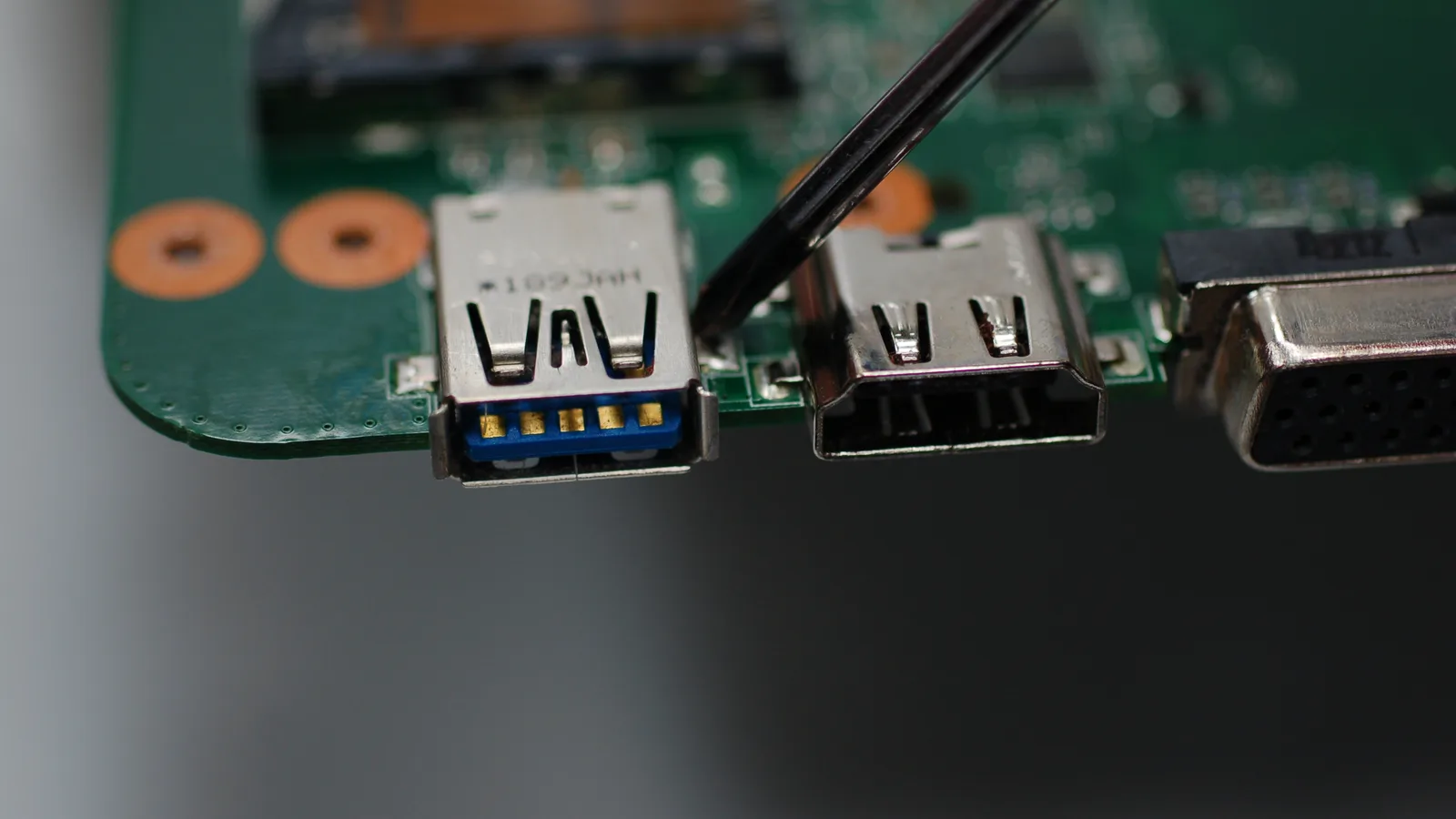
On the bench, we don't start by opening the laptop — we start by confirming the port is really the fault, because a needless teardown helps no one. Once a known-good adapter proves the port is loose or dead, we identify the exact Inspiron model, check whether its DC-in is a cable or a soldered jack, and source the matching part with the correct barrel size and ID pin. We disconnect the battery before any work near the board, replace the port to suit its type, then test a real charge — seated firmly and deliberately nudged — until the battery climbs and the adapter is recognised. Only then does the laptop go back to you.
- First, confirm the diagnosis: re-test with a known-good adapter and rule out the adapter and battery.
- Then, identify the exact Inspiron model and whether the port is a cable harness or board-soldered, and source the correct part.
- Power down safely, open the laptop, and disconnect the battery before working near the board.
- For a cable harness, unclip and re-route the DC-in cable; for a soldered jack, desolder the old one, clean the pads and solder in the new one.
- Finally, reassemble and test a full charge — plugged, seated and nudged — confirming the battery climbs and the adapter is recognised.
How much does it cost to fix a Dell charging port?
Two things set the price: the part and the labour. A plug-in DC-in cable is an inexpensive part and the work is mostly careful disassembly, so it is the cheaper of the two repairs. A jack soldered to the mainboard costs more, because it needs board-level desoldering and soldering — and if arcing or a snapped pin has damaged the board itself, a board repair adds to it. Because the figure depends on your exact model and which of those two designs it uses, the honest answer is a quote once we've identified the port, rather than a headline price that might not fit your machine. Bring it in or send us the model, and we'll price your specific laptop.

Esmond Service Centre's experienced technicians can diagnose and fix it fast — free diagnostics, repairs from $65.