
📑 On this page
Whether you can replace a MacBook Pro hard drive depends entirely on the model. Pre-2012 unibody models take any 2.5-inch SATA SSD in minutes. Retina models from 2013 to 2015 use a removable but proprietary blade SSD. From 2016 onward the storage is soldered to the logic board (the main board — Apple's name for the motherboard) and cannot be swapped at all.
Step zero: does your MacBook Pro even have a replaceable drive?
This is the question most people get wrong. Apple changed its storage design three times in a decade, so the first move is not buying a tool - it is identifying your model. Click the Apple menu, choose About This Mac, note the model and year, then match it to the table below. It decides whether this is a fifteen-minute job or flatly impossible.
| MacBook Pro model | Storage type | Can you replace it? | What you need |
|---|---|---|---|
| Unibody, 2009 to mid-2012 (13-inch / 15-inch, non-Retina) | Standard 2.5-inch SATA HDD or SSD | Yes - the easiest Mac to upgrade | Phillips #00 driver, Torx T6 driver, any 2.5-inch SATA SSD |
| Retina, late 2012 to 2015 | Proprietary blade SSD (SATA on 2012/early-2013, PCIe from late-2013) | Yes, but only with a proprietary module or an adapter | P5 pentalobe driver, T5 Torx driver, OWC Aura-type blade or NVMe SSD plus adapter |
| 2016 to 2017 non-Touch-Bar function-key 13-inch | Removable custom SSD card | Rarely - specialist territory | Pentalobe driver and a scarce matching module; usually a shop job |
| 2016+ Touch Bar, 2018+, and all Apple Silicon (M1/M2/M3+) | Flash soldered to the logic board | No - it cannot be removed | No upgrade path; failure means board-level repair or data recovery |
The tools you actually need
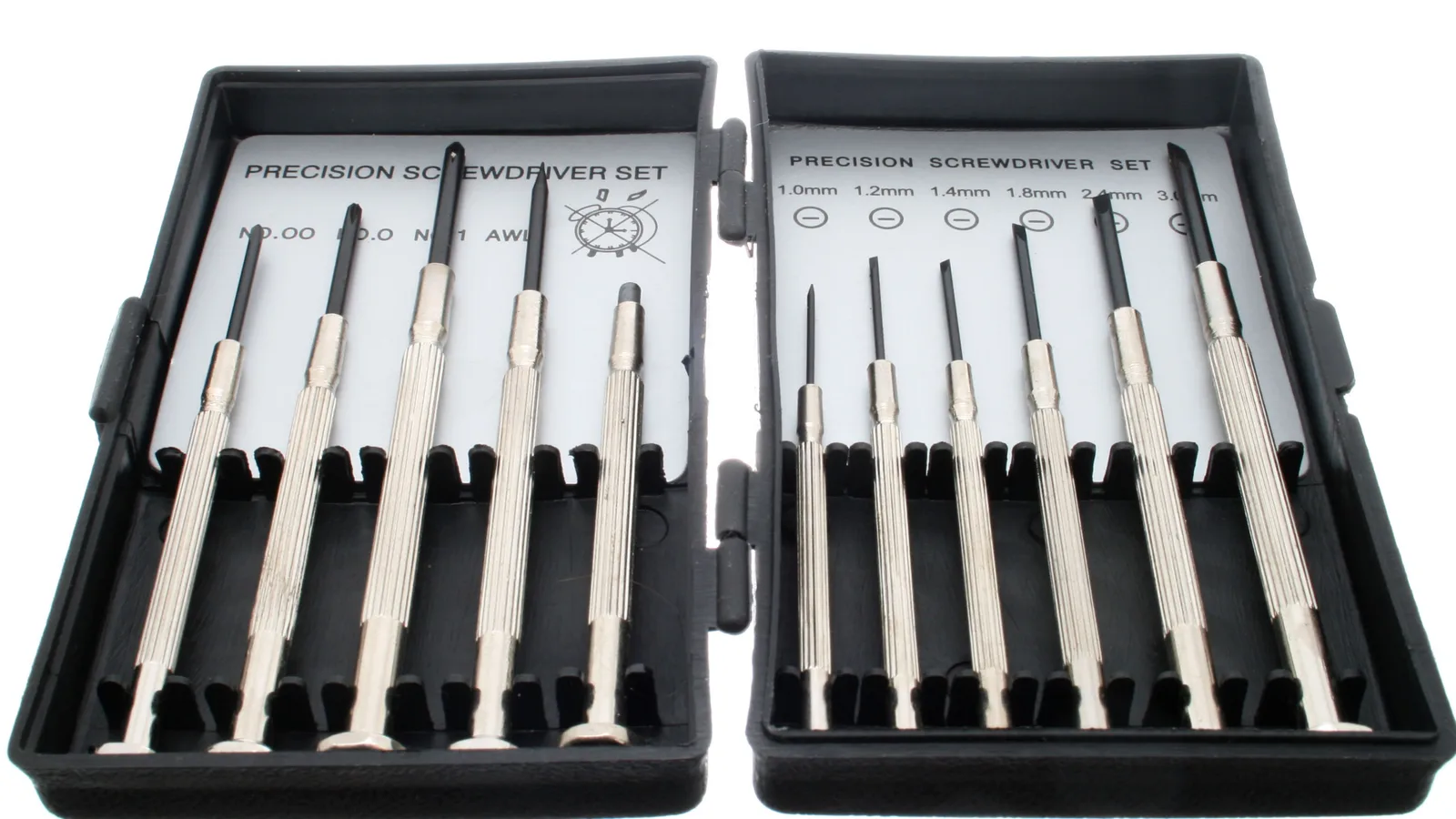
You do not need a full kit - you need the right two or three drivers for your model, plus something to protect your data and the fragile ribbon cables inside. Buy the exact drivers below rather than forcing a wrong bit, because Apple's screws strip easily and a chewed head turns a quick job into a drill-out.
- P5 pentalobe driver - opens the bottom case on Retina and Air models.
- Phillips #00 driver - opens the bottom case on 2009 to 2012 unibody models (ten screws).
- Torx T6 driver - removes the four bracket screws that hold a 2.5-inch drive.
- Torx T5 driver - removes the single screw holding a Retina blade SSD.
- Plastic spudger and an anti-static wrist strap - to lift connectors without cracking them or zapping the board.
- The replacement drive - a 2.5-inch SATA SSD, an OWC Aura-type blade, or an NVMe SSD with the correct adapter, depending on your model.
- An external USB enclosure - to clone your old drive first or run macOS Recovery.
Replacing a 2.5-inch SATA drive (unibody 2009 to mid-2012)
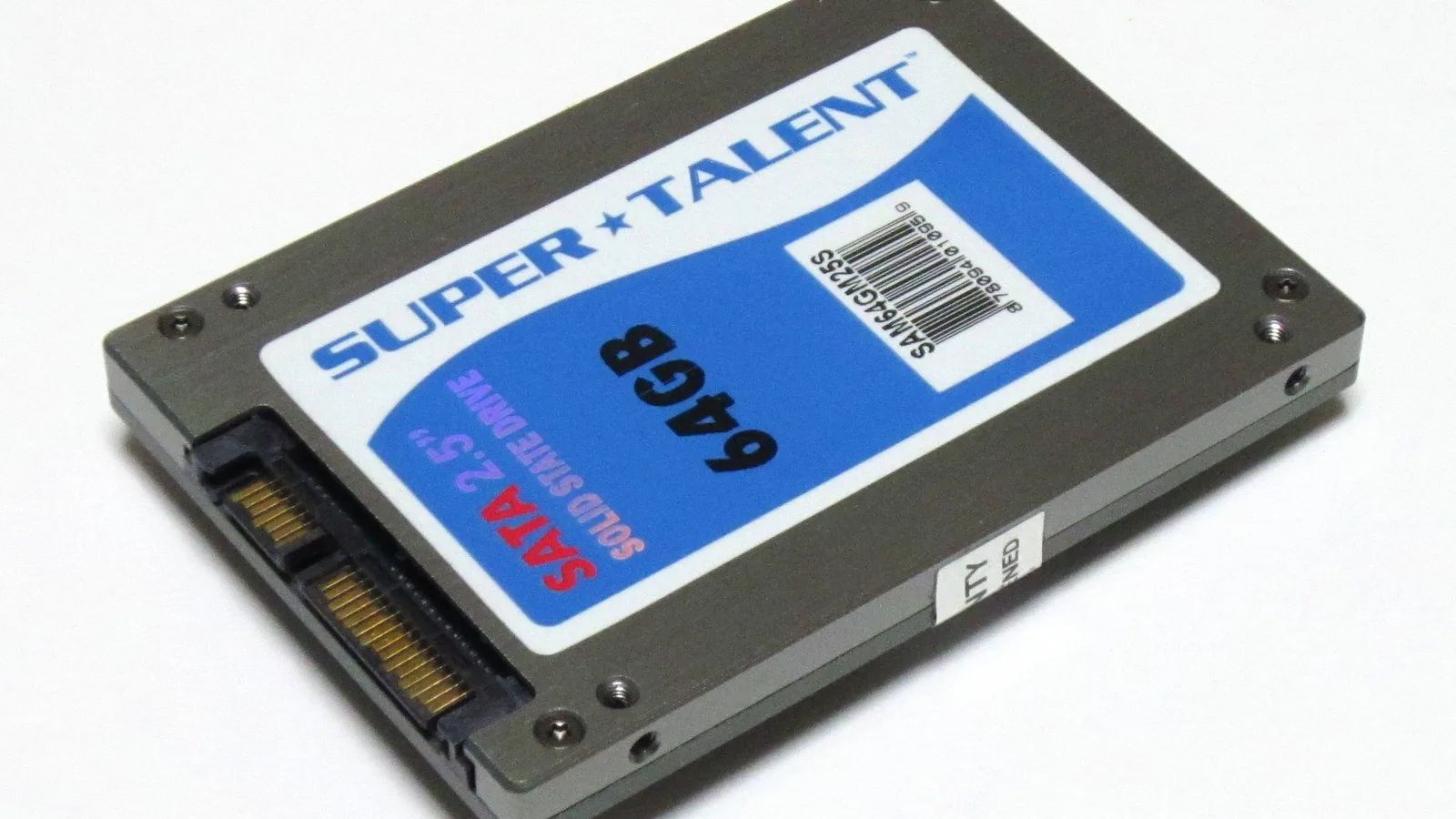
This is the dream scenario. The non-Retina unibody MacBook Pro has a standard 2.5-inch SATA bay, so any 2.5-inch SSD drops straight in and instantly transforms the machine. The whole swap takes most people under 15 minutes once the case is open.
- Back up everything, then power down and unplug the MacBook.
- Remove the ten Phillips #00 screws around the bottom case and lift it off.
- Disconnect the battery connector first - this is the single most skipped safety step, and the one that fries boards.
- Lift out the two-screw retaining bracket that pins the drive in place.
- Raise the drive gently, unplug the SATA ribbon cable, and move the four Torx T6 side screws onto your new 2.5-inch SSD.
- Seat the new drive, reconnect the cable and bracket, reconnect the battery, and refit the case.
- Boot into macOS Recovery by holding Command-R, then reinstall macOS or restore your clone.
Replacing the blade SSD in a Retina MacBook Pro (2013 to 2015)
Retina models have no 2.5-inch bay. Instead they carry a thin proprietary blade SSD. It is removable - Apple just never intended you to - but a standard M.2 NVMe drive will not fit the slot without a dedicated adapter, and the 2012/early-2013 blades are SATA while late-2013 onward are PCIe, so the exact module matters.
- Confirm your exact model year - it decides whether the blade is SATA or PCIe and which replacement fits.
- Remove the P5 pentalobe screws and lift off the bottom case.
- Disconnect the battery, then remove the single T5 Torx screw at the end of the SSD.
- Slide the blade out at a slight upward angle. A bare M.2 NVMe drive will NOT fit this slot directly.
- Insert an OWC Aura-type module, or your NVMe SSD seated in the correct adapter, re-fit the screw, then reconnect the battery and case.
- Install macOS over the internet via Recovery; some models need an up-to-date macOS firmware before an NVMe drive is recognised.
2016 and newer: the SSD is soldered - here is the reality
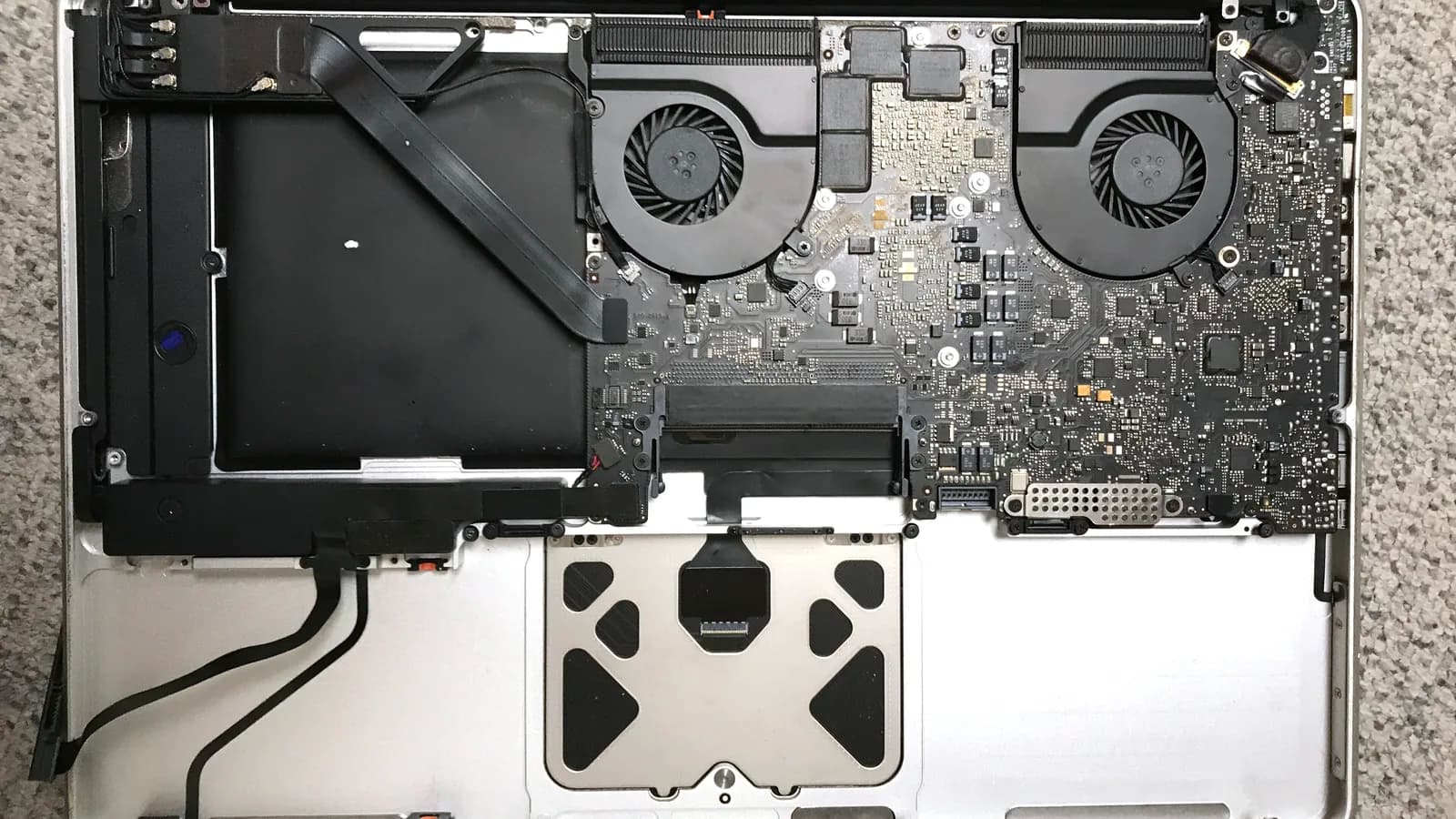
From the 2016 Touch Bar models onward - and on every Apple Silicon MacBook - the flash storage is soldered directly to the logic board. iFixit's 2018 teardown found that the RAM, processor and SSD are all soldered down, and scored the machine one out of ten for repairability. There is simply no drive to remove.
That means no capacity upgrade is possible after purchase, and if the storage itself fails, it cannot be fixed by swapping a drive - the fix is a board-level repair or professional data recovery. If one of these Macs is running low on space, a fast external SSD over Thunderbolt is the only practical route - and it is worth buying the capacity you need up front on any future Mac.
What about replacing a MacBook Air hard drive?
Replacing a MacBook Air hard drive follows the same rule by era. The 2010 to 2017 Airs use a removable proprietary blade SSD you can upgrade with an OWC module or an NVMe drive plus adapter. The 2018 Retina Air and every M-series Air have storage soldered to the board, so it cannot be replaced - only backed up and, if it fails, recovered.
As with the Pro, check About This Mac first. A 2015 or 2017 Air is a candidate for a blade upgrade; an M1, M2 or M3 Air is not. Never buy a drive before you have confirmed the model, because the wrong form factor simply will not seat.
When to bring it to a Singapore repair bench
If your Mac has a proprietary blade, a soldered board, or you simply do not want to risk a torn cable, a bench technician is the safer call. Esmond Service Centre's experienced, specialist Mac technicians handle MacBook storage upgrades, drive cloning and macOS reinstalls in Singapore, and will tell you up front whether your exact model can be upgraded at all before any work begins.

Esmond Service Centre's experienced technicians can diagnose and fix it fast — free diagnostics, repairs from $65.