


📑 On this page
.png)
What the NTFS_FILE_SYSTEM Blue Screen Actually Means
Microsoft's own reference is blunt: "The NTFS_FILE_SYSTEM bug check has a value of 0x00000024. This indicates a problem occurred in ntfs.sys, the driver file that allows the system to read and write to NTFS drives." In plain English, Windows tried to read or write your disk, something came back wrong, and it halted on purpose — a "Stop error" — to avoid writing more bad data over your files.
Microsoft lists the usual causes as disk corruption, bad blocks (sectors) on the hard disk, and corrupted SATA/IDE drivers; failing RAM and a depleted nonpaged memory pool can trigger it too. The reason it often appears right at boot — and leaves you unable to log in — is that Windows reads a great deal from the NTFS system files during start-up, so a fault in exactly that area stops you before the sign-in screen.
- File-system corruption: the NTFS metadata that tracks where your files live has been damaged, often after an unexpected shutdown or power loss.
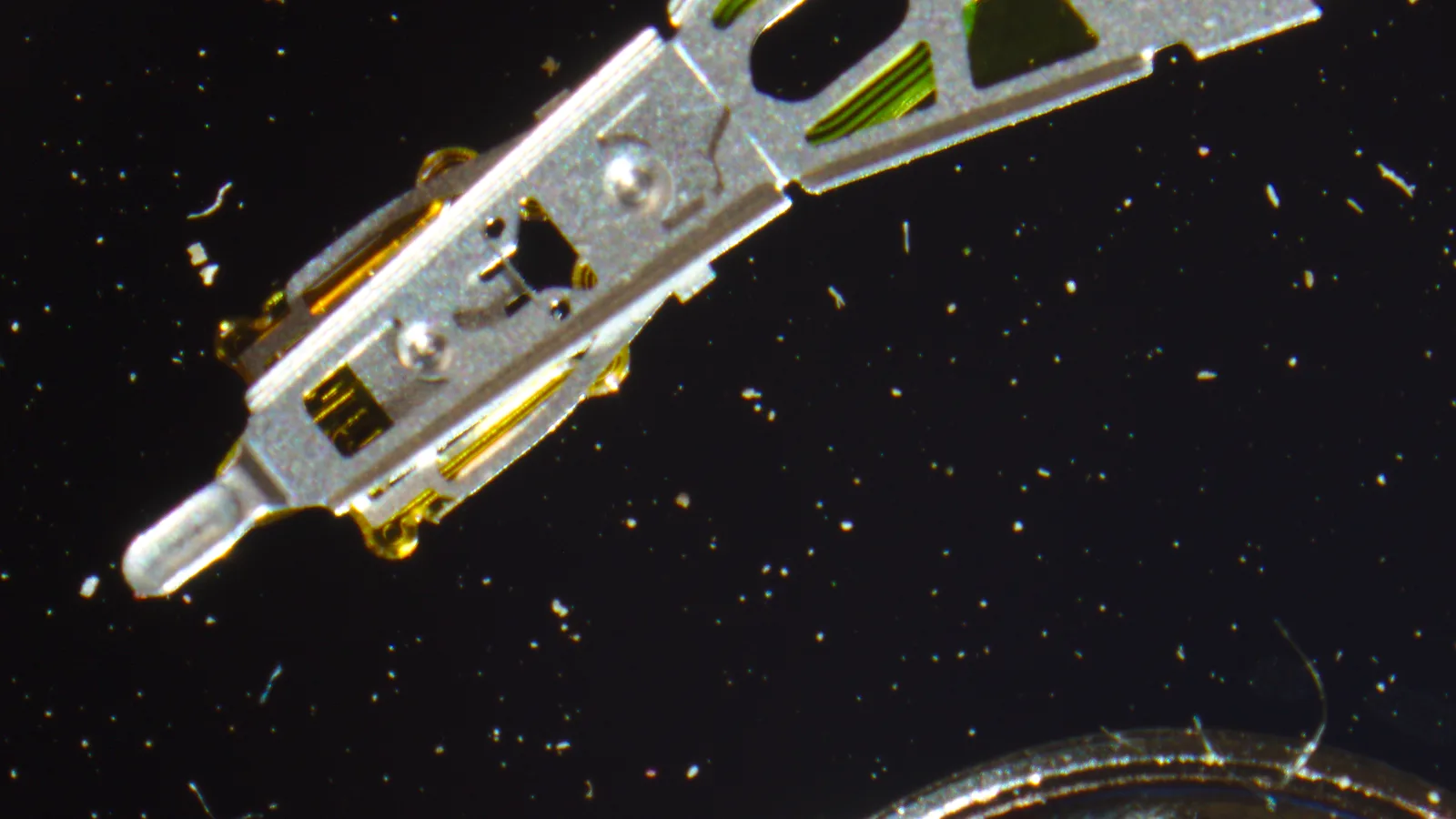
- Bad sectors on the drive: physical spots the drive can no longer read reliably — a common sign the disk is wearing out.
- A failing drive: an ageing HDD or SSD near the end of its life; clicking, long freezes and repeated errors point here.
- Storage driver problems: a corrupted or wrong SATA/AHCI/NVMe driver mishandling reads and writes.
- Bad RAM: faulty memory can corrupt data on its way to the disk, producing the same stop code.
.jpg)
Protect Your Data Before You Touch Anything
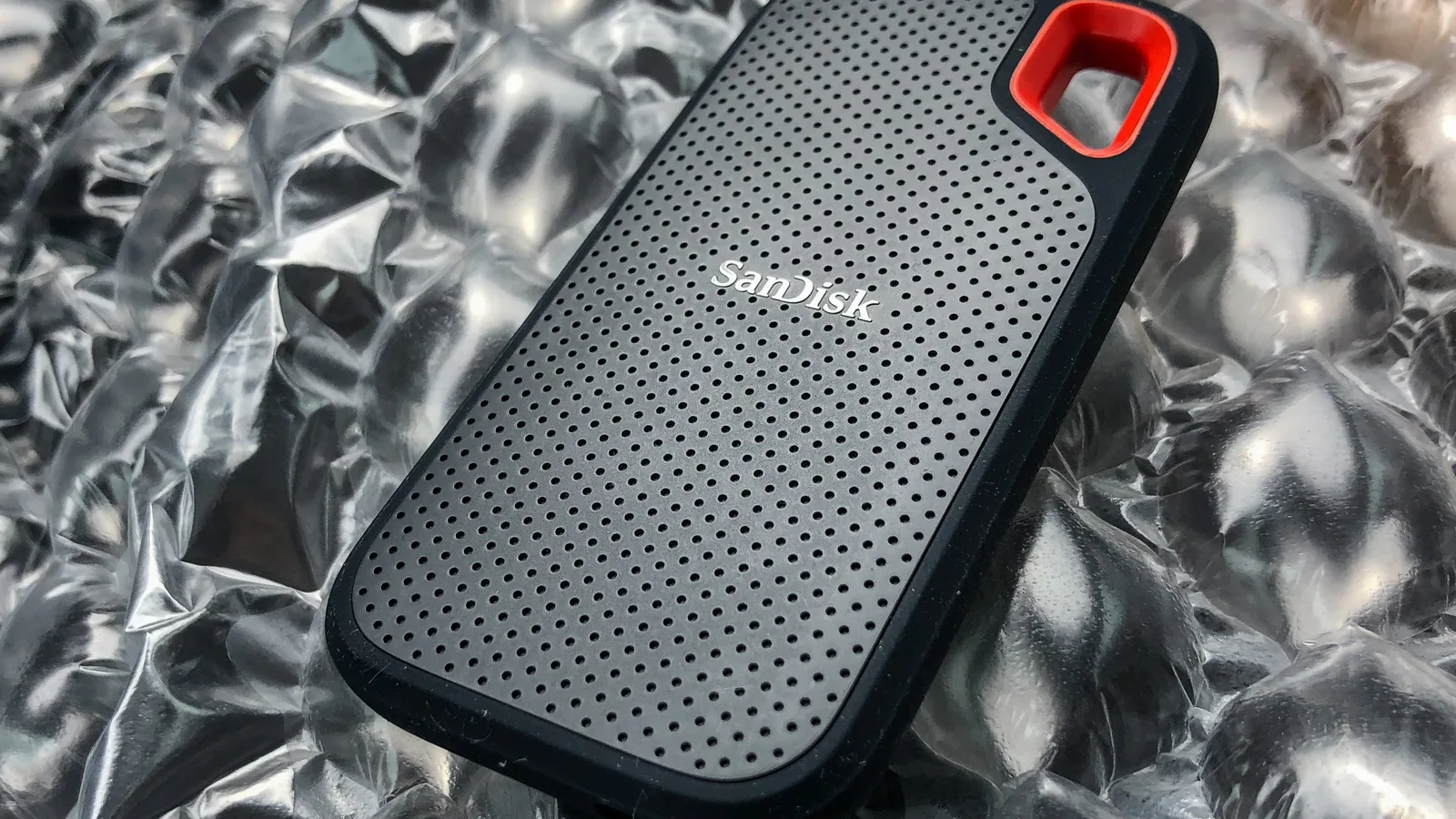
This is the step almost every rushed guide skips, and it is the one that matters most. Almost every repair below — chkdsk, Startup Repair, a reset — writes to the very drive you are trying to save. Microsoft's recovery documentation warns that options like "Reset this PC" can remove your personal files, so back up first: if the machine still boots to any degree, copy your documents, photos and desktop to an external drive; if it does not, image the whole drive from a rescue USB before running a single fix.
- The laptop clicks, beeps or spins up and down repeatedly.
- chkdsk reports a large number of bad sectors, or freezes partway.
- The drive vanishes from the BIOS/UEFI or appears with the wrong size.
- Files you can see will not copy, or copying is extremely slow.
If any of these are true, powering the drive on again and again makes recovery harder, not easier. Stop, and have the drive imaged by someone with the right tools.
How to Fix It When You Cannot Log In
When the blue screen returns before the sign-in screen, you fix the drive from outside the broken Windows, using the Windows Recovery Environment (WinRE). If Windows fails to start twice, WinRE usually opens by itself on the third try; otherwise, boot from a Windows installation USB and choose Repair your computer.
- Open WinRE. Force-restart during boot two or three times, or boot a Windows USB and pick "Repair your computer" → Troubleshoot > Advanced options.
- Try Startup Repair first. It is automatic and safe, and fixes many boot-time NTFS faults without touching your files.
- Run chkdsk from the recovery Command Prompt. Type
chkdsk C: /f /r. Per Microsoft,/ffixes file-system errors and/rlocates bad sectors and recovers readable information;/rincludes/f. On the system drive it may schedule itself for the next restart. - Repair system files if it still fails. From the same prompt run
sfc /scannowandDISM /Online /Cleanup-Image /RestoreHealth. - Boot into Safe Mode (Advanced options → Startup Settings) to remove a recently installed driver or program if the crash began after one.
- Use System Restore to a point before the trouble started, if restore points exist — it rolls back system changes without deleting your documents.
One caution the manuals bury: do not keep re-running chkdsk /r on a drive you suspect is physically failing. Microsoft notes that a full-surface scan reads every sector and, on an SSD, repeated scans add wear. On a dying drive, each pass is another chance for it to give up while it still holds your only copy.
Compare Your Recovery Options at a Glance
| Option | What it does | Risk to your data | Best when |
|---|---|---|---|
| Startup Repair | Automatically fixes boot and NTFS start-up faults | Very low — does not erase files | First thing to try when you can't log in |
| chkdsk C: /f /r | Repairs file-system errors and recovers readable data from bad sectors | Low on a healthy drive; risky on a failing one | Corruption or bad sectors, drive still healthy |
| System Restore | Rolls system files back to an earlier restore point | Low — keeps your documents | Crash began after an update or new driver |
| Reset this PC / reinstall | Reinstalls Windows | High — can remove personal files | Last resort, after your data is safely backed up |
_in_a_ThinkPad_X220_caddy_(01).jpg)
Recover Files From a Dead Windows Laptop
If Windows simply will not repair — or the drive is failing — you can often still rescue the files by reading the drive from another computer instead of fighting the broken boot. This is exactly what worked for one user on Microsoft's own Q&A forum: they booted from external rescue media and ran chkdsk /f /r against the offline Windows volume, then copied their data off.
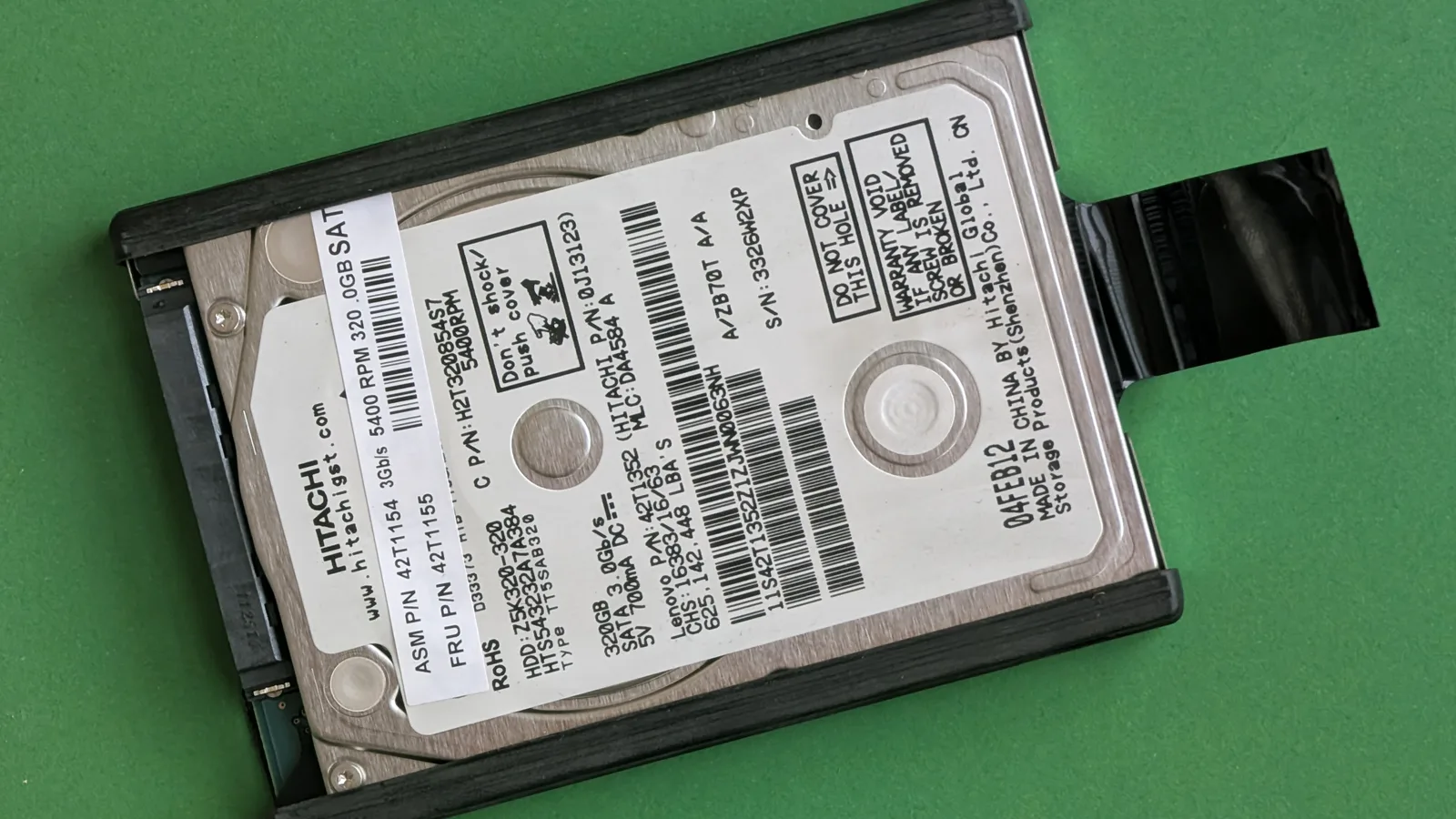
- Remove the drive and read it externally: take out the 2.5-inch SATA or M.2 drive and connect it to another PC with a USB adapter or enclosure, then copy the files across.
- Boot a live USB: start the laptop from a Linux live USB or Windows PE stick, which ignores the broken Windows and lets you reach the files.
- Copy the important folders first: Desktop, Documents, Pictures and any work folders — before attempting any repair on the original drive.
- Stop if the drive is physical: clicking, unreadable sectors or a drive that disappears means a lab, not software — see the warning above.
When to Bring It to a Repair Shop in Singapore
This exact situation is common enough that a Singapore user posted it on HardwareZone almost word for word: "my business laptop is having blue screen problem. stop code: NTFS FILE SYSTEM. i cannot even access to window." When the laptop holds work you cannot lose, when the drive shows physical symptoms, or when you are simply not comfortable running recovery commands, handing it over is the safer call than experimenting on your only copy.
At Esmond Service Centre we bring 16 years of hands-on repair experience to exactly this kind of fault, and we offer a free, no-obligation diagnostic at our Alexandra and Sin Ming branches so you know what is wrong before any work begins. Our Windows OS repair service covers stop-code diagnosis and system-file repair, and our data recovery service handles the drives that turn out to be failing.

Esmond Service Centre's experienced technicians can diagnose and fix it fast — free diagnostics, repairs from $65.