

📑 On this page

What IT desktop support services actually cover
IT desktop support is the day-to-day care of the devices your team works on and the systems behind them. In practice it stretches well beyond unfreezing a screen. A capable desktop support service in Singapore usually covers the following.
- Helpdesk and remote support: logging issues, resetting passwords, and fixing email and everyday software problems — most handled remotely, often the same day.
- On-site (desk-side) support: a technician at your office for hardware swaps, new-user setup and faults that cannot be fixed remotely.
- Hardware repair and lifecycle: diagnosing and repairing desktops and laptops, upgrading RAM and storage, and managing devices from setup through to safe disposal.
- Software, updates and patching: installing updates, managing user accounts, and keeping Microsoft 365 and business apps current and secure.
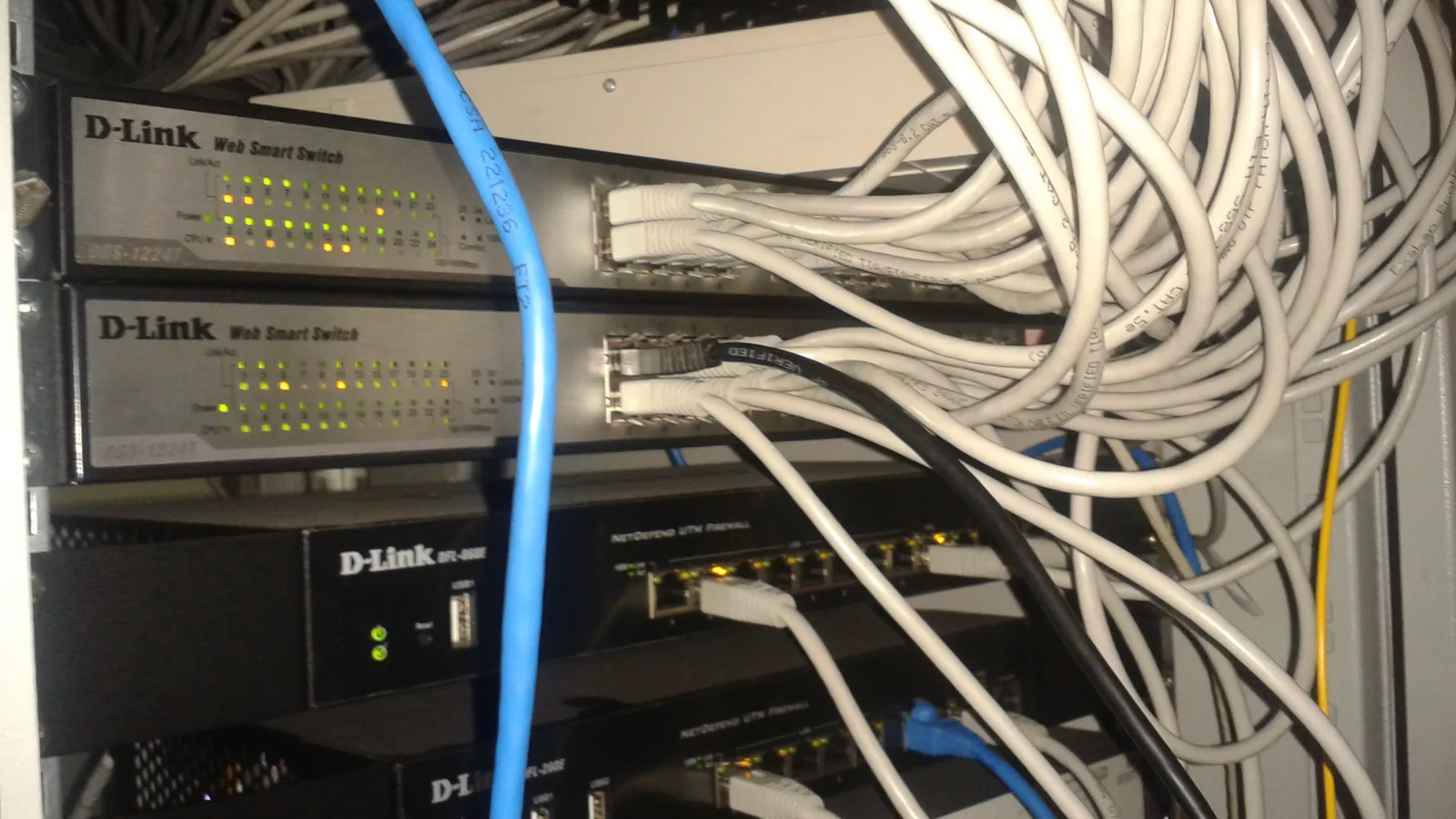
- Network, server and security: managing the switches, firewalls and servers your desktops depend on, plus antivirus, backups and threat monitoring.
The tiers of IT support: L1, L2 and L3
Support is organised into tiers so the right expertise handles each problem at the right cost. Knowing the tiers helps you read a provider's quote — and judge whether your own issue needs a specialist or a quick helpdesk fix.
| Tier | What it handles | Typical examples |
|---|---|---|
| Level 1 (L1) helpdesk | First-line, straightforward requests; resolves most everyday tickets (typically 70–80%). | Password resets, email setup, reinstalling an app, basic troubleshooting. |
| Level 2 (L2) | Deeper technical troubleshooting and hardware work the helpdesk cannot close. | On-site hardware replacement, software repair, diagnostic testing. |
| Level 3 (L3) | Expert, root-cause work on the hardest or newest problems. | Specialists who reproduce the fault and find its underlying cause. |
In-house, outsourced or break-fix: which model fits?
There are three common ways to buy desktop support. The right one depends on your size, how often things break, and how predictable you need the cost to be. Companies often outsource to keep services available during peak demand, reduce operating cost, and reach specialist skills they do not employ in-house.
| Model | Best for | The trade-off |
|---|---|---|
| In-house IT team | Larger firms with constant, complex IT needs. | Full control, but you carry salaries, training and holiday cover. |
| Outsourced / managed (flat monthly) | SMEs wanting predictable cost without hiring. | A predictable per-user fee; you rely on the provider's SLA. |
| Break-fix (pay per incident) | Very small offices with rare, one-off problems. | No monthly fee, but no monitoring and slower, costlier emergencies. |
Common desktop problems and the free checks to try first
Many 'the computer is slow' or 'it's acting up' tickets are cleared by a handful of free checks your team can run before anyone logs a ticket. Work through these in order on a Windows desktop — none of them can harm the machine, and together they clear most everyday slowdowns.
- Restart the PC. A full restart — not just sleep — clears stuck processes and applies pending updates. It is the single fastest fix.
- Install Windows updates. Updates often include fixes and performance improvements; check for optional driver updates too.
- Run a malware scan. Open Windows Security and run a quick scan — malware is a common cause of a suddenly slow machine.
- Free up disk space. Use Storage Sense or Disk Cleanup to clear temporary files; a nearly full drive slows everything down.
- Disable startup apps. In Task Manager, turn off apps that launch at boot and that you do not need immediately.
- Check the cables and connections. Reseat the monitor, power and network cables, and plug directly into the wall and the PC rather than through a hub.
- Close heavy apps, then restart once more. Use Task Manager to spot a resource-hungry app, close it, and restart if the machine is still sluggish.
Know the limit before you open anything. This will not fix a failing hard disk, faulty RAM, a dead power supply or a damaged motherboard — those are hardware faults that no setting or scan can cure. When to stop and bring it in: if the desktop will not boot, blue-screens again and again, makes repeated clicking or beeping noises, or holds data you cannot afford to lose, stop and seek professional help. Pushing on — opening a power supply, or running a clicking drive that is already failing — risks permanent damage, data loss, and can void the warranty on a machine still under cover.

When a desktop needs a technician: the hardware faults
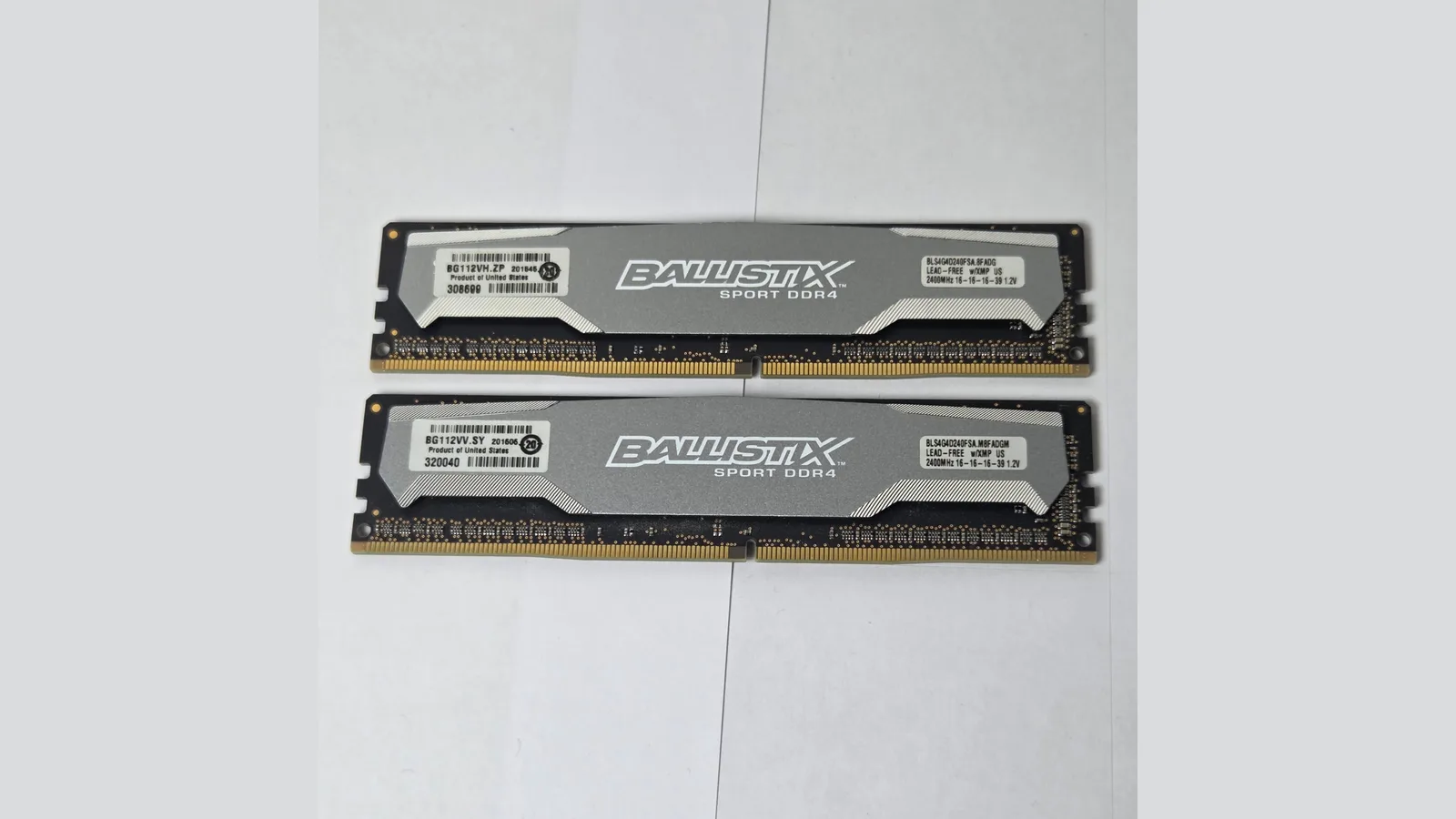
When the free checks do not help, the fault is usually physical. These are the parts a desk-side technician checks and, where needed, replaces. The module above is a desktop memory stick — faulty or loose RAM is one of the most common causes of random crashes and blue screens.
- Memory (RAM): faulty or loose RAM causes random crashes, blue screens and failures to boot; a technician tests, reseats or replaces it.
- Storage drive (SSD or hard disk): a failing drive brings slow loading, freezes, clicking noises and lost files — back up and replace it before it dies completely.
- Power supply (PSU): a failing power supply causes random shutdowns, or a PC that will not power on at all.
- Motherboard and connectors: swollen capacitors, a dead CMOS battery or loose connectors cause no-boot and unstable behaviour.
- Overheating: dust-clogged fans and dried thermal paste cause throttling and shutdowns under load; cleaning and re-pasting restore stability.
How to choose a desktop support provider in Singapore
Once you decide to outsource, the providers can look alike on a brochure. These are the points that separate a dependable desktop support partner from a lead-generation page.
- Clear response times (SLA): ask what 'same-day' or 'next-business-day' actually means on each plan, and what counts as an emergency.
- Remote and on-site, island-wide: you want both — remote first for speed, with on-site dispatch when a fault needs hands.
- Transparent, predictable pricing: a clear per-user monthly fee beats surprise hourly bills; ask whether prices are before or after GST.
- Security included, not extra: antivirus, firewall, patching and backups should be part of the plan, not a break-fix afterthought.
- A real warranty and local support: a workmanship warranty on repairs, and support in the languages your team actually uses.
IT desktop support jobs in Singapore
If you are searching for IT desktop support jobs in Singapore rather than a provider, it helps to know what the role involves — the same tiers that shape the service also shape the career. A desktop support engineer provides day-to-day end-user support: setting up devices, resolving everyday software and hardware issues, and escalating the hardest cases to senior staff.
- What the work is: first- and second-line support — Windows and Microsoft 365, basic networking, hardware swaps and new-user setup.
- The path: many start on an L1 helpdesk, move to L2 (on-site hardware and deeper troubleshooting), then into L3 specialist or systems roles.
- Skills employers look for: methodical troubleshooting, clear communication and customer service, Windows and Office know-how, and hands-on hardware experience.
- In-house or provider: you can work inside one company's IT team, or for a managed-services provider supporting many client sites across the island.
Pay varies with experience, certifications and employer, so check current job listings for up-to-date Singapore salary ranges rather than relying on a single figure.
How Esmond Service Centre handles business desktop and IT support
Esmond Service Centre has provided IT support across Singapore for 16+ years, serving SMEs, large enterprises and government-linked organisations island-wide. We respond same-day or the next business day on every plan: remote troubleshooting starts as soon as the request reaches the helpdesk, and a technician is dispatched on-site when a fault needs hands. Our managed packages are priced per user per month — Basic from S$15, Standard from S$35 and Premium 24×7 from S$59 (before GST) — and cover remote and on-site helpdesk, hardware repair, cybersecurity, and firewall and server management. Hardware repairs carried out under a support plan are covered by our standard 90-day workmanship warranty.
See our business IT support services for the full plans and what each one covers.

Esmond Service Centre's experienced technicians can diagnose and fix it fast — free diagnostics, repairs from $65.