

📑 On this page
If you're staring at a seven-year-old laptop or desktop wondering whether to pour money into it or start fresh, here's the honest answer from our repair bench: a seven-year-old computer is very often worth fixing — but in 2026 the deciding factor is no longer its age. It's whether the machine can run a supported, secure operating system. Get that one question right and the repair-or-replace decision almost makes itself.
Why 2026 changed the maths for an old PC
A seven-year-old Windows computer was almost certainly bought running Windows 10. That matters now because Windows 10 reached end of support on 14 October 2025. Microsoft is clear that these PCs "will no longer receive software and feature updates, security updates and fixes, or technical support," which leaves them "more vulnerable and susceptible to viruses and malware." The machine still switches on and still works — but every month it drifts further from safe.
The catch is that Windows 11 has a hard hardware floor, not just a speed recommendation. Microsoft requires a Trusted Platform Module (TPM) version 2.0, UEFI with Secure Boot, a compatible 64-bit processor, 4 GB of RAM and 64 GB of storage. Crucially, Microsoft's official supported-processor list starts at Intel's 8th-generation Core chips, which launched in late 2017 and 2018. A seven-year-old machine from around 2019 sits right on that line: some qualify for Windows 11 and many — especially budget models — do not. That single fact decides more repair-or-replace questions than anything else we see on the bench.
Check in two minutes whether your PC can run Windows 11
- First, run Microsoft's free PC Health Check app — it gives a straight yes or no.
- Then, open Settings > Windows Update and look for the "This PC meets Windows 11 requirements" message.
- Press Windows + R, type
tpm.mscand press Enter to see whether TPM 2.0 is present and enabled. - Finally, check your processor in Settings > System > About — an Intel 8th-gen or newer (model number starting 8, 9, 10, 11…) or an AMD Ryzen 2000-series or newer is a good sign.
The 50% rule — and why we bend it on the bench
The industry rule of thumb is simple: if a repair costs more than half the price of a comparable new machine, replacement is usually smarter; comfortably under half, and repair wins. It's a good starting point, but we treat it as a guide, not a law. On a well-built business laptop — a ThinkPad, a Latitude, a MacBook — the chassis, screen and keyboard are built to outlast the warranty, so a repair at 60% of replacement can still be the better buy. On a bargain laptop that was slow when it was new, even a 30% repair can be money poorly spent. The question isn't only "what does the fix cost," it's "what am I left with afterwards."
_256GB.jpg)
What actually fails at seven years — and whether it's worth fixing
After years on the bench, the faults we see on ageing machines are remarkably predictable, and most of them are cheap, bolt-in fixes rather than reasons to give up. Here's how we triage them.
| Common fault | Usually worth fixing? | Technician's note |
|---|---|---|
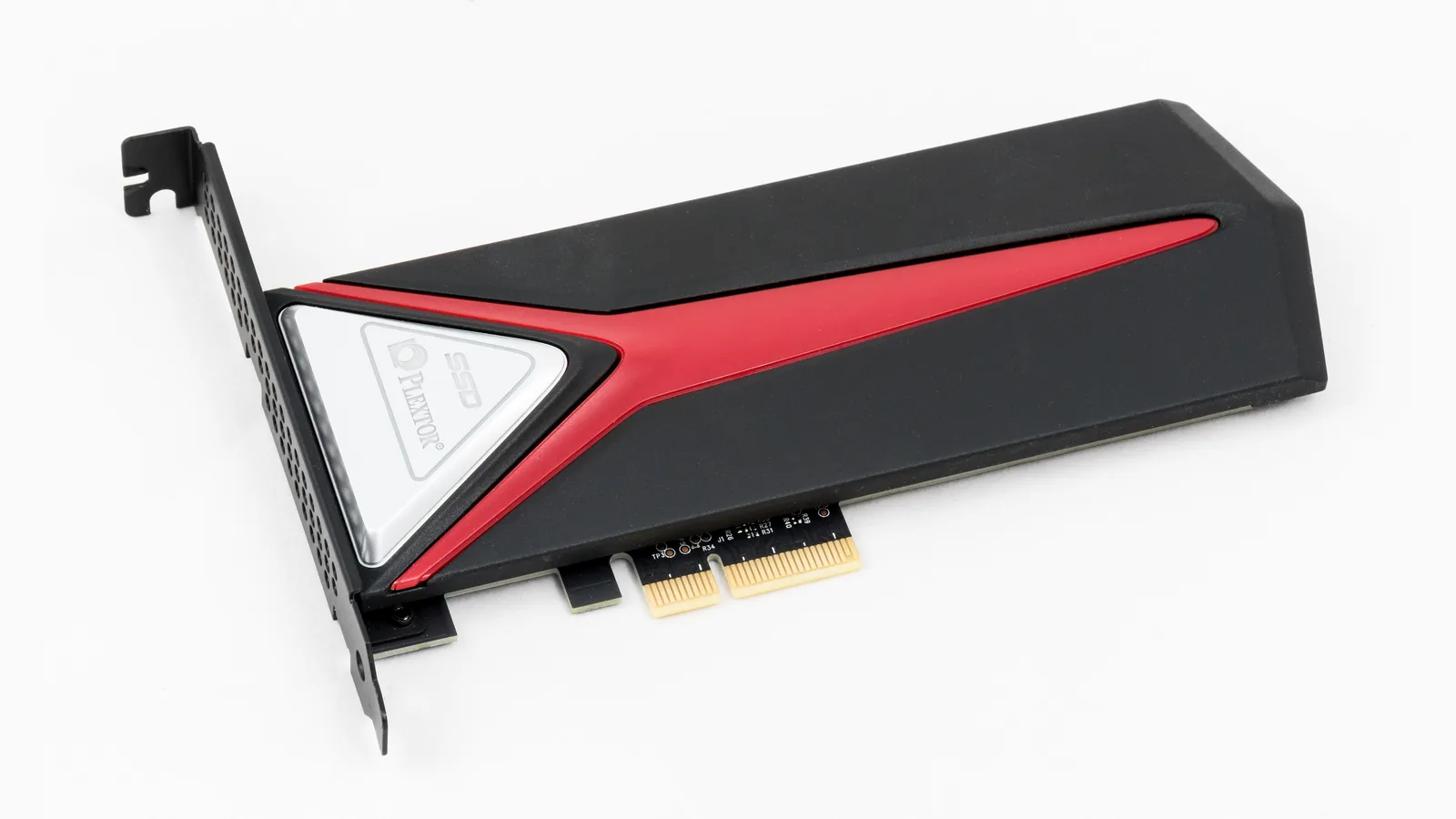
| Slow mechanical hard drive | Yes — our No.1 upgrade | Swapping a spinning hard disk for an SSD is the single change that most often makes a seven-year-old machine feel new again: boot and app-loading times collapse from minutes to seconds. |
| Weak or dead battery | Yes | A battery is a consumable. Apple, for example, rates modern MacBook batteries for about 1,000 charge cycles, after which they hold roughly 80% of original capacity. A worn battery means replace the battery, not the laptop. |
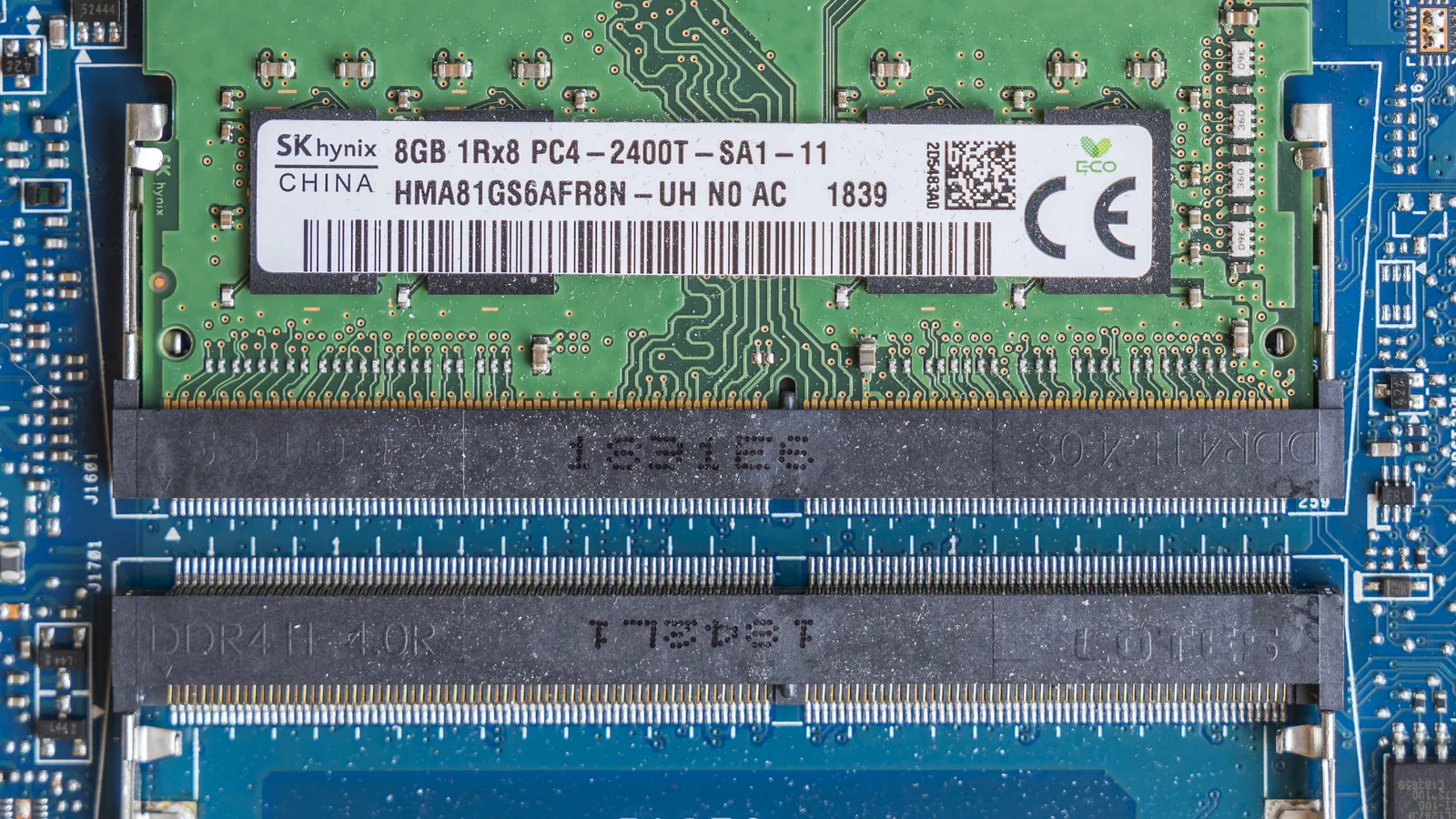
| Not enough RAM / constant freezing | Yes | Many 2018–2019 machines shipped with 4 GB. Going to 8 or 16 GB, where the board allows, transforms multitasking for a small outlay. |
| Cracked screen | Usually, if the CPU is Windows 11-capable | A screen is worth replacing on a machine with years of life left; less so on one that can't run a supported OS. |
| Failed fan / overheating / shutdowns | Yes | Fan replacement and a thermal re-paste are routine and restore stability and performance. |
| Liquid damage / no power / motherboard fault | Depends — needs diagnosis | This is where board-level repair matters: a failed component on the motherboard can often be fixed for far less than a new machine, but it must be assessed first. |
| Can't run Windows 11 AND needs major parts | Usually replace | When the OS dead-end and an expensive fault land together, replacement is normally the rational call. |

The three upgrades that make an old computer feel new
- Fit an SSD. If your machine still has a mechanical hard drive, this is the upgrade that delivers the biggest, most obvious leap — faster boot, faster apps, less waiting.
- Add RAM. More memory stops the constant disk-swapping that makes an old PC crawl the moment you open a few browser tabs.
- Replace the battery and do a clean OS install. A fresh battery restores portability; a clean install of a supported OS clears years of clutter and often feels like a new computer on its own.
The environmental case for repair
There's a bigger reason to think twice before binning a working machine. The UN's Global E-waste Monitor recorded a record 62 million tonnes of e-waste in 2022, of which less than a quarter — just 22.3% — was formally collected and recycled. Every machine kept in service for another two or three years is one fewer in that stream. A well-chosen repair is usually the greener choice as well as the cheaper one.
When it's genuinely time to replace
- The motherboard has failed and the machine cannot run Windows 11 — you'd be paying a lot to keep an unsupported OS alive.
- Several parts are failing at once, so one fix simply exposes the next.
- The realistic repair bill is more than about half the cost of a sensible replacement, on a machine you didn't love to begin with.
- Your needs have outgrown it — heavy video editing, modern gaming or large datasets ask more than a 2019 machine can give.
Is it worth fixing a 5-year-old computer?
Almost always yes. A five-year-old machine — roughly a 2021 model — is far more likely to carry an 8th-generation-or-newer processor with TPM 2.0, so it can usually move to Windows 11 and stay secure. With the operating-system question off the table, the decision comes down to the simple 50% rule, and an SSD, a RAM bump or a new battery will typically buy it several more comfortable years. The younger the machine, the more firmly repair wins.
One honest caution before you pick up a screwdriver: know what each fix will and will not do. An SSD or a RAM upgrade will fix a slow, laggy machine, but it won't fix a processor that can't run Windows 11 — only a compatible CPU and TPM 2.0 can do that. And doing the work yourself carries real risk: a slip can cause permanent damage, data loss, or void any remaining warranty. When in doubt, stop and bring it in — book a free diagnosis with the technicians at Esmond Service Centre before you spend a cent, and let a professional confirm what is actually worth doing.
How we approach repair-or-replace at Esmond Service Centre
Our first step is always diagnosis, not a sales pitch. We tell you honestly whether a machine is worth saving, because a repair that leaves you with a soon-to-be-obsolete computer helps nobody. Where a fault sits on the motherboard, our board-level repair capability means we can often fix the component itself rather than condemning the whole machine — the difference between a targeted repair and a full replacement. And we treat your data as the priority throughout, because for most people the files matter more than the hardware. If, after diagnosis, replacement really is the smarter call, we'll say so.

Esmond Service Centre's experienced technicians can diagnose and fix it fast — free diagnostics, repairs from $65.