

📑 On this page
It nearly always happens the same way. The laptop is on a bed or a sofa, someone walks past and catches the cable with a foot, and the plug takes the load sideways instead of straight out. There is a small crack, the charger stops holding, and a piece of metal is left behind in the port. On a Lenovo IdeaPad that port is the round socket on the side that Lenovo’s own specification sheet lists, without ceremony, as Power connector.
Almost every page written about this answers one question: how do I get it out. We opened three of the best-ranked before writing this one. Not one of them asks the question that actually decides what you will pay — whose pin is it? Two of the three offer metal tools without saying that the socket is a live pair while the adapter is connected. None mentions that many of these machines can be kept running on a different port while they wait for a part. This page starts with those three things.
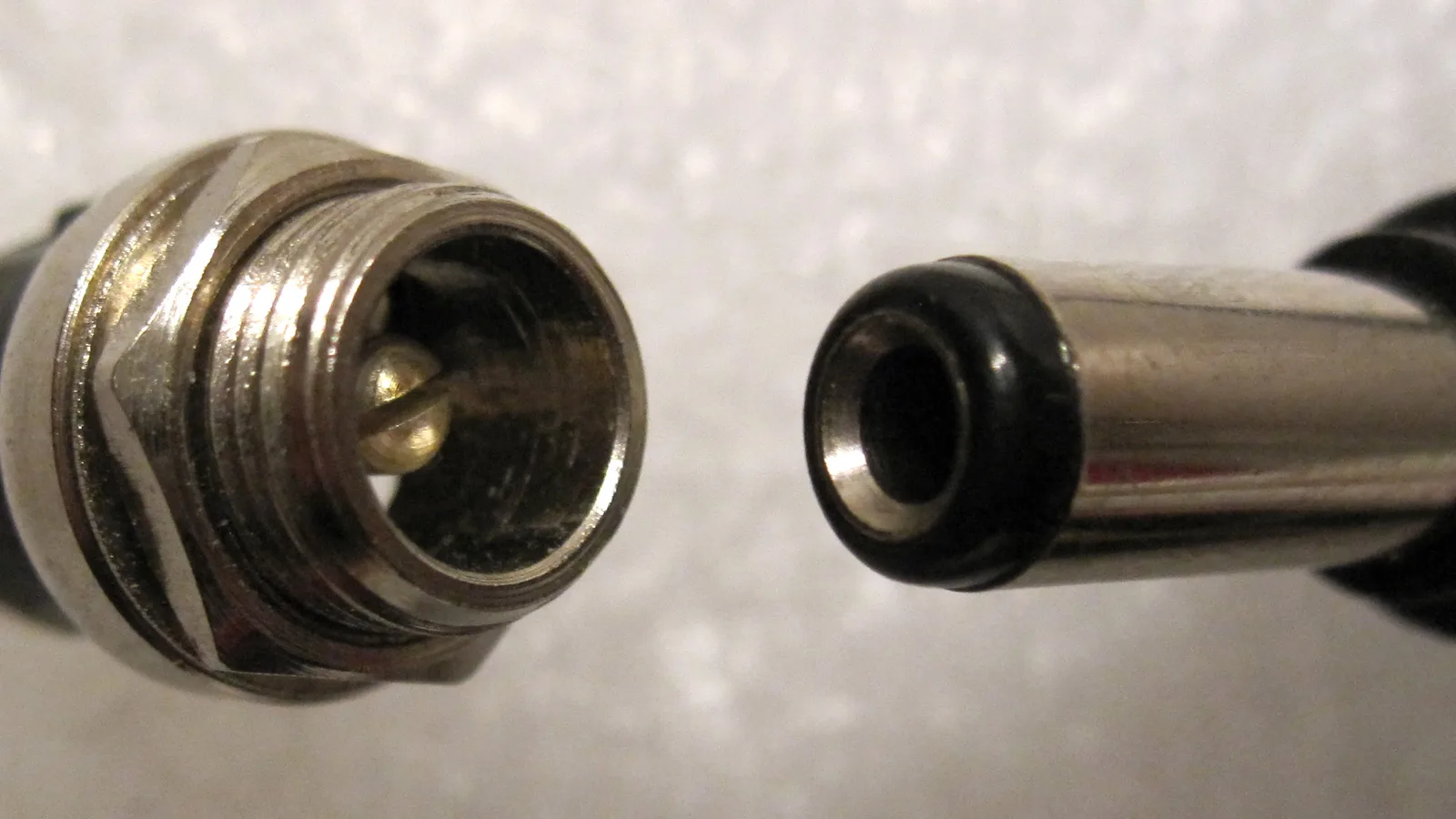

First: Whose Pin Actually Broke?
The picture above is the whole answer, and it is worth thirty seconds. The socket carries the pin. The plug is hollow. That is how this family of connectors works: the pin lives in the equipment, and the plug slides down over it. So when someone says “the charging pin snapped inside the port”, they are describing one of two quite different accidents, and the words do not distinguish them.
Unplug the charger, shut the laptop down, and put a torch on the port. You are looking for one thing only: is there a pin standing in the middle of the hole, or is the middle empty? That single observation splits the two cases and tells you roughly what you are in for.
| What the torch shows | What actually broke | What it needs |
|---|---|---|
| A pin still standing in the middle, with a loose metal ring or barrel around it | The charger’s plug. Its outer barrel has cracked off and stayed on your laptop’s pin | Extraction, then a replacement adapter. The laptop itself may be untouched |
| The middle is empty — a clean hole, no pin | Your laptop’s own centre pin. It usually leaves with the charger, sitting inside the plug | The DC-in socket is replaced. This is the from S$86 job |
| A pin that is there but visibly bent, leaning or pushed back | Neither has snapped yet — but the fit is already wrong | Stop using it. A bent pin is what breaks next, and it can arc in the meantime |
| Charred, browned or melted plastic around the opening | Heat has already been through the joint | ⛔ Stop charging it. This is a board-level inspection, not a plug problem |
Only the second row is a laptop repair in the ordinary sense. The first is often a charger problem wearing a laptop’s clothes — and it is worth knowing that before anyone opens the machine.
Why You Should Not Go In With Metal
The advice you will find everywhere is tweezers, needle-nose pliers, a small screw driven into the broken tip, or superglue on a stick. Those suggestions are not written by people who see what arrives afterwards. The socket is not a passive hole in the case: it is wired to the board’s power input, and its centre pin and outer sleeve are the two sides of a 20 volt supply. A pair of tweezers is a conductor. Bridge those two while the adapter is plugged in and you have put a dead short across the adapter’s output — right at the point where the charging circuit and its protection parts live.
- Tweezers and pliers — they are the right shape and the wrong material. Even with the power off, the jaws land on the pin and the sleeve, and the force that grips the fragment is the same force that bends the pin or lifts the socket’s solder pads off the board.
- A screw or drill bit driven into the fragment — this works on video because the video stops there. It also cuts a thread into the inside of your socket, which is the surface the new plug has to grip.
- Superglue on a stick — the failure mode is not that it does not stick. It is that it sticks to the socket as well, and glue inside a socket is not removable at any price.
- Compressed air or a vacuum — harmless, and worth one try before anything else. If the fragment is loose it may simply drop out.
If air does not shift it, stop. Nothing else you can do at home improves the outcome, and several of the options make the repair more expensive than it needed to be.
What That Centre Pin Actually Does
On Lenovo’s round barrel connector the centre pin is not simply the positive terminal. It is also a signal pin. The documented behaviour of this connector family is that the machine’s power controller “measures resistance between central signal pin and ground” and reads the adapter’s power class from it — a 65 W supply presents about 10 kΩ. That is why the same accident can produce symptoms that look nothing like each other.
| Lenovo round barrel, as documented | Figure |
|---|---|
| Outer diameter of the plug | 7.5 mm |
| Inner diameter | 5.55 mm |
| Diameter of the central pin | 0.8 mm — thinner than a paper-clip wire |
| What the machine reads from it | Resistance between the central signal pin and ground; 65 W ≈ 10 kΩ |
| What happens if it reads wrong | Documented firmware behaviour: “battery charges slowly, processors throttle to low speed” |
So “plugged in, not charging”, “it only charges if I hold the cable at an angle”, and “it charges but the laptop has become slow” are not three separate faults to be diagnosed separately. On a machine with a damaged centre pin they are three faces of the same one, and it is worth saying which of them you are seeing when you describe the problem to anyone.
.jpg)
Can You Keep Working While You Wait?
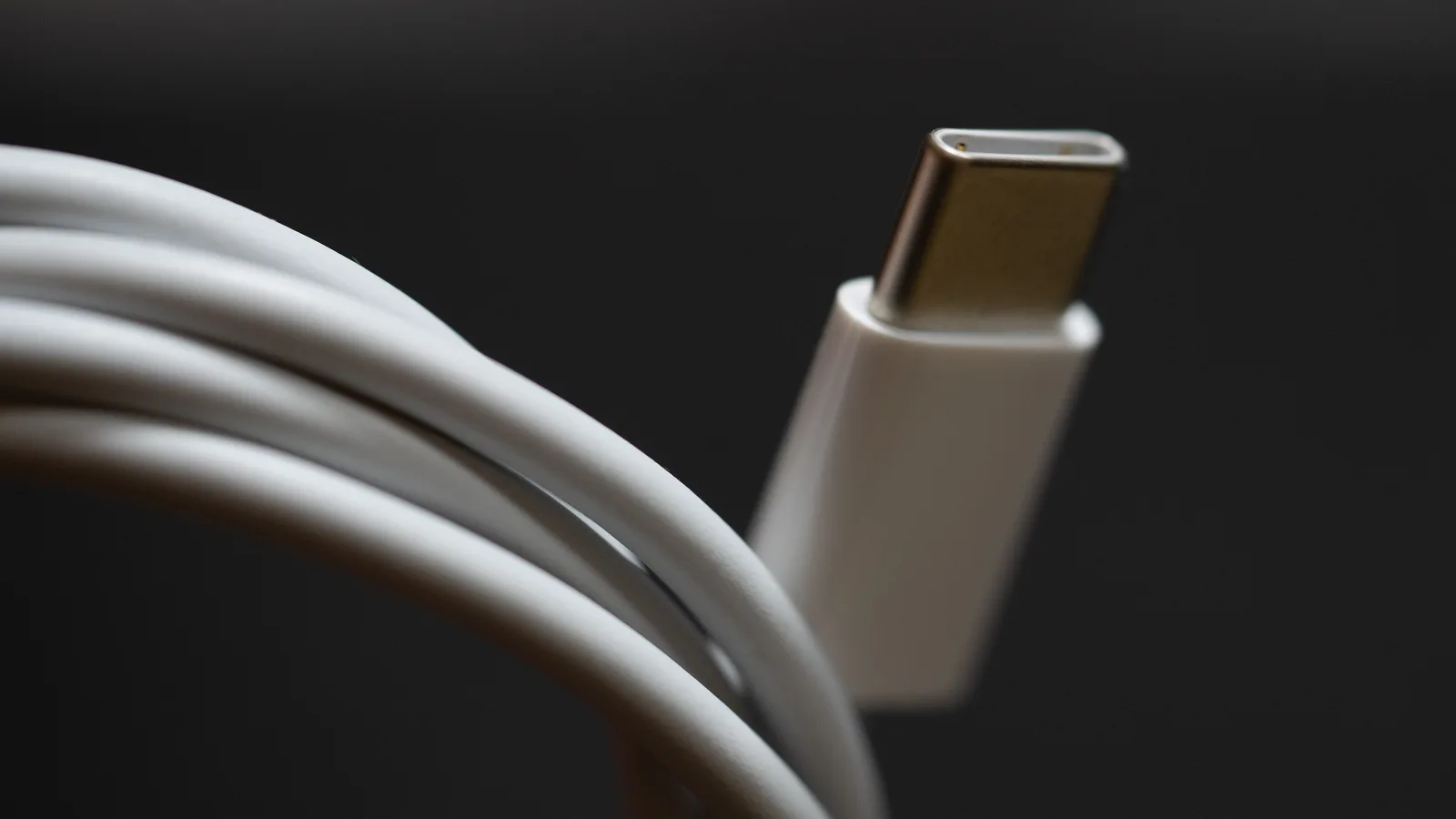
This is the question almost nobody answers, and for a lot of people it is the one that matters most: the machine still works, it just cannot be fed. Many current IdeaPads carry a USB-C port in addition to the round power connector. On the IdeaPad Slim 3 15IRH10, for instance, Lenovo’s own specification sheet lists port 1 as Power connector and port 4 as USB-C (USB 5Gbps), with USB PD 3.0 & DP 1.2. Where a model supports power over that port, it is a genuine way to keep going.
| What your USB-C charger can supply | What Lenovo says it will do |
|---|---|
| Less than 20 V, 2.25 A | Not enough — it will not charge |
| 20 V, 2.25 A to 20 V, 3.25 A | “Capable of charging the computer in sleep, hibernation, or powered-off state” |
| 20 V, 3.25 A and 20 V, 5 A | “Capable of charging the computer” — 20 V × 3.25 A is 65 W, exactly the rating of the adapter that came with the Slim 3 |
| Lenovo’s own caveat | “The… USB-C port is not designed as the primary power input port”; use the supplied adapter whenever you can |
⚠️ Two honest limits. First, this varies by model — some IdeaPads have a USB-C port that carries data and display only, and plugging a charger into it will do nothing at all. The wording above is Lenovo’s own, published for a machine that does support power input; the per-model answer is on your model’s spec sheet, and the next section shows you where. Second, a phone charger is not enough. The bar is 20 V, and most small chargers stop well below it.
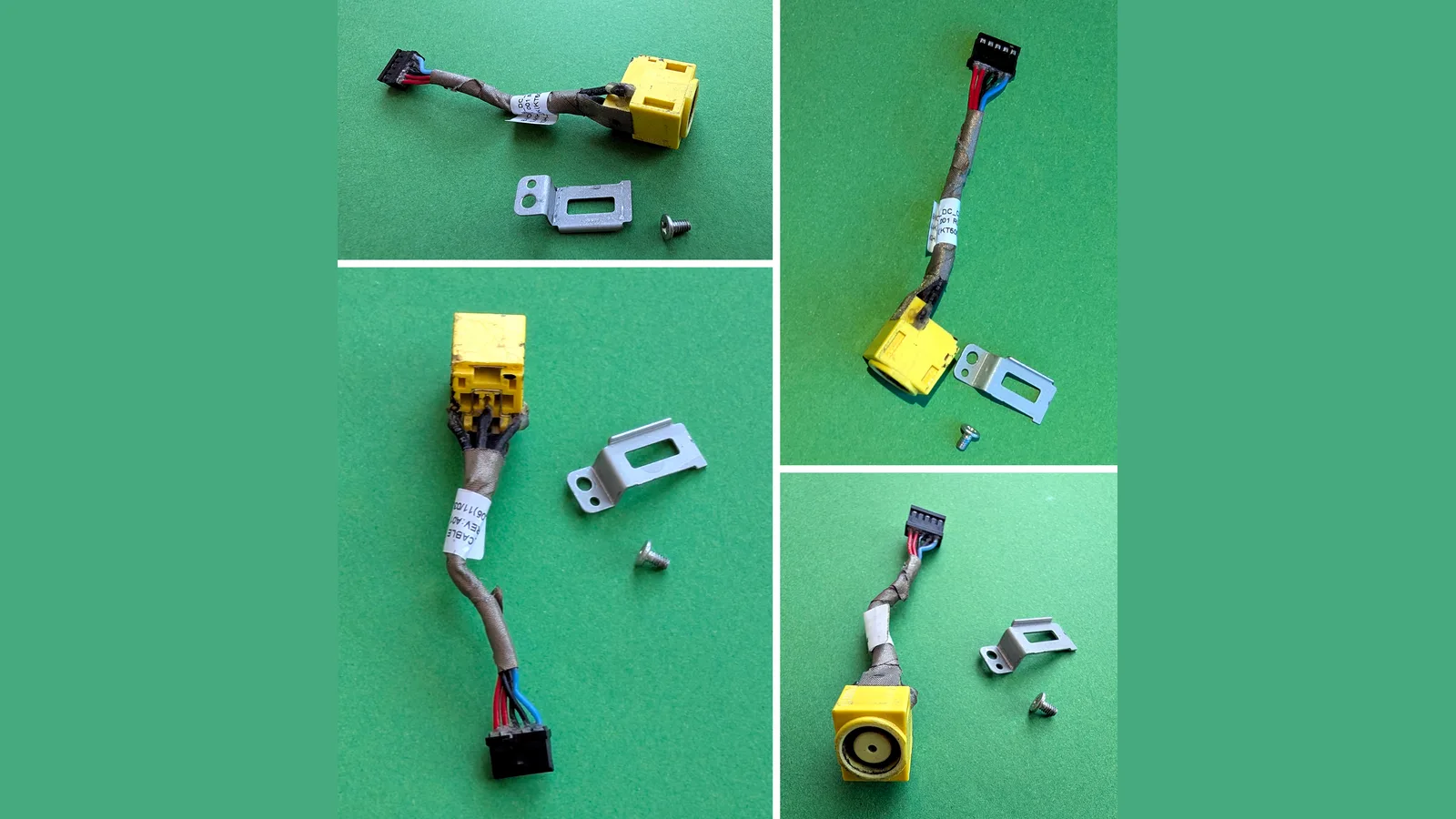

What the Repair Involves, and What It Costs
The part in the photograph above is the thing that gets replaced, and it explains why the time varies so much. On many machines the socket is modular: a moulded jack on a short harness, held by a bracket and one screw, that unplugs from the board. On others the socket is soldered directly to the motherboard, and replacing it means removing the board and desoldering (melting a part off the board) a part that is anchored by heavy power pads.
| At Esmond Service Centre | Time | From |
|---|---|---|
| Charging diagnosis | Walk in, no appointment | Free |
| Charging port replacement | 2 – 3 hours | S$86 |
| Motherboard charging IC repair — when the damage reached the board | 3 – 5 working days* | S$158 |
*The honest version of “how long” has three answers, not one, and which one applies depends on your machine rather than on how busy we are. If the socket is modular and we hold the part, it is 1 to 2 hours. If it is soldered to the motherboard, it is 3 to 5 working days. If the part has to be ordered, add 7 to 14 working days for it to arrive. We would rather tell you all three up front than quote the shortest and call you later.
⛔ What a new socket will not do. Replacing the port fixes the port. It will not fix a board that has already been damaged by heat or by a short — scorch damage around the power input cannot be repaired by changing the socket, and that is the case the charging-IC (a chip on the board) line above exists for. It is also why the browned-plastic row in the first table says stop rather than continue.
Esmond Service Centre services Lenovo machines as an independent repairer. Repairs and parts carry our standard 90-day workmanship warranty, and the diagnosis is genuinely free — you are told which of the two faults you have, and what it would cost, before you decide anything.
How to Check Your Own Model in Two Minutes
Everything above turns on one thing: which ports your particular machine has. Lenovo publishes that per model, and it takes about two minutes to read.
- Find the exact model string — not “IdeaPad 3” but the full type, like IdeaPad Slim 3 15IRH10. It is on the sticker underneath, and it is also in Windows under System Information as the system model.
- Look that string up in Lenovo’s own PSREF product specification reference. Each model has a one-page OVERVIEW that numbers every port around the machine.
- Read the port list. If it names a Power connector, you have the round socket this page is about. If the USB-C entry also says USB PD, that port is a candidate for power input.
- Check the Power Adapter line on the same sheet for the wattage — on the Slim 3 above it reads 65W round tip (3-pin) AC adapter, 100-240V, 50-60Hz. Match or exceed that when you borrow a USB-C charger.
If reading a spec sheet is not how you want to spend your evening, bring the laptop in. Identifying the socket is part of the free diagnosis, and it takes us about a minute.
When It Is the Charger, Not the Laptop
If the torch showed a pin still standing, the laptop may be fine and the cost is a new adapter. Before you buy one, three things are worth checking — a wrong replacement is the most common way this fault comes back a second time.
- The wattage must match or exceed the original. An undersized adapter is not merely slow: the machine reads its class from the centre pin and will throttle itself accordingly.
- The tip must be the right family, not merely the right diameter. Lenovo has used round barrel, rectangular slim tip and USB-C across its ranges; a tip that goes in is not proof of a tip that fits.
- Look at the old plug before you throw it away. If your laptop’s centre pin is sitting inside it, that is your confirmation of which fault you have — and it is worth bringing that plug with you.
- If it charges only at an angle, stop using it. A joint that works intermittently is arcing, and arcing is how the brown plastic in the fourth row of the first table happens.
And if the plug you are holding has your laptop’s pin inside it, keep it. It is the fastest way for anyone at a bench to confirm the diagnosis without opening the machine at all.
What We Do at the Bench
So that you know what you are paying for, this is the order the work actually happens in. Nothing here needs your decision until step four.
- Look before touching. Under magnification, with the battery isolated, we establish which of the two faults it is — and whether there is any discolouration around the socket, because that changes the answer entirely.
- Extract mechanically, not by force. The fragment comes out along the axis it went in, with non-conductive tooling shaped to the barrel. If it will not come out cleanly, the socket is coming out anyway and there is no reason to fight it.
- Test the socket, not just the fit. A socket that accepts a plug is not a socket that is sound. We check continuity and that the machine reads the adapter’s class correctly — that is the centre-pin signal described above, and it is what separates “it charges” from “it charges properly”.
- Quote, then wait. You are told which fault, which repair, which of the three timings applies to your machine, and the price, before anything is replaced.
- Replace, then run it. A charging repair is not finished when the part is in. It is finished when the machine has charged from low to full without the fault reappearing.

Bring It In — the Diagnosis Is Free
You do not need an appointment and you do not need to know which fault you have — that is what the free diagnosis is for. Bring the laptop and, if you still have it, the broken plug. We will tell you which of the two it is, what it costs, and which of the three timings applies, before you decide anything.
Esmond Service Centre's experienced technicians can diagnose and fix it fast — free diagnostics, repairs from $65.