


📑 On this page
What end-user IT support services are
End-user IT support — also called the service desk or help desk — is the function that helps the people who use technology, your employees, rather than the servers in a cupboard. It covers their devices, accounts, email and applications, and the day-to-day problems that stop them working. Microsoft describes modern endpoint management as covering the full lifecycle of a managed device and the apps that run on it: enrolling, configuring, securing and updating each device. That is the backbone of supporting a fleet of staff laptops and phones. In our Singapore workshop the end-user problems we see most are logins and password lockouts, a slow laptop, no Wi-Fi, email that will not sync — and the hardware ones: a swollen battery, a failed SSD, a cracked screen, liquid damage.
The support tiers: L1, L2 and L3 (and beyond)
IT support is organised in tiers so each problem reaches the right level of expertise. This layering is built into the ITIL service-management framework, which calls moving a ticket to a more skilled team 'functional escalation'. Most issues start at the bottom and only climb when they genuinely need to — which keeps cost and downtime low.
| Tier | What it handles | Typical example | Who resolves it |
|---|---|---|---|
| Tier 0 — self-service | User-driven fixes via guides and knowledge bases | Reset a password, follow a how-to | The user, before any ticket |
| Tier 1 — service desk | First contact, common requests, basic troubleshooting | Password reset, software install, dropped Wi-Fi | Help-desk agents |
| Tier 2 — technical | Deeper troubleshooting and configuration | Network config, application faults, email/M365 | Experienced technicians |
| Tier 3 — expert | Complex, system-level and hardware failures | Server failure, board-level repair, data recovery | Specialists and the repair workshop |
| Tier 4 — vendor | Support that sits outside your organisation | Manufacturer warranty, parts, software vendor | External vendor |
Industry figures show how much the lower tiers carry. A self-service (Tier 0) layer can deflect 30–40% of incoming tickets, and a Tier 1 service desk typically resolves 70–80% of all tickets — often in 5–15 minutes — while Tier 2 issues run to hours or days and Tier 3 to days or weeks. For a Singapore SME that means most lost time is won back at the cheapest tiers, provided the self-help and the service desk are set up well.
What end-user IT support typically covers
- Devices and endpoint management: enrolling, configuring, securing and updating staff laptops, desktops and phones. Microsoft's Intune is a common tool here, managing either the whole device (mobile device management) or just the work apps and their data (mobile application management) on a personal device.
- Identity and access: user accounts, sign-in, password resets, single sign-on and multifactor authentication — often on Microsoft Entra, which also checks a device's health before it reaches company data.
- Email and productivity apps: Microsoft 365 or Google Workspace setup, mailboxes, shared drives and collaboration tools such as Teams.
- Security basics: anti-malware, patching, firewall and conditional access, so an unhealthy or unknown device is kept away from company data.
- Backup and data: making sure staff files are backed up, and recovering them when a drive fails.
- Hardware support: the physical repairs a remote helpdesk cannot do — batteries, screens, keyboards, storage and logic boards.
A first-response runbook before you log a ticket
Many everyday end-user problems clear with a few safe checks. Hand this to your staff — none of these can harm a device, and together they resolve a large share of the tickets a service desk would otherwise handle. Work through them in order.
- Restart the device. A proper restart clears stalled sessions, stuck updates and most 'it froze' problems — the single fastest fix.
- Check the basics of the connection. For no internet, toggle Wi-Fi off and on, forget and rejoin the network, and test another site or device to tell whether it is your machine or the network.
- Confirm you are signed in. For email or app errors, sign out and back in; a password changed on one device often locks the others until you re-enter it.
- Install pending updates, then restart again. Many faults are already fixed in an update that is waiting to install.
- Close and reopen the app. If one app misbehaves while everything else is fine, the problem is usually that app, not the whole machine.
- Write down exactly what you see. Note the error text, when it started and what changed before you log the ticket, so the service desk can help on the first reply.
Know the limit before you push further. This will not fix a physical fault — a swollen battery, a failed SSD, a cracked screen, liquid damage or a dead logic board (the main board — Apple's name for the motherboard). If this does not work, stop. Forcing a device that is physically failing — charging a swollen battery, drying and reusing a liquid-damaged laptop, or running a dying drive — risks permanent damage, data loss, and can void the warranty. A hardware fault needs a workshop, not another restart.

When an end-user problem is really a hardware fault
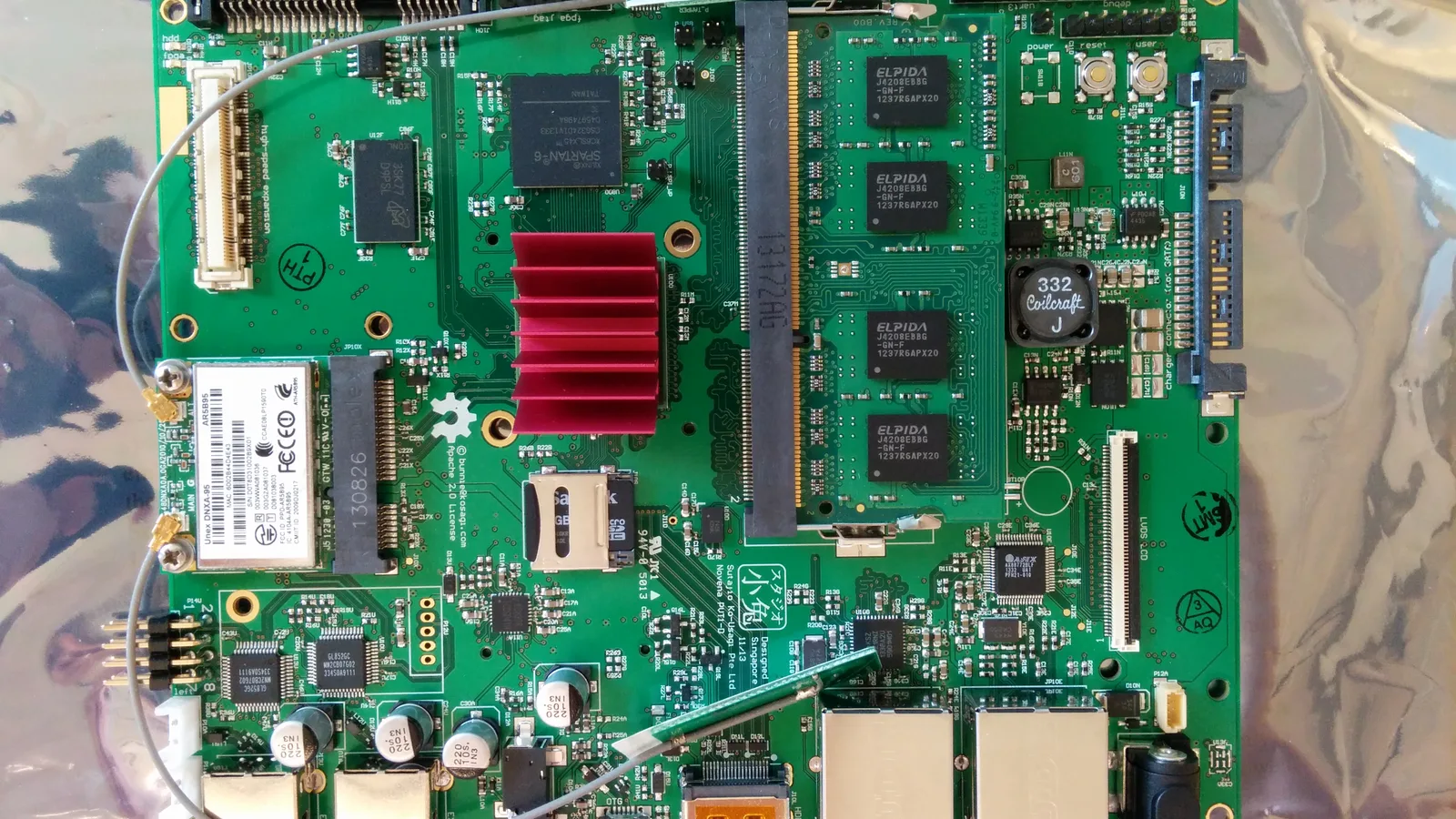
Sometimes the self-checks are done and the device still fails. Then the fault is usually physical — inside the machine, like the laptop circuit board above. A battery that no longer holds charge or has swollen, storage that has failed, a screen with lines or no image, a port that no longer charges: none of these is a setting, and none will be fixed from a helpdesk screen-share.
- Swollen or failing battery: the laptop runs only on mains, shuts down suddenly, or the trackpad or case bulges. Stop using it — a swollen battery is a safety risk.
- Storage failure: files disappear, the device will not boot, or it is suddenly very slow with disk errors. Back up now if you still can.
- Screen or cable fault: lines, flicker, dark patches, or an image only at certain hinge angles.
- Power and charging: no charge, intermittent charge, or a hot or physically damaged charging port.
- Liquid or impact damage: any spill or drop followed by odd behaviour; this kind of damage can spread for days.
When to stop and bring it in
When to stop and bring it in: if the free checks above do not help, if the device shows any of the hardware signs, or if there is any chance of data you cannot lose, stop and seek professional help. Continuing to use a physically failing device is how a recoverable problem becomes an unrecoverable one. For a business the question is simple — is the hour your staff lose, and the risk to their data, worth more than a proper diagnosis? It almost always is.

In our Singapore workshop
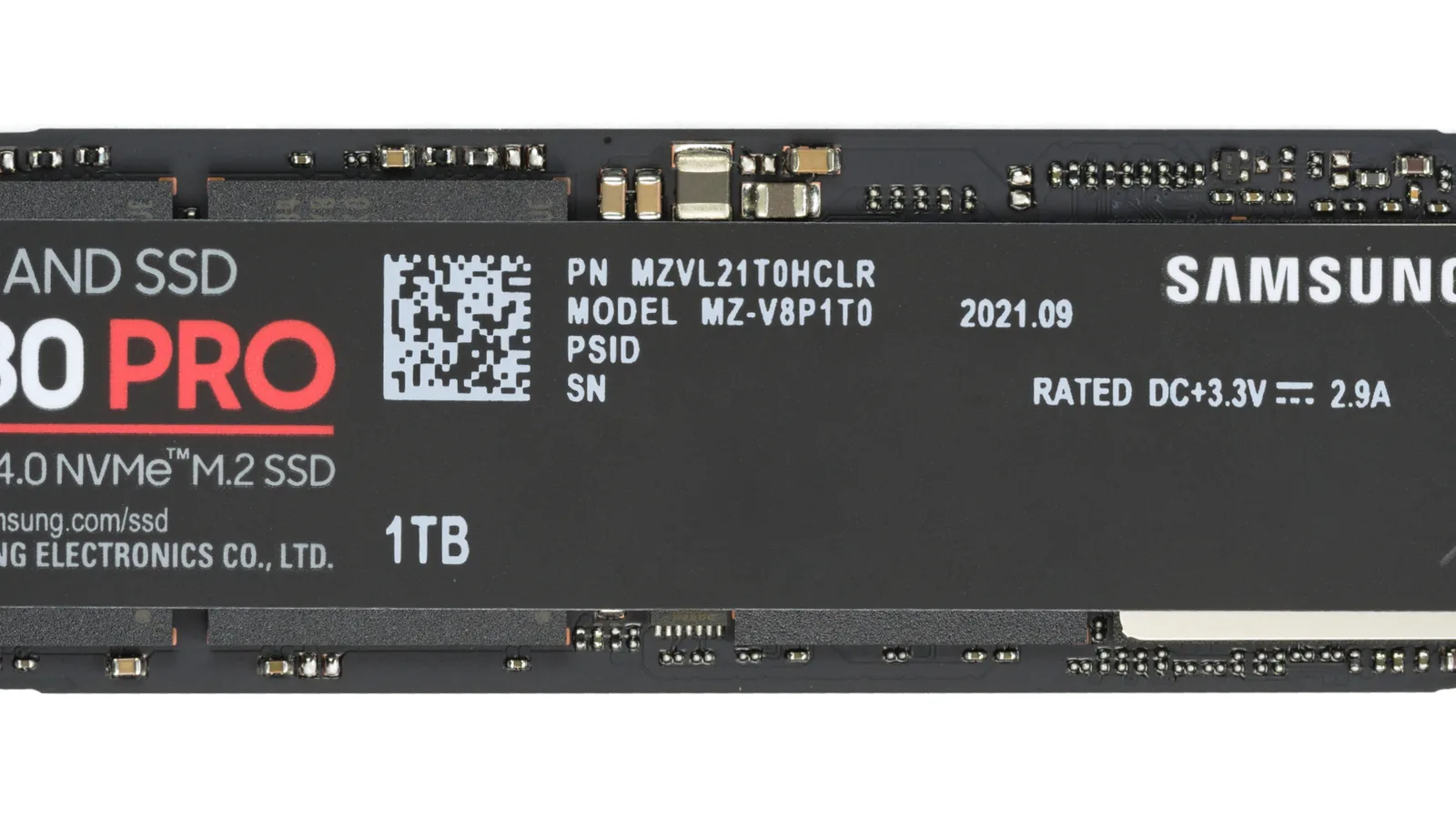
When an end-user device reaches our bench in Singapore, we do not guess. We confirm the symptom, separate software from hardware, and test the suspect part — a battery's health, a drive's SMART data, a screen on a known-good cable — before any part is ordered. The component above is the kind of part we replace when a laptop's storage or memory is the fault. We protect the data first: where a drive is failing, recovery comes before any repair that could overwrite it.
- Diagnose first: we reproduce the fault and rule out settings and software before touching hardware, so we never replace a part a setting would have fixed.
- Protect the data: if storage is involved, we attempt data recovery before a repair that could erase it.
- Repair at the right level: a battery, screen or keyboard is a part swap; a charging port or graphics fault is board-level work, scoped before parts are ordered.
- Honest scoping: we diagnose before quoting, because the real cost depends on what we find.
Choosing an end-user IT support partner in Singapore
Most Singapore IT-support pages read as sales pages. They list 'helpdesk', '24/7' and 'remote support' but never explain the tiers, never give your staff a single self-help step, and never say what happens when a laptop physically fails. When you compare providers, look past the brochure.
- Clear tiers and escalation: ask how a ticket moves from the service desk to a specialist, and who handles the hardware.
- Real hardware capability: many managed-IT firms can only remote in — ask whether they can actually repair a device or only send it away.
- Response you can hold them to: a stated response time, not just the word 'fast'.
- Language and locality: support your staff can actually use, on the ground in Singapore.
- Data protection: a clear answer on backups and recovery before anything is wiped.
At Esmond Service Centre we cover both sides end users need: a managed IT service desk for the everyday problems, and an in-house repair workshop for the hardware a remote team cannot touch — so a ticket that turns out to be a failed drive does not have to be sent to a third party. Our business IT support plans are priced per user per month; the current tiers and what each includes are on our business IT support services page.
Keeping end-user IT running
- Give staff the first-response runbook above, so the easy fixes never become tickets.
- Keep devices updated and backed up — most data-loss emergencies are a backup that was never set up.
- Replace ageing batteries and drives before they fail, not after.
- Protect devices from liquids and drops; most hardware emergencies we see are avoidable.
- Keep a simple inventory of who has what, so support and warranty claims are faster.

Esmond Service Centre's experienced technicians can diagnose and fix it fast — free diagnostics, repairs from $65.