

📑 On this page
Why your screen is flickering
Walk-in and WhatsApp customers in Singapore ask us a version of the same question: how do I turn off screen flickering? It is one of the more hopeful faults we see, because far more often than people fear, nothing is broken — a driver, a setting or an app is the cause, and those cost nothing to put right. This guide is written from those repairs. It covers the free fixes to try first on a Windows laptop, a Mac and a phone, how to tell software flicker from a hardware fault, and the smaller number of cases where the flicker really is the screen, the cable or the graphics chip.
First, find out what is flickering
A flickering screen has two very different causes, and they need completely different answers. Before you touch a setting, run these quick tests to place your own case. None of them can harm the device.
- Task Manager test (Windows): press Ctrl + Alt + Delete, or Ctrl + Shift + Esc, to open Task Manager. If it flickers along with the rest of the screen, a display driver is the likely cause; if Task Manager stays steady while everything else flickers, an incompatible app is.
- External-monitor test (laptop): plug in a known-good monitor. If the external screen is steady while the built-in one flickers, the fault is in the laptop's own panel or its display cable; if the external monitor flickers too, it is the driver or the graphics chip.
- Safe-mode test (phone): restart the phone in safe mode. If the flicker stops there, a downloaded app is the cause; if it continues, it is a system setting or the hardware.
- Brightness test (phone): turn off adaptive or automatic brightness. A display that keeps dimming and brightening is often an ambient-light-sensor or auto-brightness issue, not a broken screen.
How to turn off screen flickering on a Windows laptop
On Windows, flickering is usually a display driver or an incompatible app, and Microsoft's own troubleshooting points to exactly those two. Work through these in order — none can harm the laptop, and together they clear most software flicker.
- Reset the graphics driver. Press Windows logo key + Ctrl + Shift + B. The screen flashes as the driver resets; this alone clears a stalled graphics state.
- Run the Task Manager test. Press Ctrl + Alt + Delete and open Task Manager. If it flickers too, treat it as a driver problem (next step); if it does not, an app is the cause (step 5).
- Update, roll back or uninstall the display driver. Open Device Manager, expand Display adapters, right-click your adapter and choose Properties > Driver. Use Roll Back Driver if the flicker started after an update; otherwise Update driver, or Uninstall device and restart to let Windows reinstall it.
- Set the correct refresh rate. Go to Settings > System > Display > Advanced display and choose the refresh rate your screen is rated for. A rate the panel cannot hold can make it flicker.
- Remove an incompatible app. Some apps are not compatible with Windows and cause a flickering or scrambled screen. Update your apps, or uninstall recently added ones one at a time until the flicker stops.
If none of these turn off the flicker, stop. This will not fix a failing panel, a loose or worn display cable, or a graphics-chip fault — those are hardware, and no driver or setting will cure them. If this does not work and the flicker also shows on an external monitor, the fault is inside the laptop and needs a workshop.
How to turn off screen flickering on a Mac
Apple's guidance focuses on the refresh rate and on Adaptive Sync. A refresh rate that is too low can make the screen appear to flicker, and Adaptive Sync (variable refresh rate) can produce a flickering effect outside gaming and video. Try these in order.
- Restart first. A restart clears a stalled graphics state and is the fastest thing to rule out.
- Set the right refresh rate. Open the Apple menu > System Settings > Displays and choose the refresh rate from the Refresh Rate pop-up menu. If the rate is too low, the screen may flicker; too high and it may go black.
- Turn off variable refresh rate on an external display. If an external monitor flickers with Adaptive Sync on, turn off variable refresh rate — Apple notes it can flicker outside gaming and video.
- Install macOS updates. These include display and firmware fixes, and they can resolve flicker that arrived after an earlier update.
- Test a clean profile or Safe Mode. If the screen is steady in a new user account or Safe Mode, the cause is an app or setting, not the display.
Phone screen flickering: what to try
On a phone, most flicker is software — a glitch after an update, an auto-brightness loop, or a third-party app — and it is free to turn off. Hardware flicker usually follows a drop, a bend or a spill.
- Restart or force-restart. Hold the power and volume-down buttons together for about 10 to 15 seconds to clear a software glitch.
- Turn off adaptive brightness. A screen that keeps dimming and brightening is often the ambient-light sensor or auto-brightness, not a fault.
- Install the latest software update. Updates fix display bugs introduced by earlier versions.
- Boot into safe mode. If the flicker stops with downloaded apps disabled, remove the app you added most recently.
- Do not press hard on the screen. If the flicker followed a drop and pressing the edges changes it, the display or its flex cable (the thin ribbon cable inside) is damaged inside — that is a repair, not a setting.
Software or hardware? A quick comparison
Use this table to place what you see. Match the symptom to the likely cause, whether it is software or hardware, whether it is safe to try yourself, and the usual next step. It is a starting point, not a diagnosis.
| What you see | Likely cause | Software or hardware | Safe to try yourself? | Typical next step |
|---|---|---|---|---|
| Flicker everywhere, Task Manager flickers too | Display driver | Software | Yes — reset/roll back driver | None, or a driver fix |
| Screen flickers but Task Manager is steady | Incompatible app | Software | Yes — update/uninstall the app | None — an app change |
| Flicker only at certain refresh rates | Wrong refresh rate / Adaptive Sync | Software | Yes — set rated rate, turn off VRR | None — a setting |
| Phone dims and brightens on its own | Auto / adaptive brightness | Software | Yes — turn off adaptive brightness | None — a setting |
| Coloured lines or bands, flicker on external monitor too | Graphics chip | Hardware | No | Board-level diagnosis |
| Flicker changes when you flex the lid or after a drop | Display cable or panel | Hardware | No | Screen or cable repair |

When flickering is the screen or its backlight
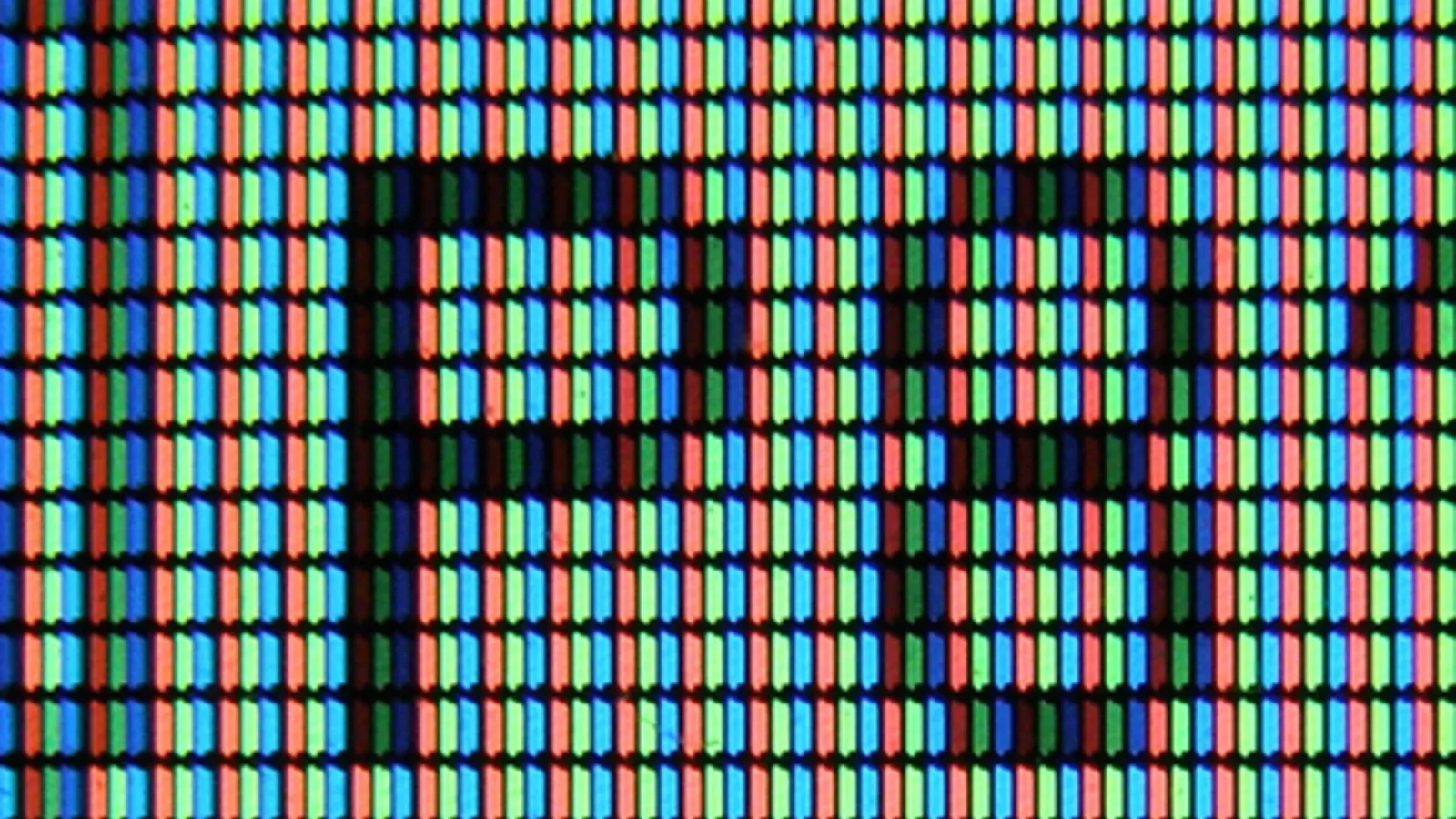
Sometimes the driver is fine, the app is gone and the refresh rate is right, and the screen still flickers. Then the fault is usually the display itself. The close-up above is the inside of an LCD panel — the layers of cells and backlight that create the picture and, when they begin to fail, make it flicker, dim or flash. A built-in screen that flickers while an external monitor stays perfectly steady tells you the fault is here, in the panel, not in the computer.
- Failing backlight or panel: flicker that comes with dimming, uneven brightness or a flash at certain angles points to the panel or its backlight.
- Worse at low brightness: some backlights flicker most when dimmed, as the circuit that drives them wears.
- External-monitor test: steady on an external screen but flickering on the built-in one confirms the built-in panel or its cable, not the graphics.

When it is the display cable
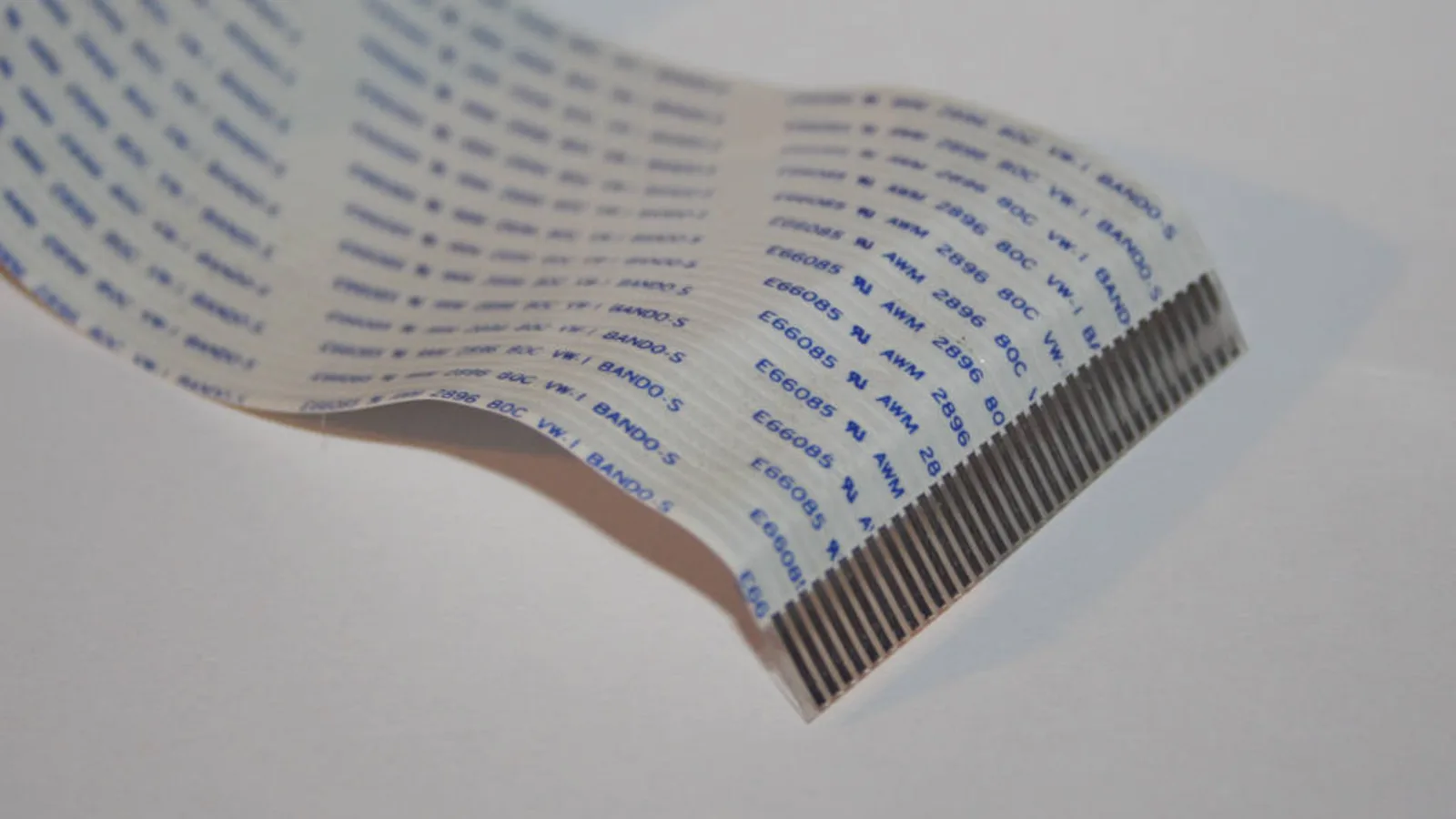
A flickering screen that changes as you open or close the lid is a classic display-cable fault. The picture travels from the main board to the screen along a thin ribbon cable like the one above, which bends every time the lid moves. Over years that cable can wear where it flexes at the hinge, so the signal drops in and out and the screen flickers, flashes or cuts to black at certain angles.
- Angle-dependent flicker: flicker that comes and goes as you move the lid is the cable, not the panel.
- After a drop or a spill: impact or liquid can loosen or corrode the cable's connector, causing an intermittent flicker.
- Do not keep forcing it: opening and closing the lid to reproduce the flicker only wears the cable faster.
When to stop and bring it in
When to stop and seek professional help: if the free fixes above do not turn off the flicker, or the flicker shows coloured lines, follows a drop or spill, changes with the lid angle, or appears on an external monitor too, stop trying. Prying open a laptop or a phone to reach the panel or cable without the right tools risks permanent damage to the display, can cause data loss if the board is disturbed, and can void the warranty on a device still covered. A screen or cable repair done wrong is far more expensive than the original fault. At that point it is cheaper and safer to let a technician diagnose it.
What we do in the workshop
When a flickering device reaches our bench in Singapore, we do not guess. We confirm the driver, the refresh rate and the app list first, test with a known-good external monitor, flex the lid to expose a worn display cable, and run the device in a clean boot or recovery mode to separate software from hardware — before any part is ordered.
- Software first: we confirm the driver, refresh rate and apps, so we never replace a part a setting would have fixed.
- Display-path testing: an external monitor, then the panel, backlight and the display cable at the hinge.
- Board-level work: where the graphics chip or a cable connector is the fault, that is a main-board repair, diagnosed before any screen is ordered.
- Honest scoping: we diagnose the real cause first rather than quote for the wrong part.
Keeping the flicker from coming back
- Keep the display driver and the operating system updated — most software flicker is a driver or OS bug that an update fixes.
- Leave the refresh rate at the value your screen is rated for.
- On a phone, leave adaptive brightness on only if it behaves; turn it off if the screen hunts up and down.
- Open and close a laptop lid gently and avoid over-flexing the hinge, where the display cable runs.
- Keep liquids away from the keyboard and screen; a spill is a common cause of flicker that spreads.

Esmond Service Centre's experienced technicians can diagnose and fix it fast — free diagnostics, repairs from $65.