
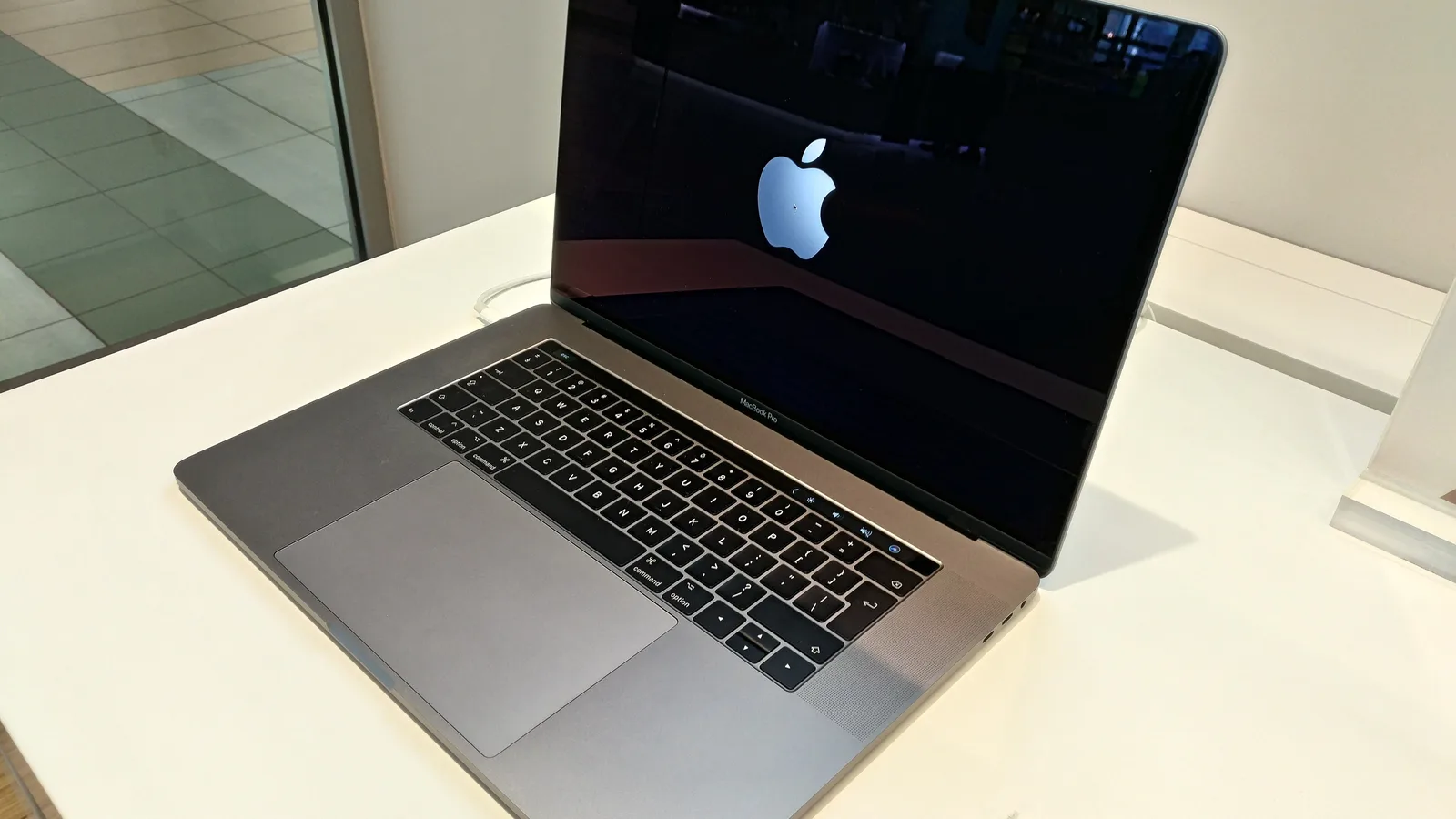
_Touch_Bar.jpg)
📑 On this page
A Touch Bar that flickers, strobes, shows a band of white or green, or blinks and goes dark is one of the more unsettling faults on a MacBook Pro, because the strip sits right where your eye rests while you type. It is also one of the few faults where the internet's standard advice is not merely unhelpful — it is aimed at a machine you may not own.
When a customer messages Esmond Service Centre about a MacBook problem of this shape — a strip or a panel behaving oddly rather than a machine that will not start — the first question at the counter is never “what have you tried?” It is “which MacBook Pro is it?”
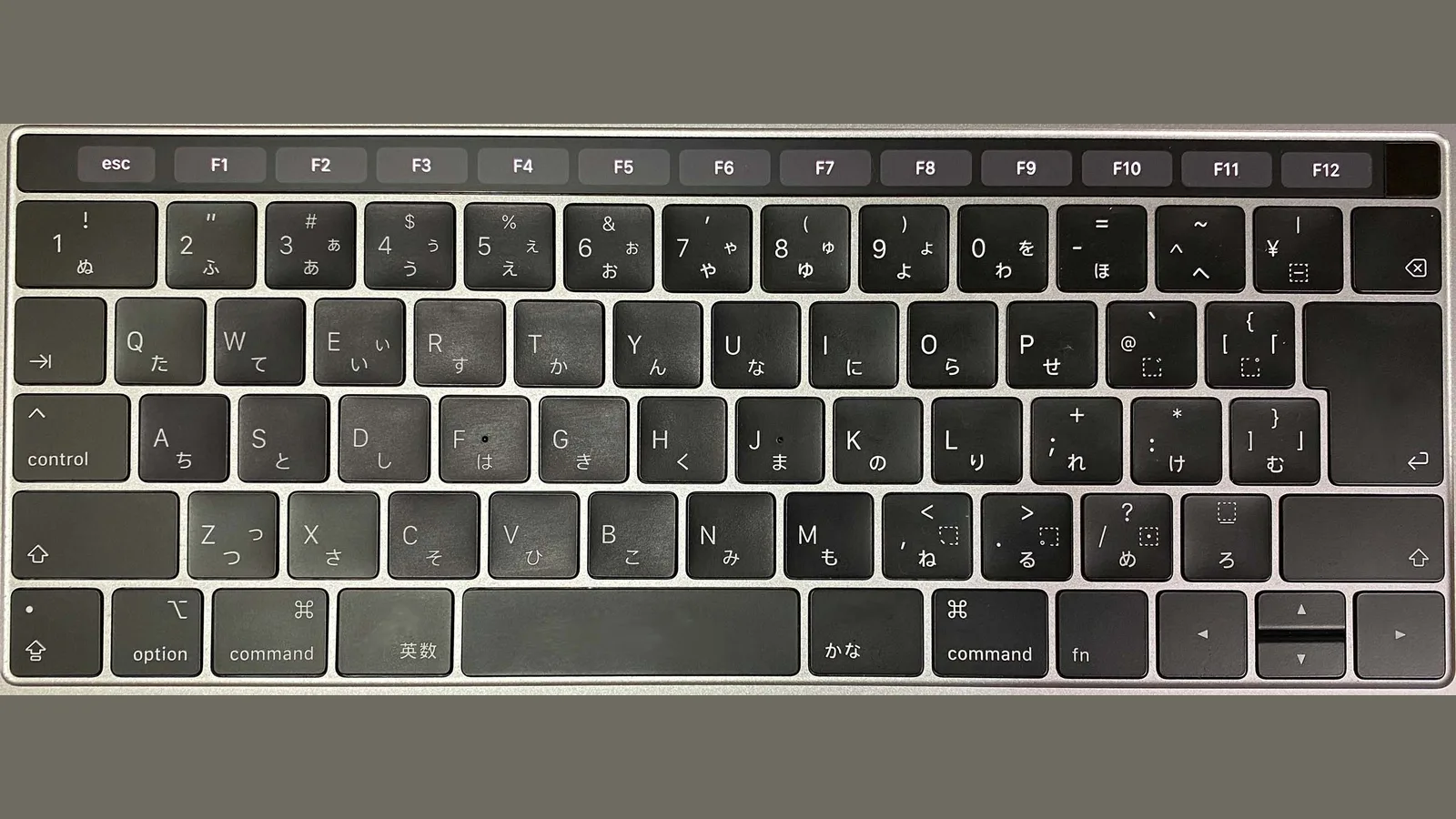

Every Touch Bar MacBook Pro Sits in One of Three Groups
The Touch Bar shipped from 2016 to 2022 and no further. Apple's own tech specs still list Touch Bar and Touch ID in the keyboard section of the MacBook Pro (13-inch, M2, 2022) — the last model to carry one. What matters for a flickering strip is not the year on the box but the controller inside, and that splits the machines into three groups.
| Your MacBook Pro | What is inside | Does an SMC reset exist? |
|---|---|---|
| Touch Bar models, 2016–2017 | Intel, with the first-generation T1 controller | Yes — the 10-second combination |
| Intel models, 2018–2020 | Intel, with the Apple T2 Security Chip | Yes, but a different one — 7 seconds, and one key moves |
| 13-inch M1 (2020) and 13-inch M2 (2022) | Apple silicon | No. There is no reset to perform |
Apple's own list of Macs with the T2 chip reads “MacBook Pro introduced in 2018 to 2020, excluding MacBook Pro (13-inch, M1, 2020)”. That single exclusion is where most advice falls over: the 13-inch M1 came out in 2020, so a page that says “2018 to 2020 uses the T2 method” sends an M1 owner to hold down keys that do nothing at all. To find yours, open the Apple menu and choose About This Mac; the model and year are on the first line.
Start With the Free Checks, in This Order
Every step below costs nothing and risks nothing. Do them in order and stop at the first one that fixes it — if you do all six at once you will never know which mattered, and you will not be able to tell a technician either.
- Restart it properly. Not close the lid — Apple menu, then Restart. On an M1 or M2 machine this is the whole of the “reset” Apple describes, because the controller resets itself on a restart.
- Unplug everything except power. External displays, docks and USB hubs are a common trigger; a strip that steadies the moment a hub comes out has told you where to look.
- Restart the Touch Bar software on its own. Open Terminal and run
sudo pkill TouchBarServer, thensudo killall ControlStrip. The strip goes dark and comes back within a second or two. Nothing is deleted and nothing is reinstalled. - Check what the strip is set to show. In System Settings, under Keyboard, the Touch Bar can be set to app controls, an expanded Control Strip, or plain F1–F12 keys. Switching it to F1–F12 is a diagnostic in itself: if it is rock steady showing function keys and flickers only inside one app, the fault is that app, not the hardware.
- Install pending macOS updates. Flicker that starts the week of an update, on a machine that was fine the week before, is worth one update cycle of patience before anything else.
- Log in as a second user, or start in Safe Mode. If the strip behaves in a fresh account, the problem is in your own settings or a login item, not in the machine.
The SMC Reset — and Only Two of the Three Groups Have One
The System Management Controller handles power on a Mac, and resetting it is Apple's own last step for problems that could be power related. Apple publishes different instructions for different machines, and this is the part that gets copied wrong.
- Apple silicon (13-inch M1 2020, 13-inch M2 2022): there is nothing to do. Apple's wording is “No other steps are needed. SMC resets automatically on Mac with Apple silicon.” Shut down and start up again; that is the entire procedure.
- Intel with the T2 chip (2018–2020, excluding the 13-inch M1): shut down, then hold Control on the left, Option on the left and Shift on the right, add the power button, and hold all four for 7 seconds. Release, wait, then start up.
- Intel without the T2 chip (2016–2017 Touch Bar models): shut down, then hold Shift on the left, Control on the left and Option on the left, add the power button, and hold all four for 10 seconds. Release, then start up.
On an Intel Mac you can also reset NVRAM — the small store of settings the machine reads at startup: hold Option, Command, P and R while it starts up. Apple lists that key combination for Intel-based Macs only, and does not list it for Apple silicon at all.
When to Stop Trying Software Fixes
Stop and have it looked at if any one of these is true. Each of them points at the hardware, and repeating software steps past this line only delays the answer.
- The strip flickers before macOS has loaded — at the boot logo, or on the login screen.
- It flickers in a second user account and in Safe Mode as well as your own.
- Part of the strip is permanently dark, or a band of colour stays in one place.
- The flicker changes when you press on the case near the strip, or when you open and close the lid.
- The machine has been dropped, or has had liquid near it, at any point — even weeks ago.
- The Touch Bar is hot to the touch, or the case above the keyboard is.
What it costs to push on past that line. Resetting the SMC (the chip that controls power and fans) a fifth time will not damage anything, but it does spend the one thing that matters: an intermittent fault is far easier to diagnose than a dead one, and a ribbon that is working loose usually stops working loose and starts being broken. Opening the machine yourself is the real risk. The Touch Bar sits directly above the battery, and prying near a lithium cell is how a repairable fault becomes a replaced top case — or a fire. If the strip is hot, or the flicker changes when you press the case, stop using the machine and bring it in.

When It Is the Hardware — and What That Actually Means
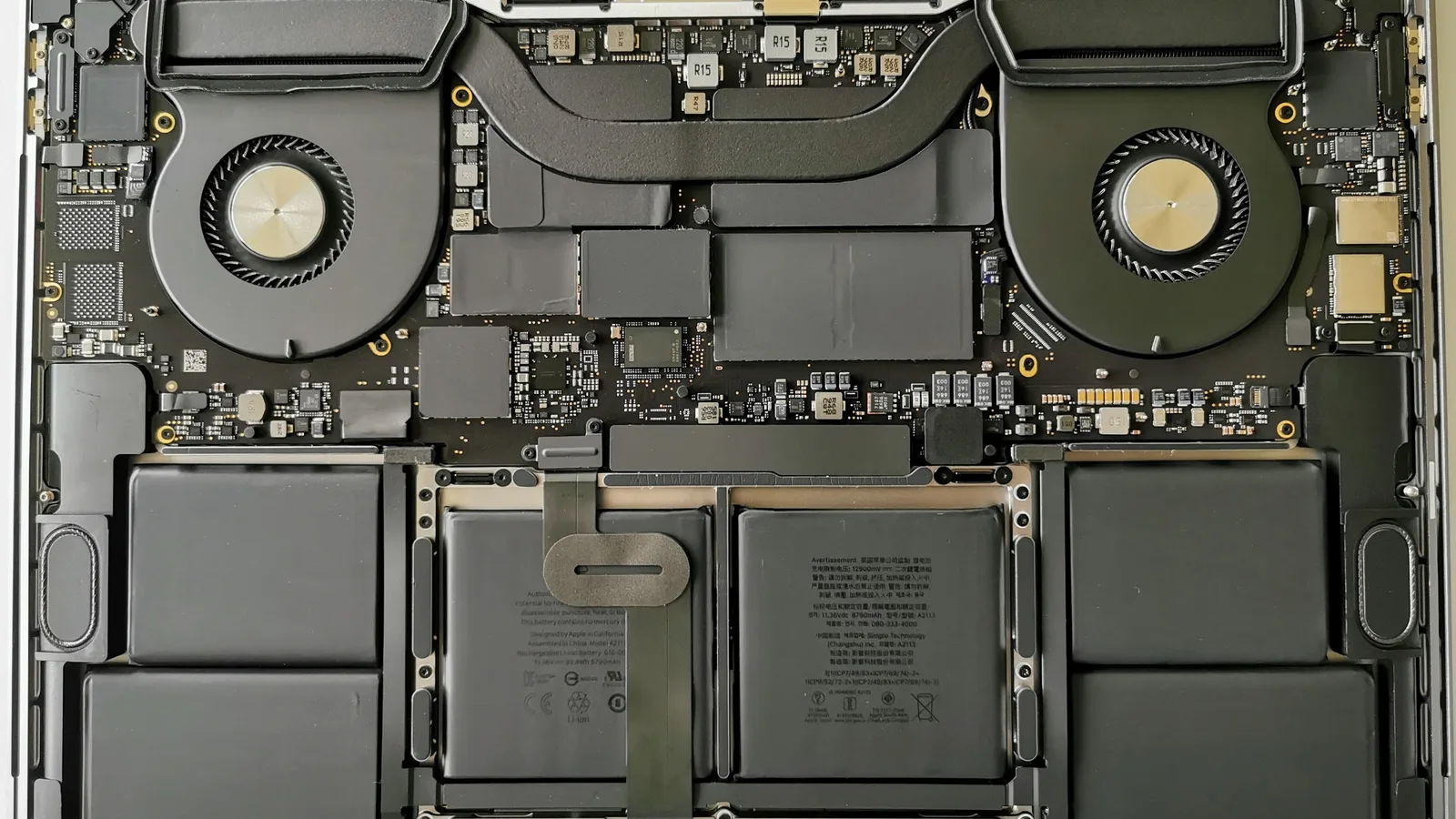
The Touch Bar is a small OLED display with its own ribbon connection into the machine. That is why it fails the way displays fail — flicker, a dead band, a colour cast — rather than the way a key fails. It also sits in the most crowded part of a laptop, directly above the battery and beside the hinge, which is why heat, a knock and a spill all reach it.
Anyone who tells you the price before opening the machine is guessing. A strip that flickers because a ribbon has worked loose and a strip that flickers because the panel itself has failed look identical from the outside and cost very different amounts to put right. That is the whole reason a diagnostic comes before a quote.
What a Touch Bar Repair Will Not Fix
Being clear about this before the work starts saves a difficult conversation afterwards.
- It will not bring back a feature Apple removed. If your fault is that the strip no longer shows a control an app used to put there, that is the app, and no repair changes it.
- It will not fix a main screen that flickers too. Two displays misbehaving at once usually points further in than the strip, and that is a different job.
- It will not undo liquid damage elsewhere. A spill that reached the Touch Bar reached other things on the way, and those may surface weeks later.
- It will not make an unsupported machine supported. A 2016 MacBook Pro that no longer takes the current macOS is still a 2016 machine after the strip is fixed.
Getting It Looked At in Singapore
Esmond Service Centre is an Apple Independent Repair Provider in Singapore. Every MacBook repair includes a free diagnostic check, so you get an itemised breakdown of labour and parts before you agree to anything — which matters more than usual here, because the same symptom has two very different repairs behind it.
You can walk in at the Alexandra or Sin Ming branch, or send your model over on WhatsApp first. Most MacBook repairs carry a 90-day warranty on the work and the parts we fit, extendable to a year with the optional Esmond Care plan; water-damage repair and macOS reinstallation sit outside that standard warranty. For the wider picture of what we handle and what it costs, our MacBook repair page lists the jobs and the typical time each one takes.

Esmond Service Centre's experienced technicians can diagnose and fix it fast — free diagnostics, repairs from $65.