
.jpg)
📑 On this page
First, read exactly what your Mac is telling you
Click the battery icon in the menu bar and note the wording — three different messages mean three very different things. "Not Charging" is often normal: Apple says your Mac may pause charging to protect the battery (it can drop to 93% before topping up again), or it may be on an adapter that runs the Mac but is too weak to charge it, or it may be under a heavy workload that draws more power than the adapter supplies.
"Charging On Hold" means Optimized Battery Charging is deliberately waiting past 80% — not a fault. "Service Recommended" (older Macs say "Service Battery") is the one message that points at the battery itself. On the bench, this single line decides whether we reach for a charger or a new battery.
.jpg)
Rule out the adapter, cable and port first
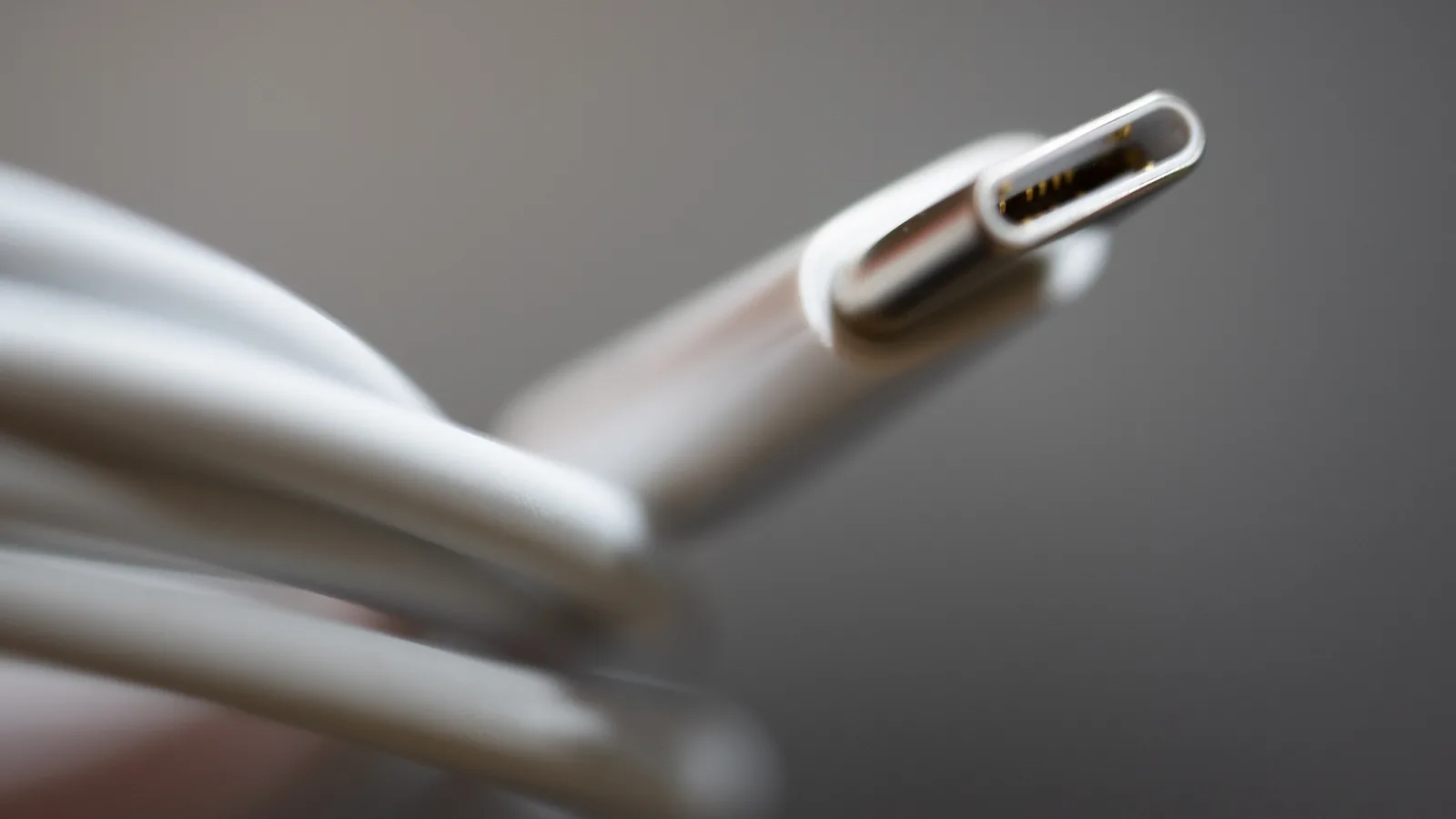
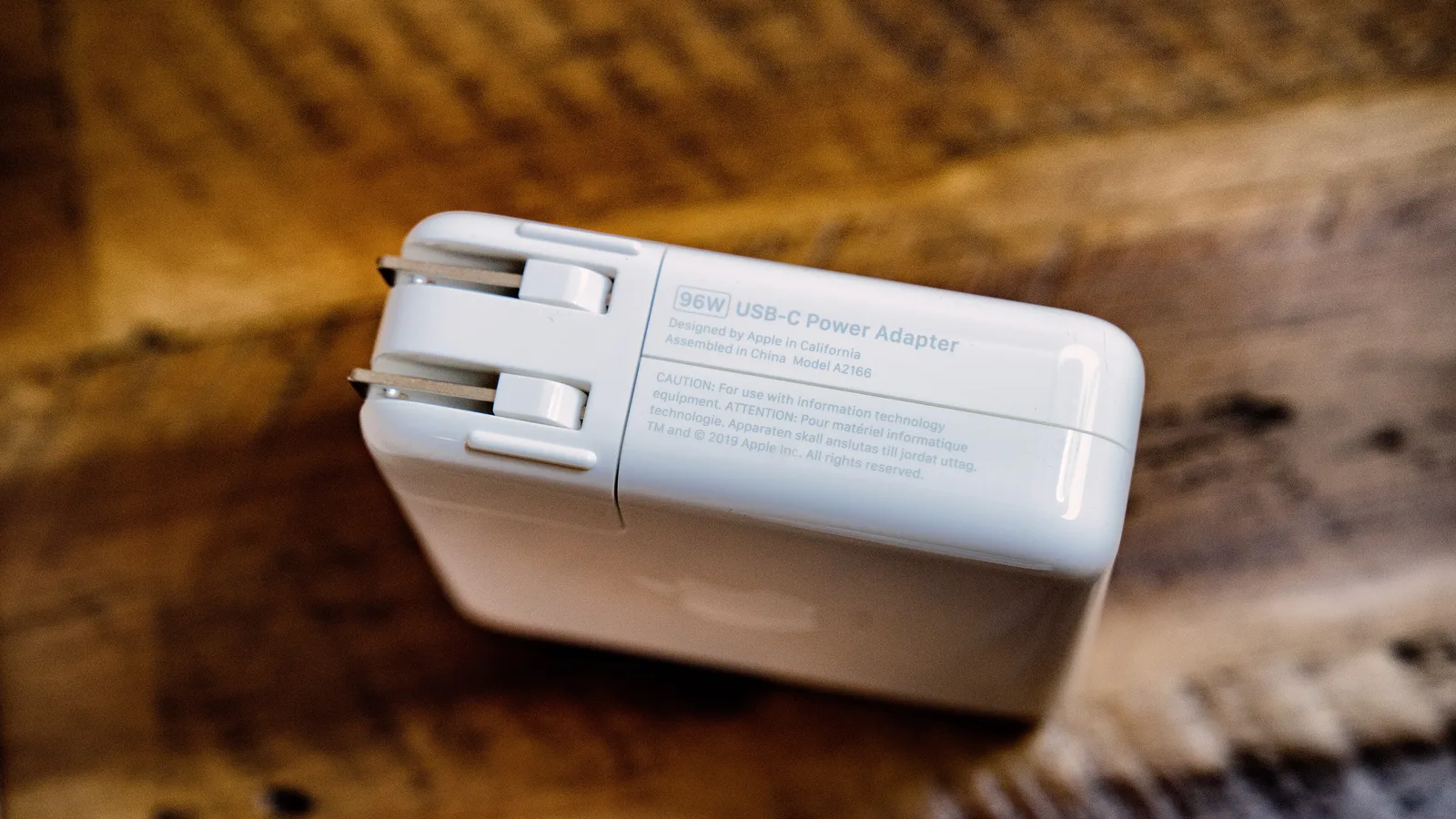
Apple is explicit that a low-wattage adapter can power your Mac while never charging it. Swap in a known-good adapter of the correct wattage and an Apple-certified or reputable USB-C cable, then try a different port. A large share of the "dead battery" Macs we open are actually a frayed third-party cable, a failing budget GaN charger, or a charging port packed with pocket lint.
Use a torch to check the USB-C port for debris and gently clear it with a wooden or plastic pick — never metal. If a different charger and port bring the battery back to life, you never needed a repair.
Check the settings that stop a charge on purpose
Two macOS features stop a full charge by design. Optimized Battery Charging holds the charge at 80% and shows "Charging On Hold"; if you need 100% now, click the battery icon and choose "Charge to Full Now". A Charge Limit set in Battery settings does the same thing — override it the same way.
If Optimized Battery Charging is off and the Mac still stops at 80%, Apple says the battery may simply be too hot. In Singapore's heat we see this constantly — a laptop charging inside a padded bag or on a bed. Move it to a cool, well-ventilated surface and let it settle before you assume a fault.
Check the battery's cycle count and health
To see whether the battery is worn rather than glitching, hold the Option key, click the Apple menu, choose System Information, then select Power under Hardware — the cycle count sits under Battery Information. A charge cycle is 100% of capacity used, not a single plug-in, so it climbs slowly.
Most modern MacBook Air and Pro models are rated for about 1000 cycles and are built to keep up to 80% of their original capacity at that point. If your count is near or past that number, or capacity has dropped well below 80%, you're looking at normal wear. A worn-out battery cannot be fixed with a reset or a software update — it can only be replaced.

When it really is the battery
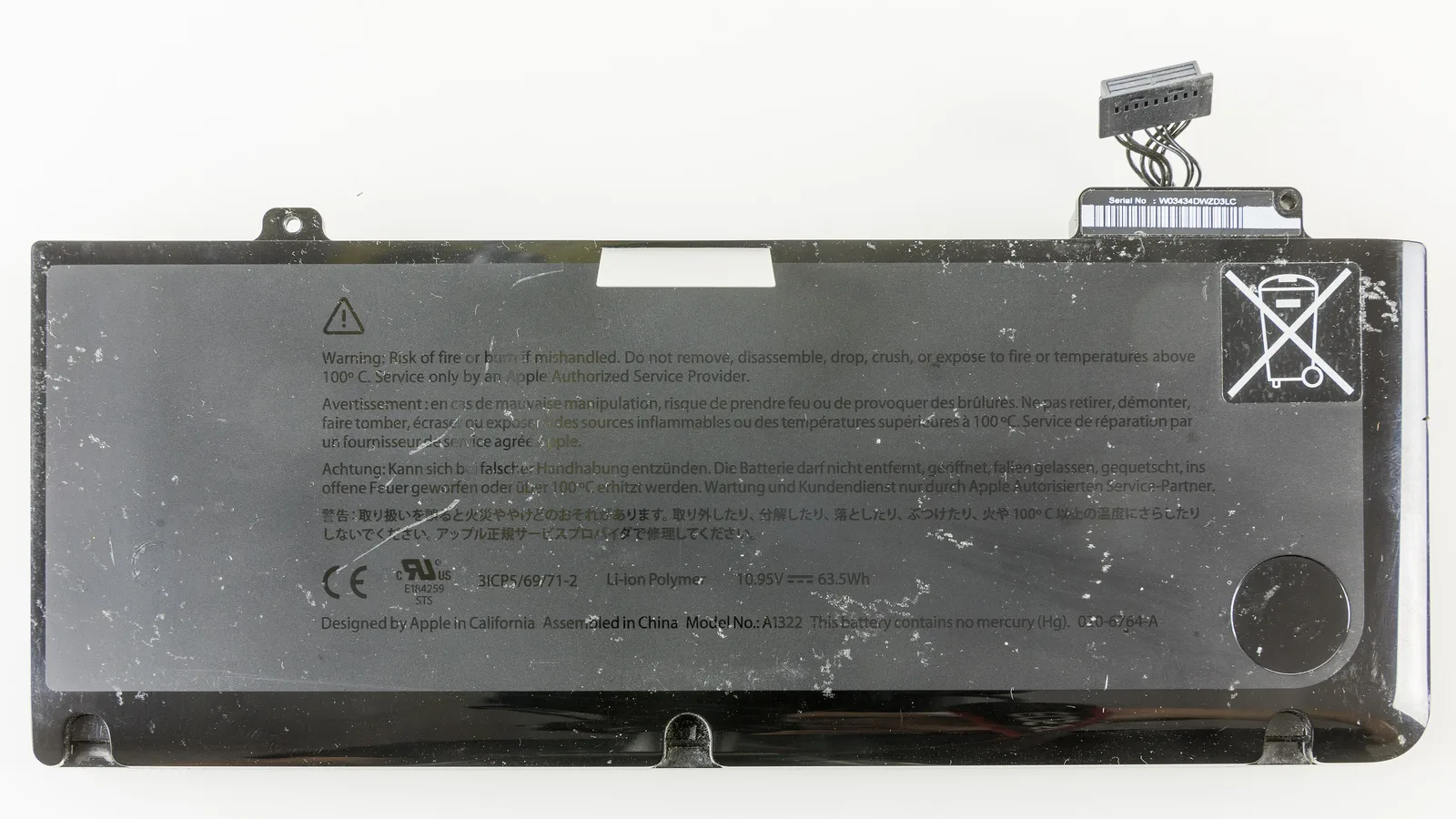
"Service Recommended" means the battery holds less charge than when new or isn't behaving normally. Apple confirms the Mac is still safe to use, and advises replacement through an Apple Store, an Apple Authorized Service Provider, or an Independent Repair Provider using genuine parts — and warns against self-replacing a built-in battery.
If the battery is visibly swollen or shows "Service Recommended", stop and bring it in rather than keep charging a failing cell. At Esmond Service Centre we confirm the reading, then check the charging circuit, the adapter and the trackpad — a swollen battery often pushes the trackpad up so it clicks unevenly, and a swollen cell should be taken off charge and handled carefully. We use the correct adhesive-release process to lift the old cell without bending the chassis, fit a quality replacement, then recalibrate and test a full charge cycle before it goes back to you.

Esmond Service Centre's experienced technicians can diagnose and fix it fast — free diagnostics, repairs from $65.