
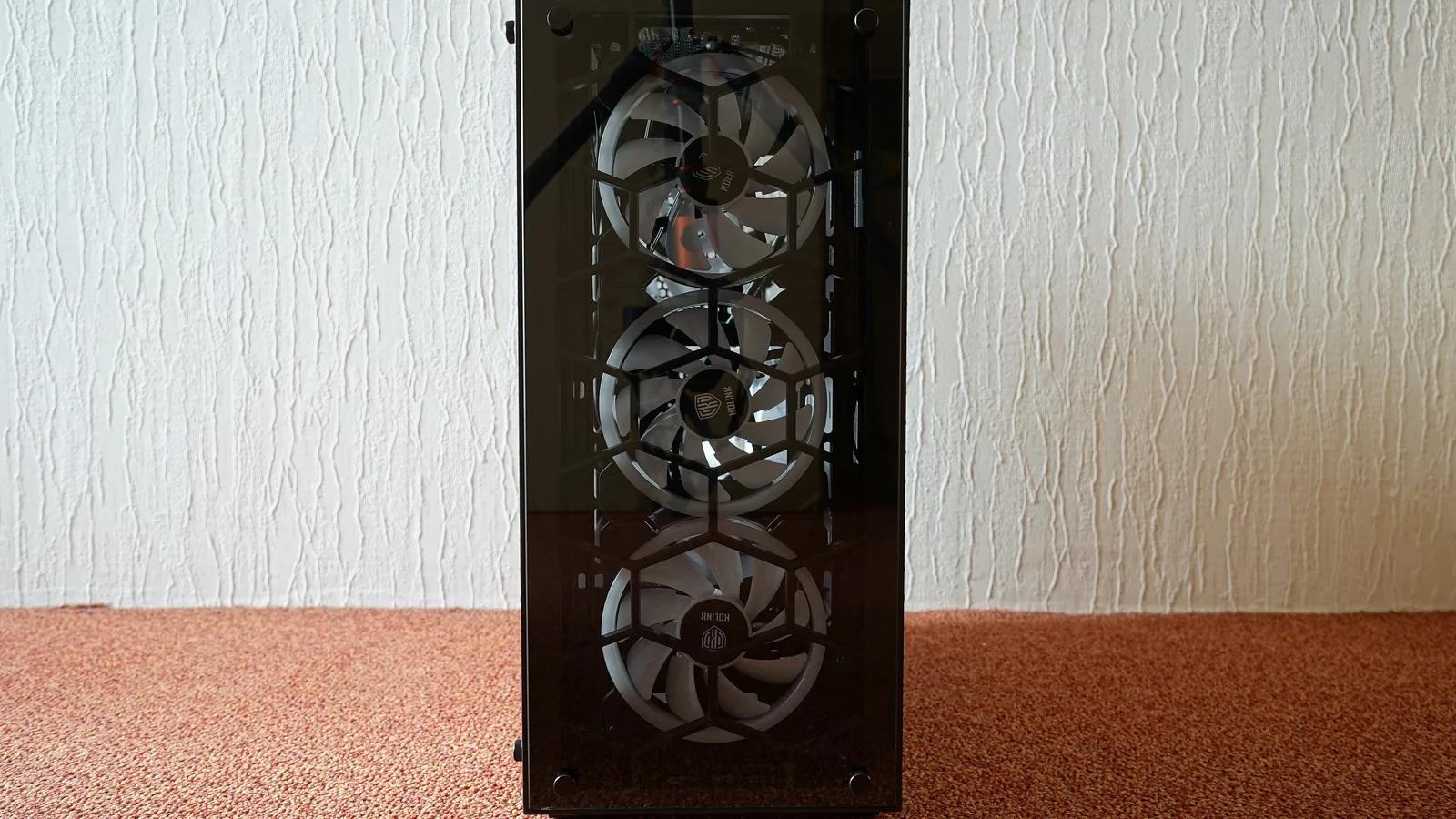

📑 On this page
A PC that keeps crashing: what is actually happening
Walk-in and WhatsApp customers across Singapore ask us the same thing: how to fix a PC that keeps crashing. 'Crashing' can mean several different faults — a freeze that forces a hard reset, a sudden restart with no warning, a shutdown under load, or a blue screen with a stop code. Each points at a different cause, so the first job is not to fix anything but to describe exactly what happens and when. This guide is written from the desktops and gaming PCs that reach our bench: the free checks that clear most software-driven crashes, and the smaller number where the board, the memory, the power supply or the drive has actually failed.
First: is it software or hardware?
Before any repair, place your own case, because a software crash and a hardware crash need completely different answers. The most useful clue is the pattern. A crash that only happens inside one app or game, or that started right after a Windows or driver update, leans software. A crash that happens under load, gets worse as the machine warms up, began after you added or moved hardware, or shows up even in BIOS or Safe Mode, leans hardware. Match your symptoms below.
- Crashes in one app or game only, rest of Windows fine: usually a driver, the game's own files, or that app — not the whole PC.
- Crashes or restarts started right after an update or a new driver: a bad or mismatched driver, or a Windows update — often reversible.
- Random restarts or shutdowns under load, worse as it heats up: overheating, or a power supply that can no longer deliver — hardware.
- Blue screens, crashes in Safe Mode or BIOS, or started after adding hardware: memory, the board, or the new part itself — hardware.
How to fix a PC that keeps crashing: the free checks
Work through these free checks in order; none can harm the PC, and together they clear most crashes that turn out to be software or settings. Microsoft's own stop-code guidance is the backbone here: install the latest Windows updates, keep roughly 10% to 15% of your drive free, check Device Manager for a device flagged with an exclamation mark, start in Safe Mode if Windows is too unstable to use, remove any hardware you added just before the trouble, and if all else fails use a system restore point.
- Note the pattern and let the stop code show. Write down when it crashes and any blue-screen stop code. Turn off automatic restart (System Properties > Advanced > Startup and Recovery) so the error stays on screen long enough to read.
- Install every Windows update. Go to Start > Settings > Windows Update and install all updates — these also deliver many driver and firmware fixes.
- Update or roll back your drivers. Open Device Manager, look for any device marked with an exclamation mark, right-click it and choose Update driver. If the crashes began right after a driver update, roll that driver back instead. Download drivers only from the maker's official site.
- Free up disk space. Keep about 10–15% of the drive free so Windows has room for paging and updates; a full drive alone can cause instability.
- Check temperatures and clear dust. Watch CPU and GPU temperatures with a monitoring tool, make sure every fan spins, and clear dust from the fans and vents with compressed air so the machine can cool.
- Test in Safe Mode, then remove recent changes. Start in Safe Mode; if it is stable there, a driver or start-up app is the cause. Remove any hardware you added just before the crashes began, and if needed roll back with a system restore point.
Know the limit before you spend. This will not fix a failing power supply, bad RAM, a dying drive or a cracked solder joint on the board — those are hardware faults that no setting will cure. Pushing on regardless carries real risk: running a PC that overheats or shuts down under load can mean permanent damage to the board and data loss from a drive that is already failing, and opening a machine still under cover can void the warranty. When the free checks above do not stop the crashes, that is when to stop and bring it in and let a professional diagnose it — seek professional help rather than guess.
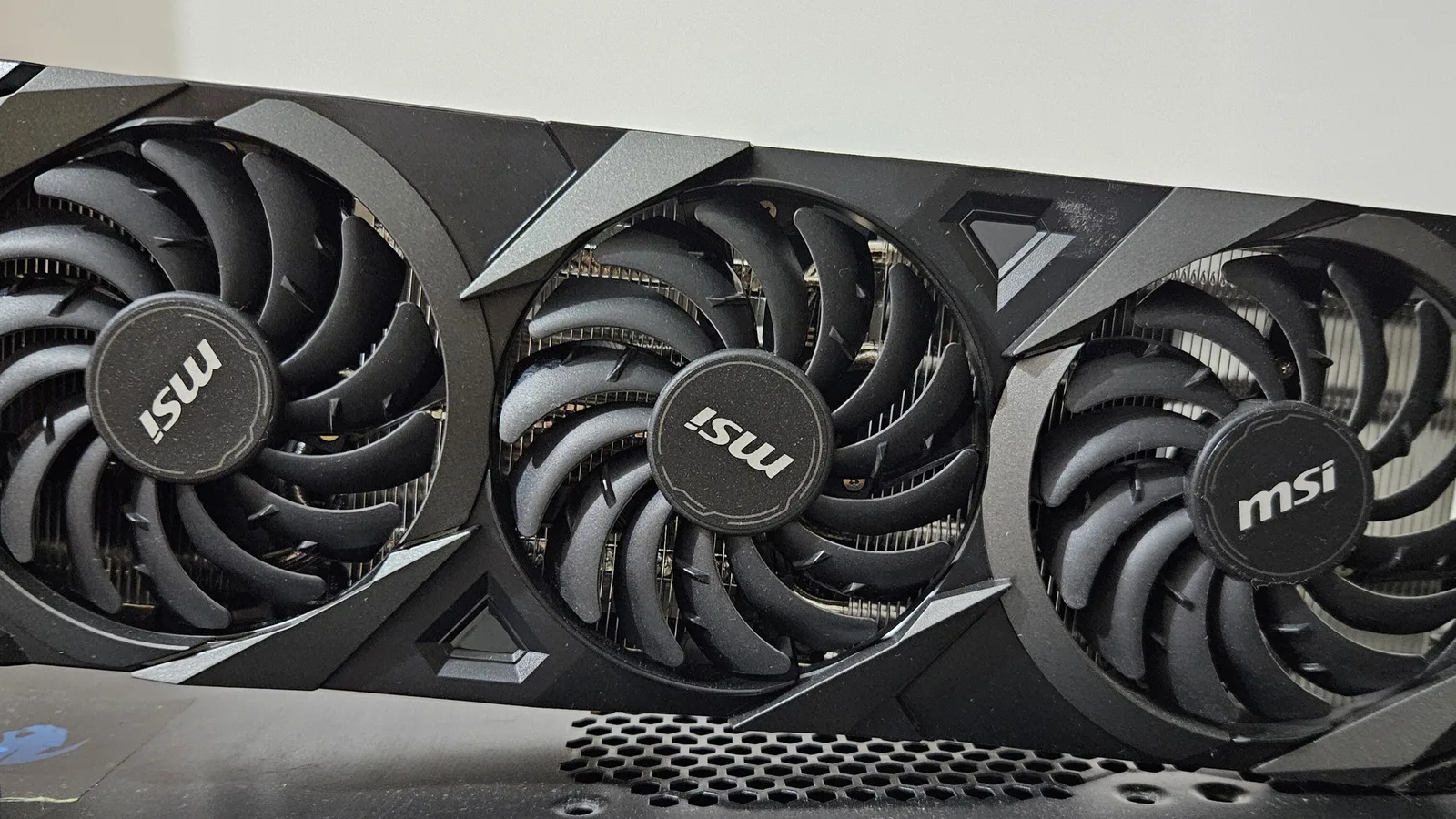

Why PC games crash when Windows is fine
If Windows is rock-solid but your games crash, freeze or drop to the desktop, the usual suspects are the graphics card and its driver. The card above is a modern desktop graphics card — the part that does the heavy work in a game and the first thing to check when only games crash. Microsoft's advice is to keep drivers current through Windows Update and Device Manager and to download graphics drivers only from the maker's official site; if a crash started right after a driver update, rolling that driver back is just as valid as updating.
- Graphics driver: update it, or roll it back if the crashes began after a driver update. Use only the GPU maker's official driver.
- Heat under load: games push the GPU and CPU hardest, so a cooling or dust problem shows up here first — check temperatures while playing.
- Power under load: a tired or undersized power supply can hold up at the desktop but crash the moment a game draws full power.
- Game files and overclocks: verify or reinstall the game's files, and undo any CPU, GPU or memory overclock to rule it out.
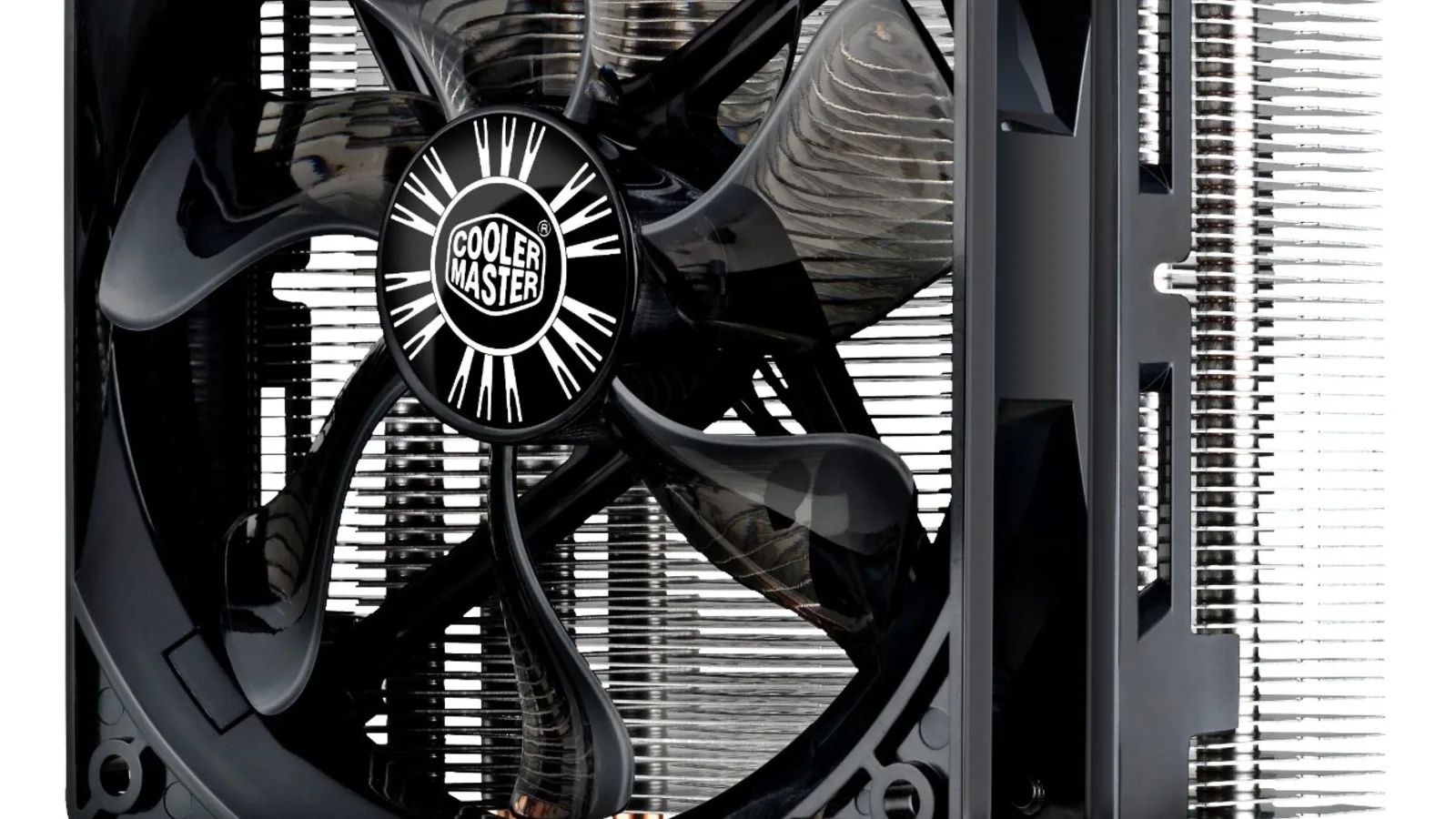

When your PC randomly crashes: heat and power
When a PC randomly crashes, shuts down or reboots with no blue screen — especially under load or after running a while — heat is one of the first things to rule out. The cooler above sits on the processor and carries its heat away; when its fan clogs with dust or the thermal paste dries out, the chip runs hot. Intel explains that a processor throttles itself to stay safe and, if it still cannot hold a safe temperature, 'will automatically shut down to prevent permanent damage', with the limit usually between 100°C and 110°C. A clean cooler and good airflow fix a surprising number of 'random' crashes.
- Dust and airflow: clear dust from fans, heatsinks and vents, and make sure nothing blocks the case intakes and exhaust.
- Fans actually spinning: confirm the CPU, GPU and case fans all run; a stopped fan sends temperatures up fast.
- Thermal paste: old, dried paste between the chip and cooler lets heat build — a workshop can renew it.
- Watch the numbers: if a shutdown lines up with a temperature spike on a monitoring tool, heat is the cause, not software.
Symptom-to-cause quick reference
Use this table to place your own PC. Match what you see to the most likely cause, whether it is safe to try yourself, and the typical next step. It is a starting point, not a diagnosis — a hands-on test confirms the real fault.
| What you see | Most likely cause | Safe to try yourself? | Typical next step |
|---|---|---|---|
| Crashes in one game only | Graphics driver or game files | Yes — update/roll back driver, verify files | None, or a driver fix |
| Started right after an update | Bad driver or Windows update | Yes — roll back driver or update | None — reverse the change |
| Random restarts under load, runs hot | Overheating or failing PSU | Partly — clean dust, check temps | Cooling or power-supply repair |
| Blue screen stop codes, random | Faulty RAM or a driver | Partly — test memory, update drivers | Memory test / board diagnosis |
| Crashes in Safe Mode or BIOS too | Hardware — RAM, board or drive | No | Bench diagnosis |
| Won't stay on, shuts down fast | Power, overheating or board | No | Power / board diagnosis |
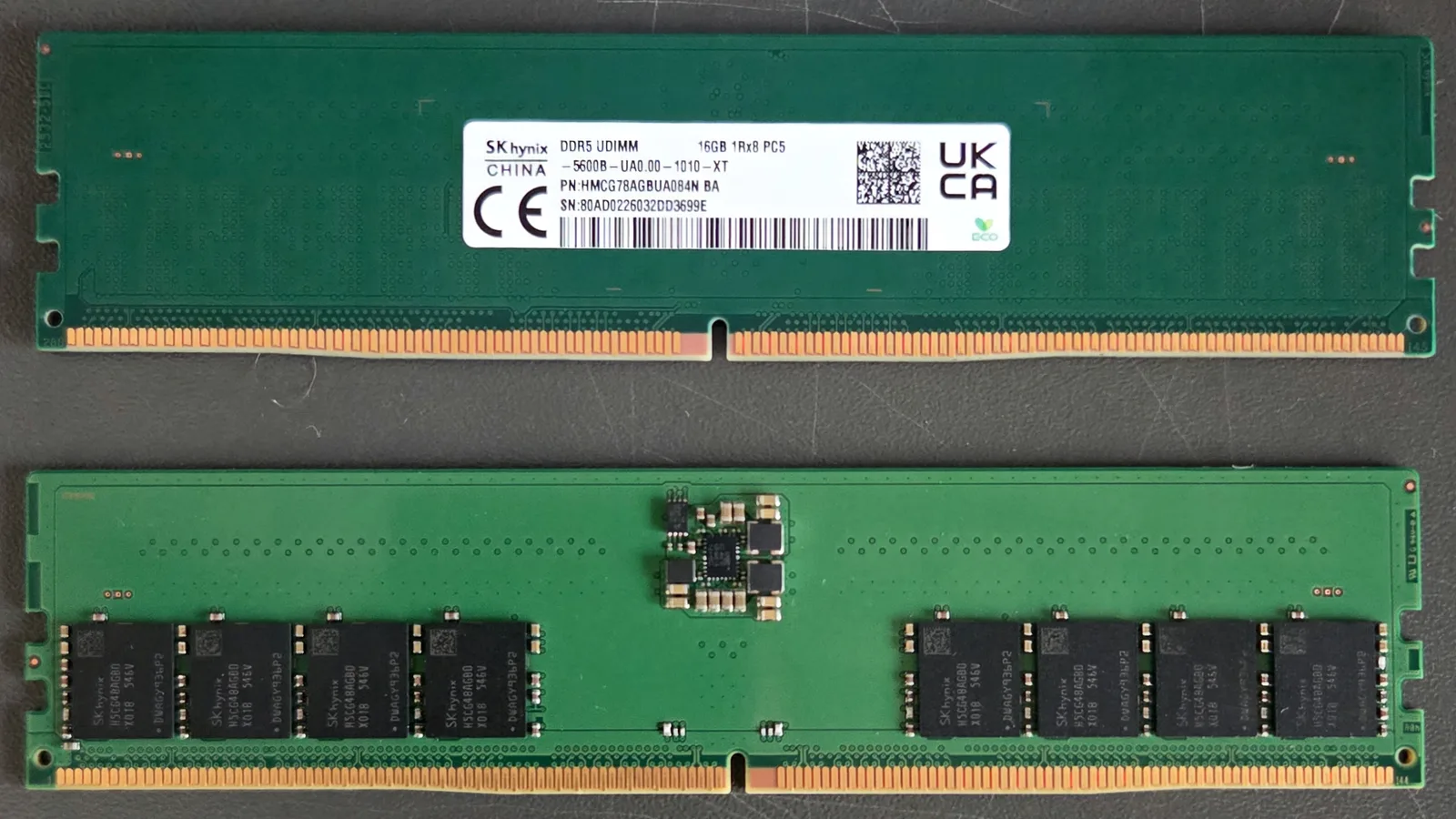

When it is memory, power or storage
When the settings and drivers are right and the crashes continue — especially blue screens, or crashes even in Safe Mode — the fault is usually physical. The memory above is modern desktop RAM; a single failing module is one of the most common causes of random blue screens and freezes. Microsoft notes that when a genuine hardware error occurs, the PC 'shuts down suddenly'. On the bench we confirm memory with a thorough test, load-test the power supply, and check the drive's health before replacing anything.
- Memory (RAM): a bad module causes random blue screens and freezes; reseating or testing each stick isolates it. Windows' own Memory Diagnostic is a first pass.
- Power supply: a worn PSU can run light tasks but collapse under load, causing sudden restarts or shutdowns.
- Storage: a failing SSD or hard drive brings freezes, long stalls and boot failures, and risks your data — back up first.
- Motherboard and connections: loose power connectors, swollen capacitors or a board fault cause instability that no software can fix.
What we do in the workshop
When a PC that keeps crashing reaches our bench in Singapore, we do not guess. We read the crash pattern and any stop codes, test in Safe Mode to separate software from hardware, run a full memory test, load-test the power supply, check drive health and temperatures, and inspect the board — before any part is ordered.
- Software first: we confirm Windows updates, drivers and a clean boot, so we never replace a part a setting or driver would have fixed.
- Component testing: memory, power supply, storage and cooling are each tested under load to find the one that fails.
- Board-level work: where the fault is the motherboard or a connector, that is a board-level repair, diagnosed before anything is ordered.
- Honest scoping: we deliberately do not quote a fixed price here — the cost depends on which part it turns out to be, and we would rather diagnose first than guess.
Keeping a PC from crashing
A few habits keep a PC stable and head off most crashes. Keeping Windows and drivers current, giving the machine room to breathe and cool, and watching the drive's free space prevent the majority of the software-driven crashes we see.
- Install Windows updates and keep drivers current from official sources.
- Keep 10–15% of the drive free and clear out what you do not need.
- Clean dust from fans and vents, and keep air flowing around the case.
- Avoid unstable overclocks, and use a power supply rated for your parts.
- Back up your files regularly, so a sudden drive failure never costs your data.

Written by Esmond, Founder & CEO of Esmond Service Centre. He works from the repair bench where these crashing PCs actually arrive, and writes each guide from the faults that come through the door rather than from a spec sheet. Reviewed and published on 14 November 2026.
Esmond Service Centre's experienced technicians can diagnose and fix it fast — free diagnostics, repairs from $65.