

_back_side_(20250525_154602).jpg)
📑 On this page
First, pin down what "not turning on" actually means
"Not turning on" looks the same from the outside, but on the bench it splits into three very different pictures, and each points to a different fix. A completely black screen with no response usually means the battery is flat or the device is not powering up at all. An Apple logo that appears and then disappears on a loop is a software or startup problem, not a power one. And a black screen that shows a low-battery icon when you plug in means the iPad is alive — it simply needs more charge.
Before you do anything else, plug the iPad in and watch the screen closely for a minute or two. Which of those three you see decides everything that follows, so it is worth getting right rather than guessing.
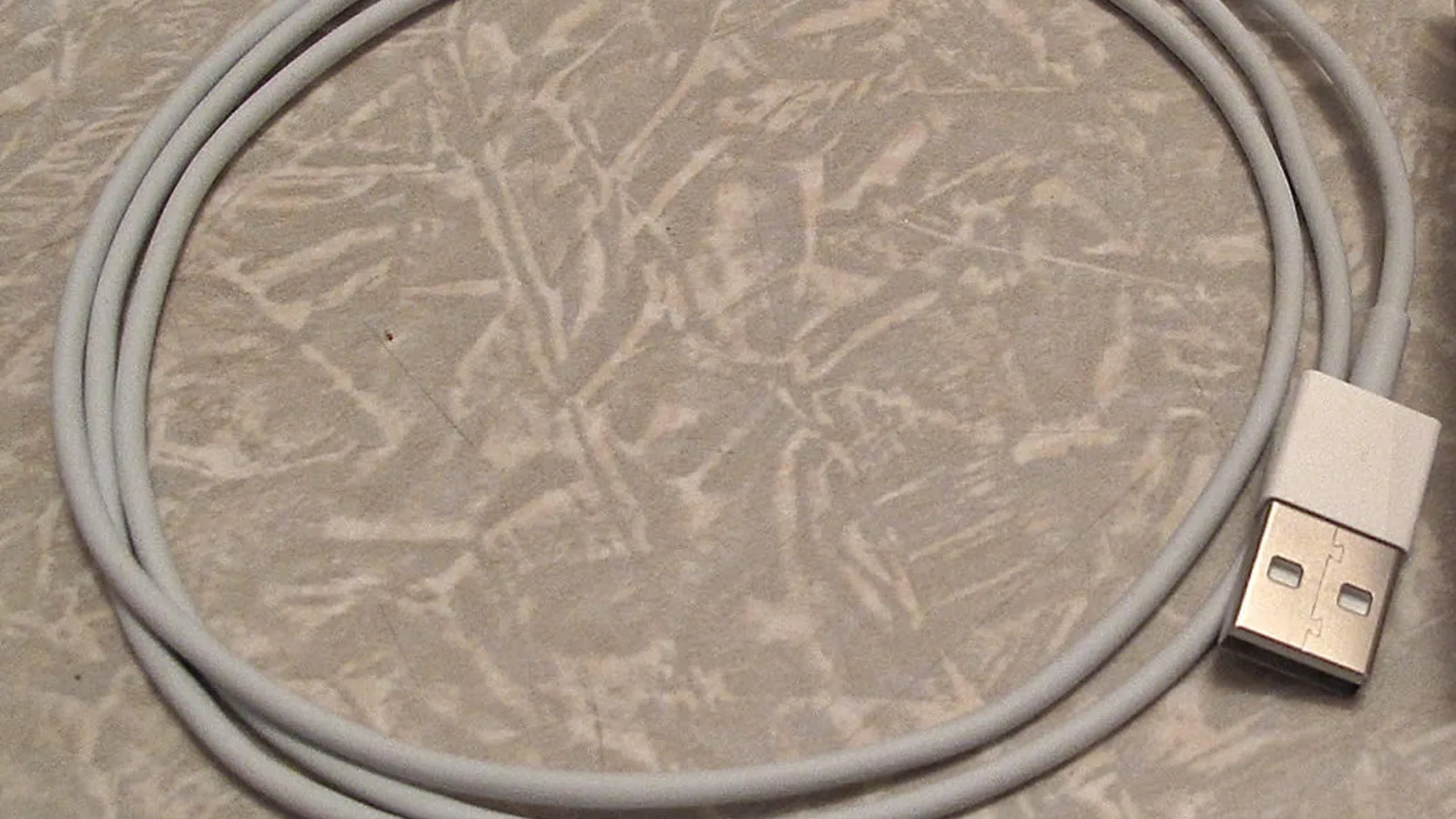

Charge it properly — and wait longer than you think
The single most common reason an iPad won't turn on after charging is that it was never truly charged. Apple says that if your iPad does not respond, you may need to charge it for up to an hour before it turns on. A battery that has been run completely flat can sit on the charger for several minutes, in our experience, before even a low-battery icon appears — so a quick plug-in-and-check is not enough.
Use a wall socket, not a computer USB port, a keyboard, or a car charger, and give it a solid 30 to 60 minutes undisturbed. Apple's own charging guidance is to let the device charge for half an hour, and then, if needed, another half an hour. If a charging icon or the low-battery symbol appears at any point, the iPad is charging and the battery was simply the problem.
Force restart the iPad
If the iPad has had a proper charge but the screen is still black or stuck, the system may be frozen. A force restart reboots it without erasing anything, and it is Apple's recommended next step. The buttons differ depending on whether your iPad has a Home button.
- iPad without a Home button: press and quickly release the volume button nearest the top button, press and quickly release the volume button farthest from the top button, then press and hold the top button until the Apple logo appears.
- iPad with a Home button: press and hold both the top (or side) button and the Home button at the same time until the Apple logo appears.
Keep holding well past the point where you think it should work — a force restart can take 10 to 20 seconds of holding. If the Apple logo appears and the iPad starts normally, you are done. If the logo appears and then the iPad restarts on a loop, skip ahead to recovery mode.

Rule out the cable, adapter and charging port
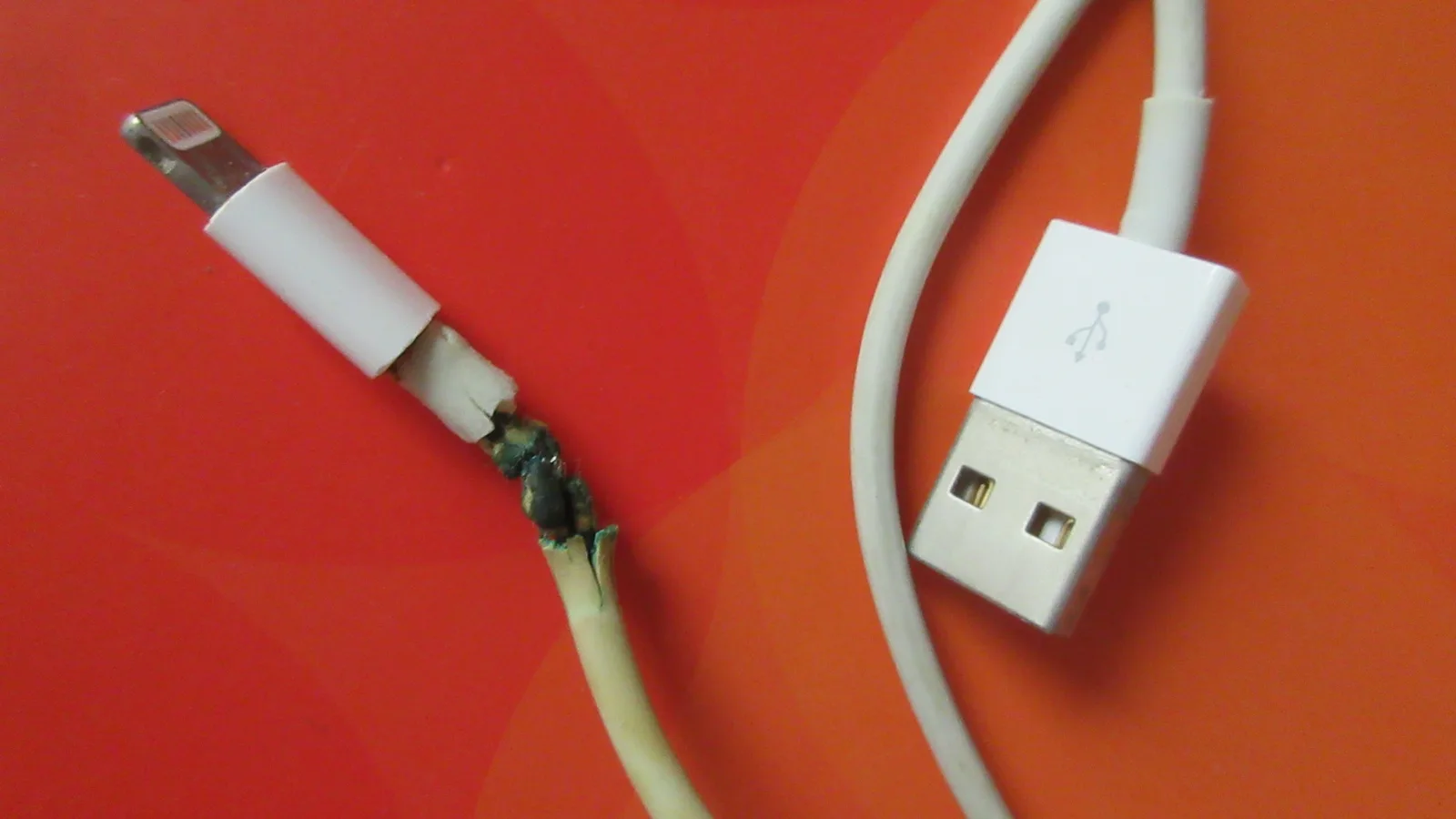
Charging accessories fail far more often than iPads do. Apple's advice is to try a different cable and a different power adapter, and to use the adapter that came with the iPad or one of equal or greater wattage. A cable can look perfect on the outside while a wire has fatigued and broken inside the plug — the split, blackened cable in the photo above is exactly what a worn-out Apple cable looks like after a year or two in a bag.
Check every connection is firm, and try a different wall socket to rule out the outlet. Then look into the charging port itself with a torch. Pocket lint and dust pack into the port over time and stop the cable from seating — Apple's guidance is to remove any debris, and on the bench we clear it with a wooden or plastic pick, never anything metal.
If the iPad got wet, or you see a "Charging Not Available" or liquid-detection alert, stop. Apple says not to charge it, not to push a cotton bud, tissue or anything else into the port, not to use a hair dryer or compressed air, and not to put it in rice. Tap it gently with the connector facing down, leave it in a dry spot with some airflow, and wait at least 30 minutes — a full dry-out can take up to a day.
- Try a different, known-good Apple or certified cable.
- Try a different adapter of equal or greater wattage, plugged into a wall socket.
- Try a different wall socket.
- Inspect and gently clear the charging port of lint and dust.
- If there is any sign of liquid, dry it fully before charging.
Still stuck on the Apple logo? Try recovery mode
If the Apple logo stays on screen for several minutes with no progress, or the iPad keeps restarting, recovery mode lets a computer reinstall the software. Connect the iPad to a Mac or PC with a cable, open Finder (or the Apple Devices app or iTunes on Windows), then trigger recovery mode with the same buttons as a force restart — but keep holding until the recovery-mode screen appears, not just the Apple logo.
When your computer offers to Update or Restore, choose Update first. Update reinstalls iPadOS without erasing your data; Restore wipes everything on the iPad. Only use Restore if Update fails and you have a backup. If the computer never recognises the iPad at all, that points back to a cable, port or hardware fault rather than software.
Which fault is it? A quick diagnosis
Once you have run the checks above, the symptom that remains usually points to a single cause. This table maps what you see to the most likely reason and the first thing to try.
When it's a hardware fault — how we fix it
If the screen is still black after a long charge, a new cable and adapter, a force restart and a clean port, the fault is inside the iPad — and that is where a repair starts. On the bench we first confirm the iPad really is dead by connecting it to a controlled power supply and watching whether it draws any current at all. A board that pulls no current points at the power circuit; a board that draws a short-circuit current points somewhere else entirely. No force restart, cable swap or recovery mode can fix a worn-out battery or a corroded charging port — those are hardware faults, and they cannot be fixed without opening the iPad.
From there we separate the three internal culprits. The charging port and its flex cable (the thin ribbon cable inside) can wear out or corrode, especially after liquid, and are a self-contained replacement. The battery itself ages — an iPad battery that no longer holds charge or has swollen needs careful removal, because it is glued down and a swollen cell is a safety risk. And the power-management and charging chips on the logic board can fail, which calls for micro-soldering at the board level rather than a simple part swap.
Every iPad we return has been reassembled with fresh adhesive and tested through a full charge cycle before it goes back to you, and our iPad repairs come with a 90-day workmanship warranty, extendable with the optional Esmond Care plan. We have left exact prices out of this guide on purpose — an iPad that won't turn on can be anything from a two-dollar cable to a board-level repair, so the honest figure only comes after we have seen it.

Esmond Service Centre's experienced technicians can diagnose and fix it fast — free diagnostics, repairs from $65.