

📑 On this page

Understanding Windows Blue Screen Errors
One thing to check before you read on: the stop screen is not always blue. Microsoft's own current troubleshooting page heads its Windows 11 steps "blue screens, black screens and stop code errors" and says "the screen color and messaging for a stop code error can vary, depending on which version of Windows 11 you are running", separating Windows 11 24H2 and later from 23H2 and older. If you see a stop code, this guide applies whatever colour the screen is. A blank screen with only a mouse cursor and no stop code is a different fault — that one is the black-screen-with-cursor guide.
The Windows blue screen error—commonly known as the "Blue Screen of Death" (BSOD)—is a critical error screen displayed by Windows when it encounters severe system issues. This error halts all operations to protect your computer from further damage, showing a blue screen with a sad face :( and typically forcing a sudden restart. BSOD errors not only disrupt productivity but also put your data at risk.
At Esmond Service Centre, we bring 16 years of hands-on repair experience to diagnosing and resolving complex Windows errors, including frequent BSOD problems. This comprehensive guide is designed to help Singaporean users tackle and fix Windows blue screen issues efficiently.
Detailed Fixes for Common Windows Blue Screen Error Codes
| Error Code | Description | Quick Fix Tips |
|---|---|---|
| 0x0000007E | SYSTEM_THREAD_EXCEPTION_NOT_HANDLED | Update drivers, check disk space, BIOS update |
| 0x0000003B | SYSTEM_SERVICE_EXCEPTION | Update graphics drivers, test RAM |
| 0x0000001E | KMODE_EXCEPTION_NOT_HANDLED | Test RAM, update drivers, reset BIOS |
| 0x00000050 | PAGE_FAULT_IN_NONPAGED_AREA | Check RAM, run disk checks, update drivers |
| 0x000000EF | CRITICAL_PROCESS_DIED | Repair system files, scan malware, update storage drivers |
What Causes Windows Blue Screen Errors?
Windows blue screen errors (BSOD) can occur due to various underlying issues. Based on our extensive experience, here are the most common causes:
- Faulty or Incompatible Drivers: Device drivers that are buggy, outdated, or conflicting are the #1 cause of BSODs (roughly 70% of crashes stem from third-party driver code). For example, a newly installed graphics driver or USB device driver may not “play nice” with Windows and can crash the system.
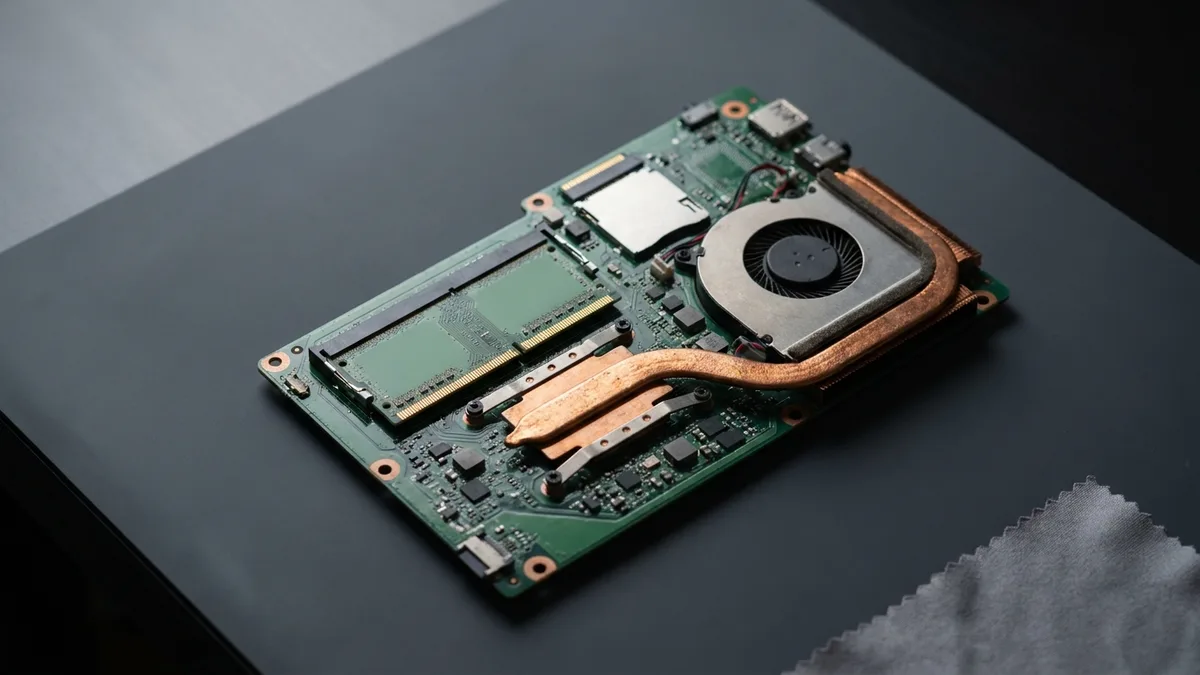
- Hardware Failures: Defective hardware can also lead to blue screens. Bad RAM is a frequent culprit, as are failing hard drives (corrupt disk sectors) and overheated CPUs/GPUs. In fact, hardware issues account for about 10% of BSODs. A stick of faulty memory or an unstable overclocked processor might cause random crashes.
- Corrupt System Files: If critical Windows system files become damaged or missing (perhaps due to sudden power loss, disk errors, or malware), Windows might crash to avoid further damage.
- Software Conflicts or Bugs: Certain software can cause system conflicts – for example, antivirus programs or low-level utilities that hook into the operating system might inadvertently trigger a BSOD. Likewise, operating system bugs (occasionally in Windows updates) or poorly coded applications can crash Windows.
- BIOS or Firmware Issues: Incompatible BIOS/UEFI firmware settings or outdated BIOS versions can lead to instability. For instance, unsupported BIOS options or older firmware might not handle newer hardware correctly, resulting in blue screen errors.
- Overheating or Power Problems: Excessive heat can cause hardware to malfunction – e.g. an overheating GPU might throw a BSOD during intensive tasks. Similarly, an inadequate or failing power supply can result in unstable voltages, causing system crashes.
- Malware or Virus Attacks: Certain malware (rootkits, for example) target core system processes or drivers. If a virus corrupts kernel-level code or forces unsafe operations, Windows will crash as a protective measure.
In summary, a BSOD indicates that “something went wrong at a very fundamental level.” It could be hardware, software, or a mix of both. The blue screen will display a STOP code (a hexadecimal code like 0x0000007E or a descriptive name like CRITICAL_PROCESS_DIED) to help identify the problem. Next, we’ll cover general steps to fix these issues. By systematically eliminating each potential cause – from drivers to hardware – you can usually get your PC stable again. Those proportions are Microsoft's own: it publishes 70% third-party driver code, 10% hardware, 5% Microsoft code, 15% unknown "because the memory is too corrupted to analyze". ⚠️ Worth knowing that Microsoft is not perfectly consistent with itself here — further down the same document it says "about 75 percent of all stop errors are caused by faulty drivers". We quote the 70/10/5/15 breakdown because it is the one stated as an analysis of root causes, and we name the other figure rather than quietly picking the one we prefer.
✅ Step-by-Step Fixes for Windows Blue Screen Errors
Before delving into specific error codes, apply the following general troubleshooting steps. These steps address the most common causes of BSODs and often resolve the issue:
Get Your Files Off First (Before Any Repair Tool)
Before you run a single repair tool, decide whether your files are safe. Almost everything below — SFC, DISM, CHKDSK, a repair install — writes to the drive, and roughly one BSOD in ten is a hardware fault (Microsoft puts hardware at 10% of stop errors), often the drive itself. If the machine still boots, copy your documents, photos and desktop to an external drive or cloud now. If it does not boot reliably, or the crashes come with clicking, freezing or disk errors, ESC's own guidance is to stop using the drive rather than keep retrying — and recovery gets harder, not easier, the longer a failing drive is powered on. When in doubt, bring it in before you run anything.Note the Error Code and Message
When the blue screen appears, take note of the STOP code and any error message (e.g.PAGE_FAULT_IN_NONPAGED_AREAorSYSTEM_SERVICE_EXCEPTION). This information is crucial for pinpointing the cause. In Windows 10/11, the BSOD screen usually says “Your PC ran into a problem and needs to restart” and shows a stop code at the bottom. Jot this down (or use your phone to snap a picture). It will guide the specific fixes later in this guide.Disconnect External Devices
Unplug any non-essential external hardware (USB drives, printers, etc.) and restart the computer. Faulty peripherals or external drives can sometimes trigger BSODs. By removing them, you can rule out external hardware conflicts. Keep only the keyboard and mouse attached while troubleshooting.Boot into Safe Mode (if Necessary)
If your PC crashes before Windows can fully load (e.g. BSOD loop on startup), try booting into Safe Mode. Safe Mode starts Windows with minimal drivers and services. On Windows 10/11, you can enter Safe Mode by holding Shift while clicking Restart (to open recovery options), then navigating to Troubleshoot > Advanced Options > Startup Settings > Restart and selecting Enable Safe Mode. In Safe Mode, Windows uses basic drivers – this can stabilize the system if a bad driver is causing crashes. Once in Safe Mode, you can continue with the fixes below (such as uninstalling problematic drivers or software).Ensure Sufficient Free Disk Space
Verify that your system drive (usually C:) isn’t completely full. A nearly full disk can contribute to BSOD issues. Windows needs breathing room for the page file and update installations. Free up space by emptying the Recycle Bin, deleting temp files, or uninstalling unnecessary programs. As a rule of thumb, keep at least 10-15% of the drive free.Run a Virus/Malware Scan
Use Windows Security (Windows Defender) or a reputable antivirus to scan for malware. Viruses that infect system files or drivers can trigger blue screens. Eliminating malware ensures the crashes aren’t due to malicious modifications. (Tip: Run a full scan in Safe Mode for thorough results.)Check Device Manager for Driver Issues
Open Device Manager (pressWindows + X, then choose it) and look for any devices with a yellow exclamation mark. This indicates a driver problem. If you recently updated or installed a driver around the time BSODs began, that driver is suspect. You can right-click the device > Properties > Roll Back Driver (on the Driver tab) to revert to a previous version. If no rollback is available, consider uninstalling the device driver and restarting – Windows may install a generic driver that is more stable.Install Windows Updates and Driver Updates
Make sure your system is fully updated with the latest Windows updates. Microsoft frequently releases fixes for stability. Go to Settings > Windows Update (on Windows 10: Settings > Update & Security > Windows Update) and click “Check for updates.” Install all critical updates. Additionally, update your device drivers to the latest versions – especially for graphics, chipset, and network drivers, which are common culprits. You can update drivers via Device Manager or your PC/motherboard manufacturer’s support site. On Windows 11, you can also check Settings > Windows Update > Advanced Options > Optional Updates for driver updates. New drivers often fix bugs that cause BSODs. (If a newly updated driver started the BSODs, roll it back as noted in step 7.)Run DISM and System File Checker (SFC)
Blue screens can be caused by corrupt or missing system files. Windows has built-in tools to fix this, and Microsoft's own order is DISM first, then SFC:DISM repairs the system image. Open an Administrator Command Prompt (or PowerShell) and run:
DISM /Online /Cleanup-Image /RestoreHealth. This downloads clean system components from Windows Update if needed.SFC then scans for and repairs corrupted system files: run
sfc /scannow. Let it complete – if it finds errors, it will attempt to replace the files and will report its results. (Run these commands in normal Windows or from Safe Mode/Recovery Environment if crashes prevent normal operation.) Together, SFC and DISM can fix many issues causing BSODs by restoring the integrity of Windows system files.
Check for Overheating & Hardware Stress
Ensure your PC is not running too hot. Overheating can cause system shutdowns or crashes. Use a hardware monitor tool to check CPU/GPU temperatures, especially if BSODs happen under heavy load (gaming, etc.). Clean out dust from fans and vents, and make sure fans are functioning. If you’ve overclocked your CPU/GPU, consider reverting to default clock speeds – unstable overclocks commonly lead to BSODs. Also verify your power supply unit (PSU) is adequate and not failing – inconsistent power can crash a system.Perform a Memory Test
Since bad RAM is a top hardware cause of blue screens, run the Windows Memory Diagnostic tool. PressWindows + R, typemdsched.exe, and choose “Restart now and check for problems.” Your PC will reboot and test the RAM for defects (it will automatically log results, which you can view in Event Viewer after login). If errors are reported, you likely have a faulty RAM stick. You can further confirm by testing each memory module one at a time, or using advanced tools like MemTest86 for a thorough check. Replace any defective RAM.Run Check Disk (CHKDSK)
Run a disk check to find and fix hard drive errors. Corruption in the disk’s file system or bad sectors can cause BSODs (especially errors like 0x24 or 0x7A). Open Command Prompt as admin and run:chkdsk C: /f. You’ll usually be prompted to schedule it on next restart – confirm with “Y” and reboot to let it scan and repair the C: drive. If the disk check finds a lot of problems or bad sectors, consider backing up your data – the drive may be failing.System Restore (if available)
If BSODs began recently (after a driver update, software install, or settings change), try using Windows System Restore to revert the system to a point before the issue started. In Windows 10/11, you can find System Restore by searching in the Start menu. Choose a restore point from when the PC was stable. This can undo recent changes that might be causing the crashes.
Proceed through the steps above in order. After each major change (e.g. a driver update or running SFC repairs), restart your computer and see if the blue screen error persists. These general fixes resolve the majority of common BSOD scenarios by covering software, drivers, and basic hardware checks. If you still experience crashes, it’s time to focus on the specific stop code for more targeted solutions, as detailed in the next sections.
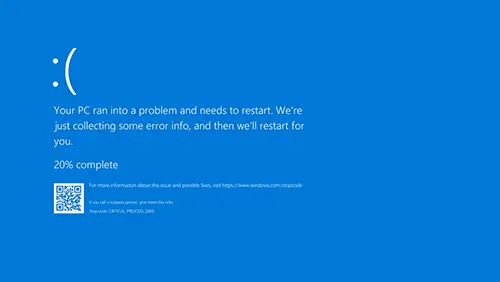
Example of a Windows 10 “Blue Screen of Death” showing a stop code (CRITICAL_PROCESS_DIED). The stop code and error message (at the bottom) help identify the issue.
⚠️ Stop Code 0x0000007E – SYSTEM_THREAD_EXCEPTION_NOT_HANDLED
What it means: A stop error 0x0000007E indicates a system thread generated an exception that the error handler did not catch. In plain language, some process running in the Windows kernel (a driver or system service) threw an unexpected error, and Windows didn’t know how to safely handle it – so it crashed. The text name for this error is SYSTEM_THREAD_EXCEPTION_NOT_HANDLED, which you might see on the blue screen. This error often occurs during normal operations or at boot, and it typically doesn’t give much info besides the code 0x7E (sometimes it may show a driver filename that caused the crash).
Common causes: The 0x7E error is notoriously broad, but driver issues are a frequent cause. For example, a newly installed or faulty device driver (graphics, audio, network, etc.) might not handle certain operations, leading to this exception. In some cases, insufficient disk space can trigger 0x7E during Windows updates or intensive tasks. An outdated BIOS or firmware incompatibility can also lead to a 0x7E stop error. And as with many BSODs, hardware problems (like a bad hard drive or RAM) cannot be ruled out, though 0x7E leans more toward software/driver causes.
✅ How to fix 0x0000007E:
- Update or Roll Back Drivers: Because drivers are the top suspect, ensure all major drivers are updated to the latest versions (especially GPU, chipset, and storage drivers). Use Windows Update or download drivers from the manufacturer’s site. If you started seeing 0x7E after a recent driver update, roll back to the previous driver. Graphics drivers are often linked to this error, so pay close attention to those.
- Free Up Disk Space: Check that your system drive has ample free space. As mentioned earlier, a full disk can cause various errors. Freeing up space has resolved the 0x7E blue screen in many cases. Aim for at least 15% free space on C:. If necessary, use Disk Cleanup (cleanmgr) to delete temp files and system cache.
- Run CHKDSK on Hard Drive: Since disk errors or bad sectors can contribute to this stop code (especially if the system thread exception happens during disk I/O), run
chkdsk /fon the drive. Fix any file system errors and re-test for the BSOD. If the hard drive is failing, consider replacing it – a healthy drive is crucial for system stability. - Disable/Remove Problematic Software: Think about any software installed or updated around the time 0x7E began. Some users report antivirus or firewall programs causing SYSTEM_THREAD_EXCEPTION_NOT_HANDLED. Try temporarily disabling your AV or uninstalling any recent apps to see if the BSOD stops. (You can do this in Safe Mode to avoid crashes.)
- Update BIOS/Firmware: If you suspect BIOS issues – for instance, if the BSOD happens during hardware initialization or right after boot – check if a BIOS update is available for your motherboard. Updating the BIOS can improve system stability and compatibility. Warning: Only update BIOS by following your manufacturer’s instructions carefully, as a failed BIOS update can brick your system. If you recently changed BIOS settings (overclocking, etc.), try resetting BIOS to default values as well.
- Last Resort – Registry Fix (Intelppm): A known fix for some 0x7E cases on certain systems is disabling the Intel Power Management driver in the registry (setting
HKEY_LOCAL_MACHINE\SYSTEM\CurrentControlSet\Services\Intelppm -> Start = 4). This was suggested in some forums when a Windows image was deployed on dissimilar hardware (Intel vs AMD CPU). However, editing the registry is advanced and risky – do this only if a reputable source specifically identifies Intelppm as the cause for your BSOD, and always back up the registry first.
Apply the above solutions one at a time. After each change (driver update, etc.), reboot and see if the 0x7E BSOD reoccurs. In many cases, updating a faulty driver or freeing disk space immediately solves the 0x0000007E error. If this error persists even after addressing drivers and disk space, double-check hardware (RAM, HDD) using the methods in the general section, or consider the advanced troubleshooting tips later in this guide.
⚠️ Stop Code 0x0000003B – SYSTEM_SERVICE_EXCEPTION
What it means: Stop 0x0000003B corresponds to a SYSTEM_SERVICE_EXCEPTION error. It indicates that while Windows was switching from an unprivileged code (user mode) to privileged code (kernel mode) – typically during a system service call – an exception/error occurred that wasn’t handled. In simpler terms, a Windows service or driver running in kernel mode broke something. This often results in a BSOD to protect the OS. The blue screen will usually display SYSTEM_SERVICE_EXCEPTION along with the code 0x3B. Also called SYSTEM_SERVICE_EXCEPTION. If your screen shows that name rather than the hex code, it is this same error — 0x0000003B and SYSTEM_SERVICE_EXCEPTION are two labels for one stop, and the fixes below cover both.
Common causes: A 0x3B error can be triggered by a few usual suspects. Graphic drivers or intensive GPU tasks are often mentioned – for instance, some users got 0x3B crashes due to user-mode graphics drivers passing bad data to the kernel. Faulty RAM can also cause sporadic 0x3B errors (corrupted data being fed into a system service). Another major cause is buggy device drivers – any poorly coded driver can misbehave when Windows calls it, leading to this stop code. Additionally, system services themselves can fail; for example, a Windows service corrupted by malware or an OS bug could trigger 0x3B. In summary, memory, drivers, or system software issues are the primary causes of SYSTEM_SERVICE_EXCEPTION errors.
✅ How to fix 0x0000003B:
- Update or Reinstall Graphics Drivers: Given the link between 0x3B and graphics/subsystem drivers, start by updating your GPU drivers to the latest version (from NVIDIA/AMD/Intel official sites). If you already have the newest driver, try a clean installation of an earlier stable version. Use Display Driver Uninstaller (DDU) if necessary to fully remove the old driver before reinstalling. This has resolved many SYSTEM_SERVICE_EXCEPTION BSODs, especially when they occur during gaming or graphic-intensive operations.
- Run Memory Diagnostics: Because memory corruption can be a factor, run the Windows Memory Diagnostic (as described in the general fixes) or MemTest86 for a few passes. If any errors are found, you likely have a bad RAM module – replacing it could stop the 0x3B BSODs for good. Even if no errors, reseating the RAM or trying modules in different slots is a good measure.
- Scan and Repair System Files: Just as with other BSODs, run
DISM /RestoreHealthand thensfc /scannow(Microsoft's own order). Corrupted core system files or libraries used by system services could be causing exceptions. SFC will fix any such corrupted system files. After repairs, test for the BSOD again. - Uninstall Recent Software or Windows Updates: If 0x3B started after installing a particular application (especially system utilities or antivirus) or after a Windows update, try uninstalling that software/update. For software, go to Control Panel > Programs & Features and remove the recently added program. For Windows updates, you can view your update history and uninstall the most recent update to see if it’s the culprit. Sometimes a bug in a new update can cause SYSTEM_SERVICE_EXCEPTION in certain environments. (Ensure you pause updates if you find one caused the issue, until Microsoft releases a fix.)
- Check Drivers with Verifier (Advanced): Windows has a built-in Driver Verifier tool that can stress test and detect faulty drivers. This is an advanced step – use it with caution. To run it, type
verifierin an Administrator CMD and follow prompts to select all drivers (or just non-Microsoft drivers) for verification, then reboot. If a specific driver is causing 0x3B, Driver Verifier will deliberately crash the system and flag that driver in the BSOD. Warning: your system will likely BSOD during this process – that’s the point – so do this only when you can afford to crash and reboot. If Verifier points out a driver, update or disable that driver to fix the problem. Remember to turn off Driver Verifier afterwards (verifier /reset). ⚠️ Microsoft's own scope for this tool is narrow: "Running Driver Verifier could cause the computer to crash. Only run Driver Verifier on computers that you use for testing and debugging." If this is your only machine and you need it tomorrow, this is the step to hand over rather than attempt. - Reset Overclocks and Check Hardware: If you’re overclocking any component, revert to default clocks. A slightly unstable CPU or GPU OC can cause random SYSTEM_SERVICE_EXCEPTION errors. Additionally, ensure your CPU is not overheating (check cooling and thermal paste) and your PSU is delivering stable power. In rare cases, a failing motherboard or GPU could also manifest as these BSODs, so ruling out other hardware (by swapping parts if possible) might be necessary if all else fails.
After each fix, monitor your system for stability. The 0x3B error can be tricky, but in our experience, updating suspect drivers or replacing faulty RAM usually resolves it. Many users have reported success fixing SYSTEM_SERVICE_EXCEPTION by simply removing a bad driver or software that was triggering the exception. Should the problem persist, keep logs of the crashes (use a tool like BlueScreenView to see crash details) – this can help identify patterns (e.g. always crashes when printing – pointing to a printer driver). If needed, consult Microsoft’s forums or professional support with those details.
⚠️ Stop Code 0x0000001E – KMODE_EXCEPTION_NOT_HANDLED
What it means: The stop code 0x0000001E corresponds to a KMODE_EXCEPTION_NOT_HANDLED error. This indicates a kernel-mode program (part of Windows or a driver running at a high privilege level) generated an exception that wasn’t caught. Essentially, something unexpected happened in kernel mode and the error handler failed to deal with it, forcing a crash. The “KMODE” in the name stands for Kernel Mode. On the blue screen, you may see the text KMODE_EXCEPTION_NOT_HANDLED along with the numeric code 0x1E.
Common causes: The 0x1E bug check is often tied to memory-related issues or driver problems. One common cause is faulty or mismatched RAM – for example, if you have two different RAM sticks or a stick not fully seated, it can throw KMODE exceptions. Defective RAM can certainly produce this error. Another cause is bad device drivers (similar to 0x7E and 0x3B). For instance, a driver that attempts to access invalid memory can lead to a KMODE exception. Some reports also link 0x1E to hardware compatibility issues – e.g. a new hardware component (like a graphics card or NIC) whose driver isn’t fully compatible can result in this BSOD. In rarer cases, malware or security software interfering at a low level could cause this error.
✅ How to fix 0x0000001E:
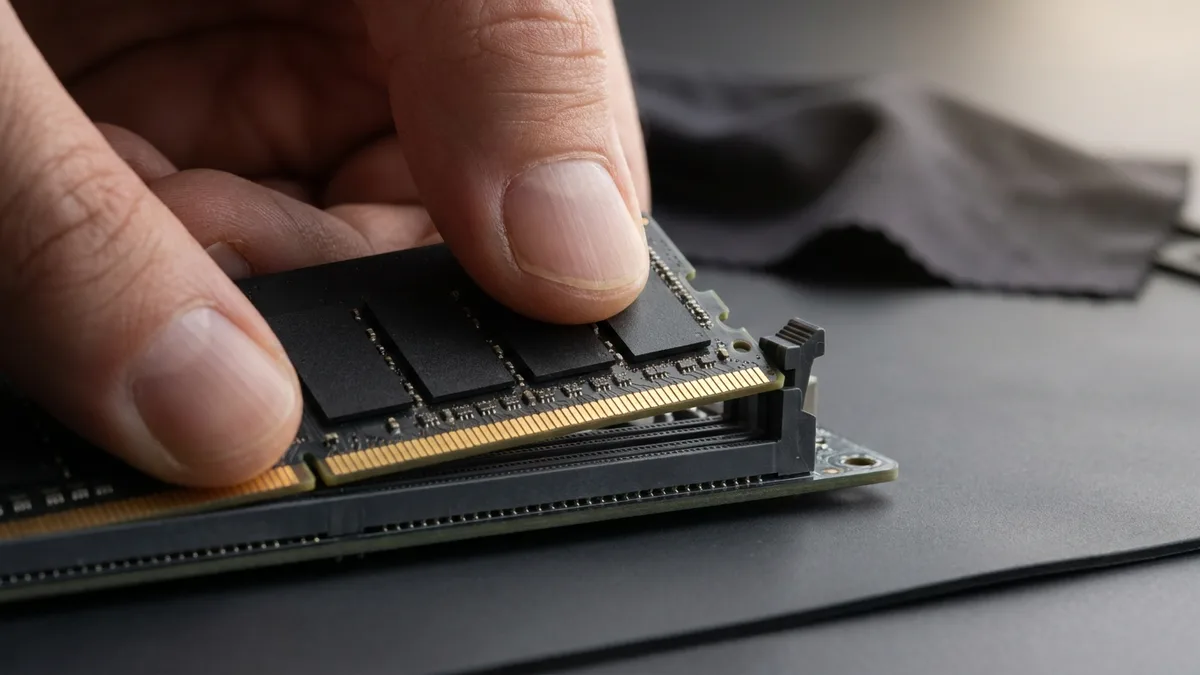
- Test and Reseat RAM: Since RAM issues are a prime cause, start by testing your memory. Run the Windows Memory Diagnostic or MemTest86. If errors are found, try removing one stick at a time to identify the bad module. Also ensure the RAM sticks are firmly in place and in the correct slots as per your motherboard’s manual. If you added new RAM recently, confirm it’s the correct type and speed for your system (and compatible with any existing RAM). Even if the test passes, you might try slightly increasing the RAM voltage or loosening timings in BIOS (if you’re familiar with that) as sometimes borderline unstable RAM can slip through basic tests.
- Update or Roll Back Drivers: Just like other BSODs, update all major drivers. Pay special attention to any driver mentioned on the blue screen or in the event logs. For example, if the BSOD text said something like “Error in XYZ.sys”, that XYZ.sys driver is likely at fault. Update that driver from the vendor’s site. Conversely, if 0x1E started after a particular driver update, roll it back via Device Manager. This is especially relevant for low-level drivers like those for disk controllers, network adapters, etc., which operate in kernel mode.
- Check for Faulty Hardware Devices: If you installed new hardware (or a peripheral) around the time the BSOD began, try disconnecting or removing it. A new PCIe card or USB device could be incompatible or defective. For example, a bad USB hub or an old TV tuner card could cause kernel exceptions. Remove or disable the device and see if stability returns.
- Scan for Malware: Run a thorough virus scan. Some malware can hook into kernel operations or corrupt kernel memory. KMODE_EXCEPTION errors can be a symptom of such interference. Removing any found malware is crucial. Additionally, if you have third-party security software, consider temporarily uninstalling it (some antivirus/firewall drivers work at kernel level and can cause conflicts). Use Windows’ built-in Defender in the interim and see if the BSODs stop.
- Reset BIOS to Defaults: Incorrect BIOS settings (like custom memory timings, improper CPU settings, etc.) can cause 0x1E errors. If you had tweaked BIOS, try resetting to factory defaults. Also ensure your BIOS/UEFI is updated to the latest version to fix any firmware bugs.
- Advanced – Analyze Dump Files: For persistent 0x1E errors that aren’t solved by the above, analyzing the memory dump file can be insightful. You can use a tool like WhoCrashed or WinDbg to load the minidump (found in C:\Windows\Minidump) and see what module was running when the crash happened. If it consistently points to a specific driver or system file, that’s your clue on what to focus on. (This step is optional and a bit technical, so it’s fine to skip if you’re not comfortable with debugging tools.)
The KMODE_EXCEPTION_NOT_HANDLED error can be frustrating, but commonly it comes down to bad memory or a buggy driver. By thoroughly testing RAM and updating (or removing) suspect drivers, you resolve the majority of 0x1E cases. For example, many users reported that simply replacing a faulty RAM stick or adjusting mismatched RAM fixed their 0x0000001E blue screens. Always remember to make one change at a time and then test, so you can identify which action actually solved the issue.
⚠️ Stop Code 0x00000050 – PAGE_FAULT_IN_NONPAGED_AREA
What it means: The stop code 0x00000050 signifies an error called PAGE_FAULT_IN_NONPAGED_AREA. This occurs when the system attempts to access a section of memory (RAM) that should not cause a page fault, i.e. a part of memory that should always be present (nonpaged area), but that access fails. In everyday terms, something tried to reference invalid or protected memory. It could be due to a pointer error in a driver, or faulty hardware corrupting memory addresses. The BSOD message “PAGE_FAULT_IN_NONPAGED_AREA” will usually appear with this stop code.
Common causes: A 0x50 BSOD can be caused by defective RAM – since bad memory could lead to invalid memory references. It’s also frequently caused by incompatible or buggy drivers that mistakenly read/write wrong memory addresses. For example, an old antivirus driver or a virtual device driver might access memory improperly, triggering this error. Disk errors or corruption in the page file can also lead to 0x50. Occasionally, anti-virus programs themselves are pointed out; historically, certain security software caused PAGE_FAULT_IN_NONPAGED_AREA if they accessed memory incorrectly. In short, the causes range from hardware (RAM, disk) to software (drivers, anti-malware, even system service failures). Invalid memory references can also occur due to filesystem corruption (if a driver is trying to load data from disk into memory and the data is corrupted). So, we have to consider both hardware and software aspects.
✅ How to fix 0x00000050:
- Test RAM and Swap Slots: As with 0x1E, start with checking your RAM integrity. Run the Windows Memory Diagnostic tool; if any errors appear, replace the faulty RAM module. Even if tests pass, if you have multiple sticks, try running with one stick at a time (to see if one is problematic) or in different motherboard slots – sometimes certain slot+stick combinations reveal issues.
- Check Virtual Memory Settings: Ensure that your virtual memory (page file) settings are correct. Windows manages this by default, but if you’ve manually set a very small page file or located it on another drive that’s now unavailable, it could cause page faults. It’s usually best to let Windows automatically manage the page file size. Also, if the page file is on a failing disk (e.g. you moved it to a secondary HDD that has issues), consider moving it back to the system SSD/HDD.
- Update or Disable Suspect Drivers: Look in Event Viewer or BlueScreenView for clues – often the BSOD will cite a specific
.sysfile. If so, that driver is likely at fault. Update the corresponding software/driver. For example, if you see something likentfs.sysorwin32k.sysin the crash log, those are system components (which usually implicate hardware or antivirus). If you see a third-party name (e.g.xyz.sysrelated to some software), updating or uninstalling that software is key. Drivers known to cause 0x50 include old versions of antivirus filters, disk defragmenters, or backup software drivers that operate at low level. Try temporarily removing any non-essential utility that might hook into the file system (e.g. certain anti-virus, disk tools) to see if the BSOD stops. - Run DISM, SFC and CHKDSK: Because corruption can cause page faults, use the trifecta of repair tools, DISM before SFC as Microsoft advises:
Run
DISM /Online /Cleanup-Image /RestoreHealth(repair system image),Run
sfc /scannow(fix system files),Run
chkdsk /fon all drives (fix file system errors).
This covers bases in case the error was due to a corrupted system file or a disk error causing bad data to be read into memory. Ifchkdskreports bad sectors or errors on the disk hosting your Windows or page file, that’s a red flag – consider replacing that drive.
- Scan for Malware: Some malware can live in memory and tamper with it. Run a full system scan with a reliable anti-malware tool to ensure your system is clean. Ironically, also keep in mind that the anti-malware tool itself might cause issues – there have been cases of antivirus software causing 0x50 BSODs due to bad updates. If you recently updated your antivirus and then BSODs started, try disabling or uninstalling it as a test (Windows Defender can serve as a temporary protection).
- Perform a Clean Boot: To rule out third-party software conflicts, perform a clean boot (where only basic Microsoft services start). In Windows 10/11, you can do this by typing
msconfig, going to Services tab -> hide Microsoft services -> click “Disable all”, and also disable startup items in Task Manager. Then reboot. In a clean boot state, see if the PAGE_FAULT_IN_NONPAGED_AREA still occurs. If not, then some service or startup program you turned off is likely the culprit – you can re-enable them one by one to pinpoint which causes the crash.
Usually, after updating the relevant drivers or replacing bad RAM, the 0x50 BSOD goes away. As an example, a user might discover that an old Wi-Fi adapter driver was causing page faults; updating it instantly fixed the issue. Or a failing memory module was swapped out, and no more 0x00000050 errors occurred. Stay systematic – change one thing at a time – and you will zero in on the cause.
⚠️ “CRITICAL_PROCESS_DIED” (Stop Code 0x000000EF)
What it means: CRITICAL_PROCESS_DIED is a Windows 10/11 stop error that indicates a critical system process terminated unexpectedly. Every BSOD has a code; for Critical Process Died the code is 0x000000EF. Windows has certain processes that it simply cannot function without (such as csrss.exe, wininit.exe, etc.). If one of these essential processes stops (dies) or is corrupted, Windows throws this error and crashes to avoid running in an inconsistent state. On modern BSOD screens, you’ll see “CRITICAL_PROCESS_DIED” as the stop code message.
Common causes: This error often boils down to one of two things: system file corruption or interference with essential processes. Corrupted system files (perhaps from a bad disk or malware) can make a critical process fail. For example, if the file for a critical service is missing or corrupted, the service may crash. Another cause is driver or software interference – if a buggy driver erroneously modifies the memory of a critical process or if you forcibly end a critical process (even by accident), it will trigger this BSOD. Some users have gotten this error after killing processes in Task Manager that they thought were frozen – only to find it was a vital process (Windows usually prevents you from killing critical processes, but it can happen in certain scenarios or with certain tools). Malware is also a suspect: some malware target critical Windows processes or mimic them, causing the real process to crash. Additionally, hardware issues that cause data corruption (bad RAM or disk) can indirectly lead to critical processes failing.
✅ How to fix CRITICAL_PROCESS_DIED:
- Run DISM and System File Checker: Because system corruption is a leading cause, run the DISM command first to fix any component store corruption, then
sfc /scannow(Microsoft's own order). This BSOD often indicates Windows cannot trust the integrity of crucial system files. SFC will check all protected system files and replace any corrupted ones. Many times, these tools will repair the underlying issue (and you’ll see in the SFC log if it fixed any files). After running them, reboot and see if the error persists. - Scan for Malware: Use Windows Defender or your preferred anti-malware to do a full deep scan. Remove any threats found. Critical process crashes can be a symptom of rootkits or trojans messing with system processes. Ensure the system is clean. If malware was found and removed, run SFC again to repair any damage it did.
- Check Disk Health: Since critical processes often involve disk operations (reading system files, etc.), make sure your disk isn’t the culprit. Run
CHKDSKon your system drive. Also, consider using tools like CrystalDiskInfo to check the SMART health status of your SSD/HDD. If your drive is failing (bad sectors, read/write errors), it could be corrupting data that causes system processes to crash. Back up important data and replace a failing drive as needed. - Update Drivers (especially storage drivers): A bad storage controller driver or even a faulty GPU driver could corrupt data in memory used by critical processes. Update all drivers to the latest. In particular, ensure your SATA/AHCI or NVMe controller drivers (which manage your disks) are up to date – you can also try using the Microsoft default storage driver versus a third-party one to see if it makes a difference. Likewise, update your graphics and peripheral drivers. There was an instance where a sound driver issue was causing system process crashes on sleep/resume – edge cases, but updating all drivers eliminates these possibilities.
- Use Clean Boot or Safe Mode to Isolate: Boot into Safe Mode and use your system for a while – do you still get CRITICAL_PROCESS_DIED errors? If not, it implies a third-party program or driver that doesn’t run in Safe Mode is responsible. Perform a clean boot (as described earlier) to narrow down the offending software. Often, software that deeply integrates with Windows (VPN clients, security software, advanced system utilities) are candidates. Try uninstalling any such programs one by one to see if the BSOD stops.
- System Restore or In-Place Upgrade: If the issue started recently and you have a restore point, restoring can undo any changes that led to the critical process failure. If no restore point or if it doesn’t help, consider an In-Place Upgrade Repair of Windows. This is done by running the Windows 10/11 installer over your existing Windows (choosing the option to keep files and apps). It will essentially reinstall Windows system files without wiping your data. This can fix persistent CRITICAL_PROCESS_DIED errors by replacing all core system components – a step below a full OS reset.
- Hardware Checks: While less common for this specific error, it’s wise to test your RAM and CPU. Use MemTest86 (for RAM) and run a CPU stress test (like Prime95) to ensure stability. A marginally failing CPU can cause all sorts of weird issues, as can motherboard faults. If you only get the BSOD under heavy load, it might hint at hardware. Also, ensure your system isn’t overheating (use HWMonitor, etc.). A critical Windows process might crash if the hardware it relies on misbehaves due to heat.
Typically, CRITICAL_PROCESS_DIED is resolved by repairing corrupt system files or finding the software that’s killing a vital process. For instance, one might discover that a backup software was terminating the svchost.exe process – uninstalling that software stopped the BSODs. Or running SFC revealed a corrupted core DLL, which it then fixed, restoring stability. Take it step by step, and this error can be beaten.
(Interesting note: On Windows Insider preview builds, the stop screen can be green – but the troubleshooting is the same!)

Advanced Fixes for Persistent or Hardware-Related BSODs
If you’ve tried the above steps and still experience frequent blue screens, it’s time to employ advanced troubleshooting. These methods go deeper into hardware diagnostics and system analysis:
- Run Hardware Diagnostics Utilities: Many PC manufacturers (Dell, HP, Lenovo, etc.) provide diagnostics tools to test hardware. For example, Dell has SupportAssist and built-in ePSA diagnostics. Use these or third-party utilities to thoroughly test your CPU, GPU, RAM, and disk. Tools like MemTest86 (for memory), Prime95 or Intel Processor Diagnostic Tool (for CPU), FurMark (for GPU stress), and CrystalDiskInfo (for disk health) can help identify flaky hardware that standard checks might miss. If any hardware component shows instability under stress, consider repairing or replacing it. Hardware issues can cause seemingly random BSODs that evade normal software fixes.
- Enable Driver Verifier (Debugging Mode): As mentioned earlier for 0x3B, Driver Verifier is a powerful utility for advanced users. If you suspect a driver is causing crashes but can’t identify which, enable Verifier to stress all non-Microsoft drivers. It will intentionally crash the system at the sign of any driver misbehavior, producing a BSOD with the offending driver’s name. Use this with caution, and only after backing up data (since it may lead to boot loops if a critical driver is faulty – in such case you’d have to disable verifier via Safe Mode). This technique can pinpoint a troublesome driver that normal operation might not clearly flag. ⚠️ Microsoft's own scope for this tool is narrow: "Running Driver Verifier could cause the computer to crash. Only run Driver Verifier on computers that you use for testing and debugging." If this is your only machine and you need it tomorrow, this is the step to hand over rather than attempt.
- Analyze Memory Dump Files: Each BSOD can create a dump file (
.dmp) containing the state of the system memory at crash time. You can use debugging tools to analyze these dumps. For a user-friendly approach, a tool like BlueScreenView (by NirSoft) will list recent crash dumps and highlight the drivers involved. For a deep dive, use WinDbg (Windows Debugger) from Microsoft. Load the dump file (usually found inC:\Windows\Minidump) and use commands like!analyze -v. Look for lines that indicate an exception and a probable cause module. While this is a bit technical, there are plenty of online communities (like TenForums, BleepingComputer) where experts can help interpret dump files if you share them. This analysis can reveal patterns, such as always crashing in a specific DLL or driver, guiding you where to focus your efforts. - BIOS/UEFI Settings and Updates: For persistent BSODs, consider more obscure causes like BIOS issues. Reset your BIOS/UEFI to default settings if you haven’t already. Check for any BIOS updates on your motherboard manufacturer’s site – sometimes there are notes like “Improve system stability” or “Fix unexpected crashes” in BIOS update changelogs. Particularly if you’re running an older BIOS with newer hardware or OS, updating can help. Just remember to follow instructions carefully when flashing BIOS. Additionally, disable any non-essential BIOS features (overclocking, advanced caching or shadowing settings, etc.) to see if stability improves.
- Reseat or Swap Hardware Components: Turn off your PC, ground yourself, and reseat internal components. Remove and reinsert RAM modules, detach and firmly reconnect storage drive cables, and if possible re-seat your graphics card and other expansion cards. A loose connection or slight corrosion can cause intermittent issues. If you have spares or can borrow, try swapping out components one at a time – e.g. use a different PSU, test with a different GPU, or even move the system to a different wall outlet (strange as it sounds, faulty power delivery or grounding in your environment can cause issues). This kind of swapping can isolate the problem piece of hardware.
- Perform a Repair Install or OS Reinstallation: If nothing else has solved the BSODs, it might be time to consider that your Windows installation itself is irreparably messed up. An in-place repair install (for Windows 10/11) will reinstall Windows system files while keeping your programs and data. This can fix deep-seated issues without the hassle of a full wipe. To do this, download the latest Windows 10/11 ISO from Microsoft, run the Setup.exe from within Windows, and choose “Keep personal files and apps.” After the repair install, reapply Windows Updates. If even that fails, a clean installation of Windows (after backing up data) provides a fresh start. If BSODs still occur on a clean install, you almost certainly have a hardware problem. But often, persistent BSODs vanish after a fresh OS install if they were caused by some software corruption.
- Consult Professional Help: Sometimes, despite all efforts, BSODs can stump even experienced users. Don’t hesitate to seek help from professional technicians or dedicated forums. In Singapore, for example, you can reach out to Microsoft Support or certified local PC repair centers if needed. Provide them the details of all you’ve tried and any dump analysis results – this will greatly assist in diagnosing the remaining issue.
By using these advanced techniques, you leave no stone unturned. We’ve essentially covered every layer: software, drivers, OS, and hardware. It’s not uncommon that after rigorous testing, you might find a less obvious culprit – perhaps a specific combination of BIOS setting and driver, or an external factor like a faulty power strip. Patience and thoroughness are key in this phase. The good news is, with a methodical approach, virtually every BSOD problem can be solved – it’s just a matter of identifying and replacing the right component or code.
💡 Preventing Future Windows Blue Screen Errors
After you’ve resolved your blue screen issue, the next goal is to prevent it from coming back. Here are some best practices to keep your Windows 10/11 system stable and avoid future BSODs:
- Keep Windows and Drivers Updated: Enable Windows Update (but perhaps delay feature updates until they’re well-tested) so that you receive the latest security patches and bug fixes. Regularly check for driver updates for critical components (graphics card, chipset, network, etc.) – either via Windows Update’s optional updates or the manufacturers’ utilities. Updated drivers and OS fixes address known crash causes and improve compatibility.
- Use Reputable Software Only: Avoid installing cracked or untrusted software, which might include malware or unstable drivers. Stick to well-known programs, and uninstall software you no longer need. Especially avoid running multiple antivirus or system “optimizer” tools simultaneously – they can conflict and cause system instability.
- Regularly Scan for Malware: Run periodic scans with Windows Security or another reputable anti-malware tool. Modern threats can be sneaky and cause system havoc without obvious signs. Keeping your system malware-free removes one big source of unpredictable crashes.
- Monitor Hardware Health: Every few months, it’s wise to check your system’s temperatures and clean out dust from the case. Overheating is a common culprit behind hardware-related BSODs. Ensure proper airflow in your PC case (clean fans, consider adding another case fan if things run hot). Keep an eye on SMART data for your drives – replace the drive if you start seeing reallocated sectors or read errors (before it fails catastrophically). If you have a desktop UPS or voltage regulator, use it – clean power can prevent crashes due to power flickers.
- Avoid Overclocking (or Do It Conservatively): Pushing your hardware beyond its specs can yield great performance, but it absolutely can reduce system stability. If you must overclock, do so gradually and test rigorously (with stress tests) for stability. The moment you see a BSOD after an overclock tweak, dial it back. Overclocking-induced BSODs are a sign you’ve hit the hardware’s limit or need better cooling/voltage. For maximum stability (especially in a work-critical machine), it’s best to run components at stock speeds or only modest OCs well within safe margins.
- Use Quality Hardware & Peripherals: Cheap no-name components (PSUs, RAM, USB devices) can cause issues. Invest in quality power supplies (a bad PSU can send unstable power, causing all sorts of crashes). Use RAM that’s on your motherboard’s QVL (Qualified Vendor List) to ensure compatibility. Even peripherals like a malfunctioning USB device can crash the OS (e.g. a shorted USB port). So if you notice odd behavior from a particular external device, replace or remove it.
- Enable System Protection and Backups: Always have System Restore enabled on your system drive. Restore points are invaluable for quickly undoing problematic changes (like a bad driver update). Additionally, maintain regular backups of your important data (use File History or third-party backup solutions). In worst-case scenarios, if BSODs make your system unbootable, having backups means you won’t lose data while you troubleshoot or reinstall Windows.
- Periodically Check Disk Integrity: Run tools like
sfc /scannowandDISM /CheckHealthoccasionally (perhaps every few months) to ensure system files remain intact. Also, runchkdskor graphical disk error-check on your drives occasionally (Windows may do this automatically if it senses an issue). These proactive checks can catch developing problems early. - Monitor System Logs: Every so often, peek into the Event Viewer (Windows Logs -> System) and Reliability Monitor (just search for “Reliability Monitor” in Start). These tools can show if there are recurring errors or warnings. For instance, if you see disk controller errors or driver crashes in logs, you can address them before they escalate to a full BSOD.
By following these preventive tips, you’ll greatly reduce the chances of encountering blue screen errors. In essence, maintain your system like you would a car: keep it updated, clean, and use quality parts and fuel (software). BSODs may never be 100% eliminated (after all, hardware can age and new bugs can emerge), but you can make them a rarity. And if one does occur, you now have the knowledge to troubleshoot it calmly and effectively.

💡 Helpful Resources for Windows Blue Screen Errors
To help you better understand and fix Windows blue screen issues, check out these helpful resources:
✅ Internal Guides (on our site):
- Windows Update Broke My PC
A Windows update is one of the commonest triggers for a new stop code — start here if yours began after one. - Windows Black Screen With Cursor After Login
A blank screen with a cursor is a DIFFERENT fault from a stop-code screen, and Microsoft routes it separately. - Computer Keeps Restarting
If Windows reboots before you can read the stop code, this is the page that gets you a look at it. - Windows Backup Guide
Get your files off first: almost every repair tool on this page writes to the drive you may be trying to save.
✅ Trusted External Links:
- Microsoft: Troubleshoot blue screen errors
Official Microsoft advice for solving BSOD issues. - Microsoft Learn: Bug Check 0x3B SYSTEM_SERVICE_EXCEPTION
Technical details on the System Service Exception error. - Driver Downloads: NVIDIA
Official driver updates to resolve driver-related BSODs. - MemTest86
Free tool for checking RAM stability and integrity. - WhoCrashed by Resplendence
Easy-to-use tool to identify the exact cause of blue screen crashes.
These resources ensure you're well-equipped to handle and fix any Windows blue screen errors confidently.
Still Facing Windows Blue Screen Issues? Let Our Experts Handle It.
If you've tried the above solutions but are still experiencing frequent Windows blue screen errors—or if you're unsure about performing these technical fixes yourself, don’t worry, help is available!
At Esmond Service Centre, our highly experienced IT professionals, with over 16 years of hands-on expertise, specialize in diagnosing and resolving all types of Windows issues, including stubborn Blue Screen errors.
- ✅ Fast, reliable diagnosis and repair
- ✅ Transparent pricing and clear explanations
- ✅ A free, no-obligation diagnosis before any work begins
- ✅ Two branches, at Alexandra and Sin Ming
Don't risk further data loss or damage. Let the trusted professionals at Esmond Service Centre get your PC running smoothly again. 👉 Contact Us Today or Visit Our Service Centre for Expert Windows Blue Screen Fixes! Our Windows OS repair service in Singapore covers exactly this: stop-code diagnosis, driver and system-file repair, and the memory or storage replacement behind the one-in-ten that turn out to be hardware.

Esmond Service Centre's experienced technicians can diagnose and fix it fast — free diagnostics, repairs from $65.