

📑 On this page
What the start-up chime actually tells you
Walk-in and WhatsApp customers describe exactly this to us: the MacBook Air chimes, then the screen stays black. The boot chime fires only after the Mac has confirmed the basics of its logic board (the main board — Apple's name for the motherboard) and power are alive. In plain terms: if you hear the chime, power delivery and the early boot are working, and a truly dead machine makes no sound at all. On the bench this immediately narrows the fault to two families — the image is being generated but never lit or sent to the panel (a display-path fault), or the Mac is stuck in software before it draws anything. Apple's own guidance draws the same line: if your Mac 'seems to be turning on but the screen is blank', you continue through its display troubleshooting rather than treat it as a power failure.
First, confirm it's the screen and not the whole Mac
Before anything else, prove the Mac is really running by looking for the signs of life a black screen hides. Apple's checklist for a Mac that doesn't turn on is worth running first anyway: confirm the charger is undamaged and plugged into a working outlet, then unplug every accessory — drives, hubs, adapters, even a second monitor — so nothing external is holding the display hostage.
- The chime you already heard — the clearest proof the logic board and power passed their start-up check.
- Keyboard backlight glowing and a soft fan or drive whir — the Mac is awake even though the screen is dark.
- Caps Lock light turns on when pressed — a quick way to confirm the keyboard, and the Mac, is responding.
- If those are present, you have a MacBook that boots but shows no display — a very different and far cheaper problem than one that is completely dead.
5 checks to try yourself before a repair
Do these in order. Each is safe, reversible and free. Stop as soon as the screen comes back.
- First, force a clean restart. Press and hold the power button for up to 10 seconds until the Mac fully switches off, wait a few seconds, then press it once to boot. This clears a hung boot — Apple lists it as the first step for a blank screen.
- Then rule out brightness. Tap the brightness-up key several times, and press Caps Lock to confirm keys respond. It sounds trivial, but a stuck brightness state genuinely presents as a black screen.
- Reset NVRAM — Intel Airs only. On an Intel MacBook Air, shut down, then power on and immediately hold Option-Command-P-R for about 20 seconds. On an Apple silicon (M1/M2/M3) Air there is no key-combo reset — a normal restart does the same job.
- Test with an external display. Connect the Air to a monitor or TV. If the external screen shows a picture but the built-in one stays black, the logic board and graphics are fine and the fault is in the Air's own screen assembly — backlight, cable or panel.
- Finally, the flashlight backlight test. In a dark room, shine a phone torch at a steep angle across the black screen. If you can faintly see the desktop or login, the image is being drawn but the backlight is dead — a targeted, lower-cost repair rather than a whole panel.
Apple silicon vs Intel: the reset that changed
Which fixes apply depends on your chip, and this trips up a lot of guides. Here is the honest split, straight from Apple's key-combination documentation.
| Step | Intel MacBook Air | Apple silicon (M1/M2/M3) Air |
|---|---|---|
| NVRAM/PRAM (the small memory that keeps settings) reset | Hold Option-Command-P-R at boot (~20s) | None — just restart; the system handles it |
| SMC (the chip that controls power and fans) reset | Keyboard combo with power | None — a full shutdown and restart replaces it |
| Recovery mode | Hold Command-R at boot | Press and hold the power button until startup options appear |
| Firmware revive | Possible via a second Mac | Possible via a second Mac + USB-C |
.jpg)
What's actually broken: backlight, cable, panel, board or software
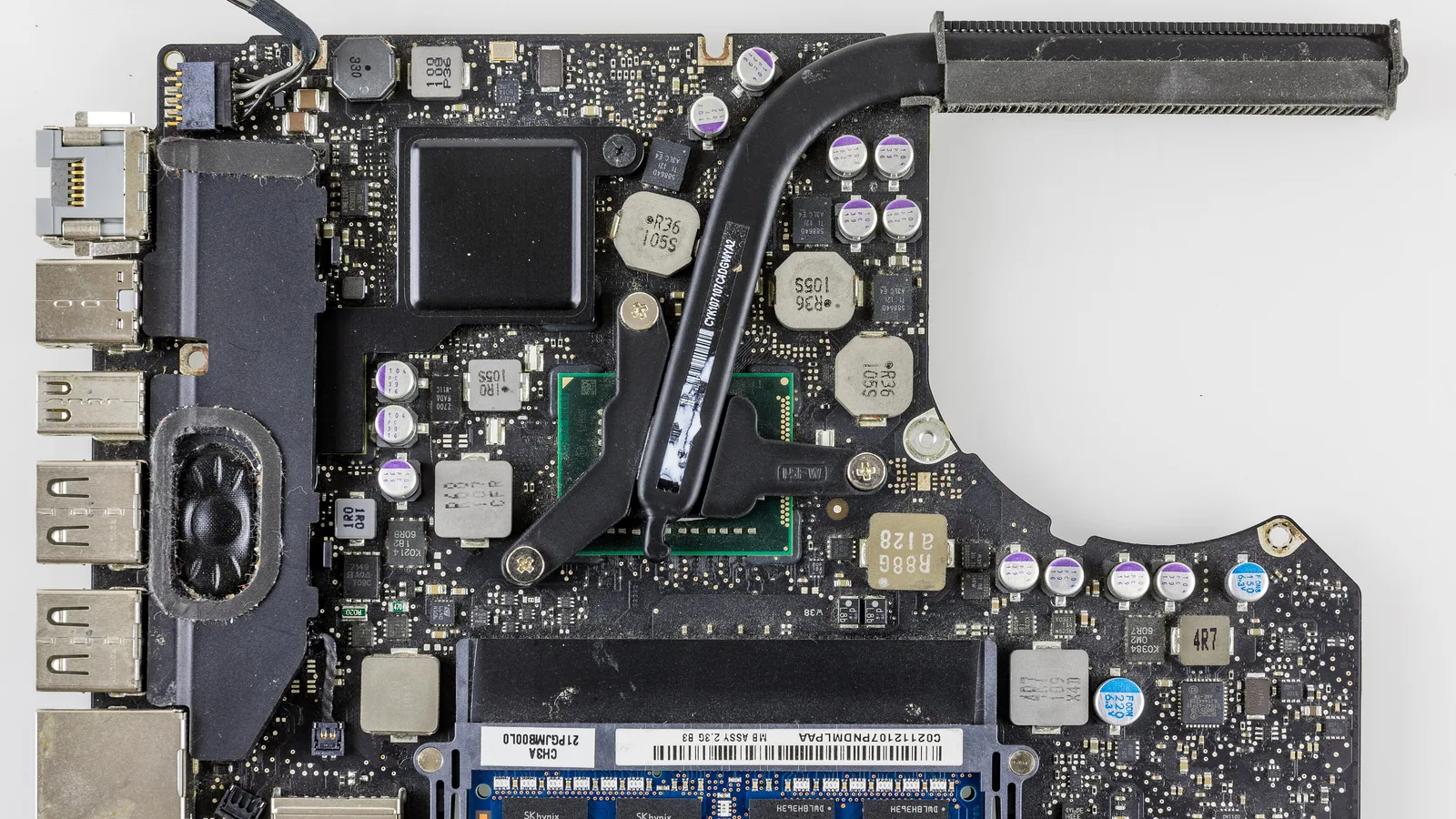
Once you have run the five checks, the results point to a cause — the same reasoning we use on the bench to quote a repair honestly. A no-external-image, chime-only fault usually means the logic board, the bare blue board above, and that is a board-level diagnosis rather than a screen swap. A fault that a torch or an external monitor exposes points instead at the backlight, the display cable or the panel.
| What you saw | Likely cause | Typical fix |
|---|---|---|
| Faint image under a torch; nothing normally | Backlight circuit or backlight failure | Backlight/board-level repair — often no full panel needed |
| External display works, built-in stays black | Screen cable (flex) or the panel | Display cable replacement, or panel/assembly if the panel is dead |
| Black screen changes with the hinge angle | Worn display flex cable | Flex cable replacement |
| No external image either; chimes only | Graphics/logic-board fault | Board-level diagnosis and repair |
| Fixed by NVRAM reset or Recovery reinstall | Software/firmware only | No parts — a reset or macOS reinstall |
_-_2.jpg)
When it's firmware: revive vs restore
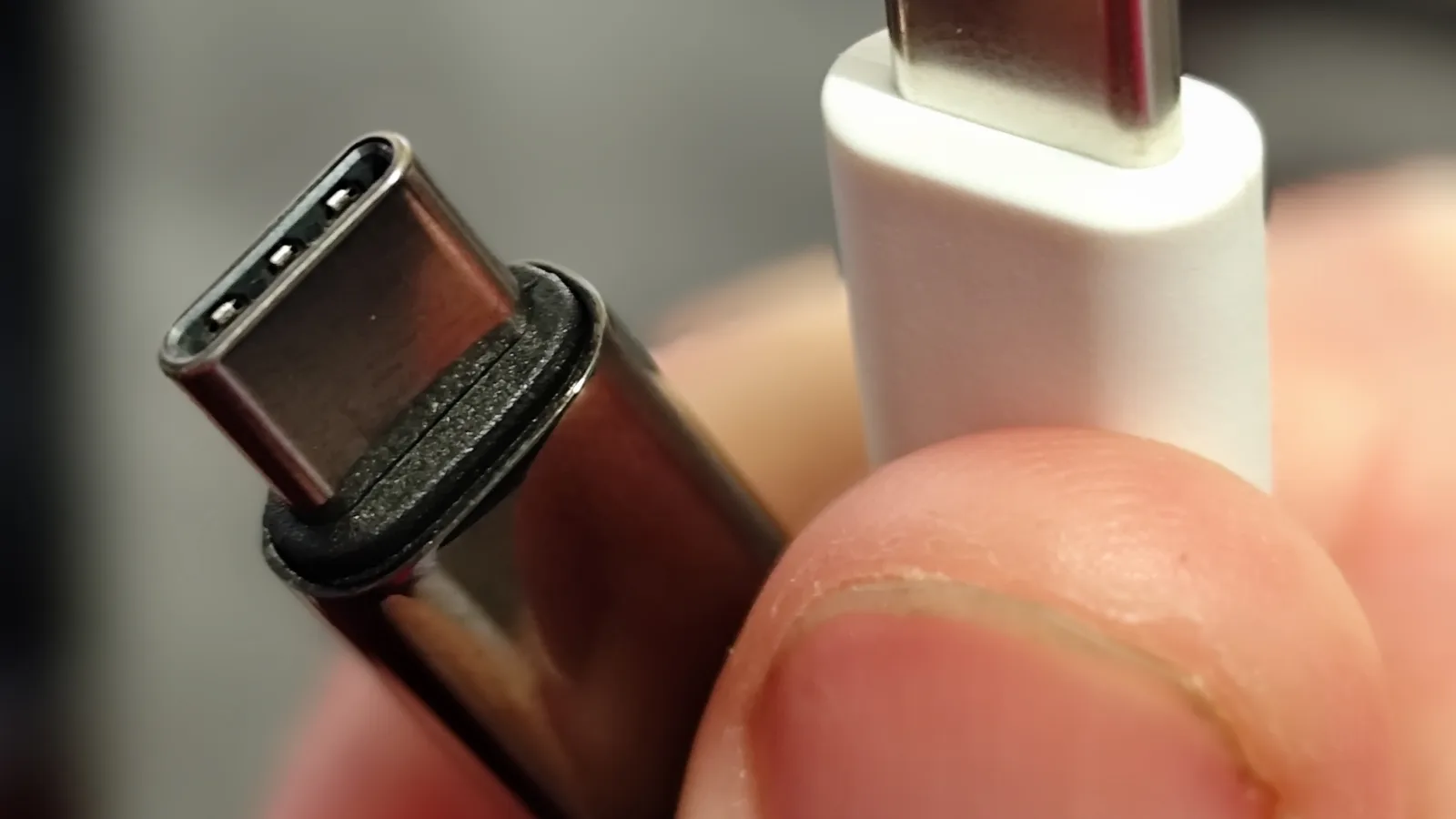
If the Air chimes, shows nothing, and refuses to reach Recovery, the firmware itself may be corrupt. Apple supports two fixes using a second Mac and a data USB-C cable like the one above. A revive updates the firmware and recovery system and, in Apple's words, 'doesn't erase your Mac' — your data stays. A restore erases the Air back to factory. Both need a second Mac on macOS 14 or later, a USB-C to USB-C cable that carries data, and Finder. Always try a revive first; a restore is a last resort because it wipes everything.
When to stop and bring it in — and what we do in the workshop
Know the limit of these checks: a force power-off, an NVRAM reset and a Recovery boot cannot fix a failed backlight, a worn display cable or a dead panel — those are hardware faults that need a workshop. Prising the case open yourself risks permanent damage to the thin display cable, and a static shock can make the fault worse, so you can lose data if the drive is disturbed. Stop the DIY the moment you'd need to open the case, and bring it in if an external display also stays black, the flashlight test shows an image but the backlight never returns, or a revive won't complete. When one of these MacBook Airs reaches our bench in Singapore, we don't guess: we confirm power, test the display path with a known-good cable and an external monitor, and only then separate a backlight, cable or board fault. Every MacBook repair at Esmond Service Centre includes a free diagnostic check, and most repairs carry a 90-day warranty, extendable up to 1 year through the optional Esmond Care plan.
- Display-path testing: confirm with an external monitor, then check the backlight, flex cable (the thin ribbon cable inside) and panel in turn.
- Board-level work: repair a backlight circuit or a display-cable connector where that is the fault.
- Honest scoping: we deliberately don't quote a fixed 'black screen' price here — the cost depends on which of these it turns out to be, so we diagnose first, for free, then quote.

Esmond Service Centre's experienced technicians can diagnose and fix it fast — free diagnostics, repairs from $65.