

📑 On this page
People type “MacBook not turning on or charging” as one problem. At a repair counter it is two, and they barely overlap. A Mac that is receiving power and failing to start has a long list of cheap causes. A Mac that is not receiving power at all has a short list of expensive ones. Nearly every guide to this problem gives you one flat checklist that mixes the two together, which is why people work through fifteen steps and still do not know what they have. This page is a fork instead: settle the question above, then read only your own branch.
Start Here: Does Anything Happen When You Plug It In?
The phrases people search for are precise, and they describe different machines. “Not turning on but charging” and “not turning on and not charging” are two faults, not one with a qualifier. Find your row before you try anything.
| What you see when you plug in | What that means | Your branch |
|---|---|---|
| A light on the charger, a battery icon, a fan, a sound — but the screen stays black | The Mac is receiving power. The failure is after the power stage | Branch A |
| No light, no fan, no sound, no change of any kind | Power is not reaching the board, or the board is not accepting it | Branch B |
| It starts and runs, but only while plugged in | The Mac works; the battery is not holding charge or is not being seen | Branch A, then the battery |
| It runs, and the percentage sits still or will not pass a number | Often not a fault at all — see the section on macOS holding the charge | Read that section first |
That last row catches a lot of people. A MacBook that stops at 80% and behaves normally otherwise is usually doing exactly what Apple designed it to do, and there is nothing to repair.

Why the Charging Light Cannot Answer That Question
Before you can use the fork above, you need an honest reading of whether power is arriving — and on a modern MacBook that is genuinely hard, because the machine may have no way to tell you.
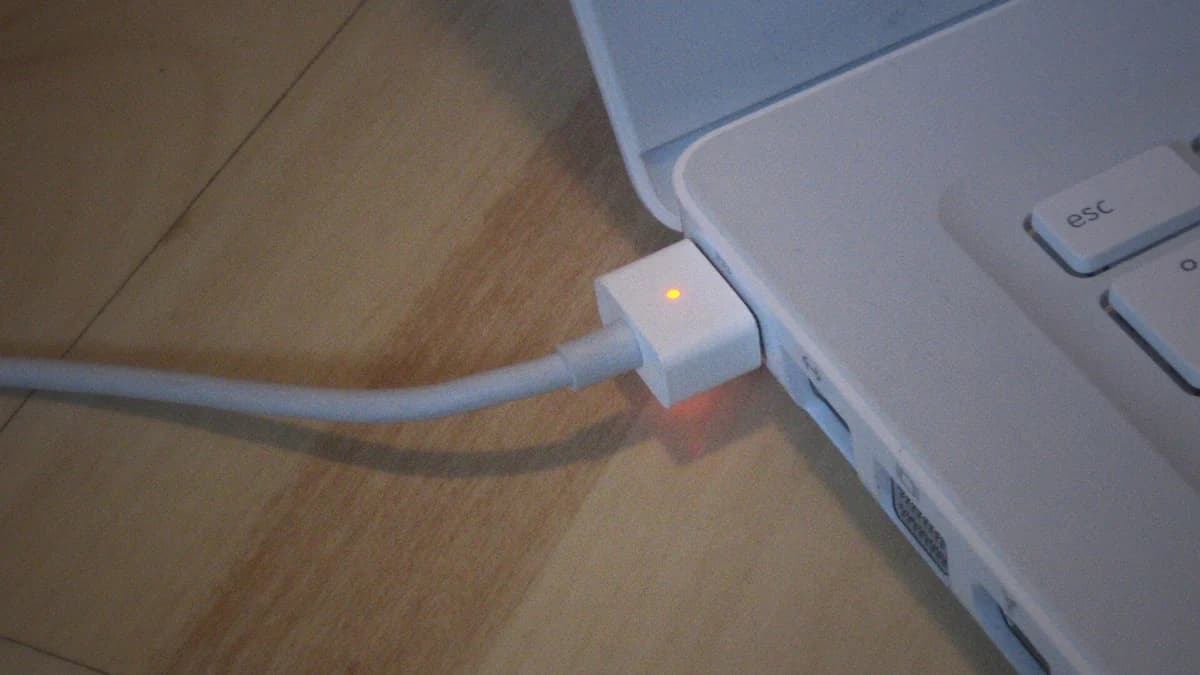
- The MagSafe light does not mean what most people think. Apple states it plainly: “Amber when charging is underway or charging is on hold. Green when your battery is fully charged.” So an amber light tells you the connector has power and the Mac has acknowledged it. It does not prove the battery is taking charge — it is also what you see when macOS has deliberately paused charging.
- If your MacBook charges over USB-C, there is no light at all. The indicator is built into the MagSafe connector, and a USB-C cable does not have one. On those models the only readout lives on screen, which helps nobody when the screen is black.
- If the Mac wakes far enough to show a desktop, the battery status menu in the top bar is the instrument to trust. Apple notes it can read “Charging On Hold”, and that “Slow Charger” appears there and in Battery settings when the adapter is underpowered for your model.
- If you have none of those — no light, no screen — then you cannot read the machine, so you test the supply instead. Change the wall socket, borrow a known-good adapter of the correct wattage, and inspect the cable at both ends. That is the whole of Branch B's first move.
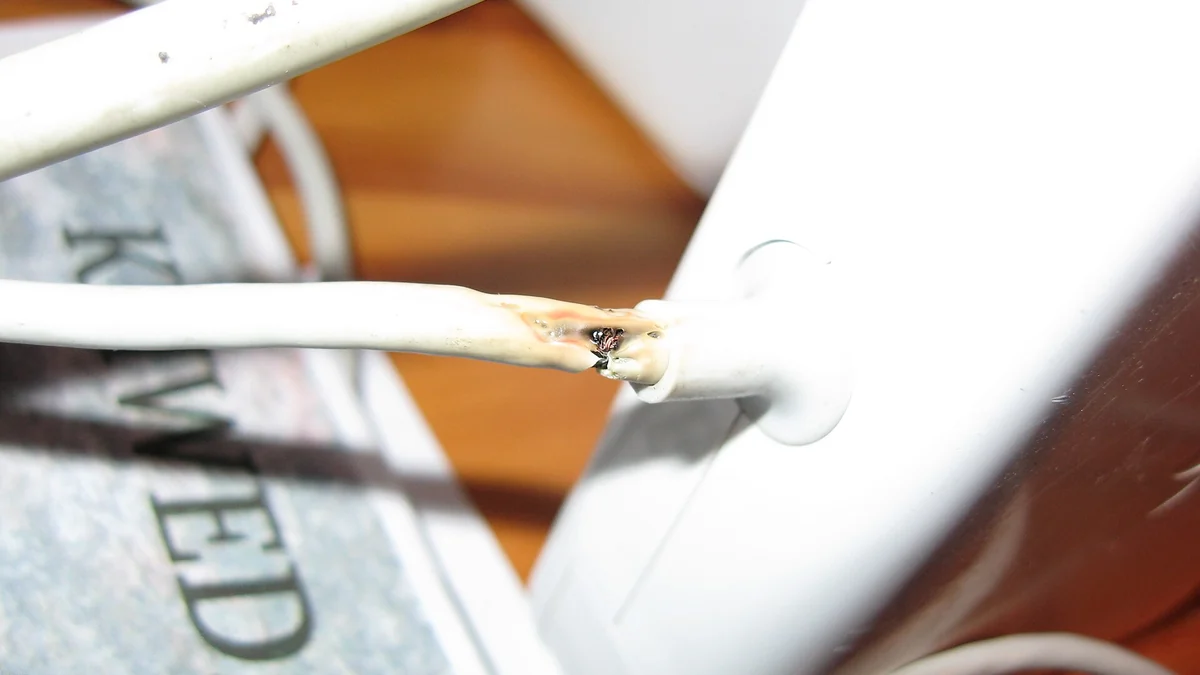
Inspect the cable where it enters the brick and where it enters the connector. Those two bend points are where they fail, and the failure is usually visible: splitting, discolouration, a stiff kink, scorching, or exposed strands. A cable in that condition is finished — stop using it, and do not tape it up. A flashing amber light is its own signal: Apple's advice is to wipe the port and connector with a dry cloth, make sure both are dry and clear of debris, restart, then try another cable. In Singapore's humidity, and given what a laptop bag collects, clearing a packed charging port is not a token step — we do it at the counter regularly.
Branch A — It Shows Signs of Power, but Nothing Appears
The Mac is getting power and still shows you nothing. The single most useful thing to know here is that this often turns out not to be a power fault at all. Work these in order and stop at the first that changes something.
- The torch test, first, because it is free and it decides the most. In a dark room, press the power button once, then shine a torch on the screen at a shallow angle. If you can make out a faint desktop or a login box, the Mac is running and its backlight or display has failed — a different repair entirely, and not a power one.
- Listen and feel. A fan spinning up, a startup sound, warmth near the vents or a keyboard backlight all say the same thing: it is alive behind a dead screen.
- Force restart properly. Hold the power button for about 10 seconds until it powers off completely, release, then press once. On a Mac with Touch ID, the Touch ID key is the power button.
- Disconnect everything else. Apple's own list is printers, drives, USB hubs and mobile devices. A faulty dock or shorted peripheral can hold a Mac off, and unplugging costs nothing.
- Try an external display if you have one. A picture on the external and nothing on the built-in narrows it to the display side with near-certainty.
If it now starts, you are done. If it starts only while plugged in and dies the instant you unplug it, the machine is fine and the battery is not holding — check the battery section further down. If nothing in this list changes anything, the fault is inside the machine and it needs a bench.

_(17304506139).jpg)
Branch B — No Light, No Fan, No Sign of Life
No light, no fan, no sound, nothing. This branch is shorter than Branch A because there are fewer things it can be — and it is the branch where the do-it-yourself list runs out quickly.
- Change the socket, then the charger. A wall socket, not an extension strip and not a monitor's USB-C port. If you can borrow a known-good Apple adapter of the right wattage, that one swap settles more dead-MacBook cases than everything else combined.
- Give it fifteen minutes on that charger before you judge. A fully flat battery will not respond instantly, and people give up at two minutes.
- Clean the port with a dry cloth, and make sure it is dry and clear of debris before plugging in again.
- Force restart on the charger — about 10 seconds on the power button, release, press again.
That is the end of what can honestly be done at home. If the Mac is still completely dead on a charger you know works, stop. There is no software step, no key combination and no reset that recovers a machine which is not accepting power — and the guides that offer you one at this point are wasting your evening.
What it means is this: either power is not reaching the logic board, or the board is not accepting it. On a MacBook that covers the charging port and the power circuitry on the board itself. The battery is rarely the reason a Mac will not start, because a Mac with a dead battery still runs on the adapter. That is the single most common wrong guess we hear at the counter, and acting on it costs people the price of a battery that was never the problem.
When macOS Is Holding the Charge on Purpose
Two normal behaviours look exactly like a charging fault, and neither needs a repair. Rule them out before you spend anything.
- Optimised Battery Charging is pausing it on purpose. Apple describes it as your Mac “delays charging past 80% when it predicts that you'll be plugged in for an extended period of time”. The battery status menu shows Charging On Hold, and the same menu offers Charge to Full Now when you need a full battery before going out. If your MacBook “stops charging at 80%” overnight and is otherwise normal, this is almost certainly it.
- The charger is too small for the machine. A phone brick or low-wattage USB-C adapter can hold the level roughly steady under load and never actually raise it — which reads exactly like “plugged in, not charging”. Apple's wording is that “Slow Charger” appears in the battery status menu and Battery settings when the wattage is too low for your model. Borrow the right adapter before you buy anything.
Five minutes here is the difference between a normal Tuesday and an unnecessary trip across town, and it is the reason this section sits before the price list rather than after it.

Two Findings That Mean Put It Down Now
Two findings end the home round immediately, whichever branch you are on. Both are safety matters, not repair advice.
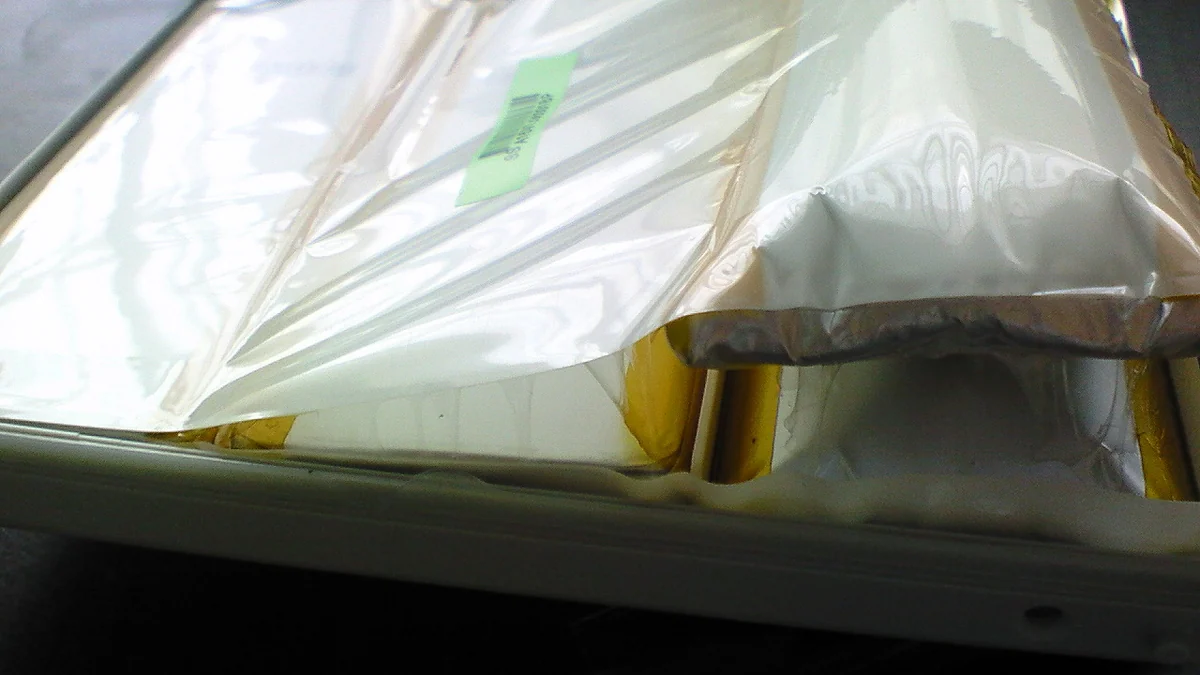
- A swollen battery. The signs are a trackpad that has risen and clicks oddly, a lid that no longer closes flat, a bottom case that rocks on the desk, or a visible bulge. Stop charging it, do not press on the bulge, do not carry it under anything heavy, and bring it in. A swollen lithium-polymer cell is a fire risk and it does not improve on its own.
- Liquid has been inside. Shut it down now and do not plug it in to charge — every minute a wet board spends powered spreads corrosion. Do not stand it in rice and do not use a hair dryer. Chemical cleaning is a one-working-day job with us; a board that has been powered up wet for a week very often is not.
We would rather say this and lose the charging-port job than have you keep plugging in a wet machine. If either applies, skip the rest of this page — read our laptop water damage guide or just bring it to us.
Where Each Branch Ends Up, and the Price at Our Counter
These are our own prices and turnarounds at Esmond Service Centre, mapped onto the two branches so you can see what your reading actually leads to. Diagnosis is free, we confirm the fault and the exact price before any work begins, and if we cannot repair it you pay nothing. Repair prices exclude 9% GST, which is added at payment.
| Where you ended up | What it usually is | How long | From |
|---|---|---|---|
| Branch A — faint image under a torch | Display or backlight, not power | Quoted after the free diagnosis | — |
| Branch A — runs only while plugged in | MacBook battery replacement | 1 – 2 hours | Fr $128 - $186 |
| Branch A — will not complete start-up | macOS reinstall or recovery | 2 – 3 hours | Quoted after the free diagnosis |
| Branch B — charging port is its own module | Charging port replacement | 1 – 2 hours | Quoted after the free diagnosis |
| Branch B — charging port soldered to the board | Board-level charging repair | 3 – 5 working days* | Quoted after the free diagnosis |
| Branch B — MacBook Air Intel and older iMacs | Logic board repair | 3 – 5 working days* | Fr $186 |
| Branch B — MacBook Air and Pro, M3 and newer | Logic board repair | 3 – 5 working days* | Quoted after the free diagnosis |
| Either branch — liquid has been inside | Chemical cleaning | 1 working day* | Quoted after the free diagnosis |
*Allow longer if the fault is intermittent and needs extended testing. The charging port appears twice on purpose, because on a MacBook it is genuinely two different jobs: where the port is its own module it is an afternoon, and where it is soldered onto the logic board it is board-level work measured in days. Nobody can tell you which one your model has from a photograph, which is precisely why the diagnosis is free. Repairs carry a 90-day warranty on parts and labour.
If your reading pointed at the battery, our MacBook battery replacement page has the model-by-model detail. If it pointed at the board, that is MacBook and iMac motherboard repair. If the display turned out to be the fault rather than the power, start at MacBook repair.
What We See at the Counter That the Manuals Leave Out
This is the part a manufacturer page cannot write, because it comes from the counter rather than the manual. Four things come up over and over with MacBooks that will not start.
- “It cannot power on” very often turns out to be the screen. The machine is running and showing black. That is why the torch test is the first item in Branch A rather than a footnote — it is the cheapest question on this page and it changes the entire repair.
- People blame the battery, and the battery is usually not why it will not start. A MacBook with a failed battery still powers on with the charger connected. If it will not power on even with a working charger plugged in, it is almost always a hardware fault on the logic board.
- On a machine that will not power on, we cannot test anything else yet. Until the board repair is done we cannot confirm whether the storage, the screen or the keyboard survived. That uncertainty is what moves the final price up or down, and it is why an honest quote comes after the diagnosis rather than over the phone.
- We repair boards; we do not swap them. We replace the faulty component on the board with an original component. A whole-board replacement is often half the price of a new machine and sometimes more than buying new — so we attempt the repair first, and if it genuinely cannot be repaired we tell you that instead of quoting you a board.
One more, because it loses us work and is still the right answer: on a genuinely old MacBook a battery or board repair will work, but we cannot promise how long the rest of the machine will last. People have spent more than a new laptop keeping a very old one alive, one part at a time. If that is where you are, ask us to say so plainly — we will. And if the Mac is still starting intermittently, back it up today: a machine that will not power on cannot be backed up at the counter.
We are at Alexandra and Sin Ming, diagnosis is free, and you are welcome to WhatsApp us a description of what the Mac does when you press the power button — tell us which branch you landed on and we can usually tell you what to expect before you travel.

Get a Quote for Your MacBook
Tell us what happened and what the Mac does when you press the power button, and we will tell you which of the outcomes above it looks like. Diagnosis is free and there is no obligation to proceed.
Esmond Service Centre's experienced technicians can diagnose and fix it fast — free diagnostics, repairs from $65.