
📑 On this page
A Mac that won't turn on after an update is one of the most common panics we see at the bench. Most of these machines are not dead. A macOS update writes to the system volume and, on newer Macs, to the chip firmware, so a hiccup mid-install can leave you staring at a black screen even though the hardware is perfectly fine. The trick is to work through the checks in the right order, and to use the correct startup steps for your Mac, because Apple Silicon (M1, M2, M3, M4, M5) and older Intel Macs behave completely differently.
Below is the exact sequence we run, from the boring-but-essential power checks to the advanced firmware revive that only applies to modern Macs. Do them in order, and stop as soon as your Mac comes back to life.
First, work out what "won't turn on" really means
"My Mac won't turn on" covers three very different faults, and each has a different fix. Before you touch anything, watch and listen closely when you press the power button.
- No signs of life at all — no fan, no startup sound, no glow, no keyboard backlight. This points to power delivery: charger, cable, port, battery or logic board.
- Signs of life but a black screen — you hear a startup chime or fan spin, or feel the machine get warm, but the display stays dark. The Mac is likely running; the issue is the display, backlight or a stalled boot.
- It powers on but won't finish starting — you get an Apple logo, a progress bar that stalls, or a question-mark folder. That's a boot/software fault, not a power fault.
If your Mac reaches an Apple logo or a stuck loading bar, this isn't really a "won't turn on" problem — follow our guide to a Mac stuck on the Apple logo instead. If the trouble began during a system update, our walkthrough for a macOS update stuck or failed covers that path in detail.
How to tell if you have an Apple Silicon or Intel Mac
Almost every step below forks on this one fact, so check it now. Open the Apple menu > About This Mac and read the chip or processor line.
- Apple Silicon — shows an Apple chip such as M1, M2, M3, M4 or M5. These Macs need no SMC reset and no NVRAM/PRAM reset — Apple says both happen on their own — and you enter Recovery by holding the power button.
- Intel — shows an Intel Core processor. These Macs support SMC and NVRAM (also called PRAM) resets, and you enter Recovery with Command (⌘) + R.
Confirm it's getting power (do this first)
A surprising number of "dead" Macs are simply not charging. Chargers, cables and wall sockets fail silently, and a fully drained battery can look completely dead for several minutes before it responds. Applies to: all Macs.
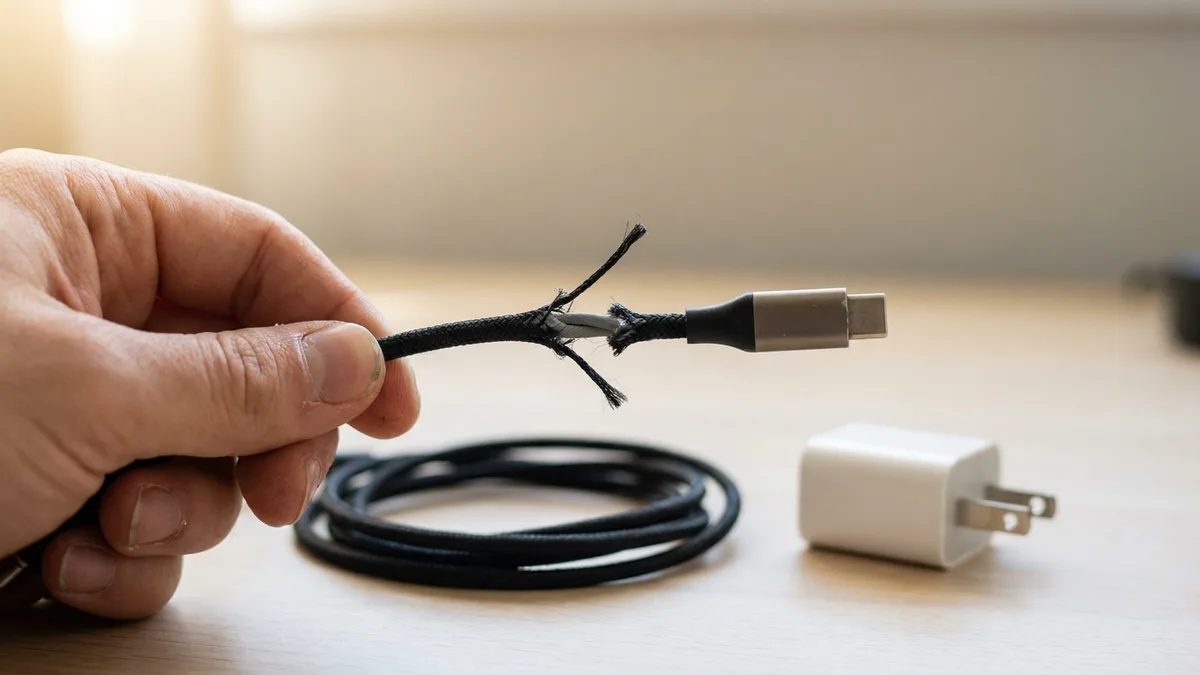
- Plug your Mac into a known-good charger and cable — ideally the original Apple adapter, or one you've seen work on another device. A frayed third-party cable is a classic culprit.
- Try a different wall outlet directly (skip power strips and extension leads for now).
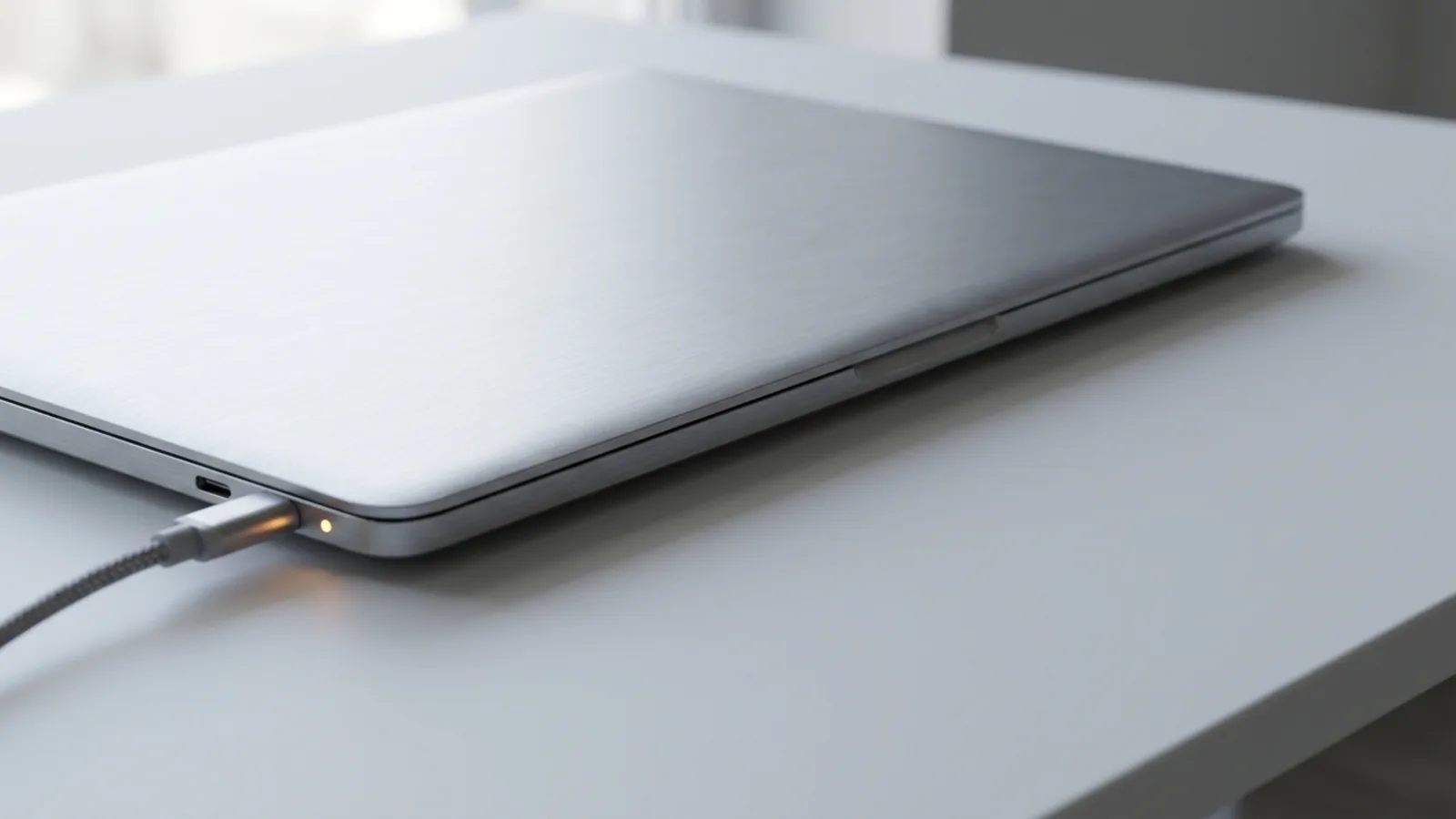
- On a MacBook, check that the connector clicks in and, if you have a MagSafe cable, look for the small indicator light on the connector. No light doesn't always mean no power, but a light confirms the cable and port are alive.
- Leave it charging at least 10-15 minutes undisturbed. A deeply flat battery needs time before it will even attempt to boot.
- Now press the power button once and watch for any fan, glow or startup sound.
If you get zero response after a proper charge on a known-good charger, note that — it's an important clue that points at the battery, charging circuit or board rather than software.
Check the display, not just the Mac
If you can hear the fan or the startup chime but the screen is black, your Mac is probably awake and it's the display that's dark. Rule this out before you assume the worst.
- Turn brightness all the way up — press the brightness-up key several times. A stuck-low brightness setting after an update genuinely fools people.
- Wake it properly — tap a key or click the trackpad; the Mac may just be in a deep sleep that the power button alone doesn't clear.
- Try an external monitor — connect a known-good display via HDMI or USB-C. If the external screen lights up but the built-in one doesn't, you've isolated the fault to the internal display or backlight.
- Shine a torch at the screen at an angle. If you can faintly see the desktop, the panel is working but the backlight has failed — a hardware repair, not a software one.
Force power-cycle the Mac (Apple Silicon and Intel)
A stalled boot after an update often clears with a hard power cycle. This step is the same on every modern Mac, Apple Silicon and Intel alike. Applies to: all Macs.
- Press and hold the power button (on many MacBooks this is the Touch ID button) for about 10 seconds, until the machine goes completely silent and dark — that's a full power-off.
- Release the button and wait a few seconds.
- Press the power button once more to start up normally.
On an Apple Silicon Mac there is no separate SMC reset and no NVRAM reset. NVRAM — or PRAM, which is the same small memory under an older name — holds settings like the startup disk and sound volume, and on Apple silicon that hardware simply doesn't work the same way, so don't go hunting for a key combination. A normal restart handles what those resets used to do. If it comes back but then crashes and restarts itself repeatedly — a kernel panic — our kernel panic guide is the next stop.
Disconnect everything and try again
A faulty accessory, hub or drive can hold a Mac in the dark or interrupt a boot — we see this constantly with cheap USB-C docks and failing external SSDs. Applies to: all Macs.
- Unplug every peripheral: external drives, USB hubs and docks, second monitors, printers, SD cards, even non-essential dongles. Leave only the charger connected.
- Force power-cycle again (hold the power button ~10 seconds), then start up.
- If it boots this time, reconnect accessories one at a time, restarting between each, until you find the one that kills it.
Reset the SMC — Intel Macs only
The System Management Controller handles power, battery, fans and sleep on Intel Macs. Resetting it can revive an Intel Mac that won't power on or charge properly. To repeat: On Apple silicon there is no key combination to press — Apple's own instructions say the SMC "resets automatically on Mac with Apple silicon" and that after a normal restart or shut-down "no other steps are needed", so skip this section entirely if yours is an M-series Mac (Apple menu > About This Mac will tell you). Applies to: Intel Macs only.
Intel Mac notebook with a T2 Security Chip (roughly 2018-2020)
- Shut down, then press and hold the power button for 10 seconds. Release, wait a few seconds, and press it again to turn on. If that alone doesn't help, do the next step.
- Shut down again. On the built-in keyboard hold right Shift + left Option + left Control for 7 seconds (the Mac may switch on).
- Keep holding those three keys and now also hold the power button for another 7 seconds.
- Release all four keys, wait a few seconds, then power on normally.
Intel desktop Mac with a T2 chip (iMac, Mac mini, Mac Pro)
- Shut down the Mac, then unplug the power cable at the wall.
- Wait 15 seconds.
- Plug the power cable back in, wait 5 seconds, then press the power button.
Intel MacBook with a built-in (non-removable) battery, no T2 chip
- Shut down and keep the charger connected.
- On the built-in keyboard, hold left Shift + left Control + left Option and, at the same time, press and hold the power button.
- Hold all four for 10 seconds, then release together.
- Press the power button to start up.
An SMC reset changes no data — it's safe. If you're unsure whether your Intel Mac has a T2 chip, check support.apple.com for your exact model, or just use the T2 steps first.
Boot into Recovery to repair or reinstall
If the Mac powers on but won't finish starting — especially after an interrupted update — Recovery lets you repair the disk or reinstall macOS without erasing your files. The way in differs by chip.
Apple Silicon (M1/M2/M3/M4/M5)
- Shut down fully (hold the power button ~10 seconds if needed).
- Press and keep holding the power button until you see "Loading startup options."
- Click Options, then Continue. You may be asked to select a user and enter that account's password to reach the Recovery menu.
Intel Macs
- Turn on and immediately press and hold Command (⌘) + R until you see the Apple logo or a spinning globe, then release.
In Recovery, open Disk Utility and run First Aid on your startup disk. If that doesn't fix it, choose Reinstall macOS — this refreshes the system while leaving your files in place. Reinstalling is generally safe, but any disk repair carries some risk, so back up first if the machine ever boots far enough to let you. For deeper disk trouble, see our macOS repair hub, and if files are at stake read up on data recovery before you erase anything.
Last resort: revive the firmware from a second Mac
When a power cut or a bungled update corrupts the low-level firmware, a modern Mac — Apple Silicon or an Intel Mac with a T2 chip — can go completely unresponsive: no chime, no logo, nothing. Apple's fix is to revive it from a second Mac using Apple Configurator 2 or Finder. This is advanced; done carelessly you can wipe the machine, so only attempt it if you're comfortable and have a spare Mac.
- You need a second working Mac running macOS 14 or later — Apple states that version requirement explicitly, so an older spare Mac in the cupboard will not do — and a supported USB-C to USB-C cable that carries data and power. Thunderbolt 3 cables are not supported for this.
- Revive updates the firmware and keeps your data. Restore reinstalls firmware and erases the Mac — always try Revive first.
- The dead Mac must be put into DFU mode using a model-specific power-button sequence, then it appears in Apple Configurator 2 (or Finder) for the Revive action.
Because the exact DFU sequence differs per model and getting it wrong can lead to an accidental erase, this is the point where we'd honestly say: let a bench do it. If the revive also fails, the fault is almost certainly hardware.
When it's a hardware fault
If you've charged on a known-good charger, force-restarted, stripped off every accessory, and (on Intel) reset the SMC with still no response, you're most likely looking at hardware: a failed battery, a damaged charging circuit, liquid damage, or a logic-board fault. A Mac that powers a fan but never lights the screen, or one that briefly starts then dies, points the same way.
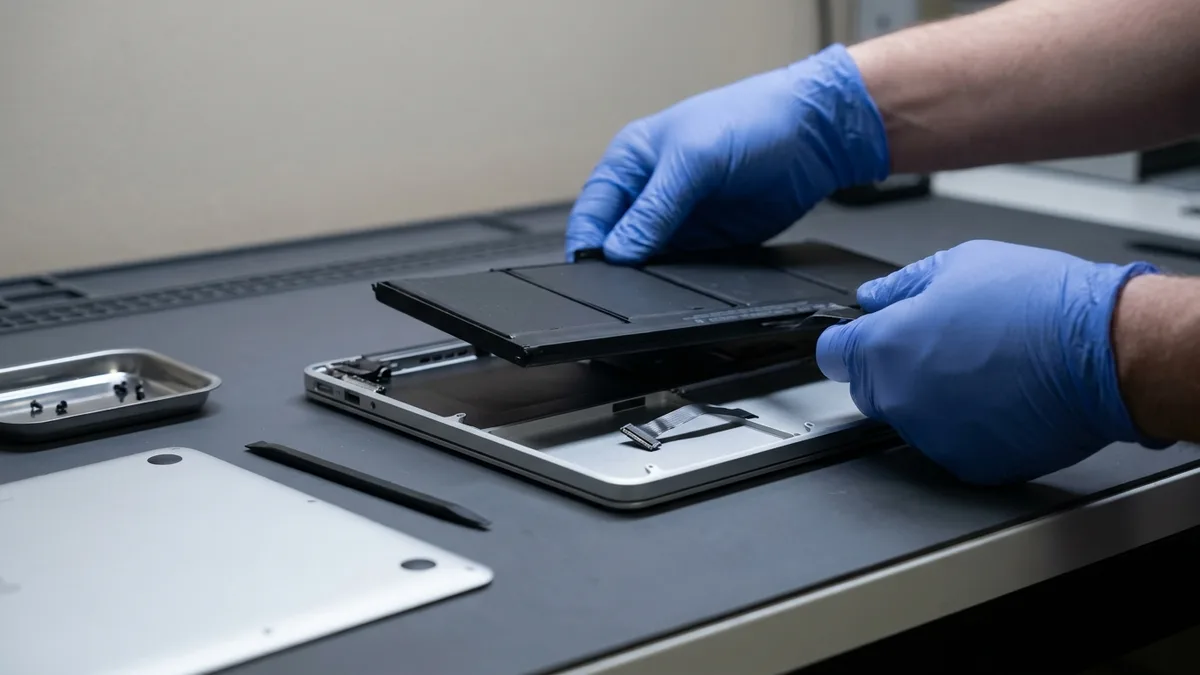
These aren't DIY fixes. Board-level faults need proper diagnostics and micro-soldering — see our motherboard repair and battery replacement pages for what's involved.
When to let a professional take over
If your Mac shows no response at all after a proper charge on a known-good charger, or spins a fan yet the display never wakes, that usually points to the battery, charging circuit or logic board — not something to keep poking at yourself.
Bring it to Esmond Service Centre for free diagnostics at our Alexandra Retail Centre (ARC) or Sin Ming Lane branch — our technicians will tell you honestly what's wrong before any work starts. Prefer to plan ahead? Request a free quote or WhatsApp 8828 8180.
If a firmware revive or reinstall is your only remaining option and you're not confident, let us handle it — we can attempt recovery while protecting your data rather than risking an accidental erase.

Esmond Service Centre's experienced technicians can diagnose and fix it fast — free diagnostics, repairs from $65.