

.jpg)
📑 On this page
MacBook Pro overheating and a black screen: what is happening
Walk-in and WhatsApp customers describe the same pattern to us — fans roaring, the MacBook Pro hot to the touch, then the screen dropping to black. It is one of the most misread faults we see, because two very different problems produce the same symptom. This guide is written from those repairs: what to try at home, what it usually means, and when it is a display fault rather than heat.
First: is it 'no power' or 'powers on but black'?
Before any fix, decide which failure you have — they need completely different solutions. A MacBook Pro with no power shows nothing at all: no fans, no chime, no keyboard light. A MacBook Pro that powers on but stays black will spin its fans, light its keyboard and maybe chime, yet the display is dark. Apple's own guidance draws the same line: if something appears on screen the Mac is on but not starting up fully, whereas a completely blank screen could be software related.
- No power at all: no fan noise, no keyboard backlight, no startup chime, and the charger light may not change. This points to power delivery — the charger, battery or logic board (the main board — Apple's name for the motherboard).
- Powers on but black: you hear the fan, feel warmth, the keyboard lights and you may hear a chime — but the screen stays black. This points to the display, the backlight, or a software or thermal stall.
How to fix a MacBook Pro black screen: six steps to try yourself
How to fix a MacBook Pro black screen at home comes down to six safe steps: force a power-off, charge properly, rule out brightness, disconnect everything, reset the fan controller for your chip, and boot into macOS Recovery. None of these can harm the Mac, and together they clear most software and thermal-stall black screens. Work through them in order before assuming the worst.
- Force a power-off. Hold the power button for up to 10 seconds, release, wait, then power on — Apple's first step for a blank screen.
- Charge properly. Connect the original adapter, check the cable and port for damage, and leave it 30+ minutes; a fully flat battery can look exactly like a black screen.
- Rule out brightness and sleep. Tap a key or the trackpad, then press brightness-up a few times. Shine a torch at the screen at an angle — a faint image means the panel works but the backlight does not.
- Disconnect everything. Remove all USB devices, docks and external displays, then power-cycle again; a faulty peripheral or external monitor can hold the built-in screen dark.
- Reset the fan/power controller. On Apple silicon, simply close and open the lid or restart. On Intel, reset the SMC. This clears a stuck thermal state.
- Boot into macOS Recovery. If Recovery appears, the display works and the fault is software — repair the disk with Disk Utility or reinstall macOS.
These steps mirror Apple's blank-screen and won't-turn-on guidance: the 10-second power-off, the charger check, disconnecting accessories, and the Recovery route. But know their limit: a force power-off, an SMC (the chip that controls power and fans) reset and a Recovery boot cannot fix a failed backlight, a worn display cable or a cracked panel — those are hardware faults that need a workshop. If none of the six brings the screen back, the next two sections tell you which kind.

Why overheating makes a MacBook Pro screen go black
Heat and a black screen are linked when the Mac hits its thermal limit and cuts the display or the whole system to protect itself. Apple specifies a safe ambient operating range of 10–35°C (50–95°F) and says high ambient heat makes fans turn on sooner and run faster, while soft surfaces and blocked vents make them run more. In Singapore's 30°C-plus, humid air, a MacBook Pro is already near the top of that range before you even open the lid.
- Thermal shutdown: at its limit the Mac throttles, then cuts power — the screen goes black suddenly under heavy load.
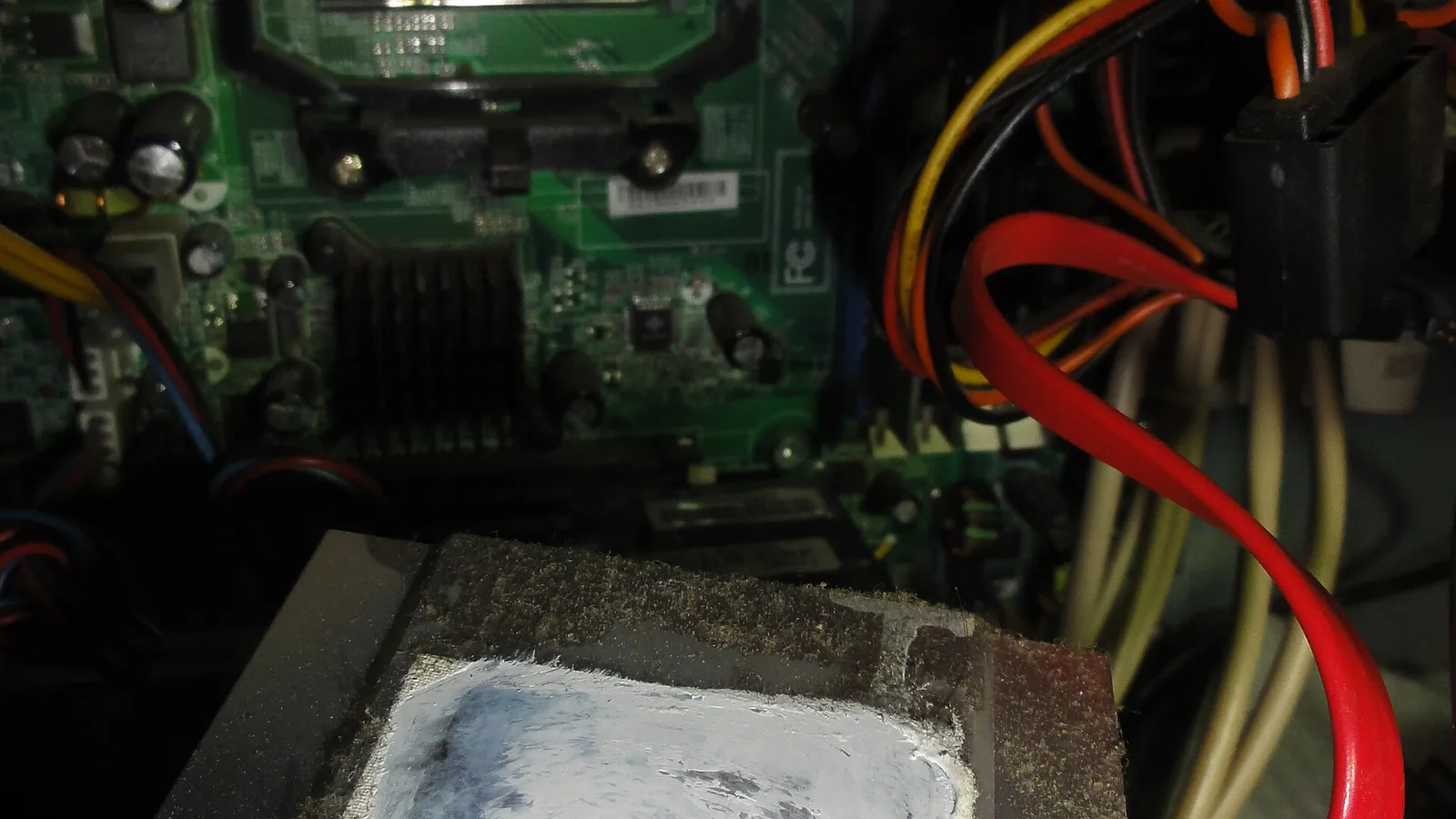
- Dried thermal paste: after a few years the paste between chip and heatsink hardens, so heat no longer moves away efficiently — the thick pale compound on the heatsink in the photo above is this paste, long past its best.
- Dust-clogged fans and fins: airflow drops and temperature climbs, common in dusty or humid rooms.
- Blocked vents or a soft surface: using it on a bed, sofa or your lap smothers the intakes.
- High ambient temperature: a hot, un-airconditioned room pushes the fans to maximum sooner.
.jpg)
When a MacBook Pro black screen is not about heat
Sometimes the Mac is cool and still black. Then the fault is almost always in the display path: the backlight, the thin display cable that flexes at the hinge (Flexgate), the panel itself, or a blown backlight fuse. The tell is simple — you hear the Mac working but see nothing, even in Recovery, and an external monitor shows a perfect picture.
- Backlight failure: the image is there but not lit; shine a torch at the screen and you may see a faint desktop.
- Display flex cable (Flexgate): the thin cable wears where it bends at the hinge — common on 2016–2017 13-inch MacBook Pro — and the screen may black out at certain angles.
- Cracked or failed panel: physical damage or a dead LCD, usually after a knock or spill.
- Blown backlight fuse: a tiny component on the logic board fails; a board-level repair.
- External monitor test: plug in an external display. If that works, the Mac and graphics are fine and the fault is the built-in screen or its cable.
Symptom-to-cause quick reference
Use this table to place your own MacBook Pro. Match the symptoms you can see and hear to the most likely cause, whether you can safely try it yourself, and the typical repair a workshop performs. It is a starting point, not a diagnosis — a hands-on test confirms the real fault.
| What you see and hear | Most likely cause | Safe to try yourself? | Typical repair |
|---|---|---|---|
| Fans loud, chassis hot, screen black under load | Thermal shutdown / cooling fault | Yes — cool it, power-cycle, then service | Fan clean + thermal paste renewal |
| Fan spins, keyboard lit, chime, but black | Display path or software stall | Partly — try Recovery and an external monitor | Backlight / flex-cable or panel repair |
| Faint image visible with a torch | Backlight failure | No | Backlight circuit / fuse repair |
| Black only at certain hinge angles | Display flex cable (Flexgate) | No | Display cable / assembly replacement |
| Nothing at all — no fan, light or chime | Power delivery (charger/battery/board) | Partly — try another charger | Charging / board diagnosis |
| External monitor works, built-in stays black | Built-in display or its cable | No | Screen assembly / cable repair |

What we do in the workshop
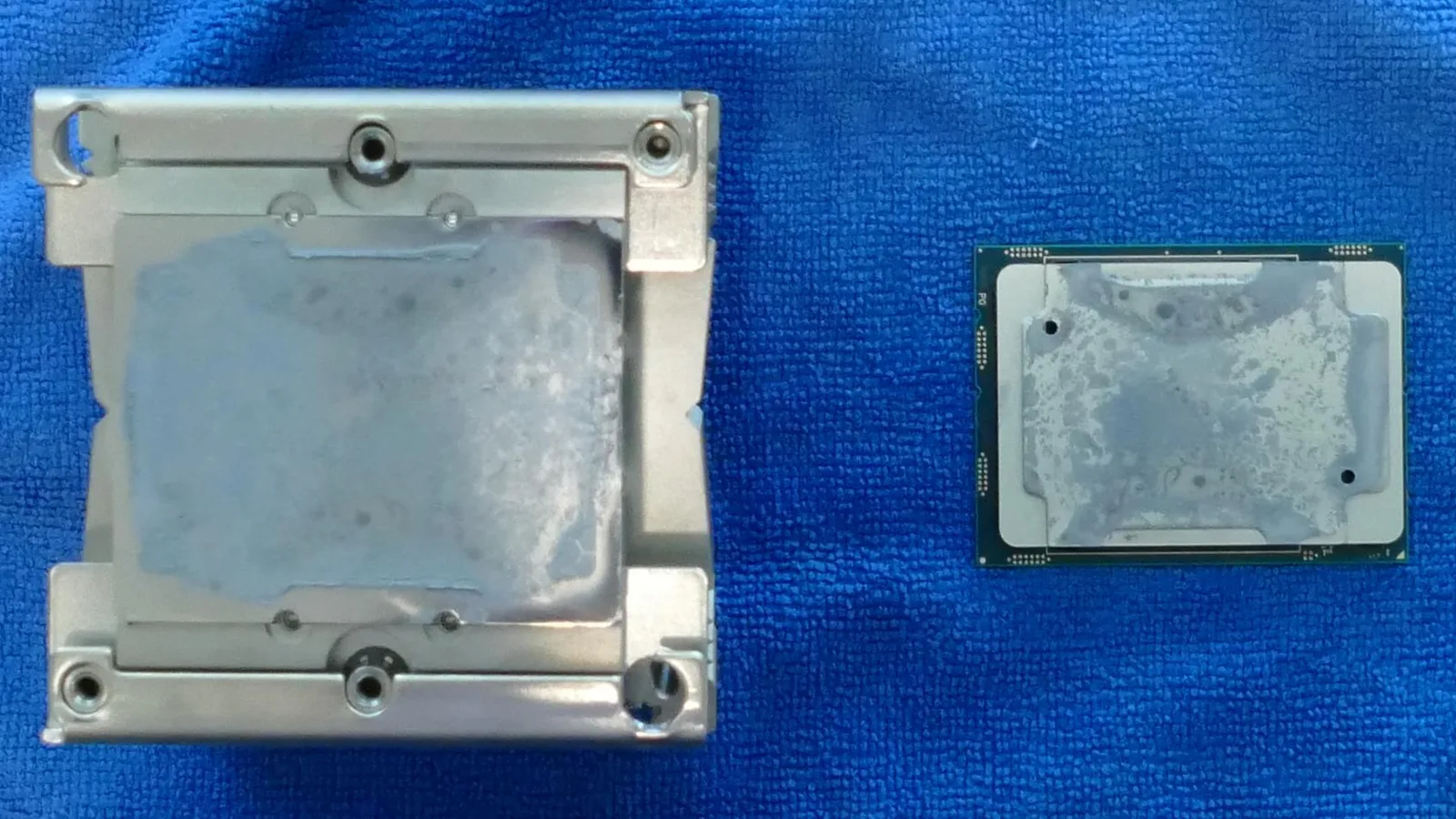
When to bring it in: if the six steps above don't restore the picture, or the screen stays black even with an external monitor connected, stop and let a professional take over. When one of these MacBook Pros reaches our bench in Singapore, we do not guess. We measure board temperatures under load, open it to inspect the fans and paste, and test the display path with a known-good cable and an external monitor. That separates a cooling job from a display or board repair before any part is ordered.
- Thermal service: clean the fans and heatsink fins, clear the vents, and renew the thermal paste.
- Display path testing: confirm with an external monitor, then check the backlight, flex cable and panel.
- Board-level work: repair a blown backlight fuse or a display-cable connector where that is the fault.
- Honest scoping: we deliberately do not quote a fixed price here — the cost depends on which of these it turns out to be, and we would rather diagnose first than guess.
Keeping a MacBook Pro cool in Singapore
Prevention is cheaper than repair. Keep the MacBook Pro on a hard, flat surface, work in air-conditioning when you can, keep the vents and fans clear of dust, and never leave it in a parked car. These few habits keep it inside Apple's 10–35°C range and away from the thermal shutdowns that cause black screens.
- Use it on a table or desk, not a bed, sofa or your lap.
- Work in air-conditioning during the hottest part of the day.
- Have the fans and vents cleaned of dust every year or two.
- Renew the thermal paste if the Mac is a few years old and runs hot under light use.
- Never leave it in a parked car or in direct sun.

Esmond Service Centre's experienced technicians can diagnose and fix it fast — free diagnostics, repairs from $65.