

📑 On this page
ThinkPad SSD upgrade: where to get it replaced
A slow, ageing ThinkPad is one of the most common laptops customers bring us in Singapore, and an SSD upgrade is usually the single biggest speed improvement you can buy for it. The question we hear most on WhatsApp and at the counter is not whether it is worth it — it is 'which SSD does my ThinkPad actually take, and where can I get it replaced safely?' Owners ask the same thing on local forums: on HardwareZone, people with a faulty or failing boot drive ask which shop to trust, while most replies push a do-it-yourself swap. This guide is written from the ThinkPads we actually upgrade: how to identify the right drive, what changes when you move from an HDD to an SSD, and how to decide between doing it yourself and bringing it in.

First: which drive does your ThinkPad take?
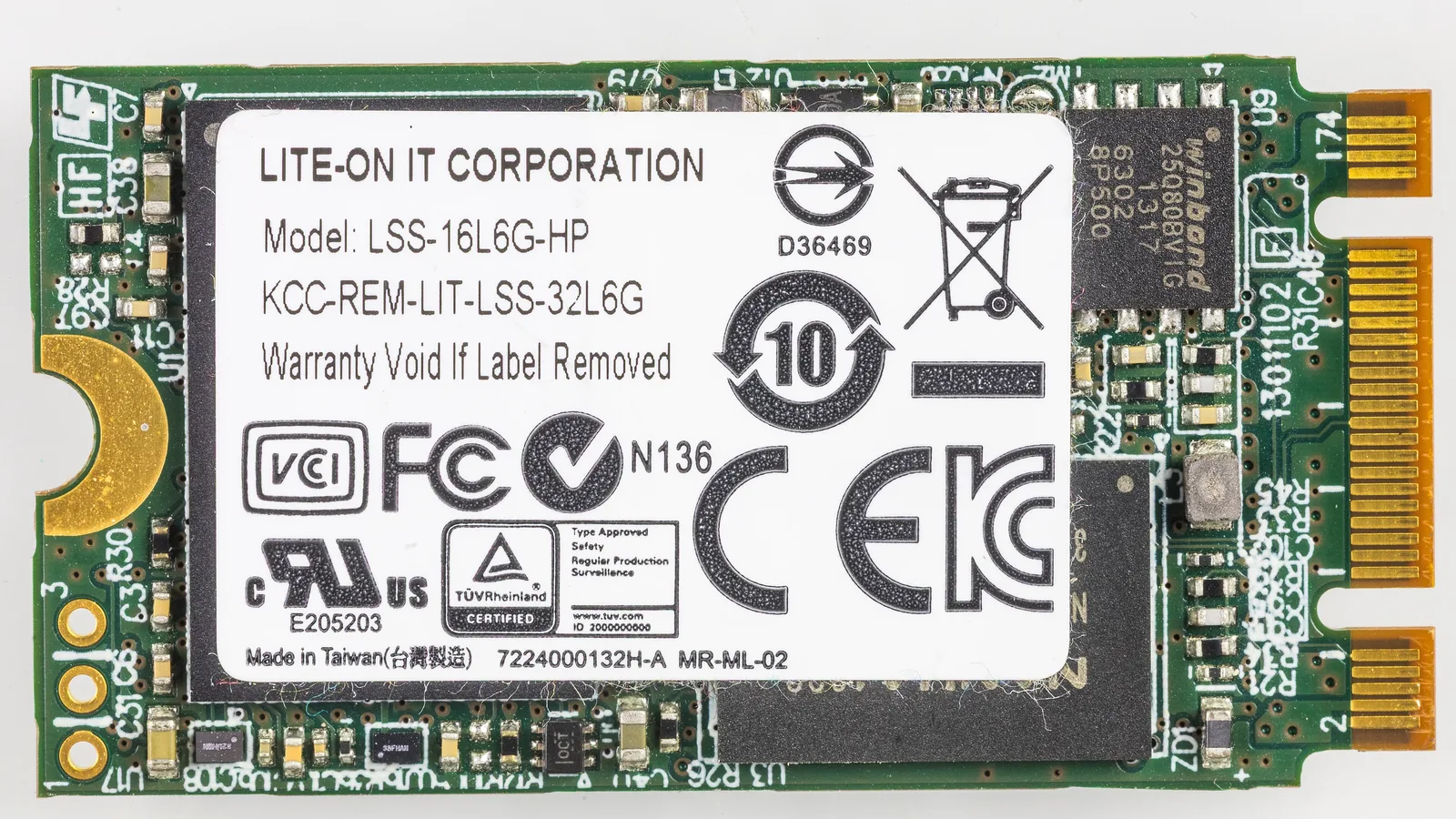
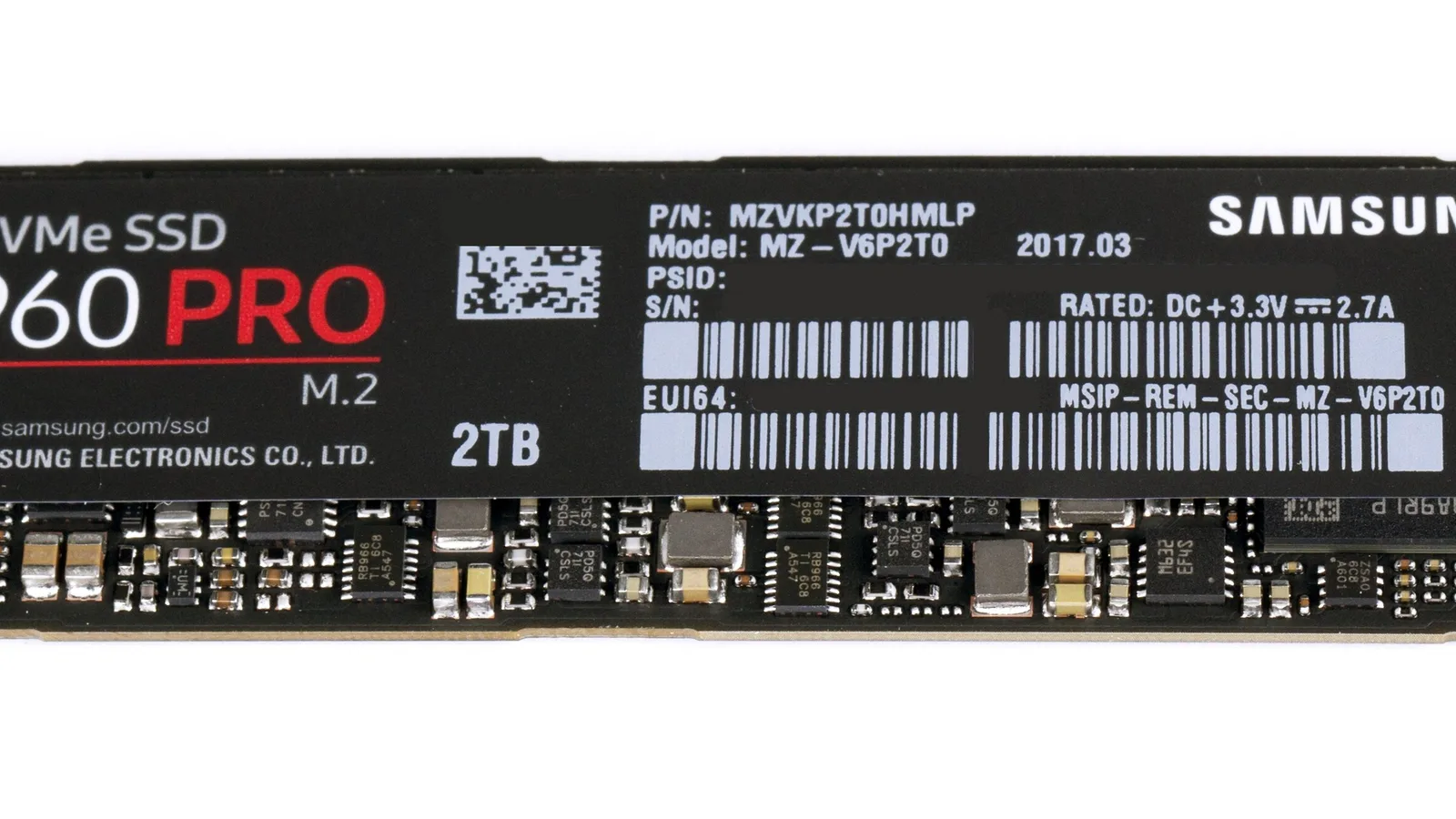
This is the step most rushed upgrades get wrong. ThinkPads do not all use the same drive, and buying the wrong one wastes money and time. There are three things to match. First, the connection: older ThinkPads use a 2.5-inch SATA drive, while modern ones use an M.2 slot. Second, within M.2, the protocol: NVMe drives run over PCIe and are far faster than SATA, but some M.2 slots only accept a SATA M.2 drive — the notch (the 'key') tells them apart, and an NVMe (M-key) drive will not seat in a SATA-only (B-key) slot. Third, the length: most ThinkPads take a full-size M.2 2280 (22mm by 80mm), but thinner models — the T480 and some X1 Carbon and X1 Nano machines — need the shorter M.2 2242 (22mm by 42mm). A real example: a T480 owner upgrading here found the slot would only take a 2242 NVMe drive, not the common 2280, which is exactly the kind of mismatch to check before you buy.
| ThinkPad type | Drive it usually takes | Interface & speed | Can you upgrade? |
|---|---|---|---|
| Older models with a 2.5-inch bay (T440p, X230 era) | 2.5-inch SATA SSD | SATA, up to about 560 MB/s | Yes — the easiest swap |
| Modern mainstream (most T, L, E, P series) | M.2 2280 NVMe | PCIe NVMe, 3,500 MB/s and up | Yes — the biggest speed gain |
| Thin / ultralight (T480, some X1 Carbon) | M.2 2242 NVMe (shorter) | PCIe NVMe, 3,500 MB/s and up | Yes — must buy the 2242 size |
| Newest ultrabooks with soldered storage | Storage fixed to the board | Varies | No — cannot be upgraded |
- Check your model's service manual. Lenovo's maintenance manual for your exact model lists the M.2 size and interface it supports — the most reliable source.
- Read the current drive. Free tools like CrystalDiskInfo show whether your drive is SATA or NVMe and its model, so you can match or improve it.
- Look at the slot. With the laptop off and unplugged, the bottom cover reveals whether you have a 2.5-inch bay or an M.2 slot, and how long the slot is (2242 vs 2280).
- Count the notches. One notch toward the end (M-key) is NVMe-capable; a notch nearer the middle (B-key or B+M) may be SATA only.

HDD to SSD, or SATA to NVMe: what actually changes
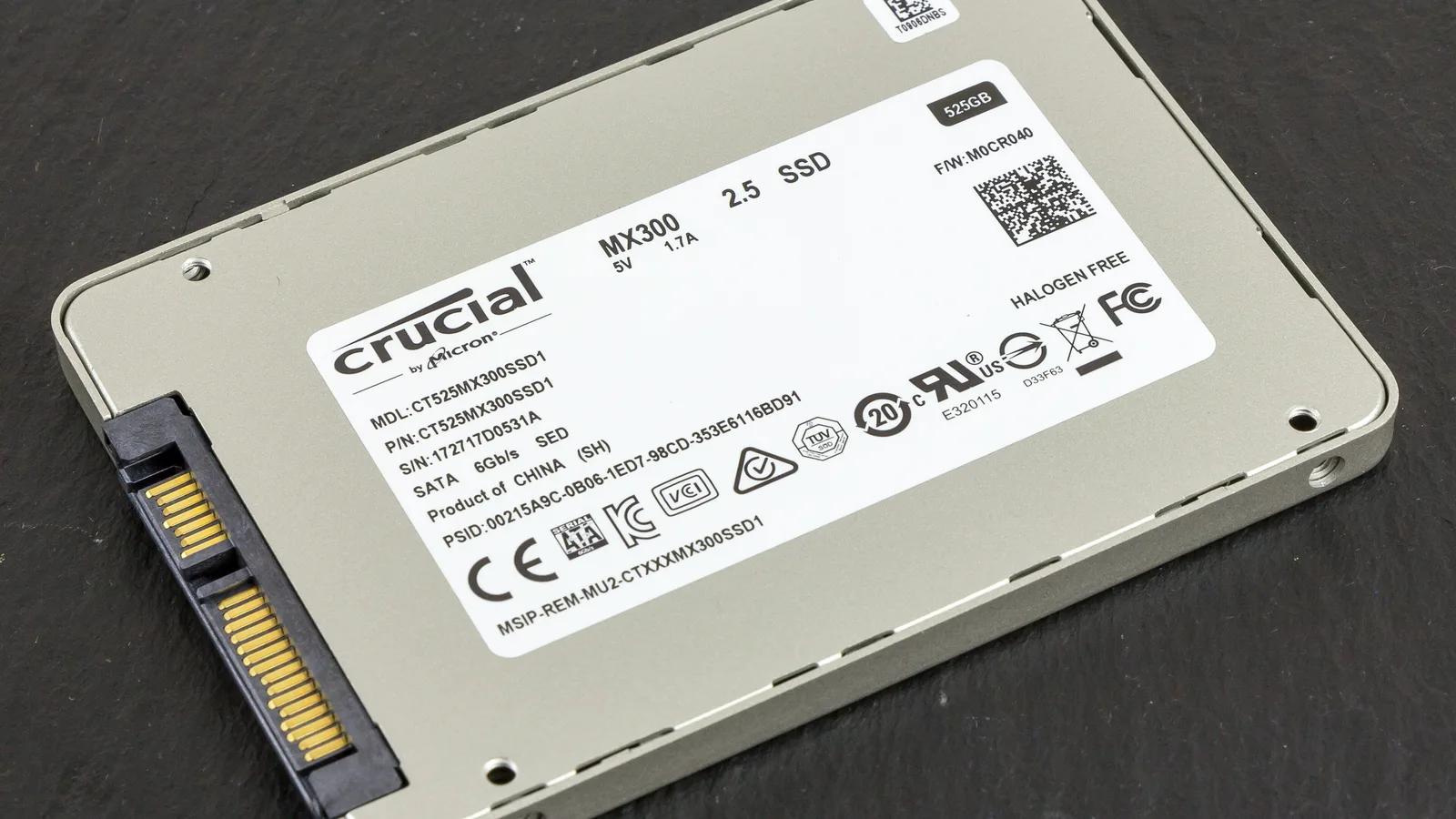
If your ThinkPad still has a spinning hard disk (HDD), moving to any SSD is the upgrade you will feel the most — boot, app launches and file copies all stop waiting on a mechanical disk. A SATA SSD tops out at around 560 MB/s; an NVMe drive runs several thousand MB/s, and in real upgrades people see boot times fall from around two minutes to under thirty seconds. The jump from an HDD to a SATA SSD is the biggest single step; the jump from SATA to NVMe is real but smaller, and only matters if your ThinkPad has an NVMe-capable M.2 slot. If your model only has a 2.5-inch bay, a good 2.5-inch SATA SSD like the one above is the right, and only, choice — and it still transforms the machine.
- Much faster everyday use: the laptop boots, wakes and opens apps in seconds instead of grinding.
- More reliable: an SSD has no moving parts, so it survives knocks and travel far better than an HDD.
- Cooler and quieter: no spinning platter means less heat and no drive noise.
- Longer useful life: an older ThinkPad with an SSD and enough RAM can stay usable for years more.
Before you upgrade: back up and clone, step by step
- Back up everything first. Copy your important files to an external drive or the cloud before you touch the laptop — this is the single step that protects you from data loss.
- Confirm the exact drive. Check the service manual or the slot so you buy the right form factor (2.5-inch, M.2 2242 or M.2 2280) and interface (SATA or NVMe).
- Buy a quality SSD of the right size. Match the capacity to your needs; a known brand with a warranty is worth it for your only drive.
- Choose clone or clean install. Cloning with a USB enclosure and free software (such as Macrium Reflect) copies Windows, settings and files across; a clean install of Windows gives the freshest result.
- Swap the drive. With the ThinkPad off and unplugged, remove the bottom cover (a few screws on most models), fit the new drive, and close it up.
- Boot and verify. Start up, confirm the SSD is detected in BIOS, and check that your data and Windows are intact before you wipe the old drive.
Know the limit: an SSD upgrade will not fix a laptop that is slow or failing for another reason. This will not fix a swollen battery, an overheating fan, a cracked screen or a dying motherboard, and if this does not work — if the ThinkPad is still slow or unstable after a clean SSD and a fresh Windows — the bottleneck is elsewhere and needs a proper diagnosis.
When to stop and bring it in
Some ThinkPads should not be opened at home, and some faults are not an upgrade at all. The newest ultrabooks solder the storage to the board, so there is no drive to replace. If the laptop is under Lenovo warranty, opening it yourself may void the warranty, so check first. And the honest risk of getting this wrong is real: a static zap or a slipped tool can cause permanent damage to the board, and a failed clone or a dropped old drive can mean data loss. If you are unsure which drive you have, if the storage looks soldered, if the machine will not boot to back up, or if the data matters, stop and seek professional help — that is cheaper than a recovery job.
- You cannot confirm whether your storage is a replaceable M.2 or 2.5-inch drive, or soldered to the board.
- The ThinkPad will not boot, so you cannot back up or clone before swapping.
- It is under warranty and opening it could void the warranty.
- The data on the old drive is important and not backed up anywhere else.
Where to get a ThinkPad SSD replaced in Singapore
If you would rather not open the laptop, this is a quick workshop job. At Esmond Service Centre we start with a free compatibility diagnosis to confirm the exact drive your ThinkPad takes, then handle professional installation, optional data cloning so your Windows, settings and files come across, and operating-system installation or reinstallation with the drivers — plus an internal clean and thermal check while the machine is open. The work carries a 1-year warranty on parts and labour, and most SSD upgrades are done within 3–5 hours, not days. That removes the two things that go wrong in a rushed self-upgrade: buying the wrong drive, and losing data in the move.
- Do you confirm the exact drive my model takes before quoting?
- Is data cloning included or extra, and how is my data protected?
- Do you reinstall Windows and the drivers, and test the machine afterwards?
- What warranty do you give on the SSD and the labour?
- How long will it take, and can I wait for it?
What we do in the workshop
When a ThinkPad reaches our bench for an SSD upgrade, we do not guess the drive. We confirm the model's supported form factor and interface, check the slot or 2.5-inch bay, and match an SSD to it. We back up or image the old drive before anything is removed, clone or do a clean Windows install depending on what you want, and then verify the drive is detected and the system is stable before you collect it. For an older ThinkPad, pairing the SSD with a RAM top-up often makes the biggest difference — and we will tell you honestly when an upgrade is not worth it on a machine near the end of its life.

Esmond Service Centre's experienced technicians can diagnose and fix it fast — free diagnostics, repairs from $65.