

📑 On this page
Screen flickering: what is actually happening
A flickering screen flashes, blinks, stutters or shows rolling bands instead of a steady picture. It can hit a phone, a laptop or an external monitor, and it can be constant or come and go. Customers who message us on WhatsApp usually fear the worst — a dead screen and a big bill. In our workshop the reassuring truth is that flicker is more often a setting or a driver than a broken panel, and the cheap fixes are worth running before anyone pays for parts. This guide is written from those repairs: what causes flicker, how to tell software from hardware yourself, and the point where it is time to stop and let a technician take over.
What is the main cause of screen flickering?
Honestly, there is no single main cause — but there is a most likely one. Across the devices we see, software is the most common trigger, because it is the easiest thing to break and, happily, the easiest to fix. Microsoft states plainly that screen flickering in Windows ‘is usually caused by a display driver issue or incompatible app’. Apple notes that if the refresh rate ‘is too low, your screen may appear to flicker’, and that a display using Adaptive Sync (variable refresh rate) ‘might produce a flickering or stuttering effect’ for some apps. On phones, a buggy app, an interrupted OS update or an aggressive auto-brightness setting do the same job. When the cause is hardware, the single most common one is a loose or damaged display cable — followed by a failing panel, a tired backlight, or a graphics chip on the board. The good news is that the free causes vastly outnumber the paid ones.
Software or hardware? Two free tests
Before you spend a cent, find out which side of the line you are on — software and hardware need completely different answers. Work through the checks below in order. None can harm your device, and together they resolve most flicker that turns out to be software, while clearly pointing at hardware when it is not.
- Restart or power-cycle first. A simple restart clears a stalled graphics state and is the fastest thing to rule out before you change any setting.
- Windows: run the Task Manager test. Press Ctrl+Shift+Esc. If Task Manager flickers along with everything else, a display driver is the likely cause; if it stays steady while the rest of the screen flickers, an incompatible app is to blame.
- Windows: reset the graphics driver. Press Windows+Ctrl+Shift+B together — the screen blinks once as the driver restarts, which clears some flickering instantly.
- Check the refresh rate and variable refresh. Set the display to its correct refresh rate; if you use Adaptive Sync or a variable refresh rate and see flicker, switch to a fixed refresh rate.
- Update, then roll back. Install the latest OS and display-driver updates; if the flicker began right after a driver update, roll that driver back instead.
- Laptop: the external-monitor test. Plug in a known-good screen. If the external picture is clean while the built-in screen flickers, the fault is your panel or its cable; if both flicker, it points to the graphics chip or board.
- Phone: restart, update, and try safe mode. Restart, install the latest OS, lower or turn off auto-brightness, and on Android boot into safe mode — if the flicker stops there, an app is the cause.
- Laptop: the lid-angle test. Slowly open and close the lid. If the flicker worsens, stops or shifts at certain angles, the display cable at the hinge is the likely cause.
Screen flickering by device
The likeliest cause shifts with the device in your hand. Use this table to place your own case and pick the first free test to run — it is a starting point, not a diagnosis.
| Device | Most common software cause | Most common hardware cause | First free test |
|---|---|---|---|
| Windows laptop or PC | Display driver or incompatible app | Loose/damaged display cable or GPU | Task Manager test |
| MacBook | Wrong refresh rate, Adaptive Sync, or stalled graphics | Display cable or failing panel | External-monitor test |
| iPhone | iOS glitch, buggy app, or auto-brightness | Display or its connector after a drop | Restart and update iOS |
| Android phone | Buggy app, OS update, or hardware acceleration | Display or flex connector after a drop | Safe mode |
| External monitor | Wrong refresh rate or cable | The cable or the monitor's own panel | Swap the cable |
The software causes in detail
Software flicker comes from the layer that draws the picture, not the screen itself — which is exactly why it usually costs nothing to fix. These are the usual suspects, and all of them are cleared by the free checks above.
- Display driver: an outdated, corrupted or newly updated graphics driver is the most common single cause on Windows; update, reinstall or roll it back.
- Incompatible app: one badly behaved program can flicker the screen while the rest of the system stays steady — the Task Manager test exposes it.
- Refresh rate too low or wrong: a refresh rate the screen cannot sit at comfortably can read as flicker; set the correct, native rate.
- Adaptive Sync / variable refresh rate: great for games and video, but it can flicker or stutter in other apps — switch to a fixed refresh rate.
- Auto-brightness and power saving: on phones and laptops, aggressive brightness changes or battery-saver modes can look like a flicker.
- Hardware acceleration in an app: browsers and editors that offload drawing to the GPU sometimes flicker; turning the setting off is a quick test.

The hardware causes: cable, panel and backlight
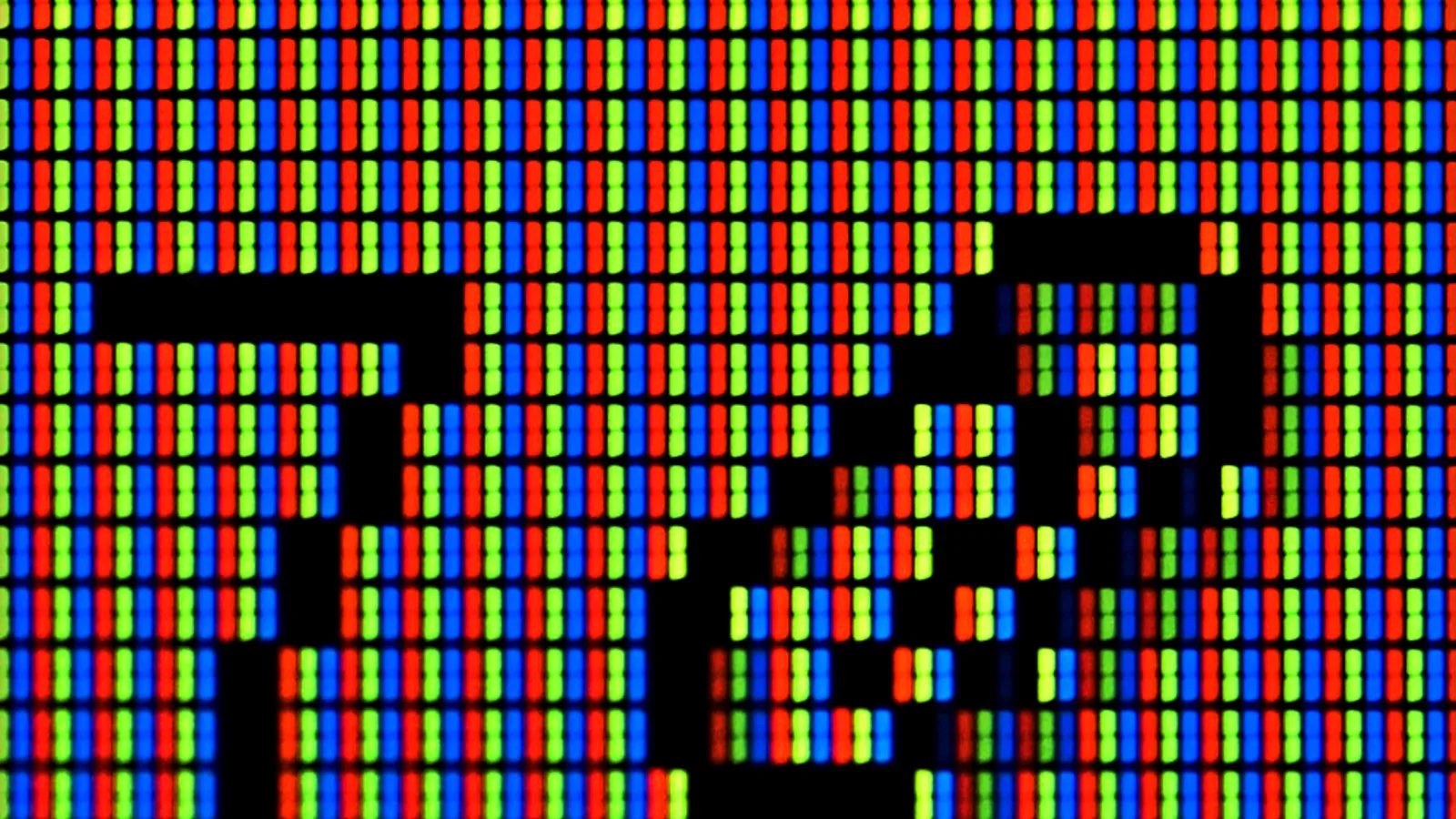
When the settings are right and the flicker stays, the fault is usually physical — somewhere along the display itself. The close-up above is an LCD panel seen at the level of its individual red, green and blue cells, the fine grid that forms every picture; behind it sits the backlight that lights those cells, and a thin, flexible display cable feeds the whole panel from the board. When the cable loosens, cracks at the hinge or is jolted by a drop, when the panel ages, or when the backlight tires, the signal or the light breaks up and the screen flickers — often changing as the lid or phone moves. These are the hardware causes we see most.
- Loose or damaged display cable: the thin ribbon between the board and the screen; it wears at a laptop hinge or shifts after a drop, so flicker changes with movement — the single most common hardware cause.
- Failing display panel: the panel itself degrades, giving flicker with lines, bands or dead areas that often spread over days.
- Tired or failing backlight: a dimming or pulsing backlight can read as a slow flicker, especially at low brightness.
- Graphics chip or board fault: if the same flicker follows the device onto an external monitor, the GPU or board is the likely cause — a board-level repair, not a screen swap.
- Loose internal connector after a drop (phones): a knock can unseat the display connector inside, so the picture flickers or drops until it is reseated.
What these steps will not fix — and when to stop
Know the limit before you push further. This will not fix a cracked or failing panel, a damaged display cable, or a tired backlight — those are hardware, and no setting will solve them. If this does not work after you have run the checks above, that is your signal. When to stop and bring it in: stop as soon as the flicker survives a restart and shows on an external monitor too, or arrives with lines, colour bands or physical damage. At that point, seek professional help rather than experimenting further. The risk of pressing on is real: prying a device open without the right tools can cause permanent damage, lead to data loss, and void the warranty — which is why a proper diagnosis comes first.

What we do in the workshop
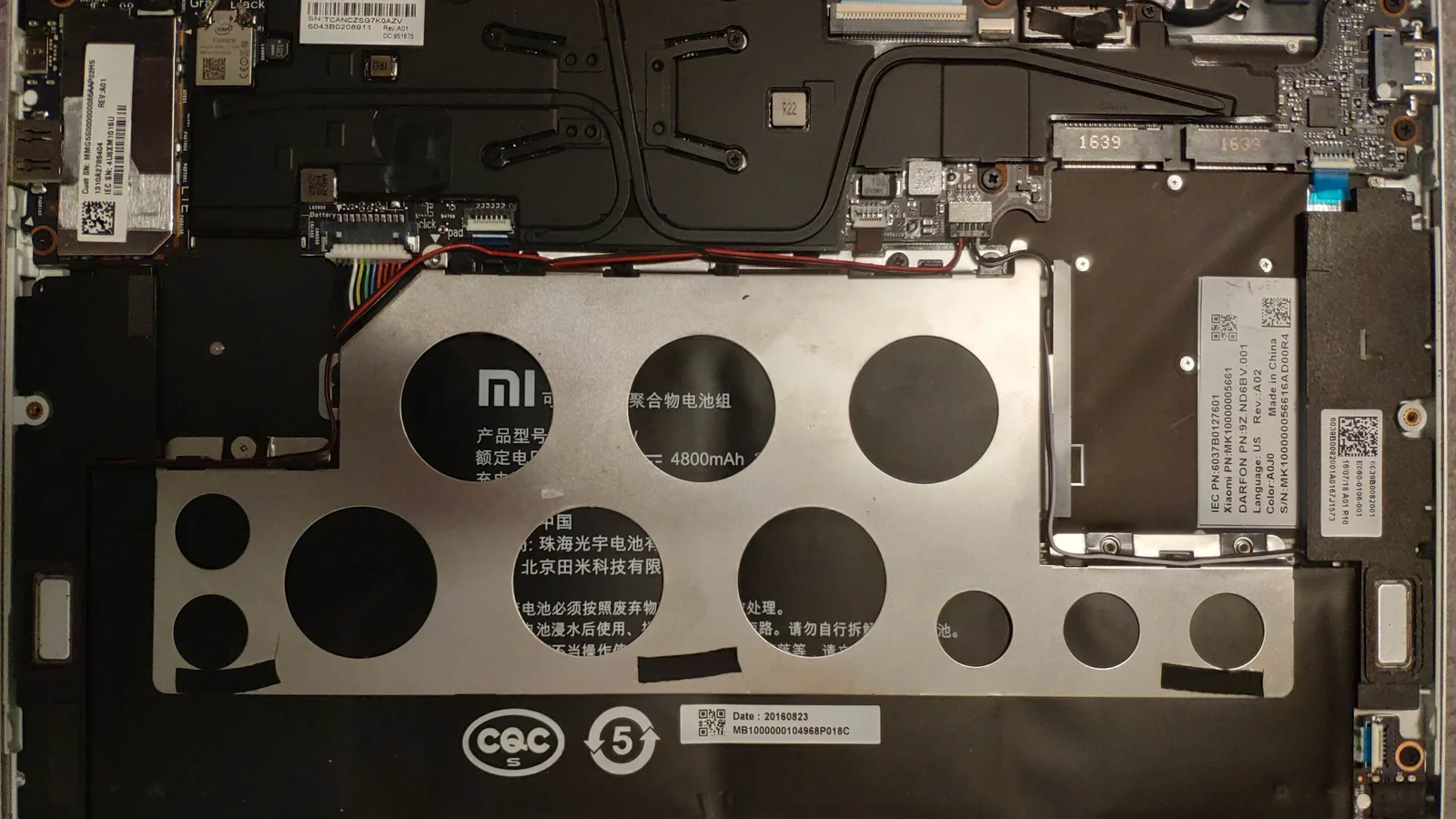
When the free checks run out, this is where it comes to us. We do not guess. We confirm the software first — driver, refresh rate, a clean boot or safe mode — then run the external-monitor test, flex the lid to expose a worn display cable, and test the panel, the backlight and the board in turn. Only once the real cause is confirmed do we talk about parts, so you never pay to replace something a setting would have fixed.
- Software first: confirm driver, refresh rate and a clean boot, so no part is replaced that a setting would have fixed.
- Display-path testing: external-monitor test, then check the panel and the display cable at the hinge or connector.
- Board-level work: where a graphics chip or a cable connector is at fault, that is a board repair, diagnosed before any screen is ordered.
- Honest scoping: we diagnose before we quote, because the cost depends entirely on which of these it turns out to be.
How to reduce the risk of screen flicker
A few habits head off most flicker before it starts.
- Keep the OS and graphics drivers updated — many flicker fixes arrive this way.
- Use good-quality, rated cables and adapters with external monitors, connected directly where possible.
- Set displays to their correct native refresh rate, and use a fixed rate if variable refresh causes flicker.
- Open and close a laptop lid gently to spare the display cable at the hinge.
- Protect phones from drops with a case, since a knock can unseat the display connector.
- Keep liquids away from keyboards and ports — a spill is a common cause of spreading display faults.

Esmond Service Centre's experienced technicians can diagnose and fix it fast — free diagnostics, repairs from $65.