

📑 On this page
A MacBook screen suddenly blurry: what is happening
Walk-in and WhatsApp customers in Singapore ask us a version of the same question: why has my MacBook screen suddenly gone blurry? It is one of the more reassuring faults we see, because far more often than people fear, nothing is broken — a setting changed, or macOS redrew the screen at the wrong size. This guide is written from those repairs: the free checks to run first, why a non-native resolution looks soft, and the smaller number of cases where the blur really is a hardware fault.
First: is it a setting or a fault?
Before any repair, place your own case — the two kinds need completely different answers. The single most useful test is an external monitor: plug a known-good screen into your MacBook. If the external picture is sharp while the built-in screen stays soft, the Mac and its graphics are fine and the fault is the built-in panel or its cable. If the same blur appears on the external monitor too, the cause is in the Mac — its graphics or its software — not the panel. Match your symptoms below.
- Everything soft, right after an update or plugging in a monitor: most likely a scaled (non-native) resolution — a free setting to undo.
- Only some text or apps blurry, the rest sharp: an app drawing at low resolution, or a mixed-resolution setup between the built-in and an external screen.
- Blur with flicker, colour bands, lines or ghosting: a graphics-chip or panel fault — hardware, not a setting.
- Blur that survives a restart and shows on an external monitor: the Mac's graphics or a deeper software fault; if the external screen is sharp, it is the built-in panel or cable.
How to fix a blurry MacBook screen: the free checks
Apple's own guidance is the starting point: your Mac automatically uses the best resolution for the display by default, and the native resolution may be sharper than a scaled one. Work through these in order — none can harm the Mac, and together they clear most 'suddenly blurry' screens that turn out to be software or settings.
- Restart first. A simple restart clears a stalled graphics state and is the fastest thing to rule out before you touch any setting.
- Set the resolution to Default. Open Apple menu > System Settings > Displays and choose 'Default for display'. Hold Option or turn on 'Show all resolutions' to see every option, then pick the native one.
- On an external monitor, choose its native resolution and refresh rate. Turn on 'Show all resolutions', pick the monitor's own native mode; a cable or adapter that cannot carry it forces a lower, softer resolution.
- Use Detect Displays and check the cable. Hold Option in System Settings > Displays to reveal the Detect Displays button and click it. Reseat or swap the video cable, and connect directly to the Mac's ports rather than through a hub.
- Turn it off and on again, then update. Disconnect external displays, sleep and wake or restart, and install the latest macOS updates — these also deliver firmware updates for Apple displays.
- Test a fresh profile. Create a new user account or start in Safe Mode. If the screen is sharp there, the fault is a profile, app or cache setting, not the display.
Know the limit before you spend: these free checks cannot fix a failing display panel, a worn display cable or a graphics-chip fault. Those are hardware — they will not be solved by a setting, and they need a workshop. The next sections help you tell when you have reached that point.
Why a non-native resolution looks soft
A MacBook panel has a fixed number of physical pixels — its native resolution. At native, the image maps one-to-one onto those pixels and looks crisp. A scaled resolution asks macOS to render a differently sized image and resample it to fit the same physical pixels; on an external, non-Retina monitor in particular, that resampling softens text and edges. Apple notes the native resolution 'might be sharper than a scaled resolution' and that using a scaled resolution 'may affect performance'. So if your MacBook went soft right after you changed the display size, or the moment you plugged in a monitor, undoing the scaling is the first and cheapest fix — and it is completely reversible.
Symptom-to-cause quick reference
Use this table to place your own MacBook. Match what you see to the most likely cause, whether it is safe to try yourself, and the typical next step. It is a starting point, not a diagnosis — a hands-on test confirms the real fault.
| What you see | Most likely cause | Safe to try yourself? | Typical next step |
|---|---|---|---|
| Everything soft right after changing display size | Scaled (non-native) resolution | Yes — set to Default / native | None — a setting change |
| External monitor blurry, built-in sharp | Wrong resolution/refresh or cable limit | Yes — native res, better cable, direct port | None, or a new cable/adapter |
| Text fuzzy in some apps only | App rendering at low res / mixed-DPI | Partly — check app and display scaling | None — a setting or app update |
| Blur with flicker, colour bands or lines | Graphics chip or panel fault | No | Display or board diagnosis |
| Blur stays through restart AND on external monitor | Graphics (GPU) or deeper software fault | Partly — reinstall macOS via Recovery | Graphics / board repair if it persists |
| Built-in blurry/distorted, external monitor perfect | Built-in panel or display cable | No | Screen or cable repair |

When it is the panel or the display cable
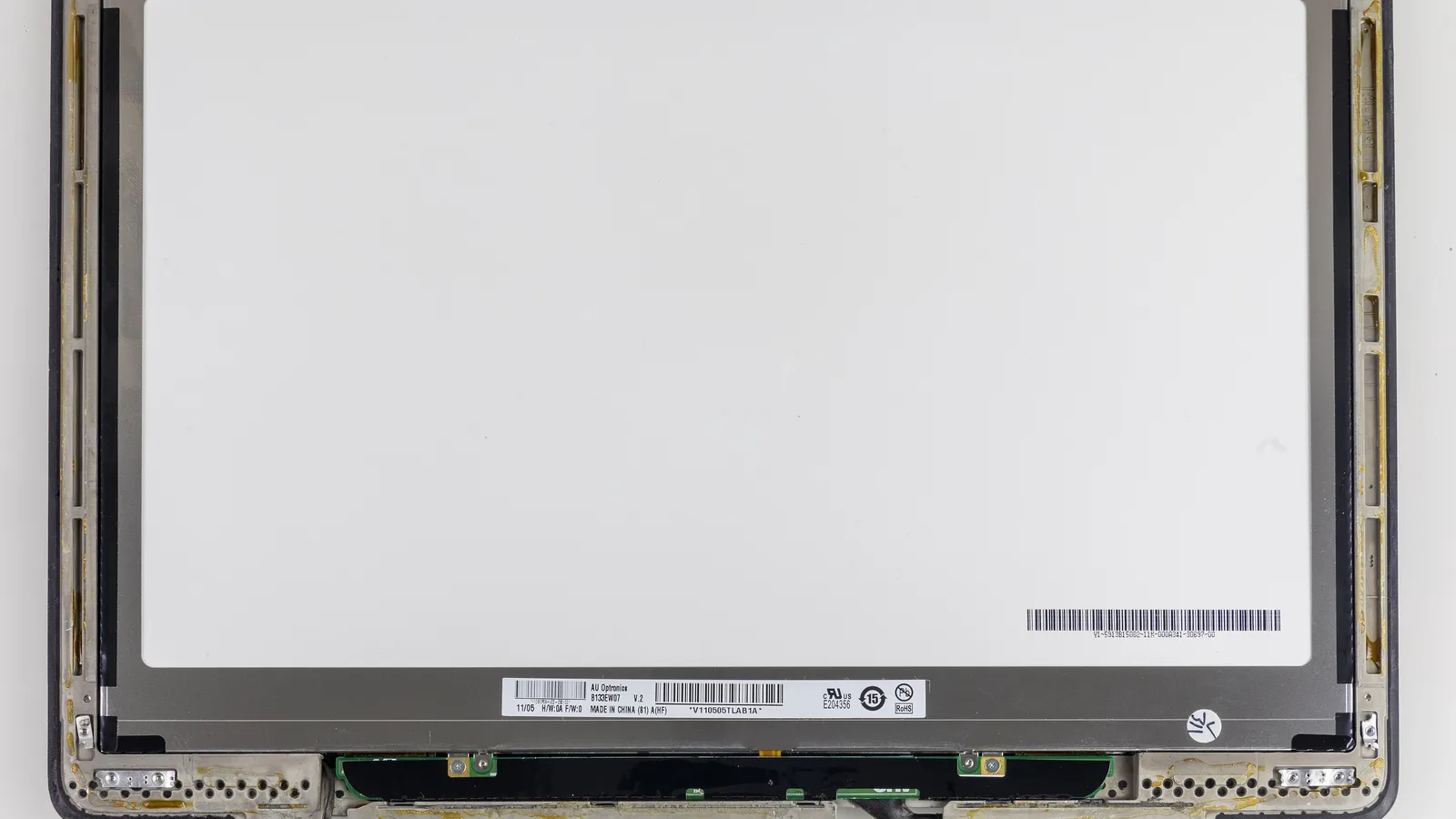
Sometimes the settings are right and the picture is still wrong. Then the fault is usually in the display itself. The panel above is a bare MacBook Pro LCD unit — the physical layers and backlight that create the image and, when they fail, soften or smear it. A built-in screen that is blurry or distorted while an external monitor is perfect tells you the fault is here, not in the Mac.
- Failing display panel: the LCD layer degrades — soft patches, a milky or smeared look, sometimes with discolouration that spreads over days.
- Display / flex cable (the thin ribbon cable inside): the thin cable that bends at the hinge wears — known on some 2016–2017 MacBook Pro — so the picture can distort, blur or drop at certain lid angles.
- Liquid or impact damage: a spill or a knock can leave blur, blotches or marks that creep wider over time.
- External-monitor test: plug in a known-good monitor. Sharp externally but soft internally confirms the built-in screen or its cable.

When it is the graphics chip
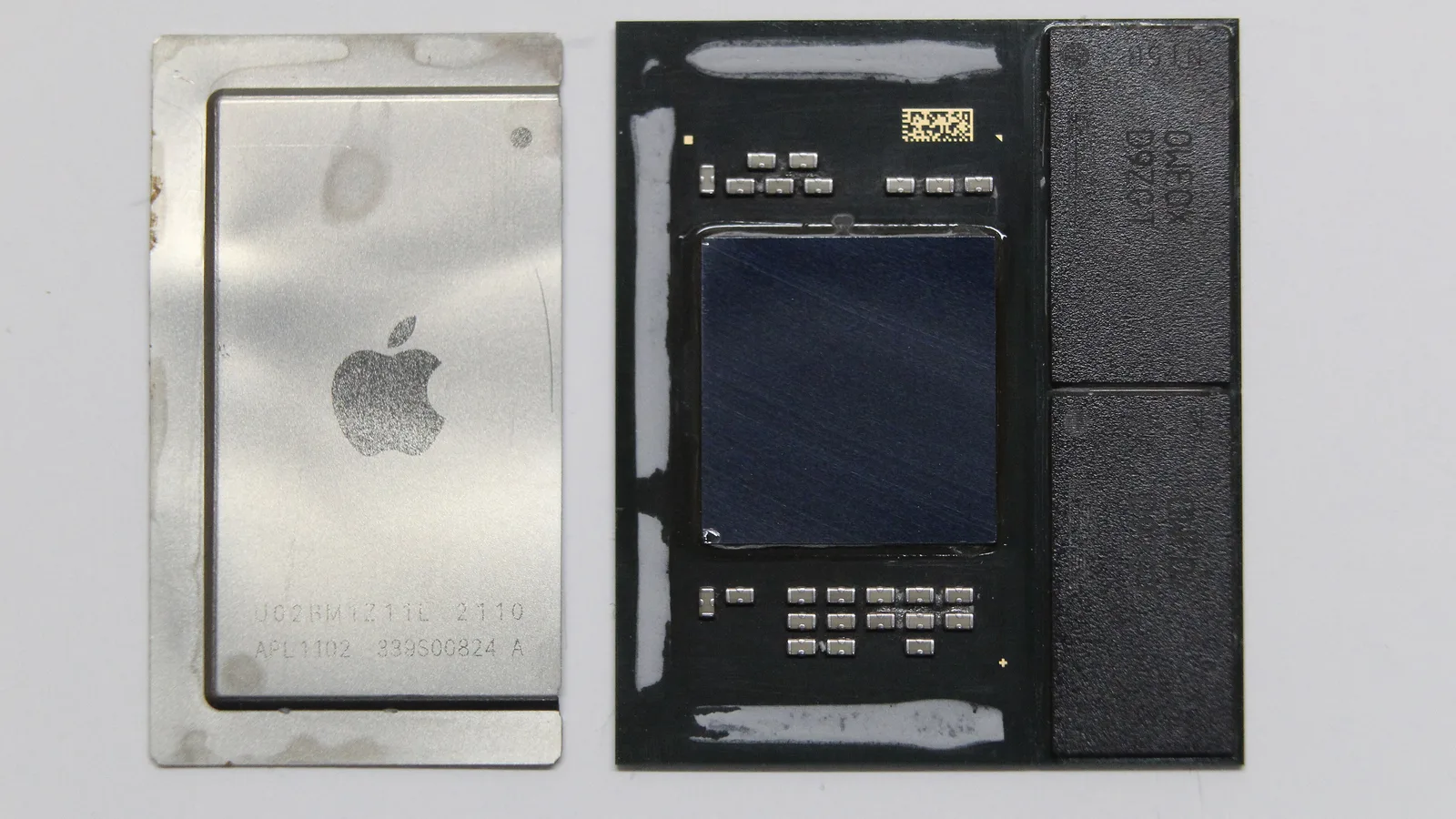
If the blur comes with coloured confetti, fuzzy textures, ghosting or patches — and the same mess appears on an external monitor — the graphics chip on the logic board (the main board — Apple's name for the motherboard), like the one above, is the likely cause. Because the graphics are drawn before the picture ever reaches either screen, a GPU fault follows the Mac onto every display. This is a board-level repair, not a panel swap, which is exactly why the external-monitor test matters before any part is ordered.
- Artefacts everywhere: confetti, tearing or ghosting on both the built-in and external screens points to the GPU, not the panel.
- Worse under load: graphics faults often appear or worsen during video, games or heavy apps as the chip heats up.
- Recovery test: if it is still a mess in macOS Recovery, the fault is below the operating system — hardware or firmware, not an app.
What we do in the workshop
When to bring it in: if the free checks above do not sharpen the screen, or the blur shows on an external monitor too, stop and let a professional take over. When a 'suddenly blurry' MacBook reaches our bench in Singapore, we do not guess. We confirm the resolution and scaling, test with a known-good external monitor, flex the lid to expose a worn display cable, and run it in Recovery to separate software from hardware — before any part is ordered.
- Settings and software first: confirm native resolution, test a clean profile and macOS Recovery, so we never replace a part a setting would have fixed.
- Display-path testing: confirm with an external monitor, then check the panel and the display cable at the hinge.
- Board-level work: where a graphics chip or a display-cable connector is the fault, that is a logic-board repair, diagnosed before any screen is ordered.
- Honest scoping: we deliberately do not quote a fixed price here — the cost depends on which of these it turns out to be, and we would rather diagnose first than guess.
Keeping a MacBook screen sharp
A few habits keep the picture crisp and head off most 'suddenly blurry' scares. Leave the resolution on Default, use good cables with external monitors, keep macOS updated, and protect the lid and hinge — the display cable lives there.
- Keep the display resolution on 'Default for display' unless you have a reason to change it.
- Use a good-quality, rated cable and adapter with external monitors, connected directly where possible.
- Install macOS updates — they include display and firmware fixes.
- Open and close the lid gently and avoid over-flexing the hinge, where the display cable runs.
- Keep liquids away from the keyboard; a spill is a common cause of spreading screen blur.

Esmond Service Centre's experienced technicians can diagnose and fix it fast — free diagnostics, repairs from $65.