
📑 On this page
A laptop screen that is suddenly upside down — or sideways, or zoomed in — is one of the most common panics we see at the bench, and one of the least serious. In almost every case the display has simply been rotated or magnified by an accidental keystroke or a changed setting, and it is put right in seconds without losing a single file.
The fastest fix (Windows and Mac)
On most Windows laptops, pressing Ctrl + Alt + Up arrow instantly rotates the screen back to normal. If that key combination does nothing, open Settings, then System, then Display, and choose Landscape from the Display orientation menu. On a Mac, the same control lives in System Settings under Displays, as a Rotation menu you set back to Standard.
- Press Ctrl + Alt + Up arrow (Windows laptops with Intel graphics).
- Right-click the desktop, choose Display settings, and set Display orientation to Landscape.
- On a Mac, open System Settings, then Displays, and set Rotation to Standard.
Why your laptop screen flipped in the first place
Nine times out of ten the culprit is an accidental hotkey. Intel graphics drivers include rotation shortcuts — Ctrl + Alt + an arrow key — that are easy to hit while reaching for another shortcut. Intel confirms these hotkeys act only on the display marked as main, which is why, in a two-monitor set-up, just one screen turns over while the other stays put. On 2-in-1 and touchscreen laptops, the auto-rotation sensor can also flip the picture when the lid is tilted.
Fix an upside-down screen on Windows, step by step
If the hotkey did not work, set the orientation manually. Open Settings, select System, then Display, and under Scale & layout find Display orientation. Choose Landscape and click Keep changes. Microsoft documents this exact path, and it works whether the screen is flipped 180 degrees or turned on its side.
- Right-click any empty part of the desktop and choose Display settings (or open Settings > System > Display).
- Scroll to Scale & layout and find Display orientation.
- Select Landscape (or Landscape flipped if the image was only slightly off).
- Click Keep changes when Windows asks you to confirm.
Fix a rotated screen on a Mac
On a Mac, open the Apple menu, choose System Settings, then Displays. If your display supports rotation, a Rotation pop-up menu appears — set it to Standard and click Confirm in the dialog that follows. Apple notes that not every built-in Mac display offers rotation, so the option mainly appears when an external monitor is connected.
What if the screen is zoomed in, not upside down?
A zoomed-in screen is a different setting, not a rotation. If a single web page or app looks magnified, press Ctrl + 0 to reset the zoom, or hold Ctrl and scroll down. If the whole desktop looks enlarged, it is usually either the Magnifier tool (press Windows key + Esc to turn it off) or the display scaling in Settings > System > Display > Scale, which you can lower back to the recommended value.
On a Mac, hold the Control key and scroll to undo screen zoom, or switch off Zoom under System Settings > Accessibility > Zoom. Resetting the text size inside an app is done with Command + 0.
Stop it happening again
To make sure an accidental keystroke never flips your screen again, disable the rotation hotkeys. Intel explains that you can turn them off, or reassign them, in the Hotkeys tab of the Intel Graphics Command Center — or the Hot Key Manager in the older Intel Graphics Control Panel. On a 2-in-1, switch on Rotation lock in the Action Centre so the picture stays put when you tilt the lid.
Is it hardware or software?
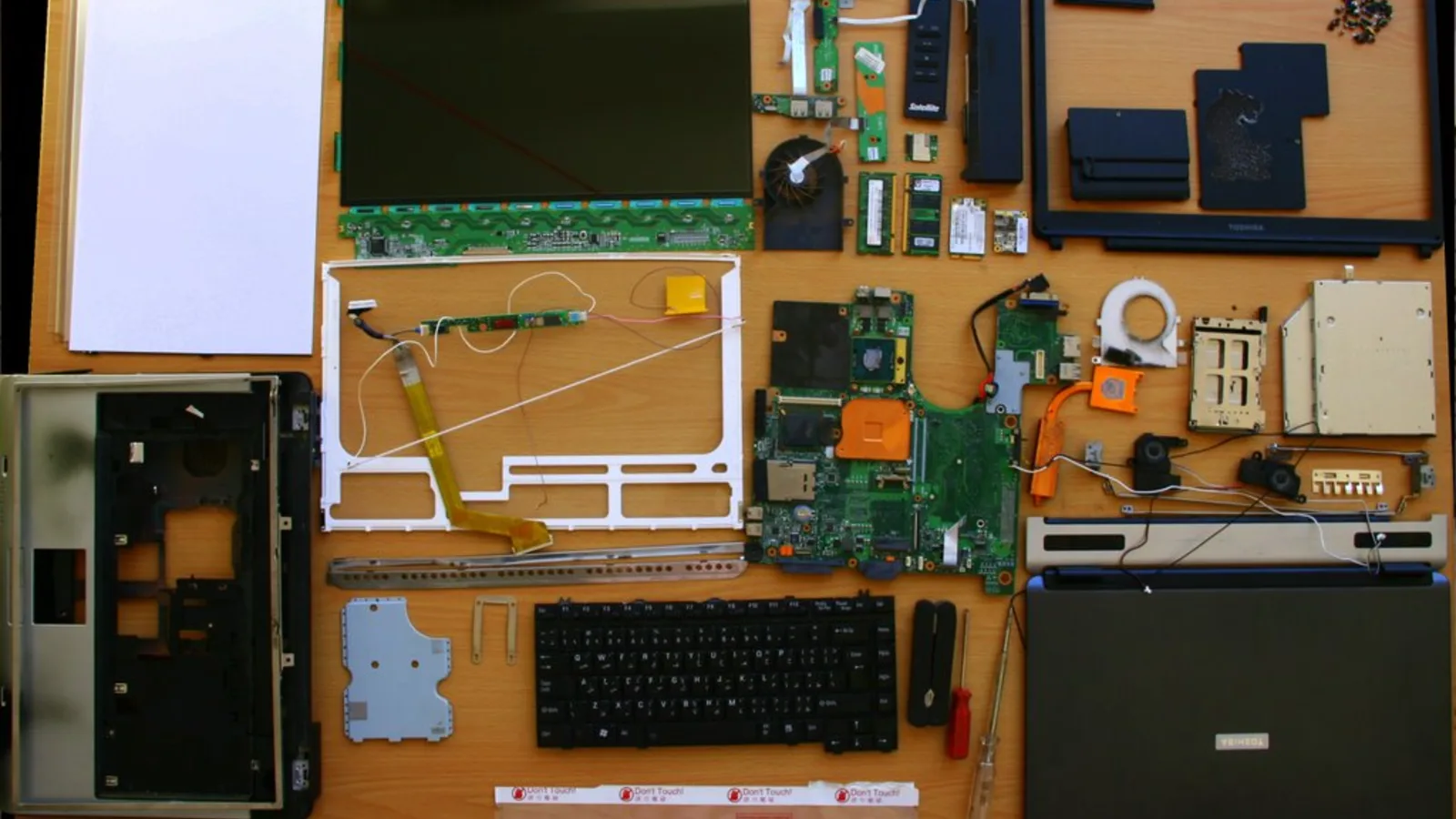
Almost every upside-down screen is software. But if the orientation will not change at all, only part of the image is flipped, or you also see flicker, coloured lines or a black patch, the fault may sit in the display cable, the panel or the graphics chip. The quick comparison below tells the two apart.
| What you see | Points to software | Points to hardware |
|---|---|---|
| Screen rotates back when you change Display orientation | Yes | — |
| Orientation setting will not change at all | — | Yes |
| Only half the screen is flipped or mirrored | — | Yes |
| Flicker, coloured lines or a dark patch as well | — | Yes |
| Everything is normal again after Ctrl + Alt + Up | Yes | — |
If the symptoms sit on the hardware side, no amount of restarting or setting changes will help, and a genuine cable or panel fault cannot be fixed by any keystroke. Worse, prying at a screen that will not rotate risks cracking the panel or tearing the display cable — turning a free software fix into a paid parts replacement, and in some cases causing permanent damage to a screen that only needed a technician's eyes.
When to bring it to Esmond Service Centre
If the screen stays rotated after every software fix, shows artefacts, or flickers as you move the lid, bring it in. Our Singapore technicians test the display cable, the panel and the graphics output, tell you exactly which part is at fault, and explain the repair before any work begins — no guesswork, and nothing done without your go-ahead.

Esmond Service Centre's experienced technicians can diagnose and fix it fast — free diagnostics, repairs from $65.