
📑 On this page
Switch on your MacBook and, instead of the desktop, you get a grey screen with a folder flashing a question mark. It looks alarming, but in most cases nothing is broken beyond repair. This is one of the most common startup faults we see at our Singapore workbench, and it almost always points to one specific thing. Below is exactly how to fix a MacBook flashing folder with a question mark — from the safe checks anyone can do at home to the point where it genuinely needs a technician.
What a flashing folder with a question mark actually means
Apple puts it plainly: a folder with a flashing question mark means that your computer's startup disk is no longer available, or doesn't contain a working Mac operating system. When your MacBook powers on it hunts for a disk with macOS on it to boot from — and right now it can't find one. That can happen for a soft reason (the startup disk got de-selected, or the system files are corrupted) or a hard one (the SSD or its cable has failed). Telling those two apart is the whole game, and it decides whether this is a five-minute fix or a repair job.
Is it a software problem or a hardware problem?
A quick rule of thumb from our bench: if the question mark flashes for only a second or two and then the Mac boots normally, the disk is fine and it's just a startup-disk setting. If the question mark stays on the screen indefinitely, macOS truly cannot find a bootable system. From there the test is simple — if macOS Recovery and Disk Utility can still see your disk, you're almost certainly looking at a software fix. If the disk doesn't appear in Disk Utility at all, the storage or its connection has likely failed, and it becomes a hardware job.
- Likely SOFTWARE: the Mac reaches macOS Recovery normally
- Likely SOFTWARE: Disk Utility lists your internal disk
- Likely SOFTWARE: the flash is brief, then it boots
- Likely SOFTWARE: it started after a failed update or a forced shut-down
- Likely HARDWARE: the disk is missing from Disk Utility
- Likely HARDWARE: First Aid or erase fails part-way through
- Likely HARDWARE: the MacBook was dropped or exposed to liquid
Fix 1 — Make sure the right startup disk is selected
If the question mark only flashes briefly, Apple's own advice is to make sure your startup disk is selected. On a Mac that still boots, open System Settings, go to General, then Startup Disk, choose your Macintosh HD and restart. If your MacBook won't get far enough to reach Settings, you'll set this from macOS Recovery instead — that's Fix 3 below.
Fix 2 — Reset the NVRAM (Intel MacBooks only)
NVRAM is where your Mac stores its startup-disk choice, so resetting it can clear a bad selection. Shut the Mac down, then press and hold Option, Command, P and R together, releasing after about 20 seconds. One critical caveat: Apple states the NVRAM reset does not apply to Mac computers with Apple silicon and isn't needed on them. If you have an M1, M2, M3 or newer MacBook, skip this fix entirely — it does nothing on your machine.
Fix 3 — Start up from macOS Recovery
Recovery is the built-in toolkit that lets you repair or reinstall macOS without a working system on the disk. How you get in depends on your MacBook's chip — the steps below are Apple's own.
- Apple silicon (M1/M2/M3 and later): shut the Mac down fully, then press and hold the power button until you see 'Loading startup options', then click Options and Continue.
- Intel: press and release the power button, then immediately press and hold Command and R until the Apple logo or a spinning globe appears.
- Intel, if that fails: try Option-Command-R for Internet Recovery to load Recovery over the internet instead.
Fix 4 — Repair the disk with Disk Utility First Aid
Once you're in Recovery, choose Disk Utility. Apple's guidance is to run First Aid from the bottom up: start with the last volume in the sidebar, run First Aid, then move up to each container, and finally the physical disk itself. First Aid can find and repair errors related to the formatting and directory structure of the disk — which is exactly the kind of corruption that hides a working macOS from the boot process. If it repairs everything cleanly, quit Disk Utility and restart from the Apple menu.
Fix 5 — Reinstall macOS
If the question mark returns even after a clean First Aid, reinstall macOS from Recovery. Choose 'Reinstall macOS', click Continue, and follow the on-screen prompts. Reinstalling keeps your files and apps, but you'll need a stable connection — Apple notes the Mac must have a broadband internet connection that uses DHCP over Wi-Fi or Ethernet, so avoid captive-login public Wi-Fi for this step.
If First Aid or the erase fails
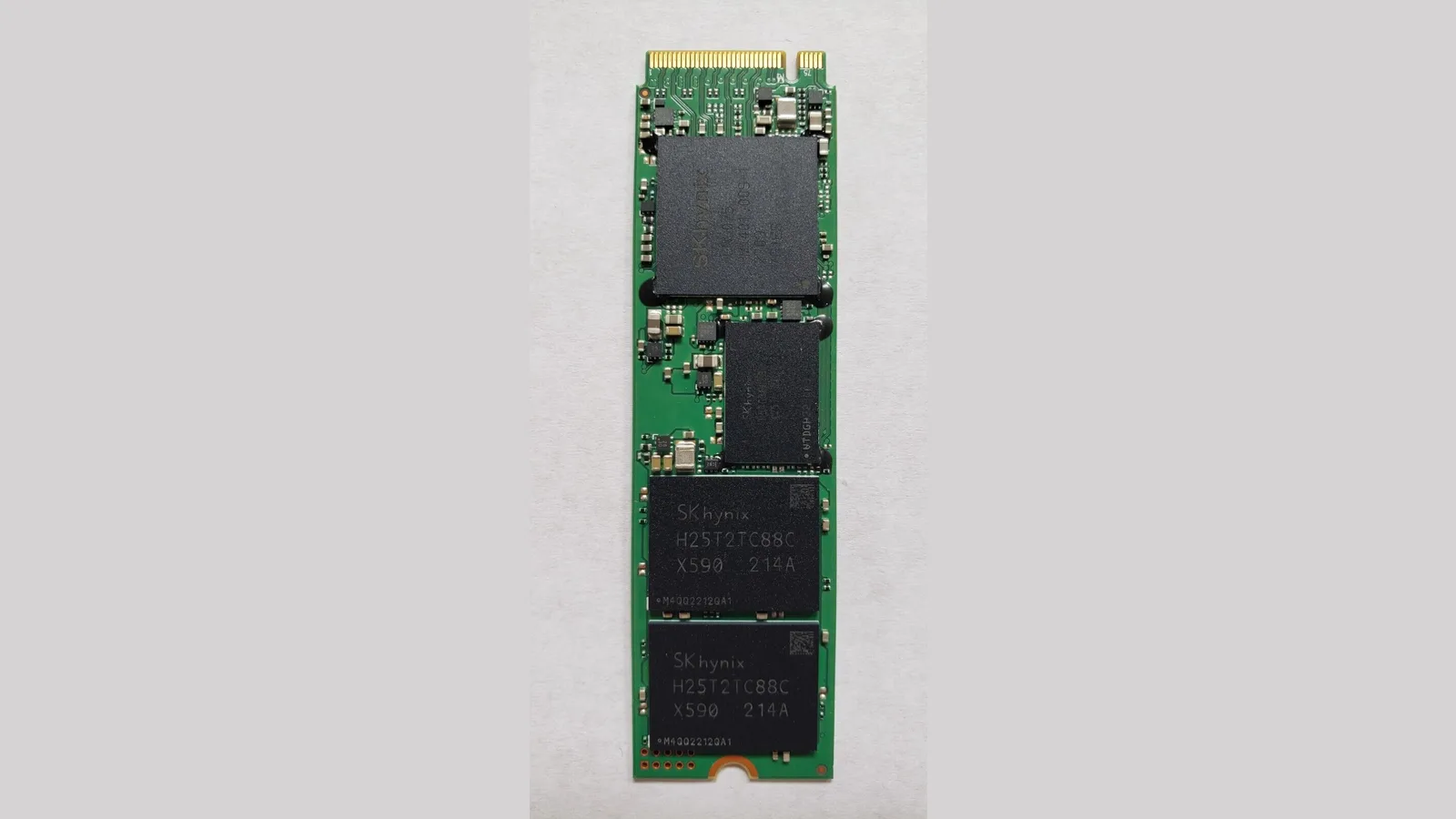
If Disk Utility finds errors it can't repair, the next step is to erase (format) the disk and reinstall. But this wipes everything, so only do it once your data is safe. And here is the line where do-it-yourself stops: Apple says that if your startup disk doesn't appear in Disk Utility, or Disk Utility reports that the erase process has failed, your Mac or startup disk may need a service. That's a hardware fault — no amount of reinstalling will cure a drive that has physically failed, and repeated attempts can make data recovery harder.
When to bring your MacBook to a repair shop in Singapore
If the disk doesn't show up in Disk Utility, if First Aid keeps failing, or if the MacBook was dropped or exposed to liquid, keep power cycling to a minimum — every restart on a dying drive risks the data still on it. At our Singapore centre we start by diagnosing whether it's a software fix or a storage or logic-board fault, and when a drive is failing we prioritise getting your files off first. We don't quote a repair from a symptom alone; a proper diagnosis always comes before any price. If you're not sure which camp your MacBook is in, that diagnosis is the safest next move.
Frequently asked questions
Will I lose my files fixing a flashing question mark folder? Not from the software steps. Reselecting the startup disk, resetting NVRAM, running First Aid and reinstalling macOS all keep your data. You only risk losing files if you erase the disk, or if the drive itself is physically failing — which is exactly why we say back up first whenever the Mac still boots.
Does resetting NVRAM work on Apple silicon MacBooks? No. Apple states the NVRAM reset doesn't apply to Macs with Apple silicon and isn't needed on them. Only Intel MacBooks use the Option-Command-P-R reset; on an M-series machine, skip it and go straight to Recovery.
The folder only flashes for a second before it boots — should I worry? Usually it just means the startup disk wasn't set. Choose your disk under Startup Disk settings; on an Intel Mac, resetting NVRAM helps the choice stick. If it keeps happening it's worth checking, but a brief flash on its own rarely signals a failing drive.
My disk doesn't appear in Disk Utility at all — what now? That points to a hardware fault with the SSD or its connection. Stop trying to reinstall or erase, keep restarts to a minimum, and bring it to a technician so your data can be recovered first. On some MacBook models it's a known cable or storage failure rather than the whole board.

Esmond Service Centre's experienced technicians can diagnose and fix it fast — free diagnostics, repairs from $65.