


📑 On this page
A MacBook Pro not turning on: what is actually happening
Walk-in and WhatsApp customers in Singapore describe this the same way: 'I press the power button and nothing happens.' But 'nothing' hides two very different faults. Sometimes the Mac is genuinely dead — no power is reaching the board — and sometimes it is quietly running while the screen stays black, so it only looks dead. This guide is written from those repairs. It shows you how to tell the two apart, the free steps that bring back a large share of no-boot MacBooks, and the smaller number of cases where the battery, the charging port or the logic board has actually failed.
First: no power, or no picture?
Before any repair, place your own case, because the two kinds need completely different answers. Plug in a known-good Apple charger and watch and listen for thirty seconds. Any sign of life — a charging light, a startup chime, a backlit keyboard, a fan — means power is reaching the Mac and the problem is more likely the display or the startup software. Total silence with a good charger points to power itself: the adapter, the cable, the port or the battery. Match your symptoms below.
- No light, no sound, no fan, black screen: no power is reaching the board — look at the charger, cable, charging port and battery first.
- Charging light or chime, but the screen stays black: power is fine; the fault is the display, the backlight or the startup — not the power system.
- It starts, then shuts off, and runs hot: a thermal or power fault that cuts out under load; often linked to overheating or a failing battery.
- A flashing question mark or a circle with a line: the Mac is on but cannot find a system to start up — a software or drive issue, not a power one.

How to fix a MacBook Pro not turning on: the free checks
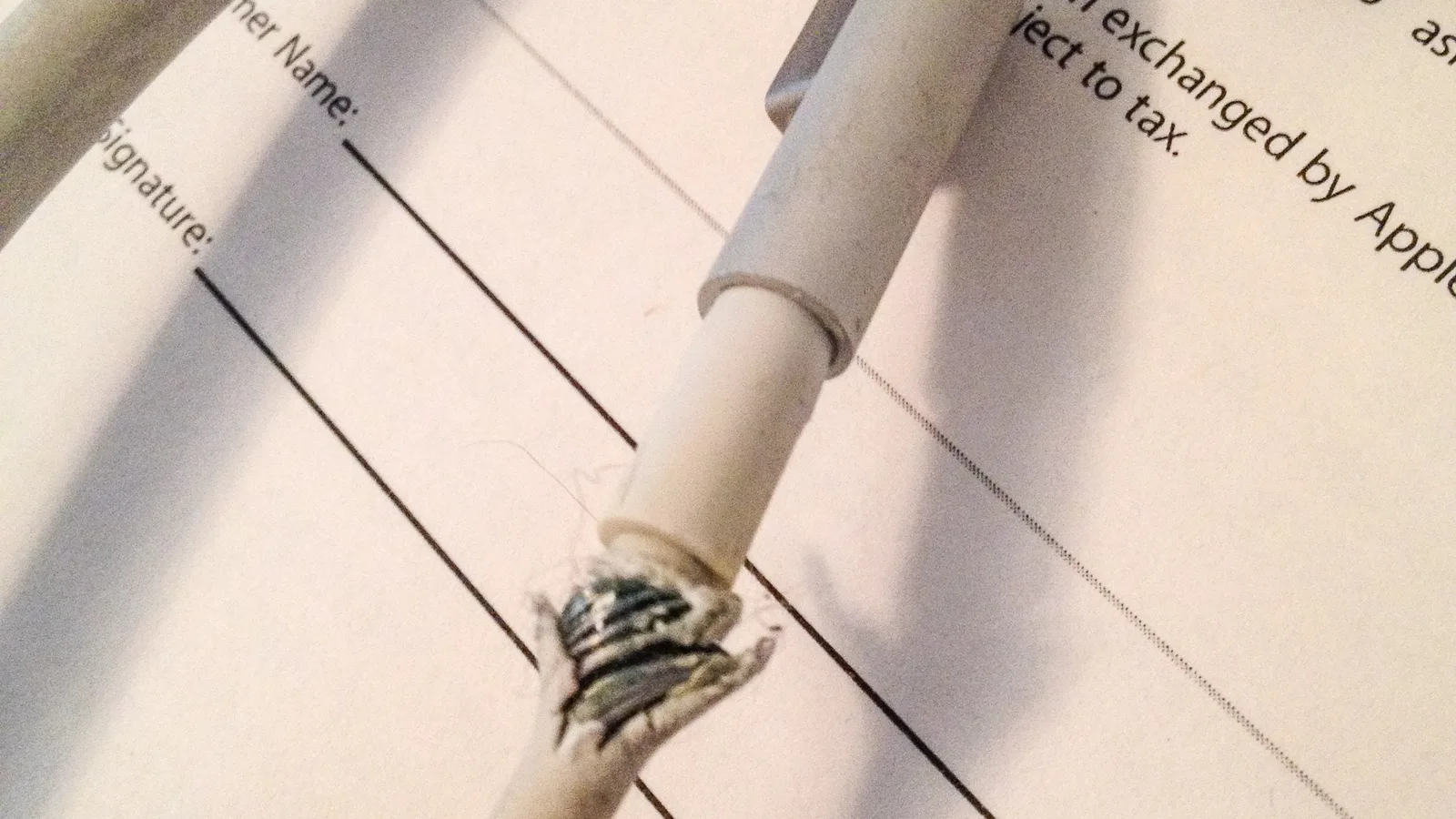
Apple's own guidance is the place to start, and most of it costs nothing. If your Mac does not seem to turn on after you press the power button, Apple says to check that the power cable is undamaged and plugged securely into the Mac and a working outlet, then to press and hold the power button for about ten seconds before pressing it normally again. Work through these in order — none can harm the Mac, and together they recover most no-boot MacBooks that turn out to be power or software.
- Check the power, cable and outlet. Make sure the power cable is undamaged and plugged securely into the Mac and a working outlet. Try a different Apple charger or cable if you have one, and a different wall socket.
- Let it charge, then look for a light. Leave it on a known-good charger for 30 to 60 minutes — a deeply flat battery can need time before it shows any sign of life or will start.
- Force restart. Press and hold the power button (or Touch ID) for about ten seconds, release, then press it normally. This clears a stuck power state that mimics a dead Mac.
- Unplug every accessory. Remove printers, drives, USB hubs, dongles and mobile devices, then try again — a single faulty accessory can stop a Mac starting.
- Reset the SMC (Intel Macs only). On older Intel MacBooks, resetting the System Management Controller can restore power behaviour. Apple silicon Macs (M1, M2, M3 and later) have no SMC and do not need this — a normal restart does the same job.
- Check for a startup symbol. If you see a flashing question mark or a circle with a line through it, the Mac has power but cannot find a system to start — that is a software or drive issue, and macOS Recovery is the next step.
Know the limit before you spend. This will not fix a dead battery, a damaged charging port, water damage or a logic-board fault — those are hardware, and no button sequence reaches them. If this does not work after a proper charge and a force restart, stop. When to stop and bring it in: the moment you smell burning, see a swollen trackpad, or the Mac took liquid. Pushing on past that point carries a real risk — repeated power attempts on a shorted board can turn a cheap repair into permanent damage, data loss, and can void the warranty. At that stage, seek professional help rather than guess.

MacBook Pro overheating and not turning on
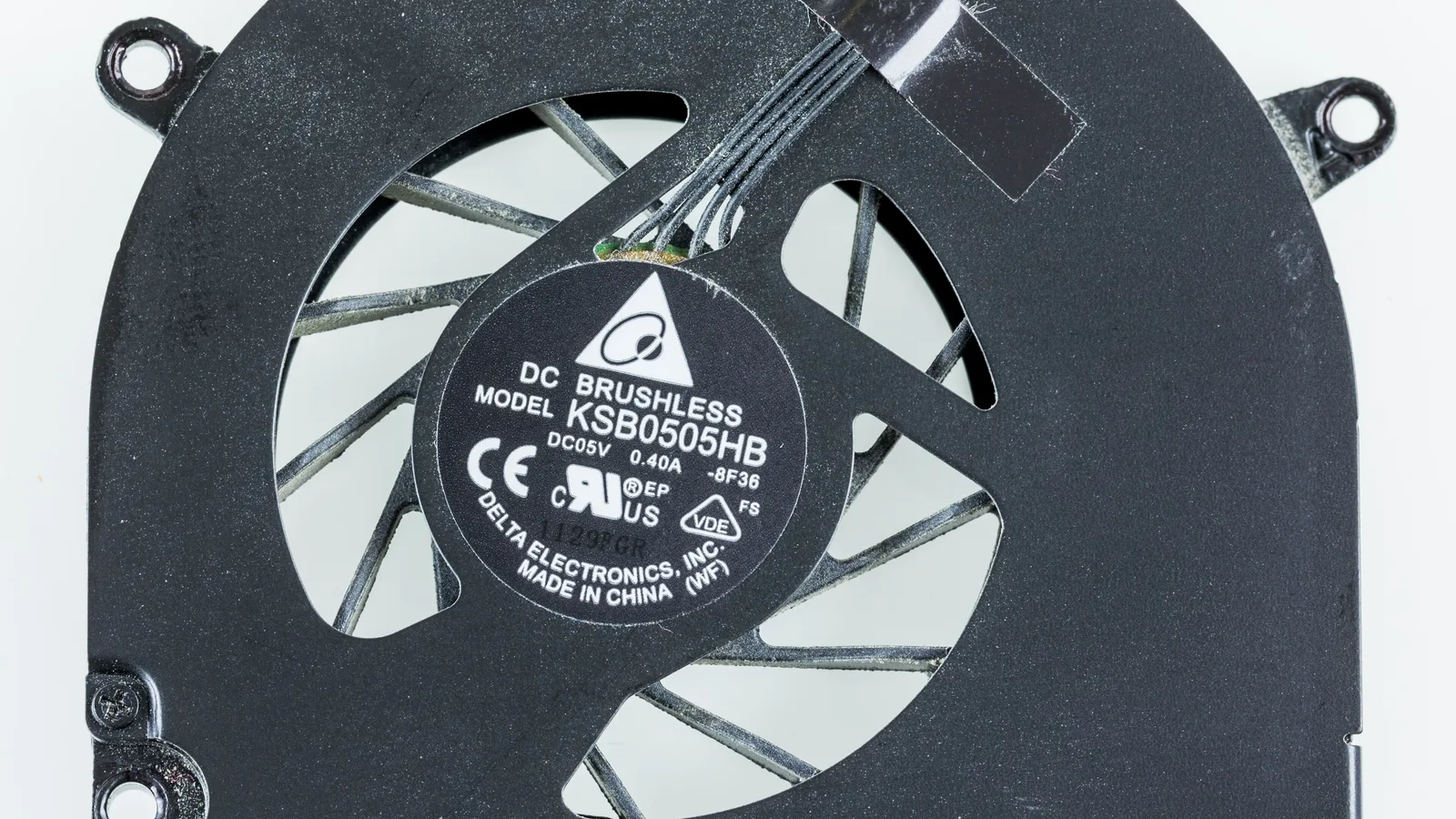
A MacBook Pro that gets very hot and then will not turn on, or starts and shuts straight off, is often protecting itself. Apple notes that Mac laptops are designed to run where the ambient temperature is between 10°C and 35°C (50°F to 95°F), and that the fans turn on automatically to cool critical components. Push well past that — a blocked vent, a hot car, heavy load on a soft surface — and a Mac can shut down and refuse to restart until it cools. A swollen battery, which can build up heat and pressure, is a related and more serious cause we see in Singapore's climate.
- Let it cool completely on a hard, flat surface before you try again — never on a bed, pillow or bedding, which block the vents.
- Clear the vents and keep anything off the keyboard; dust and poor airflow are common causes of heat shutdowns.
- Make sure macOS is up to date and you are using a genuine Apple power adapter.
- If the base is hot and the trackpad feels raised or clicks poorly, stop using it — that points to a swollen battery and needs a workshop.
How to fix a MacBook Air not turning on: is it different?
The steps are almost the same. A MacBook Air not turning on follows the same order — charger and cable, a long charge, a ten-second force restart, remove accessories, and SMC only on older Intel models. The main difference is the charger: most MacBook Airs charge over USB-C or the MagSafe 3 socket, so a worn cable or a weak adapter is a frequent culprit, and the fanless Apple silicon Airs rely on the body to shed heat, so a hot shutdown behaves a little differently. If none of the free steps wake an Air, the suspects are the same three: the battery, the charging port and the logic board.
Symptom-to-cause quick reference
Use this table to place your own MacBook before you spend. Match what you see to the most likely cause, whether it is safe to try yourself, and the usual next step. It is a starting point, not a diagnosis — a hands-on test confirms the real fault.
| What you see | Most likely cause | Safe to try yourself? | Typical next step |
|---|---|---|---|
| No light, sound or fan; black screen | Dead charger, cable, port or flat battery | Yes — another charger, long charge, force restart | Charging or board diagnosis if still dead |
| Charging light on, but will not start | Flat or failed battery, or power circuit | Partly — force restart, remove accessories | Battery or board-power check |
| Chime or fan, but screen stays black | Display, backlight or cable, not power | Partly — brightness, external monitor, Recovery | Display or cable repair |
| Starts, then shuts off and runs hot | Overheating or swollen battery | Yes — cool down, clear vents | Battery replacement or thermal service |
| Flashing question mark or circle with a line | No startup system found (software or drive) | Partly — macOS Recovery, reinstall | Drive or macOS repair |
| No power after liquid or a drop | Liquid or impact damage to the board | No — stop and unplug | Board-level repair |
When it is hardware: battery, port or logic board
When the free steps change nothing, the fault is usually one of three hardware parts: the battery, the charging port or the logic board. We work from the outside in, because the cheapest causes sit nearest the charger, and we confirm each before we ever open the Mac.
- Battery: a battery that has aged, swollen or failed can stop a Mac starting even on mains power; a swollen one must be handled and replaced carefully.
- Charging port and board power: a worn USB-C or MagSafe port, or the power circuitry just behind it, can leave the board with no clean supply.
- Logic board: liquid damage, a failed power chip or a short can stop the board powering up — this is the board-level work that needs a microscope and proper tools.
What we do in the workshop, and when to stop and bring it in
When a no-boot MacBook Pro reaches our bench in Singapore, we do not guess. We measure what the charger delivers, check the port and the board's power rails with a meter, inspect for liquid or a swollen battery, and separate software from hardware with a known-good charger and macOS Recovery — before any part is ordered. If you have reached a point where the Mac smells hot, shows a swollen trackpad or took liquid, seek professional help rather than keep pressing the button.
- Power first: we confirm the charger, cable and port before we open anything, so we never replace a board a cable would have fixed.
- Battery and safety: a swollen battery is removed and replaced carefully, because it is a heat and pressure risk.
- Board-level diagnosis: where the fault is the logic board, we trace the power circuit under a microscope rather than swap parts blindly.
- Honest scoping: we deliberately do not quote a fixed price here — the cost depends on which of these it turns out to be, and we would rather diagnose first than guess.
Preventing a no-boot MacBook Pro
A few habits head off most no-boot scares. Charge with a good, genuine Apple adapter and cable, keep the vents clear and the Mac on a hard surface, back up regularly so a hardware failure never costs your data, and act early on a battery that runs hot or lifts the trackpad.
- Use a genuine Apple adapter and a sound cable; replace a frayed cable before it fails.
- Keep the vents clear and use the Mac on a hard, flat surface for airflow.
- Install macOS updates, which include power and firmware fixes.
- Back up to Time Machine or the cloud, so a no-boot fault never means lost data.
- Replace an ageing or swollen battery early, before it leaves you stranded.

Esmond Service Centre's experienced technicians can diagnose and fix it fast — free diagnostics, repairs from $65.