
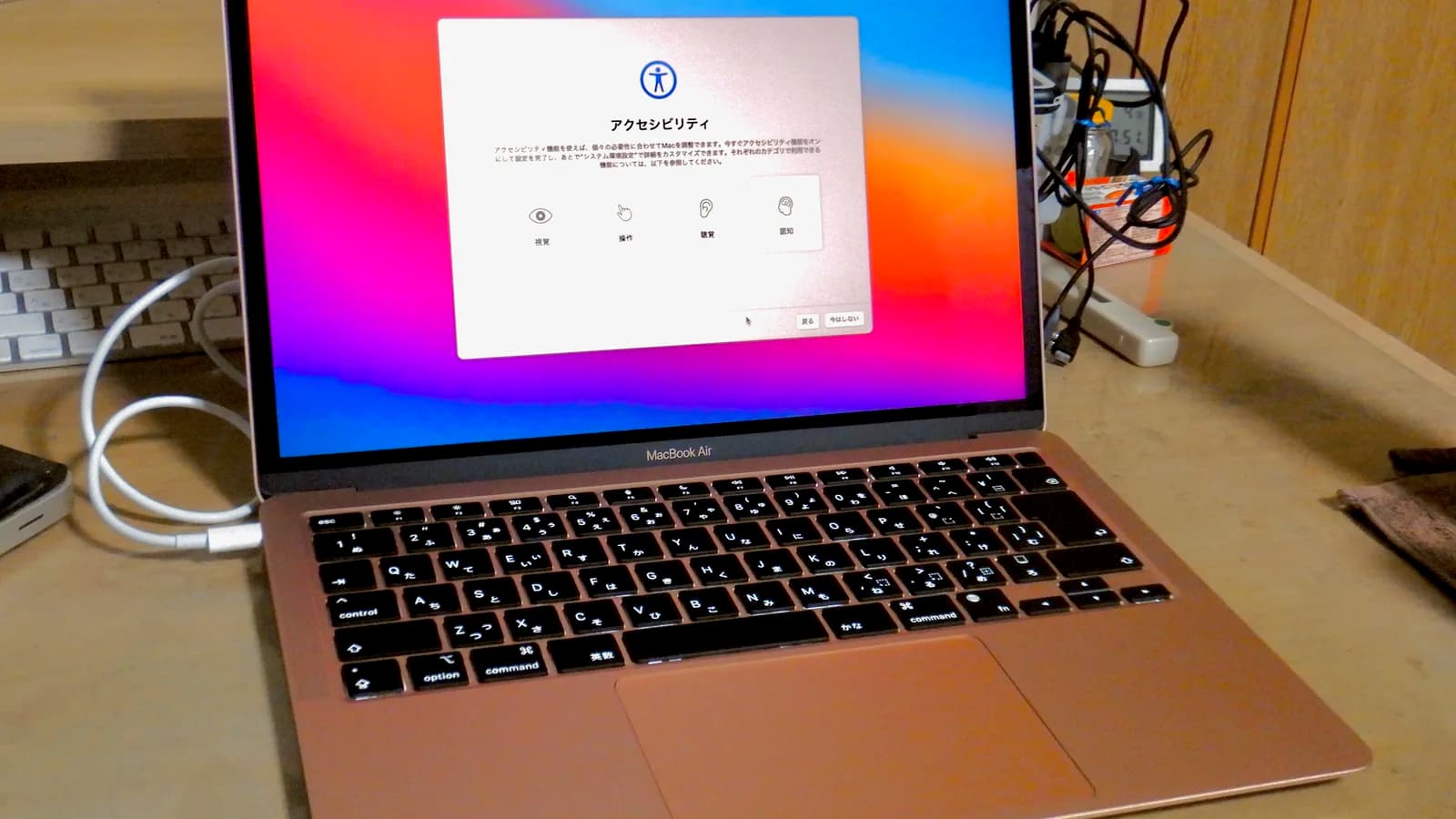
_-_1.jpg)
📑 On this page
First, find out if the lines are software or hardware
Walk-in and WhatsApp customers in Singapore send us photos of MacBook Airs with lines running down or across the screen. On the bench, the first thing we do is never a repair — it is a two-minute test to find out whether the lines come from software or from the display hardware, because that answer is the difference between a free fix and a paid one. Do the same before you spend anything.
- Connect an external monitor. Plug the Air into any external display through its Thunderbolt / USB-C ports; a Mac detects an external display automatically. If the external screen is clean and the lines show only on the built-in panel, the logic board and graphics are fine — the fault is the Air's own screen, cable or connector. If the same lines appear on the external monitor too, the graphics on the logic board are the more likely cause.
- Take a screenshot. Press Shift-Command-3, then open the saved image. If the screenshot is clean but the screen still shows lines, the picture the Mac is drawing is perfect and the fault is physical — the panel or cable, not software. If the lines are baked into the screenshot, the fault is upstream in software or the GPU, before the image reaches the panel.
- Flex the lid slowly. Open and close the lid through its full range and watch the lines. If they appear, vanish or change as the hinge moves, the display flex cable that runs through that hinge is the fault — not the panel. In Singapore's humidity that cable also corrodes, so this is a common finding on an Air a few years old.
Quick reference: what the lines are telling you
| What you see | Likely cause | First thing to try |
|---|---|---|
| A single coloured vertical line, fixed in place | The LCD panel (a failed column driver) | External-monitor test; if the Air's panel alone shows it, a panel/assembly repair |
| Horizontal bands or flicker that move | Display flex cable or a software/driver glitch | Restart and update macOS first, then the flex-cable test |
| Lines change with the lid angle | A worn or loose display flex cable | Flex-cable reconnection or replacement |
| Lines on the built-in and an external screen | Graphics on the logic board | Board-level diagnosis |
| Lines gone after a restart or macOS update | Software or firmware only | No parts needed |
Software fixes to try first (free, safe, reversible)
Do these in order, and stop the moment the lines disappear. Every step here is reversible and costs nothing — none can harm your data or your hardware.
- Restart properly. Choose Apple menu > Restart, rather than just closing the lid. A clean restart clears a hung graphics process, the single most common cause of lines that come and go.
- Update macOS. Open System Settings > General > Software Update and install anything offered. Apple ships graphics and display fixes in these updates. Back up first, and let the install finish without closing the lid.
- Boot into safe mode. On an Apple silicon Air, shut down, hold the power button until 'Loading startup options' appears, pick your disk, then hold Shift and click 'Continue in Safe Mode'. On an Intel Air, restart and hold Shift until the login window. Safe mode loads only Apple's own software; if the lines vanish in safe mode, a third-party app or extension is the cause.
- Reset NVRAM — Intel Airs only. On an Intel MacBook Air, shut down, switch on and immediately hold Option-Command-P-R for about 20 seconds. NVRAM stores the display resolution, so a reset can clear a corrupt display setting. Apple silicon (M1/M2/M3) Airs have no key-combo NVRAM reset — a normal restart does the same job.
- Reset the display settings. In System Settings > Displays, set the resolution back to 'Default for display'. A wrong or forced resolution can draw artefacts that look like lines.
Why this works: these steps clear the three software causes behind on-screen lines — a stuck graphics process, an out-of-date or buggy driver, and a bad display setting. If the lines are still there after all five, the problem is physical, and no amount of resetting will fix it.

Apple silicon vs Intel: which resets actually apply
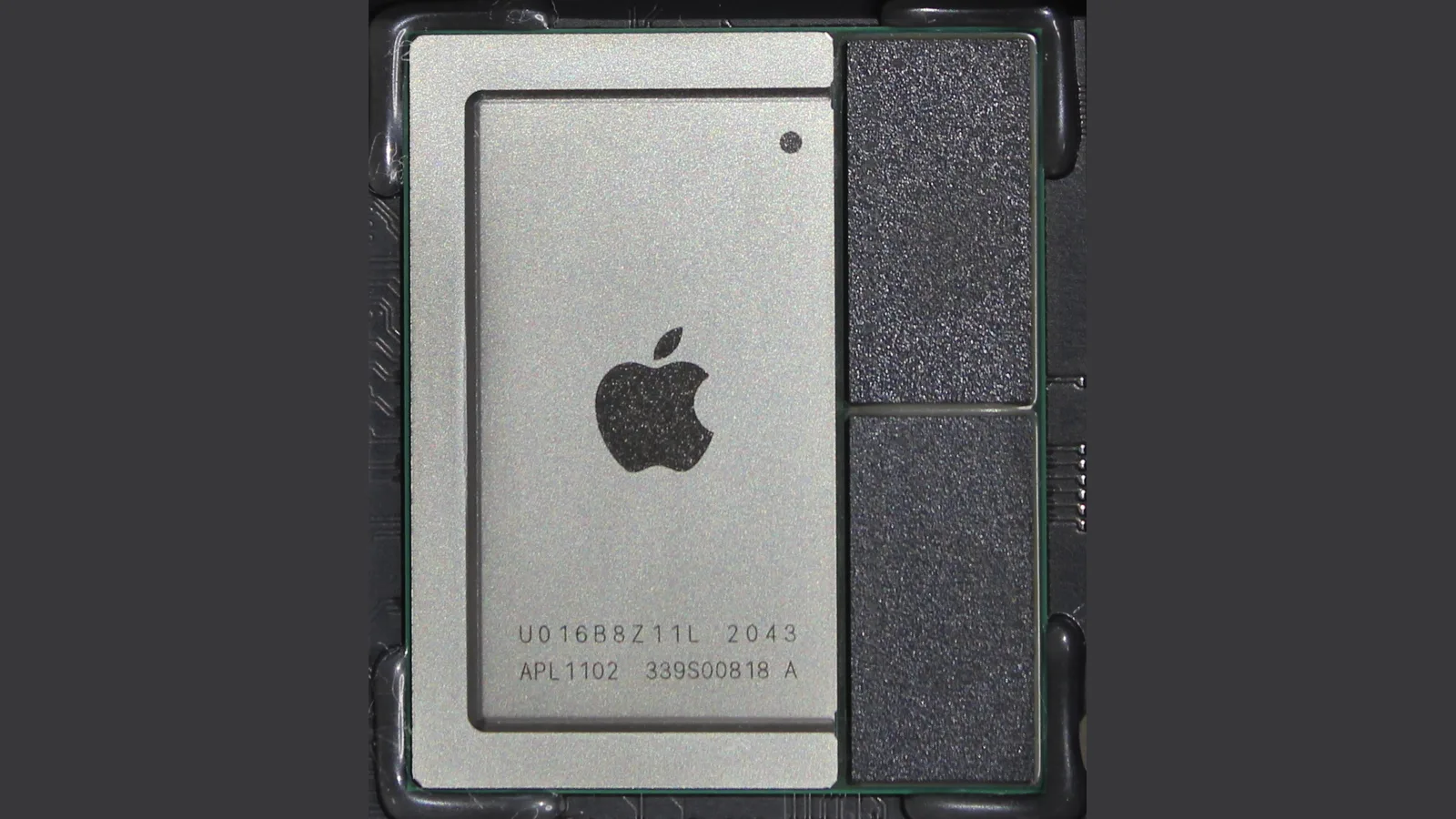
Which fixes apply depends on your chip, and this trips up most guides. Here is the honest split, straight from Apple's own key-combination documentation. In the table, PRAM (the small memory that keeps settings) is Apple's other name for NVRAM, and the SMC (the chip that controls power and fans) resets by itself on Apple silicon.
| Step | Intel MacBook Air | Apple silicon (M1/M2/M3) Air |
|---|---|---|
| NVRAM/PRAM reset | Hold Option-Command-P-R at boot (~20s) | None — just restart; the system handles it |
| Safe mode | Hold Shift at startup until the login window | Power button to startup options, then Shift to continue |
| Recovery mode | Hold Command-R at boot | Press and hold the power button until startup options appear |
| SMC reset | Keyboard combo with power | None — a full shutdown and restart replaces it |

When the lines are hardware: cable, panel or GPU
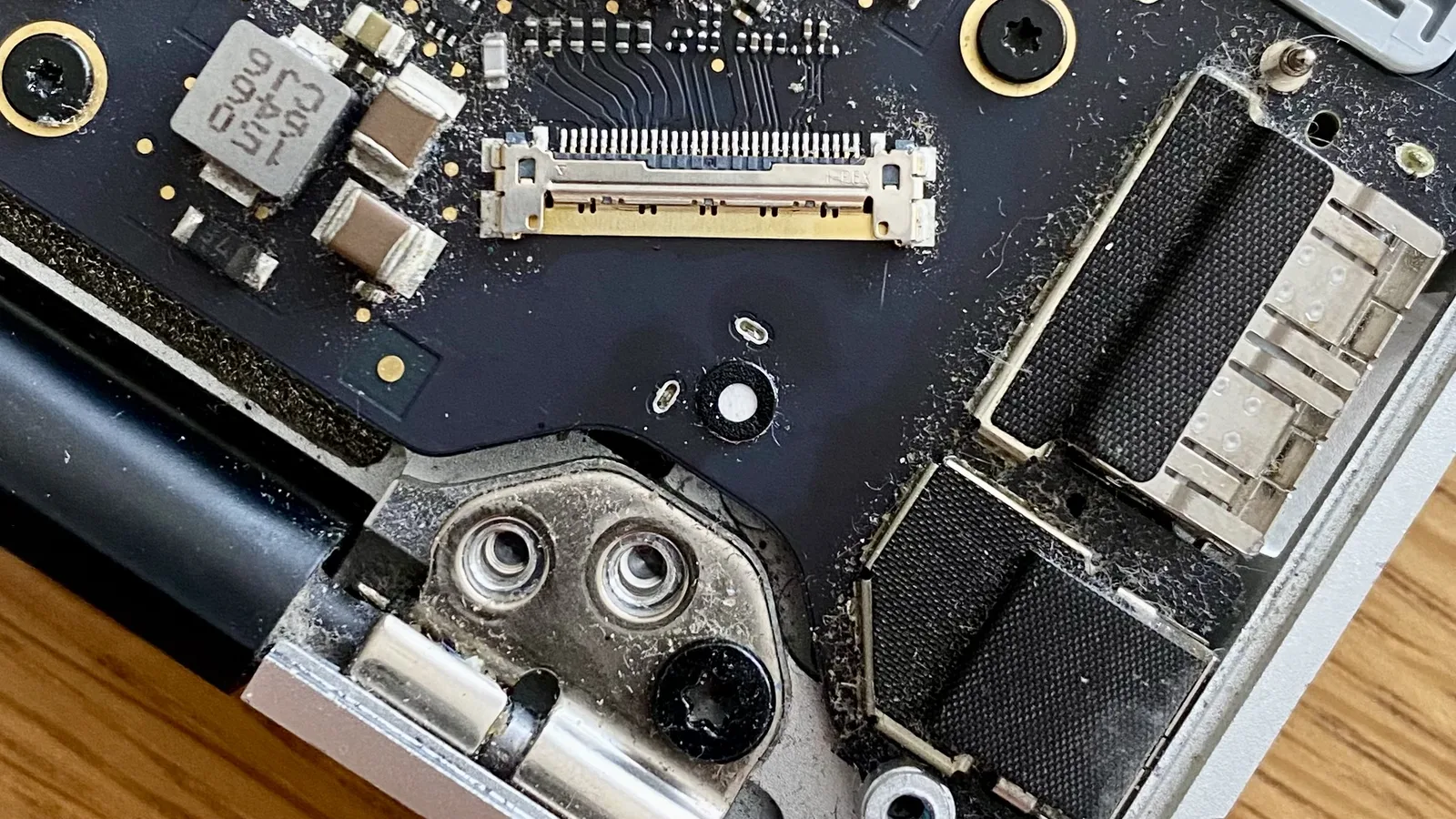
If the software steps did nothing, the fault is physical — and this is where the honest limits matter. A restart, a macOS update, a safe-mode boot and an NVRAM reset cannot fix a cracked panel, a failed column driver inside the LCD, a worn display flex cable, or a graphics chip losing contact with the logic board. Those are repairs, not settings. The photo above shows why: the board's small connectors sit right beside the screen's hinge, inside a delicate assembly that is not a kitchen-table job.
The external-monitor and flex tests from the top of this page already point you at which one it is:
- External screen clean, built-in shows lines: the panel or its cable. A flex cable is a smaller job; a dead panel needs a new display assembly.
- Lines change with the lid angle: the display flex cable through the hinge — often reconnection or replacement, not a whole panel.
- Lines on both screens: the graphics on the logic board, which needs a board-level diagnosis.
- A single fixed coloured line: a failed driver inside the LCD panel itself — the panel is replaced.
When to stop and bring your MacBook Air in
Stop the DIY the moment a step would mean opening the case. The Air's display cable is thin and easily torn, a static shock can make a board fault worse, and prising the lid can crack an otherwise-good panel. Bring it in if the lines survive every software step, appear on an external monitor, change with the lid angle, or you would simply rather not open the machine. When one of these MacBook Airs reaches our bench in Singapore, we don't guess: we confirm the chip and macOS version, run the external-display and panel tests with known-good parts, and only then separate a cable, panel or board fault. Esmond Service Centre gives a genuinely free, no-obligation diagnostic first, so you only pay if you approve the quoted fix. Most MacBook repairs carry a 90-day warranty, extendable up to 1 year through the optional Esmond Care plan.
- Display-path testing: confirm with an external monitor, then check the flex cable, the connector and the panel in turn.
- Targeted repair: reconnect or replace a flex cable where that is the fault, rather than selling you a whole panel you don't need.
- Honest scoping: we don't quote a fixed 'screen lines' price here — it depends on whether it's a cable, a panel or the board, so we diagnose first, for free, then quote.
Fix your MacBook Air's screen lines today
If the two-minute tests and the five software steps above haven't cleared the lines, you're looking at a cable, panel or board repair — and the next honest step is a diagnostic, not a guess at a price. Esmond Service Centre repairs MacBook display faults at two Singapore branches, in Alexandra and Sin Ming, and is rated 4.9 stars. Walk in, or read our MacBook screen replacement and MacBook screen lines pages, for a free diagnostic and a confirmed turnaround before any work begins.

Esmond Service Centre's experienced technicians can diagnose and fix it fast — free diagnostics, repairs from $65.