

📑 On this page
Why your iPad is slow: what is actually going on
Walk-in and WhatsApp customers across Singapore ask us the same thing: why is my iPad so slow now? An iPad does not wear out the way a mechanical thing does; it slows down because the software, the storage or the battery has drifted out of its comfort zone. Apple's own guidance for an iPhone or iPad that is running slow points straight at these everyday causes — a nearly full disk, a network you are waiting on, heat, Low Power Mode, and a battery that has aged — before any repair. This guide works through them in the order we check them on the bench, so you clear the cheap causes first and only pay for hardware when it genuinely is the hardware.
First: is it software, storage, or the battery?
Slowness has a handful of distinct causes, and they need different answers. Match what you are seeing to the most likely cause before you change anything — it stops you, for example, wiping and restoring the whole iPad when a worn battery was the real culprit. The list below covers the patterns we see most often.
- iPad slow to respond across every app, with taps and typing lagging: usually too little free storage, too many background apps, or an iPadOS update waiting to install.
- iPad slow scrolling, with stuttering animations: often heat, Low Power Mode, or an older iPad asked to run a newer, heavier iPadOS.
- iPad slow to load web pages and online apps, but only when connected: the bottleneck is your Wi-Fi or mobile network, or a browser full of cached data — not the iPad itself.
- Everything was fine, then it slowed right after an update: a common pattern on older models — the system re-indexes files for a while, and a heavier OS asks more of ageing hardware.
- Slow, and the battery drains fast or the iPad runs warm: a worn battery whose maximum capacity has dropped — the one cause here that is genuinely hardware.
How to fix a slow iPad: the free checks
Work through these in order. None can harm the iPad, and together they clear most slow iPads that turn out to be software or storage. Do them one at a time and test after each, so you learn which one was the culprit.
- Restart the iPad. Press and hold the top button and either volume button until the power-off slider appears, drag it, wait 30 seconds, then hold the top button until the Apple logo appears. A restart clears a stalled state and is the fastest thing to rule out.
- Update iPadOS. Back up first, connect to power and Wi-Fi, then open Settings > General > Software Update and install what is offered. Apple calls keeping your software up to date 'one of the most important things you can do', because updates carry bug fixes and performance work.
- Free up storage to at least 1 GB. Open Settings > General > iPad Storage. Apple recommends keeping at least 1 GB free; below that, performance suffers. Delete videos you have already watched, offload large apps you rarely use (offloading frees the app but keeps its documents and data), and clear old downloads.
- Close unresponsive apps and ease the background load. Swipe up from the bottom edge to the middle to open the App Switcher, then swipe a frozen app's preview up to close it. You do not need to close every app — only ones that have stopped responding.
- Turn off Low Power Mode. In Settings > Battery, switch it off. Apple notes that Low Power Mode 'disables certain features or makes them work slower'. Turn it on only when you genuinely need to stretch the battery.
- Let it cool, and clear the browser if it is slow only online. Apple notes a device that is too hot or too cold can run slower, so move the iPad out of direct sun and out of a thick case. If only web pages crawl, try another network and clear Safari's history and website data to shed a bloated cache.
Know the limit before you spend. This will not fix a battery whose health has genuinely dropped, a failed storage chip, or a logic-board fault — those are hardware, and no setting or reset will cure them. If this does not work after a restart, an update, freeing storage and a cool-down, do not keep wiping and restoring. When to stop and bring it in: if the iPad stays slow after every free check, or it slows in step with fast battery drain and heat, stop and seek professional help. Getting this wrong carries a real risk — a mistimed restore can mean data loss, a cheap third-party battery can swell and cause permanent damage or a cracked screen, and an unofficial repair can void the warranty. If the iPad is still under Apple warranty or AppleCare, use that route first.
Slow-iPad symptoms and what they usually mean
Use this table to place your own iPad. Match what you see to the most likely cause, whether it is safe to try yourself, and the typical next step. It is a starting point, not a diagnosis — a hands-on check confirms the real fault.
| What you're seeing | Most likely cause | Safe to try yourself? | Typical next step |
|---|---|---|---|
| Everything lags — taps, typing, launching apps | Low free storage or a pending update | Yes — update, free storage, restart | None — software or storage |
| Scrolling stutters, animations jerky | Heat, Low Power Mode, or heavier iPadOS | Yes — cool down, turn off Low Power Mode | None — settings |
| Slow only on the web or online apps | Network, or a bloated browser cache | Yes — switch network, clear Safari data | None, or a router/ISP fix |
| Slowed right after an iPadOS update | Indexing, or ageing hardware on an old model | Partly — wait, restart, free storage | Battery/storage check if it persists |
| Slow with fast battery drain and heat | Worn battery with reduced capacity | Partly — check Battery settings | Battery replacement |
| Still slow after every free check | Storage chip or logic-board fault | No | Workshop diagnosis |
When your iPad is slow only on the internet
If your iPad feels quick opening apps and typing, but crawls the moment you load a web page, stream, or use an online app, the slowdown is probably not the iPad at all. Apple points out that apps often need an internet connection and that slow performance can come from network congestion. Two things are worth separating: a slow network, and a browser weighed down by months of cached data and cookies.
- Test the network, not the iPad: try another Wi-Fi network or switch to mobile data; if another device is slow on the same Wi-Fi too, the problem is the network or your broadband, not your iPad.
- Clear Safari's history and website data: a cache full of months of data can make pages load slowly; clearing it (in Settings > Safari) gives the browser a clean start.
- Restart your router: home Wi-Fi often recovers from a simple power-cycle of the router, the same way a restart helps the iPad.
- Move closer to the router: thick walls and distance cut Wi-Fi speed; a weak signal looks exactly like a slow iPad when you are browsing.


When an older iPad struggles with the latest iPadOS
Sometimes the software is fine, storage is clear, and the iPad is simply old. The first-generation iPad above is years past the last iPadOS it could run — and that is the point: hardware is designed for the software of its day. Several versions later, a heavier system and bigger apps ask more of the same chips and the same ageing battery than they were ever built to give. A years-old iPad that has just taken a major update can feel markedly slower, and there is a limit to what any free check can recover.
- Check whether your model supports the newest iPadOS: if it does not, staying on the version it shipped with can feel faster than forcing a heavier one.
- Give a big update time to settle: for a day or two after installing, the iPad re-indexes files and finishes background tasks, which can make it feel slow before it speeds back up.
- Keep more storage free on an older iPad: ageing hardware has less headroom, so the 1 GB minimum is a floor, not a target — more free space helps.
- Know when it is simply reaching its limit: if a clean, updated, well-maintained older iPad is still slow for what you need, that is the hardware, not a setting.
When a worn battery is behind the slowdown
Every rechargeable battery wears out as it ages — Apple says so plainly — and a tired iPad battery can show up as more than short runtime. As capacity drops, the iPad can shut down unexpectedly under load, run warm, and feel less steady. Unlike an iPhone, an iPad does not show a battery-health percentage in Settings, so we do not rely on a number on screen; on the bench we measure the cell's actual capacity and check for swelling. If a worn battery is the cause, replacing it is a hardware fix, not something a setting will solve.
- Short runtime: the iPad drops charge far faster than it used to, even on light use.
- Unexpected shutdowns: it powers off with charge still showing, especially when something demanding spikes the load.
- Runs warm and sluggish together: heat and slowness arriving as a pair often point back to the battery or charging.
- Any swelling: a battery that lifts the screen or bends the case is a safety issue — stop using it and have it replaced.

What we do in the workshop
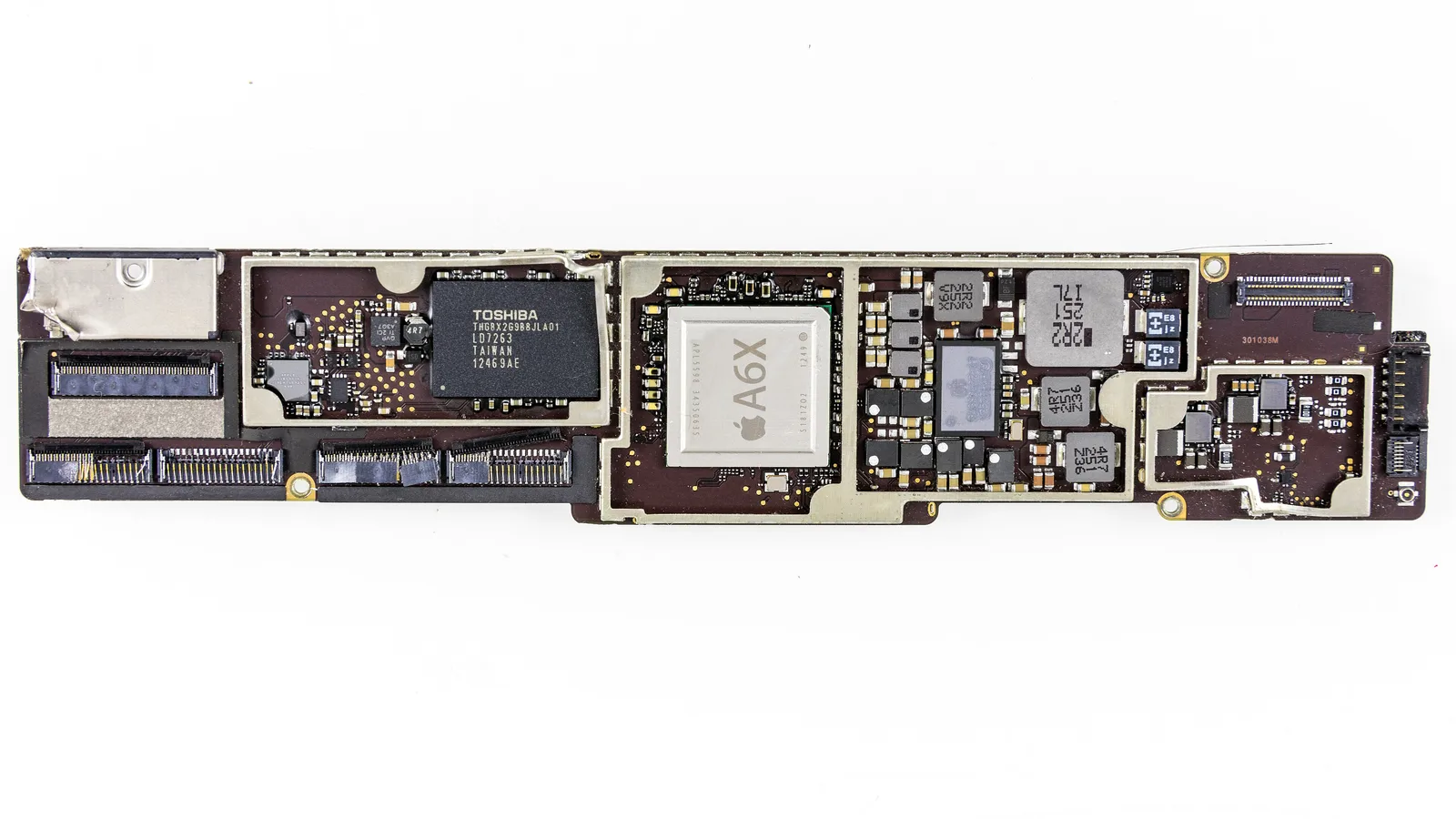
When to bring it in: if the free checks above do not help, or the iPad slows in step with fast battery drain and heat, let a professional take over. When a slow iPad reaches our bench in Singapore, we do not guess. We confirm iPadOS is current and storage is healthy, test performance after a clean restart, measure the battery's real capacity and check it for swelling, and inspect the logic board — like the one above — for a storage or power fault, before any part is ordered.
- Software and storage first: confirm iPadOS, free storage and a clean restart, so we never replace a part a setting would have fixed.
- Battery testing: measure actual capacity and check for swelling, then advise a replacement only if the cell is genuinely worn.
- Board-level inspection: where a storage chip or a power fault on the logic board is the cause, that is diagnosed before anything is ordered.
- Honest scoping: we deliberately do not quote a fixed price here — the cost depends on which of these it turns out to be, and we would rather diagnose first than guess.
Keeping an iPad fast
A few habits keep an iPad quick and head off most slowdowns before they start.
- Keep iPadOS updated, but give each big update a day or two to settle.
- Leave at least a few gigabytes of storage free, not just the 1 GB minimum.
- Restart the iPad every so often instead of leaving it on for weeks.
- Clear Safari's cache now and then if you browse a lot.
- Keep it out of direct sun and hot cars, and out of thick cases that trap heat.

Written by Esmond, Founder & CEO of Esmond Service Centre. He works from the repair bench where these slow iPads actually arrive, and writes each guide from the faults that come through the door rather than from a spec sheet. Reviewed and published on 13 November 2026.
Esmond Service Centre's experienced technicians can diagnose and fix it fast — free diagnostics, repairs from $65.