

📑 On this page
What it means when the keyboard, trackpad and screen all fail together
A single faulty component usually fails on its own — a dead key here, a flickering screen there. When the keyboard, the trackpad and the display all misbehave at once, that pattern points to something they share: the power system, the main logic board, or physical damage that has reached more than one part. On a MacBook Air the trackpad, the keyboard ribbon and the battery are packed together under the top case, so one swollen cell or one spill can take out all three.
Forum reports back this up. On Apple's own Community, a MacBook Air 2020 owner whose keyboard and trackpad were both unresponsive at the login screen was told to suspect battery swelling, a lid-angle sensor, or liquid damage — and the cause turned out to be water that had reached under the keyboard. The useful takeaway is that “everything stopped at once” is a hardware story far more often than a software one.
_-_2.jpg)
First, the safe checks that take five minutes
None of these can make the problem worse, and any one of them can save you a repair. Apple's own guidance for a Mac that won't respond is to force-restart it — hold the power button for about ten seconds, then press it normally — and to disconnect every accessory first, because a faulty hub or dongle can lock up input.
- Force-restart: hold the power button for about 10 seconds, then press it once more to switch on.
- Plug in a USB or Bluetooth keyboard and mouse. If they work but the built-in ones don't, the fault is the internal keyboard or trackpad, not macOS.
- Unplug everything — chargers, hubs, drives, dongles — and try again.
- Check the charger, cable and a different wall socket; a Mac starved of power can behave strangely.
- Boot into Safe Mode (hold the power button on Apple silicon to reach startup options) to rule out software.
- Run Apple Diagnostics to flag a hardware fault.
- If the case or trackpad is bulging, STOP: do not charge it and do not press the bulge — that is a swollen battery.
If an external keyboard and mouse bring you back to a working desktop, you can save your files and work normally while you arrange a repair for the built-in parts. If even external input does nothing and the screen still blinks, the problem is deeper — most likely power or the logic board — and the machine needs to be opened.
A quick way to tell which fault you have
Use what you can observe. The table below maps the clue you can see or feel to the most likely cause and the safe next step. It is a guide, not a diagnosis — but it will tell you how urgent the situation is and what to say when you bring the Mac in.
| What you notice | Most likely cause | What to do |
|---|---|---|
| Trackpad hard to click, case or bottom bulging | Swollen battery pushing up under the trackpad | Stop charging now; do not press the bulge; bring it in |
| Screen blink or flicker changes as you open or close the lid | Damaged display flex cable | Avoid flexing the hinge; needs display or cable service |
| Everything died after a spill or humidity | Liquid damage on the input board | Power off, don't charge, bring it in fast |
| External keyboard works, built-in doesn't | Keyboard or trackpad ribbon, or the top case | Safe to use externally; book a repair |
| Nothing responds, screen blinks, no spill or bulge | Power system or logic board | Needs a bench diagnosis |
The most common culprit: a swollen battery under the trackpad
In a MacBook Air the battery sits directly beneath the trackpad. As a lithium-ion cell ages or fails it can swell, and because it has nowhere to go it pushes upward — against the trackpad, the keyboard and sometimes the base. That pressure is why the trackpad gets hard to click, why keys feel odd, and, once the flat cable or connector is strained, why the trackpad or keyboard stops responding altogether.
This matches what owners report. In one Apple Community thread a visibly swollen battery — “almost double the expected size” and hissing — had damaged the trackpad's flat cable, so the trackpad click died even after the battery was changed. Treat a swollen battery as a safety issue, not an inconvenience: stop charging it, don't press on the bulge, and don't keep using it. Apple warns against replacing a built-in battery yourself because a swollen cell can be punctured — this is a job for a workshop with the right tools.

When the trackpad or input flex is the fault
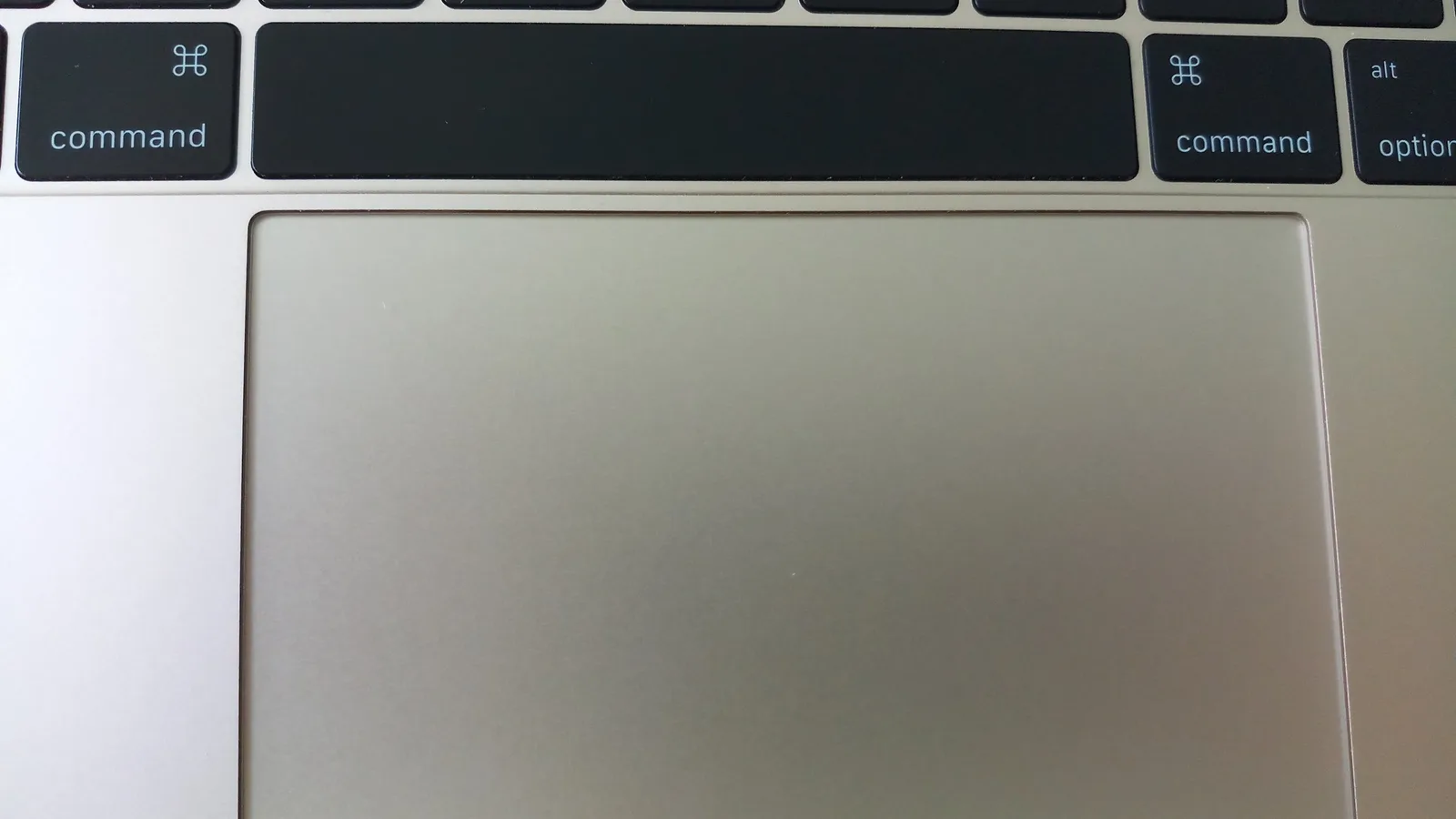
Even without a swollen battery, the trackpad and keyboard connect to the logic board through thin flat ribbon cables. A knock, a previous repair, heat, or age can loosen or crack one, and then the pointer freezes or the keys go dead while an external keyboard works perfectly. The fix is usually the ribbon cable or the trackpad module rather than a whole new laptop — which is why a proper diagnosis matters before anyone quotes you for a top-case replacement.
Screen blinking that changes with the lid angle
There is one screen symptom worth testing deliberately: slowly open and close the lid and watch the blink. If the flicker appears, worsens or clears at certain angles, that points to the display flex cable — the thin ribbon that carries signal and backlight power across the hinge. Over thousands of open-close cycles it can wear where it bends. Apple ran a service programme for a backlight defect on certain older MacBook Pro models; that programme has now ended, but the fault pattern is the same one owners still describe.
A real owner on Apple's Community described exactly this: a “flickering screen, usable at random certain angles only”, traced to the display flex cable that commonly breaks. If your blink behaves this way, avoid working the hinge and plan for a display or cable repair — a software reset will not cure a cracked cable.
Liquid damage and logic-board faults
If the trouble began after a spill, a damp bag or very humid conditions — common in Singapore — liquid may have reached the board under the keyboard. Liquid damage is time-sensitive: corrosion keeps spreading after the screen looks dry. Power the Mac off, do not charge it, do not press keys to “test” it, and bring it in quickly. The same goes for a Mac that shows no spill, no bulge and still won't respond while the screen blinks — that points at the power circuitry or the logic board, which can only be measured on the bench.
Apple silicon vs Intel: why the fix differs
It matters which MacBook Air you have. On Apple silicon models (M1 and later) there is no separate SMC (the chip that controls power and fans) to reset — Apple says it resets automatically, so you simply restart. On older Intel MacBook Airs, resetting the SMC can clear power, sensor and keyboard-backlight glitches: hold Shift, Control and Option with the power button for ten seconds, then start up. The SMC governs power, the keyboard backlight and sensors, so it is worth trying on an Intel machine before assuming hardware — but it will not fix a swollen battery or a cracked cable.
When to bring it to a Singapore workshop
If an external keyboard works, you can keep working and plan the repair calmly. Bring it in sooner rather than later if the case is swollen, if there has been any liquid, or if the screen blink changes with the lid — those get worse and, in the battery's case, carry a safety risk. At Esmond Service Centre we start with a diagnosis: we confirm whether the battery has swollen, test the keyboard and trackpad ribbons, check the display flex cable through the hinge, and inspect the board for corrosion, so the repair fixes the real fault instead of replacing a whole top case on a guess. Tell us what you noticed — a spill, a bulge, a blink that moves with the lid — because those clues point us straight at the cause.

Esmond Service Centre's experienced technicians can diagnose and fix it fast — free diagnostics, repairs from $65.