

📑 On this page
You are looking at a MacBook Pro with a smashed, black or garbled screen, the AppleCare+ has run out, and a quote has landed that feels uncomfortably close to the price of a new machine. Do you spend the money on a screen, or put it towards a replacement? It is one of the most common decisions we see at the counter, and the honest answer is that it turns on a few numbers you can work out in about ten minutes.
This is the question customers bring to Esmond Service Centre about a MacBook — a display problem weighed against the cost of starting over. It is the same question people ask in public: on Apple's own Support Community, owners of 2017-to-2020 MacBook Pros post the identical dilemma, a screen that “can't be seen as normal” and a repair bill they are not sure is worth paying. This guide is the framework we walk them through.
Start With One Number: Repair Cost Against the Machine's Value
Everything else is detail. Get a firm written repair quote, then find what your exact model in working condition sells for second-hand in Singapore — Carousell listings and the trade-in calculators are enough to bracket it. Put the two numbers side by side; the gap between them is the whole decision.
- Under roughly a third of the machine's working value — repairing is almost always the sensible call.
- Between a third and about half — it is a judgement call; decide on the age and health of the rest of the machine (below).
- Above half the machine's working value — and especially above half the price of a new one — replacing usually wins.
Two things people forget to put in the sum. First, a repaired MacBook keeps far more resale value than a broken one, so part of the repair pays itself back the day you sell. Second, a new machine is not really its sticker price if a trade-in or the resale of your current one offsets it — do the maths on the difference you actually pay, not on the number on the box.
.jpg)
Why a MacBook Screen Costs What It Does
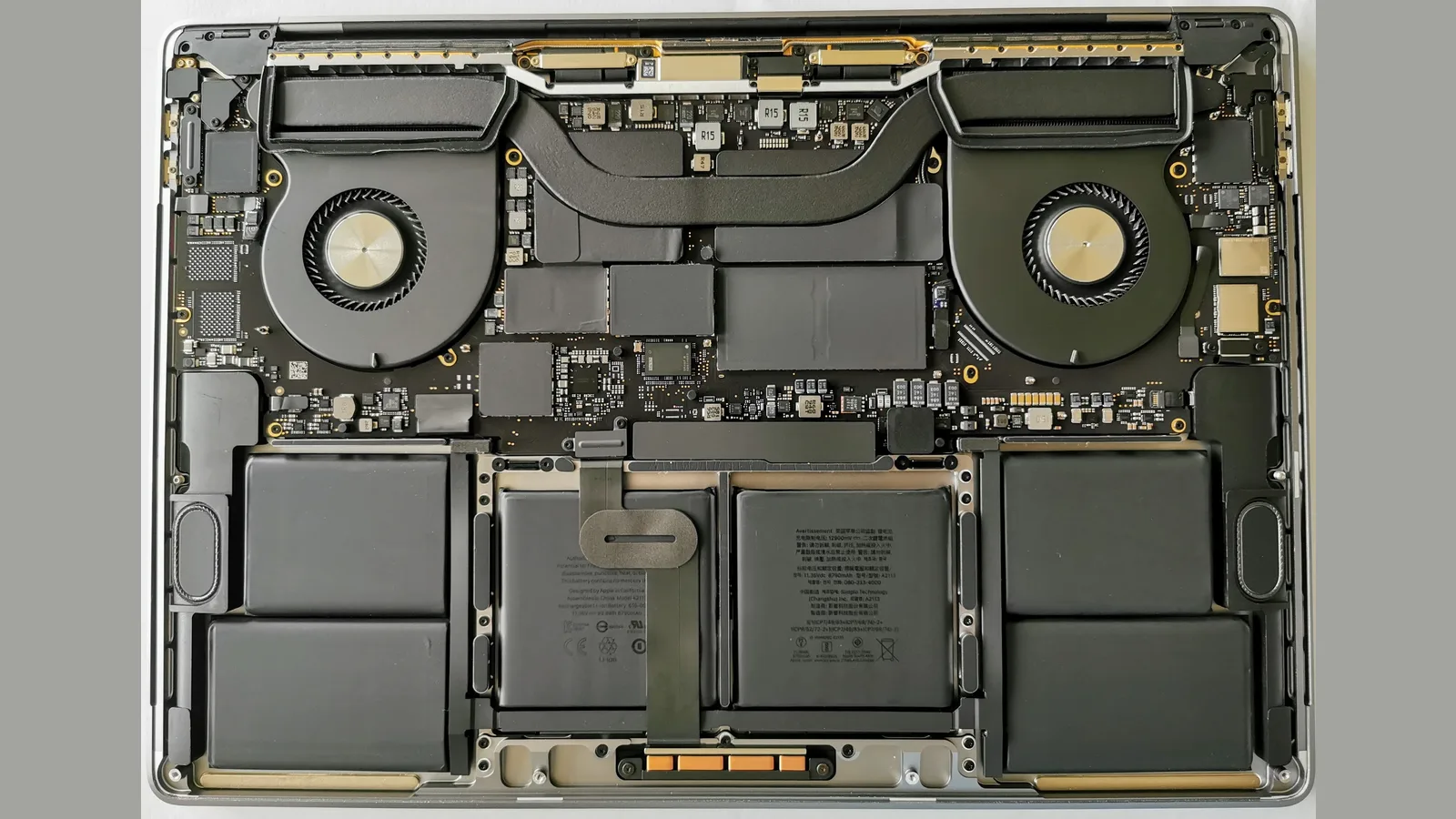
On every Retina MacBook Pro the glass, the LCD or mini-LED panel, the backlight and the antennas are bonded into a single sealed display assembly. There is no user-replaceable panel behind a bezel the way there was a decade ago, so even one cracked corner means the whole assembly is replaced. That is the biggest single reason a MacBook screen costs what it does, and why the bill climbs sharply on the 14-inch and 16-inch Liquid Retina XDR models.
It is also why nobody can give you a real price down the phone. Apple's own out-of-warranty service page no longer publishes a fixed screen price; it states plainly that the device is inspected to determine the final service fee. A responsible independent shop works the same way, because a fault has to be seen to be priced.
A black or garbled screen especially is worth a diagnostic before you assume the worst. The same symptom can be the panel, the backlight, a display cable, or the logic board (the main board — Apple's name for the motherboard), and those are very different bills. Sometimes the news is better than the quote you feared — a cable, not a panel; sometimes it is worse, and knowing which changes the buy-versus-repair maths entirely.
What AppleCare+ Changes — and What “Expired” Really Costs
If AppleCare+ is still active, the decision is usually easy. AppleCare+ for Mac covers accidental damage, and screen-only damage is charged at the lower of its two service-fee tiers, with all other accidental damage at the higher tier. It is capped at a set number of accidental-damage incidents and runs only until the date on your plan — after that, you are back to full out-of-warranty pricing.
- AppleCare+ active, screen-only damage: pay the lower incident service fee — it is almost always worth claiming rather than paying for a full repair.
- AppleCare+ expired — the situation most people asking this question are in — you pay the full repair price, so the break-even sum above is the one that matters.
- Never had AppleCare+: same as expired — the repair quote stands on its own, with no service-fee discount to weigh against it.
One nuance worth knowing: because AppleCare+ is capped at a fixed number of accidental-damage incidents, a machine that has already used them up is, in effect, uninsured for the next drop. If your MacBook is on its last covered incident and is otherwise ageing, that is a quiet point in favour of replacing rather than repairing.
A Quick Way to Decide, by the Age of Your MacBook
Age is a decent shortcut because it stands in for three things at once: what the machine is worth, how much useful life is left, and whether it still gets the latest macOS. Find your model with the Apple menu, then About This Mac; the model and year are on the first line.
| Age of your MacBook Pro | What that usually means | The call, all else being equal |
|---|---|---|
| 0–3 years | High resale value, full macOS support, likely fast enough for years | Repair — the machine is worth far more than the screen |
| 4–5 years | Still capable, but resale has dropped and the battery may be tiring | Repair only if the quote is well under half the machine's value; otherwise weigh a trade-in |
| 6–7 years | Approaching or past Apple's software support; other parts starting to age | Usually replace, unless the repair is cheap and the machine is otherwise healthy |
| 8+ years | Low resale value, may not run current macOS, more faults likely soon | Replace — a new screen on an old machine is money chasing a short runway |
These are starting points, not verdicts. A five-year-old 16-inch that is still fast and battery-healthy can be well worth a new screen; a three-year-old machine that was also dropped hard, with a swollen battery, may not be. Weigh the whole machine, not just the year.
.jpg)
When Buying New Genuinely Makes More Sense
New MacBook Pros in Singapore start at S$2,999 for the 14-inch and S$3,649 for the 16-inch. That is the number your repair quote is really competing with — but only after you subtract what your current machine is worth. A screen repair that costs, say, a third of a new machine can still be the wrong choice if the rest of the laptop is on borrowed time.
- The machine no longer receives the current macOS, or will lose support within a year.
- There is a second ageing fault — a tired battery, a failing port, a keyboard on the way out — so the screen is one bill of several.
- It was dropped hard or had liquid near it; a screen fixed today can be followed by a logic-board fault next month.
- You were already planning to upgrade for more performance, and the broken screen simply forced the timing.
If you do replace, do not throw the old one away. A MacBook with a broken screen still has resale and trade-in value, and repairing it first often nets more than trading it in broken — worth a quick comparison before you commit either way.
How to Decide, Step by Step
If you want the whole decision as a checklist, here it is in order.
- First, get a firm written quote. Ask for an itemised repair price for your exact model and fault, not a figure over the phone.
- Then, find the machine's value. Check what your model in working order sells for second-hand, and what a trade-in would take off a new one.
- Next, apply the break-even rule. Under about a third of the working value, repair; above half, lean towards replacing.
- After that, weigh the whole machine. Its age, battery health, other faults and whether it still gets macOS updates all move the answer.
- Finally, decide — and keep the old machine either way. Repaired or broken, it still has resale or trade-in value to put towards the next one.
Be clear on what a new screen will not fix. A screen replacement will not fix a tired battery, a failing port, or a machine that macOS no longer supports; where one of those is also true, the display is one bill of several, and replacing is often the better value.
When to Bring It In and Seek Professional Help
And know the risk of doing it yourself. Prying a sealed MacBook open next to the battery can turn a repairable fault into permanent damage, or cause data loss on the drive. If the screen is hot, the flicker changes when you press the case, or the machine was dropped or had liquid near it, stop and let a professional diagnose it first.
Getting a Straight Answer in Singapore
Because the same broken screen can hide very different repairs, the one thing worth insisting on is a proper diagnosis before you commit. Esmond Service Centre is an Apple Independent Repair Provider in Singapore, and every MacBook repair starts with a free diagnostic check, so you get an itemised breakdown of labour and parts before you agree to anything — which is exactly the firm number the break-even sum above needs.
You can walk in at the Alexandra or Sin Ming branch, or send your model over on WhatsApp first for a rough steer. A screen replacement is typically done in one to two hours once the part is on hand, and most MacBook repairs carry a 90-day warranty on the work and the parts we fit, extendable to a year with the optional Esmond Care plan. For the full picture of what we handle, our MacBook repair page lists the jobs and the typical time each one takes.

Esmond Service Centre's experienced technicians can diagnose and fix it fast — free diagnostics, repairs from $65.