
📑 On this page
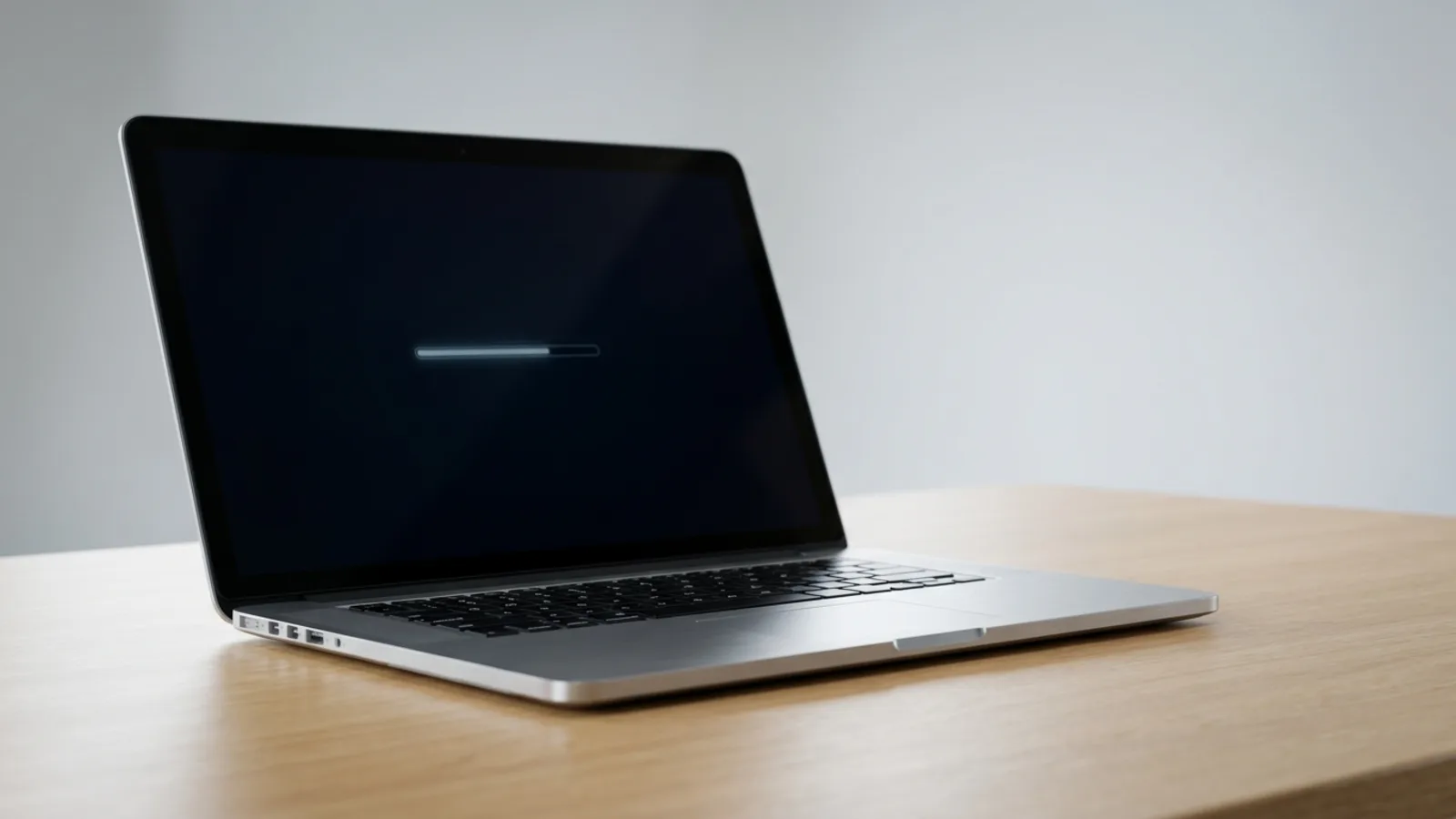
A Mac stuck on the Apple logo, or showing a progress bar that fills part-way and freezes, is one of the most common problems we see at our repair bench. Nine times out of ten it's not a dead machine: it's a software or startup-disk hiccup you can clear yourself. The key is to work through the fixes in order, from the safest to the most involved. And use the correct startup steps for your Mac, because Apple Silicon (M1, M2, M3, M4, M5) and Intel Macs boot completely differently.
Below, you'll fix it step by step for both Mac types, with every data-loss risk flagged. You'll also learn to spot when a stuck Apple logo is really a failing SSD or logic board (the main board — Apple's name for the motherboard) rather than a software glitch.
First, Work Out Whether It's Really Stuck
The Apple logo appears very early in the boot process, before macOS has fully loaded. A progress bar means your Mac is doing something, often a disk check, a delayed update finishing off, or first-boot housekeeping after a macOS install. That bar can genuinely crawl, sit at one spot for minutes, then jump forward.
Before you do anything drastic, give it time and watch for these signs:
- Give it up to 15–20 minutes. If the bar is moving at all, even slowly, let it finish.
- Listen and feel. A faint fan or a warm chassis suggests the Mac is working, not frozen.
- Note if it just updated. If this started right after a macOS update, the first boot can take much longer than usual. See our guide on a macOS update that's stuck or failed.
- A bar that never moves for 30+ minutes, or a logo with no bar that never progresses, is a real hang worth acting on.
One more check: make sure it's a true logo hang and not a different startup symbol, because each points to a different fix. A prohibitory sign (a circle with a line through it) means macOS can't be used on that disk. A folder with a question mark means no startup disk was found. A spinning globe means the Mac is trying to start up from internet Recovery. If you see one of those instead of a plain frozen logo or progress bar, that's a missing-startup-disk symptom rather than a simple hang, and the disk and Recovery steps below are where to focus.
Force Restart and Disconnect Everything
A clean force restart clears a huge share of one-off boot hangs. The method is the same on Apple Silicon and Intel Macs:
- Press and hold the power button for about 10 seconds until the screen goes fully black and the Mac powers off.
- Wait a few seconds, then press the power button once to switch it back on.
- Let it try to boot normally and watch the progress bar again.
Unplug your accessories
A faulty cable, dock, external drive or hub can stall a Mac at boot while it waits on that device. Disconnect everything that isn't essential: external drives, USB hubs, docks, monitors, printers, even non-Apple keyboards, leaving only power. Then force restart again. On a desktop iMac, keep just the Apple keyboard and mouse. If it boots with peripherals removed, reconnect them one at a time to find the culprit.
Boot Into Safe Mode
Safe Mode starts macOS with only the essentials and runs a check-and-repair of your startup disk on the way in. It's one of the most effective fixes for a stuck Apple logo, and the steps differ by Mac type.
Apple Silicon (M1, M2, M3, M4, M5)
- Shut the Mac down fully (hold the power button ~10 seconds if needed).
- Press and hold the power button until you see “Loading startup options”, then release.
- Select your startup volume (usually Macintosh HD).
- Press and hold the Shift key, then click “Continue in Safe Mode.” The Mac restarts automatically.
Intel Macs
- Turn the Mac on, or restart it.
- Immediately press and hold the Shift key as it starts up.
- Keep holding Shift until you see the login window, then release.
On either type, once you reach the login window you should see “Safe Boot” in the menu bar. That confirms you're in Safe Mode. Log in, let it settle for a minute, then restart normally. If it now boots to the desktop, the disk check in Safe Mode likely cleared a minor file-system issue.
Run Disk Utility First Aid in macOS Recovery
macOS Recovery is a separate built-in recovery system, stored apart from your main macOS, that you use to repair the disk, reinstall macOS, or restore from a backup. If Safe Mode won't complete or the problem returns, boot into Recovery and run First Aid, which checks and repairs the disk more thoroughly. The entry method is different for each Mac.
Enter Recovery — Apple Silicon
- Shut down the Mac fully.
- Press and hold the power button until “Loading startup options” appears. This can take 10–15 seconds, so don't let go early.
- Click Options, then Continue.
- If asked, choose an admin account and enter its password.
Enter Recovery — Intel
- Turn the Mac on and immediately press and hold Command (⌘)-R.
- Keep holding until you see the Apple logo or a spinning globe, then release.
- If asked, choose an admin account and enter its password.
If FileVault disk encryption is turned on, your Mac has to unlock the disk before it can continue, so you'll be prompted for an account password when entering Safe Mode or Recovery. A spinning progress bar while the disk unlocks is normal, not a hang.
Run First Aid
- In the macOS Utilities window, choose Disk Utility and click Continue.
- In the menu bar, click View > Show All Devices so every volume, container and physical disk is listed. Because macOS uses the APFS (the way a Mac organises files on the disk) format, the sidebar nests volumes inside a container inside the physical disk.
- Work from the bottom of the sidebar upward: select the last volume, click First Aid, then Run. Repeat for each volume (including Macintosh HD), then the container, and finally the top-level physical disk (e.g. APPLE SSD…). This bottom-up order works because APFS repairs the nested volumes before the container and disk that hold them.
- When done, quit Disk Utility and restart from the Apple menu.
First Aid is non-destructive. It doesn't erase your data. If it reports errors it can't repair, that's an important clue the disk itself may be failing, which we cover further down. For deeper board-level or storage faults, see our MacBook and iMac motherboard repair page.
Reset NVRAM (Intel Macs Only)
NVRAM stores small settings like startup-disk selection and display preferences. A corrupt value here can occasionally stall a boot. Resetting it is safe and quick, but it only applies to Intel Macs.
Intel Macs
- Shut the Mac down fully.
- Turn it on and immediately press and hold Option (⌥) + Command (⌘) + P + R together.
- Hold all four keys for about 20 seconds. The Mac may appear to restart during this time. Release the keys, then let it boot normally.
Apple Silicon
There's no NVRAM reset key combo on Apple Silicon Macs, and you don't need one. Apple states it plainly: “The steps to reset NVRAM don't apply to Mac computers with Apple silicon, and aren't needed on those computers.” Apple publishes no replacement procedure and describes no mechanism, so there is nothing here to perform — a full shut down and a normal start-up is all there is to do.
Reinstall macOS From Recovery (Keeps Your Data)
If the disk checks out but the Mac still won't boot, the macOS system files may be damaged. Reinstalling macOS from Recovery replaces the operating system without erasing your personal files. Do not choose Erase, or Disk Utility > Erase, which would wipe everything.
- Boot into macOS Recovery using the Apple Silicon or Intel steps above.
- Choose Reinstall macOS and click Continue.
- Follow the prompts and select your existing Macintosh HD as the destination.
- Keep the Mac plugged into power and connected to Wi-Fi; the download and install can take a while, and the Mac may restart several times.
This keeps your files, apps and settings in place while giving you a fresh copy of the operating system. If you're on an older Mac that can't get the latest version, our guide on installing macOS on an older Mac explains your options. If you can't get into Recovery at all, or the screen stays black, read Mac won't turn on next.
When It's Failing Hardware, Not Software
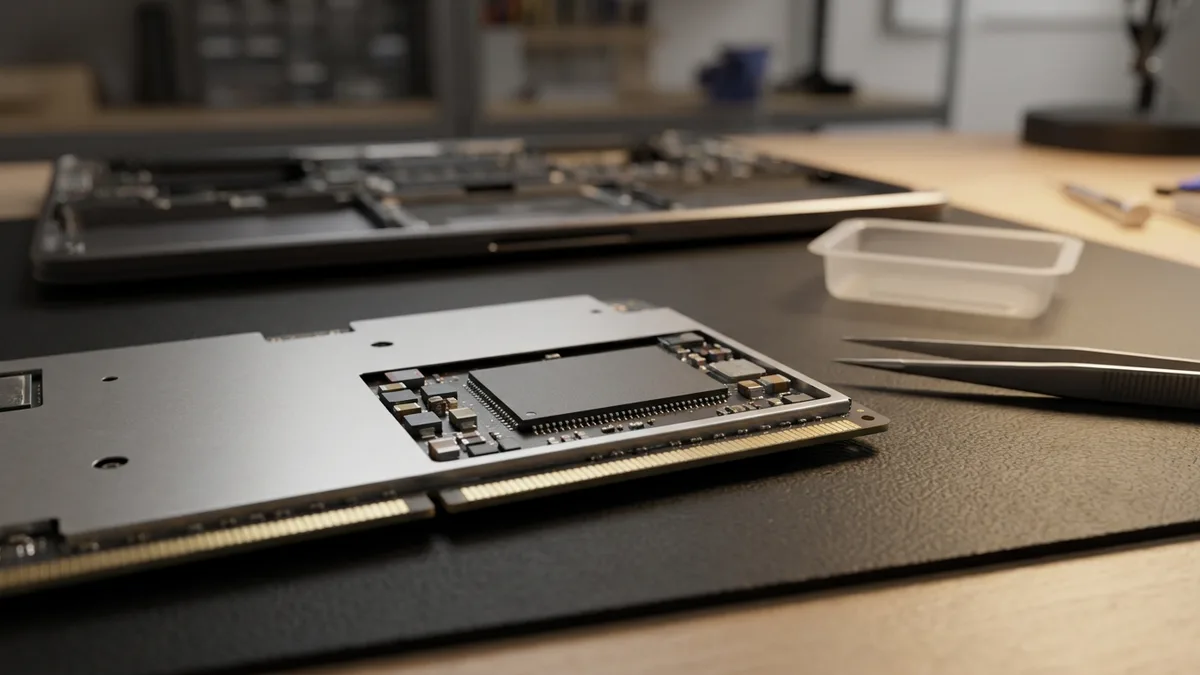
If you've patiently worked through every step above and the Mac still hangs on the Apple logo or loading bar, the cause is often hardware, most commonly a failing SSD or a logic-board fault. Tell-tale signs from the bench:
- Disk Utility First Aid reports errors it can't repair, or the internal disk doesn't appear at all.
- A macOS reinstall fails part-way, or the Mac can't even reach “Loading startup options” or the Recovery screen.
- The boot freezes at a different point each time, or you see occasional distorted graphics or a flickering logo.
- A recurring kernel panic (a crash that restarts the Mac) or random restart during or just after boot.
- On older Macs, the storage or board has simply aged out, with intermittent hangs that come and go with temperature.
To confirm, you can run Apple Diagnostics, the built-in hardware self-test. On an Intel Mac, hold D at startup; on Apple Silicon, reach it from the power-button startup-options screen. A reference code pointing to storage, memory or the logic board confirms a hardware fault rather than a software one.
On many recent Macs the SSD is soldered to the logic board, so storage failure and board failure overlap, and recovering your data first becomes the priority. If your files aren't backed up, stop trying repeated reinstalls (they can make recovery harder) and speak to us about data recovery before anything else.
When to let a professional take over
If First Aid can't repair the disk, the drive doesn't show up, or a macOS reinstall keeps failing, the issue is likely a failing SSD or logic board rather than software, and forcing more attempts can put your data at risk.
Bring it to Esmond Service Centre for free diagnostics at our Alexandra Retail Centre (ARC) or Sin Ming Lane branch, or WhatsApp us at 8828 8180. We're independent Apple repair specialists, with Apple-specialist technicians and 16 years and counting of hands-on repair experience behind the bench.
You can also request a free quote or read our full MacBook & macOS repair hub. If your data isn't backed up, mention it first so we prioritise recovery.

Esmond Service Centre's experienced technicians can diagnose and fix it fast — free diagnostics, repairs from $65.