
📑 On this page
You've got a Mac that still feels perfectly usable, but Apple's latest macOS won't install on it. That is completely normal. Apple drops older models from each new macOS every year, and once your model is off the list there is no official installer for you. The good news is that "unsupported" does not mean "useless", and you usually have more options than you think.
This guide walks through the real choices from the repair bench: how to find the newest macOS your Mac officially supports, what "unsupported" really means, and a straight look at the community route (OpenCore Legacy Patcher) — including the version it can actually reach today, which is lower than most people expect, and the real risks. We focus on macOS and software here; if your Mac won't boot at all, start with our macOS repair hub instead.
First: is your Mac actually unsupported?
Before doing anything clever, confirm what you're dealing with. Apple publishes an official compatibility list for every macOS release. The current release is macOS Tahoe (macOS 26), and Apple's compatibility list for it names only four Intel models — the 2019 Mac Pro, the 2019 16-inch MacBook Pro, the 2020 four-port 13-inch MacBook Pro and the 2020 27-inch iMac. Every Apple Silicon Mac (M1 and later) is on the list.
Find your model and macOS version
- Click the Apple menu in the top-left corner and choose About This Mac.
- Note your exact model and year (e.g. "MacBook Pro 15-inch, 2017") and your current macOS version.
- Check Apple's own compatibility list. They are all linked from Apple's "Find out which macOS your Mac is using" page, which also shows which macOS is current. Open the list for the release you want and see whether your exact model is on it.
- Open System Settings > General > Software Update (or System Preferences > Software Update on older macOS). If a newer macOS is offered here, your Mac is still officially supported, so just install it.
If Software Update only offers minor updates for your current macOS and never the new-name upgrade, and your model isn't on the compatibility list, then your Mac is officially unsupported for that release. That's the situation this guide is really about.
What "unsupported" actually means for a Mac
"Unsupported" is not a punishment. It's Apple deciding that a model's hardware (graphics, firmware, secure boot, memory) is too old to guarantee the new macOS runs well. Practically, three things happen:
- No official installer. The new macOS simply won't appear in Software Update for your model, and Apple's servers won't hand it to you normally.
- Dropped from the compatibility list. Apple no longer tests or optimises the new macOS for your hardware.
- Security updates taper off. Apple generally ships security fixes for the current and roughly two previous macOS versions, so a very old macOS eventually stops getting patches.
None of this makes your Mac stop working. It keeps running the macOS it's on. The question is whether you need a newer macOS badly enough to leave the official, supported path.
macOS 27 and the end of the road for Intel Macs
This is the part that changes the decision, and it is new. Apple has previewed macOS 27, called "Golden Gate", for later this year. On Apple's own page for it, the list headed "macOS 27 is compatible with these devices" reads: MacBook Neo (2026), MacBook Air with Apple Silicon (2020 and later), MacBook Pro with Apple Silicon (2020 and later), iMac with Apple Silicon (2021 and later), Mac mini with Apple Silicon (2020 and later), Mac Studio (2022 and later), and Mac Pro with Apple Silicon (2023). Every entry is an Apple Silicon Mac. No Intel model appears at all — not even the four that made Tahoe.
We are telling you what Apple's list shows, rather than putting a sentence in Apple's mouth: Apple does not print the words "this is the last macOS for Intel" on that page. What it prints is the compatibility list, and no Intel Mac is on it. The developers who maintain OpenCore Legacy Patcher read it the same way and say so on their own issue tracker.
So if your Mac has an Intel processor, you now know the shape of the rest of its life as a Mac:
- If it runs Tahoe — one of those four models — that is your last major macOS. Security updates continue for as long as Apple ships them, but no new-name upgrade will be offered again.
- If it does not run Tahoe, your ceiling is whatever macOS your model already supports, and nothing official will raise it.
- Either way, nothing breaks on a date. The Mac keeps working exactly as it does today. What ends is the supply of new macOS versions, and eventually of security updates.
That is not a reason to panic-buy. It is a reason to plan: keep a real backup, budget a replacement over the next year or two rather than next week, and put money into the things that still make an old Mac feel quick — an SSD, more RAM — instead of chasing a macOS version your machine cannot officially have.
The safe route: run the latest macOS your Mac officially supports
For almost everyone, this is the right answer. Every Mac model has a highest officially-supported macOS. Running that version gives you the best mix of features and stability without any hacks.
- Confirm the newest macOS your exact model supports. Apple's per-model compatibility lists are the authority; every one of them is linked from that single page.
- Back up first with Time Machine to an external drive. Any macOS upgrade carries a small risk. If FileVault is switched on, make sure you know your login password or have your recovery key with you — an upgrade or a Recovery boot can ask for it.
- Install that macOS through the App Store or Software Update, then keep it current with every Safari and security update Apple still offers.
- If your Mac feels slow afterwards, an SSD (if it still has a spinning hard drive) or a RAM upgrade often does more for real-world speed than a newer macOS would. See our MacBook repair and iMac repair options.
A well-maintained Mac on its highest supported macOS, with a modern browser and current security patches, is reliable for years. If you're only chasing one specific new feature, ask whether it's worth the trade-offs covered in the OpenCore Legacy Patcher section below.
The community route: using OpenCore Legacy Patcher to install macOS on an unsupported Mac
If you genuinely need a newer macOS than Apple allows, the well-known community tool is OpenCore Legacy Patcher (OCLP), and it applies to older Intel Macs only. Apple Silicon Macs (M1 and later) are already supported by current macOS and never need it. OCLP is a free, open-source project that coaxes a newer macOS into installing and booting on older, unsupported Intel Macs by injecting an OpenCore bootloader and "root patches" for hardware Apple no longer drives. It is how many people keep an older Intel Mac on a much newer macOS.
We're describing it at a high level on purpose. OCLP has its own detailed, model-specific documentation, and following the maintainers' own guide for your exact model is far safer than any generic steps. What matters here is going in fully aware of the risks.
What OCLP can actually install right now
This is the fact that settles it for most people, and it is easy to miss. OCLP's own documentation states that "the patcher is designed to target macOS Big Sur 11.x to macOS Sequoia 15.x", and that "no support is provided for any version outside of the above". In other words, it cannot currently install macOS Tahoe (macOS 26) — the release this page opened by calling the current one. Its last released version, 2.4.1, is dated 1 September 2025, and the project's own tracker for Tahoe support says "work on Tahoe support is still ongoing but a release in current circumstances is uncertain", adding that "due to reasons such as dev departures, the progress of the project has slowed down".
So the honest picture is this: OCLP can put macOS Sequoia (macOS 15) on a lot of older Intel Macs, and it does that job well. It cannot put Tahoe on them. And if you upgrade an already-patched Mac to Tahoe anyway, the project's own list of what still needs fixing includes the wireless, USB and T1 chip patches, analogue audio on the 2019 iMac, Fusion Drive support, and reports of FileVault switching itself on during the Tahoe install and then failing to decrypt the volume. If you are running a patched Mac, that is a concrete reason to decline a Tahoe upgrade prompt.
The caveats to read before you decide
- It's unofficial. Apple doesn't support it and may consider it outside the macOS licence; if something breaks, Apple won't help.
- Features can break. Depending on the model, Wi-Fi, Bluetooth, graphics acceleration, sleep/wake, AirDrop or Sidecar may not work fully, and some older GPUs are unsupported entirely.
- Updates get fragile. Root patching breaks the macOS "sealed system volume", so each point update can force a large re-download and you must re-apply patches afterwards, usually updating OCLP first.
- Risk of an unbootable Mac. A botched update or patch can leave the Mac not booting, requiring a full wipe and reinstall.
- Not for critical machines. Don't do this on the Mac that runs your business or holds the only copy of important files.
- Your data can end up locked. Unofficial installers and root patching interact badly with disk encryption — OCLP's own Tahoe notes report FileVault turning itself on and then failing to decrypt. Know your login password, and keep your FileVault recovery key somewhere other than the Mac.
If you proceed anyway, a full backup is non-negotiable: ideally a Time Machine backup plus a separate copy of anything irreplaceable. If a patched install goes wrong and data is at stake, stop and see our data recovery guidance rather than experimenting further.
Getting into Recovery: it's different on Apple Silicon vs Intel
Whether you're reinstalling a supported macOS or recovering from a failed experiment, you'll likely need macOS Recovery. Apple changed how you enter it on Apple Silicon, so the steps are not the same. (OCLP itself is used on older Intel Macs; Apple Silicon Macs are already supported by current macOS.)
Before you start, one thing to have ready. If FileVault is switched on, Recovery asks you to "select a user you know the password for" before it will unlock the disk. Apple's own warning is blunt: "If you turn on FileVault and then forget your login password and can't reset it, and you also forget your recovery key, you won't be able to log in, and your files and settings will be lost forever." On a Mac with Apple Silicon or an Apple T2 Security Chip the disk is encrypted automatically; on an older Intel Mac without the T2, FileVault is only on if someone switched it on. Check which you have before you begin, not halfway through.
Apple Silicon Macs (M1 and later)
- Shut the Mac down completely.
- Press and hold the power button, keep holding as it turns on.
- When you see "Loading startup options", release the button.
- Click Options, then Continue to enter Recovery.
Intel Macs
- Shut the Mac down.
- Press the power button, then immediately press and hold Command-R.
- Keep holding until you see the Apple logo or a spinning globe, then release.
- Recovery loads; from here you can reinstall macOS or use Disk Utility.
On an Intel Mac, two Recovery key combinations do meaningfully different things:
- Command-R — reinstalls the macOS currently installed, using the Mac's built-in Recovery.
- Option-Command-R — starts Internet Recovery. Apple's wording here is careful, and worth repeating: with this combination you "may get the latest macOS that is compatible with your Mac", which is handy if you want the newest supported version without hunting for an installer.
These key combinations apply to Intel Macs only. On Apple Silicon, use the power-button method instead (hold the power button until "Loading startup options" appears, then choose Options and Continue).
If your Mac won't reach Recovery at all, or hangs at the Apple logo, that's a different problem. If a patched or upgraded install does reach Recovery but won't boot, running First Aid in Disk Utility is the first check. Either way, start with our macOS repair hub, or bring it in for free diagnostics.
Should you patch your old Mac or replace it?
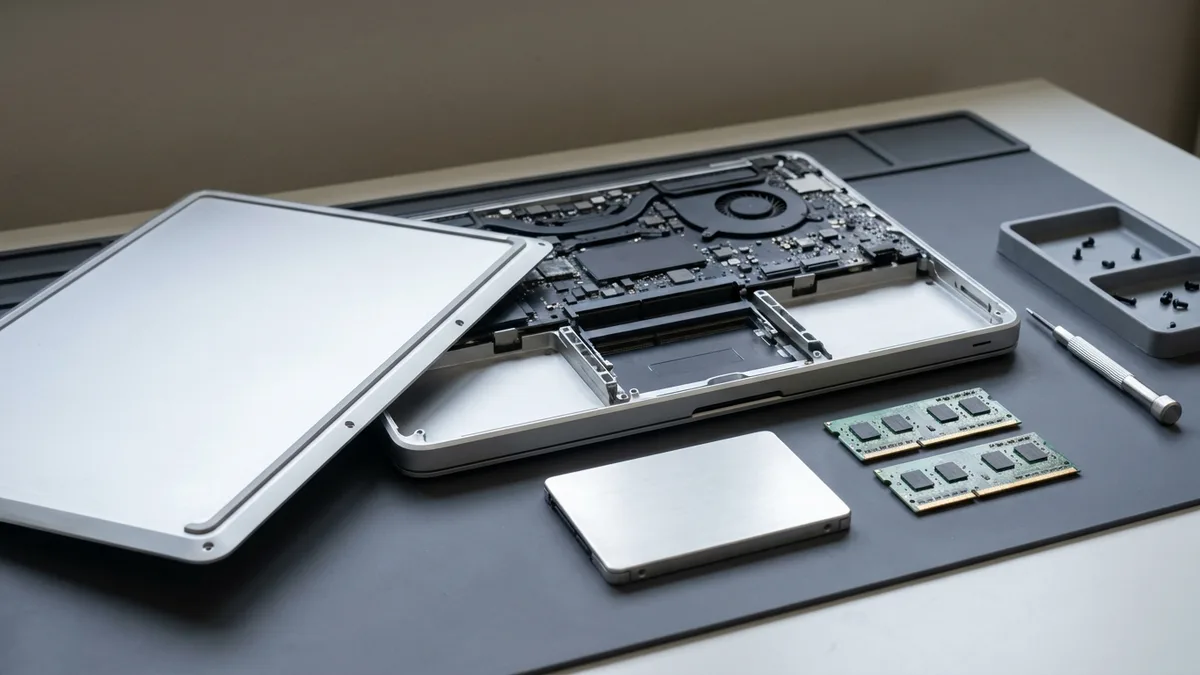
A quick reality check from the bench. Consider staying on supported macOS if the Mac still does everything you need; most "it's too old" complaints are actually a tired hard drive or too little RAM, both fixable.
Consider a hardware upgrade or professional set-up (SSD, RAM, clean install) if the Mac is slow but the model still suits you. Consider replacing if the hardware genuinely can't keep up, or if the machine is critical and you can't risk an unofficial macOS. And consider professional help if you want a newer macOS but don't want to gamble your data on a DIY patch. Here is the answer that costs us the sale: if your Intel Mac still does everything you need, the right move this year is usually to spend nothing. The official ceiling is already fixed, OCLP cannot raise it to Tahoe today, and buying a new Mac to gain a macOS version you were not going to use is an expensive way to solve a problem you may not have.
When to let a professional take over
If you're not sure which macOS your model should be on, or you want a newer macOS without risking your files, bring it to Esmond Service Centre for free diagnostics. Our technicians will tell you plainly what's worth doing. For the work itself, a macOS reinstallation is $65 and takes 3–4 hours, while a macOS upgrade on an unsupported Mac is $95 over 5–6 hours.
If an OCLP install (or any upgrade) has left your Mac unbootable or your data stuck, stop before you make it worse and let our repair bench take a look. You can request a free quote online.
We're independent Apple repair specialists with two Singapore branches (Alexandra Retail Centre and Sin Ming Lane); walk in or WhatsApp 8828 8180, and we'll set up the safest option for your machine.

Esmond Service Centre's experienced technicians can diagnose and fix it fast — free diagnostics, repairs from $65.