

📑 On this page
A loose Acer Chromebook charging port: what is happening
Walk-in and WhatsApp customers in Singapore ask us a version of the same question: why is my Acer Chromebook charging port loose, and why won't the laptop charge any more? Chromebooks are workhorses — many are school and student machines that get plugged in and unplugged every single day for years. The charging port takes that strain. On most Acer Chromebooks the charge connector is a USB-C port; on some older models it is a small round DC-in barrel jack on a short cable. Either one can work loose over time: the solder that holds the port to the board cracks from repeated levering, or the connector's internal contacts wear until the plug no longer grips. This guide is written from those repairs — the free checks worth doing first, how to tell a worn port from a faulty charger, and when it is a genuine hardware fault that needs a workshop.
First: is it the port, the charger, or the battery?
Before any repair, place your own case — the three causes need completely different answers, and only one of them is the port. The single most useful test is a second charger: borrow a known-good charger of the correct wattage and try it. If the Chromebook charges normally with the other charger, your original charger or its cable was the fault, not the laptop. If no charger works but the plug feels firm, the problem may be the battery or the charging circuit inside. If charging only happens when you push, hold or angle the plug — and wobbling the connector makes the charge light flicker on and off — that points squarely at the port. Match your symptoms below.
- Charges fine with a different charger: the original charger or cable was the fault — a cheap fix, not the port.
- Charges only at an angle, or the plug wobbles: a worn or loose USB-C / DC-in port — hardware, covered below.
- No charger works, but the plug feels firm: the battery or the charging circuit on the board, not the connector.
- Charge light flickers when you wiggle the cable: a classic loose-port symptom — the contacts are no longer making a reliable connection.
How to fix a Chromebook that won't charge: the free checks
Google's own Chromebook guidance is the starting point, and ASUS and Acer give the same advice for their Chromebooks. Work through these in order — none can harm the Chromebook, and together they clear most 'won't charge' cases that turn out to be the charger, debris or a stuck power state rather than a broken port.
- Check both ends and the outlet. Make sure the charger is completely plugged in to both the Chromebook and the wall, and that the power outlet actually works — a slightly loose connection at either end is enough to stop charging.
- Try a different known-good charger. Use another charger of the correct wattage. If the Chromebook charges with it, the original charger or cable was the problem — not the laptop.
- Clean the port gently. Lint, pocket dust and crumbs pack into USB-C and DC-in ports and stop the plug seating fully. Use a can of compressed air or a soft-bristled brush — never a metal pin, which can bend the contacts.
- Unplug and replug in order, then wait. Unplug the charger from the wall and the Chromebook, plug it back into the Chromebook first and then the wall, and let it charge for at least 30 minutes before judging.
- Do a hard reset. With the charger connected, press and hold Refresh + Power (on most Acer Chromebooks) until it restarts. This resets the embedded controller that manages charging and clears a stuck power state.
- Watch the charge light and run Diagnostics. Check whether the charge LED comes on at all, then open the built-in Diagnostics app to test the battery. If there is still no charge after all of this, the fault is hardware — the port, battery or board.
Know the limit before you spend: these free checks will not fix a charging port that has physically worked loose, a cracked solder joint, or a snapped-off USB-C connector — those are hardware and need a workshop. If this does not work after a good charger, a clean port and a hard reset, stop. When to stop and bring it in: the moment the port wobbles, charges only at an angle, or feels hot. Forcing a loose plug risks permanent damage to the board, and a slipped soldering iron during a DIY attempt can cause data loss on the Chromebook's local storage or even void the warranty. Seek professional help before the port tears away from the board.
When it is the charging port itself
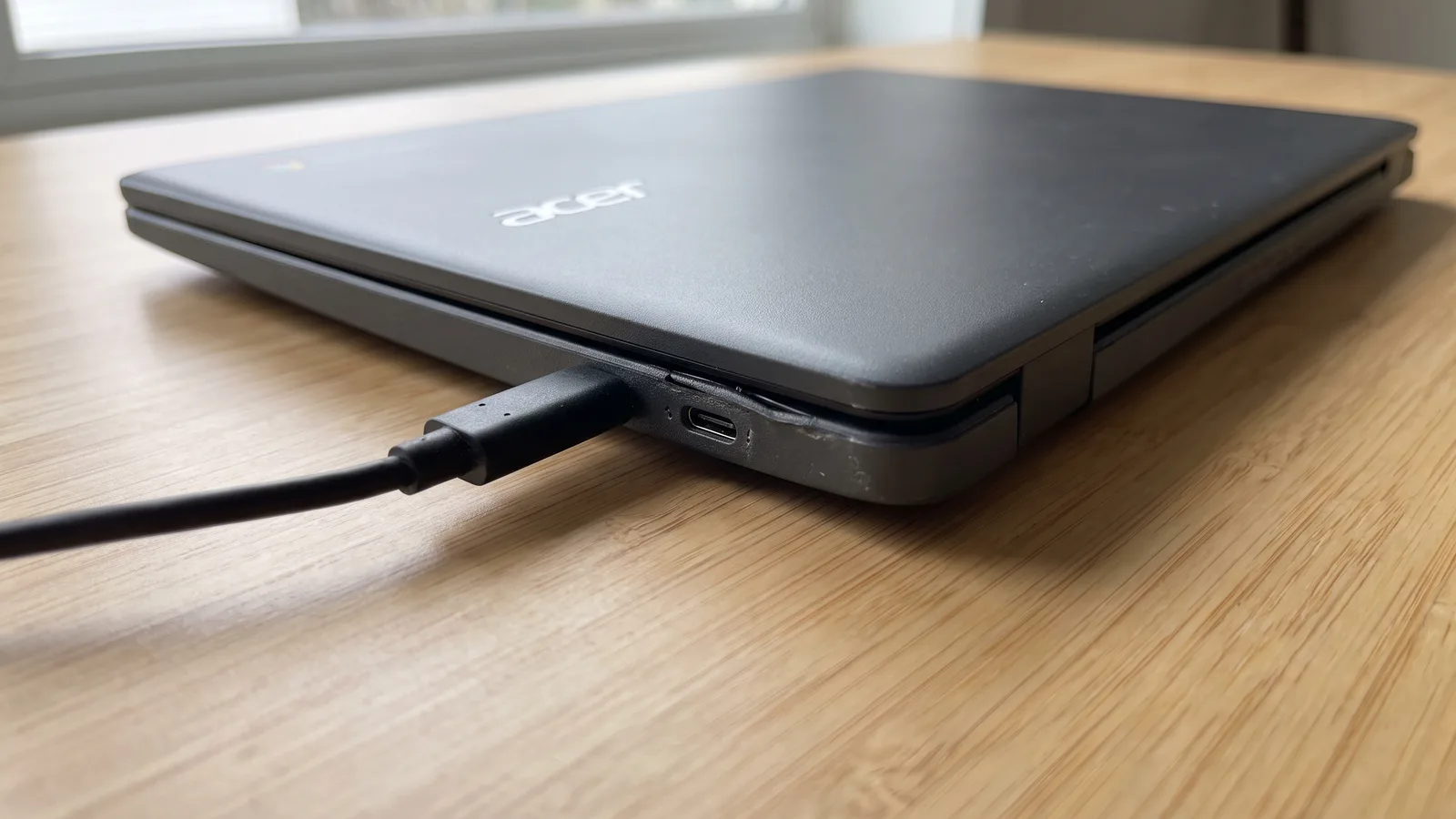
Sometimes the charger is fine, the port is clean, and the plug still will not grip. Then the fault is the port itself. A USB-C or DC-in connector is a small metal part soldered to the board (or on a short cable); every plug-in levers it slightly, and after years of daily use the solder cracks or the internal springs lose their grip. A port in this state charges only when the cable is pushed in a certain direction, drops out when the laptop is nudged, and makes the charge light flicker. This is a repair, not a setting — but it is usually a contained one.
- The cable feels loose: the plug no longer clicks or grips the way it used to, and slides in and out too easily.
- Charging only works at certain angles: you have to prop, tilt or press the cable to keep the charge light on.
- One USB-C port works, the other does not: on models with two ports, a dead port while the other charges points at the connector, not the charger.
- The connector wobbles or charging drops with movement: this means the port needs service rather than more troubleshooting — and continuing to force a loose connection makes the fault worse.
Symptom-to-cause quick reference
Use this table to place your own Chromebook. Match what you see to the most likely cause, whether it is safe to try yourself, and the typical next step. It is a starting point, not a diagnosis — a hands-on test confirms the real fault.
| What you see | Most likely cause | Safe to try yourself? | Typical next step |
|---|---|---|---|
| Charges fine with a borrowed charger | Faulty charger or cable | Yes — replace the charger | New charger of the correct wattage |
| Charges only when the cable is held at an angle | Worn or loose charging port | No — stop using it | Charging-port repair or replacement |
| Plug wobbles; charge light flickers on movement | Cracked solder / loose connector | No | Board-level port repair |
| Dead with every charger, plug feels firm | Battery or charging circuit (IC) | Partly — Diagnostics app, hard reset | Battery or board diagnosis |
| Port is hot, smells burnt, or looks melted | Damaged port / electrical fault | No — unplug immediately | Stop charging; professional repair |

When it is the charger or the cable
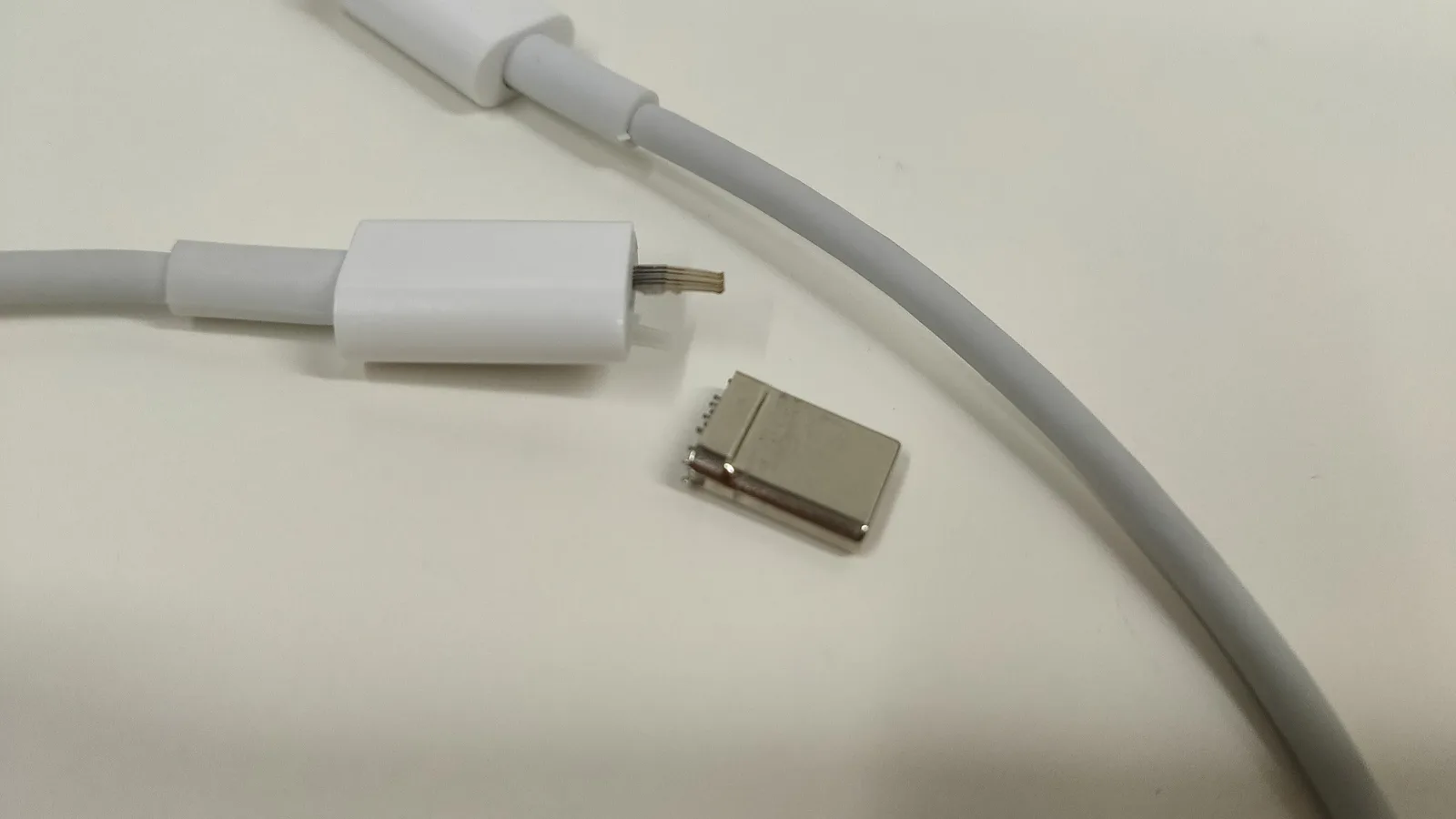
Before you blame the port, rule out the charger — it is the cheaper and more common fault. A charger that fails intermittently, a frayed or kinked cable, or an underpowered charger that cannot supply the Chromebook's required wattage all look like a 'charging problem' at the port. Examine the adapter and cable for cuts, breaks or fraying, use the correct specification for your model, and test a different wall outlet to rule out the socket.
- Use the right charger: an original or correctly rated charger of the specified wattage — an underpowered one may run the laptop but not charge it.
- Inspect the cable: cuts, kinks, exposed wire or a bent plug tip are common on cables that live in a bag — a damaged cable charges intermittently or not at all.
- Swap and compare: if a known-good charger fixes it, the laptop was never the problem — replace the charger and you are done.
What we do in the workshop
When a loose-port Acer Chromebook reaches our bench in Singapore, we do not guess. We test the charger first, inspect the USB-C or DC-in port under magnification for cracked solder, bent contacts or debris, and separate a worn connector from a deeper battery or charging-circuit fault on a bench supply — so you pay to fix the actual problem, not to replace parts that were never broken. Our published charging-repair pricing reflects that: on our Singapore charging-issue page, charging-port replacement starts from S$86 and takes 2–3 hours, while a motherboard charging-IC repair starts from S$158 over 3–5 working days. The charging diagnosis is free with no appointment, all repairs carry a 90-day warranty (extendable with the optional Esmond Care plan), and you get upfront pricing before any work starts.
- Charger and software first: we confirm a known-good charger, check the charge LED and run Diagnostics, so we never replace a port that a charger would have fixed.
- Port inspection: under magnification we look for cracked solder, bent or burnt contacts and debris, and test whether the plug grips.
- Board-level work when needed: a cable-based DC jack is replaced as a unit, while a soldered USB-C port or a failed charging IC is a board-level repair, diagnosed before any part is ordered.
- Honest scoping: the final cost depends on which of these it turns out to be, which is why we diagnose first and quote before we begin.
Keeping a Chromebook charging port healthy
A few habits keep the port tight for years and head off most 'suddenly loose' scares. The port wears from strain and debris, so treat the cable gently and keep the opening clean.
- Plug and unplug straight, holding the connector — not by yanking the cable sideways.
- Do not use the Chromebook while it charges on your lap or in bed, where the cable gets bent against the port.
- Keep the port clean — blow out pocket lint and dust with compressed air every few weeks.
- Use a correctly rated charger and a good-quality cable; a cheap underpowered charger stresses the port and the circuit.

Esmond Service Centre's experienced technicians can diagnose and fix it fast — free diagnostics, repairs from $65.