


📑 On this page
People type apple erases hard drive during battery replacement as if it were a rumour to be confirmed or denied. Almost every repair page answers with a flat “no, your data is safe” and stops there. That answer is correct about the battery and unhelpful about the appointment — which is why the question keeps getting asked by people who have already read three articles saying no. The useful answer has two halves, and the second half is the one nobody prints.
The Short Answer, and Why “No” Is Only Half of It
A lithium battery is a sealed cell with a small controller that reports charge and health. It stores power. It stores nothing else. Your files live somewhere entirely different: on an Apple silicon Mac the storage is soldered to the logic board (Apple’s name for the motherboard), and on an iPhone it is a chip on that same board. Disconnecting a battery removes power from that board; it does not read it, write it or clear it. A Mac that has sat with a flat battery for a year still has every file on it. So as a description of the physical work, “a battery swap cannot erase your data” is simply true.
What people run into is not the physical work. It is the paperwork they sign at the counter, and the small number of appointments that stop being battery jobs partway through. Those two things are related, and once you see how, the warning stops sounding like legal boilerplate and starts sounding like a description of a real event.
| What you booked | What it physically touches | Can it erase your files? |
|---|---|---|
| A battery replacement, start to finish | The battery, its connector and the adhesive holding it | No — nothing reads your storage |
| A battery job that becomes a whole-unit exchange | You are handed a different device | Yes, in effect — your files stayed in the old one |
| A battery job on a Mac that then will not start | Diagnosis moves to the logic board or the disk | Possibly — this is what Apple’s wording covers |
| A battery job where the drive was already failing | Testing loads the disk it was already struggling with | Possibly — the repair revealed it, it did not cause it |
What Apple Actually Puts in Writing
This is the part other pages leave out, and it is the only part that settles the question, because it is Apple describing its own process rather than anyone guessing at it. Both of these are current Singapore support pages, read on 8 September 2026:
- For a Mac. “Get your Mac ready for a service” (updated 24 June 2026) says: “Having a backup is important in case it becomes necessary to erase or replace your computer’s startup disk during the service.” Read it slowly — the sentence is not about the battery at all. It reserves the right to erase or replace the startup disk, whatever you brought the Mac in for.
- For an iPhone or iPad. “Prepare your iPhone or iPad for a service appointment” (updated 3 July 2026) says: “When you get your iPhone or iPad back from an Apple Store or Apple Authorised Service Provider, bear in mind that your device may have been erased.” Note the tense. It is written for the moment you collect the device, not for the moment you hand it in.
- Neither sentence is a warning about batteries. They are the standing terms of the service channel, and they apply to a battery appointment exactly as much as to a logic-board repair. That is the whole answer to why you are asked to back up for a job that cannot touch your files.
So the honest summary is this: Apple does not erase your drive in order to replace a battery, and Apple does not promise not to erase your drive during a battery appointment. Both statements are true at once, and people who only ever hear the first one are the ones who get a surprise.
.jpg)
Why a Battery Job Is Not Always a Battery Job
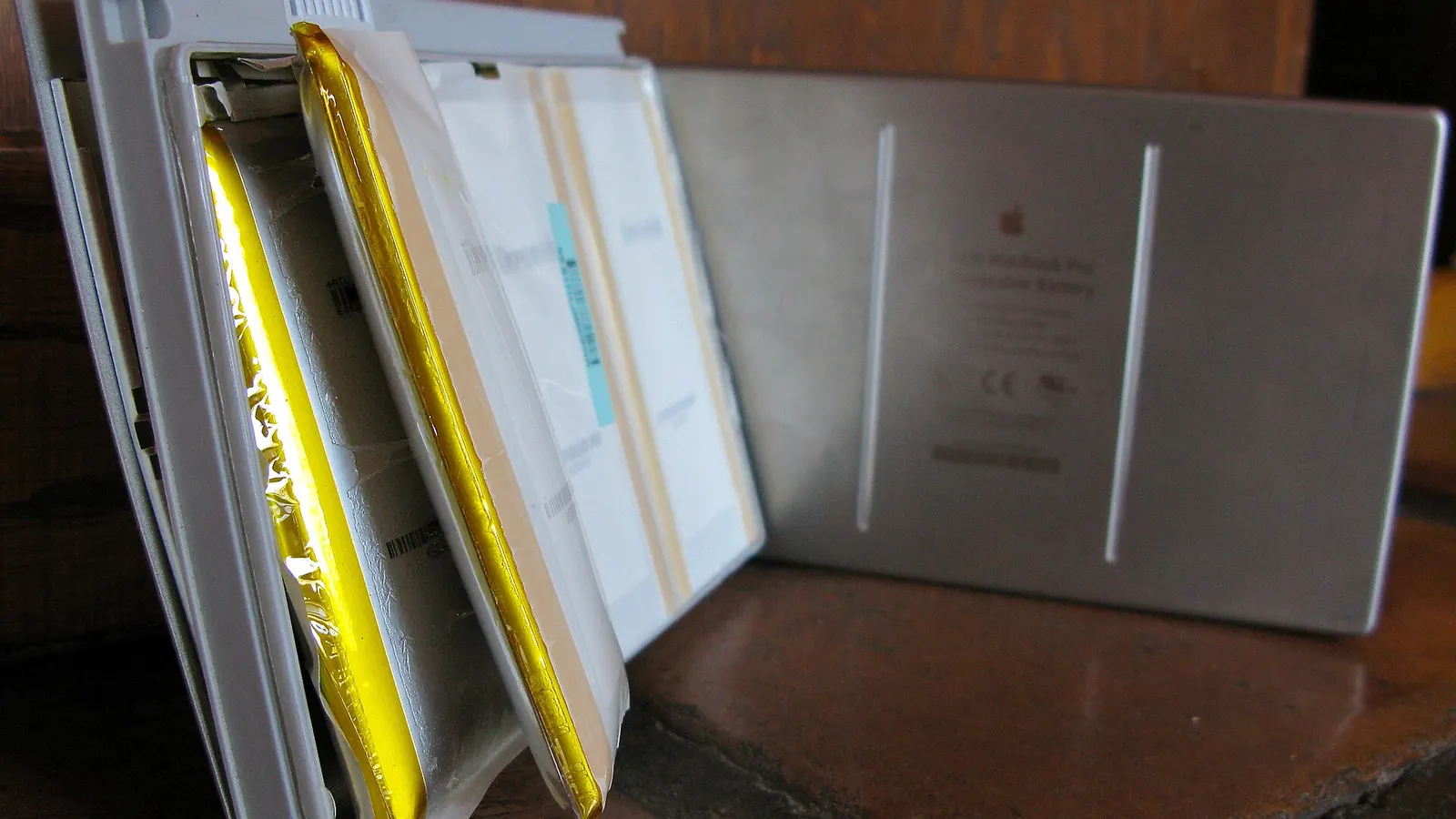
Here is the mechanism, which we see from the bench rather than from a support page. A battery is not a part that sits in a tray waiting to be lifted out. On an iPhone it is held down by adhesive strips that are designed to be pulled out from underneath the cell. On most MacBooks since the Retina models arrived, the battery is bonded into the top case — the same assembly that carries the keyboard and trackpad — so what is sold as a “battery replacement” is often a top-case replacement.
Both of those can go sideways in ways a screw-in part cannot. An adhesive strip can shear off under the cell. A swollen battery can have already pressed on the trackpad or the case above it. When that happens inside a large service operation, the efficient answer is not to spend an hour recovering the situation — it is to set the unit aside and give the customer a replacement device, and to remanufacture the original later. That is the moment your data parts company with you, and it is exactly the moment Apple’s sentence about your device “may have been erased” was written for.
The Mac version of the same story is quieter and, on modern machines, worse. Because storage on an Apple silicon Mac is soldered to the logic board, a logic-board replacement takes your files with it. If a Mac does not come back up cleanly after a top-case job and the diagnosis moves to the board, the conversation you are about to have is no longer about a battery. It is about whether you have a backup.
- It is uncommon, not theoretical. Customers who have had several batteries done at an Apple Store describe most of them going through untouched and the occasional one coming back as a different handset. That is the correct mental model: a small chance of a total outcome, not a large chance of a partial one.
- It is also why the risk does not scale with the price of the job. A cheap appointment can still end with a swapped unit. People assess risk by the size of the repair, and this is the case where that instinct is wrong.
- An independent repair changes the shape of this. A workshop that replaces the cell in your own machine and hands the same machine back has no unit-exchange step to fall into — which is the structural difference, not a claim about anybody being more careful.
Five Things That Really Put Your Data at Risk
If you want to protect your files, aim at the things that actually threaten them. In order of how often we see them cause a real loss:
- The unit exchange. Covered above, and it is first because it is the only one where a perfectly successful outcome for the device is a total loss for you. Everything else on this list gives you warning.
- A drive that was already dying. A battery appointment includes testing, and testing loads a disk that may have been quietly failing for months. The repair did not break it; the repair is simply when you found out. If the machine has been slow, freezing, or waking up with files missing, treat the backup as urgent rather than as a formality.
- FileVault with a password nobody has. Full-disk encryption is doing its job when it refuses everybody, including a technician holding the machine and including you. Apple’s own service page names it as your lever: “If you’re concerned about the security of your data during service, either turn on FileVault or remove your data.” It is genuine protection and a genuine trap, and which one it is depends entirely on whether the password is written down somewhere you can reach without that Mac.
- Find My left switched on. Activation Lock will stop a device being set up and tested after a repair. Apple asks you to turn Find My off before service for exactly this reason. Leave it on and the likely outcome is delay and a phone call — but if the fix ends up being a restore, it is the step that made a restore necessary.
- No backup and a machine that will not come back up. The one that is entirely within your control, and the reason the next section exists.

.jpg)
How to Back Up a Machine That Barely Runs
Before the how, the honest limit: a backup will not fix anything. It will not repair a swollen battery, and a cell that has already swollen cannot be repaired — it is replaced. What a backup does is make every outcome on this page survivable, which is a different and larger thing. “Back up first” is easy advice to give and awkward to follow when the battery is the reason the machine keeps dying. The order that works:
- Leave it plugged in and do it in one sitting. A failing battery is usually fine on mains power. Connect an external drive, open Time Machine and let it run to completion with the lid open.
- If macOS will not stay up, back up from Recovery instead. Recovery does not depend on your normal system, so a Mac too unstable to work in is often perfectly stable there long enough to copy your files to an external drive.
- If it will not boot at all, take the disk out through the other Mac. On Apple silicon that is Mac sharing mode, reached from Recovery and mounted by a second Mac over a cable; on an Intel Mac it is target disk mode, held down at the chime. Either way you are reading the drive without asking the broken system to run — and with FileVault on, you will be asked for that password.
- For an iPhone that shuts down under load, use a cable, not iCloud. A wireless backup restarts from the beginning every time the phone dies. A Finder backup over a cable keeps the phone charged while it copies, and an encrypted local backup is the only kind that carries your saved passwords and Health data across.
Then verify it, and verify it the hard way. A backup is not proved by the word “complete”. Open the backup and restore one real file — a photo, a document you would miss — to the desktop, and open it. This costs about a minute and it is the single step that separates people who have a backup from people who have a folder they have never opened. We have met both, and only one of them is calm.
The Ten-Minute Checklist Before You Hand It Over
- Back up, then restore one file to prove it. As above. Nothing else on this list matters if this one is skipped.
- Turn Find My off. On a Mac, System Settings › your name › iCloud; on an iPhone, Settings › your name › Find My. If the device is too broken to do it, you can remove it from the account on iCloud.com from any browser.
- Decide the FileVault question deliberately. Leaving it on is the right call if you know the password without that machine. If you do not, sort that out now — not at the counter.
- Write down the battery reading before you hand it over. Cycle count and condition on a Mac, maximum capacity on an iPhone. It takes fifteen seconds and it is the only way you can compare afterwards.
- Photograph the device, including the screen and the corners. Not because anybody expects trouble, but because a swollen battery has often already lifted a trackpad or bowed a case, and a photograph settles later what was already there.
- Ask one question out loud: if this stops being a battery job, what happens next? Every good counter has an answer. Getting it before you leave is worth more than any of the steps above.
What Happens at Our Counter, and What Our Terms Say
We should be plain about our own position first, because on this subject it matters. Esmond Service Centre is an independent repair provider for Apple products — we are not an Apple Authorised Service Provider. Apple’s service terms quoted above describe Apple’s channel, not ours. What we do is replace the cell in the machine you brought in and hand you back that same machine, which is why there is no unit-exchange step in our process to fall into.
Our published terms say what we owe you and what we do not, and we would rather you read the sentence than a friendlier paraphrase of it: “The Customer should backup or disconnect any devices if relevant; the Service Centre is not responsible for loss of data, settings, or preferences as a result of the repair process.” That is the standard position across the repair trade, ours included. It is also exactly why this page spends six sections on your backup rather than on reassurance — the backup is the part of this that belongs to you, and no shop’s terms can do it for you.
| The job | What we quote | How long |
|---|---|---|
| MacBook battery replacement | $128–$186 | 1–2 hours |
| iPhone battery, OEM cell | From $48 | 1–2 hours |
| iPhone battery, original Apple cell | From $78 | About 2–3 hours, because it is calibrated |
| Diagnosis, laptops and phones | Free | Same visit |
Prices are before GST and depend on the model; the figures above are the ones published on our own MacBook and iPhone battery pages. Both branches, Alexandra and Sin Ming, do this work on site, so in the ordinary case the machine does not leave the building — and neither does what is on it.

If It Already Came Back Erased
If you are reading this after the fact, the first question is which of the two things happened, because they have completely different answers.
- You were given a different device. Then nothing on the new one can be recovered, because your files were never on it. Your route is your backup: sign in to iCloud, or restore the Finder backup you made before the appointment. This is the case where the ten minutes beforehand were the whole game.
- You have your own machine back and it has been erased or reinstalled. Then the drive is still in your hands and the files may still be physically present, because an erase and a reinstall usually clear the map rather than the ground. Stop using the machine now. Every further write is a chance to land on top of something you want back.
At that point it becomes a recovery job rather than a repair. Ours starts with a free evaluation and a fixed quote and runs no-data-no-fee: software-level cases, where the drive is still detected, start from $95 and typically take 1–3 working days; where the drive has failed physically it is $580 and above, typically 10–14 working days. The honest part of that sentence is the word evaluation — nobody can tell you what is recoverable from a description, and anybody who quotes you a certainty over the phone is guessing.
We are at Alexandra and Sin Ming, diagnosis is free, and you are welcome to WhatsApp us before your appointment — tell us the model and what the machine is doing, and we will tell you which of the situations above you are actually in.

Ask Us Before You Hand It Over
Tell us the model, roughly how old it is, and whether the machine still starts. We will tell you what the battery job looks like, what it costs, and what we would back up first. Diagnosis is free and there is no obligation to proceed.
Esmond Service Centre's experienced technicians can diagnose and fix it fast — free diagnostics, repairs from $65.