

📑 On this page
Yes, this really happens — and it is usually fixable
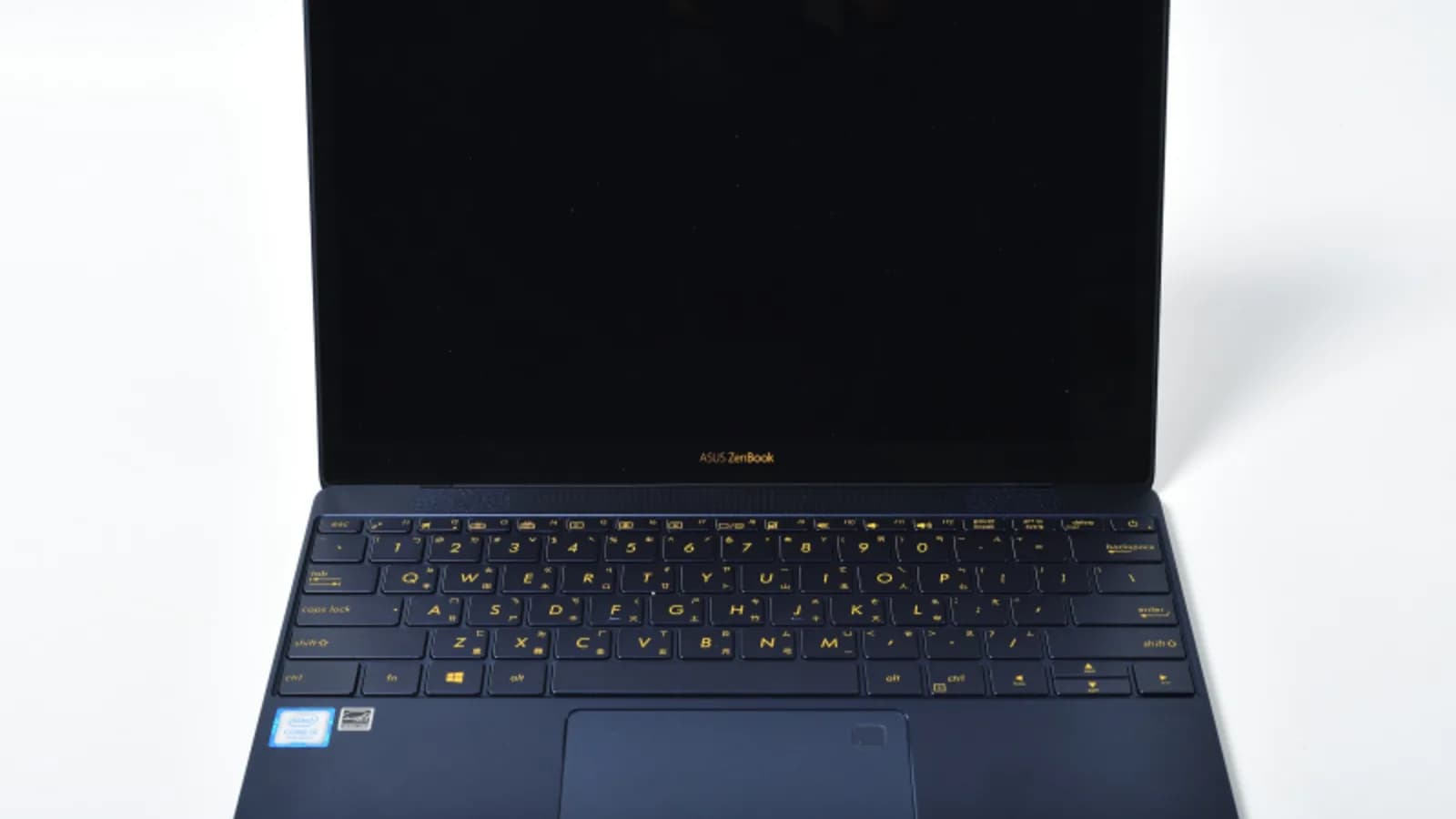
On the Tom's Guide forums, one Zenbook owner described leaving the laptop on overnight with a phone charging from its USB port but no charger attached; by morning it “refuses to turn on and LEDs are not lit with the charger plugged in.” It is a scene we see on the bench most weeks. The reassuring part: a Zenbook showing “plugged in, not charging” — or one that has drained flat and now seems dead — is far more often a charging setting, a tired adapter or a deeply discharged cell than a battery that has actually failed. If your Zenbook is only a few months old and still under warranty, that is the first door to try, not a screwdriver.
What "plugged in, not charging" really means
Windows shows “plugged in, not charging” for several unrelated reasons, and they do not all point at the battery. The charger may be delivering just enough power to keep the laptop awake without charging it — common when a USB-C Zenbook is run from a phone charger, a monitor cable or a weak third-party brick. The battery may already be full, or sitting under a deliberate charge cap set in software. Or the cell may simply be too warm to accept charge — in Singapore's heat we see this constantly on laptops charged inside a padded bag or on a bed.
If your Zenbook has drained to zero and now shows no light at all with the charger connected, do not assume the battery is dead. ASUS advises leaving the device connected to power for an extended period — overnight is not too long — because a deeply discharged battery can need hours on the charger before it shows any sign of life. Only if it stays completely dark after that is it time to suspect the adapter or the charging circuit.
The most common cause: MyASUS Battery Care Mode
The single most frequent reason a healthy Zenbook “won't charge” is that it was told not to. ASUS ships MyASUS with a Battery Care Mode that caps the maximum charge to protect the cell's lifespan: Balance mode stops at 80%, Maximum Lifespan mode stops at 60%, and only Full Capacity mode charges all the way to 100%. If your Zenbook sits at exactly 60% or 80% and refuses to climb, this is almost certainly why — and it is a feature, not a fault.
- First, open the MyASUS app (search “MyASUS” in the Start menu). If it is not installed, get it free from the Microsoft Store.
- Then, go to Customization, then Power & Performance, and find Battery Care Mode (on some older Intel and AMD models it is called Battery Health Charging).
- Next, select Full Capacity Mode to allow charging to 100%, then plug in and watch the charge climb past the old cap.
- Finally, if you only need a full battery occasionally, leave it in Balance mode day to day — holding the charge below 100% genuinely extends how long the battery lasts.
On older Zenbooks the same control lives under “Battery Health Charging” with the same three levels. Whichever name you see, the fix is identical: choose the mode that charges to 100%.

Rule out the charger, cable and port first
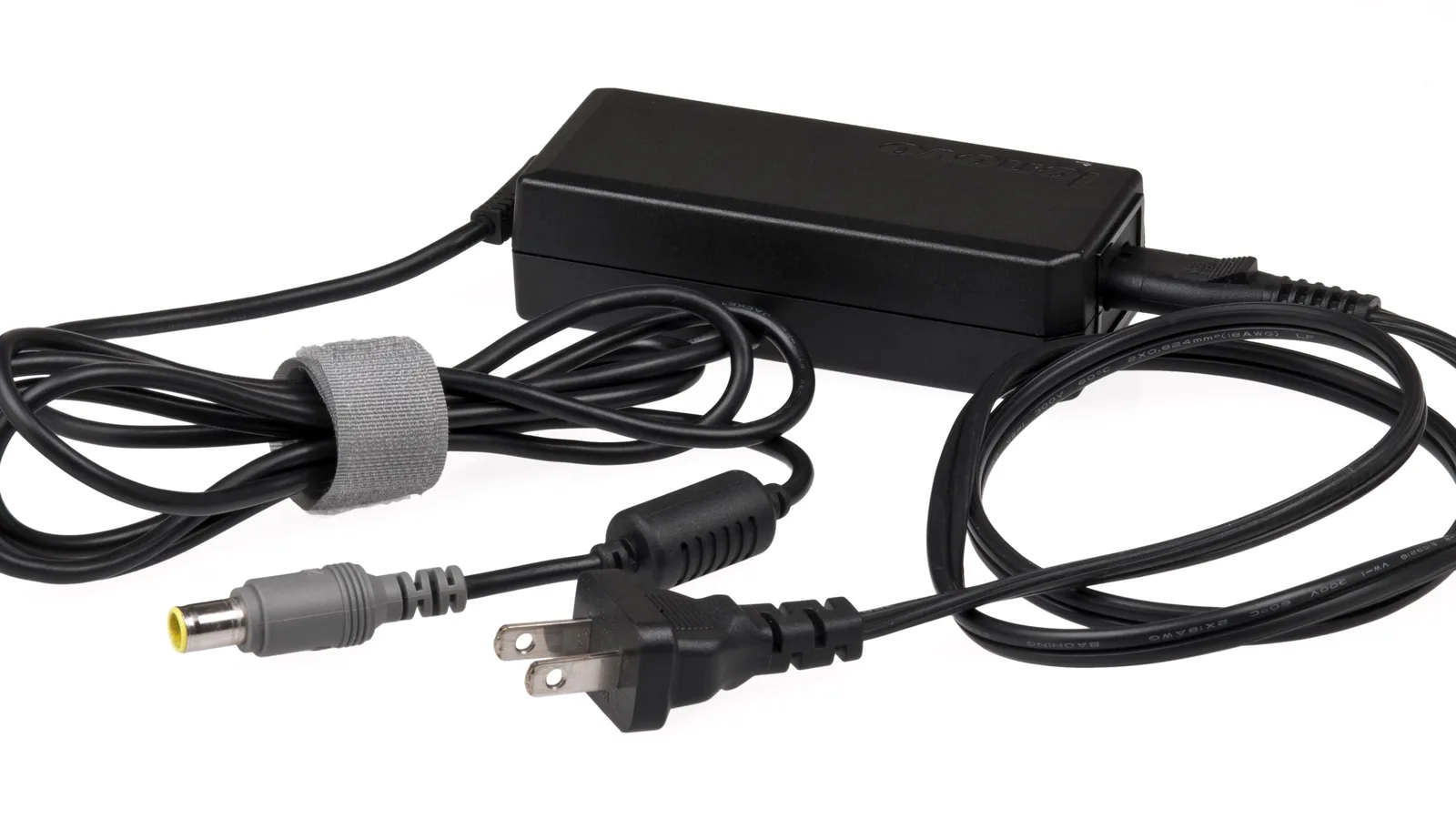
If the charge cap is not the cause, the next suspects are the things you can see and swap. ASUS is explicit that you should use the original ASUS adapter and power cord — a low-wattage or non-compliant USB-C charger can run the laptop while never charging it. Inspect the cable along its length, check the connector pin is straight, then borrow a known-good charger of the correct wattage and try that. Remember that some USB-C cables carry data only and will not charge at all.
- Test a second charger. A different adapter of the right wattage is the fastest way to prove — or clear — the charger and cable in one step.
- Try the other USB-C port. Many Zenbooks charge from either side; if one port works and the other does not, the port is the fault, not the battery.
- Check the pin and the cable ends. Cables fail where the lead leaves the brick and where it enters the plug; a bent USB-C pin or a frayed strain point behaves exactly like a charging fault.
- Clear the port. Pocket lint packs into a USB-C socket and blocks a firm connection. Power the laptop off and clear it gently with a wooden or plastic pick — never metal — and a little 90% isopropyl alcohol if there is grime.
Software fixes: driver, EC reset and updates
When the hardware checks out, a handful of software steps clear the rest. Windows can lose track of a healthy battery, an outdated chipset or battery driver can misreport charging, and the embedded controller that manages power can occasionally hang. None of these can revive a worn cell, but they routinely fix a laptop that is charging-capable yet stuck.
- First, reinstall the battery driver: right-click Start, open Device Manager, expand Batteries, right-click “Microsoft ACPI-Compliant Control Method Battery” and choose Uninstall device, then restart — Windows reinstalls it automatically.
- Then, run MyASUS System Diagnosis: open MyASUS, choose System Diagnosis, pick the Battery test, connect the charger and click Checkup to let ASUS's own tool report the battery's state.
- Next, update BIOS, Windows and drivers through MyASUS Live Update and Windows Update — charging behaviour is often governed by firmware.
- Finally, perform an EC (embedded controller) reset as described for your model in the MyASUS support pages if charging is still stuck after the steps above.
How to calibrate the battery (and what it will not do)
If your Zenbook charges but the percentage jumps around — shows 40% then shuts down, or sticks at a number for hours — the battery meter has lost track of the cell's true capacity. Laptop battery calibration re-teaches the meter by taking the battery through one full, uninterrupted cycle. Be clear about what it does: calibration corrects the reading, it does not restore lost capacity or give you longer battery life.
- First, charge the Zenbook to 100% and leave it plugged in and resting for about two hours.
- Then, in Windows Power Options, set the laptop to hibernate at around 5% so it will not simply sleep midway.
- Next, unplug and use the laptop normally until it discharges and hibernates on its own; then leave it off for a few hours.
- Finally, plug back in and charge uninterrupted to 100%. The meter should now report the charge far more accurately.
If the readings are still wild after a clean calibration, the cell itself is likely worn — and no amount of calibrating will recover lost capacity. A worn-out battery cannot be repaired by a reset, a driver reinstall or a calibration; it can only be replaced.
Adapter, battery or motherboard? A quick triage
Before you spend anything, this table maps the symptom you can see to the part usually behind it — the triage none of the Singapore service pages we checked bother to give you.
| Symptom | Most likely cause | What to do |
|---|---|---|
| Stuck at exactly 60% or 80% | MyASUS Battery Care Mode charge cap | Switch to Full Capacity Mode in MyASUS |
| Runs on mains but never charges | Underpowered or non-compliant charger | Test a known-good adapter of the correct wattage |
| Charges only at a certain cable angle | Worn charging port or cable strain point | Try another port and cable; have the port checked |
| Percentage jumps or shuts down early | Battery meter out of calibration | Run one full calibration cycle |
| Dead with charger; no lights after a long charge | Deeply discharged cell, adapter or charging circuit | Leave on charge overnight; if still dark, bench diagnosis |
| Battery swollen or trackpad clicking unevenly | Failing, swollen cell | Stop charging and bring it in immediately |

When it really is the battery
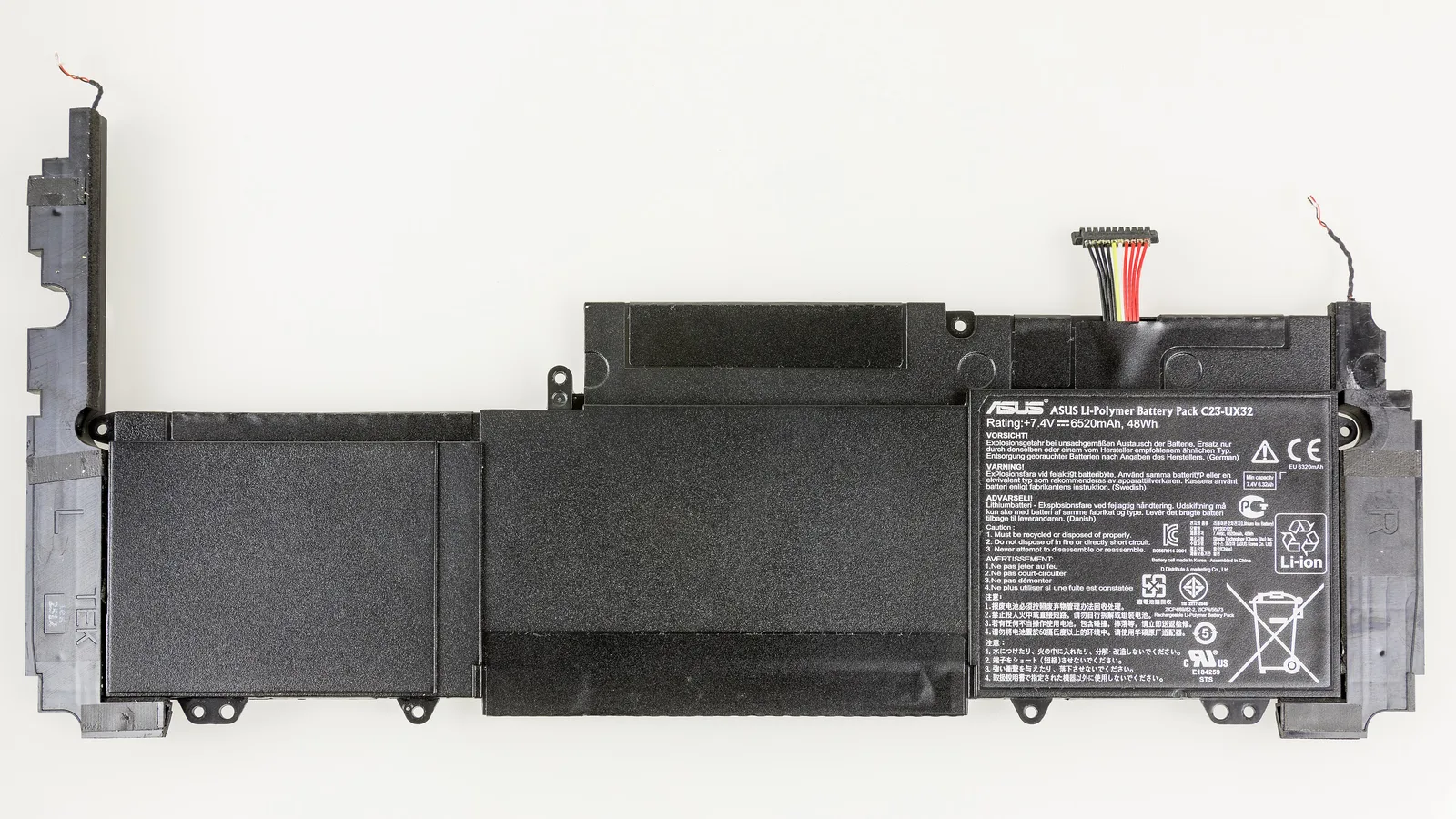
Some Zenbooks genuinely need a new cell: the battery is visibly swollen, it will neither charge nor hold a charge, or it is simply old and its capacity has collapsed. A swollen battery is a safety risk — stop charging it, keep it out of a closed bag, and do not press on it or try to lever it out, because on many Zenbooks the trackpad ribbon sits directly above the cell and a slipped tool can damage the trackpad or puncture the cell, turning one repair into two. At Esmond Service Centre we first confirm the reading and rule out the charger, port and charging circuit, so you are not paying to replace a healthy battery. When the cell really is the fault, we use the correct adhesive-release process to lift it without bending the slim Zenbook chassis, fit a quality replacement, then recalibrate and test a full charge cycle before the laptop goes back to you.

Esmond Service Centre's experienced technicians can diagnose and fix it fast — free diagnostics, repairs from $65.