
📑 On this page
A screen that flips the instant your fingers brush Ctrl + Alt and an arrow key is one of the most common little panics we hear about at the bench in Singapore. The good news is that the shortcut is adjustable: you can soften it, remap it to a combination you will never hit by accident, or switch it off completely. This guide shows exactly where that control lives on every kind of Intel laptop — and what to do when the option has been removed.
The rotation shortcut comes from your graphics driver — not Windows
Here is the single fact that clears up most of the confusion: the Ctrl + Alt + arrow rotation shortcut is not a Windows feature. Microsoft's own support staff put it plainly — "This shortcut is not from Windows, but from the graphics adapter control panel." On the vast majority of laptops that adapter is Intel, so the switch that changes or disables the shortcut lives inside Intel's software, not inside Windows Settings. That is why so many people search Windows for a toggle that was never there.
The default rotation shortcut keys
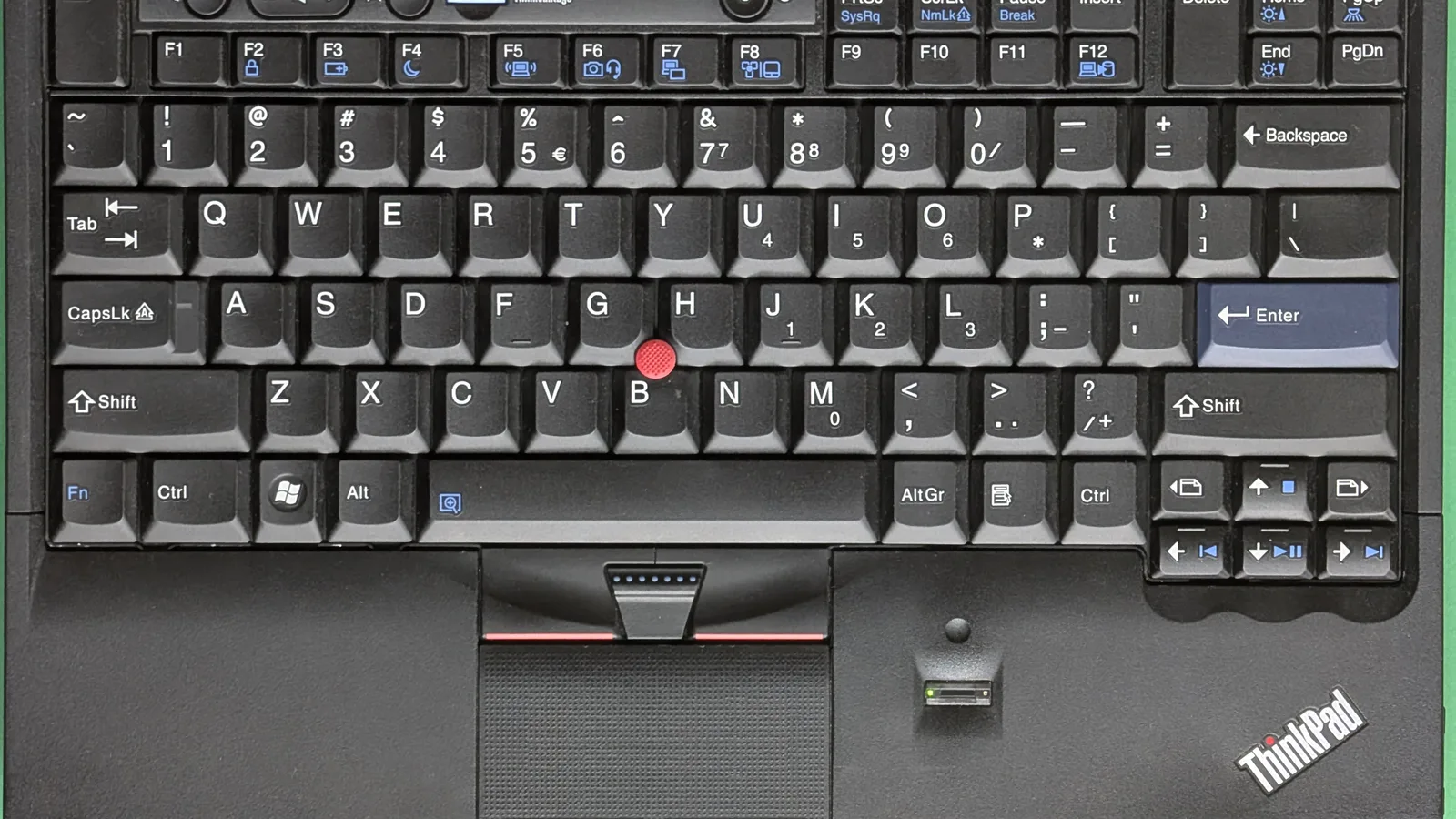
When the Intel hotkeys are active, they use Ctrl + Alt together with one of the four arrow keys, and each arrow maps to one of the four screen orientations Windows supports — Landscape, Portrait, Landscape (flipped) and Portrait (flipped). The up arrow is the one to remember, because it snaps the picture back to standard landscape.
- Ctrl + Alt + Up arrow — back to standard Landscape (the one that undoes an accident).
- Ctrl + Alt + Down arrow — Landscape (flipped), the upside-down view.
- Ctrl + Alt + Left arrow — Portrait, rotated 90 degrees.
- Ctrl + Alt + Right arrow — Portrait (flipped), rotated the other way.
On many laptops Intel lets you change that Ctrl + Alt part to Ctrl + Shift instead, so a stray Ctrl + Alt press can no longer rotate anything. That reassignment is the gentlest way to change the shortcut without losing it entirely — you keep rotation on demand, but remove the accidental trigger.
Change or disable the shortcut on Intel HD Graphics (5th-generation and older)
If your laptop is a few years old and runs the classic Intel HD Graphics Control Panel, you have the most control of anyone. Open it with the keyboard shortcut Ctrl + Alt + F12, or right-click the desktop and choose Graphics Properties. Inside, the rotation keys live under a dedicated manager you can edit freely.
- Press Ctrl + Alt + F12 (or right-click the desktop and choose Graphics Properties / Intel Graphics Settings) to open the Intel HD Graphics Control Panel.
- Go to Options and Support, then open the Hot Key Manager.
- To change the shortcut, assign a new key combination to each rotation action — for example, switch the modifier from Ctrl + Alt to Ctrl + Shift.
- To switch it off completely, choose Disable Hot Keys, which turns off every graphics hotkey at once.
Microsoft's support thread describes this same panel: under Options and Support there is a Hot Key Manager "where you can either disable all hotkeys entirely or set them to something less obnoxious." That is the whole trick — you are editing Intel's keys, not Windows'.
Change it in the Intel Graphics Command Center (newer laptops)
Newer laptops replace the old control panel with the Intel Graphics Command Center (IGCC), a separate app from the Microsoft Store. Where it still offers rotation hotkeys, the switch sits under System.
- Open the Intel Graphics Command Center from the Start menu (install it from the Microsoft Store if it is not already there).
- Select System, then open the Hotkeys tab.
- Turn the Hotkeys toggle off to disable them, or reassign the rotation keys to a different combination.
Dell documents the same two-way control: in the Command Center you can "Enable or Disable the Hotkeys function," and in the older Control Panel you can assign keystrokes or disable all hot keys. Either way the goal is the same — stop an accidental key press from turning your screen.
| Your Intel software | Where the rotation shortcut setting lives | What you can do |
|---|---|---|
| Intel HD Graphics Control Panel (5th-gen and older) | Options and Support > Hot Key Manager | Remap each key, change the modifier, or disable all hotkeys |
| Intel Graphics Command Center (where hotkeys remain) | System > Hotkeys tab | Toggle hotkeys off, or reassign them |
| Intel Graphics Command Center (hotkeys removed) | No hotkey option — removed by Intel | Set orientation in Windows Settings, or install IGCC (Beta) |
| No Intel panel at all | Windows only | Settings > System > Display > Display orientation |
Why the shortcut may be missing on 6th-generation and newer laptops
If you cannot find any rotation hotkey to change, you are not doing it wrong — Intel took it away. Dell's support note states that "the ability to use hotkeys for screen rotation have been removed from the latest Intel Graphics Control Panel, starting with 6th Generation Intel integrated graphics products." Intel's own page is just as blunt: "resolution, refresh rate, rotation in display general page and rotation hotkeys in system hotkeys page have been removed from IGCC."
Intel's advice in that case is to change screen orientation in Windows settings, or to install the Intel Graphics Command Center (Beta) from the Microsoft Store, which restores a hotkey option on some systems. So on a current laptop, "changing the shortcut key" sometimes means accepting there is no longer one to change, and switching to the Windows method below.
Change orientation from Windows Settings instead (works on every laptop)
Whether or not the hotkey exists, every Windows laptop can rotate its screen from Settings — and this is the method Microsoft itself points you to. It never depends on the graphics driver, so it works even when the shortcut has been removed.
- Right-click an empty part of the desktop and choose Display settings (or open Settings > System > Display).
- Scroll to Scale & layout and find Display orientation.
- Choose Landscape, Portrait, Landscape (flipped) or Portrait (flipped) from the drop-down.
- Click Keep changes when Windows asks you to confirm.
Microsoft's guidance is simply to "choose a screen orientation from the drop-down list next to Display orientation." Because this lives in Windows rather than Intel, it is the one method that behaves the same on every machine — which is why we walk Singapore customers through it first on the phone.
Why only one screen rotates on a two-monitor setup
A common surprise: you press the shortcut and only one of two screens turns over. That is expected. Intel states that its "Graphics Command Center hotkeys only work on the display marked as main." If you need the hotkey to act on a second monitor, set that monitor as your main display first, then use the shortcut — or simply rotate the specific monitor from Windows Settings, where you can select each screen individually before changing its orientation.
When it is not the shortcut: a screen that will not rotate at all
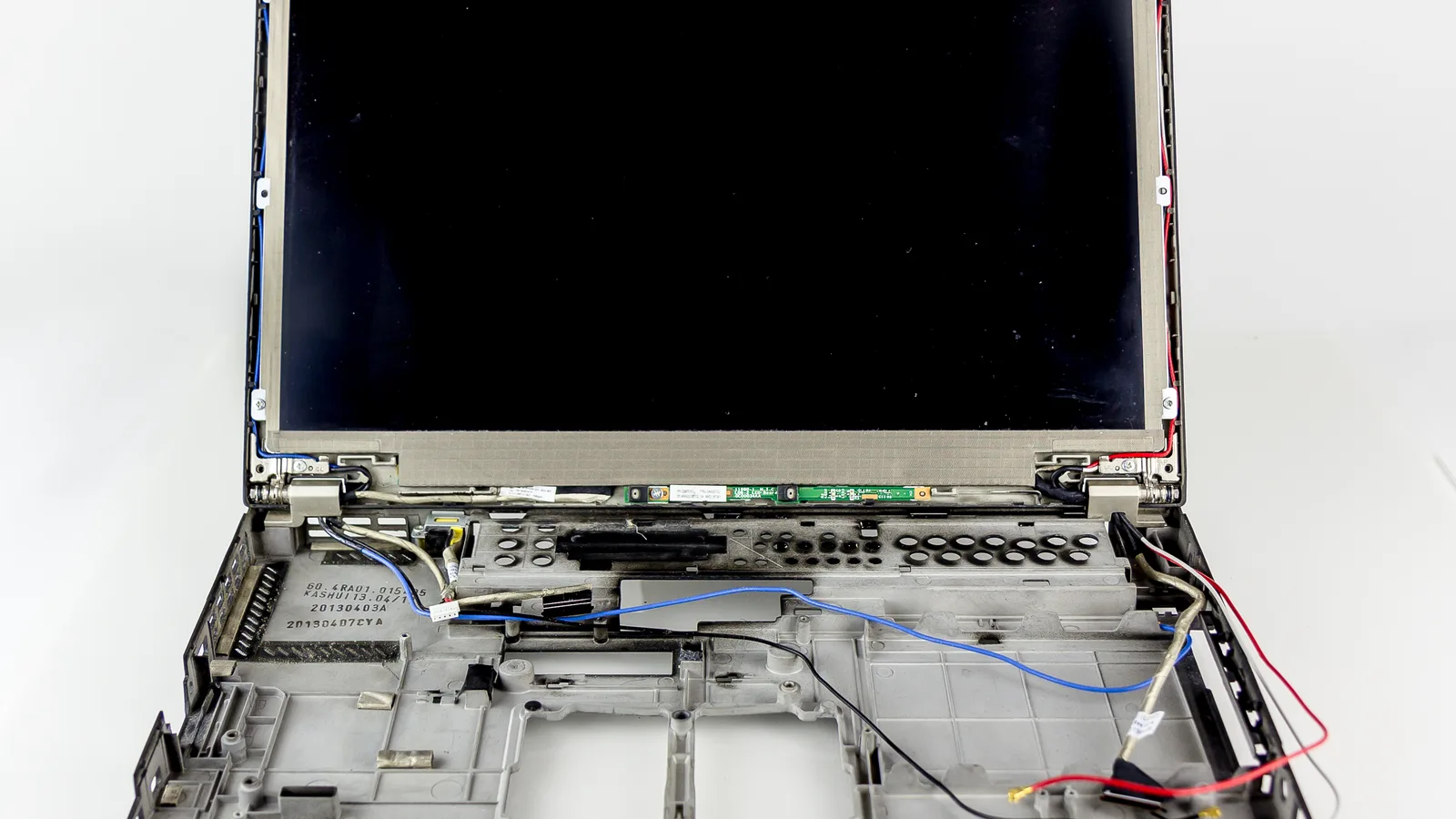
Everything above is software. But if the orientation will not change from the shortcut or from Windows Settings, if only part of the image is rotated, or if you also see flicker, coloured lines or a dark patch, the fault is no longer in a setting — it can sit in the display cable, the panel or the graphics chip. No keyboard shortcut can repair a hardware fault: a damaged cable or panel cannot be fixed by any key combination, and forcing a screen that will not rotate risks cracking the panel or tearing the display cable, turning a free software fix into a paid parts replacement.
If those checks point to hardware, that is the time to bring it in. At Esmond Service Centre we diagnose laptop display, cable and graphics faults on the bench and replace damaged panels for the exact model in front of us. We have deliberately left prices, turnaround times and warranty wording off this guide, because those depend on your laptop and the parts it needs — bring it in, or ask us for a quote for your specific model, rather than trusting a figure from any web page.

Written by Esmond, Founder & CEO of Esmond Service Centre. He works from the Singapore repair bench where these display and rotation problems actually arrive, and writes each guide from the faults that come through the door rather than from a spec sheet.
Esmond Service Centre's experienced technicians can diagnose and fix it fast — free diagnostics, repairs from $65.