
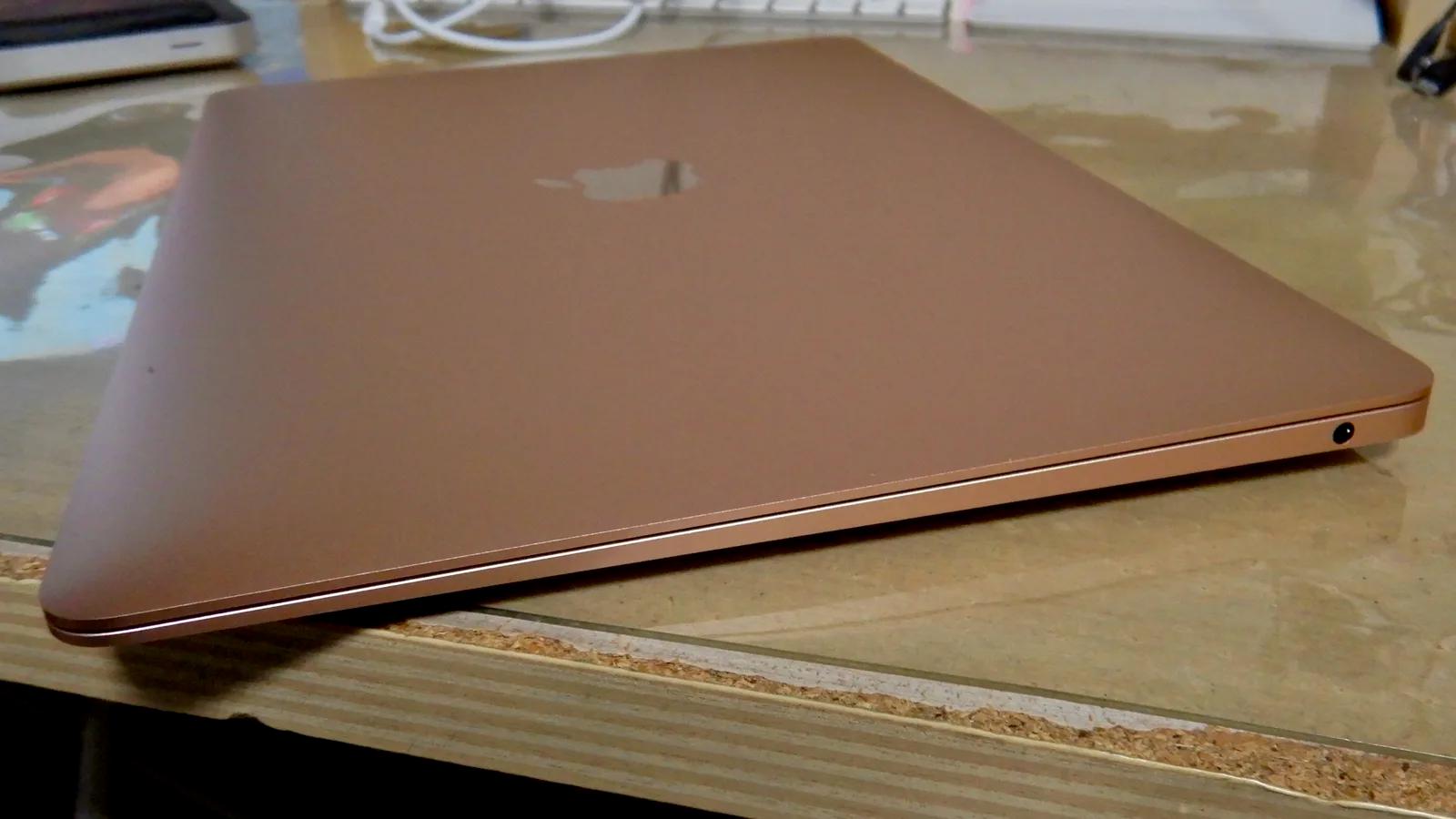

📑 On this page

First, know which trackpad your MacBook Air has
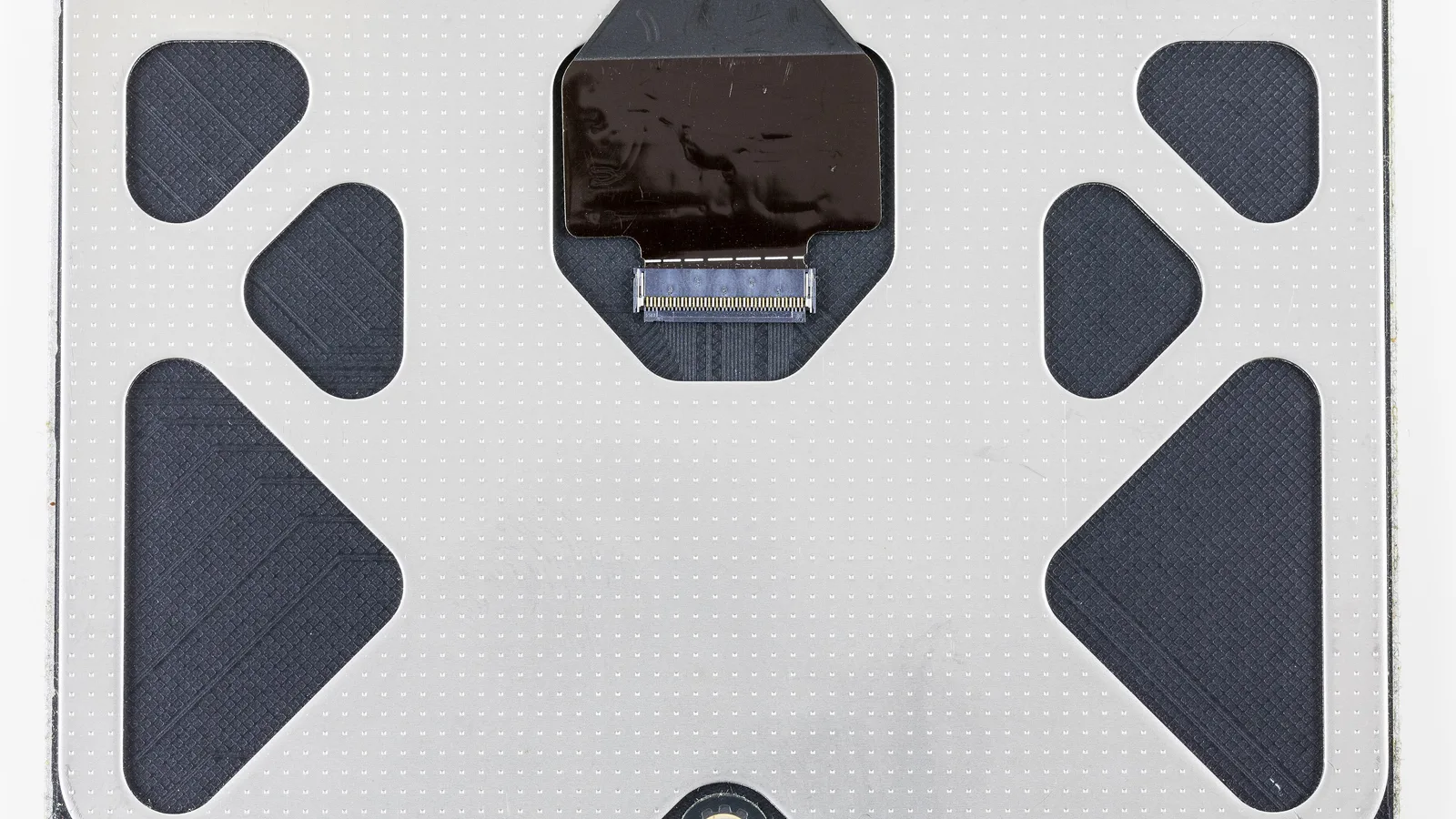
Before you fix anything, work out which of two very different trackpads your Air has, because the cause and the cure are not the same. Every MacBook Air from 2018 onward — all the Retina models and all the M1, M2 and M3 models — uses a Force Touch trackpad. It has no hinge and no physical button underneath: the glass does not actually travel downward. Apple explains that these trackpads 'have sensors beneath the surface to detect differences in the amount of pressure you apply', and the 'click' you feel is a haptic pulse made by a Taptic Engine. The giveaway is Apple's own note that a Force Touch trackpad 'doesn't click, force click, or provide other haptic feedback when it's turned off' — the click needs power and working software. Older MacBook Airs (2010 to 2017) instead use a mechanical 'diving-board' trackpad that genuinely hinges and presses a real switch. On those, 'not clicking' is almost always something physically stopping that movement.
Free software fixes to try first (safe and reversible)
Do these in order and stop the moment the click comes back. Every step is free, safe and reversible — none can harm your files or your hardware — and on a Force Touch Air they fix the most common cause of all, which is software rather than a broken trackpad.
- Restart the Mac properly. Choose Apple menu > Restart rather than closing the lid. On a Force Touch trackpad the click is produced by software and the Taptic Engine, so a hung system can leave the glass feeling dead even though nothing is broken. A clean restart is the single most common fix. If the trackpad won't click to reach Restart, press and hold the power button for about 10 seconds to force a shutdown, then switch back on.
- Check your Trackpad settings. Go to Apple menu > System Settings, click Trackpad, and open the Point & Click pane. Make sure 'Force Click and haptic feedback' is switched on — if it was turned off, a Force Touch trackpad will feel as though it no longer clicks. In the same pane, set 'Click' to a lighter setting so less pressure is needed, and turn on 'Tap to click' so a light tap registers as a click. Tap to Click is the workaround that lets you keep using the Mac while you work through the rest.
- Update macOS. Open System Settings > General > Software Update and install anything offered. Apple ships trackpad, Taptic Engine and driver fixes inside these updates. Back up first and let the install finish without closing the lid.
- Reset the SMC — Intel Airs only. If you have an Intel MacBook Air, shut it down, then hold the left Shift, left Control and left Option keys together with the power button for 10 seconds, release, and switch on. The SMC manages power and low-level input, and a reset can revive an unresponsive trackpad. Apple is explicit that a Mac with Apple silicon has no SMC to reset — on an M1, M2 or M3 Air a normal shutdown and restart does the same job.
Why this works: on a Force Touch Air there is no mechanical switch to wear out, so a dead click is very often a disabled setting, a frozen Taptic Engine process, an out-of-date driver or a power-management glitch — and the four steps above clear exactly those. If the click is still dead after all four, or it only fails in one part of the trackpad, the fault is physical: a restart, an update or an SMC reset cannot fix a swollen battery, a torn trackpad cable or a failed Taptic Engine, because those are repairs, not settings.
Apple silicon vs Intel: which reset actually applies
Which steps apply depends on your chip, and this is where most guides go wrong. Here is the honest split, straight from Apple's own documentation.
| Step | Intel MacBook Air | Apple silicon (M1/M2/M3) Air |
|---|---|---|
| SMC reset | Hold left Shift-Control-Option + power for 10s | None — just shut down and restart |
| Force Click & haptic setting | System Settings > Trackpad > Point & Click | Identical — same path |
| Tap to Click (keep working) | System Settings > Trackpad > Point & Click | Identical — same path |
| Frozen / unresponsive trackpad | Force shutdown (hold power ~10s), restart | Force shutdown (hold power ~10s), restart |
When it's hardware: a swollen battery under the trackpad
If the software steps did nothing, look at the battery — because on a MacBook Air the battery sits directly under the trackpad. As lithium-polymer cells age they can swell, and that swelling pushes up against the underside of the trackpad. On an older mechanical Air it physically blocks the hinge so the click jams; on a Force Touch Air it presses on the assembly and its pressure sensors, so the click turns stiff, uneven, or dead in one corner. This is a safety issue, not just an inconvenience. Stop pressing hard on a bulging trackpad, never puncture or bend the pack, and shut the Mac down if the case is visibly lifting. Apple states that a battery marked 'Service Recommended' holds less charge than when new 'or isn't functioning normally', and that Mac laptops with built-in batteries 'should have their batteries replaced only by an Apple Authorized Service Provider or Apple Store, or by an Independent Repair Provider that uses genuine Apple parts' — a swollen pack is not a kitchen-table job.
- The trackpad sits raised, bowed or stiff. If it is higher than the surrounding case, or it only clicks near the top edge, something underneath is pushing it up — most often a swollen battery.
- The MacBook rocks on a flat desk, the bottom case bulges, or the feet have popped off. That is the battery expanding inside the chassis.
- Check Battery Health. Open System Settings > Battery and read the Battery Health status; 'Service Recommended' confirms the pack is past its best. A swollen battery can still read as 'Normal', though, so trust the physical signs too.
- Stop using it if the battery is exposed or the case is split. A damaged lithium battery is a fire risk — don't charge it overnight, and bring it in for service.
Quick reference: what the symptom is telling you
| What you notice | Likely cause | First thing to try |
|---|---|---|
| Cursor moves, but nothing clicks | Software, a disabled setting, or a frozen Taptic Engine | Restart, then turn on Force Click and Tap to Click |
| Click works in some spots, not others | Something pushing up from below — usually a swollen battery | Check Battery Health and inspect for swelling; service it |
| Trackpad feels raised or the case rocks | A swollen battery expanding under the trackpad | Stop pressing it, power down, and get a battery replacement |
| Click died on an older (2010–2017) Air | Worn mechanical switch or a battery blocking the hinge | Rule out the battery first, then a trackpad repair |
| Click returned after a restart or update | Software or firmware only | No parts needed |

When to stop and bring your MacBook Air in
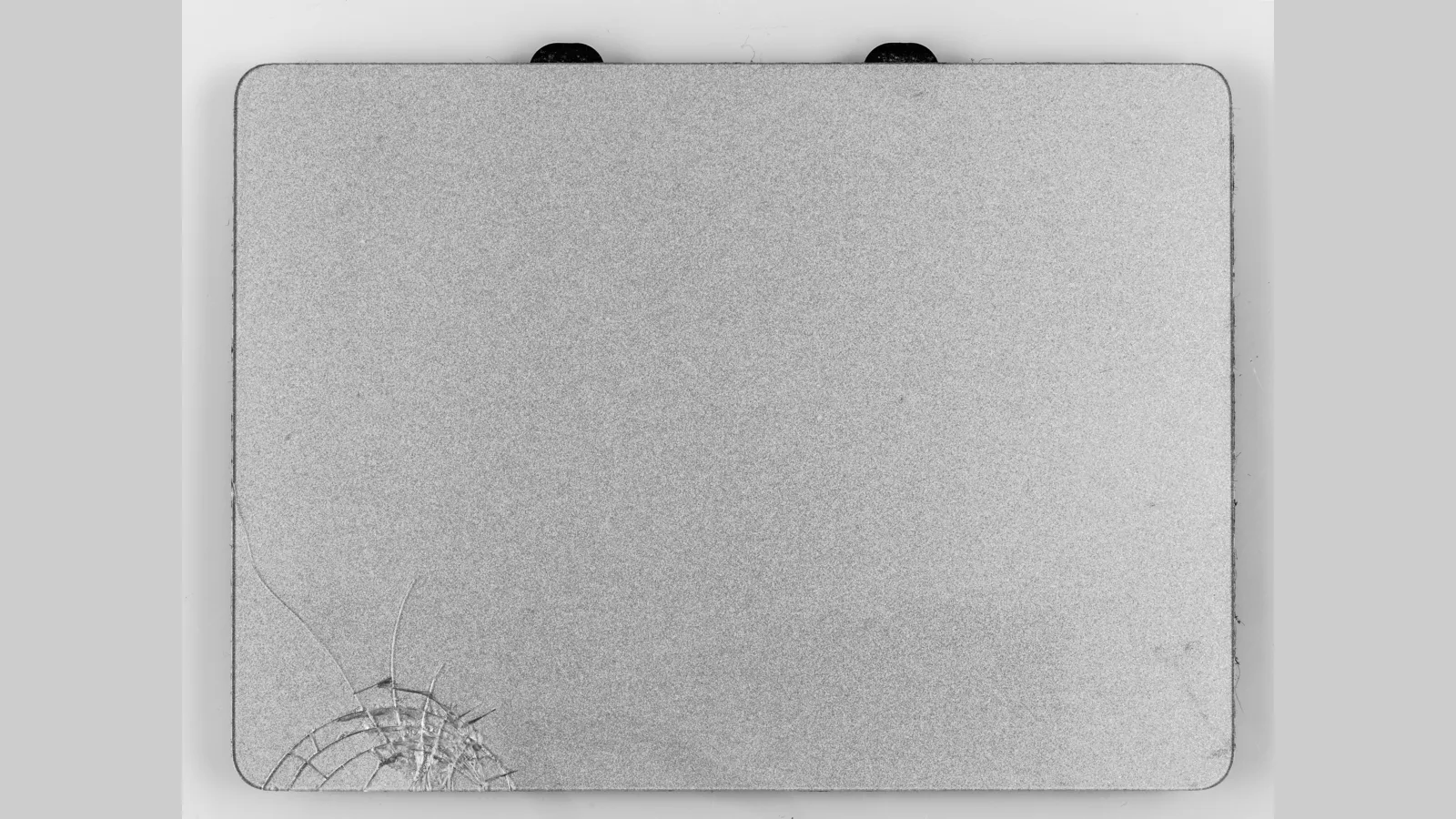
Stop the DIY the moment a fix would mean opening the case. On our repair bench in Singapore, a MacBook Air that 'won't click' almost always turns out to be one of three things: a software or settings issue that the free steps above already fix, a swollen battery pressing up on the trackpad, or a worn trackpad flex cable (the thin ribbon cable inside) or a failed Taptic Engine. We don't guess which. We confirm the chip and macOS version, test the click behaviour across the whole trackpad, read Battery Health and physically inspect for swelling, and only then separate a settings fix from a battery job from a trackpad replacement. As a Certified Apple Independent Repair Provider we replace a swollen battery with genuine parts, which is the safe way to clear the most common hardware cause. Esmond Service Centre gives a genuinely free, no-obligation diagnostic first, so you only pay if you approve the quoted fix, and most repairs carry a standard 90-day warranty on parts and labour, extendable with the optional Esmond Care plan.
- Full trackpad diagnosis: we test the click across the whole surface, check the Force Click setting and the Taptic Engine, and inspect the battery for swelling before quoting anything.
- Safe battery replacement: as a Certified Apple Independent Repair Provider we remove a swollen battery and fit a genuine replacement, so the trackpad sits flat and clicks again.
- Honest scoping: we don't quote a fixed 'trackpad' price here, because the cause ranges from a free setting to a battery or a trackpad replacement — we diagnose first, for free, then quote.
Fix your MacBook Air trackpad today
If the restart, the Trackpad settings, the macOS update and the SMC reset haven't brought the click back — or the trackpad feels raised and you suspect the battery — the next honest step is a diagnostic, not a guess at a price. Esmond Service Centre repairs MacBook trackpad and battery faults at two Singapore branches, Alexandra Retail Centre and Midview City at Sin Ming, is rated 4.9 stars, and has over 16 years of experience. Walk in, or read our MacBook repair Singapore page, for a free diagnostic and a confirmed turnaround before any work begins.

Esmond Service Centre's experienced technicians can diagnose and fix it fast — free diagnostics, repairs from $65.