

📑 On this page
A MacBook Pro charger not working: what is actually happening
Walk-in and WhatsApp customers in Singapore bring us the same worry: the MacBook Pro charger is not working, and they assume the laptop has died. More often than not, the charger itself is fine and the real break is somewhere along the chain between the wall socket and the battery — the outlet, the adapter brick, the cable, the port, or the charging circuit on the logic board. This guide is written from those repairs. It shows you how to isolate which link has failed, which fixes cost nothing, and the smaller number of cases where the charger or the Mac genuinely needs a hardware repair. The same steps apply when a MacBook Air charger is not working — the parts differ, the logic is identical.
First: is it the charger, the cable, the port, or the battery?
Before any repair, place your own case — each link needs a different answer. The most useful test is substitution: try a known-good Apple charger and cable on your MacBook, and try your charger on another Mac. If your charger fails on a second Mac too, the charger or cable is the fault. If a known-good charger still will not charge your Mac, the problem is in the Mac — the port, the battery, or the board. Match your symptoms below.
- No light, no power at all, even with a known-good charger: suspect the wall outlet, a data-only cable, or a dead adapter — all cheap to rule out first.
- Your charger fails on another Mac too: the adapter or the cable has failed, not your laptop.
- A known-good charger charges other Macs but not yours: the fault is in your Mac — most often a debris-clogged or loose charging port.
- Charges only at certain angles, intermittently, or gets hot at the connector: a worn cable or a damaged port or connector — a hardware repair, not a setting.
- Light shows and it says 'plugged in, not charging', or the battery reads 'Service Recommended': a battery-health or charging-management fault rather than the charger itself.
How to fix a MacBook Pro charger not working: the free checks
Apple's own guidance is the starting point, and it costs nothing. Work through these in order — none can harm the Mac, and together they clear most 'charger not working' cases that turn out to be the outlet, the cable, debris or software. Do them before you buy a new charger or book a repair.
- Test the wall outlet. Unplug the adapter and plug a known-good device, such as a lamp, into the same socket to confirm it has power. Then plug the charger straight into the wall, not through a power strip or hub.
- Unplug the adapter for 30–60 seconds, then restart the Mac. Apple notes this can clear line-noise from the power source, and a restart clears a stalled charging state — the fastest things to rule out.
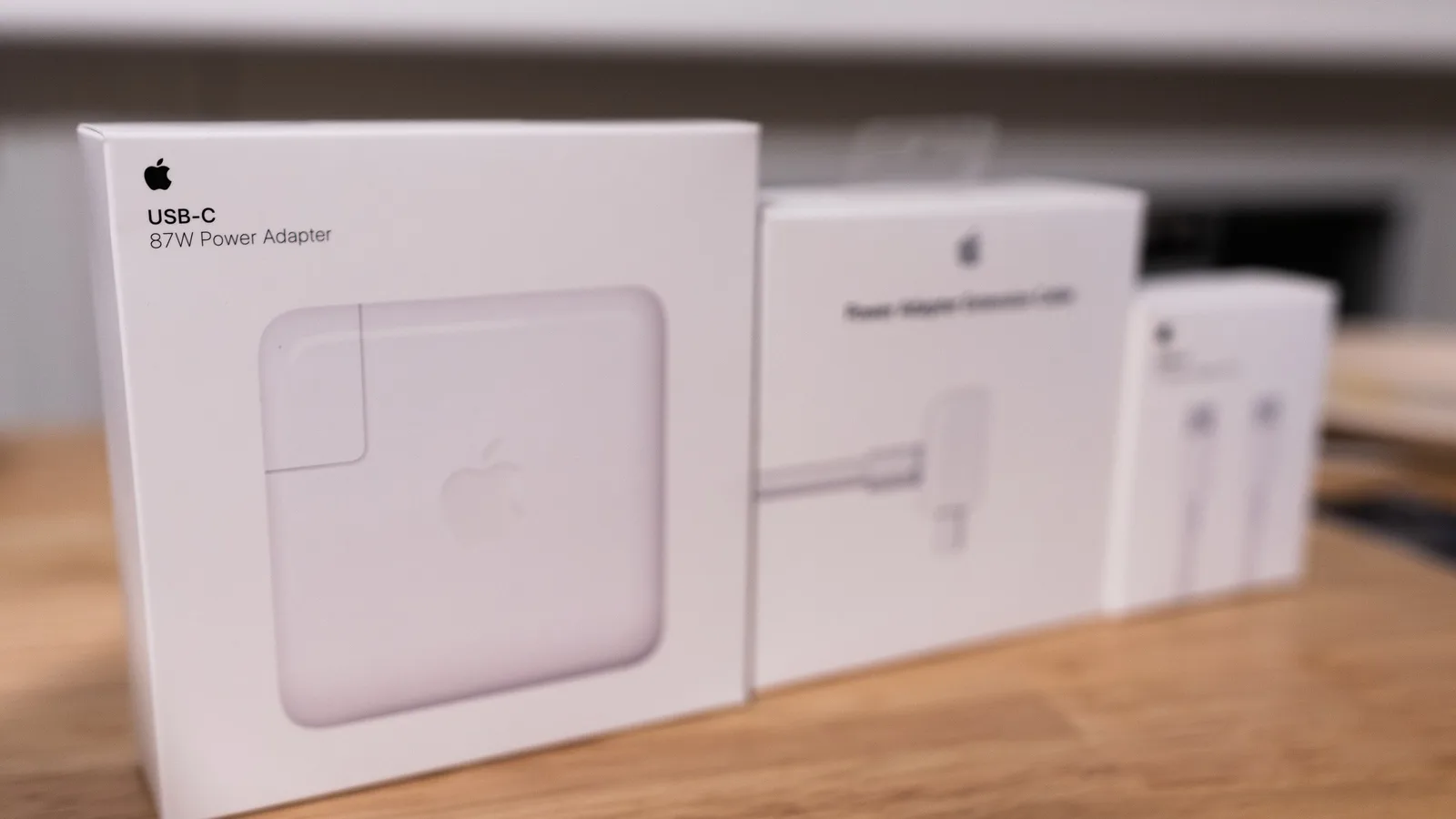
- Try another USB-C cable, and another charger. Some USB-C cables only carry data and will not charge; Apple says to make sure the cable supports charging. A second known-good Apple charger tells you whether the adapter or cable is the fault.
- Clean the port. Lint and pocket dust pack into a charging port and block contact. With the Mac off, blow compressed air into the USB-C or MagSafe port; for MagSafe, wipe the port and connector with a dry cloth so both are dry and clear of debris.
- Watch the MagSafe light. On a MagSafe charger the light glows amber while charging and green when full; if it flashes amber repeatedly, disconnect the cable at both ends, clean the port, and reconnect — a flashing light points to a charging issue, not a dead Mac.
- Update macOS. If the Mac still starts on battery, install the latest updates — Apple ships firmware that improves how the Mac communicates with its power adapter.
Know the limit before you spend. This will not fix a broken charging port, a cable with an internal break, a worn-out battery or a charging fault on the logic board — those are hardware, and no setting or clean will bring them back. When to stop and bring it in: if a known-good charger and cable still will not charge, if the port is loose or the connector gets hot, or if the battery shows 'Service Recommended', stop and seek professional help. Prying at a stuck connector or forcing a cheap third-party charger carries a real risk — you can turn a cheap port clean into permanent damage to the board, cause data loss when a dying battery cuts power mid-write, or void the warranty on a machine still under cover.

When the charger or the cable is the fault
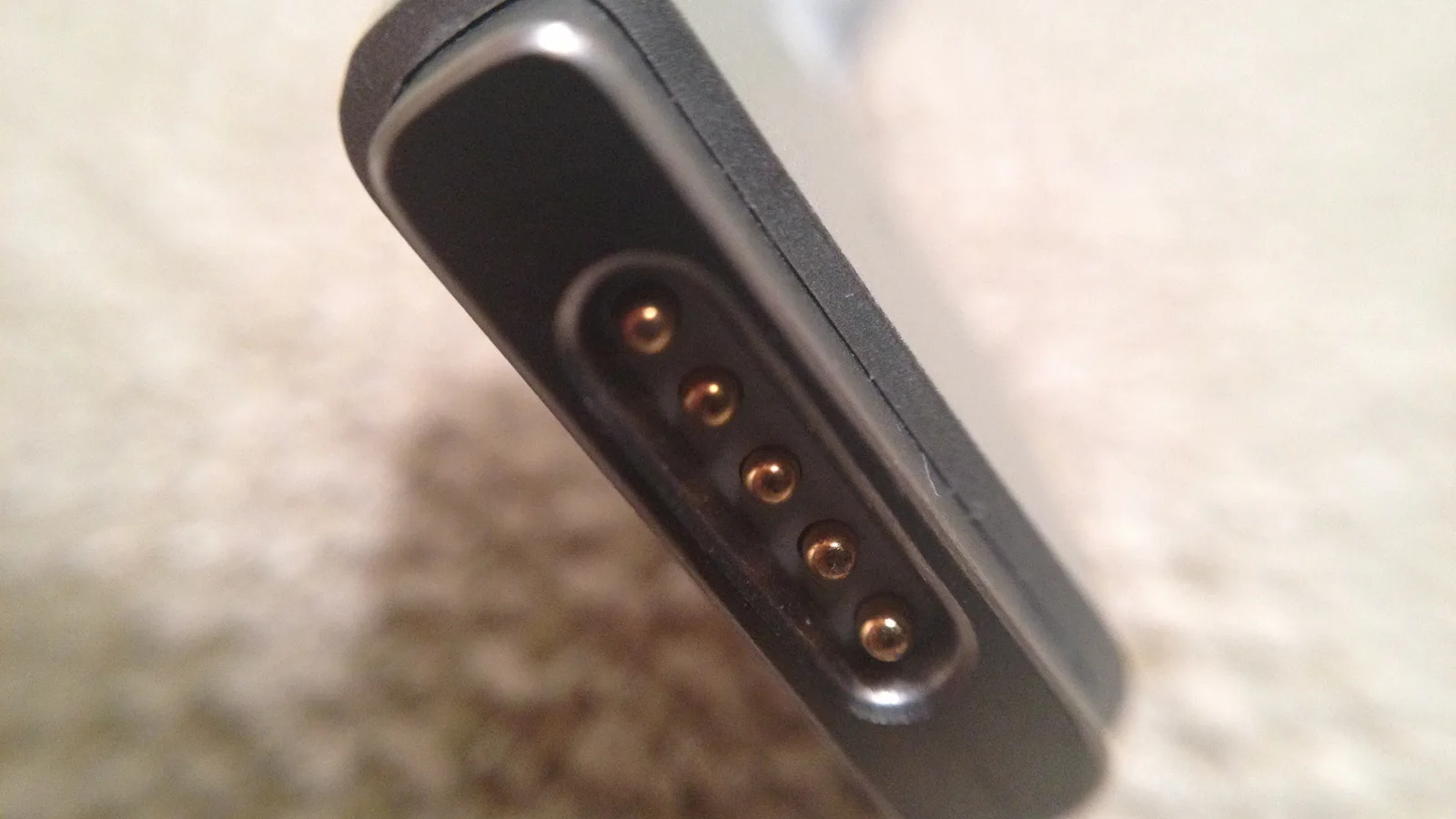
Sometimes the outlet is live, the port is clean, and it still will not charge — and the fault is the charger itself. The connector above is an Apple MagSafe charging connector, the tip of the cable that carries power into your Mac; the thin wires behind a connector like this break where the cable is bent and pulled over months. Adapters and cables fail more often than the laptop does: the wires inside a cable break where it flexes, the adapter brick can die, and a charger that works on one Mac but not another has usually failed. If your charger will not charge a second, known-good Mac, replace the charger or cable — and use one rated at the same wattage or higher than the one that came with your MacBook Pro, or it may charge slowly or not at all.
- Frayed or kinked cable: the internal wires break where the cable bends most, near either plug — charging then works only at certain angles or stops entirely.
- Data-only or underpowered cable: a cable not rated for charging, or one with too low a wattage, will not power a MacBook Pro even when it fits.
- Dead adapter brick: no light and no power on a known-good outlet, with a cable you have proven on another device, means the brick itself has failed.
- Wattage mismatch: a low-watt phone charger may keep a MacBook Pro alive but never charge it under load; match or exceed the original adapter's wattage.

When it is the charging port or the logic board
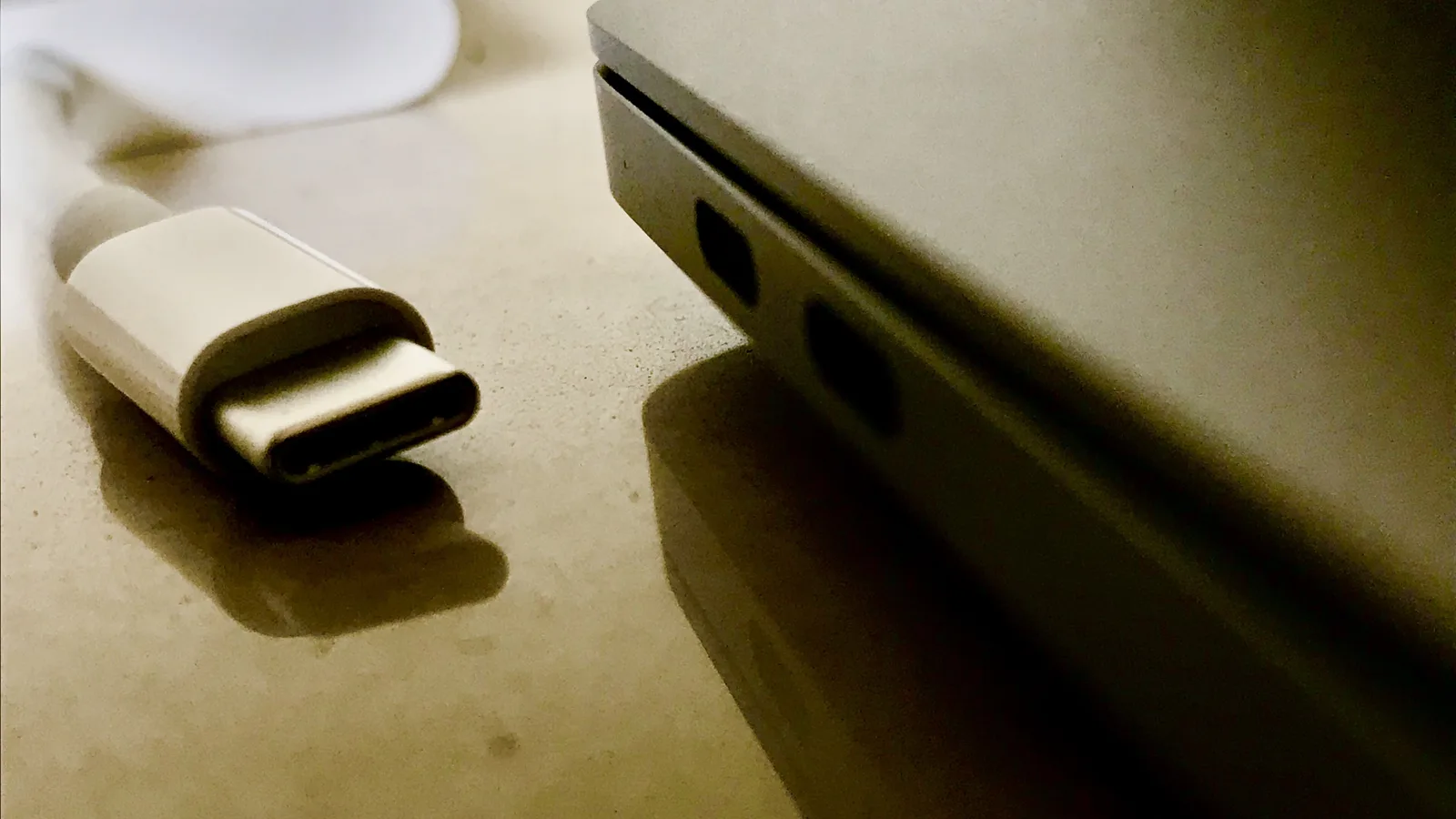
If a known-good charger and cable still will not charge, the fault has moved inside the Mac. The ports above are a MacBook Pro's USB-C ports, where the charger plugs in — behind them, the logic board carries the charging circuit that takes power from the port and feeds the battery. Between the port and that circuit sit the parts that fail last and cost most: a loose or corroded charging port, or a damaged charging IC (a chip on the board) on the board. This is board-level work, which is exactly why the substitution and outlet tests matter first — so no one replaces a part a clean would have fixed.
- Loose or worn port: a USB-C or MagSafe port that only charges when you hold the plug at an angle has worn or loosened — it is re-soldered or replaced, not patched.
- Liquid or debris corrosion: a spill or sea air can corrode the port's pins and the nearby board; left alone it spreads.
- Charging IC or board fault: when the circuit that manages charging fails, a perfect charger still does nothing — a logic-board repair diagnosed before any part is ordered.
- Battery at end of life: a battery reading 'Service Recommended' or swelling can refuse charge or cut power under load, and needs replacement, not a charger.
MagSafe vs USB-C: reading the charging light
MacBook Pro models charge over USB-C, over MagSafe 3, or both, and the charging light tells you different things on each. Use this table to read what your Mac is showing you before you decide it is broken.
| What you see | Most likely cause | Safe to try yourself? | Typical next step |
|---|---|---|---|
| No light, nothing happens | Dead outlet, data-only cable or dead adapter | Yes — test outlet, swap cable and charger | None, or a new cable/adapter |
| MagSafe light flashes amber | Debris, poor contact or a charging hiccup | Yes — clean port, reseat both ends | Port clean if it persists |
| Charges only at a certain angle | Worn cable or loose charging port | Partly — rule out the cable first | Port repair if the cable is fine |
| 'Plugged in, not charging' on battery menu | Charge management or battery health | Partly — restart, check Battery Health | Battery service if it persists |
| Battery shows 'Service Recommended' | Battery near end of life | No | Battery replacement |
| No charge with a known-good charger | Charging port or logic-board circuit | No | Board-level diagnosis |
What we do in the workshop
When a MacBook Pro that will not charge reaches our bench in Singapore, we do not guess. We confirm with a known-good charger and cable, test the outlet and port, inspect the port under magnification for debris, bent pins or corrosion, and measure the charging circuit on the board before any part is ordered — so we fix the real cause rather than replace the wrong part.
- Charger and cable first: confirm with a known-good adapter and cable so we never replace a port that a cable fault explained.
- Port inspection: check the USB-C or MagSafe port under magnification for lint, bent pins, liquid or corrosion, and clean before we consider a replacement.
- Board-level work: where the charging port or the charging IC is the fault, that is a logic-board repair, diagnosed and measured before any part is ordered.
- Honest scoping: we diagnose first and tell you what it is before any cost is agreed — a port clean, a port replacement and a board repair are very different jobs.
Keeping your MacBook Pro charging reliably
A few habits head off most 'charger not working' scares and make the charger and port last. Treat the cable gently, keep the port clean, and use a properly rated charger.
- Unplug by gripping the plug, not the cable, so the internal wires do not break at the strain point.
- Keep the charging port clean and free of pocket lint; a quick blow of air now and then prevents contact problems.
- Use an Apple or reputable charger rated at or above your MacBook Pro's original wattage, plugged directly into the wall where possible.
- Avoid hard kinks and tight coils in the cable, and keep liquids away from the port and keyboard.
- Install macOS updates — they include power and firmware fixes for charging.

Esmond Service Centre's experienced technicians can diagnose and fix it fast — free diagnostics, repairs from $65.