

📑 On this page
iMac overheating: what is really happening
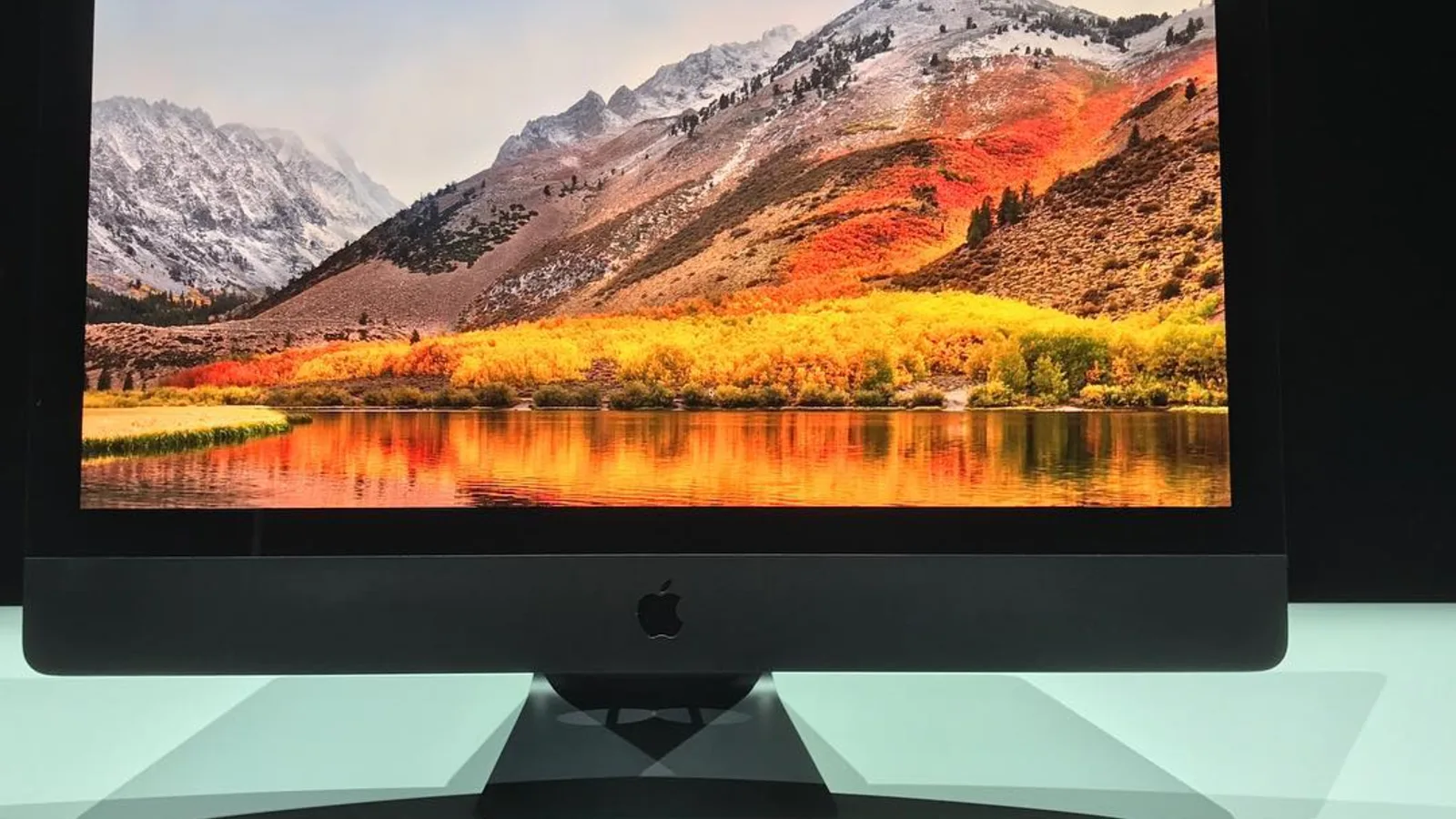
An iMac that overheats is one of the most common desktop jobs on our bench — most weeks we open at least one or two here in Singapore, where 30°C-plus air and humidity give a sealed aluminium desktop very little thermal headroom. The symptom owners describe is almost always the same: the fan climbs to a roar, the back of the screen gets hot, the pointer stutters, and sometimes the iMac simply switches off. This guide is written from those repairs — how to spot real overheating, what causes it on each iMac generation, what you can safely try yourself, and what we actually do when one reaches the workshop.
iMac overheating symptoms: how to be sure
iMac overheating symptoms are easy to confuse with a slow machine or a software bug. The difference is heat and fan noise arriving together, usually under load. Run through this list — if several match, heat is the real problem, not just a tired app.
- A loud, constant fan: a steady rushing-air roar that does not settle even after you close heavy apps. Apple notes fans run faster during intensive tasks and in high ambient heat, but a fan at full speed while the iMac is idle is not normal.
- A hot rear and top vent: the upper-rear exhaust slot and the back of the aluminium get uncomfortably warm to the touch.
- Stuttering, beachballs and throttling: video, exports or games slow to a crawl as the chip slows itself to shed heat.
- Sudden shutdowns or restarts under load: the iMac protects itself by cutting power when it reaches its thermal limit.
- Fans ramping during light tasks: fans climbing while you only browse or type point to trapped heat, a failing fan, or a hidden background process.

Why iMacs overheat
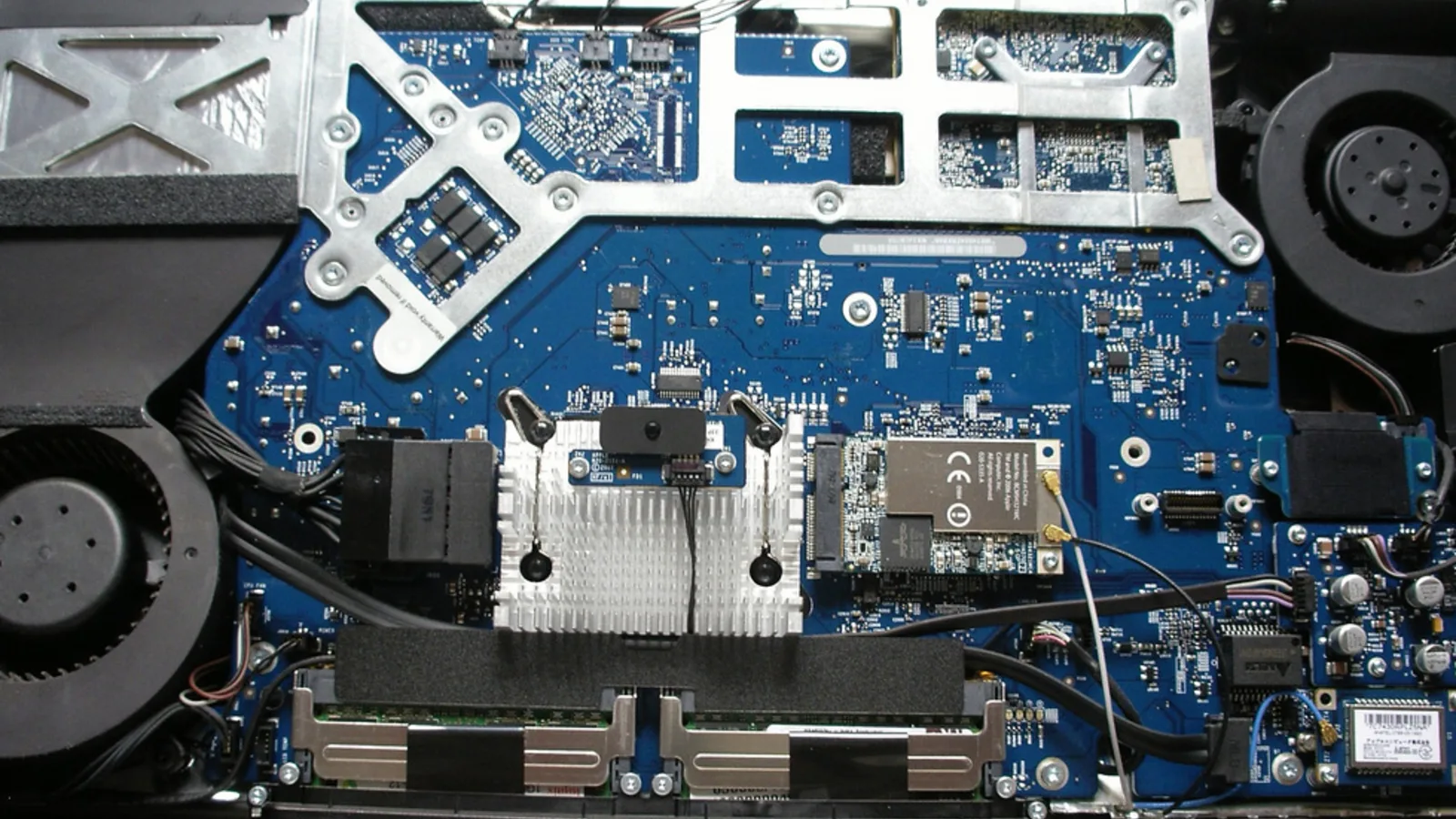
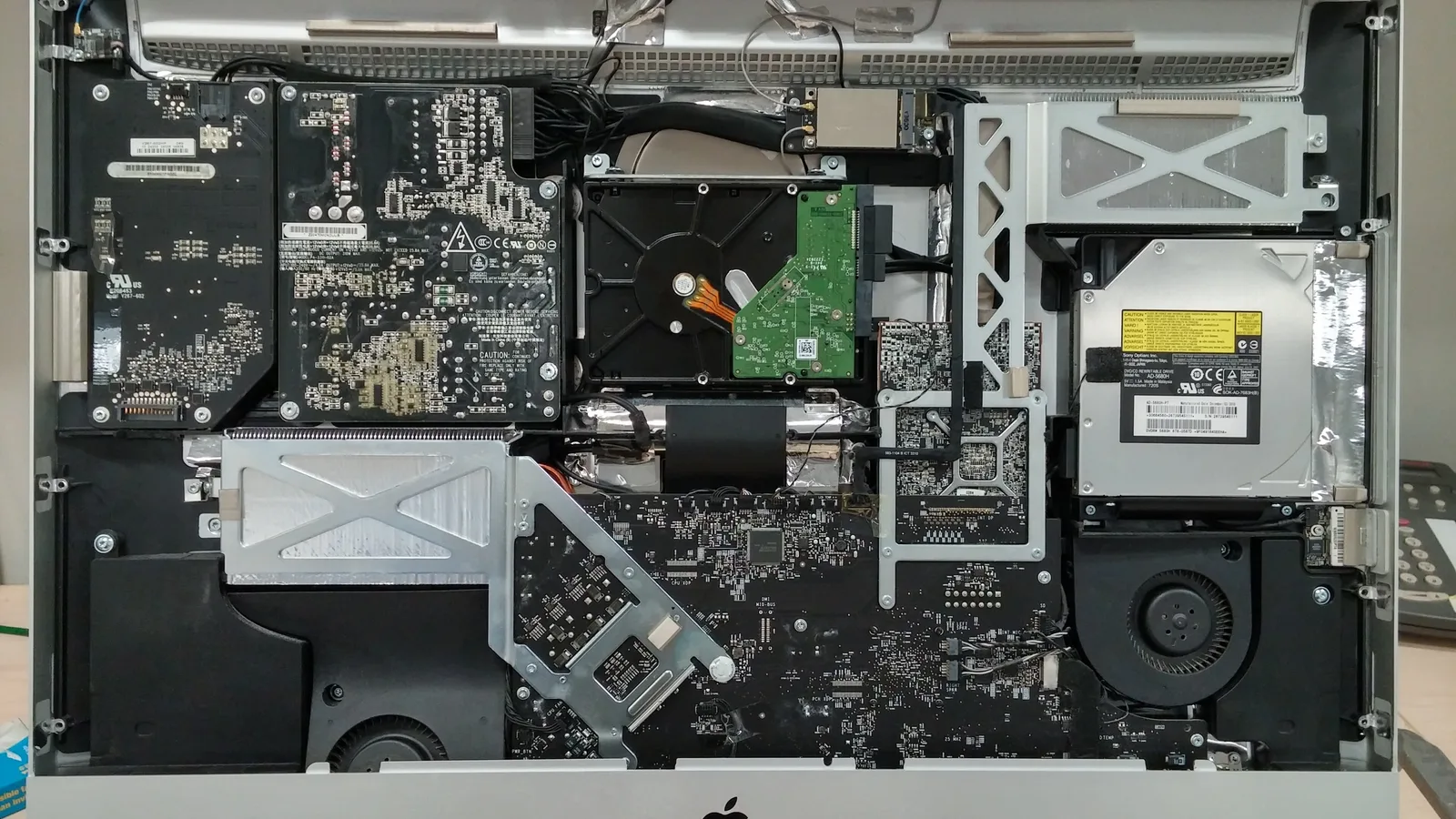
Inside, an iMac moves air with one (or, on the iMac Pro, two) blower fan, pulling cool air through the slot along the bottom edge and pushing hot air out of the vent behind the top of the screen. Anything that chokes that path, or stops heat reaching the fan, makes the iMac run hot. A dust-clogged fan is the single most common cause we see.
- Dust-clogged fan and vents: years of dust pack the intake slot, the blower and the heatsink fins, strangling airflow — common in dusty or humid rooms.
- Dried thermal paste: on Intel iMacs and the iMac Pro, the paste between the processor and heatsink hardens after a few years and stops moving heat efficiently.
- A runaway process: one app or background task pinning the CPU at 100% will heat any iMac, including the coolest M-series models — the first thing to check.
- Blocked airflow: pushing the iMac back against a wall, or sitting it in a warm, enclosed desk nook, chokes the rear exhaust.
- High ambient temperature: Apple specifies a safe operating range of 10–35°C; a hot, un-air-conditioned Singapore room pushes the fan to maximum sooner.
- A failing fan: a worn bearing gets noisy and moves less air, so temperatures climb even when everything is clean.
Find the cause first: check Activity Monitor
Before you assume the worst, find out what is actually making the iMac hot. macOS has the tool built in. Apple's Activity Monitor shows exactly which apps and processes are working the processor, and on an M-series iMac a runaway process is the likeliest cause of all.
- Open Activity Monitor (Applications ▸ Utilities, or search with Spotlight) and click the CPU tab. Apple explains the System, User and Idle figures at the bottom — System is macOS, User is the apps you opened.
- Click the % CPU column to sort, and watch the top of the list. Anything holding 80–100% for minutes is your heat source.
- Check the Energy tab too — it shows which apps are using the most energy over time.
- Quit the offending app (or select it and press the stop button). If the fan calms within a minute or two, you have found it.
- If nothing is pegging the CPU yet the fan still roars, the cause is physical — dust, paste or the fan itself — not software.
Safe steps to try yourself
These steps are safe on any iMac and fix most heat problems that are not yet a hardware fault. Do not try to open the iMac yourself — the screen is glued on, and prising it off risks permanent damage: a cracked panel or a severed display cable. Everything below is done from the outside.
- Quit runaway apps. Using Activity Monitor above, close whatever is pinning the processor, then watch the fan settle.
- Give it air. Pull the iMac at least 10–15 cm clear of the wall, clear clutter from behind it, and make sure the bottom intake slot and rear vent are not blocked.
- Restart. A restart clears a stuck thermal state and any runaway background task — the simplest fix on an Apple-silicon iMac.
- Reset the fan controller on an Intel iMac. Apple's step for excessive fans on Intel Macs is to reset the SMC (the chip that controls power and fans); on Apple silicon a normal restart does the same job.
- Update macOS. A background indexing or sync bug can hold the CPU high; installing the latest updates often ends it.
- Cool the room. Work in air-conditioning during the hottest part of the day to keep the iMac inside Apple's 10–35°C range, and never sit it in direct sun.
But know their limit: these steps clear software and dust-driven heat, but they will not fix a seized fan, dried thermal paste or a board fault — those are hardware faults that need a workshop. If none of them quietens the iMac, the next sections tell you which it is.

iMac overheating by model: M4, 2020 Intel, iMac Pro and older
iMac overheating does not mean the same thing on every model. An M4 iMac that runs hot is a very different problem from a 2020 27-inch Intel iMac or an iMac Pro. Use this table to place your own machine before deciding whether to clean it, change habits, or bring it in.
| Model | How overheating usually shows | Most likely cause | What to do |
|---|---|---|---|
| iMac M1 / M3 / M4 (Apple silicon) | Rare; fan audible only under heavy load | A background or runaway process, not the hardware | Check Activity Monitor and restart; hardware service rarely needed |
| iMac (2020, 27-inch, Intel) | Loud fans under load, throttling on video/export | Dust plus ageing thermal paste; a hot CPU/GPU under sustained load | Clean and re-paste once it is a few years old; check Activity Monitor first |
| iMac Pro | Loud fans and throttling during sustained pro workloads | Dust in the dual blowers and dried paste; heavy sustained load | Professional clean and fresh paste; keep the vents clear |
| Older Intel iMacs (2012–2019) | Constant fan, heat at idle, sudden shutdowns | Years of packed dust and hardened thermal paste | Workshop clean and re-paste; check the fan bearing |
| Any iMac, fan loud at idle | A roar that never settles, even with nothing running | Failing fan bearing or trapped dust | Have the fan inspected and the cooling cleaned |
What we do in the workshop
When to bring it in: if the fan roars even at idle, the iMac shuts down under load, or a clean machine still runs hot after the steps above, stop and let a professional take over. When an overheating iMac reaches our bench in Singapore, we do not guess. We run it under load and measure temperatures, open it properly with the right tools, and inspect the fan, the vents and the paste before quoting anything.
- Thermal service: open the iMac, clean the blower fan and heatsink fins, clear the intake and exhaust, and renew the thermal paste on the processor and GPU.
- Fan replacement: fit a new blower if the bearing is worn or noisy.
- Load testing: run the iMac hard and measure temperatures before and after, so we can prove the heat is actually gone.
- Board-level checks: where a sensor or power fault is driving the fans, we diagnose at component level rather than swapping parts blindly.
- Honest scoping: we deliberately do not quote a fixed price here — the cost depends on whether it is a clean, a fan, or a board fault, and we would rather diagnose first than guess.
Keeping an iMac cool in Singapore
Prevention is far cheaper than a repair, and in Singapore's climate it matters. A few habits keep an iMac inside Apple's safe range and away from the dust that causes most overheating.
- Give the back room to breathe — keep the rear vent clear of walls, shelves and clutter.
- Work in air-conditioning during the hottest hours, and keep the iMac out of direct sun.
- Dust the room and the iMac's vents regularly; less dust in the air means less inside the fan.
- Have the cooling cleaned and re-pasted every couple of years on an Intel iMac or iMac Pro that runs hot.
- Watch Activity Monitor if the fan climbs — catching a runaway app early saves the machine a lot of heat.

Esmond Service Centre's experienced technicians can diagnose and fix it fast — free diagnostics, repairs from $65.