
.jpg)
📑 On this page
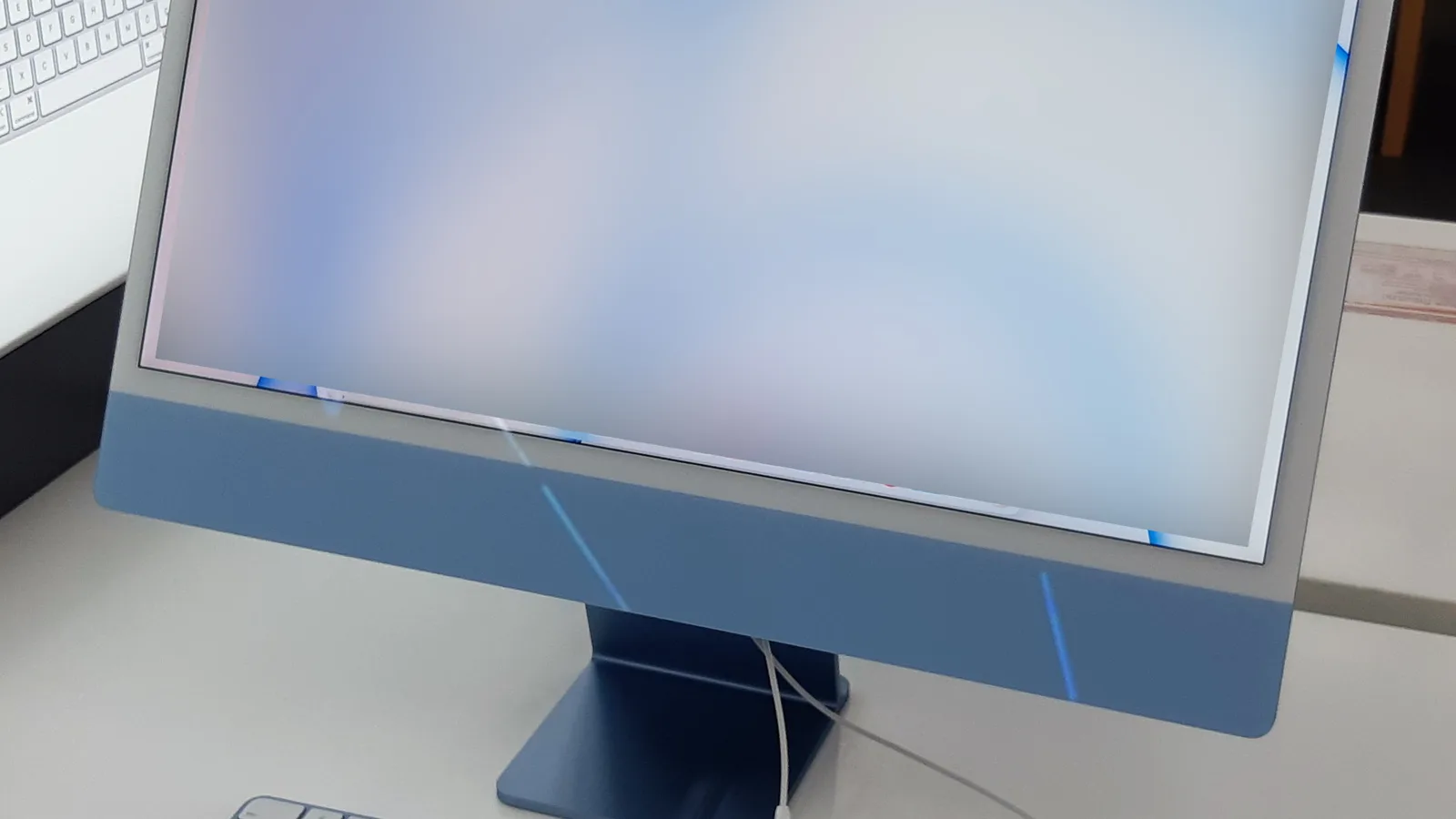
Why your iMac feels slow
When an iMac slows down it rarely means the machine is failing. Apple lists the common causes of a slow Mac plainly: a startup disk with too little free space, an app demanding more memory than you have, an app that is not compatible with your Mac, too many apps running at once, or a disk that needs checking. On an older iMac there is one more that Apple's list does not name — a slow spinning hard drive. Working out which of these you have is the whole game, so start by reading the signs rather than guessing.
- A full startup disk: when free space runs low, macOS has nowhere to write its temporary files and everything crawls — Apple's first listed cause of a slow Mac.
- Not enough memory (RAM): an app may need more memory than your iMac has free, so it leans on the disk and stutters — Apple points you to Activity Monitor to see this.
- Too many apps or login items: apps you are not using, and apps that launch themselves at startup, each take a share of the processor and memory.
- Out-of-date or incompatible software: an old app can misbehave on a newer Mac, and a Mac running an old macOS misses performance and security fixes.
- A slow or failing drive: a spinning hard disk or an ageing Fusion Drive is the single biggest reason a 2012–2019 iMac feels slow — and the easiest to transform.
First, find out what is slowing it down
Before changing anything, find the cause — it saves you fixing the wrong thing. Two built-in tools tell you almost everything. Activity Monitor shows what is eating the processor and memory right now, and the Storage screen shows whether your startup disk is full. Neither costs anything and both ship with every Mac.
- First, open Activity Monitor from Applications > Utilities. The CPU tab shows which app is working the processor hardest; the Memory tab shows Memory Pressure, Memory Used and Swap Used. Apple describes Swap Used as disk space borrowed when RAM runs out — steady swap and high pressure mean your iMac could use more memory.
- Then, check your storage under the Apple menu > System Settings > General > Storage. If the bar is nearly full, that alone can make an iMac slow to respond.
- Finally, watch a slow startup. If the iMac is slow to start up or slow to boot, note how long it sits on the Apple logo and whether apps pop up the moment you reach the desktop — that points at login items, covered below.
Free up the startup disk
If Storage showed a nearly full disk, this is the first fix and often the only one you need. Apple's own guidance is straightforward, and every step here is reversible. Aim to leave a comfortable margin of free space — an iMac that was slow to respond often recovers the moment the disk is no longer full.
- Empty the Downloads folder and the Trash. Apple notes that space is not actually freed until you empty the Trash — a step people skip.
- Delete apps you no longer use, and old iPhone or iPad backups stored on the iMac; these are often the largest single items.
- Move big files to an external drive — photo and video libraries especially.
- Restart in safe mode once to let macOS clear certain system caches, as Apple suggests; they rebuild themselves as needed.
Trim what loads when your iMac starts up
An iMac that is slow to start up, or slow for the first few minutes after boot, is usually carrying too many login items — apps that launch themselves the moment you log in. Apple's own startup-troubleshooting steps are exactly these.
- Open Login Items at the Apple menu > System Settings > General > Login Items & Extensions.
- Note what is there, then remove the ones you do not need at startup with the minus button.
- If startup is badly stuck, Apple's method is to remove them all, restart, then add them back one at a time, restarting after each, until the slow one reveals itself.
Update macOS — and why it speeds things up
Running the latest macOS your iMac supports is one of Apple's own recommendations, for security, stability and compatibility. Updates often include performance fixes, and an app that misbehaves on an old system can settle once everything is current. Back up first, then go to the Apple menu > System Settings > General > Software Update. If your iMac is too old for the newest macOS, that is itself a sign the hardware, not the software, is the limit — which the next two sections are about.

The biggest speed-up: fit an SSD
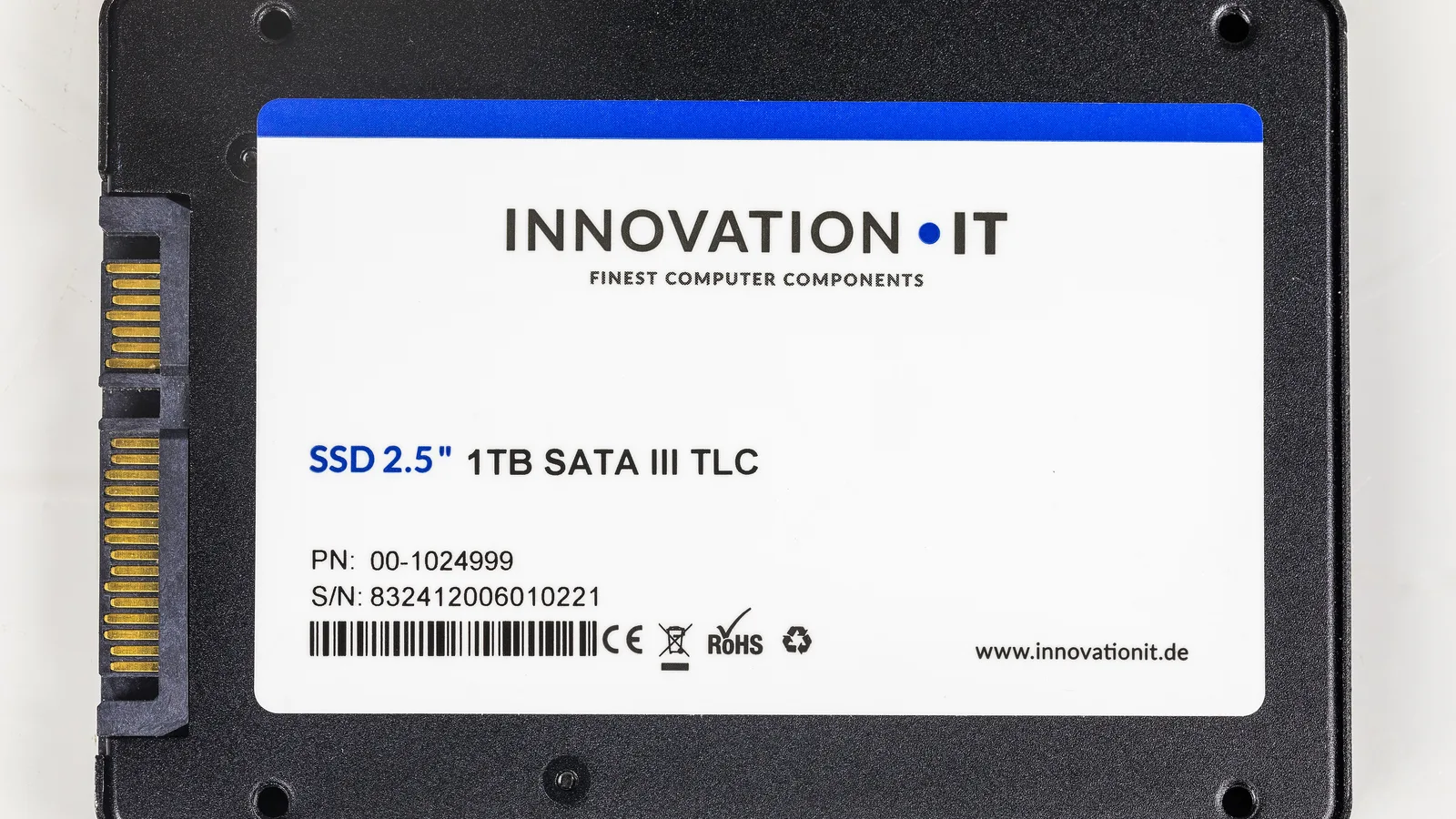
If the free steps helped only a little and your iMac is a 2012–2019 model, the drive is almost certainly the reason. Many of these iMacs shipped with a 5,400 rpm spinning hard disk, or a Fusion Drive that pairs a small SSD with a large hard disk. Both are slow to read and write, and that shows up as an iMac slow to respond, slow to start up and slow under load. Replacing that drive with a solid-state drive is, in our experience, the single biggest speed-up an older iMac can get — the difference between a machine you want to replace and one that feels new.
- What an SSD changes: start-up, waking apps and opening files all become near-instant, because there are no moving parts to wait for.
- Fusion Drive too: a Fusion Drive that has lost its SSD half, or filled up, behaves like the plain hard disk underneath it — moving fully to an SSD removes that ceiling.
- Your files come across: in a workshop the old drive is cloned to the new SSD, so macOS, your apps and your data arrive exactly as they were.

When more memory (RAM) helps — and when it can't
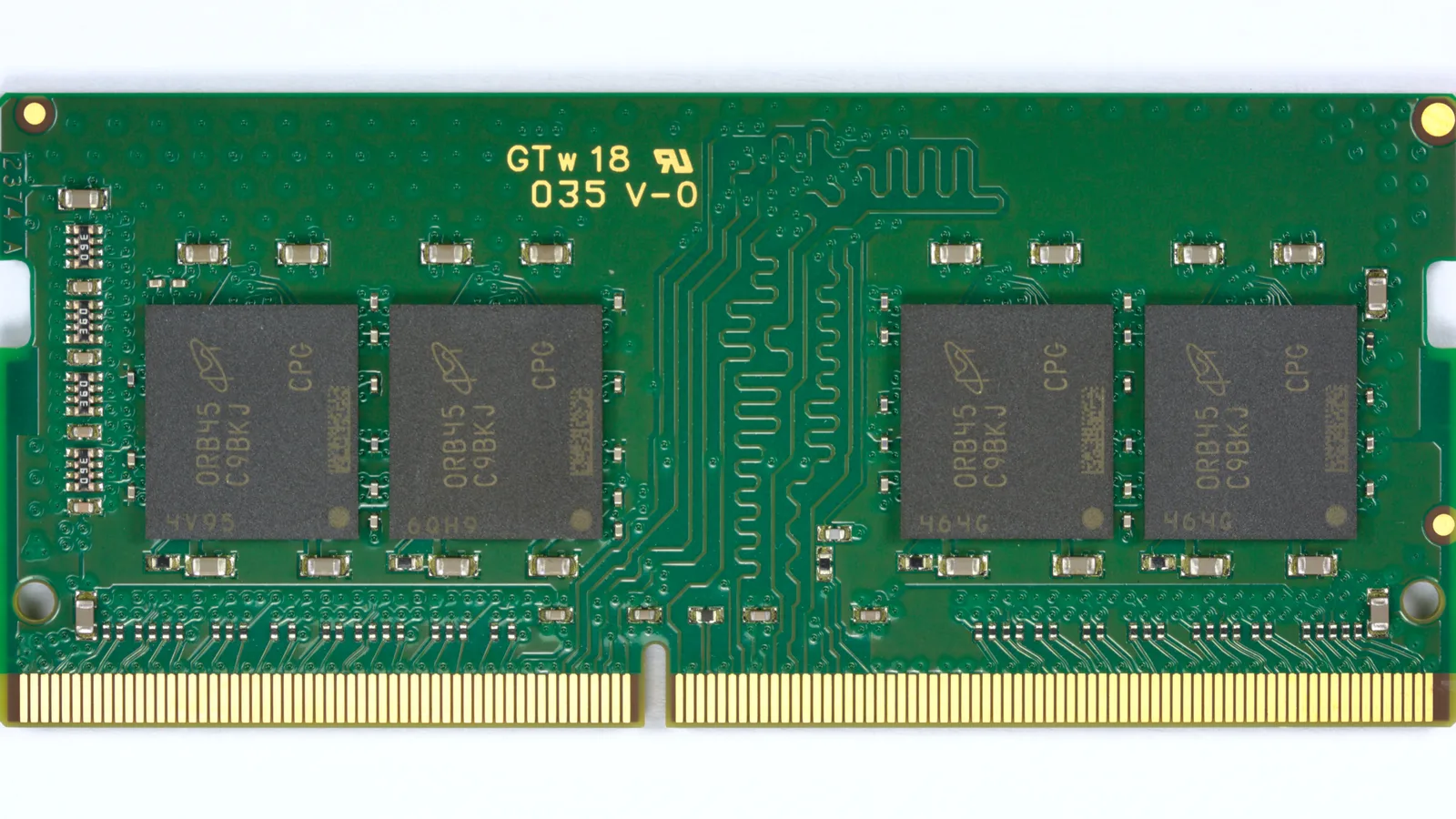
If Activity Monitor showed high memory pressure and steady swap, more RAM will help — but on an iMac, whether you can add it depends entirely on the model, and Apple is specific about this.
- 27-inch iMac (2015–2020): memory is user-accessible through a small door above the power port, and these models can take more RAM.
- 21.5-inch iMac (Late 2012–2019): Apple states the memory is not removable by the user — it is fixed at the amount it shipped with.
- 24-inch iMac (2021 and later): the memory is built into the Apple chip and cannot be upgraded at all, so the amount you bought is the amount you keep.
Check what you have under the Apple menu > About This Mac. If your model cannot take more RAM, the free software steps and an SSD are where the real gains are.
Slow-iMac symptoms and what they point to
Match what you actually see to the most likely cause. It is a starting point, not a diagnosis — a hands-on test confirms the real one.
| What you notice | Most likely cause | Try yourself first | Typical fix |
|---|---|---|---|
| Beachball when opening everyday apps | Full startup disk or too little RAM | Free up space, check Activity Monitor | Storage cleanup, then RAM if the model allows |
| Slow to start up, sluggish for minutes after | Too many login items | Remove login items, restart | Trim startup apps |
| Slow only since an app or macOS update | Incompatible or buggy software | Update macOS, update or remove the app | Software clean-up |
| Everything slow, machine is a 2012–2019 iMac | Spinning hard drive or Fusion Drive | No lasting fix in software | SSD upgrade (drive cloned over) |
| Slow and freezing, with clicking or disk errors | A failing hard drive | Back up now, do not keep using it | Drive replacement and data recovery |
| Hot to the touch, fans loud, then sluggish | Dust or a thermal issue throttling it | Keep vents clear, keep it cool | Cooling service |
What we do in the workshop
When to bring it in: the free steps above cannot fix a failing drive, and the longer a dying drive runs, the greater the risk of permanent data loss — so if you hear clicking or see disk errors, back up, stop, and let a professional take over. When a slow iMac reaches our bench in Singapore, we do not guess. We read Activity Monitor and the logs, check the drive's health and real read-write speed, and test the memory, so we can tell a five-minute software fix from a drive that is on its way out. Most slow iMacs we see are software or a tired drive — not a machine that needs replacing.
- Diagnose first: we confirm whether it is storage, memory, software or a failing drive before touching anything.
- SSD upgrade with your data cloned over: on older iMacs this is the change people notice most.
- Memory upgrade where the model supports it, and a cooling service if heat is throttling it.
- Honest scoping: we deliberately do not quote a fixed price here — it depends on what the diagnosis finds, and we would rather check first than guess.
Keep your iMac fast
A few habits keep a healthy iMac quick for years.
- Leave a comfortable margin of free space on the startup disk — never run it down to the last few gigabytes.
- Keep macOS and your apps updated.
- Review login items every so often and remove what you do not need at startup.
- Restart every few days rather than only putting the machine to sleep.
- Keep the vents clear of dust so it does not overheat and throttle.

Esmond Service Centre's experienced technicians can diagnose and fix it fast — free diagnostics, repairs from $65.