
📑 On this page
Experiencing your Mac slow and unresponsive can significantly disrupt your daily productivity and workflow. From slow boot times to applications freezing or constant spinning beach balls, such performance issues can be incredibly frustrating. Fortunately, many of these slowdowns are solvable, and knowing how to address them can quickly bring your Mac back to peak performance.
At Esmond Service Centre, our technicians bring 16 years of industry experience to diagnosing and resolving Mac performance issues in Singapore. Our team has helped thousands of customers overcome slow and unresponsive Macs, restoring their devices to optimal functionality. In this guide, we'll explore common reasons your Mac becomes sluggish and provide straightforward, actionable solutions you can implement right away.
Work through it in this order. The first three cost nothing but time and account for most slow Macs. The last two are where a real fault usually shows up, so they are worth doing only once the free checks are done.
- Free up storage space — the most common cause, and the quickest to check.
- Update macOS and your apps — updates carry performance fixes you have already paid for.
- Close what is running in the background — Activity Monitor shows what is actually using the machine.
- Scan for malware and clear what it leaves behind.
- Check the hardware last — battery, storage and logic board, starting with Apple Diagnostics.
Issue 1: Insufficient Storage Space
A full hard drive or SSD is a leading cause of a slow, unresponsive Mac. When storage fills up, macOS struggles to manage files and memory. Free space by opening Apple menu > About This Mac > Storage, clicking Manage to delete unneeded files, and moving large items to external or cloud storage.
Solutions:
- Check Storage: Apple menu > System Settings > General > Storage on macOS Ventura 13 or later; Apple menu > About This Mac > Storage on earlier versions.
- Clean Up Storage: Select "Manage" to delete unnecessary files and applications.
- External Storage: Move large files to external drives or cloud storage.
Why it Works: Adequate free storage allows the system to operate smoothly, facilitating quicker data access and file management.
What this will not fix: free space is necessary, not sufficient. Clearing the disk will not repair a drive that is failing, a battery that has stopped holding charge, or a logic-board fault. If your Mac is still slow with plenty of space free, the cause is further down this page.
Issue 2: Outdated macOS and Applications
Running outdated software can lead to compatibility and performance issues.
Solutions:
- Update macOS: Go to System Preferences > Software Update and install available updates.
- Update Applications: Open App Store, click Updates, and apply updates to all listed apps.
- Automatic Updates: Enable automatic updates to keep everything current effortlessly.
Why it Works: Updates include important performance enhancements, security patches, and bug fixes, directly improving speed and responsiveness.
Issue 3: Excessive Background Applications and Processes
Too many applications running simultaneously can overwhelm your Mac.
Solutions:
- Activity Monitor: Launch Activity Monitor from Utilities, identify resource-heavy apps, and close unnecessary ones.
- Manage Startup Items: System Preferences > Users & Groups > Login Items; remove unneeded items.
- Close Browser Tabs: Minimize the number of open browser tabs and extensions.
Why it Works: Reducing background tasks frees up memory and processing power, significantly improving system responsiveness.
Can Faulty or Aging Hardware (Motherboard or Battery) Make a Mac Slow and Unresponsive?
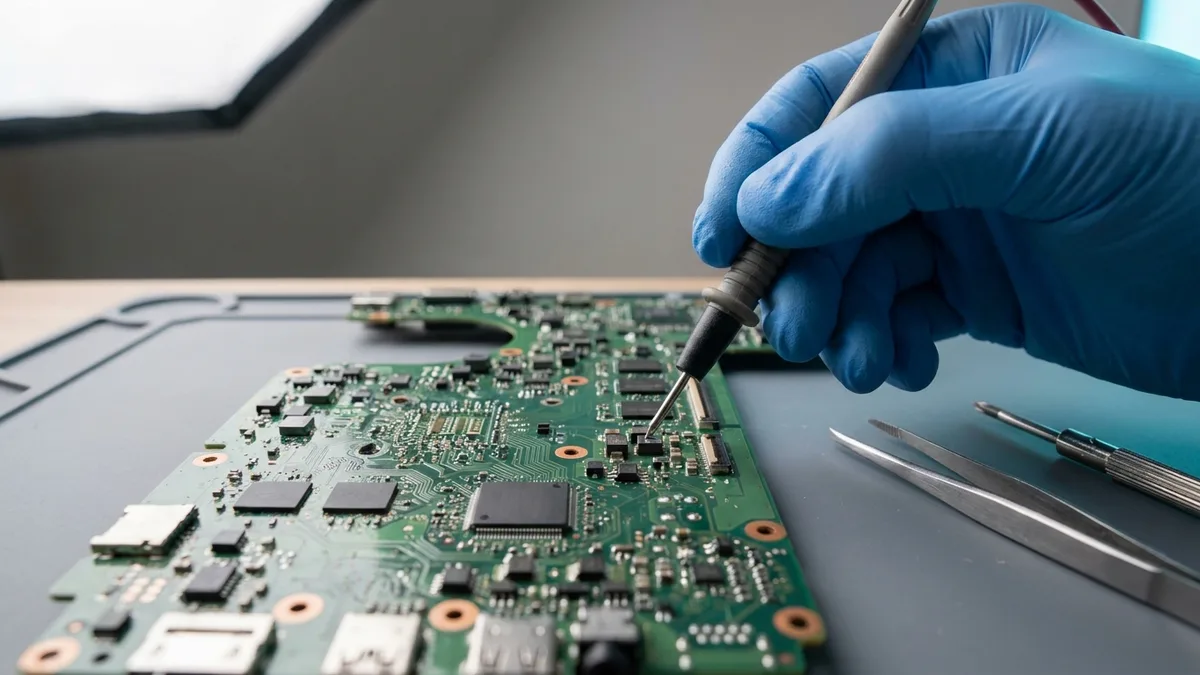
Yes. Aging or faulty hardware—a failing battery, motherboard fault, low RAM, or an old hard drive—can slow your Mac significantly. Run Apple Diagnostics (hold D on restart) and check Battery health in System Preferences. For in-depth motherboard diagnostics and repairs, contact Esmond Service Centre, Singapore’s trusted Mac repair specialists.
What “Service Recommended” actually means. If Battery Health reads Service Recommended, Apple’s position is calmer than most people expect: the battery holds less charge than when it was new, or is not behaving normally. Apple’s own wording is that “You can safely continue to use your Mac, and if the lowered charging capacity is affecting your experience, you can get a service.” It is not an instruction to stop. Apple also limits who should replace a built-in Mac battery — its own authorised channels, an Apple Store, or an Independent Repair Provider using genuine Apple parts — because “Repairs performed by untrained individuals or using non-genuine Apple parts could damage your equipment, and such damage is not covered by warranty.” (Apple Support, 13 May 2026)
Solutions:
- Run Apple Diagnostics: Restart and hold down "D" to launch diagnostics; follow on-screen instructions.
- Check Battery Health: Apple menu > System Settings > Battery (System Preferences on older macOS), then read Battery Health.
- Professional Hardware Check: Contact professionals like Esmond Service Centre for in-depth motherboard diagnostics and repairs.
Why it Works: Ensuring hardware health and upgrading critical components like RAM and storage boosts system responsiveness and performance.
Issue 5: Malware Infection and System Clutter
Malware infections and accumulated junk files severely impact performance.
Before you install a “cleaner”, read this. A cleaner app deletes files on your behalf, and emptying the Bin releases the file along with the space — there is no undo. Apple is blunt about third-party utilities on the adjacent question of battery health: “Third-party apps that report battery health conditions may not be accurate or conclusively indicate diminished system runtime. It’s best to rely on the battery-health information reported by macOS.” Use the tools built into macOS first — they are listed in Apple’s own Free up storage space on Mac (updated 10 December 2025).
Solutions:
- Antivirus Scans: Use reputable antivirus software to scan and remove malware regularly.
- Clear Caches the Supported Way: start up in safe mode, which Apple says clears certain system caches that are then re-created as needed; restart normally to leave safe mode.
- Remove Unnecessary Extensions: Safari > Preferences > Extensions; uninstall unused extensions.
Why it Works: Eliminating malware and unnecessary clutter ensures your Mac operates without interference, significantly improving speed.
When to Stop Troubleshooting and Get the Mac Looked At
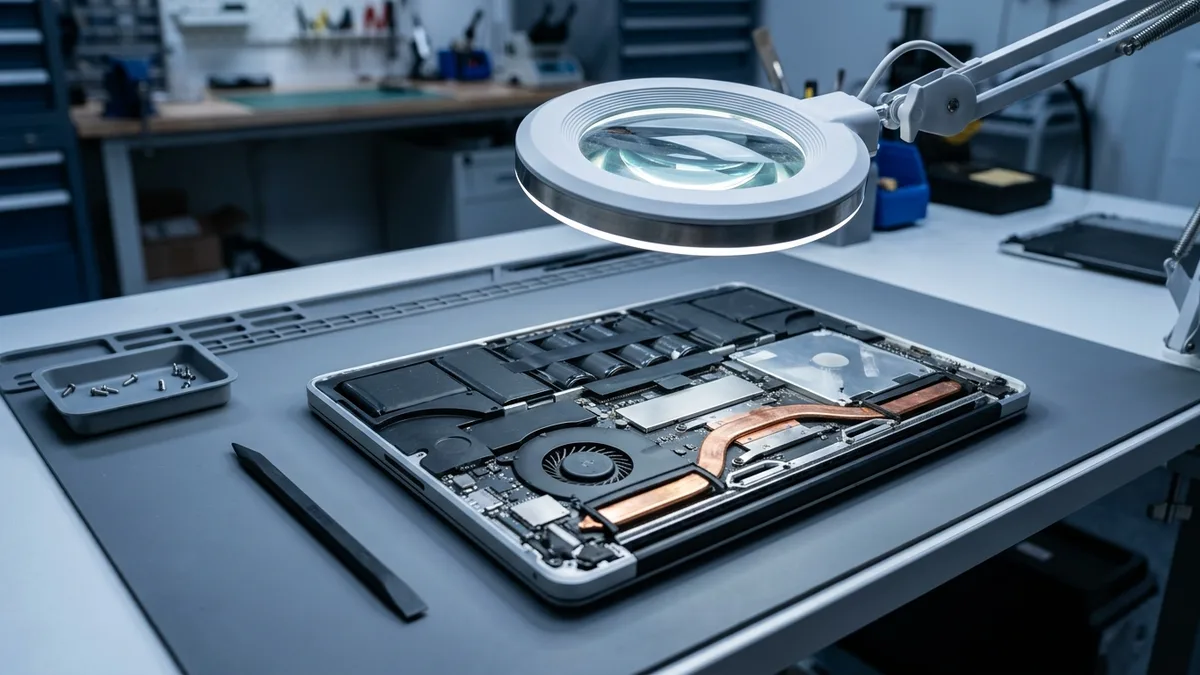
Everything above is software and settings work. Stop, and have the machine checked, if any of these is true: the bottom case or the trackpad no longer sits flat; the Mac has been wet; it shuts down or restarts on its own; an older Mac with a spinning hard drive is clicking or grinding; or Apple Diagnostics returns a reference code. None of the five steps above addresses any of those, because each one is a hardware fault rather than a software one — and the honest cost of guessing is the time you spend on the wrong repair while the real one is still there.
Make Your Mac Fast and Responsive Again – Essential Takeaways
Your Mac being slow and unresponsive can stem from various issues, including insufficient storage, outdated software, too many background tasks, faulty hardware, or malware. Addressing these common problems—clearing storage space, updating software, managing applications, performing hardware checks, and scanning for malware—can restore your Mac to optimal performance. Implementing preventive measures such as regular system maintenance and timely software updates is essential to keep your Mac running smoothly.
Mac Still Slow and Unresponsive? Expert Help Awaits!
Enjoyed this comprehensive guide on resolving your mac slow and unresponsive issue? Follow our Facebook page, LinkedIn profile or Instagram account for more expert insights and practical tips on cutting-edge technology. For professional hardware diagnostics, repairs, or upgrades, contact Esmond Service Centre—Singapore’s trusted tech partner.

Esmond Service Centre's experienced technicians can diagnose and fix it fast — free diagnostics, repairs from $65.