

📑 On this page
A macOS update that hangs on a progress bar, freezes on a black screen, or throws "an error occurred installing macOS" is one of the most common jobs we see on the bench — and the good news is that most of them are recoverable at home without losing a single file. The trick is to work in the right order: wait first, rule out an Apple-side outage, then escalate gently through force restart, Safe Mode, freeing up disk space and finally macOS Recovery.
This guide walks through each step and, crucially, labels which startup keys apply to Apple Silicon Macs (M1, M2, M3, M4, M5 — 2020 onwards) versus older Intel Macs, because Apple changed the startup procedure completely on Apple Silicon. Follow along in order and stop as soon as your Mac boots normally.

Wait first — updates often just look stuck
A macOS update writes thousands of files and, on Apple Silicon, rebuilds the sealed system volume. During that work the progress bar frequently stalls for long stretches or shows misleading estimates like "less than a minute remaining" for far longer than a minute. This is normal — the installer is not frozen, it is just busy.
Before you do anything drastic, look for signs of life:
- The progress bar has moved even slightly in the last 30-45 minutes.
- The screen brightness, fan noise, or the loading bar under the Apple logo changes over time.
- On a laptop, the Mac is plugged into power (updates can pause on low battery).
Give a major update at least one to two hours before deciding it is genuinely stuck. If you started it before bed and it is still on the same screen the next morning with zero movement, then it is time to intervene.
Check for disk activity
If you can still move the pointer, the install may have finished in the background and only the interface is hung. But on most stuck updates the whole screen is frozen — in that case, listen for drive or fan activity and watch the bar. No change for an hour or more usually means it has stalled.
Check Apple's System Status page
A surprising number of "failed" updates are not your Mac's fault at all — Apple's update servers can be overloaded on release day, or a specific service may be having an outage. When the servers are slow, downloads crawl, verification times out, and you get an error that looks like a broken install.
- On your phone or another device, open the Apple System Status page at apple.com/support/systemstatus.
- Look for "macOS Software Update" and the App Store — a green dot means the service is healthy; yellow or red means there is a known issue.
- If a service is down, simply wait a few hours and try the update again later. Nothing is wrong with your Mac.
Release-day congestion is real. If a new macOS version dropped in the last day or two, waiting until off-peak hours often fixes a download that keeps stalling at the same percentage.
Force restart and let the update resume
If you have genuinely waited it out and the screen is frozen, a force restart is safe and is the single most effective fix. macOS is designed to resume an interrupted install, so it usually picks up right where it left off.
- Press and hold the power button (the Touch ID button on most modern Macs) for about 10 seconds, until the screen goes black and the Mac shuts off completely.
- Wait about 10-15 seconds.
- Press the power button once to turn it back on.
- Leave it alone — the installer usually reappears and continues from where it stopped. Give it another hour if needed.
The power-button hold is the same on both Apple Silicon and Intel Macs. If the update resumes and finishes, you are done. If it restarts but hangs again, or you see a prohibitory sign or a black screen with no progress, move on to Safe Mode.
Stuck on the Apple logo instead?
If after the restart your Mac hangs on the Apple logo or a loading bar rather than the update screen, that is a slightly different boot problem — our companion guide on a Mac stuck on the Apple logo covers it in detail. If it will not power on at all, see Mac won't turn on.
Boot into Safe Mode to complete or redownload
Safe Mode starts macOS with only the essentials, runs a quick check of your startup disk, and clears certain caches. It is a great way to break a loop where an update keeps failing — and the startup steps differ between the two Mac families, so use the right one.
Apple Silicon (M1, M2, M3, M4, M5)
- On an Apple Silicon Mac (M1-M5), to enter Safe Mode: choose Apple menu > Shut Down and wait for the Mac to power off fully.
- Press and hold the power button until you see "Loading startup options."
- Select your startup disk (usually "Macintosh HD").
- Press and hold the Shift key, then click "Continue in Safe Mode." Release the Shift key.
- Log in — you may be asked to log in twice.
Intel Macs
- On an Intel Mac, to enter Safe Mode: turn on or restart your Mac, then immediately press and hold the Shift key.
- Keep holding Shift until you see the login window.
- Log in. You may be asked to log in again.
You will know it worked when you reach the login window: Apple's own guidance is that you “may also see ‘Safe Boot’ in red text in the top right-hand corner of the login window” — not in the menu bar, and it may appear only on the second login window if you are asked to log in twice. If you are not sure, hold the Option key while choosing System Information from the Apple menu, then click Software: Boot Mode will read Safe. Once you are in Safe Mode, open System Settings (or System Preferences on older macOS) > General > Software Update and let the update run again. If it downloads and installs cleanly here, restart normally and you are sorted. If it still fails, the download itself may be corrupt — the next step handles that.
Free up disk space and remove a corrupt installer
macOS updates need a lot of free room to download and unpack — often far more than the update's stated size. If your disk is nearly full, the install can fail partway or refuse to start. And a half-downloaded installer that got interrupted can be corrupt, causing the same error every time you retry.
Make room first
- Empty the Trash and restart.
- Open Apple menu > System Settings > General > Storage and clear large files, old downloads, and unneeded apps.
- Aim for at least 15-20GB of free space before you retry — more for a full-version upgrade, which can need well over 20GB.
Delete the stuck installer and re-download
- Go to System Settings > General > Software Update. If it shows a download that is stuck, look for an option to cancel or remove it.
- If you see a file named "Install macOS [version]" in your Applications folder that never finished, drag it to the Trash and empty it.
- Restart the Mac, then return to Software Update and start the download fresh.
- For a full OS install, you can instead download the complete installer for your macOS version from the App Store and run it — this gives you a clean copy, not the partial one that failed.
If your update has been failing repeatedly with an error message, a fresh download after clearing space resolves a large share of cases. Still no luck? macOS Recovery is the strongest option.
Reinstall macOS via Recovery
Reinstalling macOS from Recovery lays down a fresh, verified copy of the operating system while leaving your files and apps in place. It is the standard fix when an update has corrupted the system so badly the Mac will not finish booting. You will need an internet connection, and entering Recovery differs by Mac family.
If your Mac uses FileVault encryption, Recovery or Safe Mode may ask for your login password or recovery key before it continues — have that ready. Once you are in Recovery, you can also open Disk Utility and run First Aid on your startup disk to check and repair the drive before you reinstall.
Apple Silicon (M1, M2, M3, M4, M5)
- On an Apple Silicon Mac (M1-M5), to enter Recovery: choose Apple menu > Shut Down and wait for the Mac to fully power off.
- Press and hold the power button until "Loading startup options" appears, then release.
- Click Options, then click Continue. Enter an administrator password if asked.
- In the utilities window, choose "Reinstall macOS" and follow the onscreen prompts.
Intel Macs
- On an Intel Mac, to enter Recovery: turn on or restart your Mac, then immediately press and hold Command (⌘) and R together.
- Keep holding until you see an Apple logo or a spinning globe, then release. Apple documents both — the spinning globe means your Mac is starting Internet Recovery because it could not use the copy of Recovery on the disk, which is common after an update has damaged the system volume. It is slower, but it is working; leave it connected to Wi-Fi and power.
- In the macOS Utilities window, choose "Reinstall macOS" and follow the onscreen prompts.
A standard "Reinstall macOS" keeps your data — it reinstalls the OS over the top. Do not choose Disk Utility > Erase unless you have a current backup, because erasing wipes everything. If Recovery asks you to select a disk and yours is missing, or the reinstall itself fails, that can point to a deeper storage or logic-board fault — see our MacBook and iMac motherboard repair page. If your Mac unexpectedly restarts mid-install — sometimes with a "Your computer restarted because of a problem" message — that is often a kernel panic (a crash that restarts the Mac); and if you are installing on a much older machine, see installing macOS on an older Mac.
"Gathering information", black screen and other hang points
A few specific hang screens come up again and again on the bench. Here is what each usually means and what to try.
Stuck on "Gathering information"
This appears early in the install while macOS inspects your system. It can legitimately sit for 10-20 minutes. If it is stuck far longer, force restart (hold power for about 10 seconds) and let it resume; if it re-hangs on the same screen, run the update from Safe Mode as above.
Black screen after the update
A black or dark screen with the machine seemingly on is often a display or resume glitch rather than a dead Mac. Try: force restart; make sure the brightness is not turned all the way down; disconnect external monitors and accessories; and on a laptop, make sure it is charging. If it still shows nothing, our Mac won't turn on / black screen guide has the full sequence.
Progress bar frozen at the same percent
Almost always a stalled or corrupt download, or Apple-server congestion. Check the Apple System Status page, then clear space and re-download as described above.
When to let a professional take over
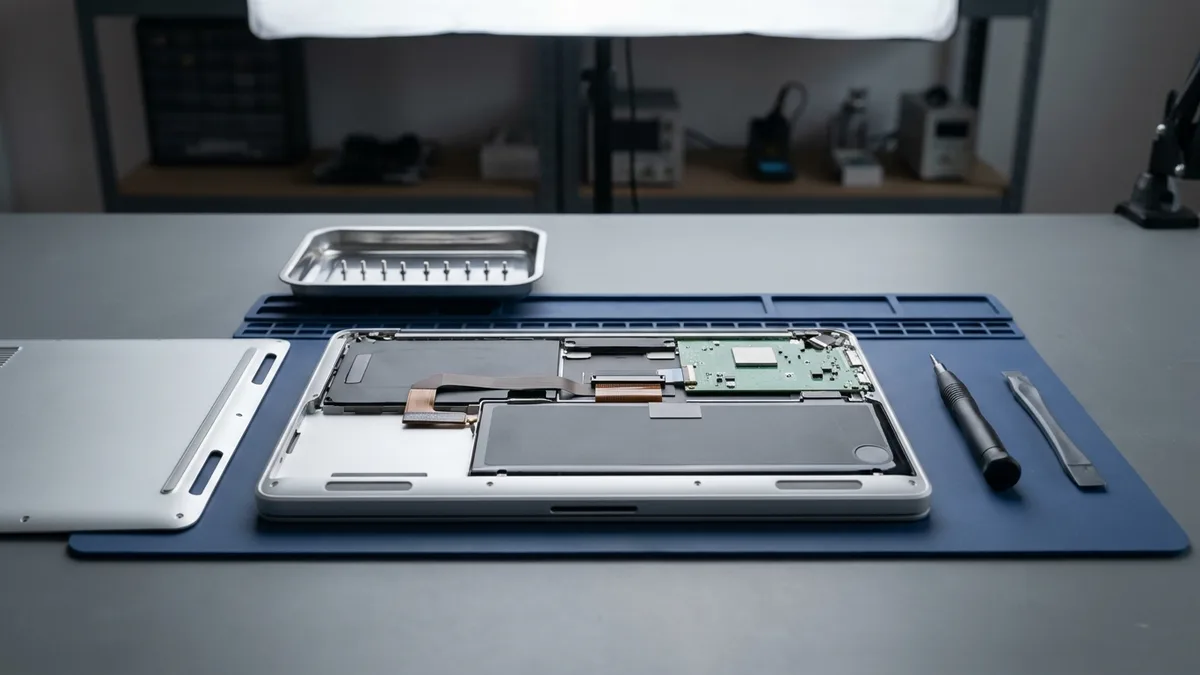
Most stuck updates clear with patience and the steps above. But hand it over to a specialist if: the reinstall in Recovery fails or cannot see your disk; you get repeated errors mentioning the disk or storage; the Mac shuts off or restarts mid-install every time; or you are worried about data you have not backed up. Those symptoms can point to failing storage or a logic-board issue rather than a simple software hiccup — and pushing on can risk your data.
At Esmond Service Centre — an independent Apple repair specialist with a 4.9-star rating — we offer free diagnostics at both our Singapore branches (Alexandra Retail Centre and Sin Ming Lane). Our experienced technicians can complete a broken update, rescue your data first, or diagnose the underlying fault. Start at our macOS repair hub, request a free quote, or contact us on WhatsApp at 8828 8180. If you fear the update has put your files at risk, our data recovery team can help before anything else is attempted. macOS and software repairs start from S$65.

Esmond Service Centre's experienced technicians can diagnose and fix it fast — free diagnostics, repairs from $65.