

📑 On this page
Forgetting your Mac login password is common, and in most cases you can get back in without erasing anything. The important part is choosing the right method for your Mac, because a few steps differ between Apple Silicon Macs (M1, M2, M3, M4, M5 and newer, from 2020 onward) and older Intel Macs, and because some methods have a hidden cost: your saved passwords.
Before you try anything, check one thing: is this a work or school Mac? If your Mac is managed by a company or institution (MDM), you usually cannot reset the password yourself, and you should contact your IT administrator. Forcing a reset can lock you out of company data. If it is your own personal Mac, work through the methods below in order, from least disruptive to most. For related fixes, our macOS repair hub covers the common software lock-outs.

Before You Reset: Make Sure It Really Is the Password
Apple's own instructions start before any reset, because three ordinary things make a correct password look wrong. Each takes seconds, and any of them can end this without touching your account.
Check you are typing the right password
Apple is explicit about this one: enter your Mac login password — not the password, email address or phone number of your Apple Account. They are two different credentials and people mix them up constantly.Check Caps Lock
Passwords are case-sensitive. If Caps Lock is on, the password field shows a Caps Lock symbol — look for it before you try again.Check your keyboard language
Apple says to check the Input menu in the corner of the login window and make sure the keyboard is set to the right language. If your Mac carries a second input source — common here, where many people keep Pinyin, Jawi or Tamil alongside English — the characters you type may not be the ones you think.Restart once, properly
Apple's first step is a clean restart: if there is no restart option on screen, press and hold the power (or Touch ID) button for up to 10 seconds until the Mac turns off, then turn it on again so it starts up to the login window.

Start here: try the hint and the login-screen reset
Do not jump straight to erasing or Recovery — the gentlest fixes live on the login screen and keep your files intact.
Which method should you use?
- Apple ID reset — use if the account is linked to your Apple Account and you have a trusted device to receive a code. Keeps your files.
- Second admin account — use if another administrator account already exists on the Mac. Keeps your files.
- FileVault recovery key — use if you saved the recovery key when you turned on encryption. Keeps your files.
- macOS Recovery — the last resort when none of the above are available. Keeps your files, but resets the login keychain.
- Erase and reinstall — only if every credential is truly lost. This deletes your data.
Click the question mark first
Apple's instruction is to look for the question mark next to the password field and click it — you do not have to guess wrong first. Clicking it may show a password hint you set when the account was created, and it may show a reset message.Take whichever reset message appears
Apple's own examples are "Reset Password" or "Restart and show password reset options" — click whichever message appears to begin the reset, and the screens that follow then ask for whatever your Mac needs: your recovery key, your Apple ID, or which user to reset. ⛔ If you see none, Apple says to check again after entering a password up to three times — and stop there. Repeated attempts can lock the account, and then, in Apple's words, you must "wait until the stated time has elapsed" before trying again.If the prompts ask for more than a password
The flow varies by Mac. Apple names what you may be asked for: your startup disk ("select a volume to recover", usually Macintosh HD); your FileVault recovery key; permission to deactivate this Mac — allow it, Apple states plainly that this is temporary; and permission to create a new keychain — allow that too, and read the keychain section below before you worry about it.Follow the on-screen prompts
You may be asked to sign in to your Apple Account and enter a verification code sent to your other Apple devices, then choose which user to reset and set a new password.
The Apple ID route only works if that user account was linked to your Apple Account and, on newer macOS, if you have another trusted Apple device to receive the code. If nothing appears after several tries, move on to the next method rather than guessing endlessly.

How to reset a Mac admin password from another admin account
If someone else has an administrator account on the same Mac, or you have a spare admin account you can still log in to, this is the cleanest fix and does not touch your files. From that account you can reset the admin password for the locked-out user in a couple of clicks.
- Log in to the other administrator account.
- Open the Apple menu, then System Settings (macOS Ventura and later) or System Preferences on older versions.
- Go to Users & Groups.
- Select the account you are locked out of and choose the option to change or reset the password for that user.
- Set a new password, add a hint, and log out.
One thing to know: even when an admin resets another user's password this way, that user's login keychain still gets locked, because the keychain is protected by the old password. We explain what that means further down.

Use your FileVault recovery key
If you turned on FileVault disk encryption and chose to store a recovery key (Apple describes it as a 24-character alphanumeric code, and it is not the 28-character recovery key you can set on an Apple Account — one cannot stand in for the other) rather than link it to iCloud, you can use that key to unlock the disk and reset your password. This is a different code from your Apple Account recovery key, so check you have the right one.
On Apple Silicon Macs (M1/M2/M3/M4/M5 and newer)
- Power on from a fully shut-down state and wait for the login window.
- Enter a wrong password a few times, or click the ? at the right of the password field, until an option to reset with your recovery key appears.
- Choose the option to reset it using your Recovery Key, then type the recovery key exactly and set a new password.
On Intel Macs
- At the login window, select your user and enter a wrong password until the reset options appear (or click the ? button in the password field).
- Choose the option to reset using your Recovery Key.
- Enter the recovery key, then create a new password.
If you cannot find your recovery key, do not give up on it yet — Apple now publishes somewhere else to look. On a Mac running macOS Tahoe 26 or later, the key "may be available in the Passwords app on one of your other devices": sign that iPhone, iPad or other Mac into the same Apple Account, open Passwords, type "recovery key" in the search field, and if your Mac's name appears, tap the dots in the Recovery Key field to reveal it. If it is genuinely nowhere, try macOS Recovery next. There is no back door to a FileVault key by design; that is the whole point of encryption.

How to reset a Mac password using macOS Recovery
If none of the above worked, macOS Recovery has a built-in password reset assistant. The catch is that entering Recovery is completely different on Apple Silicon versus Intel, so use the right steps for your Mac. Not sure which you have? Click the Apple menu, then About This Mac; a chip named M1/M2/M3/M4/M5 means Apple Silicon, and anything else is an Intel Mac.
Entering Recovery on Apple Silicon
- Shut the Mac down fully. If it will not shut down normally, Apple says to press and hold the power button for up to 10 seconds until it turns off. (On laptops with Touch ID, that is the Touch ID button.)
- Press and hold the power button again and keep holding it until you see "Loading startup options" — or the Options icon, which is what appears on some models — then release.
- Click Options, then the Continue button that appears beneath it. If asked to select a volume to recover, choose your startup disk (usually Macintosh HD).
Entering Recovery on Intel
- Turn on or restart the Mac.
- Immediately press and hold Command (⌘)-R.
- Keep holding until the Apple logo or a spinning globe appears, then release. If asked to select a network, choose one from the Wi-Fi menu — Intel Recovery often needs it.
If the keys do nothing, it is probably the keyboard
Apple's own troubleshooting for this: on a Mac laptop use the built-in keyboard, not an external one. If your keyboard is wireless, plug it in if you can, or borrow a wired one. An external keyboard may also need a few seconds after power-on before the Mac recognises it, so wait a moment before pressing the keys.
Once you are in Recovery
macOS Recovery includes the Reset Password assistant (the resetpassword tool). Once you reach the screen asking you to pick a user you know the password for:
- When you are asked to select a user you know the password for, click "Forgot all passwords?" and follow the prompts.
- If you were not offered those steps, open Utilities > Terminal from the menu bar, type
resetpasswordand press Return. In the window that opens, Apple says to choose a reset option first — "I forgot my password" or "My password doesn't work when logging in" — then click Next and follow the prompts. - Choose your user, set a new password and hint, then quit and restart.
- If asked for a FileVault recovery key or your Apple Account credentials, provide them to continue.
If your Mac keeps looping or never reaches Recovery, the problem may be a deeper boot fault rather than the password. Our macOS repair hub covers those startup issues, and we offer free diagnostics if you would rather have it checked.
The last resort: erasing the Mac, and what it costs you
⛔ Read this before you do it. Apple's own words: erasing "will permanently remove each user account, its password and its data from your Mac". If anything on that Mac matters and you have no backup, stop here — a locked account is not the same as a lost disk, and a technician can often still read the drive. Once you erase, that option is gone.
Start Recovery again and choose Erase Mac
Shut the Mac down, start up from macOS Recovery again, and when it asks you to select a user you know the password for, choose Erase Mac from the Recovery Assistant menu at the top of the screen — not from the main window.Confirm, and let it restart
Click Erase Mac, then click Erase Mac again to confirm. Apple says the Mac restarts by itself once it is done.If it restarts to a question mark
Turn the Mac off, start up from macOS Recovery again, then reinstall macOS from Recovery. A flashing question mark means there is no system left to boot, which is expected after an erase.If it restarts to an Activate Mac window
Choose a Wi-Fi network from the Wi-Fi menu, then enter your Apple Account details when asked — Apple is specific that this is the Apple Account, not your old login name and password. Once activated, click Exit to Recovery and reinstall macOS.

The honest catch: your new login keychain
This is the part that surprises people most. When you reset a password without knowing the old one, macOS cannot unlock your existing login keychain, because that keychain was encrypted with the old password. So it quietly creates a brand-new, empty login keychain.
- Wi-Fi and website passwords, secure notes and certificates stored in the old keychain may become inaccessible.
- Apps that relied on those saved credentials may ask you to sign in again.
- Your actual documents, photos and files are not deleted by a password reset; it is the saved-password vault that is affected.
- If you later remember the old password, you may be able to unlock the old keychain in the Keychain Access app, so do not rush to delete it.
A few other things to expect: on a Mac with Activation Lock or FileVault, you may be asked for the linked Apple Account credentials or recovery key. There is no way around these by design. If you have truly lost every credential, the only way back in may be to erase the Mac, which does delete your data. Before you commit to that, it is worth a free second opinion, and if the files matter, ask about data recovery first.
When to let a professional take over
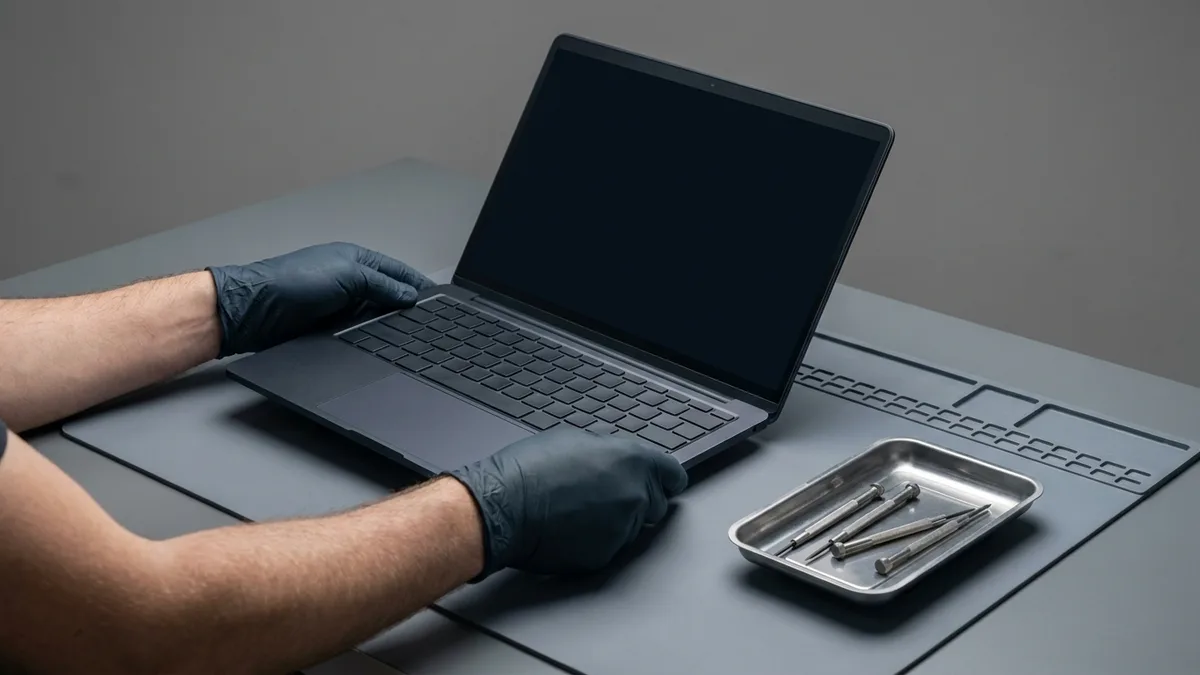
If you have tried the hint, the Apple ID reset, a second admin account, the FileVault recovery key and macOS Recovery and still cannot get in, stop before you erase anything, because erasing deletes your data permanently.
Bring it to Esmond Service Centre for free diagnostics at our Alexandra Retail Centre (ARC) or Sin Ming Lane branch, or WhatsApp 8828 8180. Our Apple-trained technicians can check whether the account, FileVault or Activation Lock is the blocker and, where files are at risk, advise on data recovery first.
For a no-obligation assessment you can request a free quote; we will tell you straight what is recoverable before any work begins.

Esmond Service Centre's experienced technicians can diagnose and fix it fast — free diagnostics, repairs from $65.