
📑 On this page
A kernel panic is the Mac equivalent of a hard crash. macOS hits an error it cannot safely recover from, so it stops everything and reboots, then greets you with the grey message "Your computer restarted because of a problem." A single panic out of the blue is usually nothing to worry about. Panics that repeat, or a Mac that reboots in a loop, mean something specific is wrong and it is worth tracking down.
On our repair bench in Singapore we see kernel panics caused by everything from one flaky USB-C dongle to failing memory or a tired logic board (Apple's name for the main board — what most people call the motherboard). The good news is that most panics are software or accessory related, and you can isolate them at home with a methodical process. The steps differ between Apple Silicon Macs (M1/M2/M3/M4/M5, 2020 onwards) and older Intel Macs, because their startup key combinations are completely different. For the full range of macOS problems we handle, see our MacBook and macOS repair hub.
What a kernel panic actually is
The "kernel" is the core of macOS. A kernel panic happens when that core encounters a fault it cannot recover from safely, so rather than risk your data it halts and restarts. That is why the screen may briefly go dark or show a message before the Mac reboots on its own. It is a protective mechanism, not a virus.
After the restart you usually see a dialog: "Your computer restarted because of a problem. Press a key or wait a few seconds to continue starting up." If you click Report, macOS shows a technical panic log. You do not need to understand all of it, but two things are worth a glance:
- A named process, driver or extension near the top of the log, which often points at the culprit.
- Any third-party kernel extension name (often ending in
.kext) or a vendor name such as a VPN, antivirus, or audio-driver maker.
One panic after a specific action (waking from sleep, plugging in a device) is a useful clue. Constant panics that stop you using the Mac are what we call a panic loop, and that is when you should work through the steps below.
First: is it one panic or a loop?
Your first move depends on whether the Mac is usable between crashes.
If it panicked once and is working now
- Dismiss the message and note what you were doing when it happened (a particular app, an external drive, waking from sleep).
- Save your work and restart normally so caches clear.
- Carry on using the Mac. If it never recurs, you can stop here.
If it keeps restarting or loops before you can log in
You need a stable environment to work in, and that is Safe Mode. Safe Mode loads only Apple's essential software, skips login items and third-party system extensions, and clears certain caches, so if a panic loop stops in Safe Mode you have strong evidence the cause is software or an add-on rather than the hardware. If your Mac never even reaches the desktop, our companion guides on a Mac that will not power on and a Mac stuck on the Apple logo cover those specific symptoms.
Start in Safe Mode (Apple Silicon vs Intel)
The way you enter Safe Mode is different on each type of Mac, so check which you have first: click the Apple menu and choose About This Mac. If it lists a Chip (for example Apple M2), you have Apple Silicon. If it lists an Intel Processor, follow the Intel steps.
Apple Silicon (M1/M2/M3/M4/M5, 2020 onward)
- Shut the Mac down fully. If it will not shut down, hold the power button for up to 10 seconds until it turns off.
- Press and hold the power button until you see "Loading startup options".
- Select your startup disk (usually Macintosh HD).
- Press and hold the Shift key, then click Continue in Safe Mode and release Shift.
- Log in. With FileVault on you may be asked to log in twice. You should see "Safe Boot" in the menu bar.
Intel Macs
- Shut the Mac down fully.
- Turn it on and immediately press and hold the Shift key.
- Release Shift when the login window appears. "Safe Boot" should show in the top-right corner of the login screen.
Use the Mac in Safe Mode for a while and try to reproduce the crash. If it stays stable, the fault is almost certainly software or an accessory, so continue with the sections below. Restart normally to leave Safe Mode.
Update macOS and your apps
A large share of panics come from a version mismatch: an old macOS build, or an app or driver that has not been updated for your current macOS. Updating both is the single most effective fix.
- Open System Settings (or System Preferences on older macOS) → General → Software Update and install any pending macOS update.
- Update your apps from the App Store, and for apps installed from the web, download the latest version directly from the developer.
- Pay special attention to low-level tools: VPN clients, antivirus, disk utilities, audio interfaces, virtualisation apps and external-GPU drivers are the usual panic suspects.
If the update itself gets stuck or the Mac panics during it, our guide on a macOS update that is stuck or failed walks through recovery without losing data.
Remove problem extensions, login items and apps
Third-party kernel extensions (the older .kext type) and system extensions (the modern replacement) load deep inside macOS, so a bad one can panic the whole system. Login items and recently installed apps are the next most common cause. Work through this checklist:
- Think about what changed just before the panics started: a new app, a driver, a security tool, a printer or scanner package. Uninstall it using the maker's own uninstaller where possible, not just by dragging it to the Trash.
- Remove startup add-ons: System Settings → General → Login Items & Extensions, then switch off items you do not recognise and any third-party extensions.
- If the panic report named a specific
.kextor vendor, uninstall that software first. - Restart and see if the panics stop. Re-enable items one at a time so you can pin down the exact offender.
Because Safe Mode already blocks these extensions, a Mac that is calm in Safe Mode but panics normally is telling you the problem lives in this list.

Isolate external devices and dongles
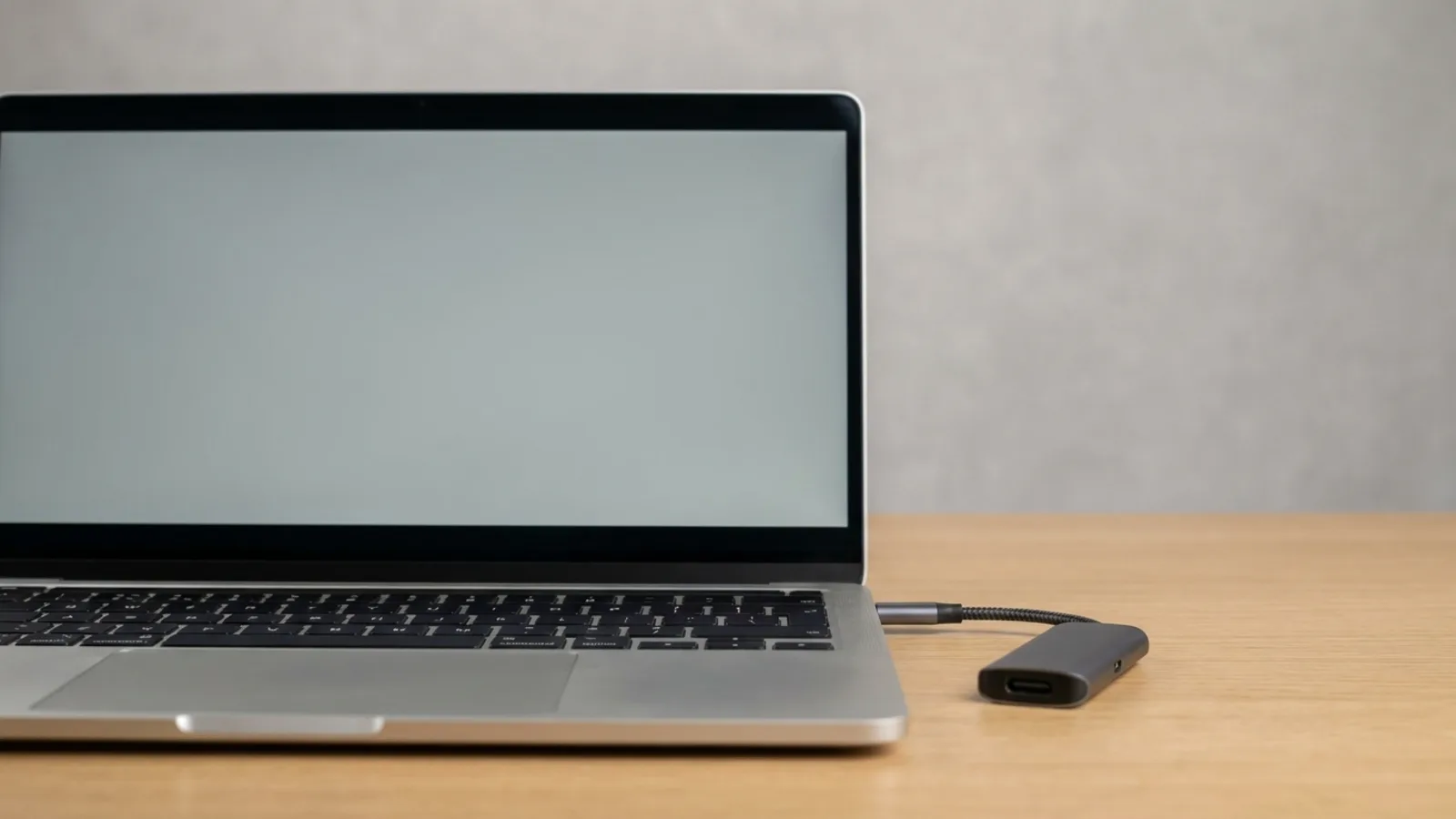
A surprising number of "the mac keeps restarting" cases on our bench come down to one accessory: a failing hub, a cheap USB-C dongle, a dock, an external drive with a dodgy cable, or a display adapter. Faulty power delivery or a shorting cable can trigger a panic instantly. To find a faulty accessory, unplug everything and reconnect one item at a time:
- Shut down and unplug everything except the charger, keyboard and mouse (and the display on a desktop).
- Use the Mac like this. If the panics stop, an accessory is the cause.
- Reconnect devices one at a time, using the Mac for a while after each, until the panic returns. The last device you added is the suspect.
- Swap the cable or dongle for a known-good one before blaming the device itself; cables fail far more often than people expect.
Check disk space, then run Apple Diagnostics
A nearly full startup disk can cause instability and panics. Check System Settings → General → Storage and free up space if the disk is nearly full, since macOS needs room to work. Then let Apple's built-in hardware test check the memory and other components. Before you start, disconnect all external devices except keyboard, mouse, display and power.
Apple Silicon (M1/M2/M3/M4/M5, 2020 onward)
- Shut the Mac down fully.
- Press and hold the power button until "Loading startup options" appears, then release.
- Press and hold Command (⌘)-D until the Mac restarts into Apple Diagnostics.
Intel Macs
- Turn the Mac on and immediately press and hold the D key.
- Release D when you see a progress bar or are asked to choose a language. If D does not work, shut down and try Option (⌥)-D instead.
Apple Diagnostics runs automatically and returns reference codes. Write them down before you restart, because the exact code decides what can be done next. ADP000 means no issue was found. A code beginning with PPM points at the memory, and Apple's own reference list splits it in a way that matters: PPM001 reads "There may be an issue with a memory module" — the removable kind fitted to older Intel Macs — while PPM002 to PPM016 read "There may be an issue with the onboard memory", which on an Apple silicon Mac is part of the chip and cannot be swapped out. Any result suggesting service is a strong hint that your RAM, storage or logic board needs a professional look.
Reset NVRAM (Intel) and, as a last resort, reinstall macOS
Reset NVRAM — Intel Macs only
On Intel Macs, corrupted settings stored in NVRAM can occasionally contribute to startup misbehaviour. Shut down, turn the Mac on and immediately hold Option-Command-P-R for about 20 seconds, then release and let it start normally. Apple silicon Macs have no NVRAM reset. Apple's own instructions say the steps "don't apply to Mac computers with Apple silicon, and aren't needed on those computers", so there is no key combination to press — skip this step entirely.
Reinstall macOS
If panics persist across every step above and Apple Diagnostics found nothing conclusive, a clean macOS reinstall from Recovery is the last software fix. Reinstalling the operating system over the top of your files does not normally erase your data, but any serious repair carries risk, so back up to Time Machine first if the Mac is stable enough to do so. If you are on an older machine that will not take the current macOS, see our guide on installing macOS on an older Mac.
If a reinstall still panics with nothing attached, you have effectively ruled out software, and the cause is hardware.
When it is failing RAM, SSD or the logic board
Some panics are purely hardware. Tell-tale signs are panics that continue in Safe Mode with every accessory removed, that persist after a clean macOS reinstall, or that Apple Diagnostics flags with a memory (PPM) or service code. Common culprits we repair on a MacBook or iMac are:
- Failing RAM — random panics unrelated to any app, sometimes worse when the Mac is warm. On older Intel Macs with removable memory this can be a single module; on modern Macs the memory is soldered to the board.
- A degrading SSD — panics during reads and writes, files that go missing, or slow, stalling performance.
- Logic-board faults — power-delivery problems, liquid damage, or a failing component that no software step can cure.
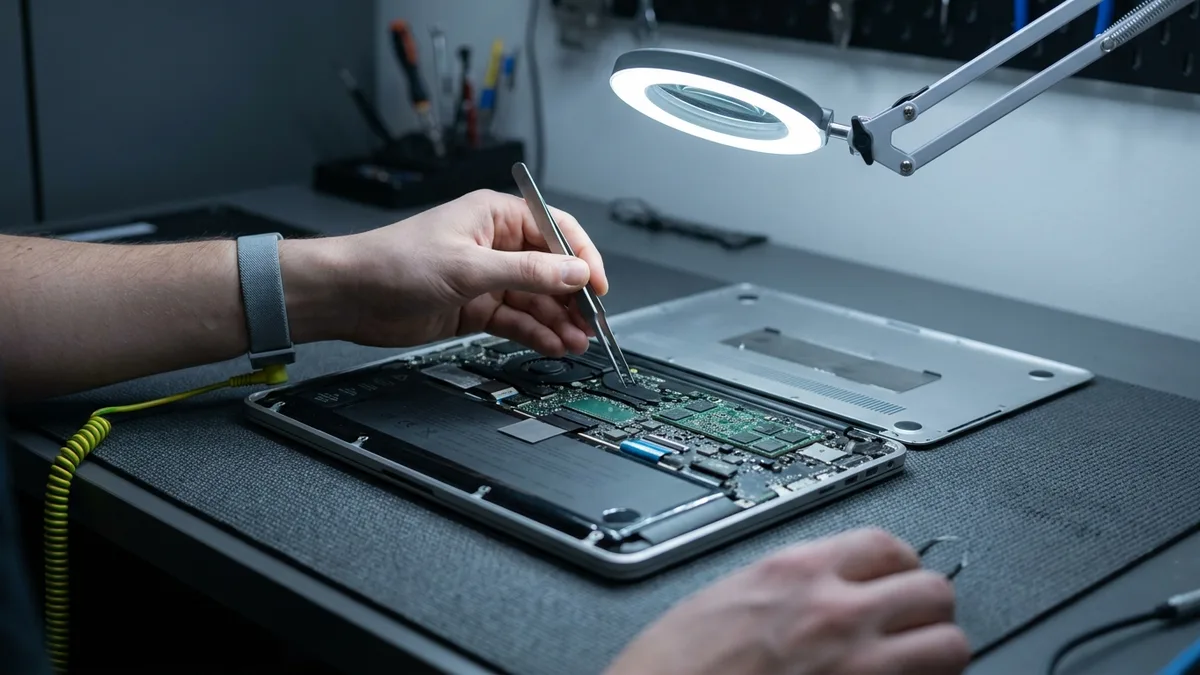
These are board-level diagnoses rather than DIY fixes. Our MacBook and iMac motherboard repair team handles component-level work, and if you have noticed disappearing files alongside the panics, act early, because our data recovery service exists for exactly the point where a drive starts to fail.
When to let a professional take over
If your Mac keeps panicking in Safe Mode with every accessory unplugged, or Apple Diagnostics returns a memory (PPM) or service code, the cause is likely hardware and worth a professional look.
Bring it to Esmond Service Centre for free diagnostics at our Alexandra Retail Centre (ARC) or Sin Ming Lane branch. Our senior Apple repair specialists will read the panic logs and test the RAM, SSD and logic board. macOS and software repairs start from S$65.
Not sure what you are dealing with? Request a free quote or message us on WhatsApp at 8828 8180, and we will tell you honestly whether it is a quick software fix or a board-level repair.

Esmond Service Centre's experienced technicians can diagnose and fix it fast — free diagnostics, repairs from $65.