

📑 On this page
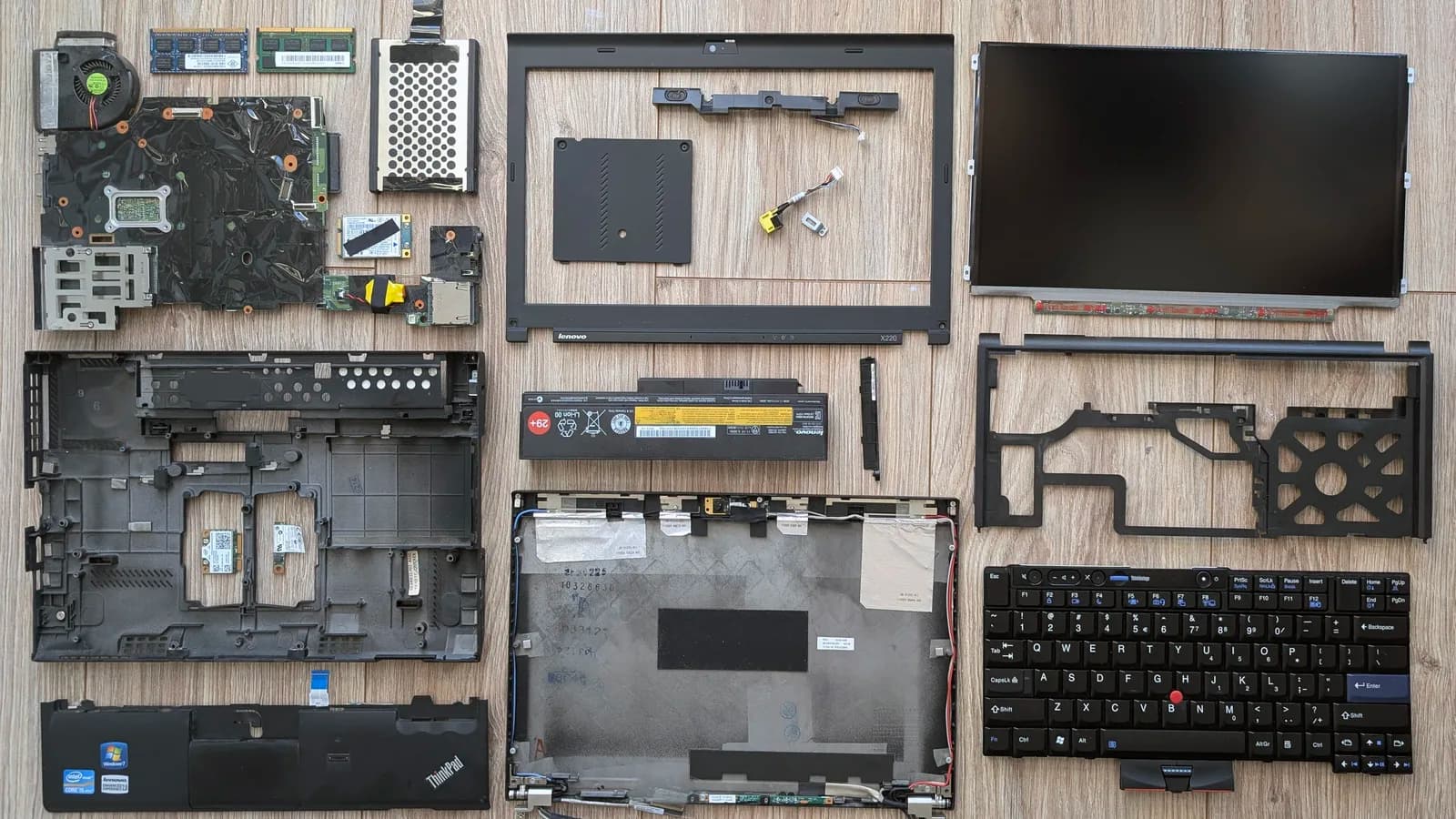
“I replaced my laptop screen and now it won't turn on” is one sentence with two claims in it: that you replaced the screen, and that it won't turn on. Both matter, because a screen swap means opening the whole machine — unclipping the battery, threading a ribbon cable through the hinge, levering off a bezel — and every one of those steps can leave the laptop looking dead while the motherboard is perfectly fine. This page sorts the fault the way we do at the bench: first deciding which kind of “won't turn on” you actually have, then the short list of things a swap disturbs, then the checks that fix most of them without a single new part.
First, which “won't turn on” do you have?
“Won't turn on” is four different faults wearing the same face, and each has a different first move. Watch the lights and listen for the fan for the first ten seconds after you press power, and match what you see to the table below. If it powers up but the screen stays black, that is a different problem with its own tests — our guide on a laptop screen that is black but still running covers that one.
| What you're seeing | What it usually means | The test that settles it |
|---|---|---|
| No lights, no fan, nothing at all | A power path broken during the swap — most often the battery connector left unseated, or trapped flea power | Drain the flea power, then reseat the battery connector |
| Power or charge light on, but the fan and disk never spin | The board isn't completing start-up — a pinched cable, a rail loaded by a bad panel, or board damage from the work | Unplug the new screen's cable and try to start it headless |
| It powers, the fan spins, but the screen stays black | The display cable is loose, or the new panel is dead or incompatible — the computer itself is fine | External-monitor test, then refit the old screen |
| It turns on for a second, then dies | A short — a pinched ribbon, a trapped screw, or a cable in the wrong socket | Open it and check nothing is trapped or misrouted |
Notice that only one of those four rows is really about the screen. The other three are about what a screwdriver did on the way in and out. That is the honest shape of this fault: the new panel is the last thing that broke it, not usually the first.

The five things a screen swap most often disturbs
Every one of these is something we have found on a bench after a customer's own swap, and every one is on the primary repair guides too. They are listed in the order they most often bite.
- The battery connector, left half-seated. Nearly every modern laptop has you unplug the internal battery before working near the board. If it clicks back in at a slight angle, the machine reads as stone dead. Press it home squarely along its whole length.
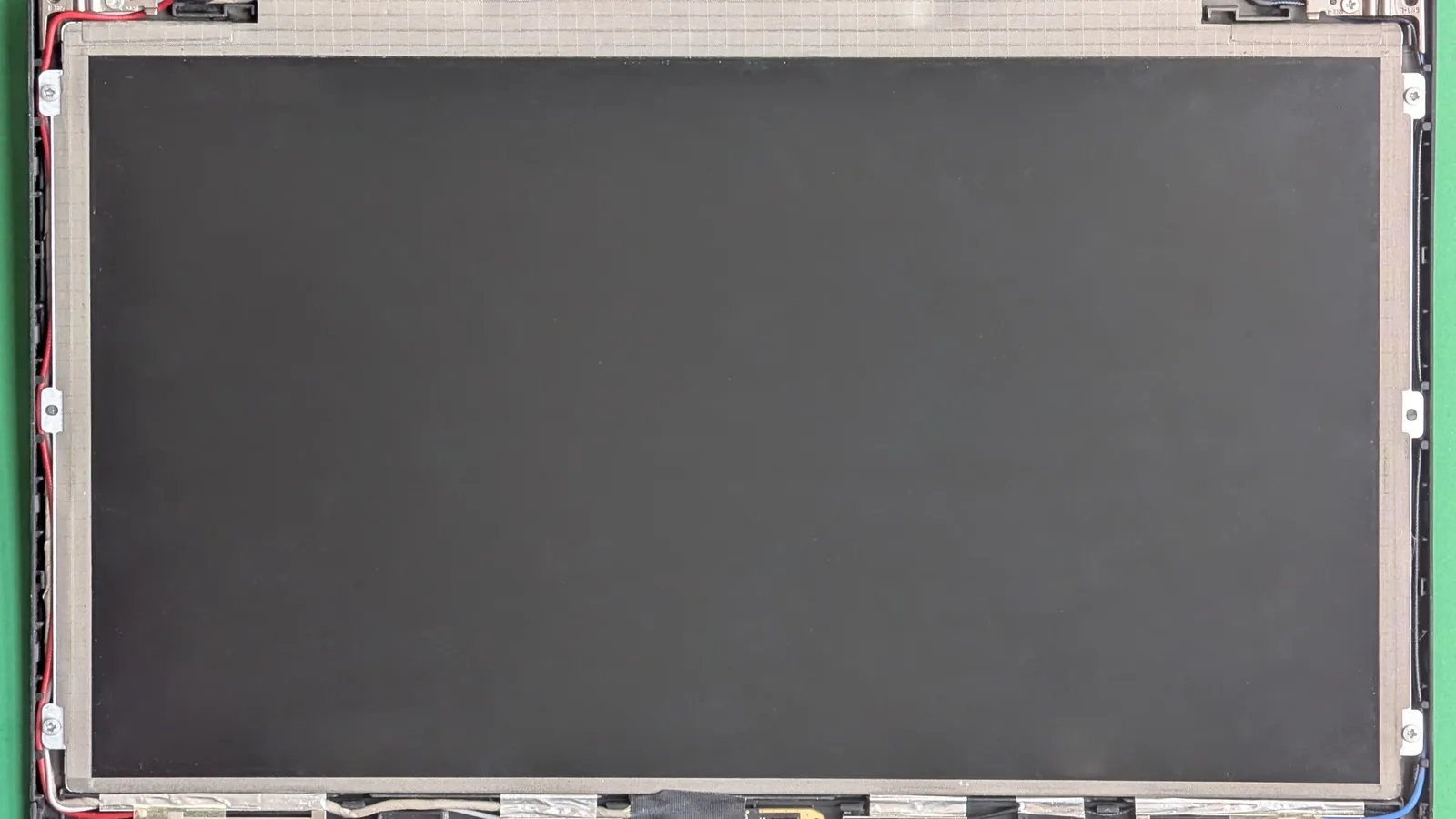
- The display cable, not fully home. The panel's ribbon (the eDP — the cable that carries the picture — or LVDS cable) must seat all the way into its connector at both ends. Repair guides put it plainly: “the video cable has to be seated properly, all the way down into the connector.” A cable a hair loose gives a black screen; one dislodged at the board can stop a boot.
- A pinched or misrouted cable, shorting. Route the ribbon back exactly where it came from. A cable trapped under a bracket, or pushed into the wrong nearby socket, can short a rail — the machine that powers on for a second and dies is often this.
- A wrong or incompatible panel. Two screens can look identical and still differ in revision, connector, or backlight wiring. As the guides warn, “if the screen looks identical, it doesn't exactly mean it's compatible.” The wrong part may not power the display, and occasionally holds the whole machine back.
- A defective new panel loading the board. It is rare, but a faulty screen can pull on the voltages the motherboard checks at start-up and prevent it booting at all — which is why refitting the old screen is such a useful test.
Do these checks, in this order, before you conclude it's dead
- First, drain the flea power. Unplug the charger, remove the battery if it is removable, disconnect any USB devices, then press and hold the power button for 15–20 seconds. Dell's own guide says this drains the “residual or static electricity (also known as flea power)” that the board's capacitors hold even when off. Reconnect and try again.
- Then, reseat the battery connector and the display cable. Open the laptop again and press both firmly back into their sockets, along the full length of each connector. These two account for most no-boots after a swap.
- Next, check the cable routing for a pinch or a short. Follow the display ribbon from the hinge to the board and make sure nothing is trapped under a bracket, pinched by a screw, or pushed into a neighbouring socket. Fix the routing before you power on.
- Then, try to start it with the new screen's cable unplugged. Disconnect the display cable at the board and press power. If the fan spins up and the disk light flickers to life headless, the computer is fine and the fault is in the display path — the cable or the new panel, not the board.
- Finally, refit the old screen, cracked or not, and test an external monitor. If it boots with the old panel, the new one is faulty or wrong. If an external monitor shows a picture, the board and graphics are healthy and the lid is where the fault lives.

When it's the board, not the cable
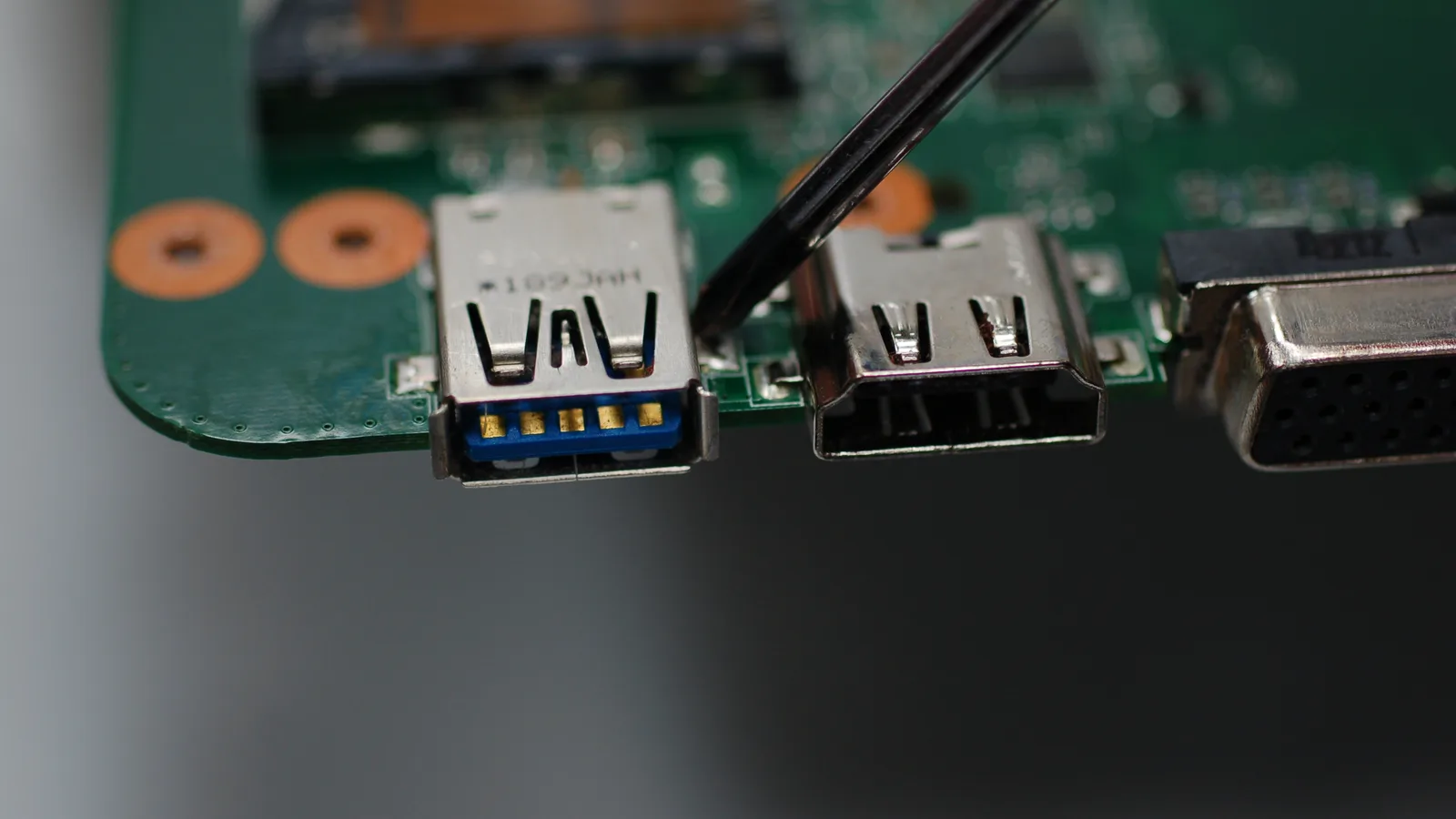
Sometimes the checks run out and the machine is still dead, and that is worth being honest about. A real owner on a repair forum described the harder case exactly: after replacing a cracked screen, the “power light and charging light comes on, but the fan doesn't start spinning, nor the HDD.” With the LEDs lit but nothing turning, the fault had moved past the panel to the board itself — the likely culprit a voltage regulator or a fuse knocked out during the work. That repair was judged not worth the cost, and the owner was steered to a replacement instead. LEDs on, fan silent, no external picture, nothing gained by reseating: that combination is the one that points at board damage rather than a loose cable, and it is the outcome a careful swap is trying to avoid.
When to stop opening it yourself
- The battery is swollen. If the trackpad sits proud, the base bows, or the lid won't close flat, stop. A pressurised lithium cell is a fire risk and needs very little force to puncture.
- You smell burning or saw a spark. That means a short has already found a path. Powering it again to “check” risks turning a repairable board into a scrapped one.
- The ribbon connector looks damaged. Display connectors are smaller than a grain of rice and their pins bend or tear easily. A damaged one usually needs a technician, not another push.
- An external monitor shows nothing either. Once you know the machine started, a blank external screen points past the display and towards the board. That is a bench job — bring it in or WhatsApp us, and diagnosis is free.
What it costs to put right in Singapore
What you pay depends entirely on which of the faults above the tests find, so the honest figures are ranges, not one headline price. These are the numbers published on our own service pages. Prices are before GST and depend on the model and panel. Our published promise on this work is short: “Free diagnosis, no fix no fee, 90-day warranty, OEM parts direct from the makers.” We are at Alexandra and Sin Ming.
| What the tests pointed at | What we quote | How long |
|---|---|---|
| A dead or wrong panel — a screen assembly | S$186 – S$590 | Most within 1–2 hours |
| Board damage from the swap — chip-level repair | From S$186, quoted after a free diagnosis | Quoted after diagnosis |
| A loose or reseated cable — nothing broken | Often just the diagnosis | Same visit |
| Diagnosis, to find which of the above it is | Free | Same visit |
The costly mistake is guessing. Ordering a second new panel for a laptop whose board was actually knocked in the swap spends money that fixes nothing, because a new screen cannot fix a damaged board. Send us the model and the results of two tests — does it start with the display cable unplugged, and does an external monitor show a picture — and we can usually tell you which repair you are looking at before you travel.

Esmond Service Centre's experienced technicians can diagnose and fix it fast — free diagnostics, repairs from $65.